Attendance via Meeting Invitation & Email
If you would like to invite Sally manually - without using automatic meeting attendance - you can do so just like you would invite any other colleague.
Sally has a dedicated email address. Simply add this address as a guest to your meeting invitation or send an email containing the specific meeting details, and Sally will join the meeting as a bot to create notes, generate summaries, and capture action items.
Quick Navigation:
1. How to invite Sally via meeting invitation
1.1. Before the meeting
-
Copy this email address: invite@sally.io
-
Create a new meeting using your calendar or email application.
-
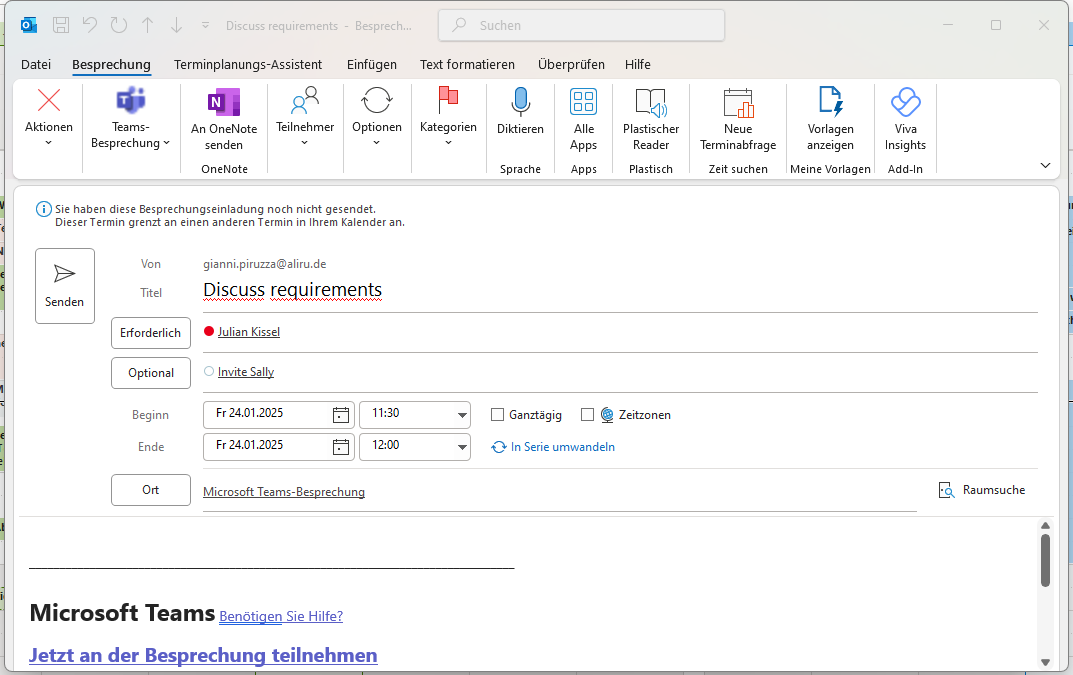
Add the copied email address to the guest list (CC), as shown below:
-
Save the meeting.
-
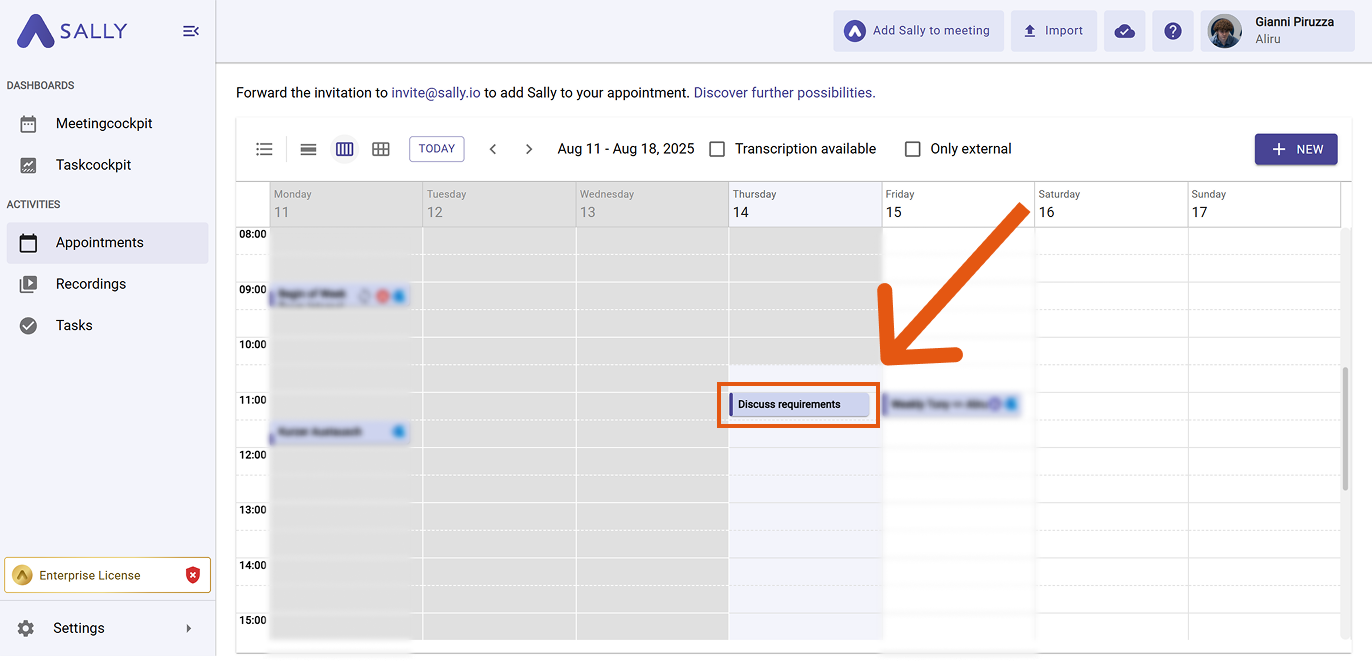
Once the invitation has been sent, the meeting will appear in Sally’s calendar.
The invitation process is now complete — Sally will automatically join the meeting as a participant.
1.2. During the meeting
You can also invite Sally during an ongoing meeting.
We demonstrate the process here using Microsoft Teams as an example — however, the same principle applies to Zoom, Google Meet, Webex, or any other platform: simply add Sally as an additional participant.
How it works (example: Microsoft Teams):
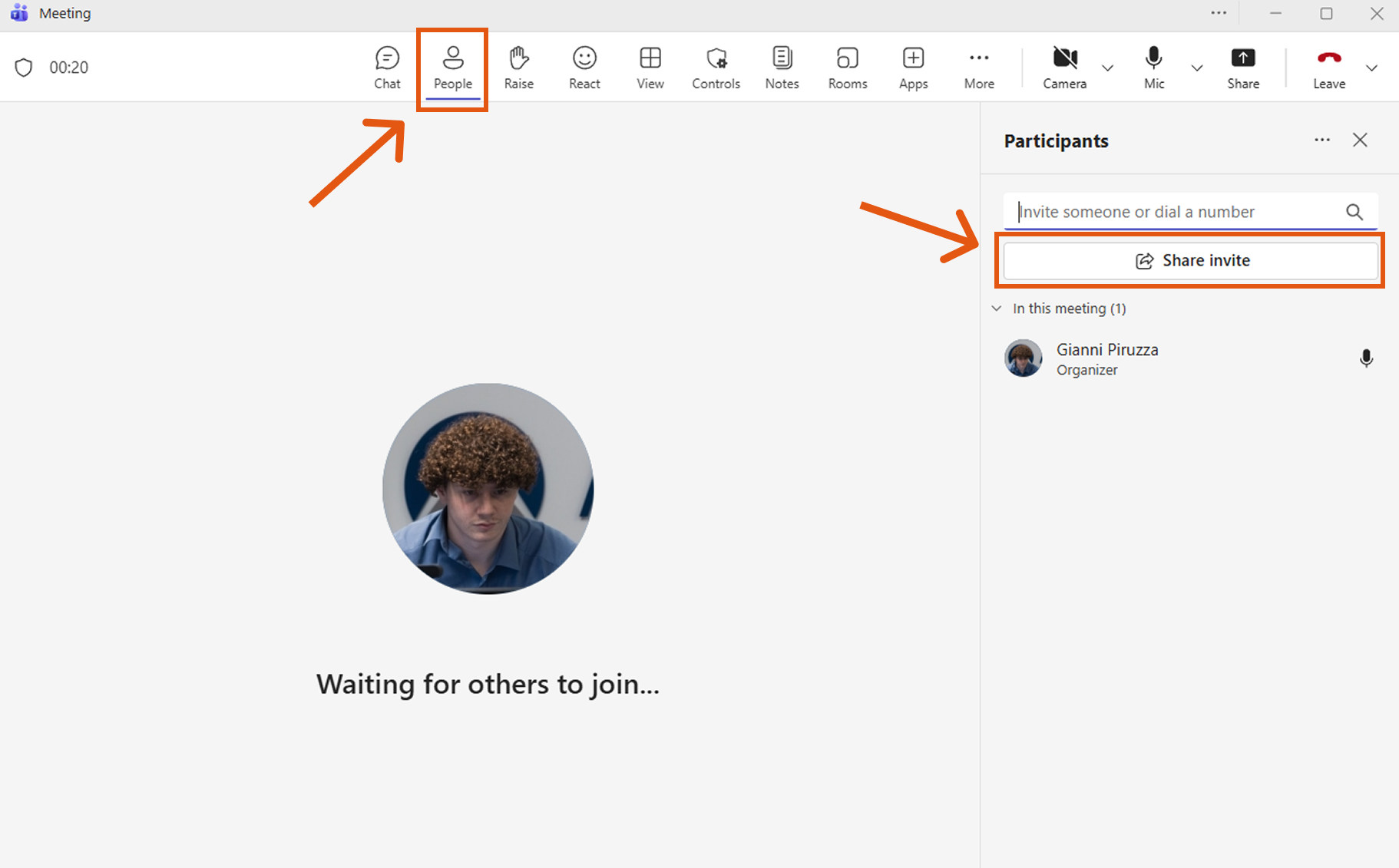
- Open the participant panel by clicking the “People” icon.
- Click "Share invite".
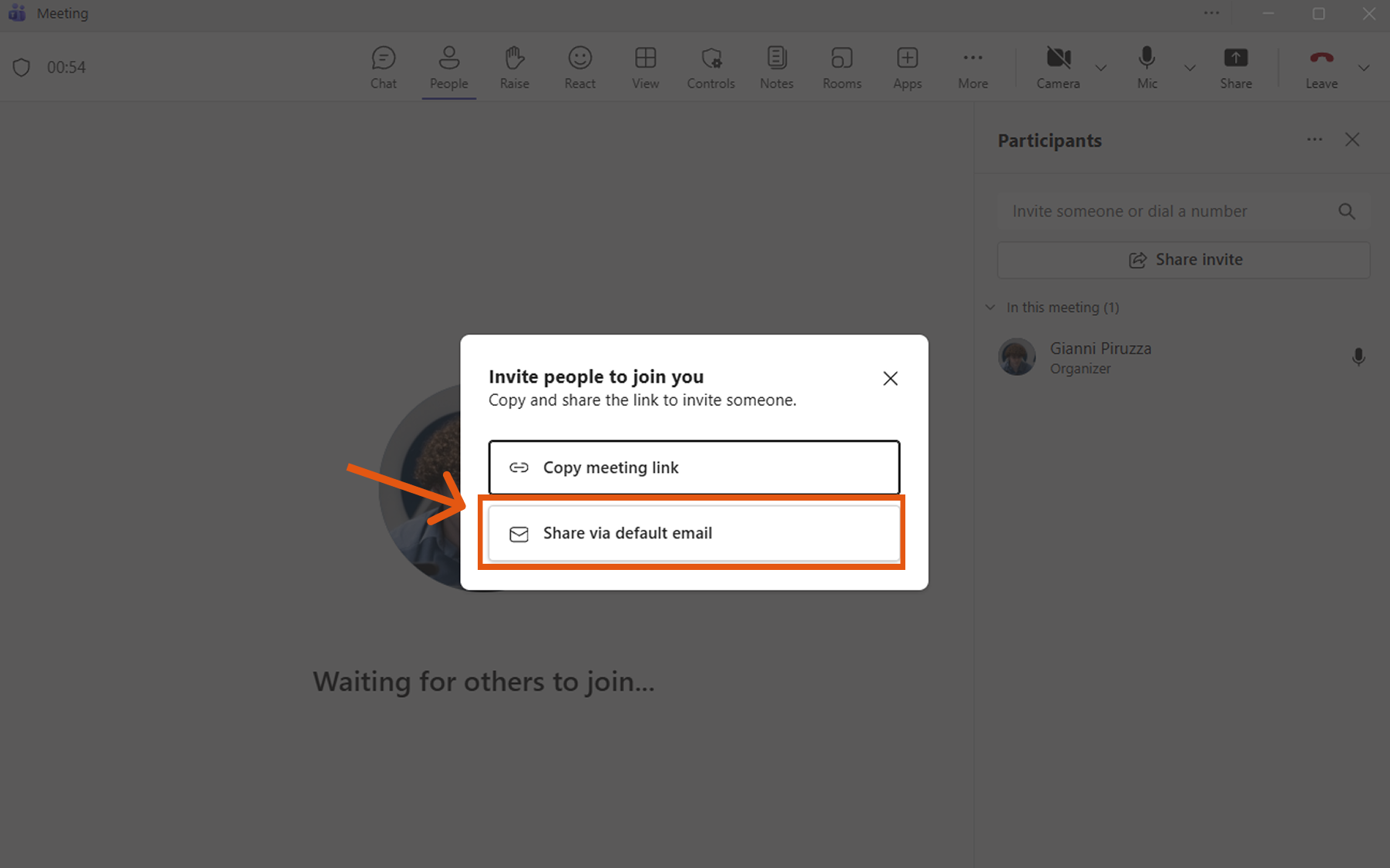
- Click “Share via default email”.
- Your email client will open automatically. Add Sally’s invitation address:
invite@sally.io
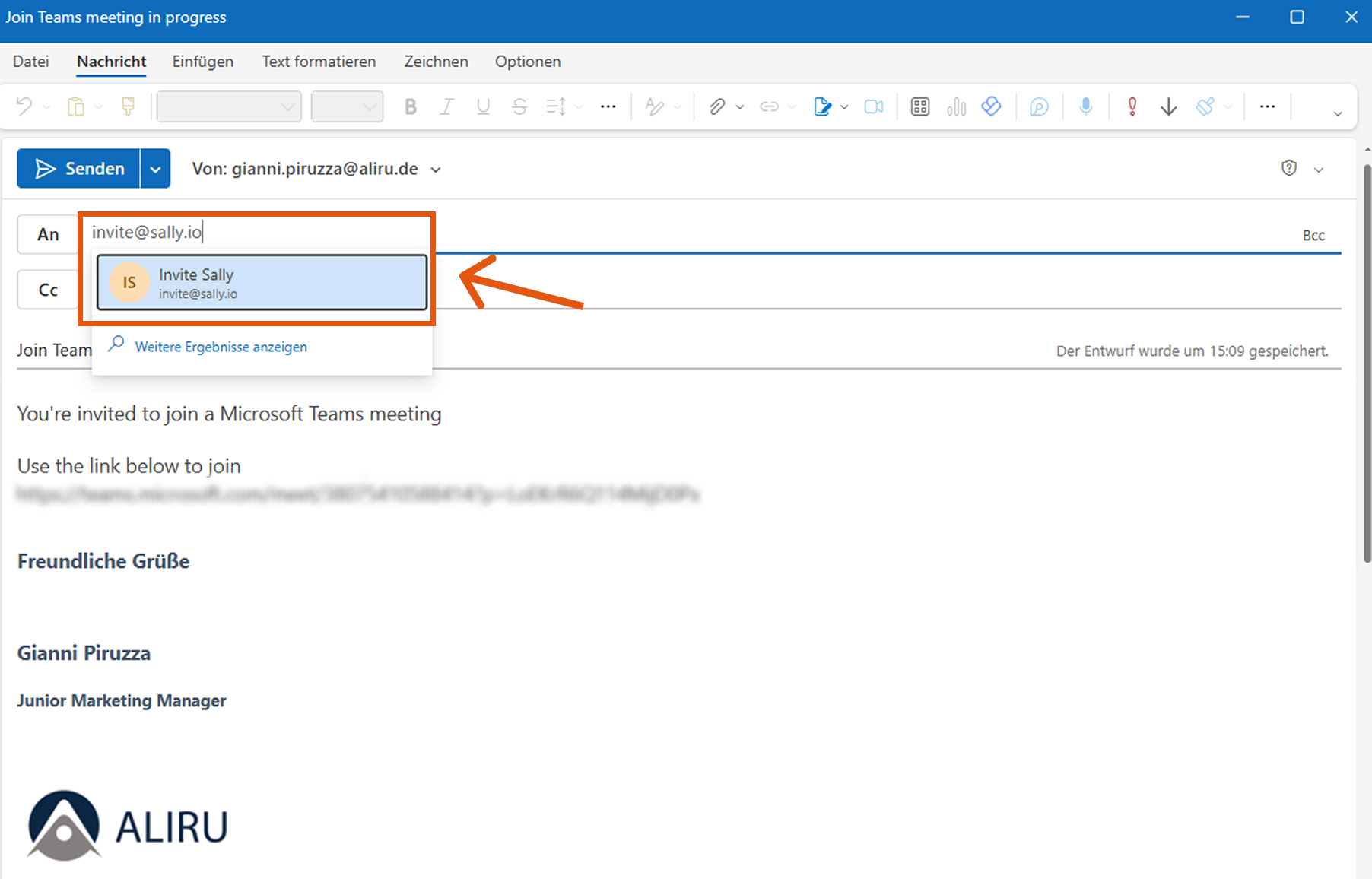
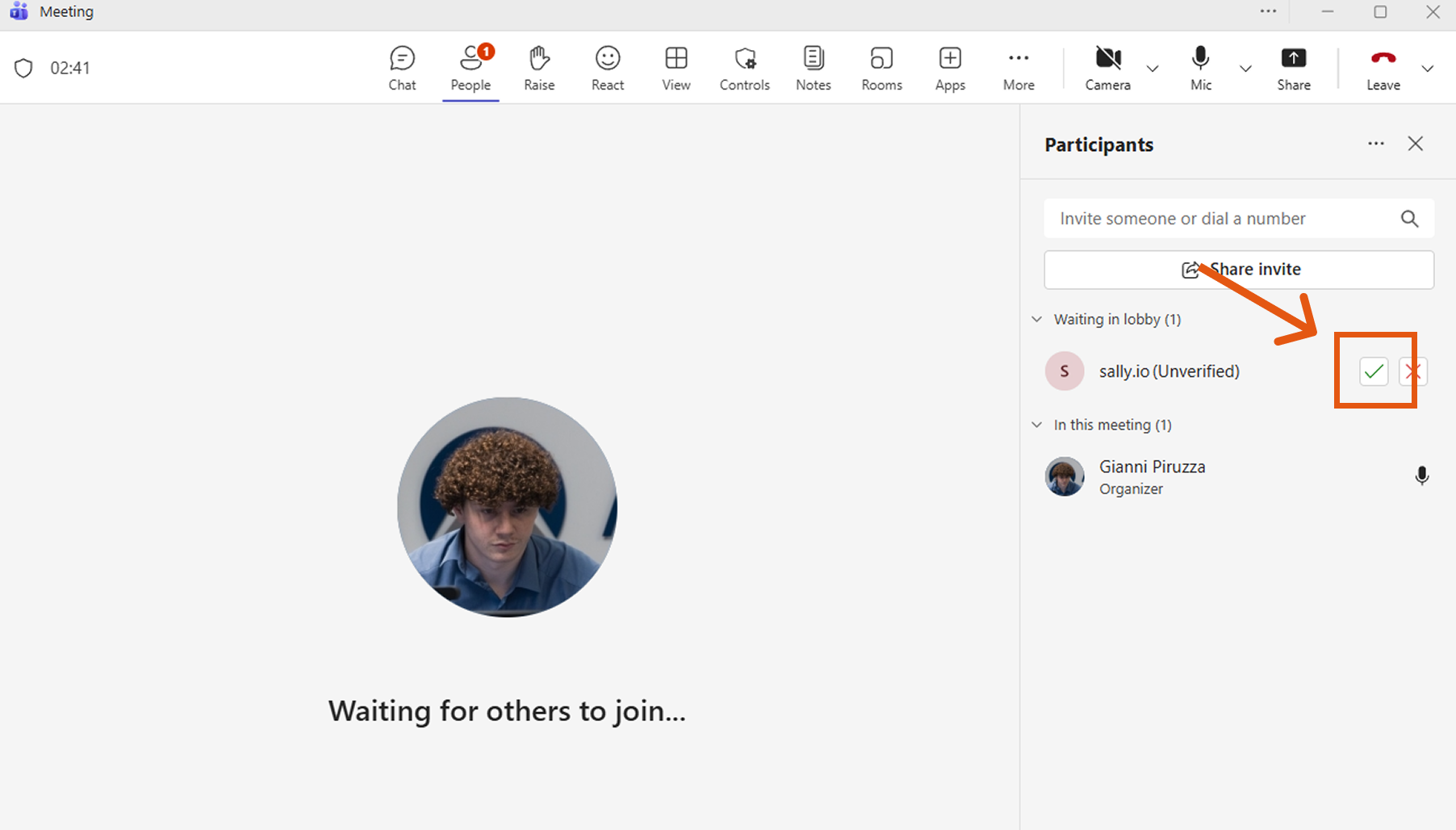
- Send the email. Sally will appear in the meeting lobby within one minute.
Admit her to the meeting.
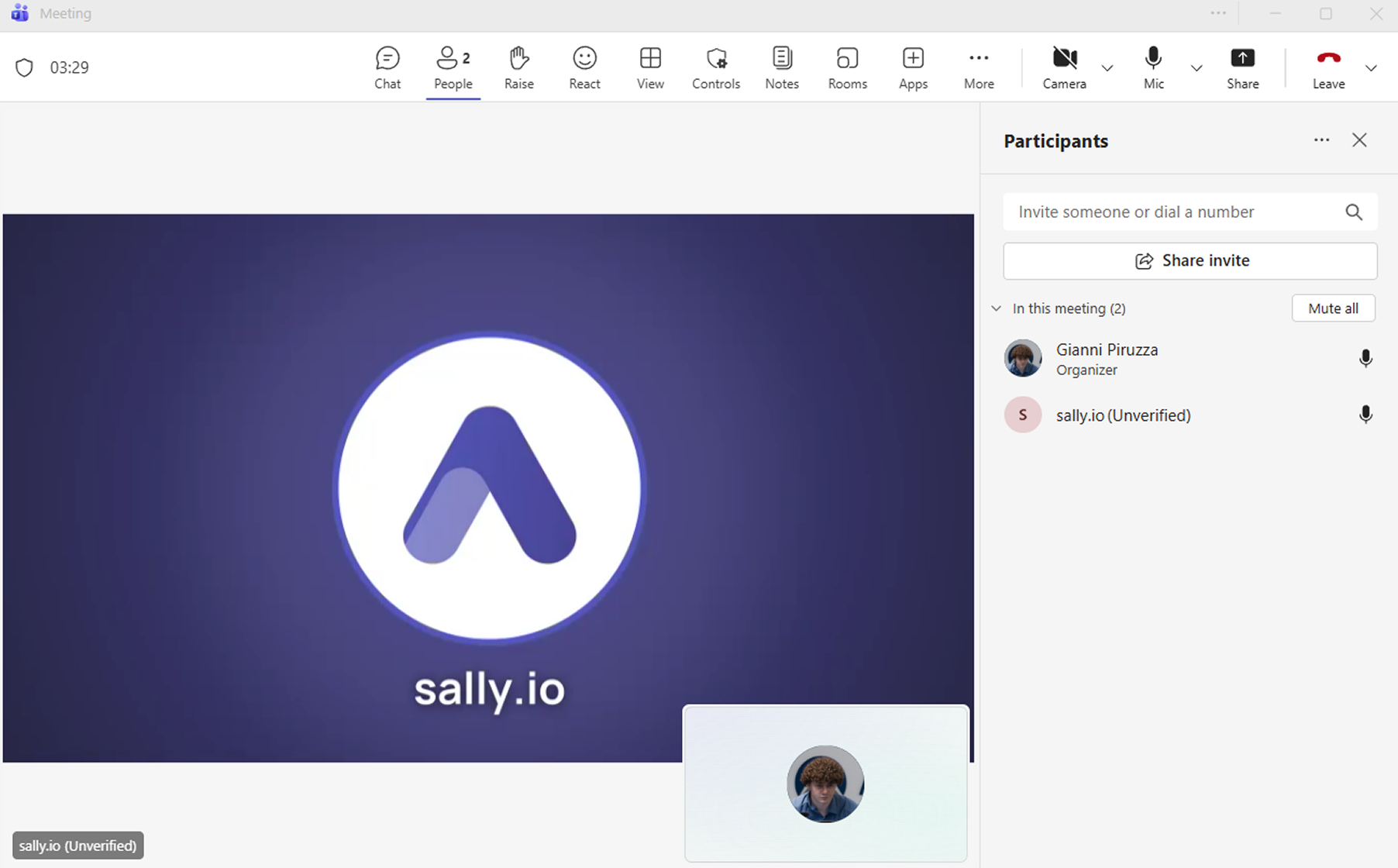
- Sally is now part of the meeting and will generate the transcript and summary.
2. Invite Sally via email
Alternatively, you can invite Sally to your meeting via email.
Make sure all relevant meeting details are included.
How to proceed:
- Create a new email addressed to invite@sally.io.
- Include all essential meeting information.
Here is a sample email you can copy:
Subject: Meeting Invitation – Marketing Sync on DD.MM.YYYY
To: invite@sally.io

Hello Sally,

please join the following meeting:

Title: Marketing Sync
Date: DD.MM.YYYY
Time: XX:XX – XX:XX
Time zone: CET
Meeting link: [link]
Participants: max.mustermann@company.com, anna.beispiel@company.com
The more complete the information, the more reliably Sally can identify and join the meeting.
If essential details such as date, time, or meeting link are missing, Sally will not be able to correctly assign and attend the meeting.
- Send the email.
3. Common issues and solutions
3.1. Missing meeting details in the invitation
Cause: The invitation did not contain all required information for Sally to join on time. Missing details may include:
- Meeting start time
- Meeting end time
- Online meeting link
Solution: Reply directly to Sally’s confirmation email and provide the missing information. Once all details are complete, Sally will be able to join.
3.2. Sally did not join the meeting
Cause: The invitation was not sent to invite@sally.io.
Solution: Check the guest list to ensure Sally’s address is entered correctly.
3.3. No confirmation email received
Cause: The email may have been blocked by your spam filter.
Solution: Check your spam/junk folder and mark emails from @sally.io as safe.
3.4. Meeting does not appear in the Sally dashboard
Cause: The invitation was sent from a different email address than the one registered in Sally.
Solution: Resend the invitation using the email address associated with your Sally account.
Example: If you are registered in Sally with julian@gmail.com, invitations sent from kissel@gmail.com will not be recognized.
Alternatively, you may forward the invitation — it is only important that the final sender matches your registered address.
3.5. Calendar entry shows “optional”
Cause: Some calendar systems automatically mark CC recipients as “optional.”
Solution: Change Sally’s participation status to “required” to ensure she can join.