How to integrate Asana with Sally AI
Connect Sally AI with Asana to turn what came out of a meeting into real work, right in the matching workspace and project. With the Sally Asana integration you send action items, decisions and follow-ups to Asana in one click, so nothing gets typed twice and your team's system of record stays current.
Quick navigation
1. How do I connect Asana with Sally AI?
Follow these steps to set up the Sally Asana integration.
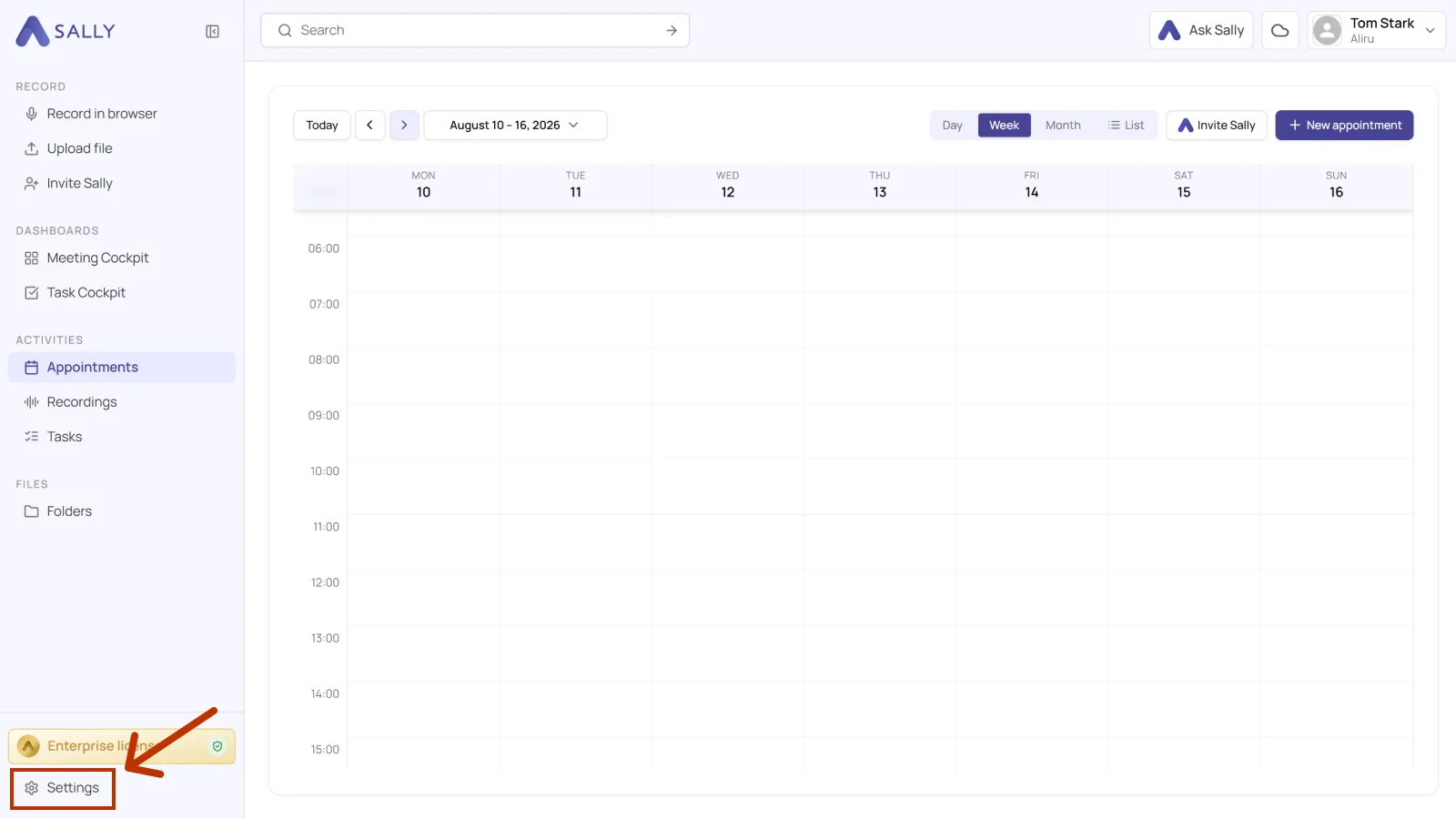
- Open Settings at the bottom of the left sidebar.
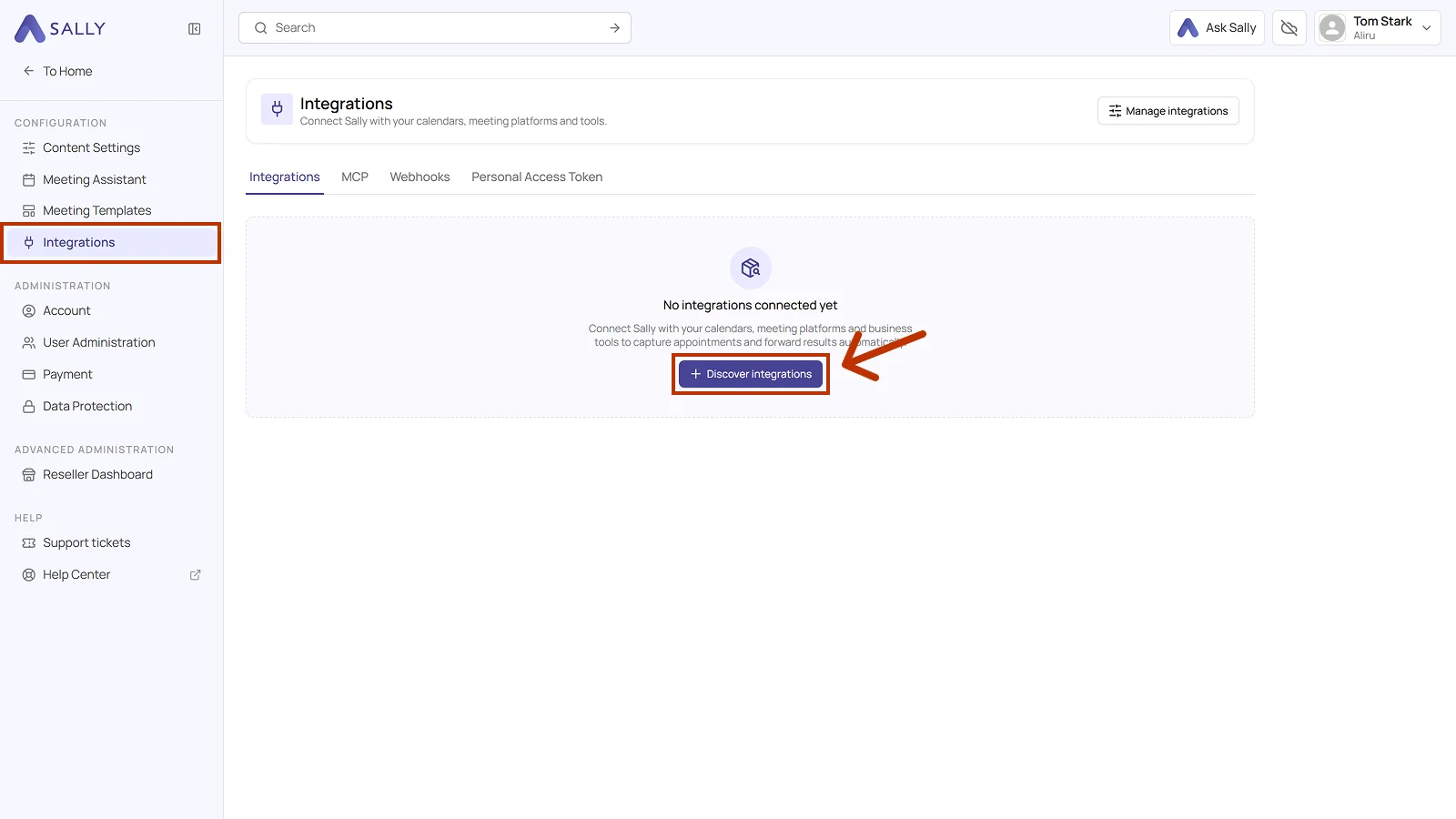
- Under Configuration, go to Integrations and click Discover integrations.
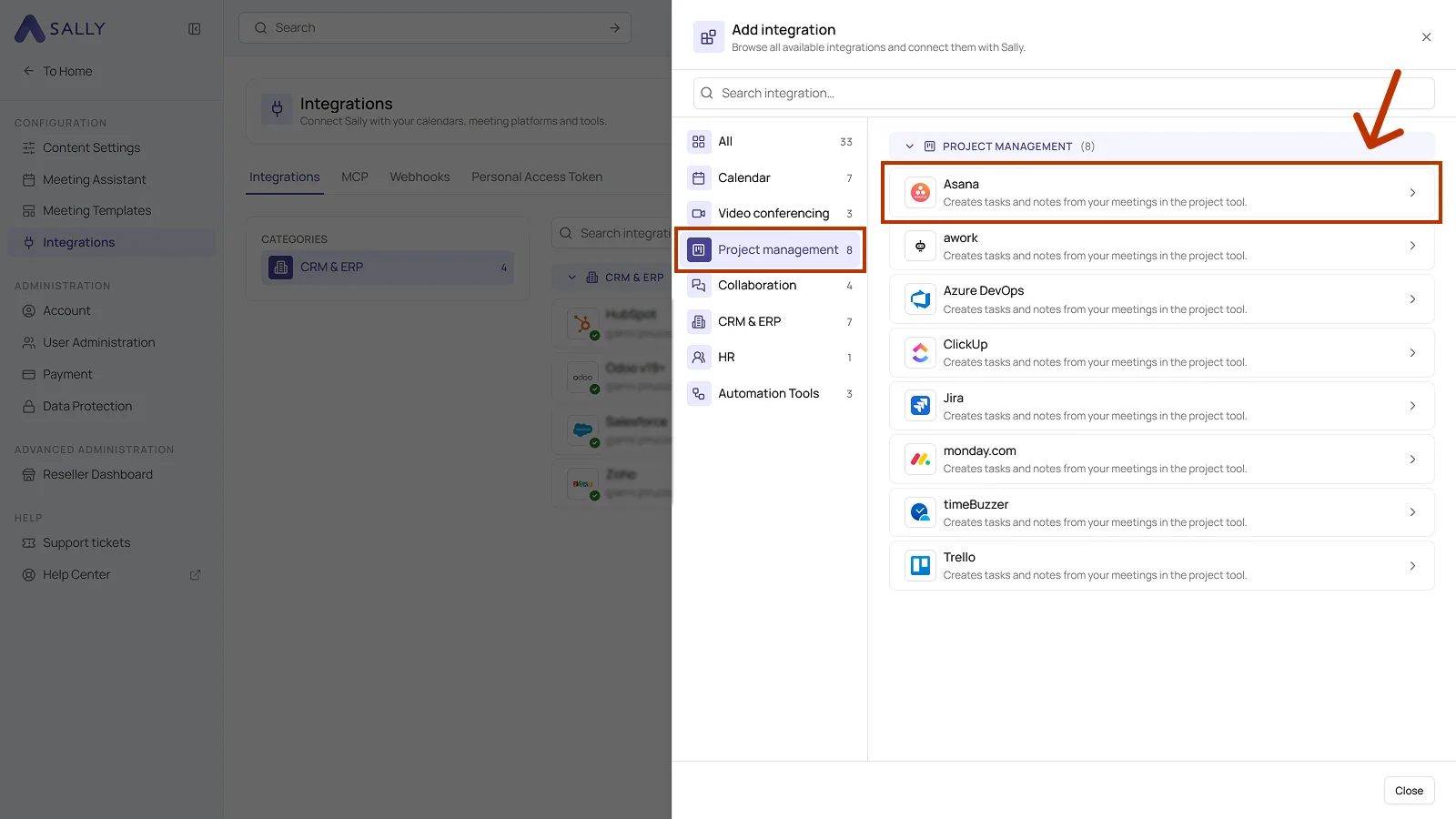
- Pick the Project management category on the left, then select Asana. The search bar at the top takes you straight there as well.
-
The panel on the right tells you what the integration transfers. Click Connect in the bottom right, then approve the access in Asana.
-
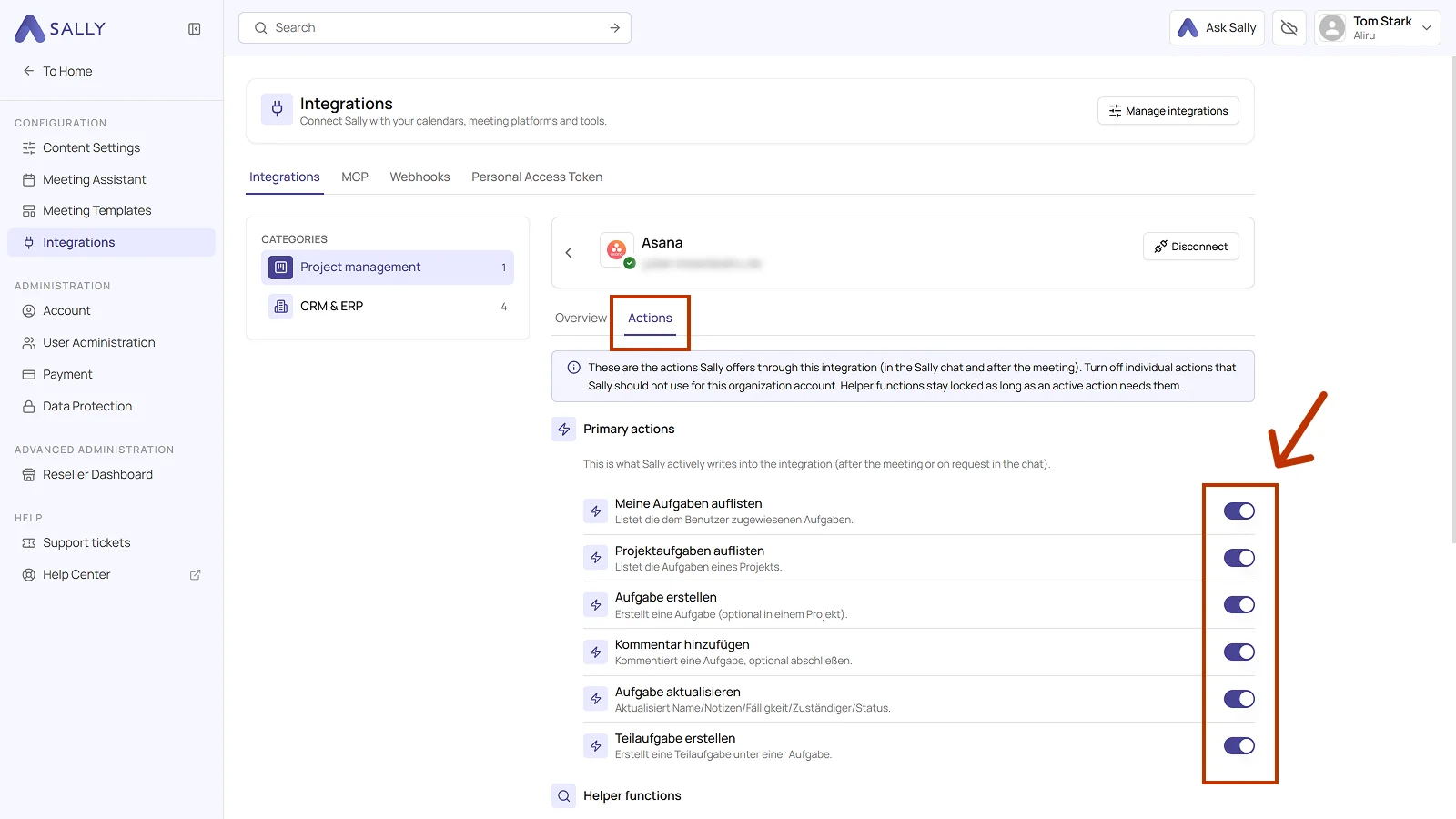
Once you have approved it, Asana is connected. The Actions tab shows what Sally offers through this integration and lets you switch off individual actions for the organization account. Helper functions stay locked while an active action needs them, which is why some toggles cannot be moved. Disconnect in the top right ends the connection again.
Whether an integration may be connected at all is up to owners and admins, see managing integrations for your users.
2. How do I send meeting insights to Asana?
Once Asana is connected, a few clicks are enough to move content from a recording into Asana, straight into the right workspace.
The route is always the same: open the recording you need and click the Integrations icon. It sits at the top of every section and on every single line. Below it you find the two Asana actions.
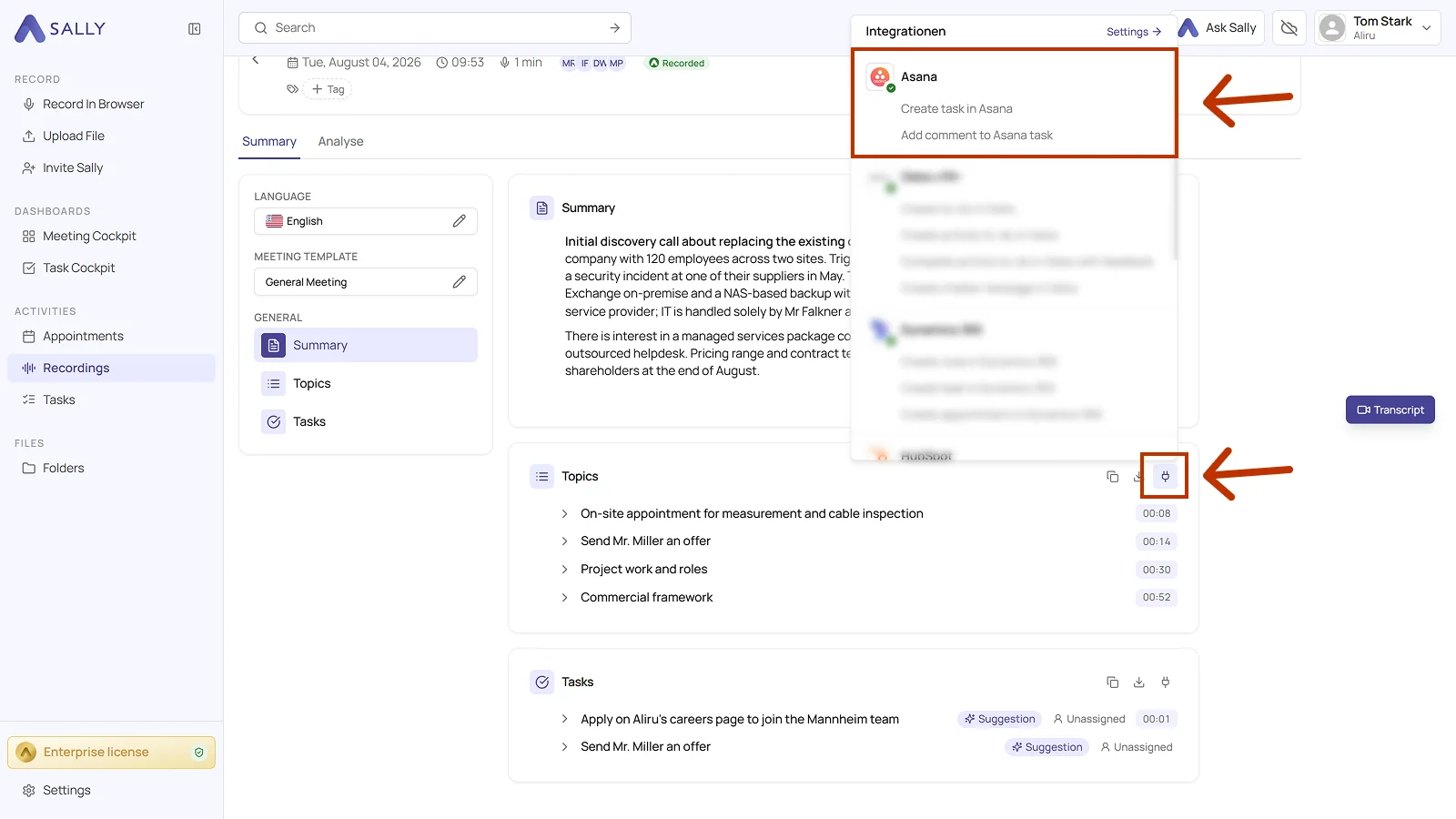
You can:
- Create task in Asana for a new task, optionally with a project, an assignee, and a due date.
- Add comment to Asana task for extra context on a task that already exists, without touching ownership or dates.
2.1. Create a task in Asana
Turn a line from the summary into a new Asana task.
- Choose Create task in Asana in the Integrations menu.
- Pick the Workspace. Along with Name, it is the only mandatory field.
- Add Project, Assigned to, and Due date if you need them. All three are optional.
- Check Name and Description. Both come prefilled from the summary, and the description can be formatted in the editor.
- Click Create task.
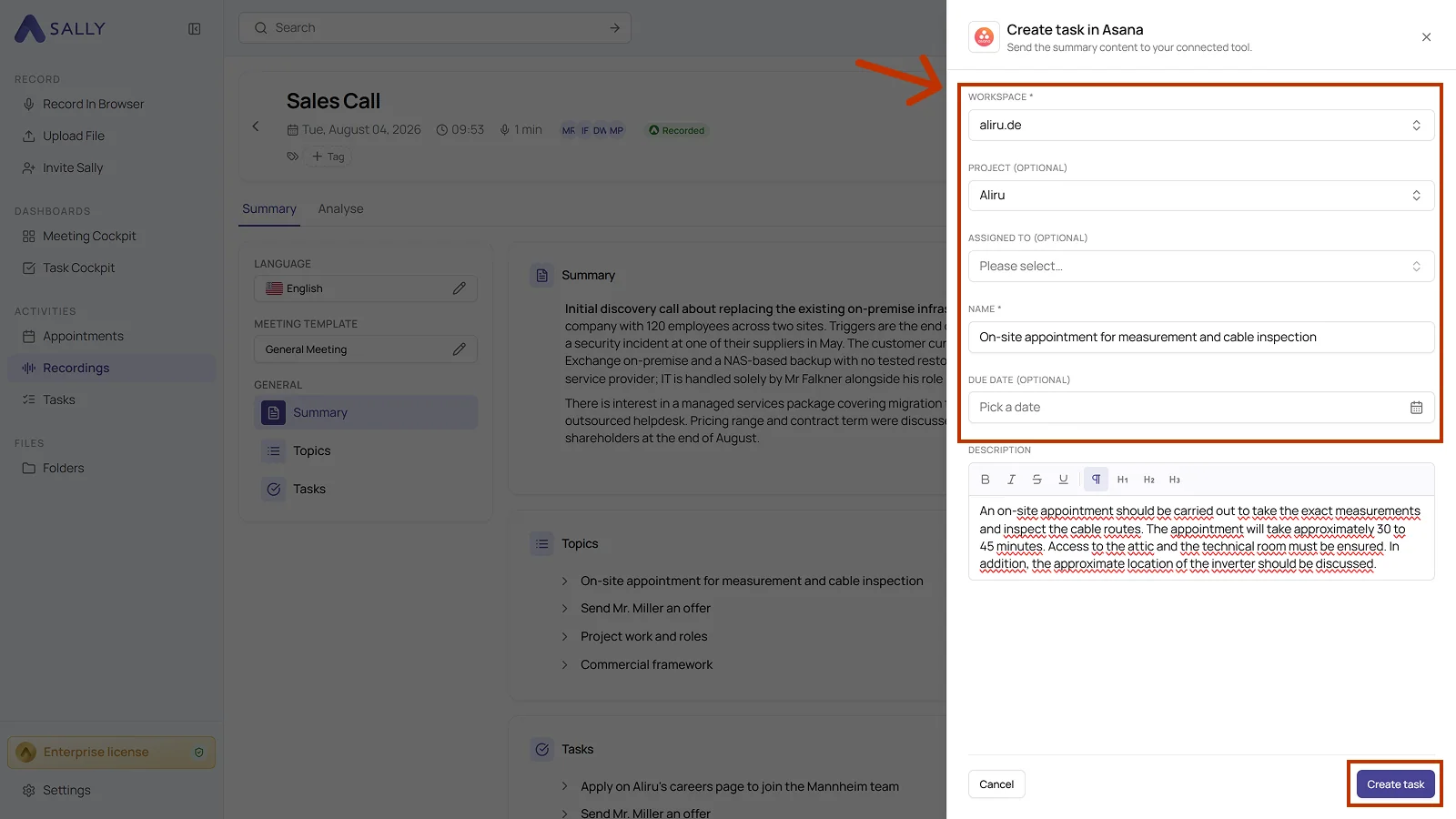
Add as much context as you can, so project, assignee, and due date. The fuller the task, the fewer questions come back and the better Asana reports on it.
2.2. Add a comment to Asana task
Attach meeting context to a task that already exists, ideal for updates, decisions, or extra notes.
- Choose Add comment to Asana task in the Integrations menu.
- Pick the task the comment belongs to and check the prefilled text. Sally can close the task along with the comment if you want.
- Send the comment.
3. What OAuth scopes does the Asana integration require?
For the integration with Asana, Sally uses OAuth 2.0 for authorization. The following scopes define which areas Sally can access on behalf of the authenticated user.
Technical overview of required scopes
-
Sally accesses this information solely to technically establish and maintain the connection to the user account.
-
Sally does not make any autonomous changes. Actions are performed exclusively upon the explicit initiative of the user.
-
API endpoints are only called within the scope of an active action initiated by the user within the platform.
| Scope | What Asana technically allows with this scope | How Sally uses this scope |
|---|---|---|
default | Standardized API permission within the OAuth model | Part of the Asana authentication process. Sally uses this permission solely to technically establish the integration connection. |
openid | OpenID Connect identity verification | Sally reads the unique user ID to securely authenticate the connected Asana account. |
email | Access to the user's email address | Sally reads the email address to uniquely identify the connected account. No account data is modified. |
profile | Access to basic profile information | Sally reads basic profile data (e.g., display name) for authentication and display within the integration. No profile data is modified. |