Change your password
You can change your Sally account password at any time from the security settings. For your protection, you need to verify your identity via email before setting a new password.
How to change your password:
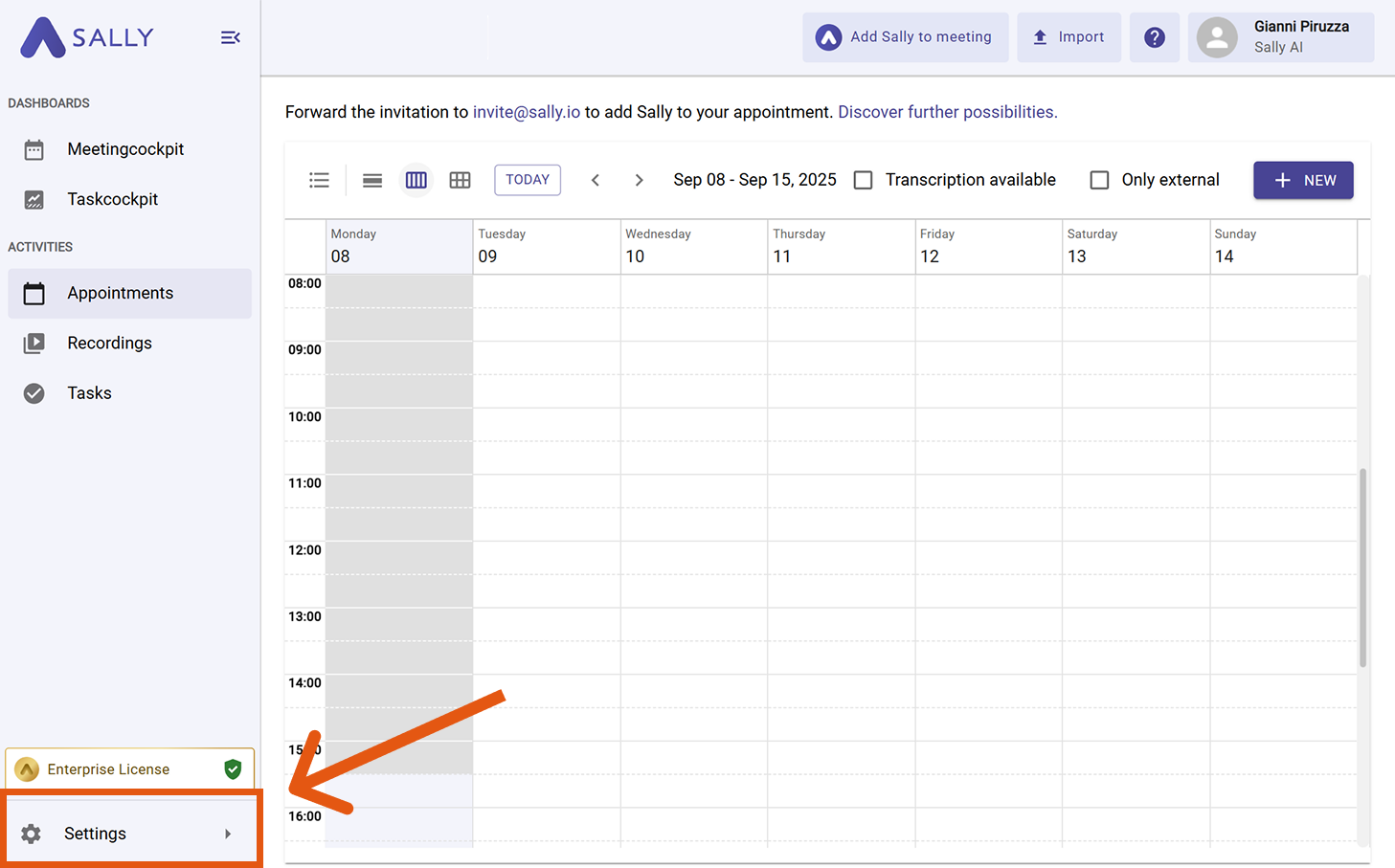
- Open Settings in the left sidebar.
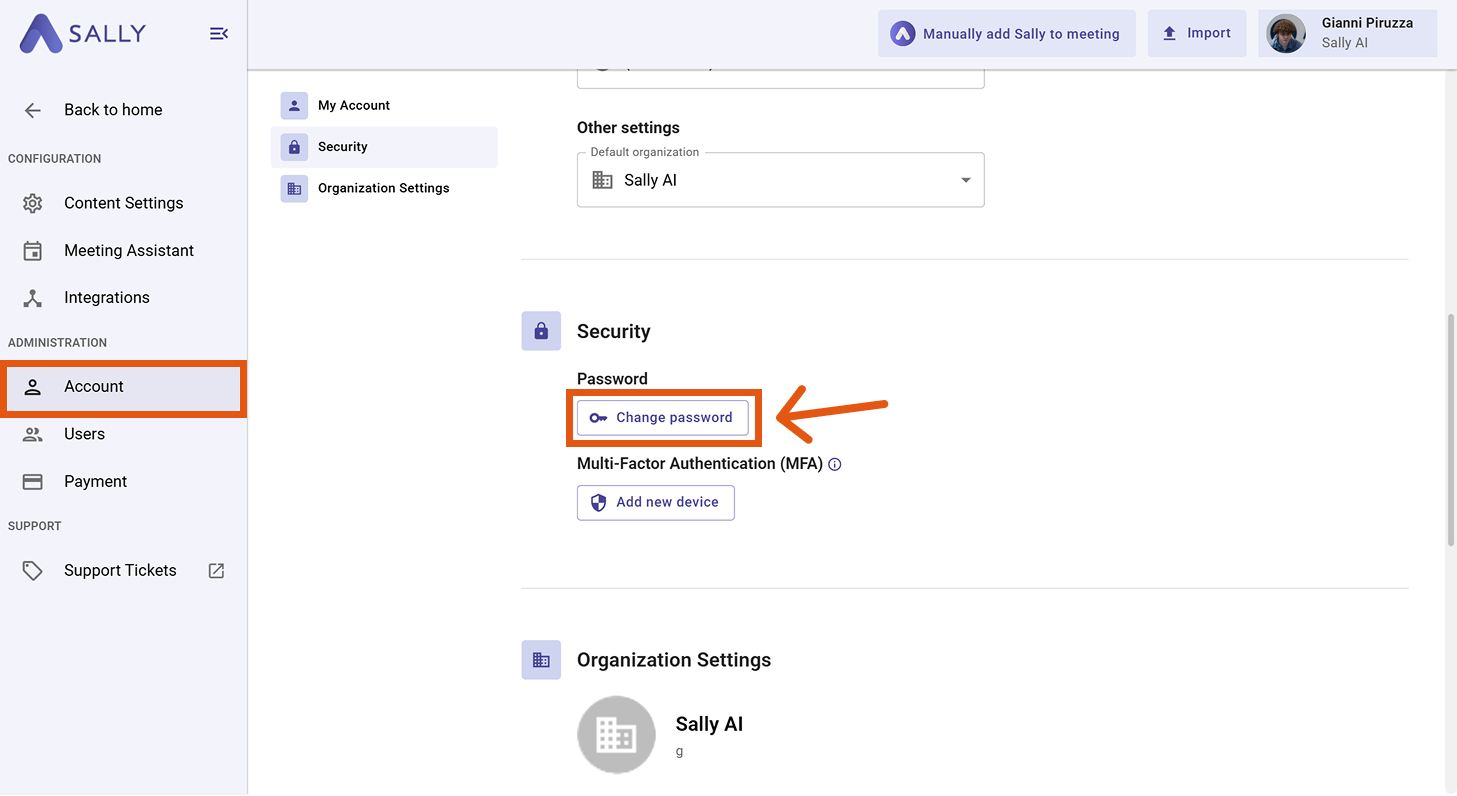
- Navigate to Account > My Account > Security.
- Click "Change password" in the Password section.
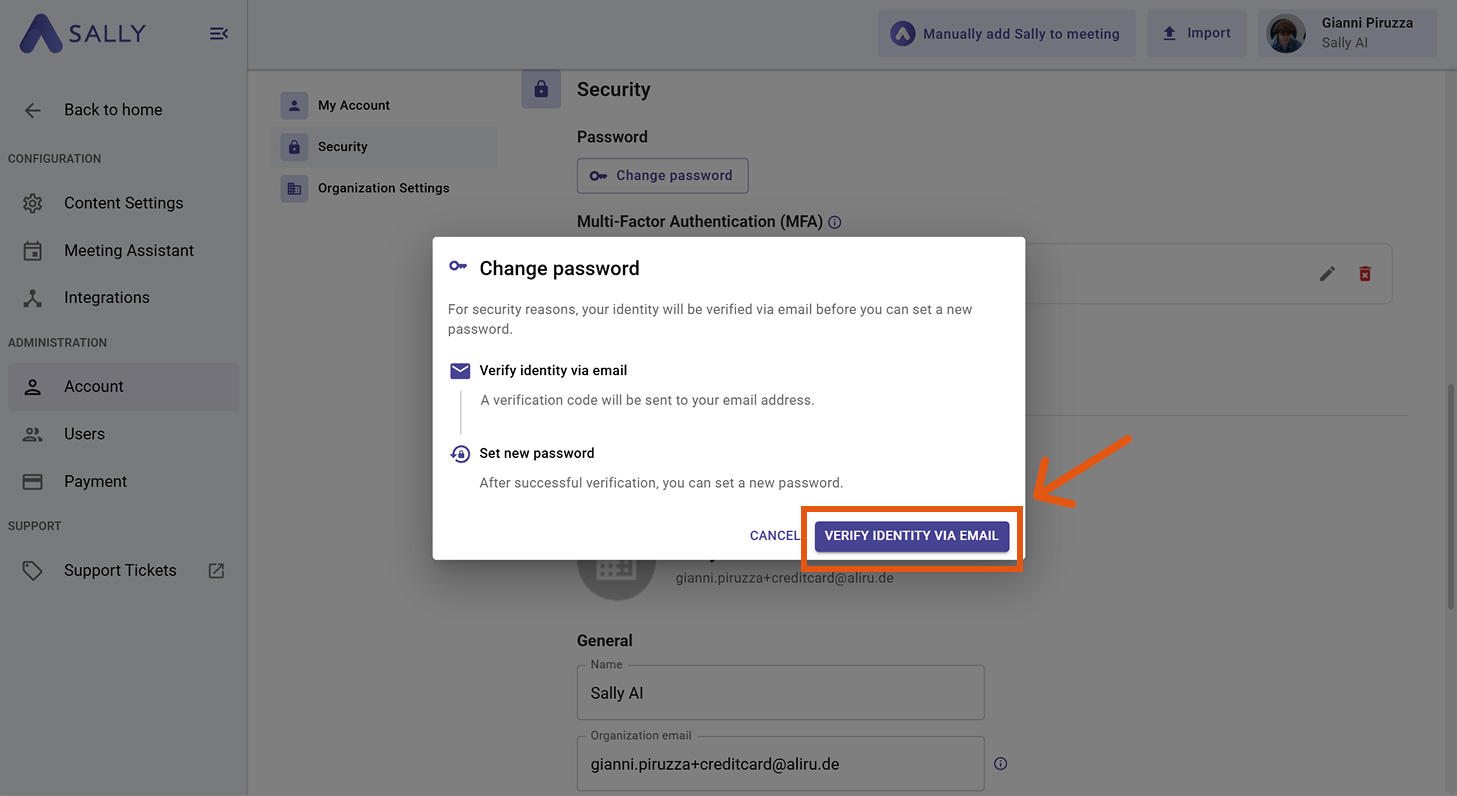
- A dialog appears with two steps. Click "Verify identity via email". You will receive a 6-digit code by email. Enter this code in the dialog to verify your identity.
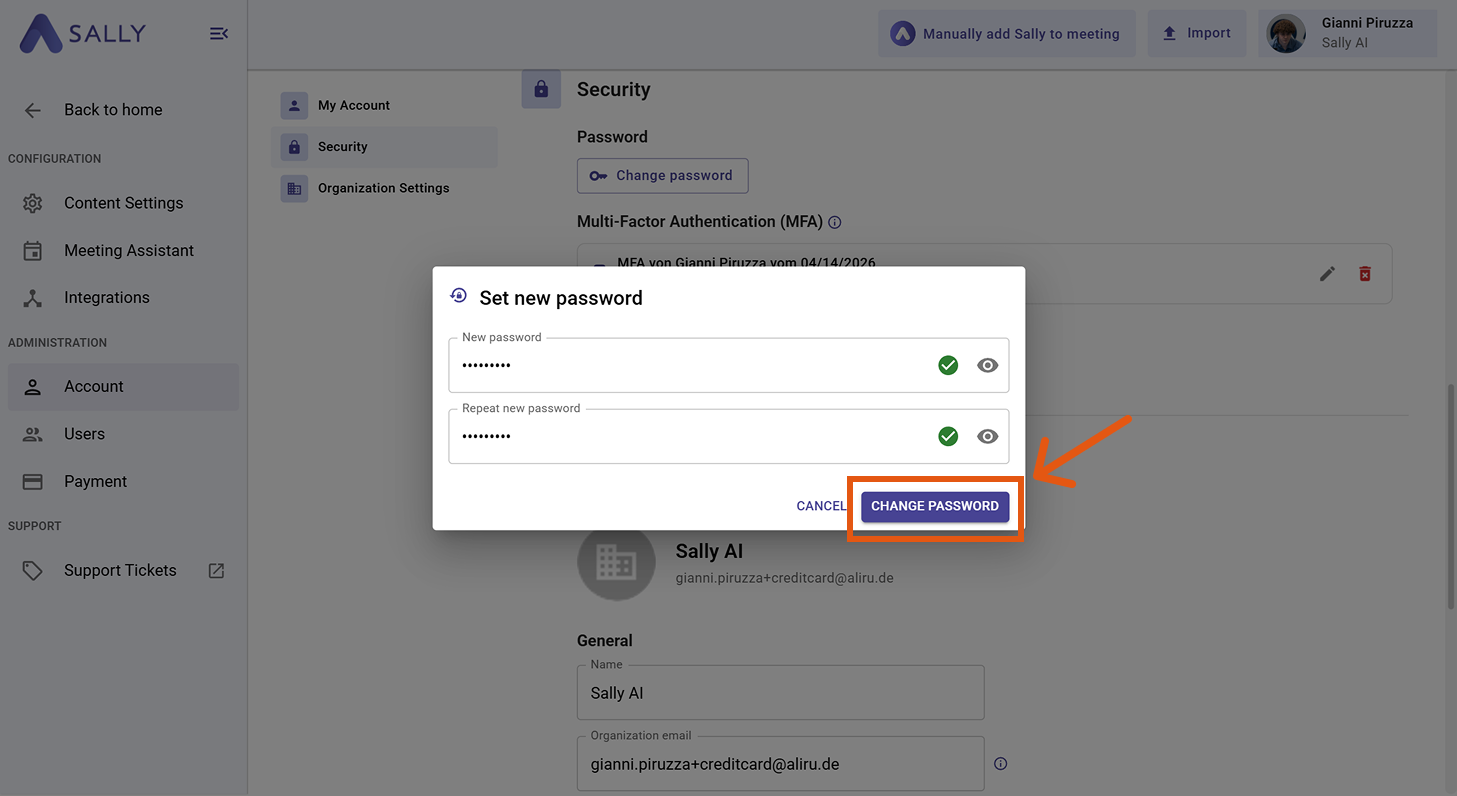
- After successful verification, enter your new password, confirm it, and click "Change password".
Password requirements
Your new password must meet the following criteria:
- At least 8 characters long
- At least one uppercase letter
- At least one special character