How to download meeting summaries in Sally AI
You can download a summary in several formats to edit it, analyze it or pass it to your team.
If you want the downloads to match your company style, first set up your branding (logo, color, footer). After that, every PDF and DOCX comes out in your branding. TXT, MD and ODT hold the raw text.
Quick navigation
1. How to download a summary
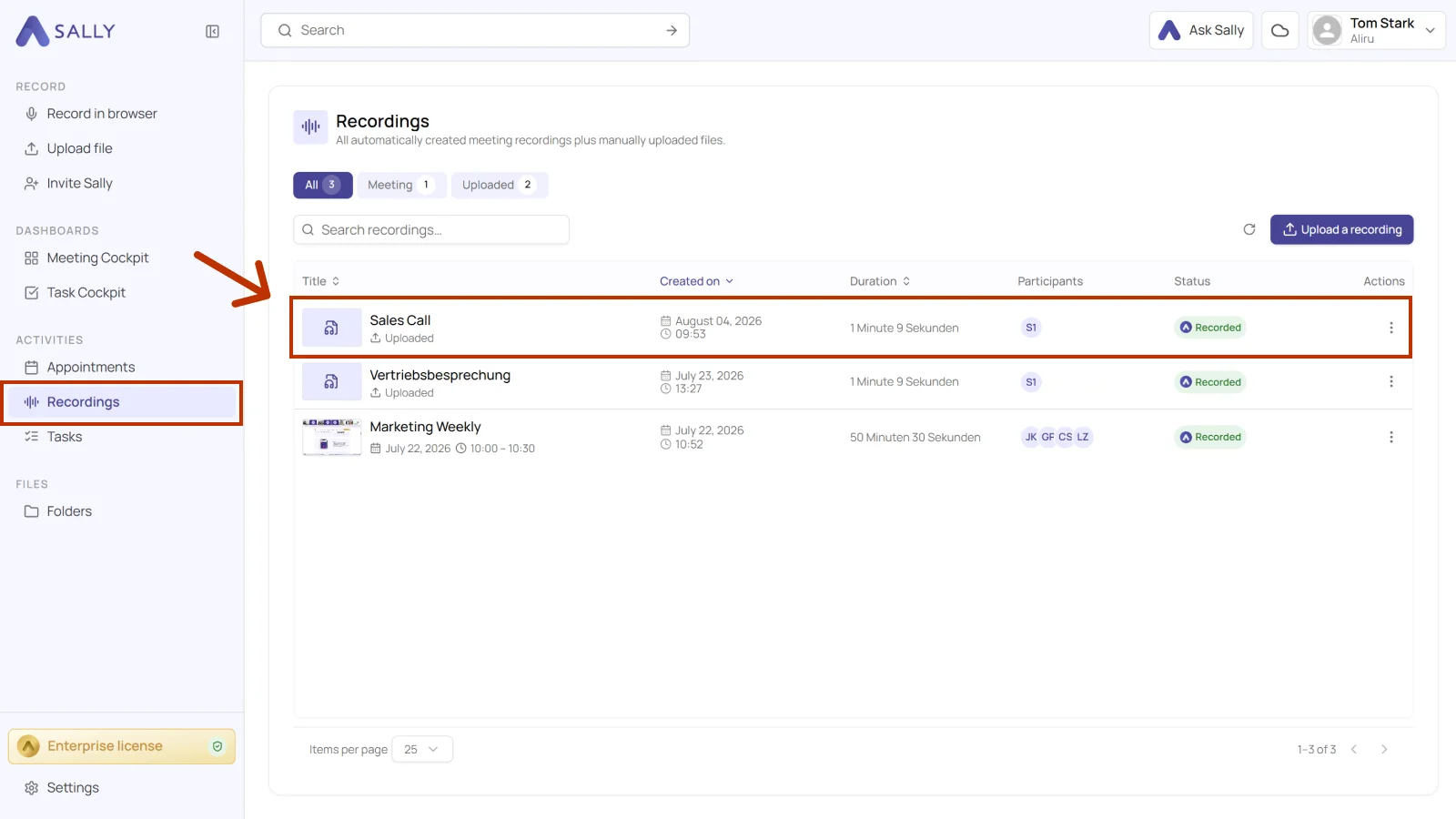
- Open Recordings in the sidebar and select the recording you want to download a summary for. You can also open a meeting from Appointments.
- Click Download in the top right and choose your format in the Summary row.
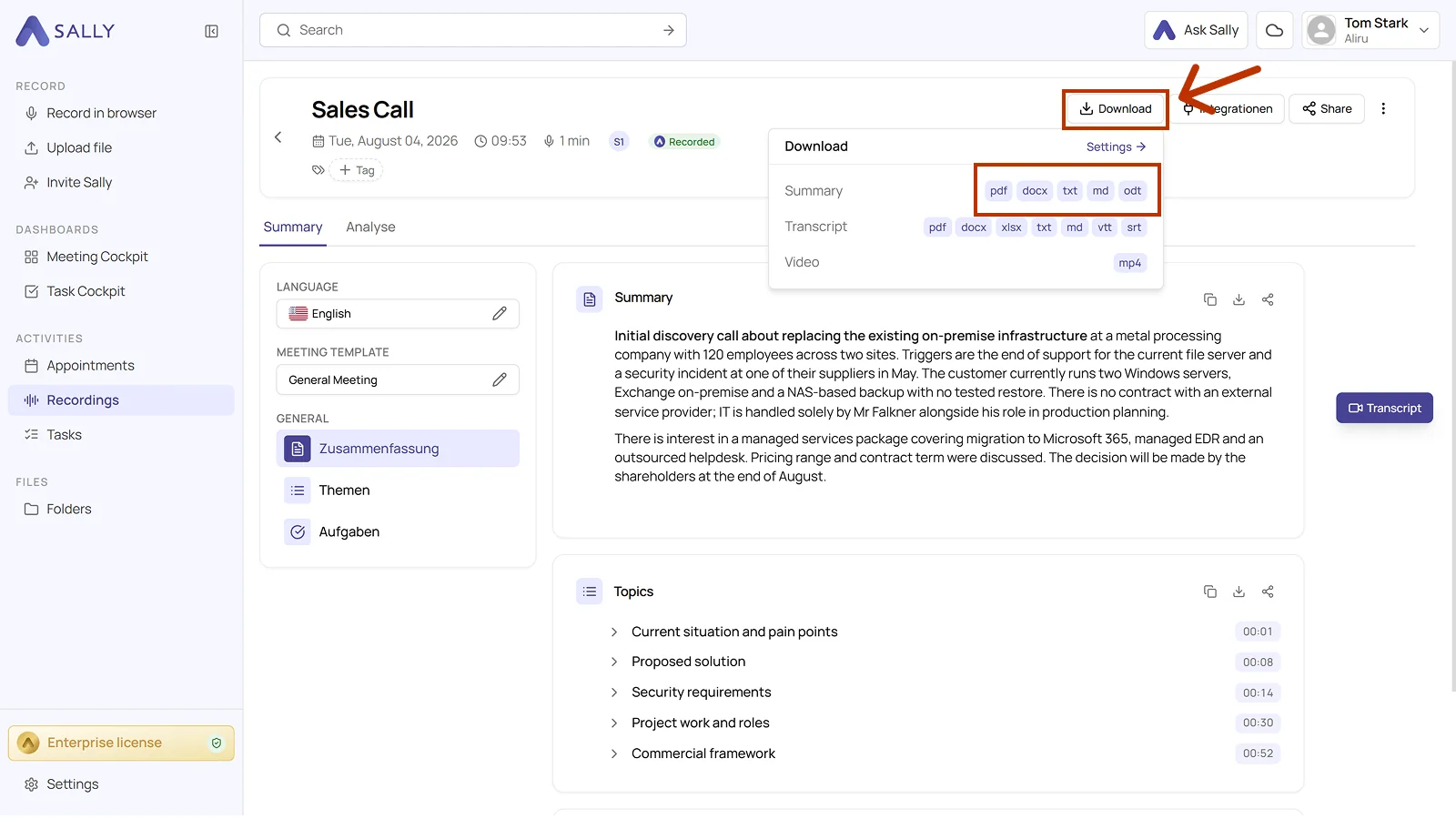
Available export formats
- DOCX
- TXT
- MD
- ODT
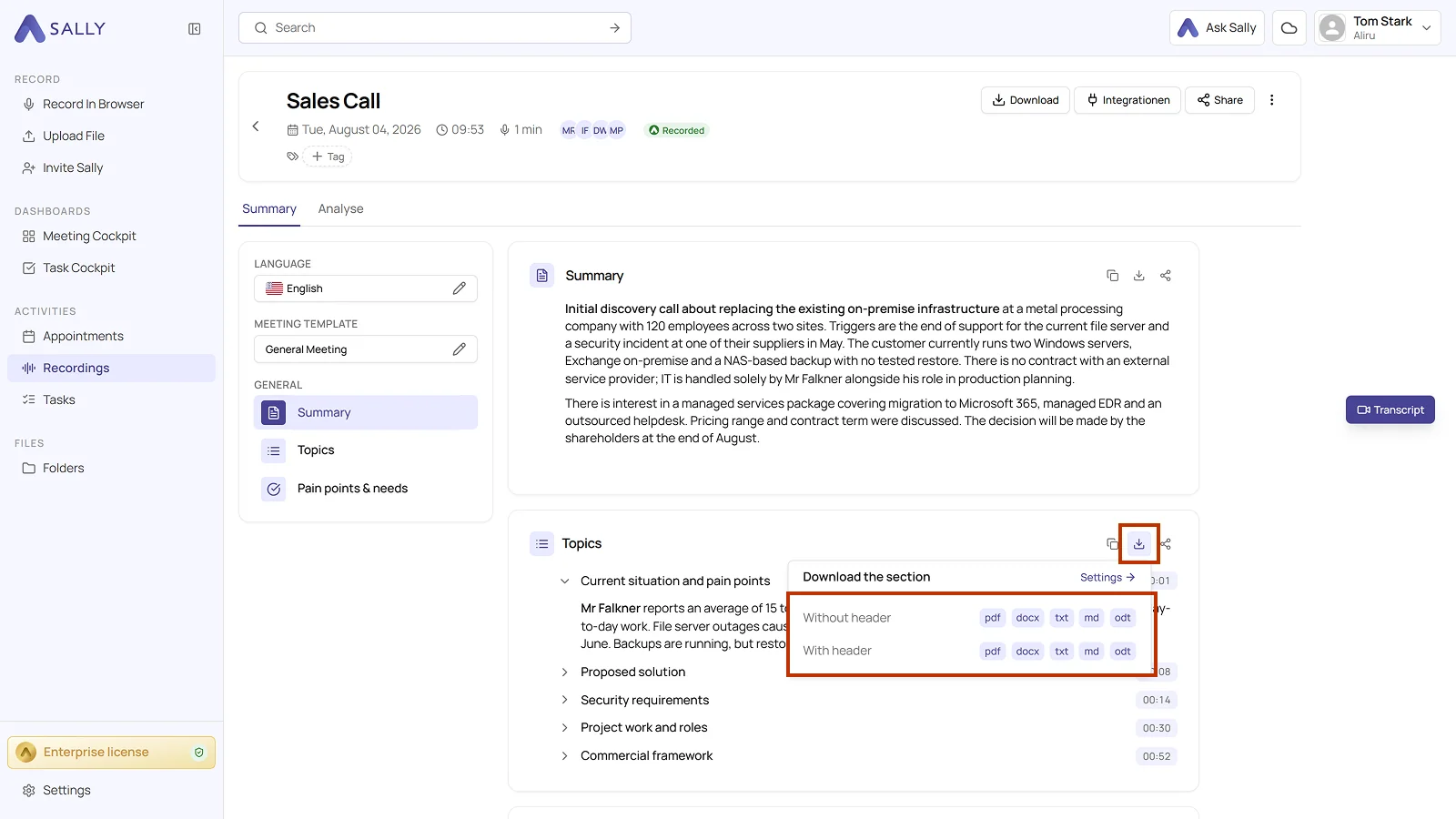
You can also download a single section instead of the whole summary. Each section, such as Topics, Decisions, or Tasks, has its own download icon. Click it to export only that section, with or without the header information, in any of the available formats.
2. How to edit your document settings
Tip
The document settings are where you set logo, color and footer for every download.