How to integrate Trello with Sally AI
Connect Sally AI with Trello to turn what came out of a meeting into work on the matching board and list. With the Sally Trello integration you create cards and add comments in one click, so nothing gets typed twice and your boards stay current.
Quick navigation
1. How do I connect Trello with Sally AI?
Follow these steps to enable the Sally Trello integration.
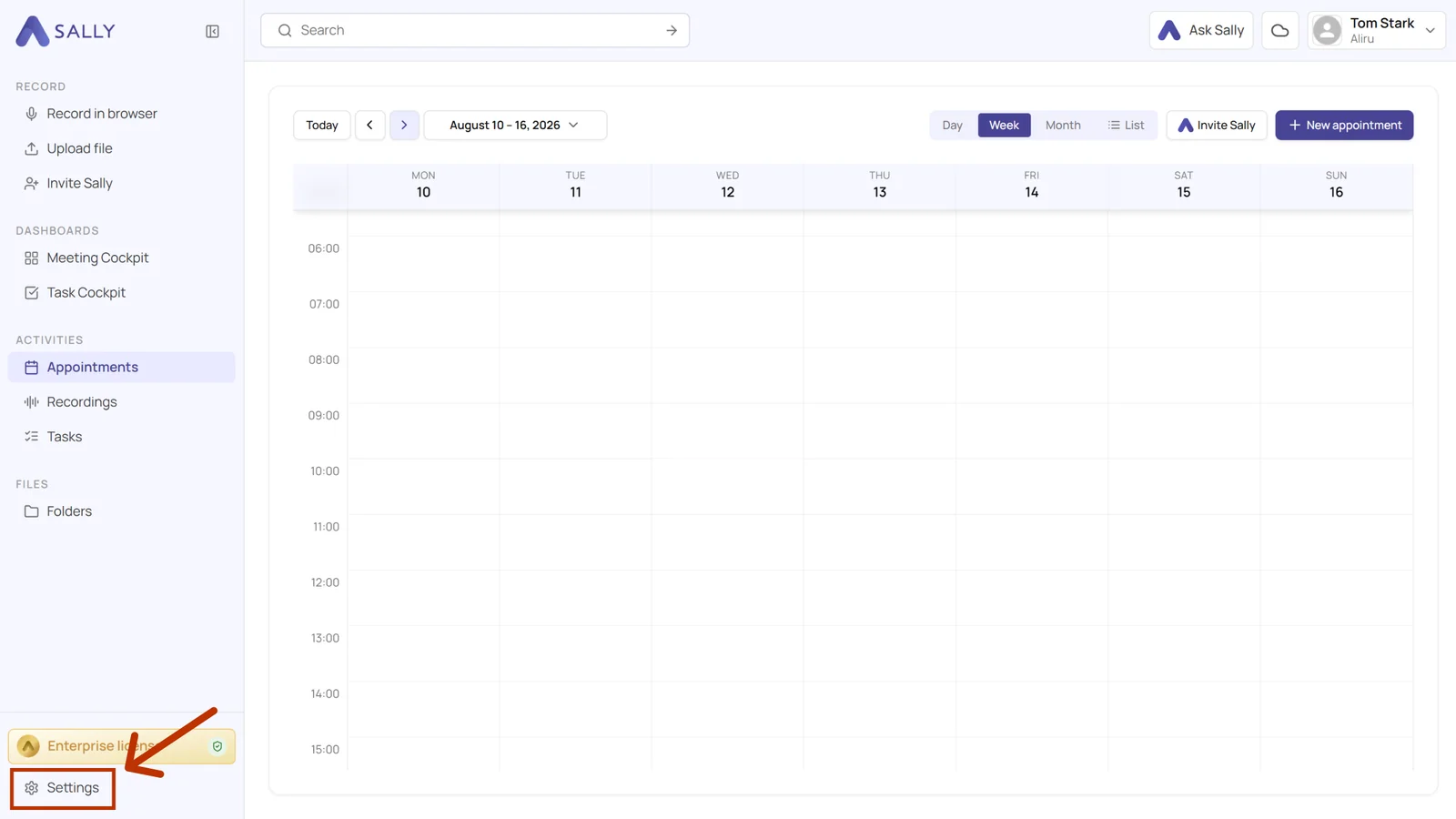
- Open Settings from the bottom-left corner of the sidebar.
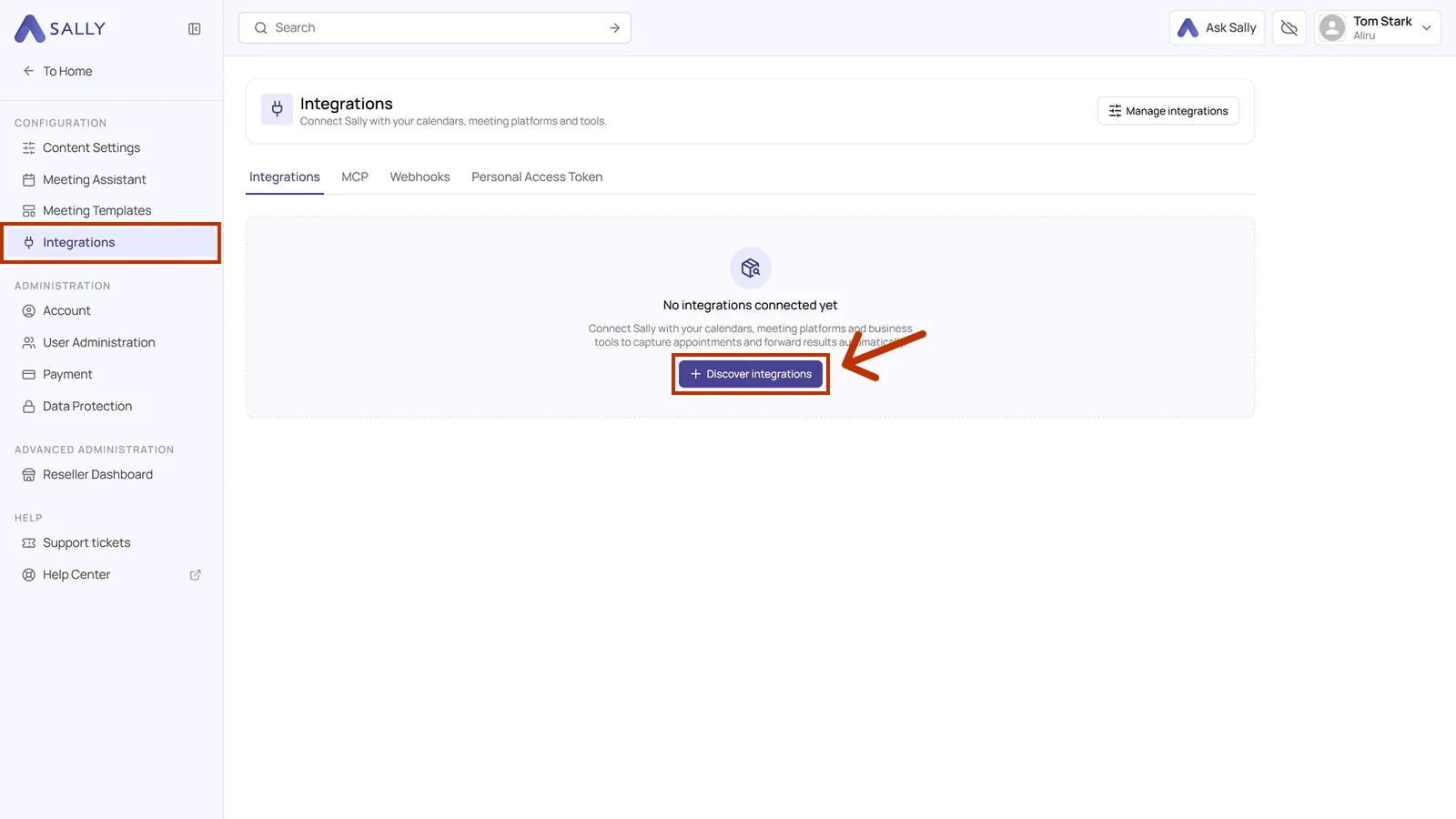
- Under Configuration, go to Integrations and click Discover integrations.
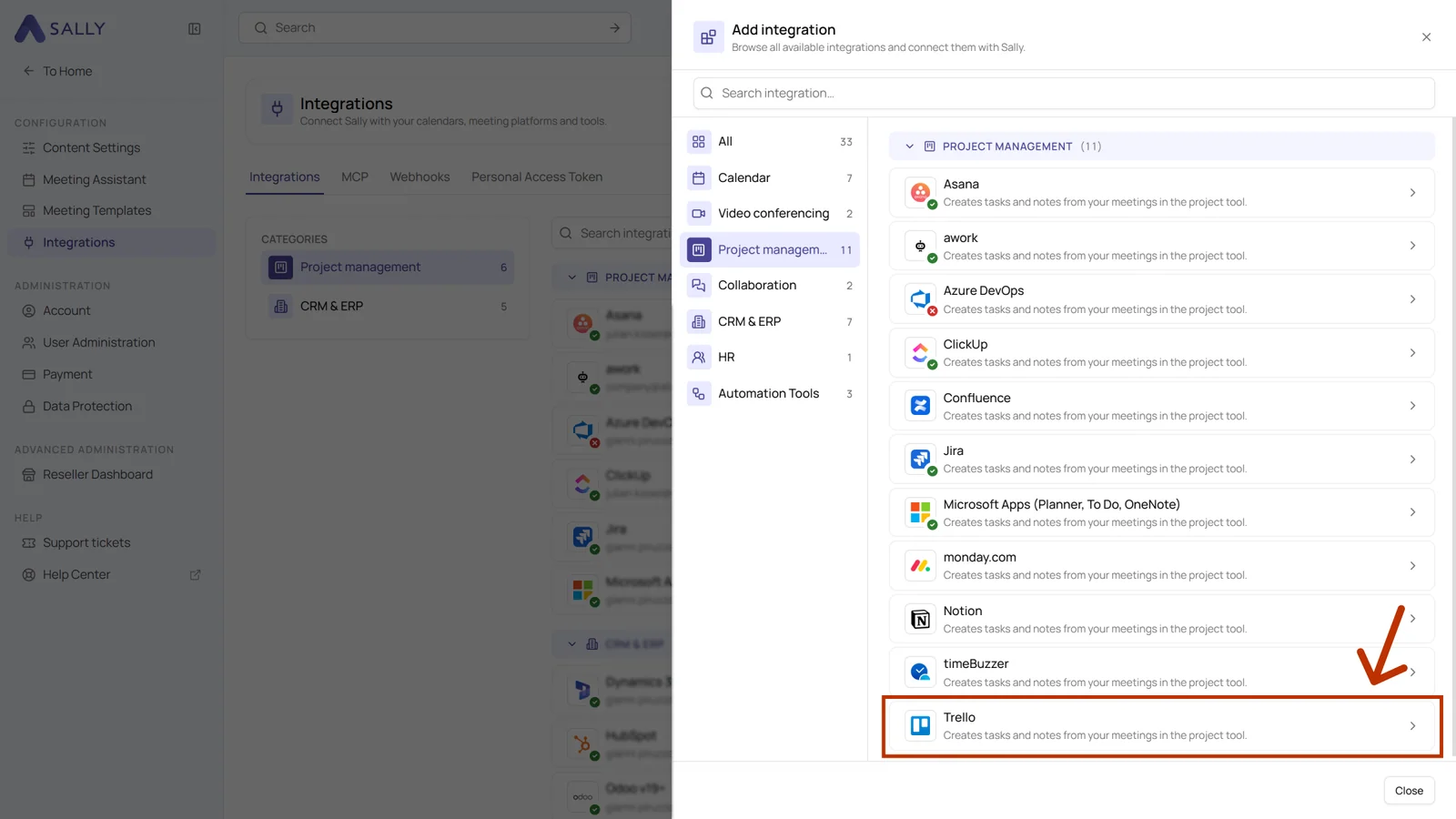
- In the Add integration panel, pick the Project management category on the left, then select Trello. The search bar at the top takes you straight there as well.
- The panel on the right tells you what the integration transfers. Click Connect in the bottom right and complete the authorization flow in Trello. Trello then appears in the list under Project management. Disconnect in the top right corner ends the connection whenever you need to.
Whether an integration may be connected at all is up to owners and admins, see managing integrations for your users.
2. How do I send meeting insights to Trello?
Once Trello is connected, a few clicks are enough to move content from a recording into Trello, so it lands on the right board and list.
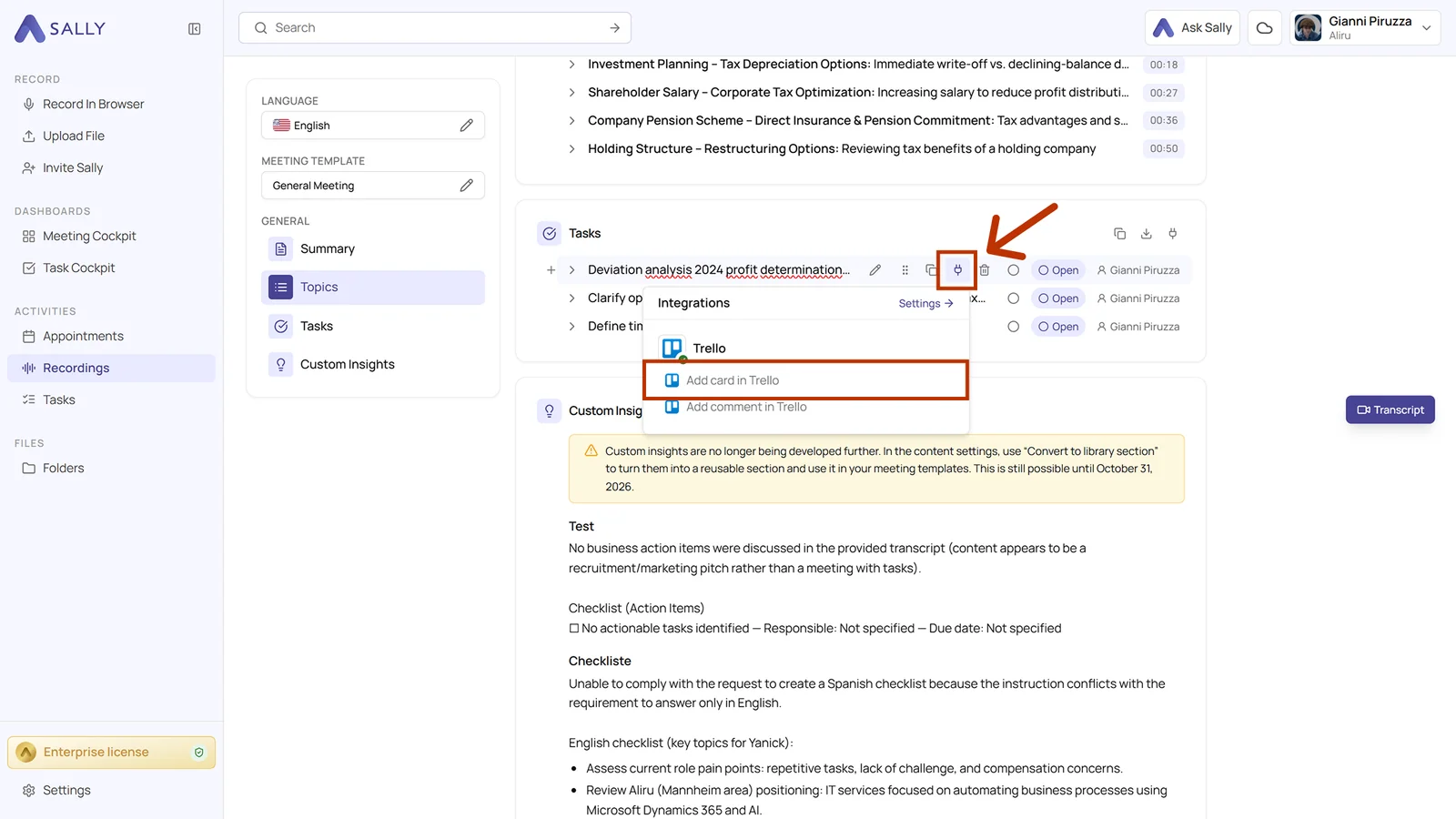
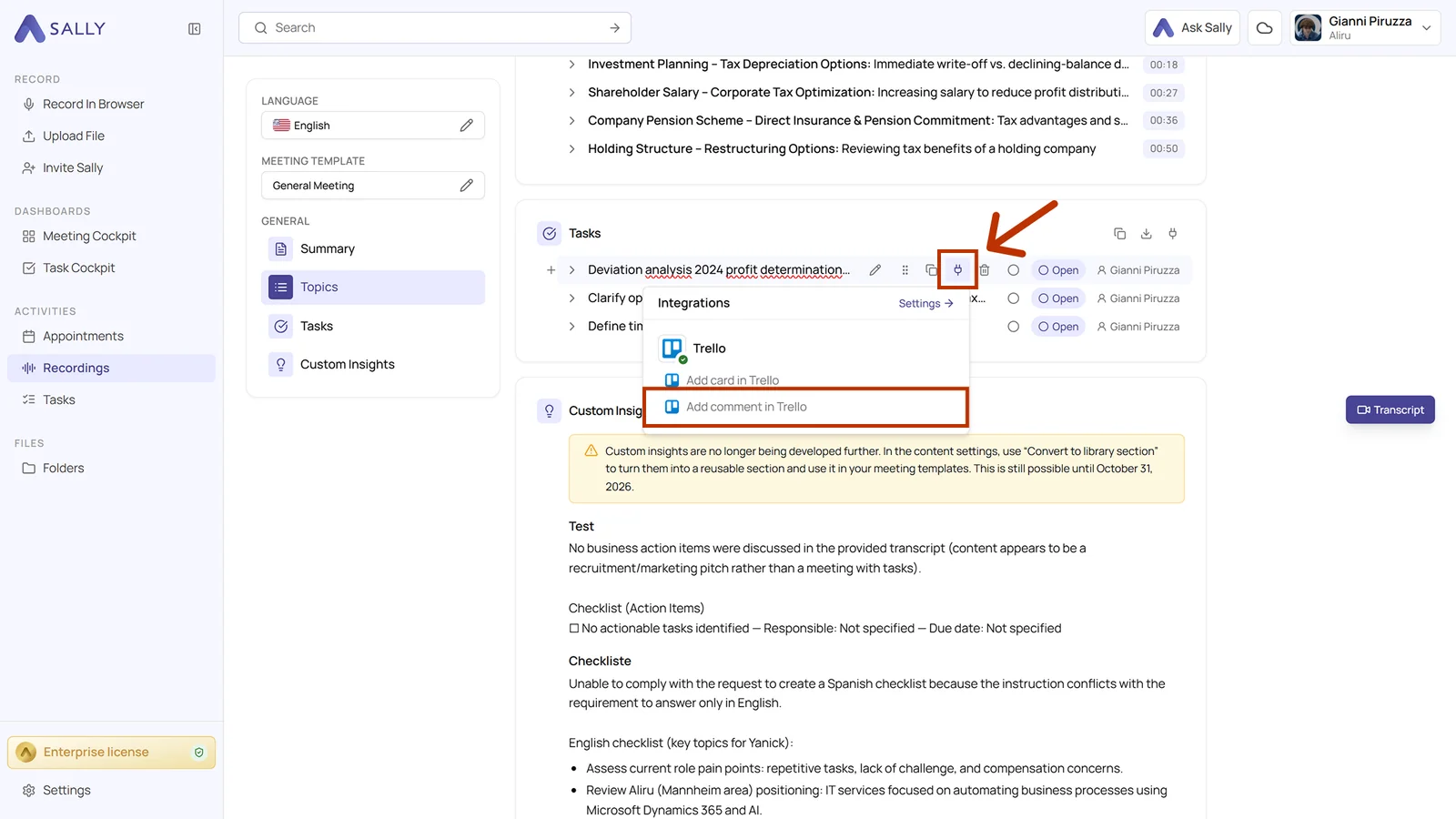
The route is always the same: open the recording you need and click the Integrations icon. It sits at the top of every section and on every single line. Below it you find the two Trello actions.
You can:
- Add card in Trello for a new card covering a follow-up task or deliverable.
- Add comment in Trello for extra context on a card that already exists, without creating new items.
2.1. Add a card in Trello
Turn a Sally insight into a new Trello card.
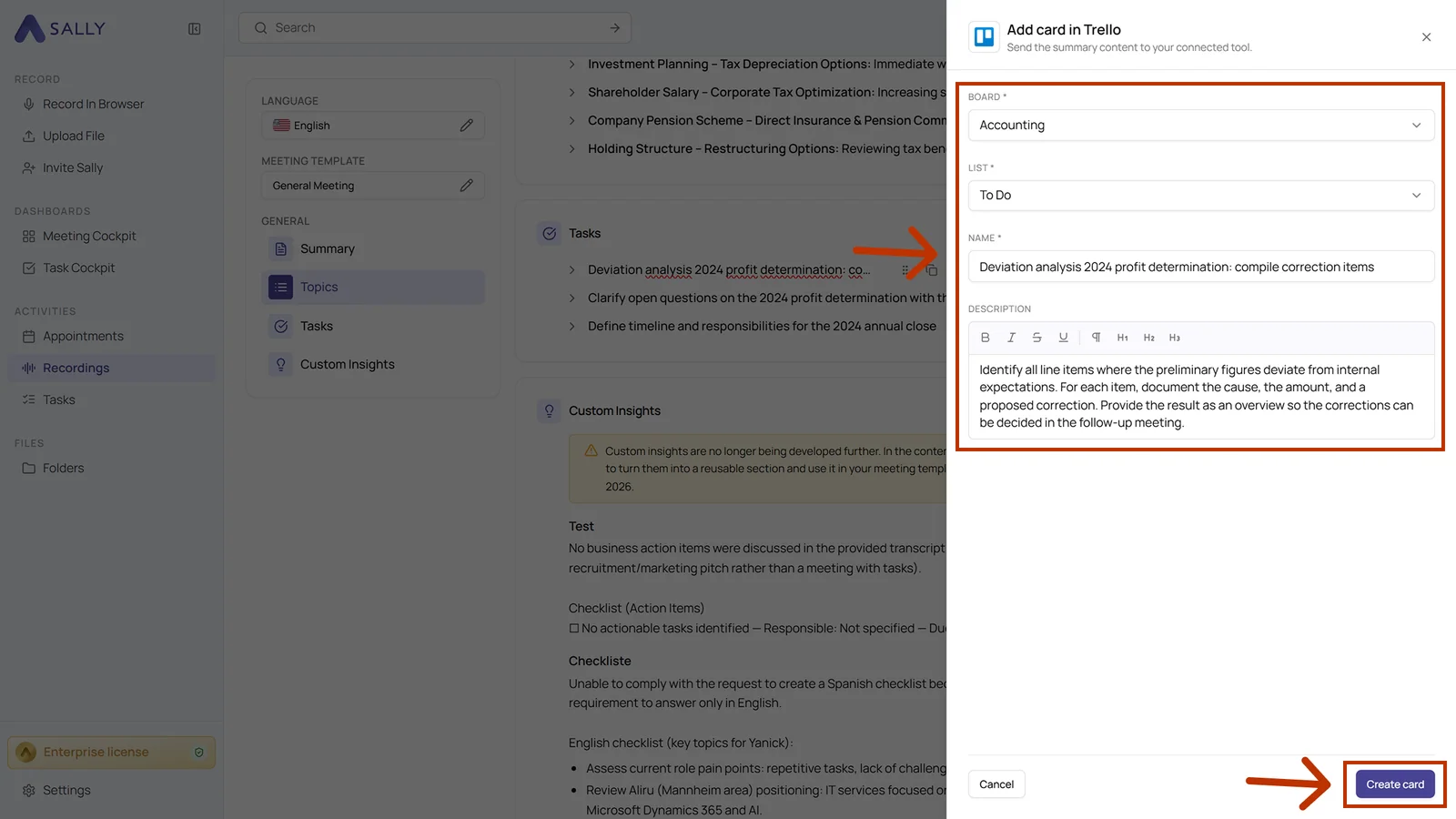
- Choose Add card in Trello in the Integrations menu.
- Pick the Board and the List. Together with Name, they are the mandatory fields, marked with
*. - Check Name and Description. Both come prefilled from the summary, and the description can be formatted in the editor.
- Click Create card.
- The card then sits in the list you picked on your Trello board.
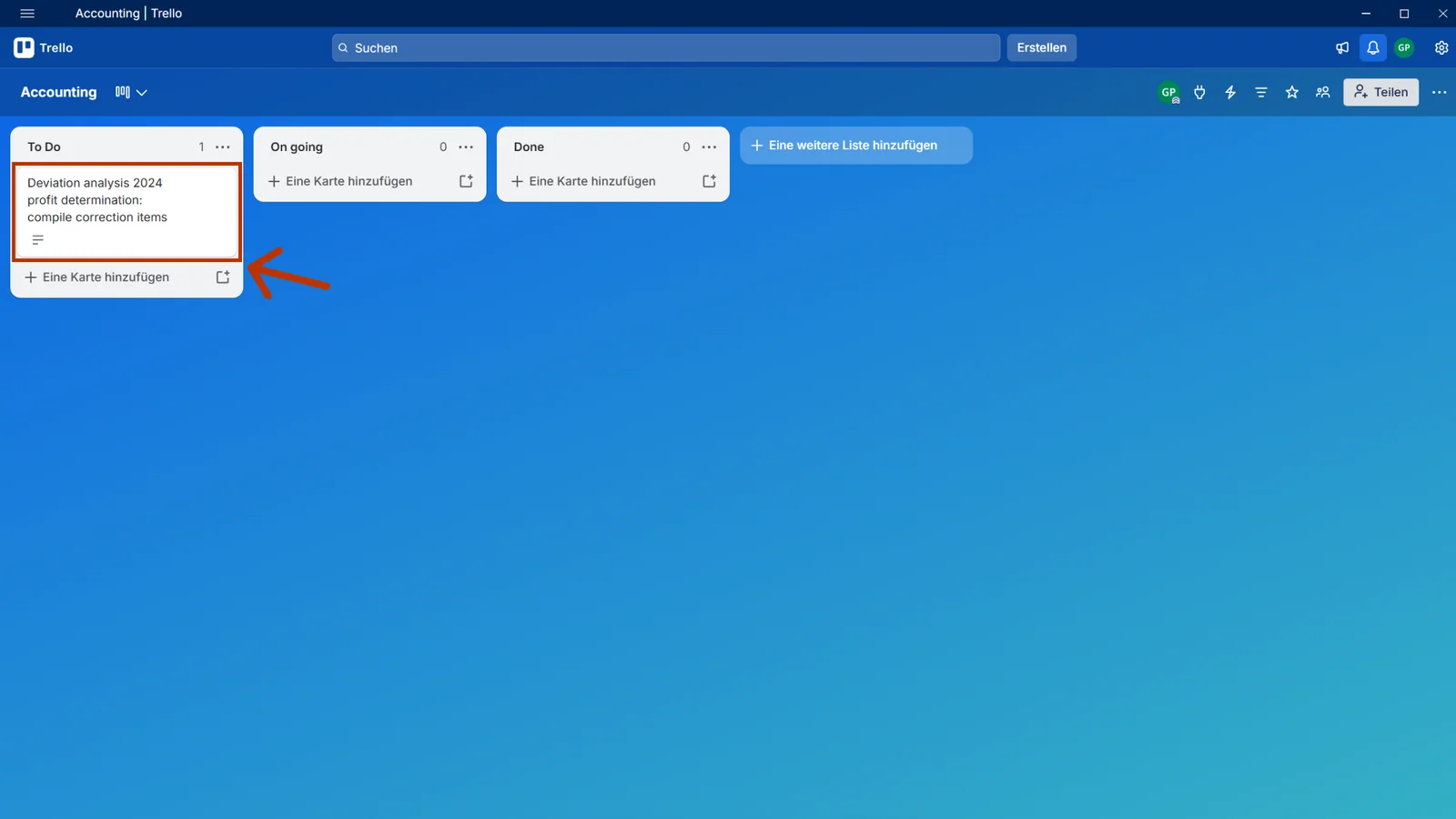
Keep card titles short, so action plus outcome, and leave the detailed meeting context in the description. Labels, members and due dates you can add directly in Trello afterwards.
2.2. Add a comment in Trello
Attach meeting context as a comment to an existing Trello card.
- Choose Add comment in Trello in the Integrations menu.
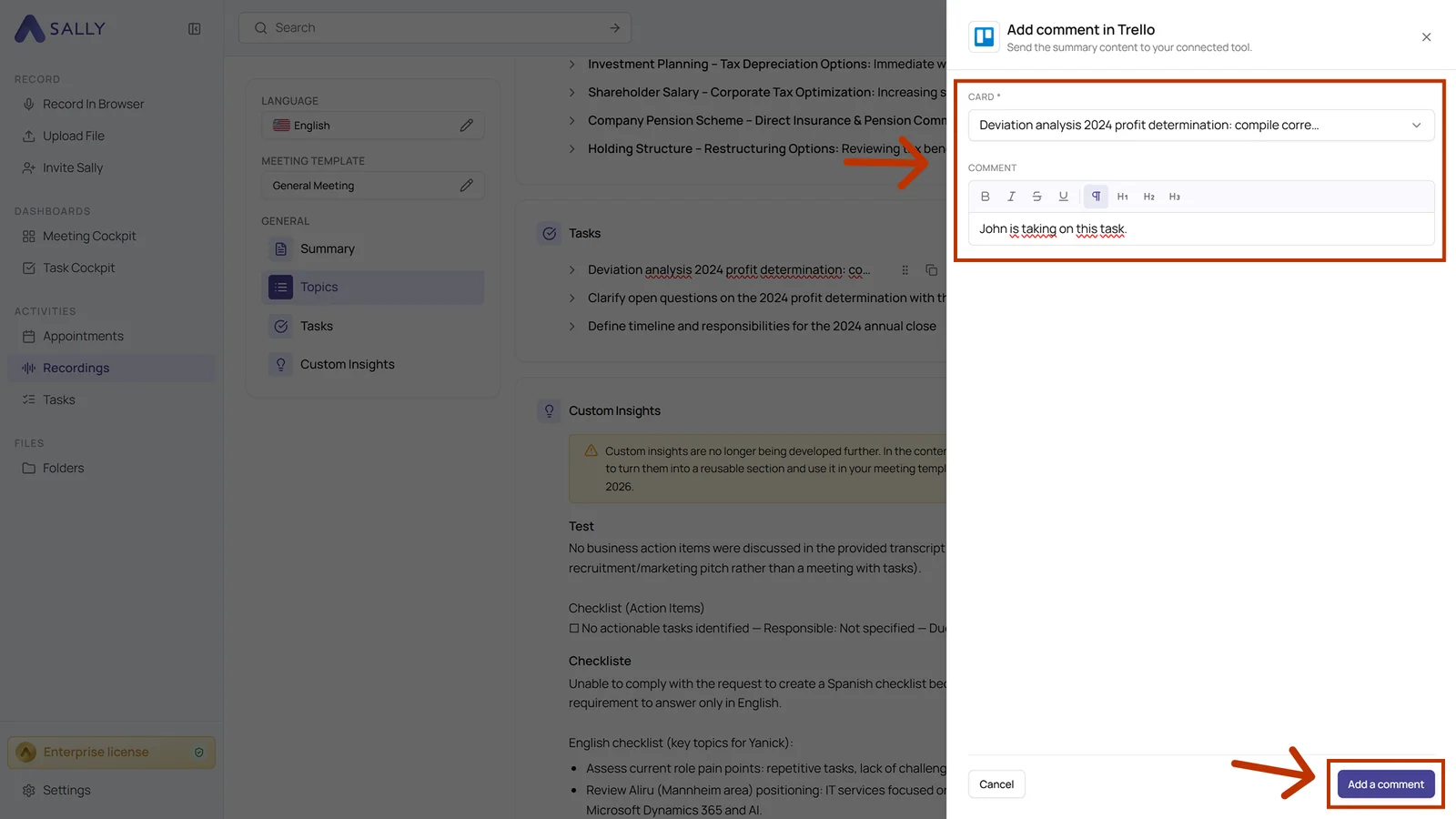
- Pick the Card you want to comment on. It is the only mandatory field.
- Check the comment and click Add a comment.
- The comment shows up under Comments and activity on the card.
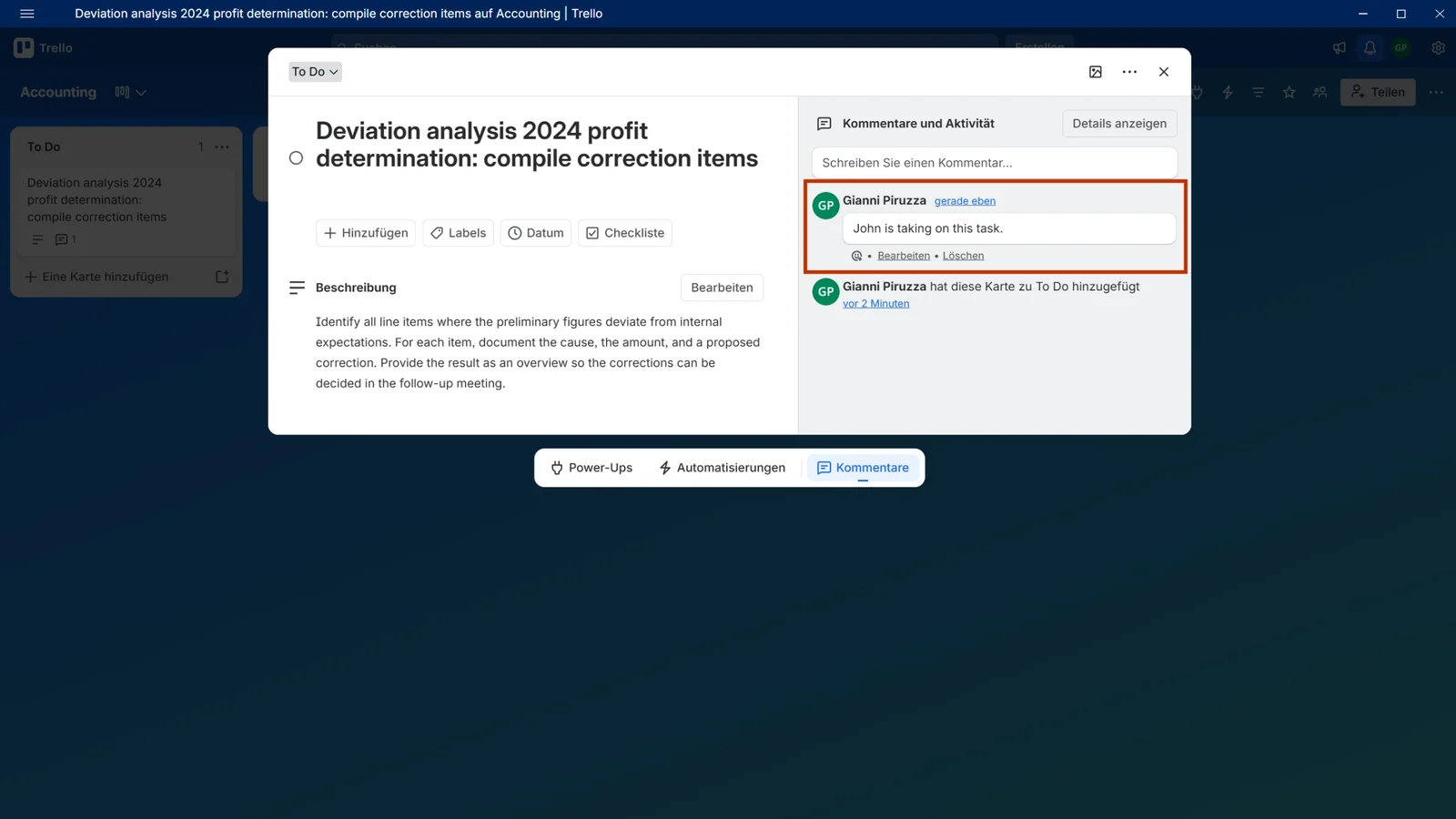
Use comments for status updates, decisions or clarifications that belong to an ongoing card, rather than creating duplicates.
3. What OAuth scopes does the Trello integration require?
For the integration with Trello, Sally uses OAuth 2.0 for authorization. The following scopes define which areas Sally can access on behalf of the authenticated user.
-
Sally accesses this information solely to technically establish and maintain the connection to the user account.
-
Sally does not make any autonomous changes. Actions are performed exclusively upon the explicit initiative of the user.
-
API endpoints are only called within the scope of an active action initiated by the user within the platform.
Technical overview of required scopes
| Scope | What Trello technically allows with this scope | How Sally uses this scope |
|---|---|---|
read | Read access to boards and cards | Sally reads board and card information where required within the integration context. No content is modified. |
write | API permission for board and card objects | Part of Trello's permission model. Sally does not independently create or modify cards outside explicitly user-initiated actions. |
account | Access to account information | Sally reads basic account information to authenticate the connected Trello account. |