How to manage calendar and integration availability for users in Sally AI
As an owner or admin you decide centrally which calendars and integrations the people in your organization may connect. The list is grouped by category, from calendars such as Apple Calendar, Google Calendar and Outlook through the video conferencing tools to everything else, Asana, ClickUp or Confluence for instance. Every integration is its own switch, which keeps you in control of third-party tools, data governance and compliance.
By default, every calendar and every integration is available to all users. When you disable one, users can no longer create new connections to that calendar or tool. Existing connections remain visible in the user view but are no longer used for syncing, automations or data access. Users can only disconnect them.
Quick navigation:
- How do I enable or disable calendars and integrations for my users?
- What happens when a calendar or integration is disabled?
1. How do I enable or disable calendars and integrations for my users?
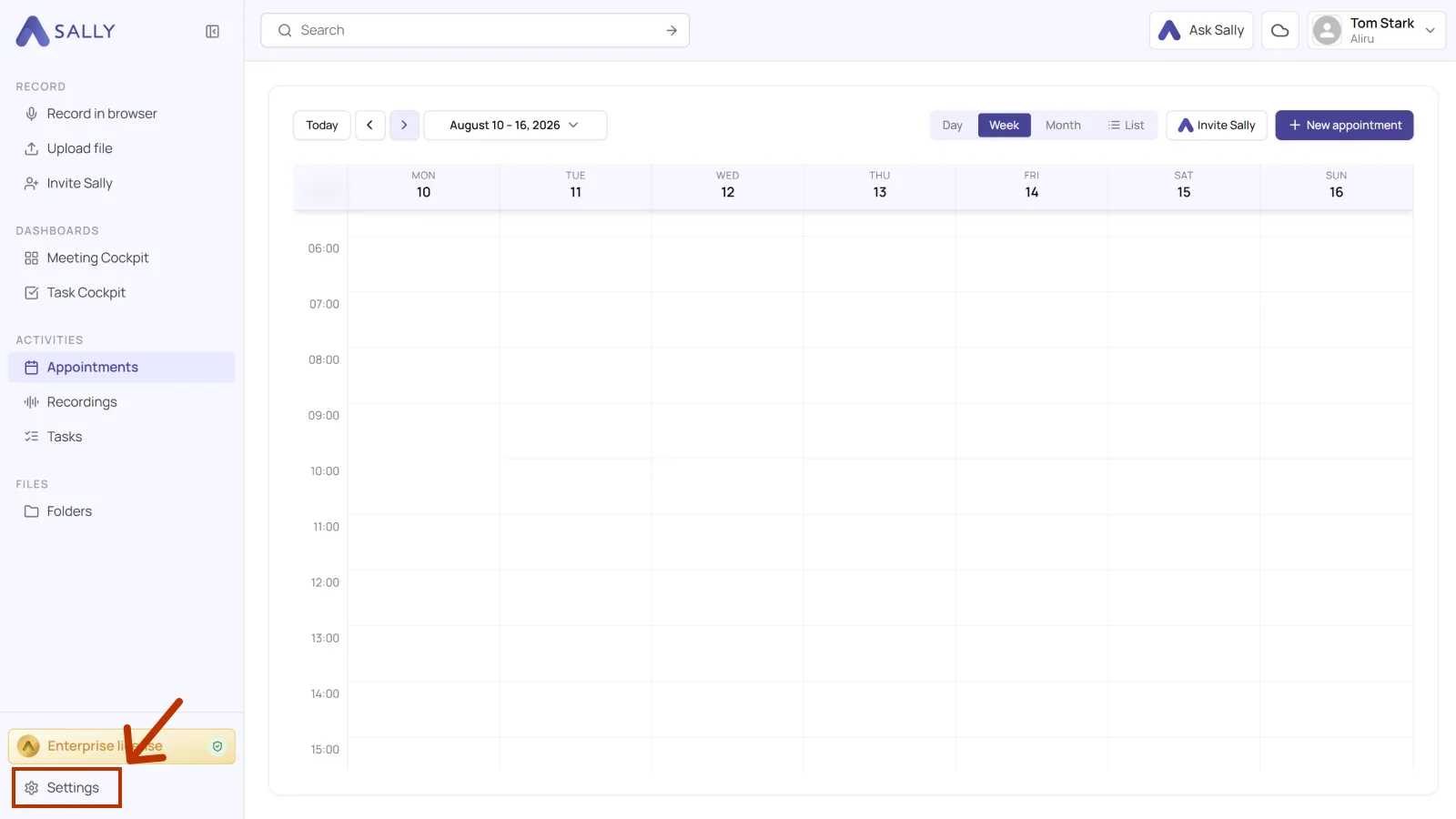
- Open Settings from the bottom-left corner of the sidebar.
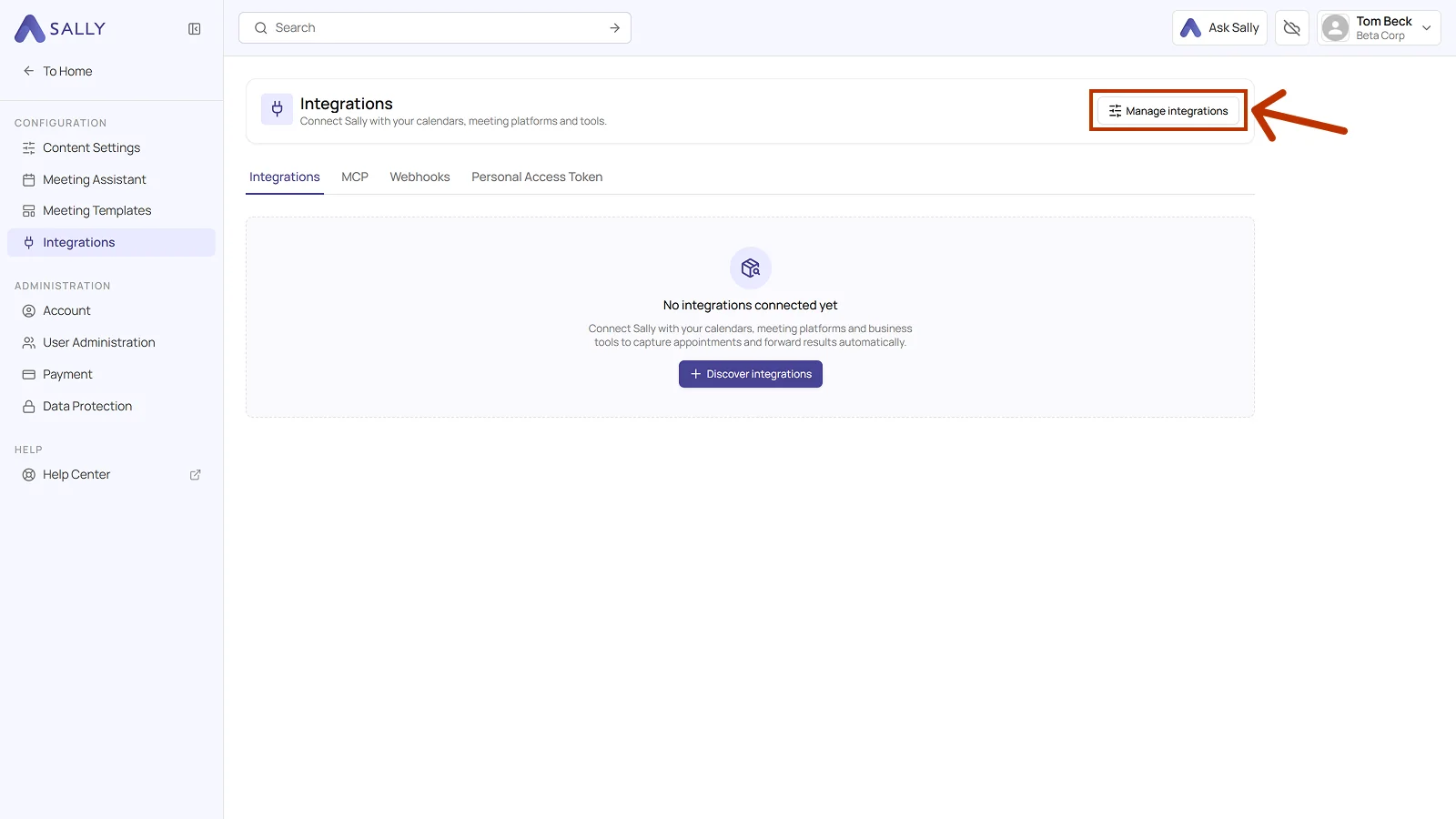
- In the settings sidebar, select Integrations under Configuration. Then click Manage integrations in the top-right corner. The button sits in the page header, above the Integrations, MCP, Webhooks and Personal Access Token tabs.
- The Enable integrations and calendars for users panel opens on the right. The line under the title counts how many integrations are currently enabled. The list is grouped into categories, with Calendar at the top, Video conferencing below it and the remaining integrations further down. Use the toggle to the right of an integration to enable or disable it for your entire organization.
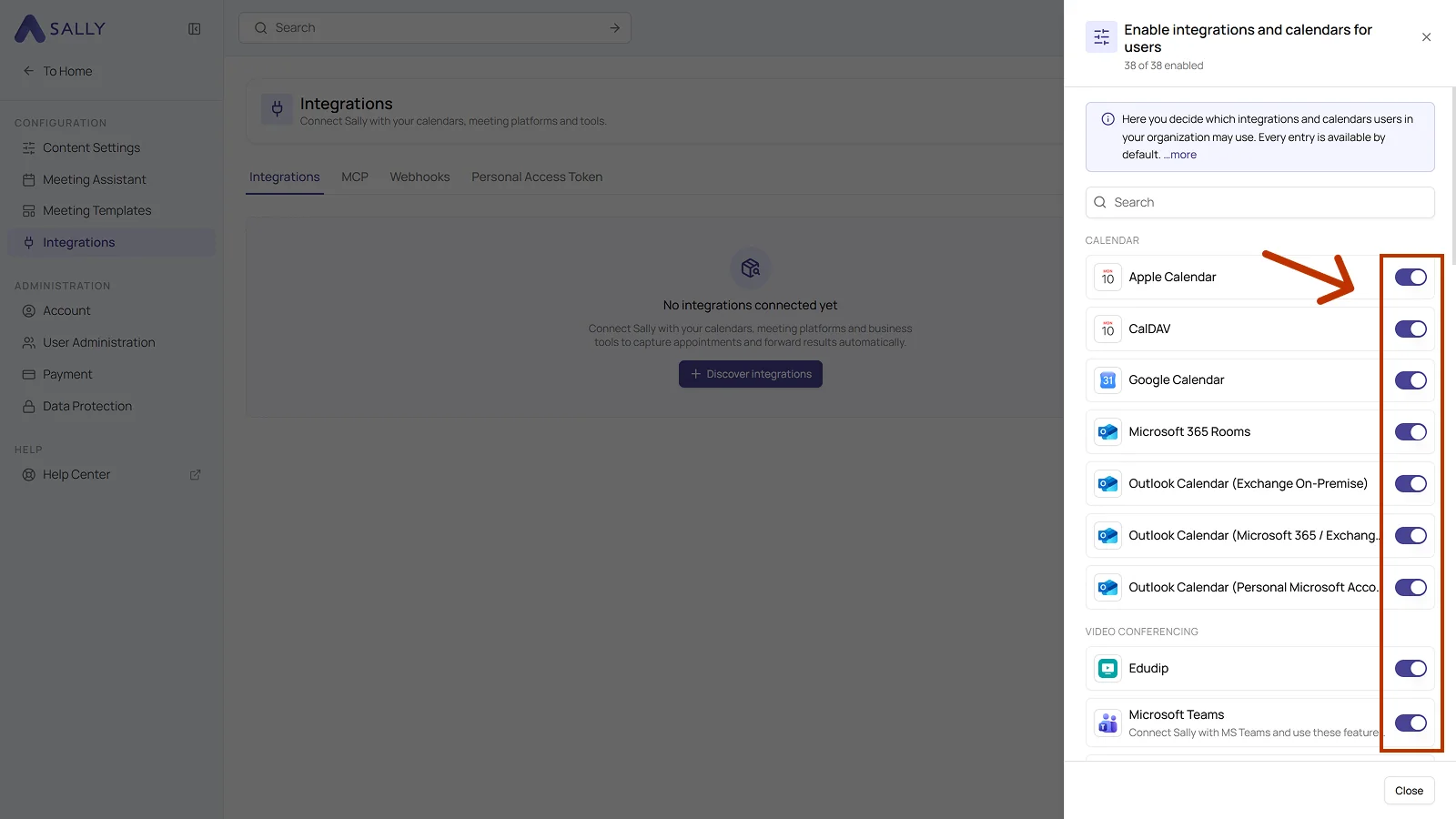
All calendars and integrations are enabled by default. You only need to adjust this panel if you want to restrict specific calendars or integrations for your organization.
Some calendars appear more than once in the list, for example Outlook Calendar (Microsoft 365 / Exchange Online), Outlook Calendar (Personal Microsoft Account / Exchange Online) and Outlook Calendar (Exchange On-Premise). That way you can block personal Microsoft accounts and still allow the work accounts. Room calendars have their own integration as well, listed as Microsoft 365 Rooms.
Use the search field at the top to quickly find a specific calendar or integration. There is no save button: every change takes effect across your organization right away, and Close takes you back out of the panel.
2. What happens when a calendar or integration is disabled?
When you disable a calendar or an integration for your organization, the following applies:
- New connections are blocked: Users can no longer connect their accounts to the disabled calendar or integration.
- Existing connections stay visible in the user's personal view, but they are no longer used for calendar sync, automations, rules, or data access.
- Users can only disconnect existing connections. They cannot reconnect or use them until you re-enable the calendar or integration.
- Calendar sync, automations and rules that depend on the disabled calendar or integration stop executing until access is restored.
So you can switch something off for a while, during a security review for example, without destroying anyone’s setup. Switch it back on and the existing connections work again.