How to set and change the meeting summary language
The transcript is always created in the language spoken during the meeting. For the summary you can decide: by default it follows the meeting language as well, but you can also have it written in your own language or set one fixed language for every summary.
This guide shows you where to find the setting, what the three options do, and how admins define one language for the whole organization.
Quick navigation
1. Where to find the setting
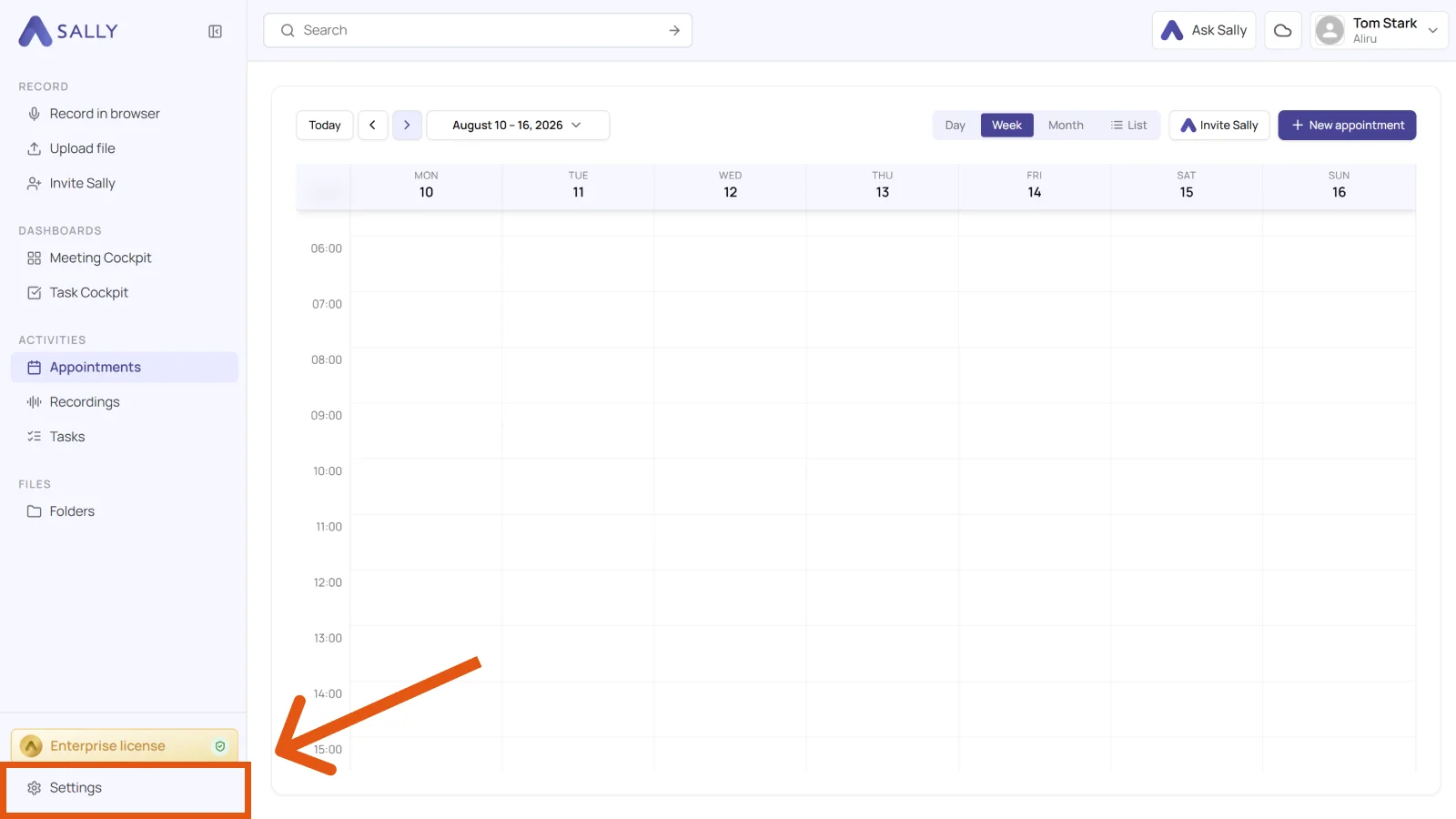
- Open Settings at the bottom of the left sidebar.
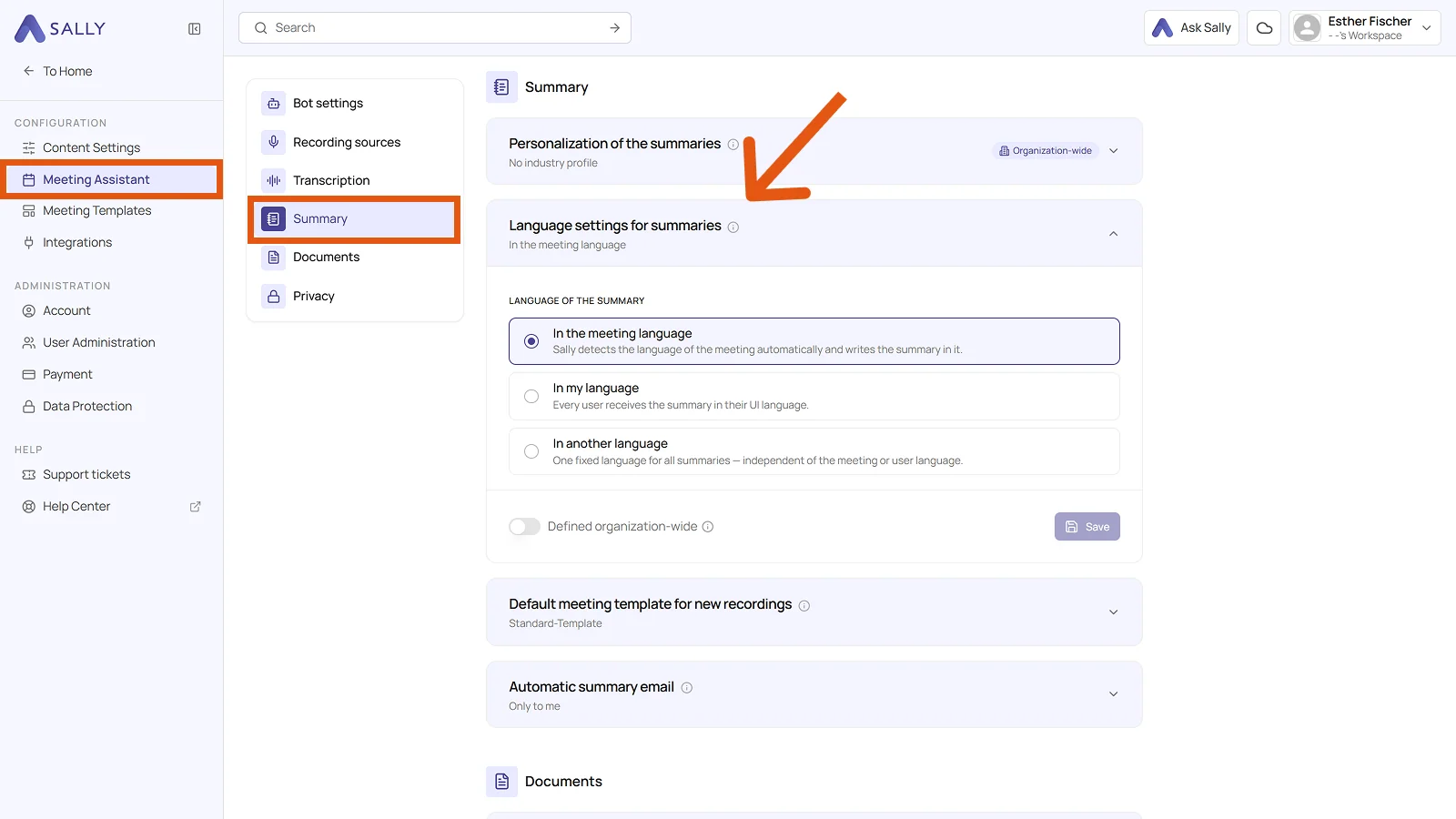
- Under Configuration, select Meeting Assistant and then the Summary tab.
- Expand the Language settings for summaries section. The three options are listed under Language of the summary.
2. Available options
There are three ways to set the language of your summaries.
As soon as you pick a different option, the Unsaved changes note appears at the bottom of the section. The new setting only takes effect once you click Save.
2.1. In the meeting language
Sally detects the language spoken in the meeting automatically and writes the summary in it. This is the default.
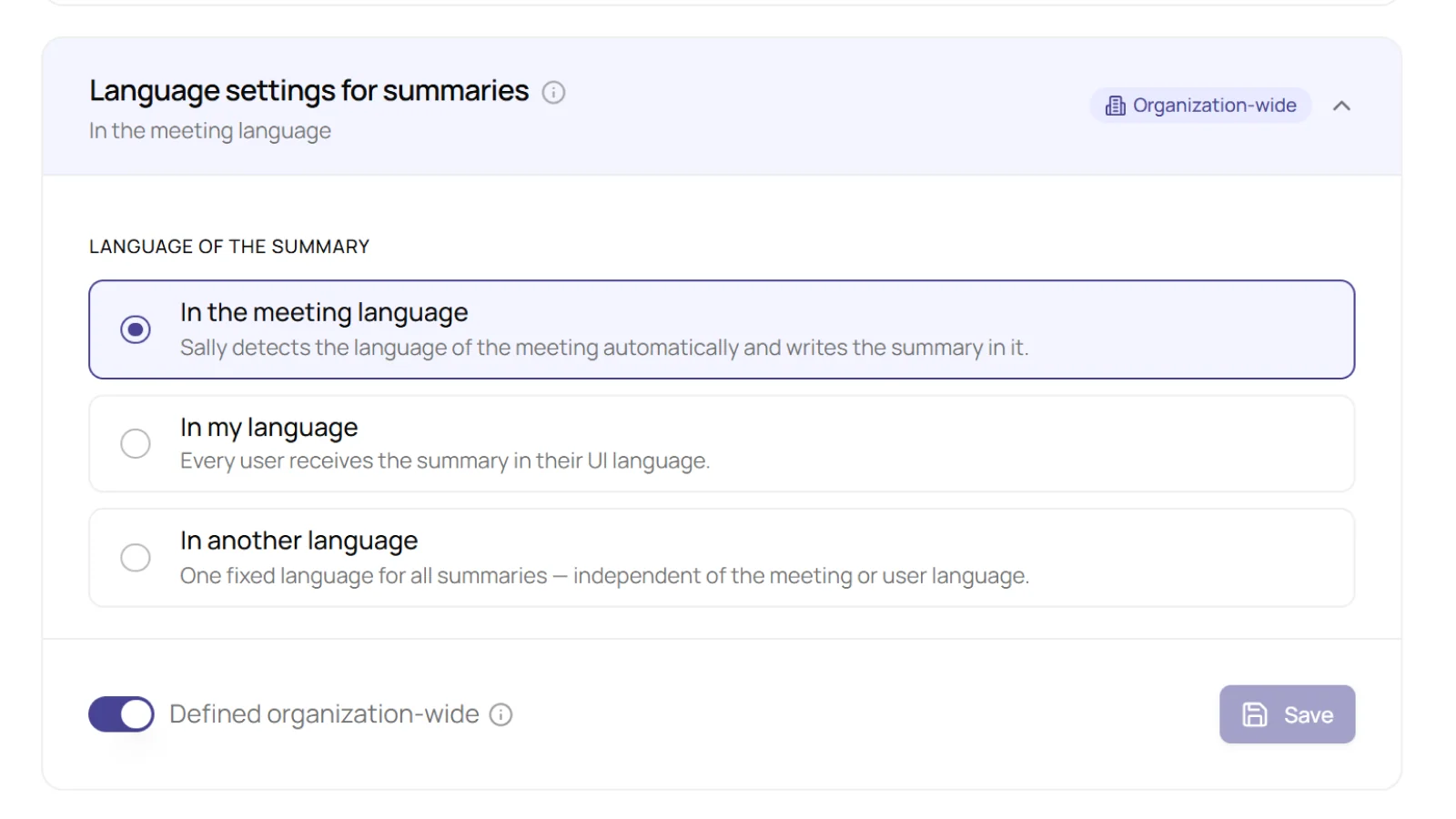
Useful if participants or teams expect the summary in the same language as the conversation.
2.2. In my language
Every user receives the summary in the language of their own interface. An English meeting therefore reaches you in English and a colleague whose Sally is set to German in German.
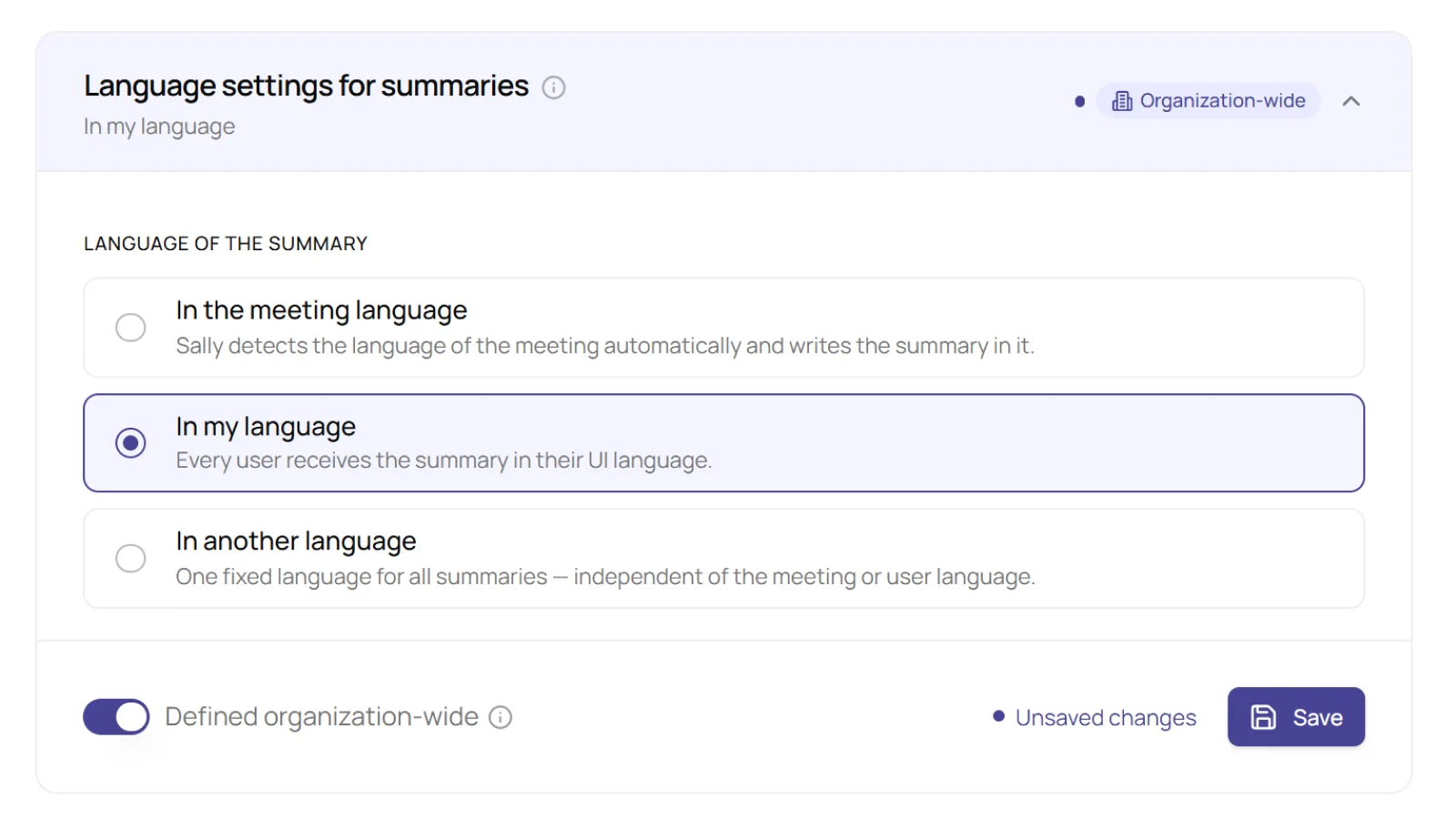
Best if you want all summaries in your main working language, consistent across every meeting, no matter what language was spoken.
2.3. In another language
Pick a fixed language from the Specific language dropdown. It then applies to every summary, independent of the meeting language and of the individual users' languages.
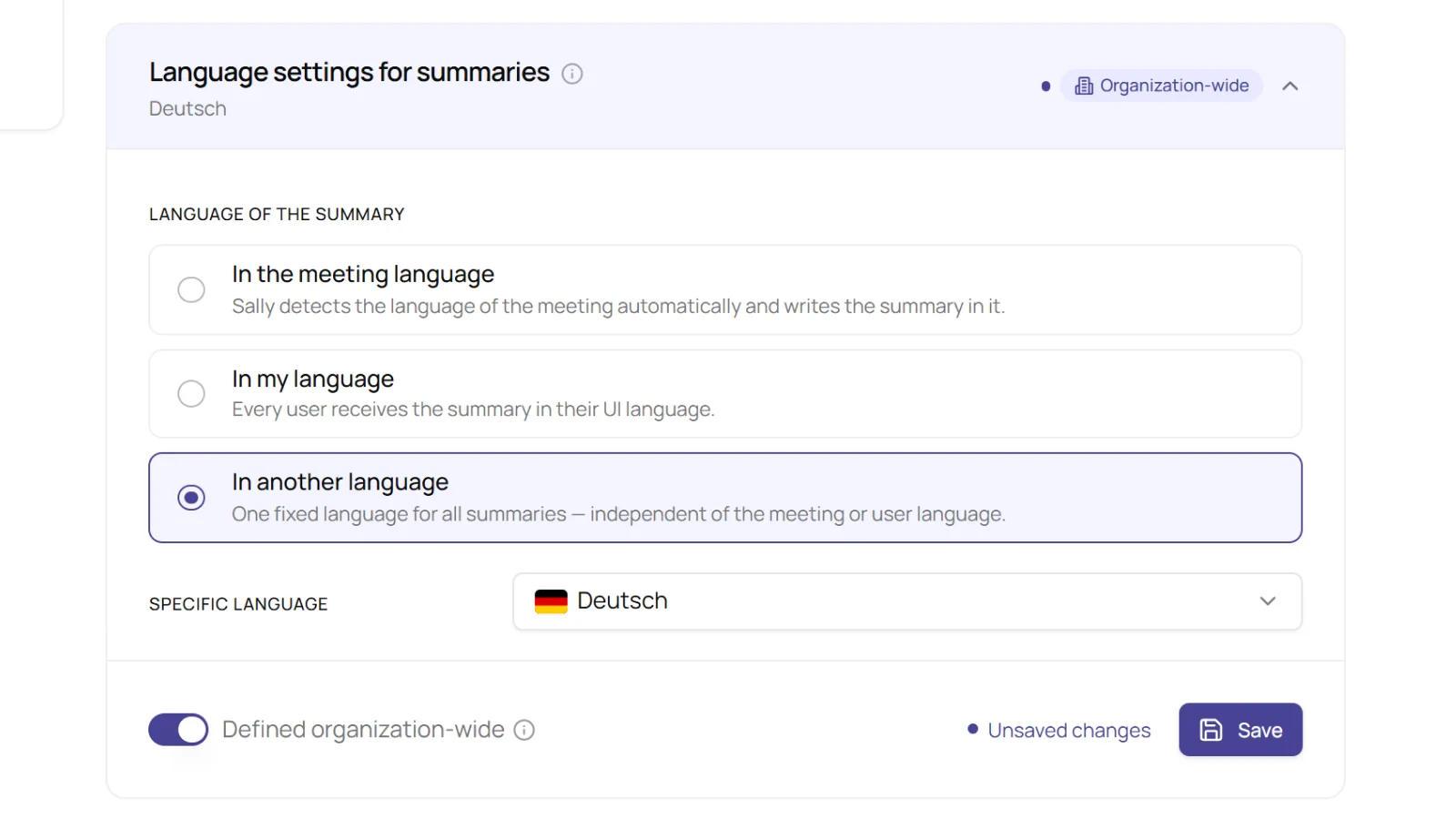
Ideal for reporting or stakeholder communication when summaries are always needed in a fixed language, for example always in French, even if the meeting was in English.
With the Defined organization-wide toggle, the selected option applies to the entire organization. Only those two roles have that toggle, members do not. The section then carries the Organization-wide label in the top right corner, and every user receives their summaries by the same rule.