How to Connect Pipedrive CRM with Sally AI
Connect Sally AI with Pipedrive to turn meeting insights into real work – directly on the right Lead, Deal, Contact, or Organization. With the Sally Pipedrive integration you can send notes, meetings, and tasks to Pipedrive with one click, avoid double entry, and keep your CRM up to date.
Quick Navigation
1. How to connect Pipedrive with Sally AI
Follow these steps to enable the Sally Pipedrive integration.
-
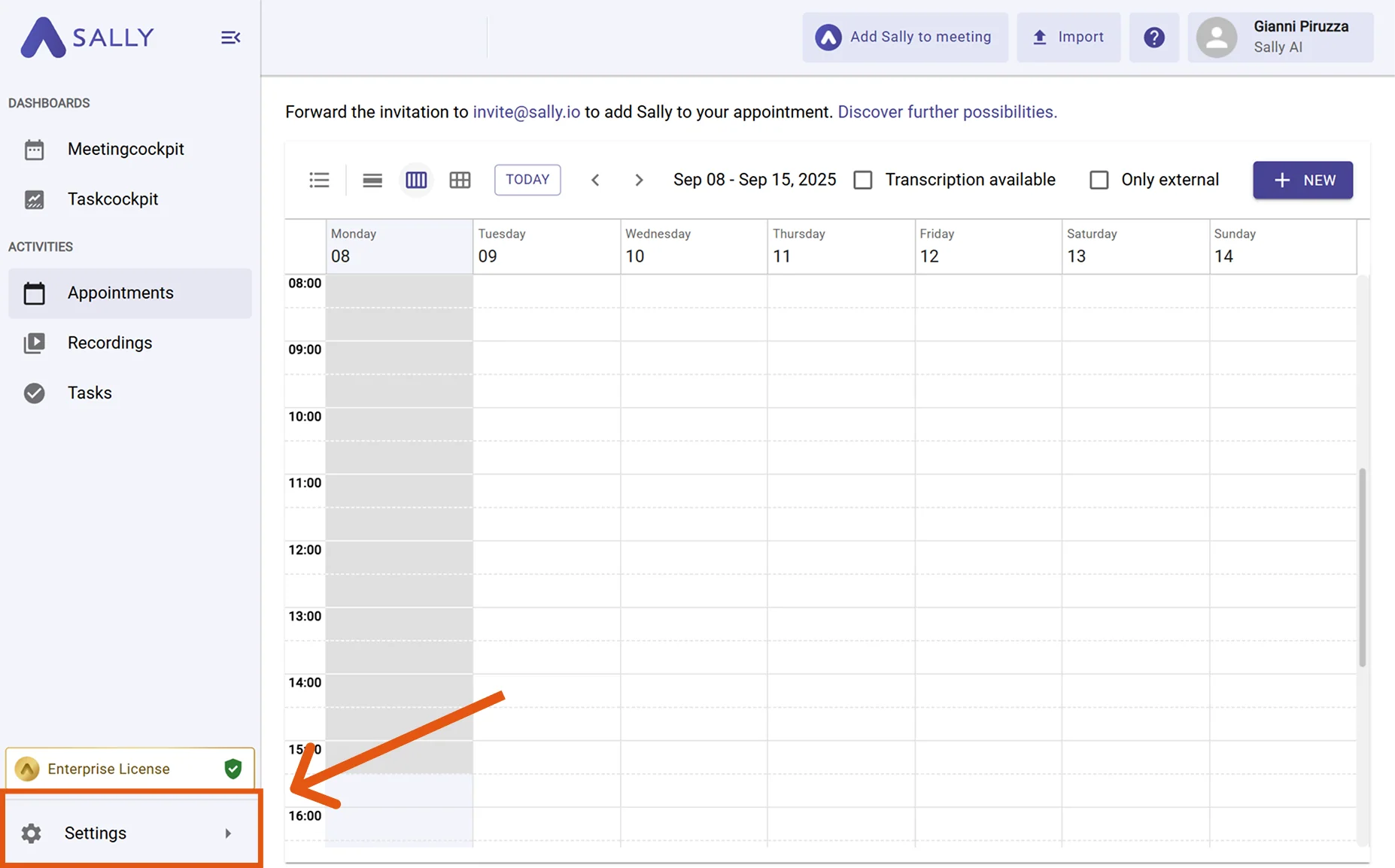
Open Settings in the left sidebar.
Figure 1: Go to Settings -
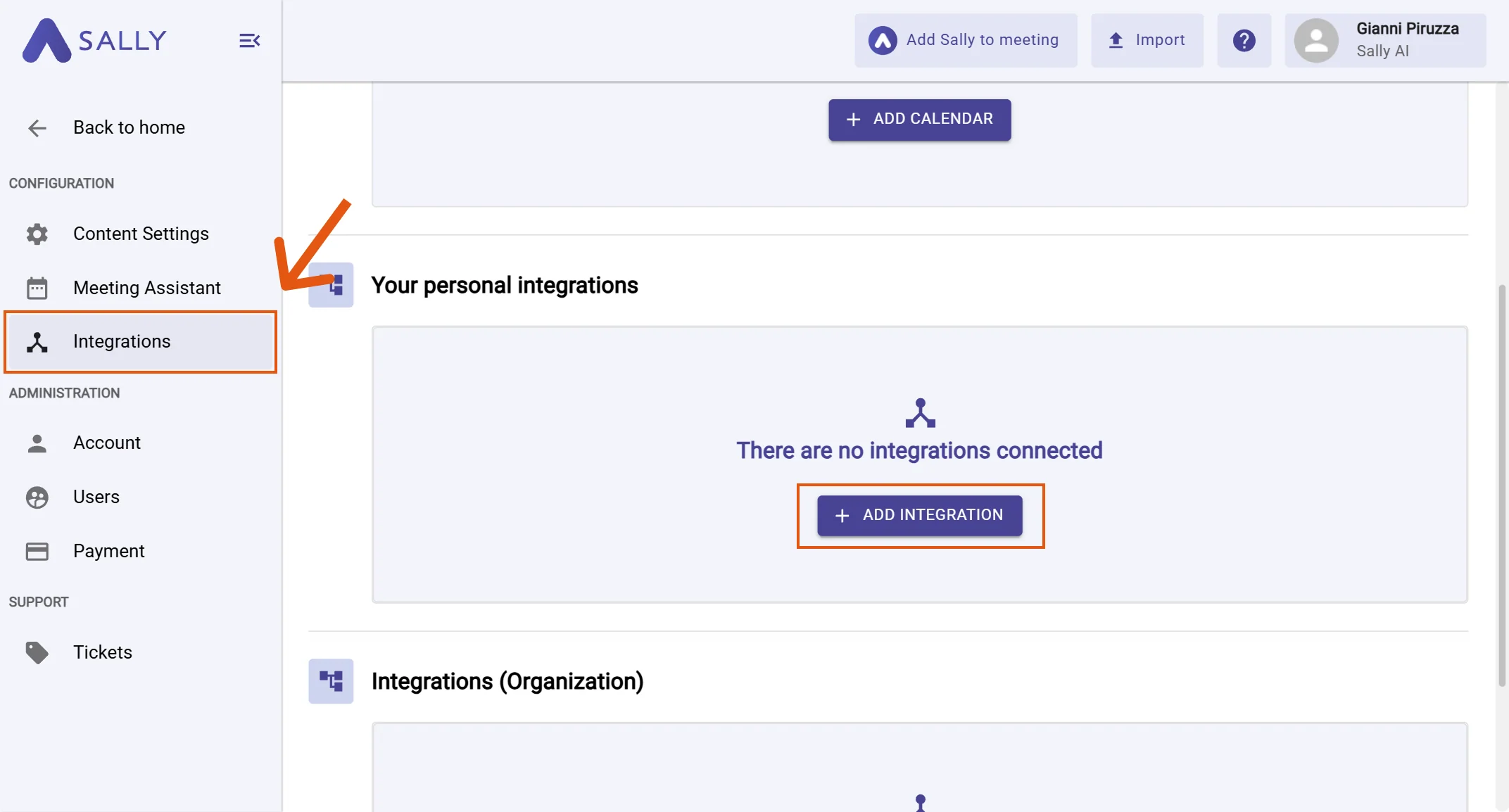
Go to Integrations and click "+ Add integration" under "Your personal integrations".
infoPersonal integrations apply to your user account. Admins can also set up org-wide integrations under "Integrations (Organization)" if needed.
Figure 2: Add integration -
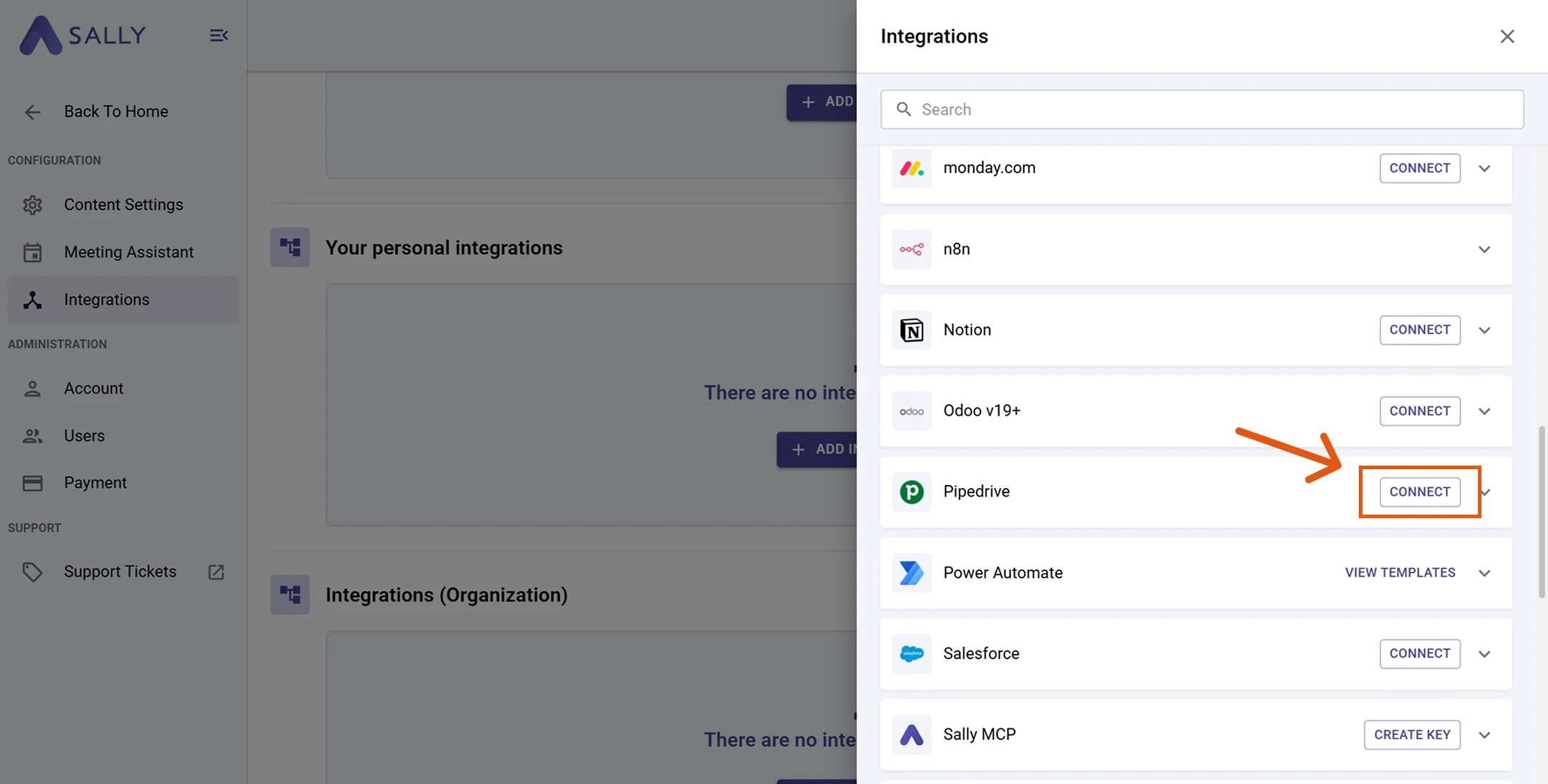
Select Pipedrive and hit Connect. Complete the OAuth flow in Pipedrive.
Figure 3: Choose Pipedrive → Connect -
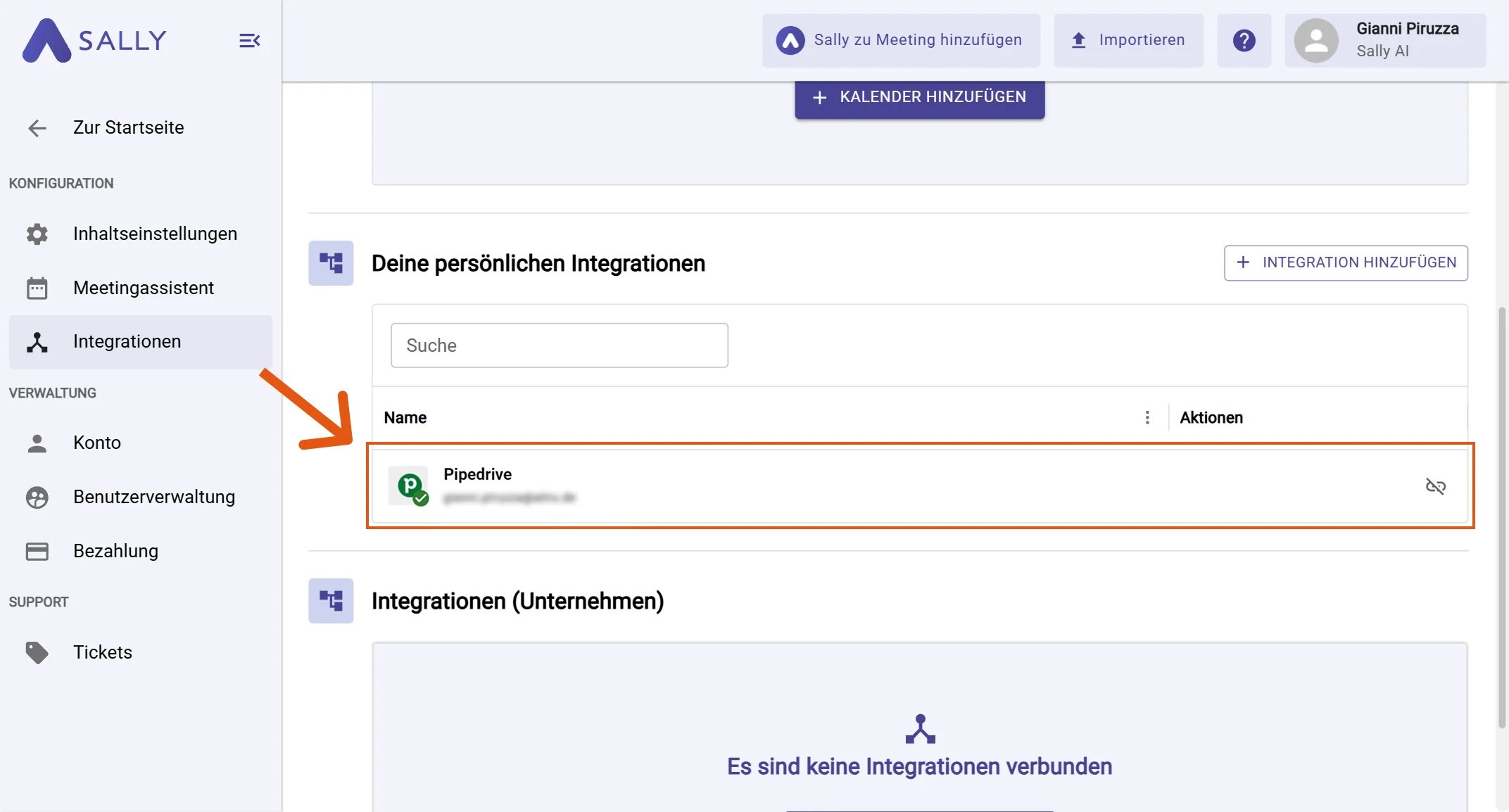
After a successful connection, Pipedrive appears under "Your personal integrations".
Figure 4: Pipedrive is connected
2. How to send insights to Pipedrive
Once Pipedrive is connected, you can send meeting insights from Sally to Pipedrive with a single click - so they land on the right CRM record.
You can:
2.1. Create a note in Pipedrive
Attach meeting context as a note on a Pipedrive record.
-
Open the desired meeting or recording in Sally.
-
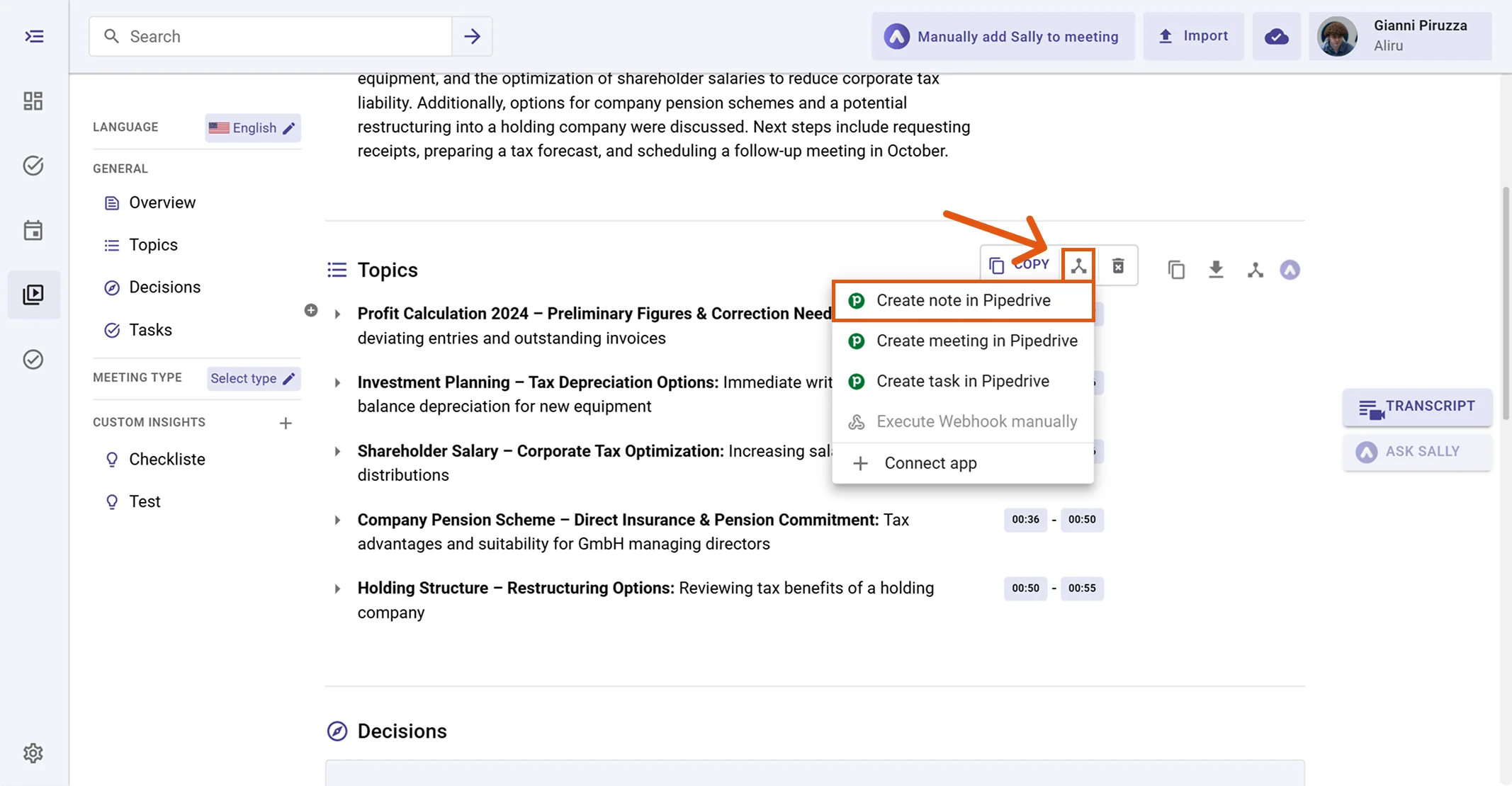
Click the integration button next to the insight you want to send to Pipedrive.
-
Choose "Create note in Pipedrive" from the menu.
Figure 5: Choose Create note in Pipedrive -
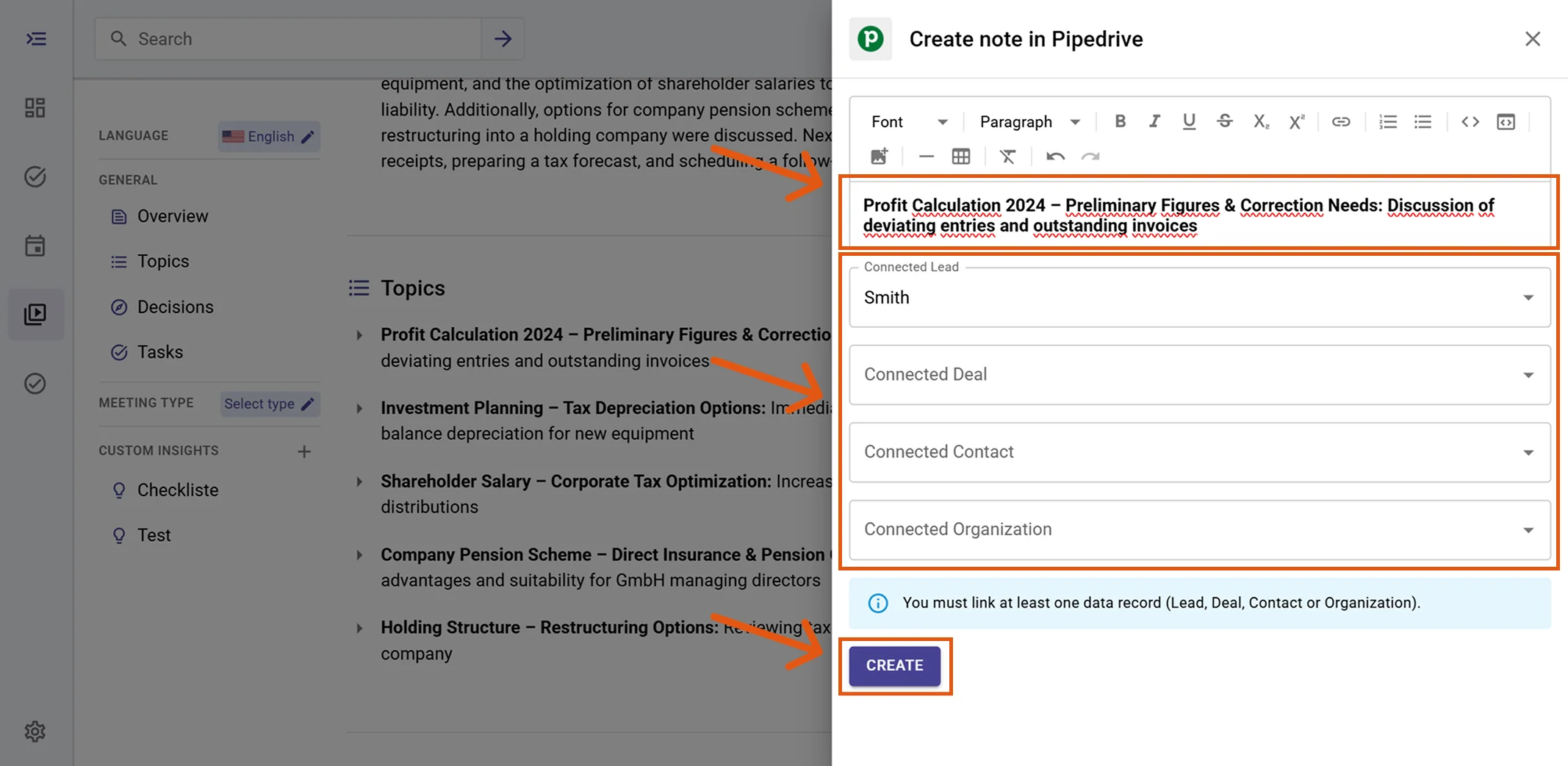
Fill in the creation form. For a Pipedrive note this typically includes:
- Linked Lead
- Linked Deal
- Linked Contact
- Linked Organization
At least one link is required. The content is prefilled from Sally and can be edited.
-
Click Create to send it to Pipedrive.
Figure 6: Fill the Pipedrive note fields and Create -
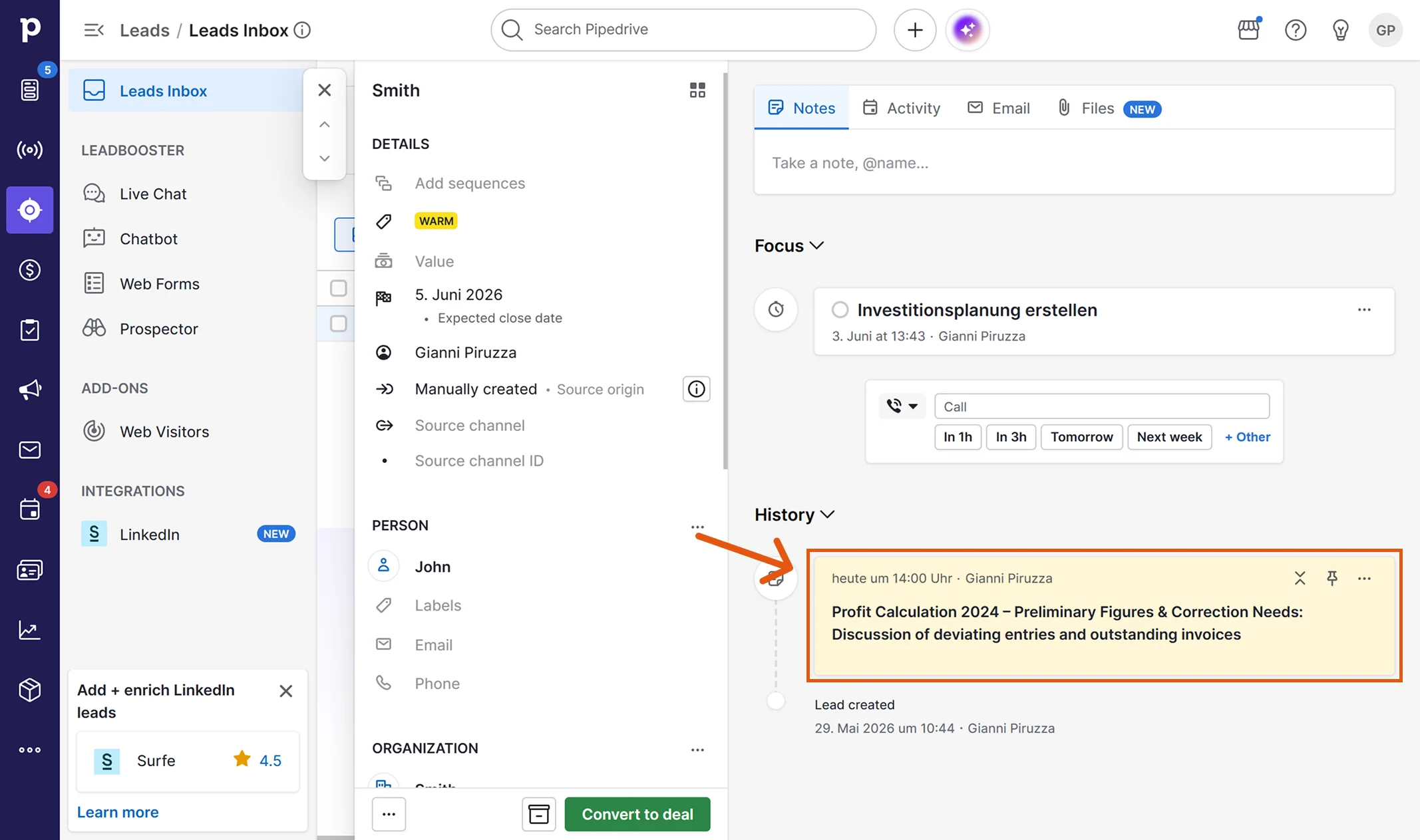
The note appears on the linked record's timeline in Pipedrive.
Figure 7: The Sally note in Pipedrive
2.2. Create a meeting in Pipedrive
Log a Sally meeting as an Activity (Meeting) in Pipedrive.
-
Open the desired meeting or recording in Sally.
-
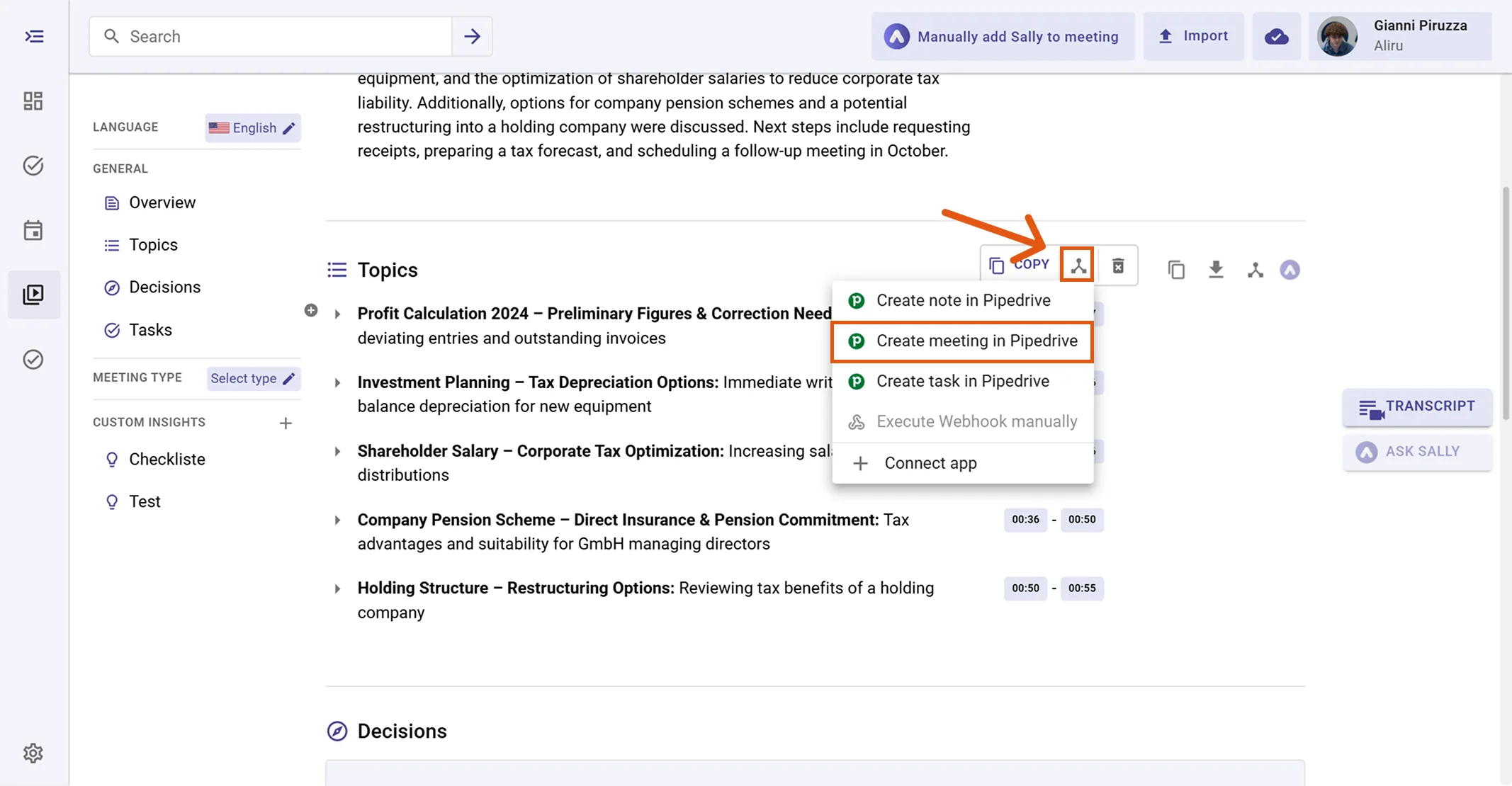
Click the integration button next to the insight you want to send to Pipedrive.
-
Choose "Create meeting in Pipedrive" from the menu.
Figure 8: Choose Create meeting in Pipedrive -
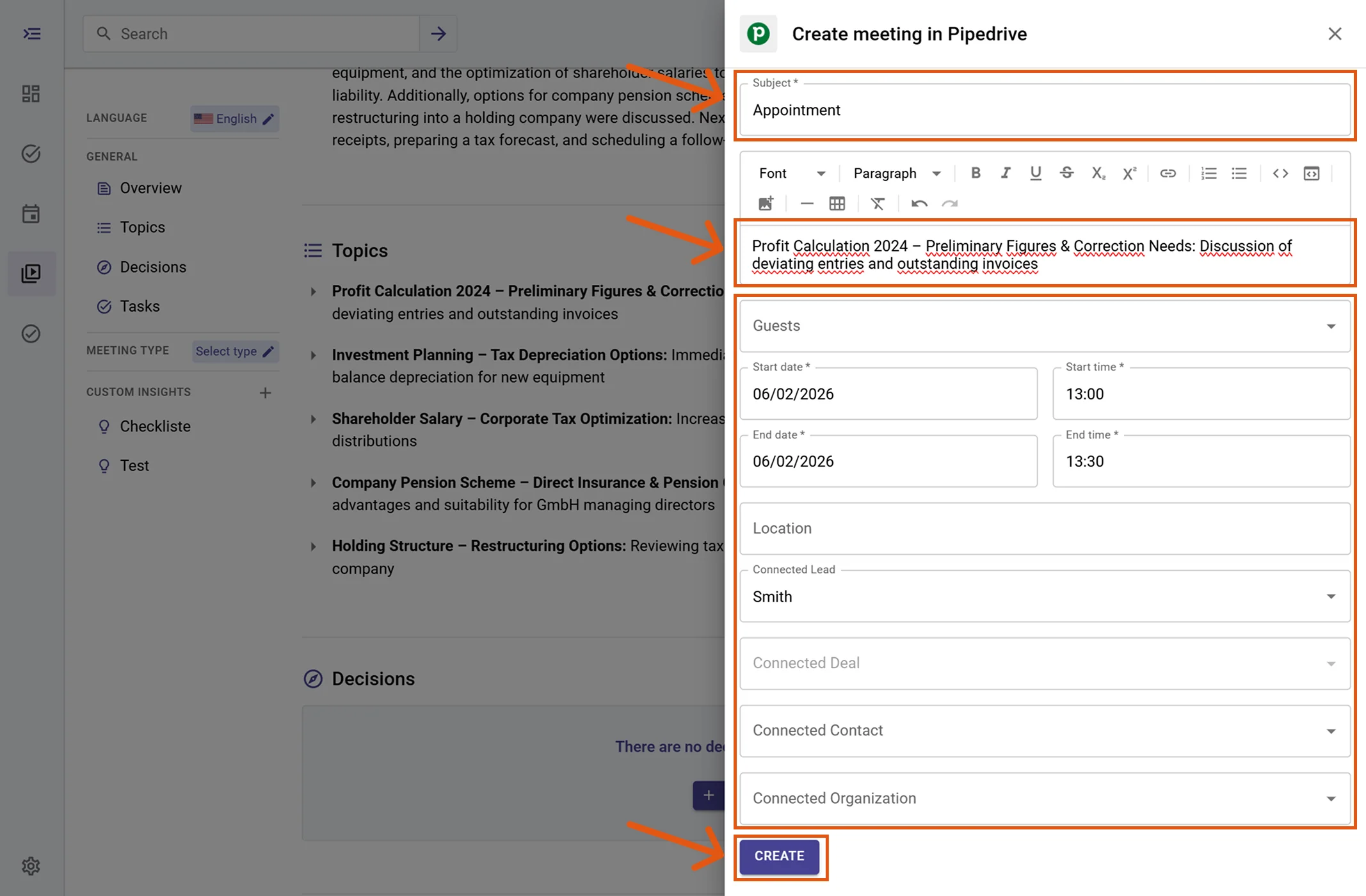
Fill in the creation form (required fields are marked with
*). For a Pipedrive meeting this typically includes:- Subject*
- Guests
- Start date / time*
- End date / time*
- Location
- Linked Lead
- Linked Deal
- Linked Contact
- Linked Organization
The subject and description are prefilled from Sally and can be edited.
-
Click Create to send it to Pipedrive.
Figure 9: Fill the Pipedrive meeting fields and Create -
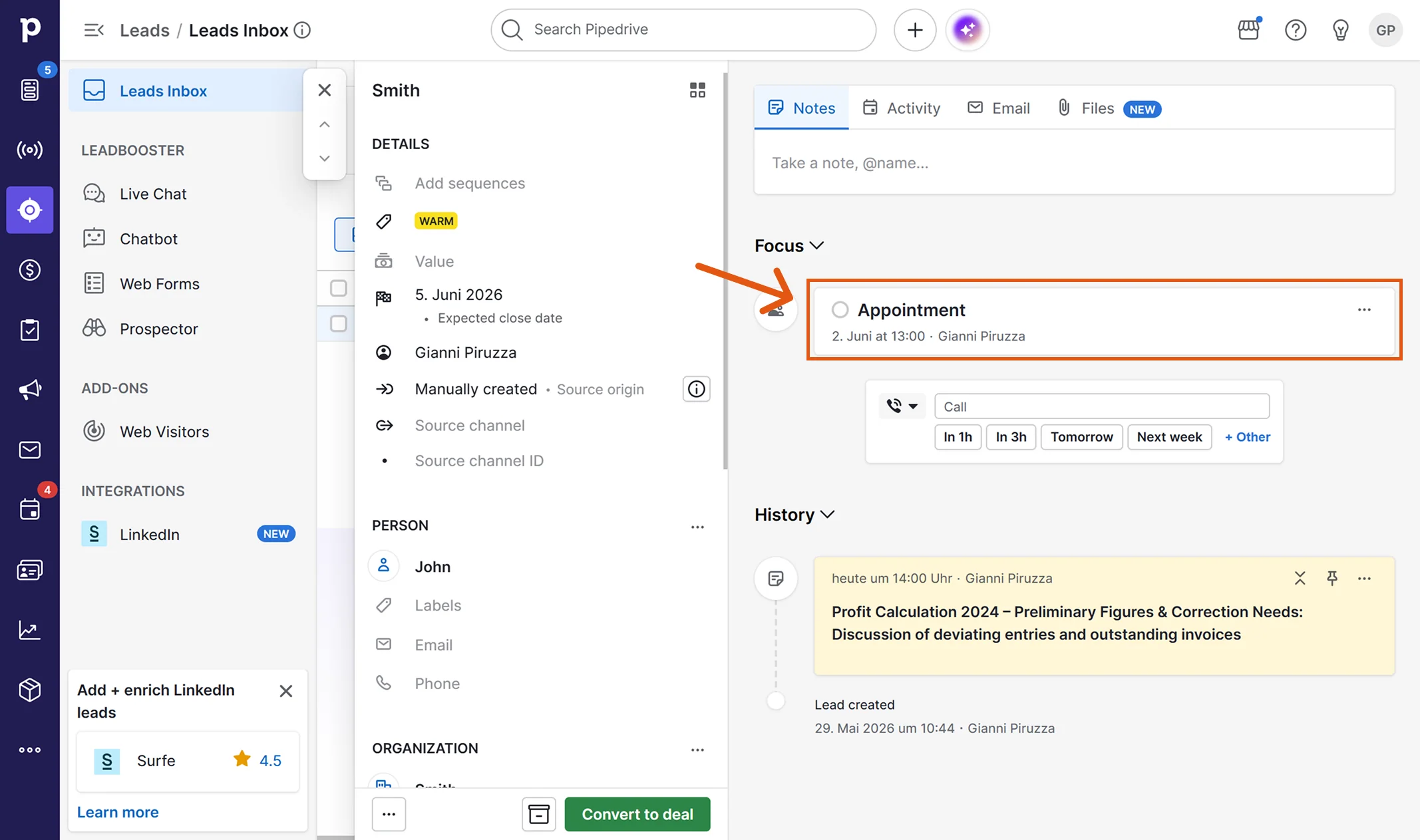
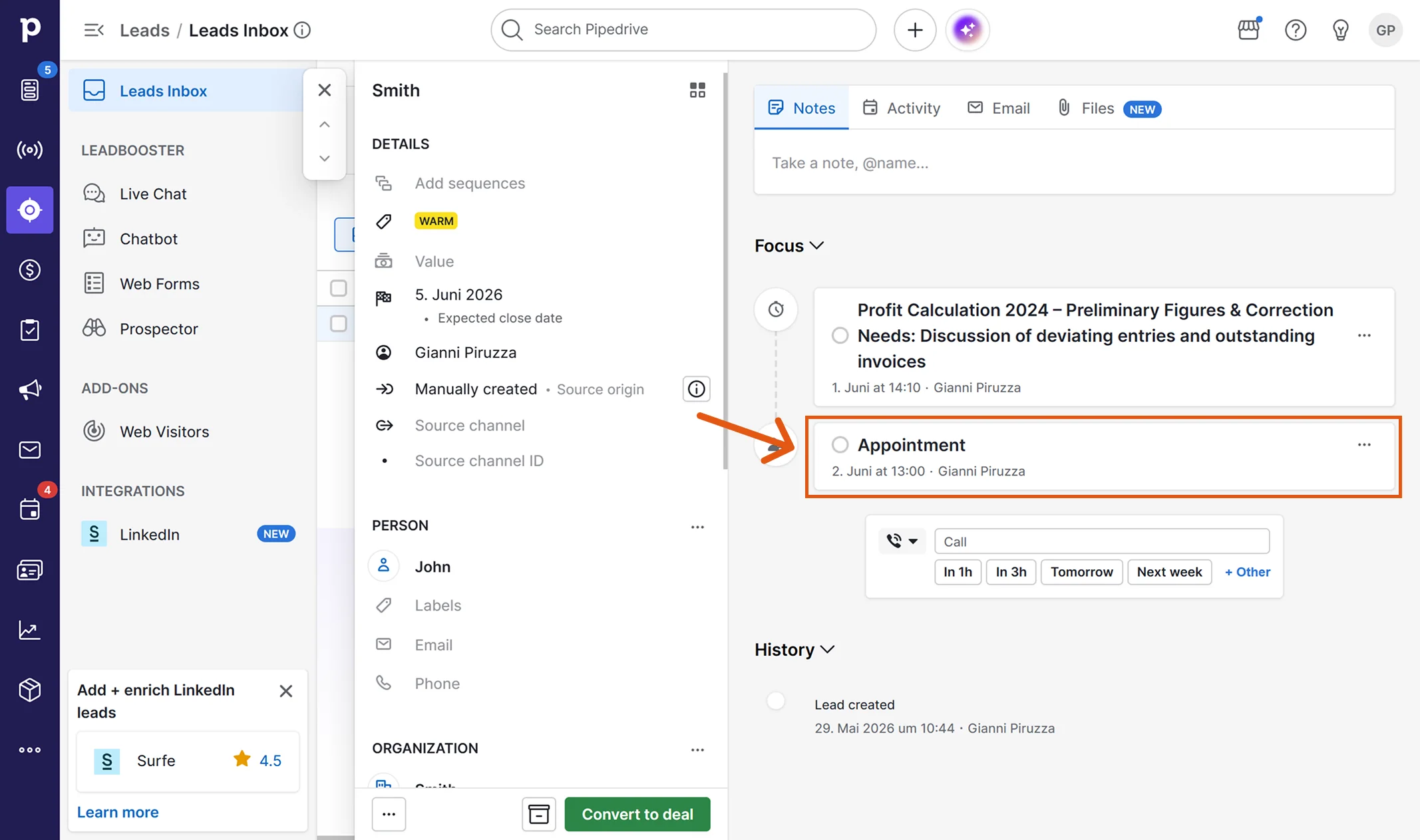
The meeting appears in the linked record's Focus area in Pipedrive.
Figure 10: The Sally meeting in Pipedrive
2.3. Create a task in Pipedrive
Turn a Sally insight into a Pipedrive task.
-
Open the desired meeting or recording in Sally.
-
Click the integration button next to the insight you want to send to Pipedrive.
-
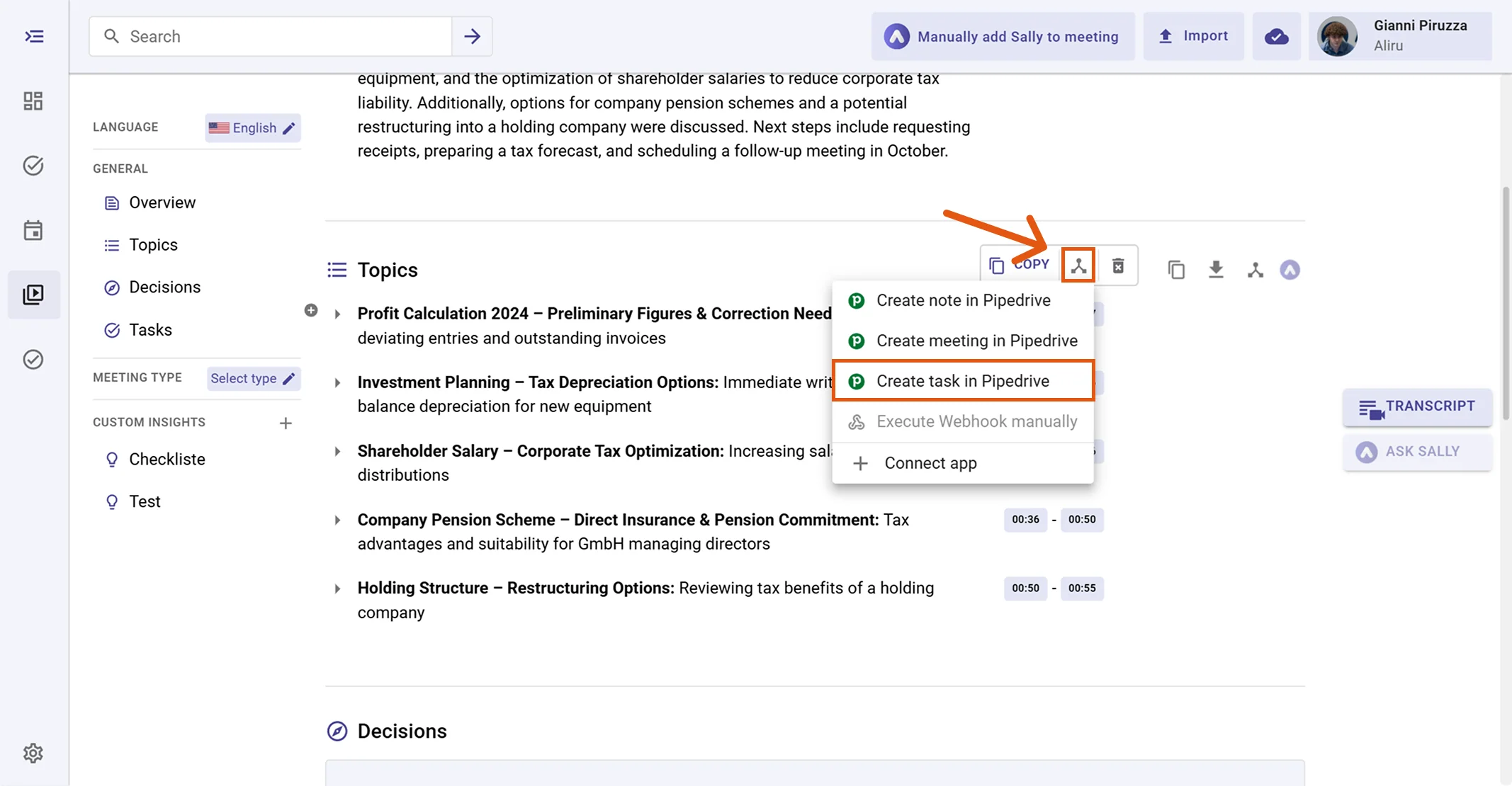
Choose "Create task in Pipedrive" from the menu.
Figure 11: Choose Create task in Pipedrive -
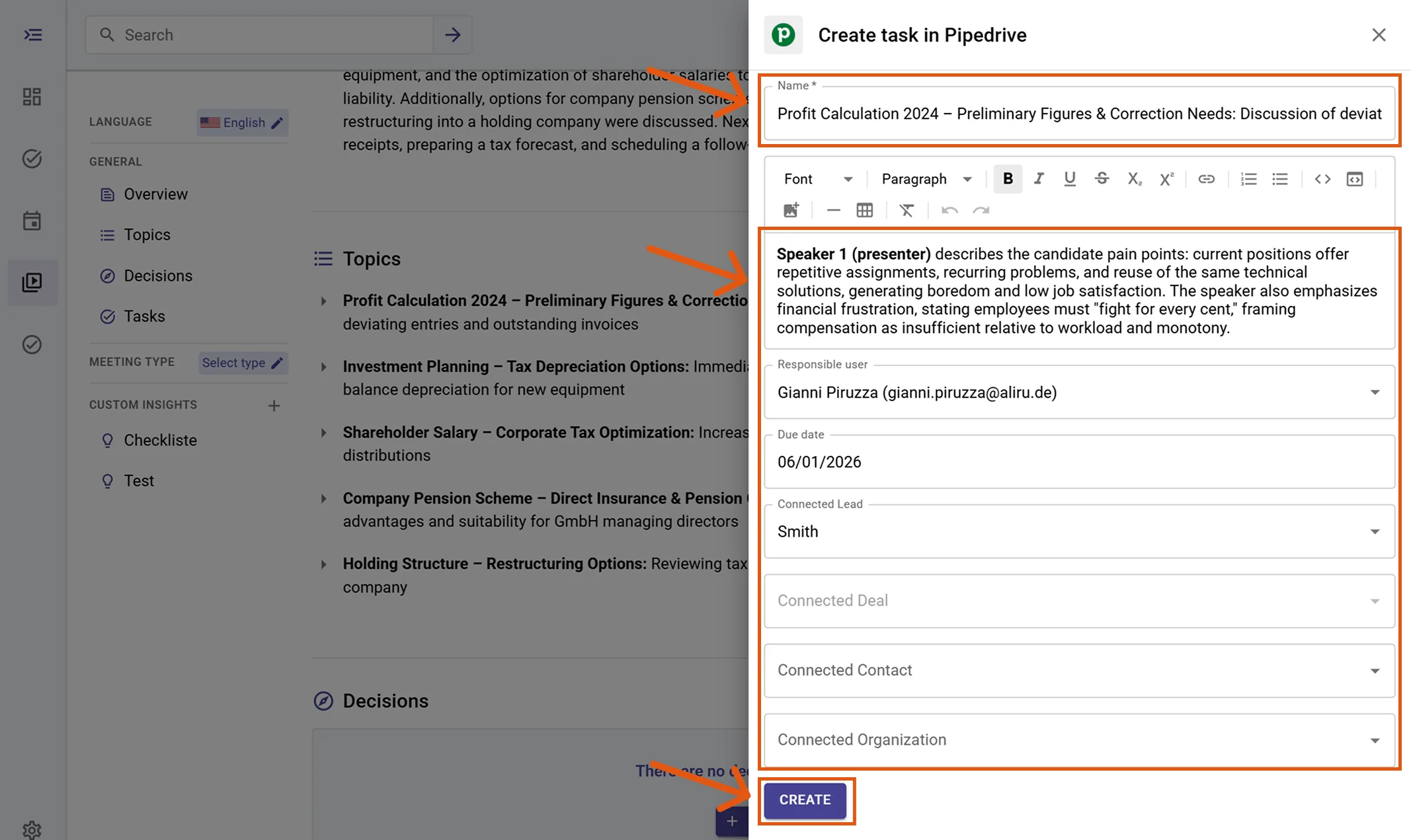
Fill in the creation form (required fields are marked with
*). For a Pipedrive task this typically includes:- Name*
- Responsible user
- Due date
- Linked Lead
- Linked Deal
- Linked Contact
- Linked Organization
The task name and description are prefilled from Sally and can be edited.
-
Click Create to send it to Pipedrive.
Figure 12: Fill the Pipedrive task fields and Create -
The task appears in the linked record's Focus area in Pipedrive.
Figure 13: The Sally task in Pipedrive
3. Required OAuth Scopes
For the integration with Pipedrive, Sally uses OAuth 2.0 for authorization. The following scopes define which areas Sally can access on behalf of the authenticated user.
-
Sally accesses this information solely to technically establish and maintain the connection to the user account.
-
Sally does not make any autonomous changes. Actions are performed exclusively upon the explicit initiative of the user.
-
API endpoints are only called within the scope of an active action initiated by the user within the platform.
Technical Overview of Required Scopes
| Scope | What Pipedrive technically allows with this scope | How Sally uses this scope |
|---|---|---|
base | Read access to basic user and company data | Sally reads basic profile data to establish the connection and identify the correct Pipedrive workspace. |
contacts:full | Read and write access to persons and organizations, including notes on them | Sally reads contact and organization information to display them as link targets and creates notes on persons or organizations when explicitly requested by the user. |
deals:full | Read and write access to deals, including notes on them | Sally reads deal information to display deals as link targets and creates notes on deals when explicitly requested by the user. |
leads:full | Read and write access to leads, including notes on them | Sally reads lead information to display leads as link targets and creates notes on leads when explicitly requested by the user. |
activities:full | Read and write access to activities (meetings, tasks) | Required so Sally can create meetings and tasks in Pipedrive when explicitly requested by the user. |
users:read | Read access to user data | Sally reads user information to correctly display responsible users within the integration. |
search:read | Search across deals, persons, organizations, and leads | Sally searches Pipedrive to let the user pick the correct Lead, Deal, Contact, or Organization to link to. |