November 10, 2026: Record Google Meet, Teams and Zoom in the browser with the Sally Browser Extension

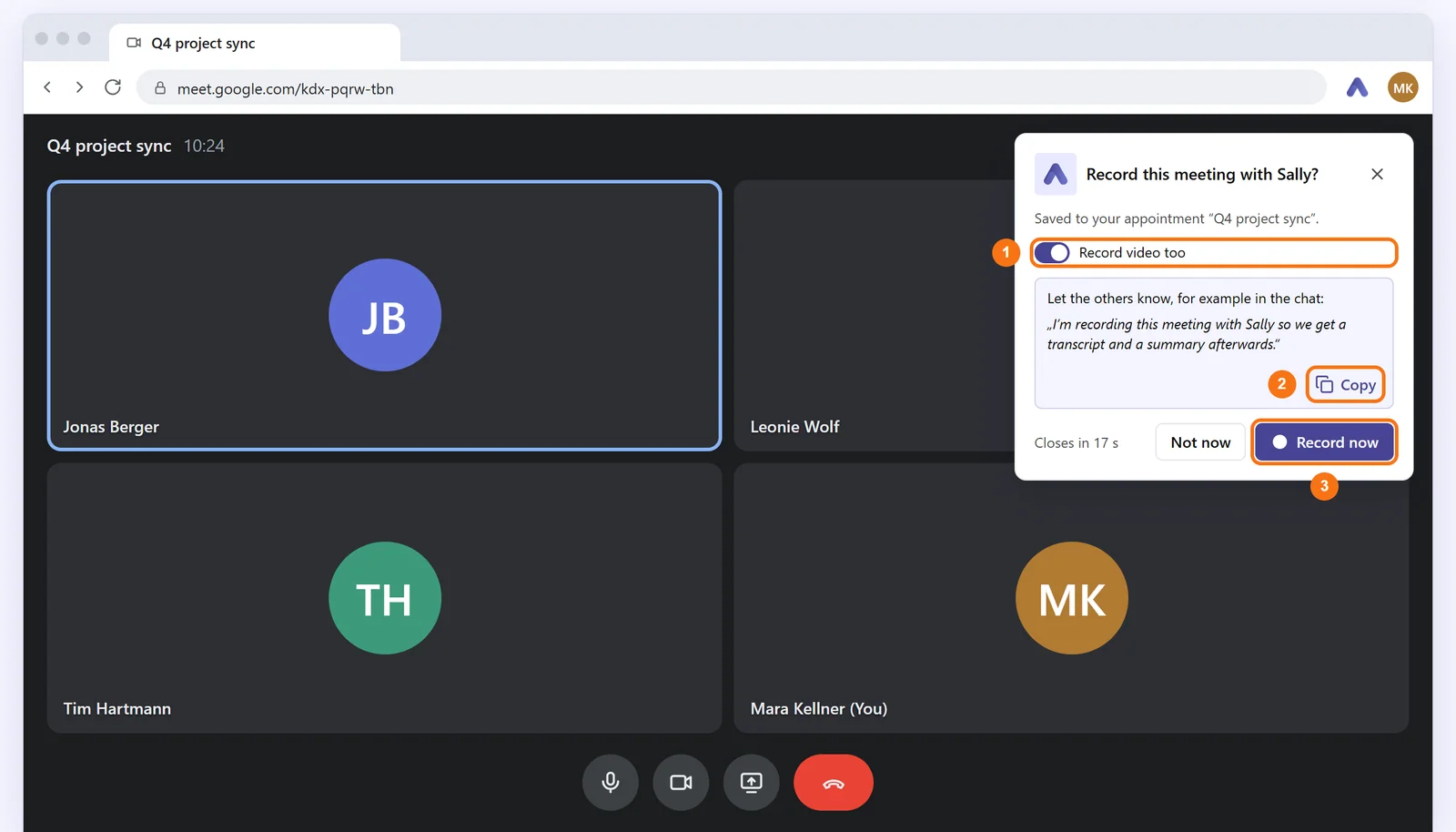
Sally now records meetings straight from your browser tab. The new Sally Browser Extension for Chrome and Edge notices when you join a meeting in Google Meet, Microsoft Teams or Zoom and asks with a small card whether Sally should take notes. One click on Record now, and Sally records the tab together with your microphone.
Nobody sees an extra participant in the meeting. That helps whenever Sally cannot join as a bot, for example when a meeting only admits signed-in participants. After the meeting, the recording lands on the matching appointment in Sally, with the speakers' names in the transcript.
What's new?
- Spots meetings by itself: in Google Meet, Microsoft Teams and Zoom, the card Record this meeting with Sally? appears at the top right of the tab and names the appointment the recording will be saved to
- Audio and video: with Record video too, Sally also records the picture of the tab, such as shared presentations
- Speaker names included: for most services, Sally reads the speakers' names from the meeting page
- Full control while recording: a bar at the top of the tab and the side panel let you mute your microphone, pause or stop
- Upload to the right appointment: after you stop, Upload recording suggests the appointment from your calendar. Keep recording carries on seamlessly if you stopped by mistake
- Any other tab too: record a webinar or any tab that plays audio with Record this tab, the right-click menu or Alt+Shift+S
- More services: turn on the card for ClickMeeting, edudip, GoTo Meeting, Jitsi Meet, Livestorm, OpenTalk, Webex, Whereby and Zoho Meeting under Where Sally speaks up
For administrators
Owners and admins decide under Meeting Assistant › Recording sources whether the Sally Browser Extension may be used in the organization. The new Sally Browser Extension switch sits next to the other recording methods.
How to get started
Install the extension from the Chrome Web Store, or open Add Sally Browser Extension in the account menu at the top right of Sally. Set up Sally then walks you through three steps: sign in, allow the microphone and pin Sally.
Want the details? See Record meetings with the Sally Browser Extension.