Record meetings with the Sally Browser Extension
The Sally Browser Extension is an extension for Chrome and Edge. It notices when you join a meeting in Google Meet, Microsoft Teams or Zoom in your browser and asks with a small card in the tab whether Sally should take notes. One click, and Sally records the audio and, if you like, the video right from the tab, together with your microphone. Nobody sees an extra participant in the meeting.
After the meeting, the recording lands on the matching appointment in Sally, with the speakers' names in the transcript. This guide shows how to install and set up the extension, how a recording works and how to turn on more meeting services.
Unlike the bot, nobody in the meeting can see that you are recording. Let the others know beforehand. The card offers a ready-made sentence for the chat.
Quick navigation
- When the extension is the right choice
- Install and set up
- Record a meeting
- Record any other tab
- Turn on more meeting services
- For administrators
- Common questions
1. When the extension is the right choice
The extension fits when you hold your meetings in the browser and Sally should not join as a participant, or cannot get in. That is the case, for example, when a meeting only admits signed-in participants.
| Method | What Sally records | When it fits |
|---|---|---|
| Sally as a participant (automatically or via link) | Sally sits visibly in the meeting | Calendar appointments, without you starting anything |
| Sally Browser Extension | Audio and video from the meeting tab, plus your microphone | Meetings in Meet, Teams, Zoom and other services in the browser |
| Record in browser | Computer audio and microphone through the Sally web app | Calls and conversations without a matching meeting page, no extension needed |
| Sally Desktop App | Computer audio and microphone right on your computer | Meetings in installed programs, also in Safari or Firefox |
Sally as a participant stays the first attempt. If Sally is scheduled for the meeting or already in it, the card only shows her status, such as "Sally is in the meeting and recording it." If she cannot get in, the extension offers to record in the tab: "Sally could not join this meeting. You can record it here instead."
2. Install and set up
You need a Sally account and Chrome or Edge on your computer.
- Open the Sally Browser Extension in the Chrome Web Store, click Add to Chrome at the top right and confirm Chrome's prompt. In Sally, the same link sits in the account menu at the top right under Add Sally Browser Extension and on the Record In Browser page, as long as the extension is missing in your browser.

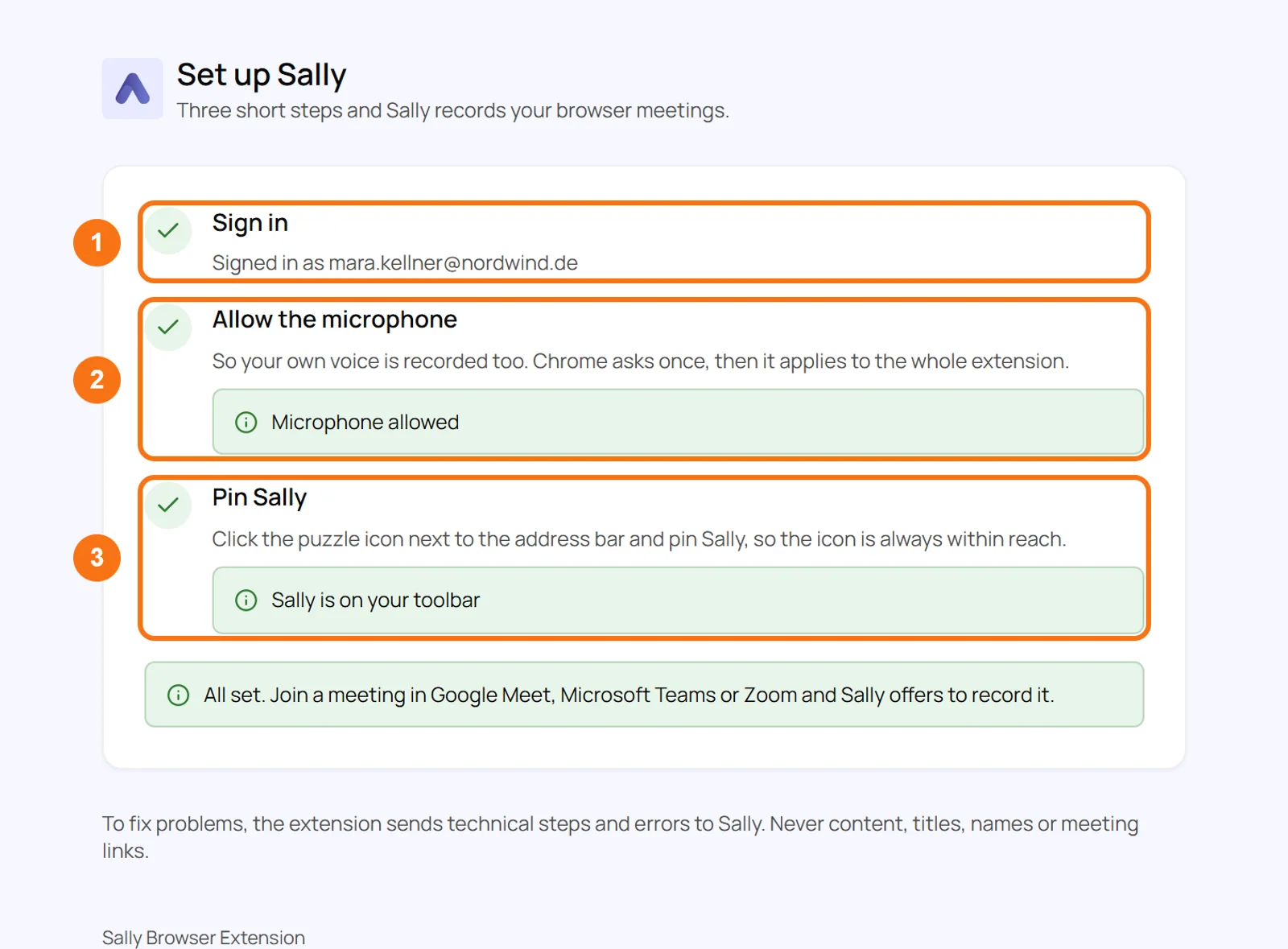
- After installing, Set up Sally opens. The three steps there:
- Sign in: with the account you also use in Sally. The same options as on the Sally sign-in page are available, so Microsoft, Google, Apple, single sign-on (SSO) and email and password with a two-factor code.
- Allow the microphone: so your own voice is recorded too. Chrome asks once, then it applies to the whole extension.
- Pin Sally: click the puzzle icon next to the address bar and pin Sally. That keeps the Sally icon at hand.
In Edge, the extension also comes from the Chrome Web Store. Allow extensions from other stores if Edge asks when you open the link.
3. Record a meeting
- Join the meeting in Google Meet, Microsoft Teams or Zoom in your browser.
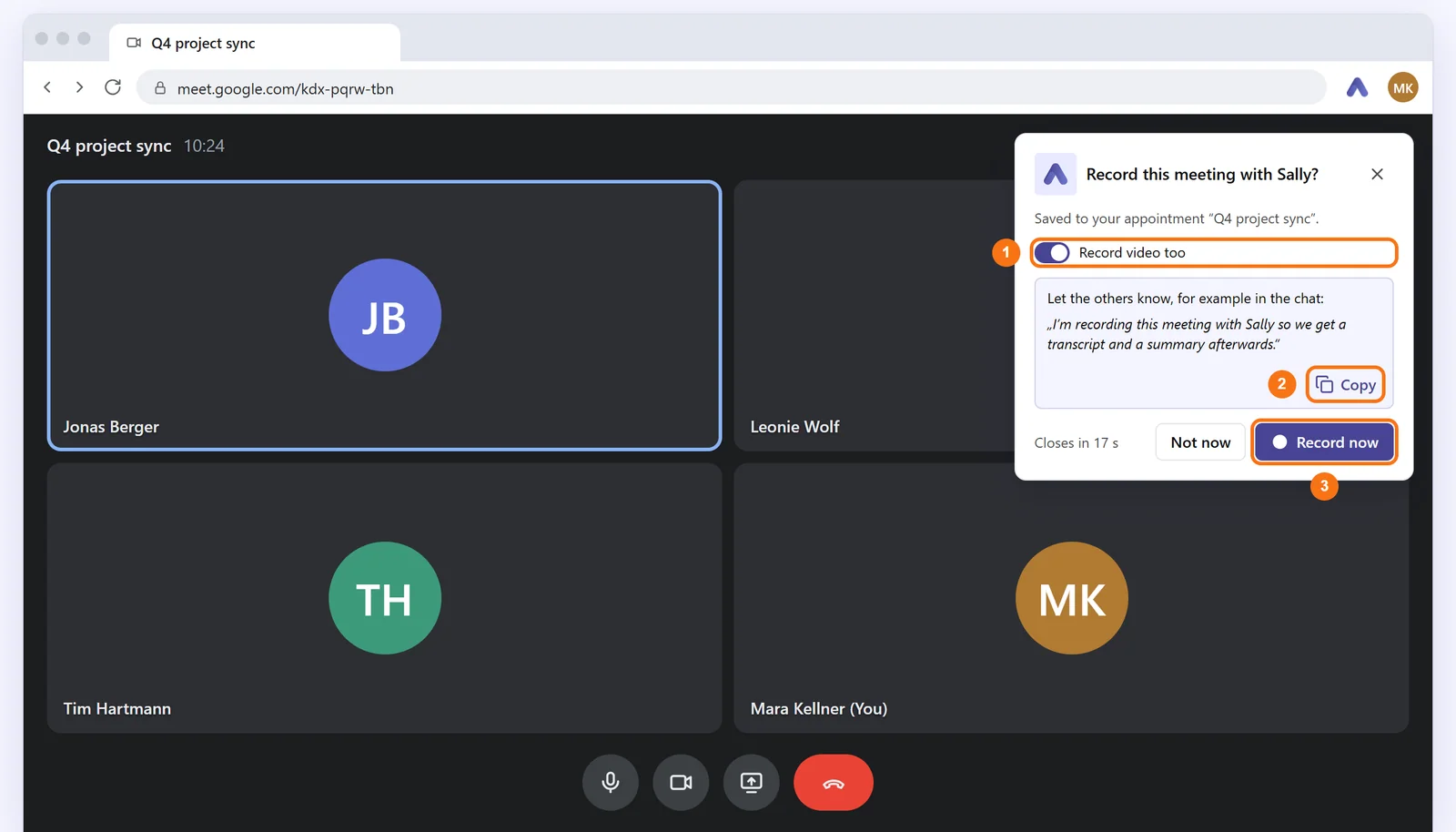
- The card Record this meeting with Sally? appears at the top right of the tab. If the meeting is in your calendar, it names the appointment the recording will be saved to.
- Use Record video too to decide whether Sally records the tab's picture as well as the audio, such as shared presentations. Once recording has started, video cannot be added anymore.
- If needed, copy the note for the others and paste it into the meeting chat.
- Click Record now. Not now closes the card, and it also closes by itself after a few seconds.
The first time, Chrome asks whether you want to share this tab. Choose Share. Then the recording starts.
3.1. While recording
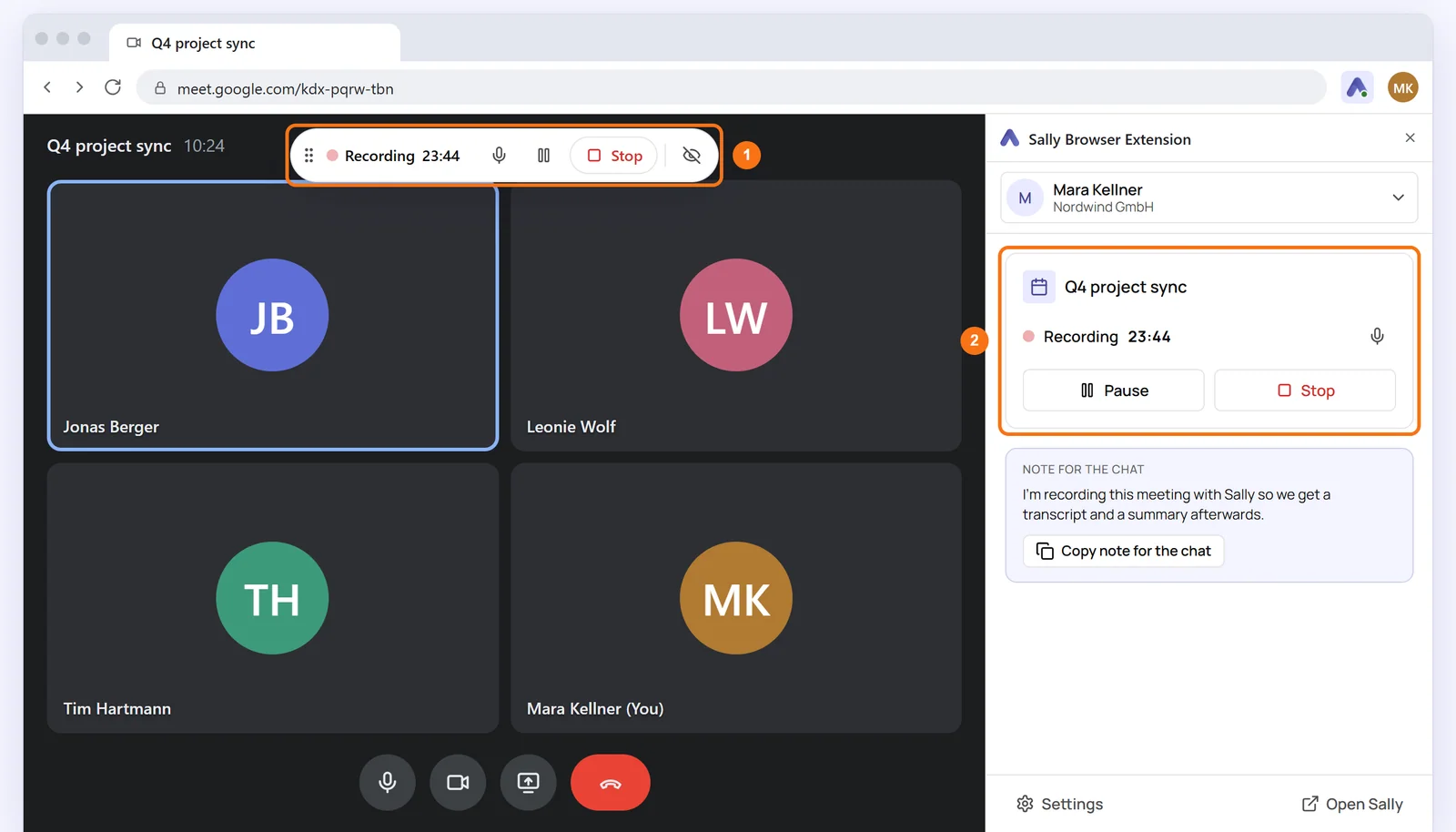
A bar at the top of the tab shows Recording and the duration. From there you mute your microphone in the recording, pause or stop. You can drag the bar by its handle and hide it. The Sally icon brings it back.
The same buttons sit in the side panel, which you open from the Sally icon: Pause, Stop and the note for the chat.
Leaving the meeting also ends the recording.
3.2. Upload the recording
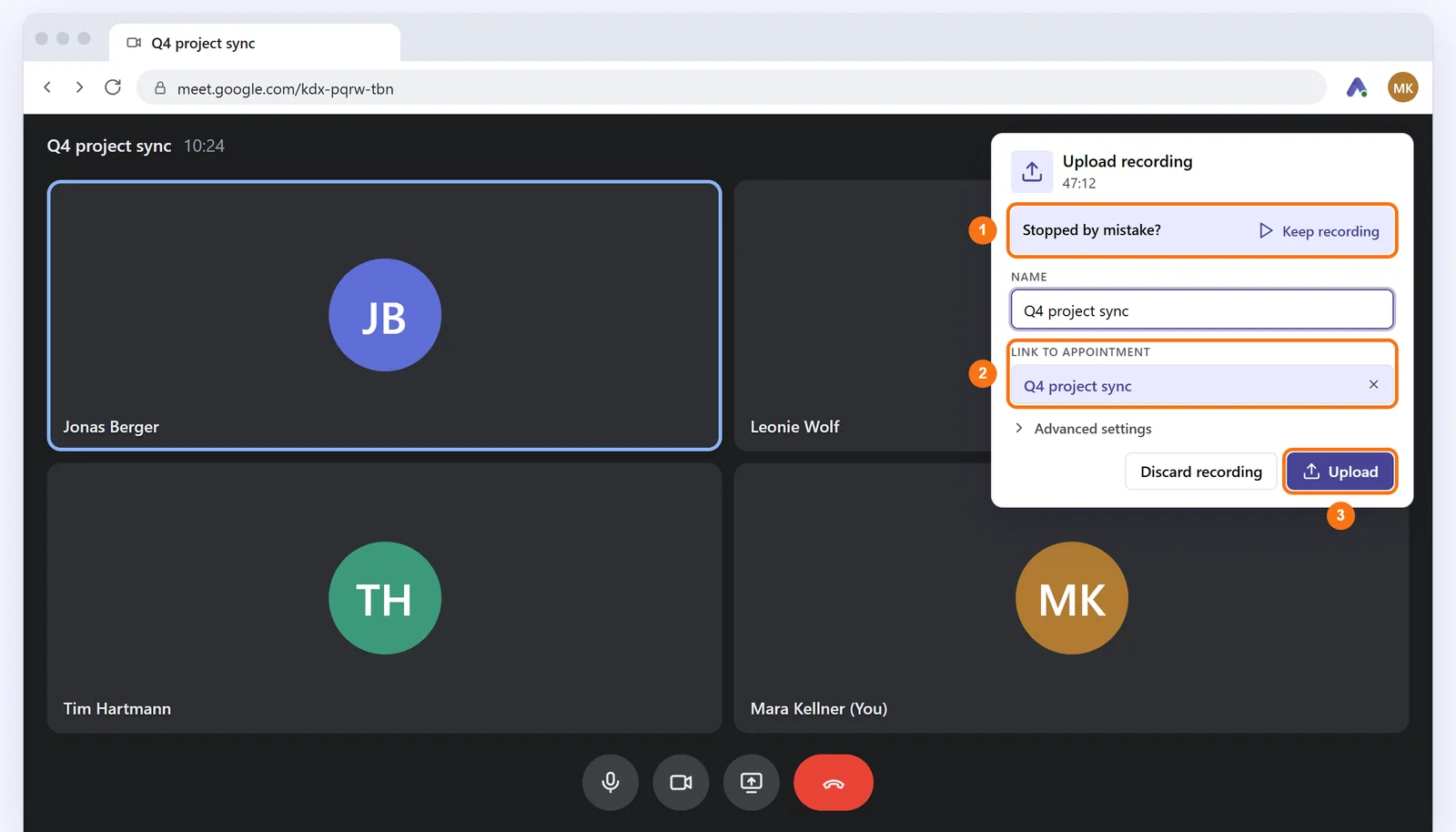
After you stop, the Upload recording window appears in the tab.
- If you stopped by mistake, click Keep recording. The recording carries on seamlessly.
- Check the Name of the recording.
- Link to appointment shows the appointment Sally found in your calendar through the meeting link. You can search for another appointment or choose Upload without appointment.
- Under Advanced settings you can set the recording language, the speaker detection mode, the meeting template and the transcription model.
- Click Upload.
If the appointment already has a recording, you choose between Record as a copy and Replace recording. Sally then creates the transcript and summary like for any other meeting. If the upload does not work right away, the recording stays in your browser and Sally retries automatically.
4. Record any other tab
Even without a detected meeting you can record any tab that plays audio, such as a webinar:
- Click the Sally icon in the toolbar and then Record this tab.
- Or right-click the page and choose Record this tab with Sally.
- Or press Alt+Shift+S.
In this case the AI assigns the speakers' names. Sally remembers sites where you have recorded once. On your next visit, the Sally icon shows a violet dot there.
Chrome does not allow recording its own pages, such as new tabs, the settings or the Web Store.
5. Turn on more meeting services
Out of the box, Sally shows the card in Google Meet, Microsoft Teams and Zoom. For more services you turn the card on yourself: ClickMeeting, edudip, GoTo Meeting, Jitsi Meet, Livestorm, OpenTalk, Webex, Whereby and Zoho Meeting.
- Click the Sally icon and open the Settings.
- Under Where Sally speaks up, the services are listed in two groups: Card in the tab and Dot on the Sally icon. Turn on the service you want.
- The first time you turn it on, Chrome asks once whether Sally may read this service's pages. Confirm. Without that there is no card, only the dot on the icon.
The setting only applies in this browser, not to your account in Sally. For most services, Sally reads the speakers' names from the meeting page. Where the page does not reveal names, the transcription separates the speakers without names.
6. For administrators
Owners and admins decide under Meeting Assistant › Recording sources whether the Sally Browser Extension may be used in the organization. If the Sally Browser Extension switch is off, the extension shows: "The Sally Browser Extension is turned off for your organization." More under Set recording sources.
If the organization does not store video, Record video too is locked and Sally records the audio only.
7. Common questions
Does the extension work in Safari or Firefox?
No, the Sally Browser Extension is available for Chrome and Edge. In Safari or Firefox, use the Sally Desktop App.
Does Sally read every website?
No. Sally only reads the meeting pages of Google Meet, Microsoft Teams and Zoom, plus those of the services you turn on yourself. Any other tab is recorded only when you start it yourself.
Where is the recording stored?
The recording goes from your browser straight to your Sally account and is stored in Germany.
Can I record several tabs at once?
Yes. The popup and the side panel show the active tab and, below it, the recordings in other tabs. Your microphone is part of one recording at most. If you turn it on in another recording, it turns off in the previous one.
What happens if the upload fails?
The recording stays in your browser under Recordings in this browser until it is uploaded. Sally retries automatically and lets you know once it worked.
Why is my own voice missing from the recording?
Your microphone is probably not allowed yet or muted in the recording. Allow it via Allow the microphone or unmute it in the bar at the top of the tab.