How to Personalize Your Meeting Summaries in Sally AI
The automation settings gives you full control over how Sally interprets and captures your meetings. Instead of receiving a one-size-fits-all summary, you can decide how much industry context is applied, which language the summary is generated in, and who should receive the summary email - ensuring every recap reflects exactly what you need.
Whether you want a clean, strictly professional recap or a more detailed, relationship-aware summary, these settings allow you to fine-tune the level of detail to match your workflow.
Quick Navigation
1. How to find the automation setting
- Go to Settings in the left sidebar.
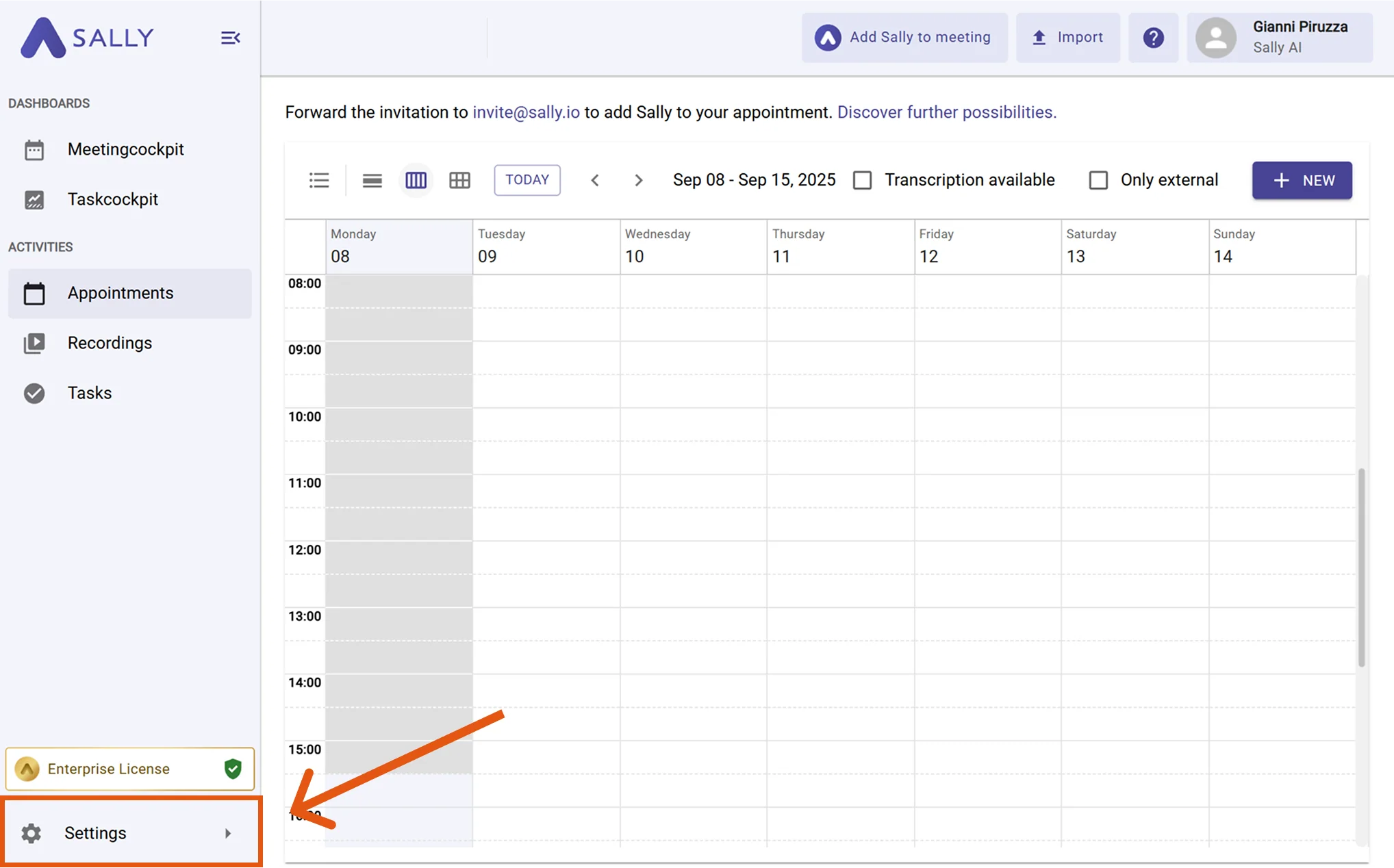
- Under Configuration, select "Meeting Assistant" and scroll down to the Automations section.
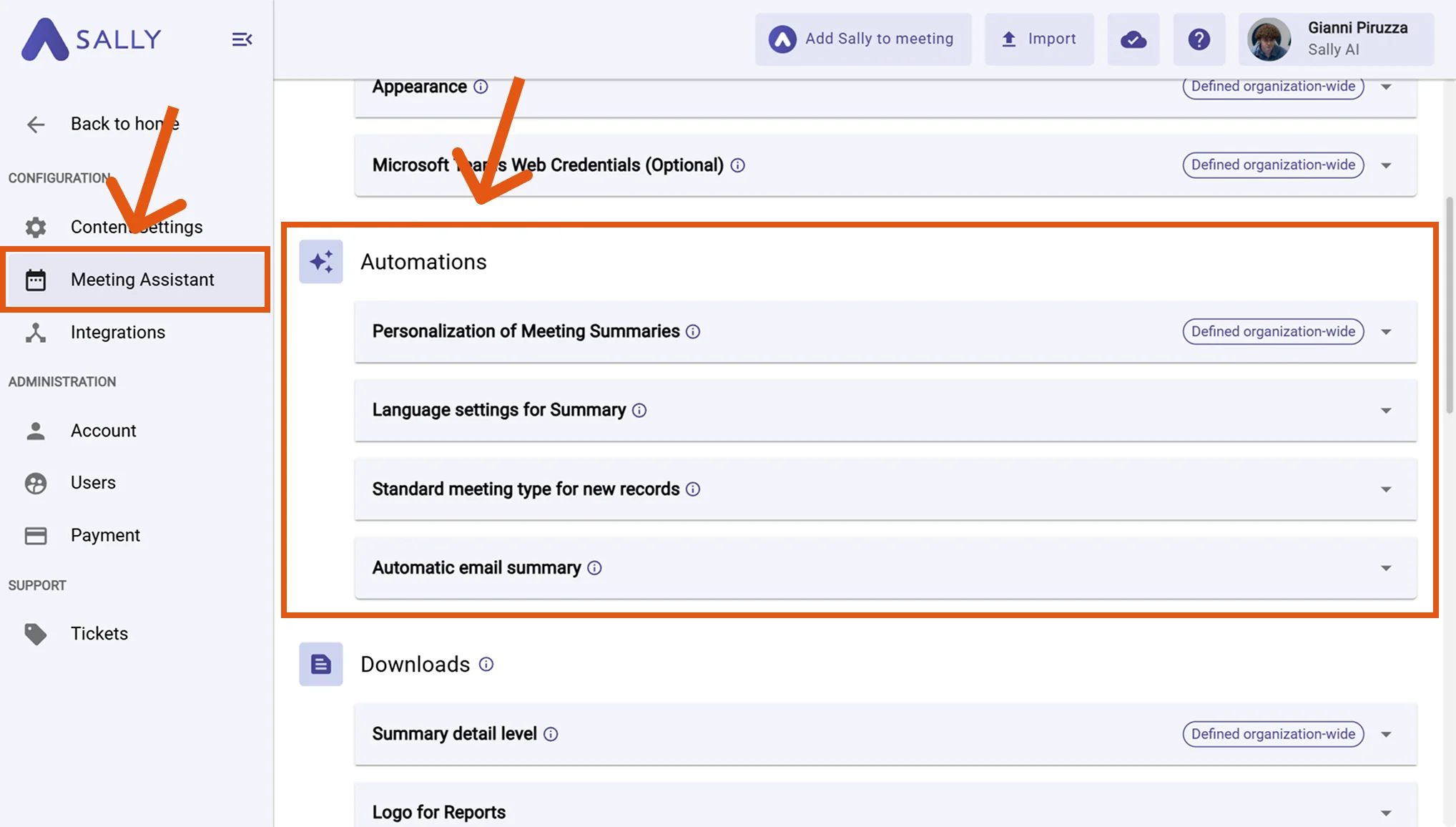
Here you will find all the settings for the automated summarization, which we will present to you here step by step.
2. Configure the automation options
You have four areas of control: Personalization of meeting summaries, automatic email summary, language settings for summary, and standard meeting type for new records. Each option below includes when to use it and recommended practices.
2.1. Personalization of meeting summaries
Personalization gives you control over how much context Sally uses when generating your summaries. You decide whether the summary should stay strictly business-focused or reflect more of the nuances from the conversation.
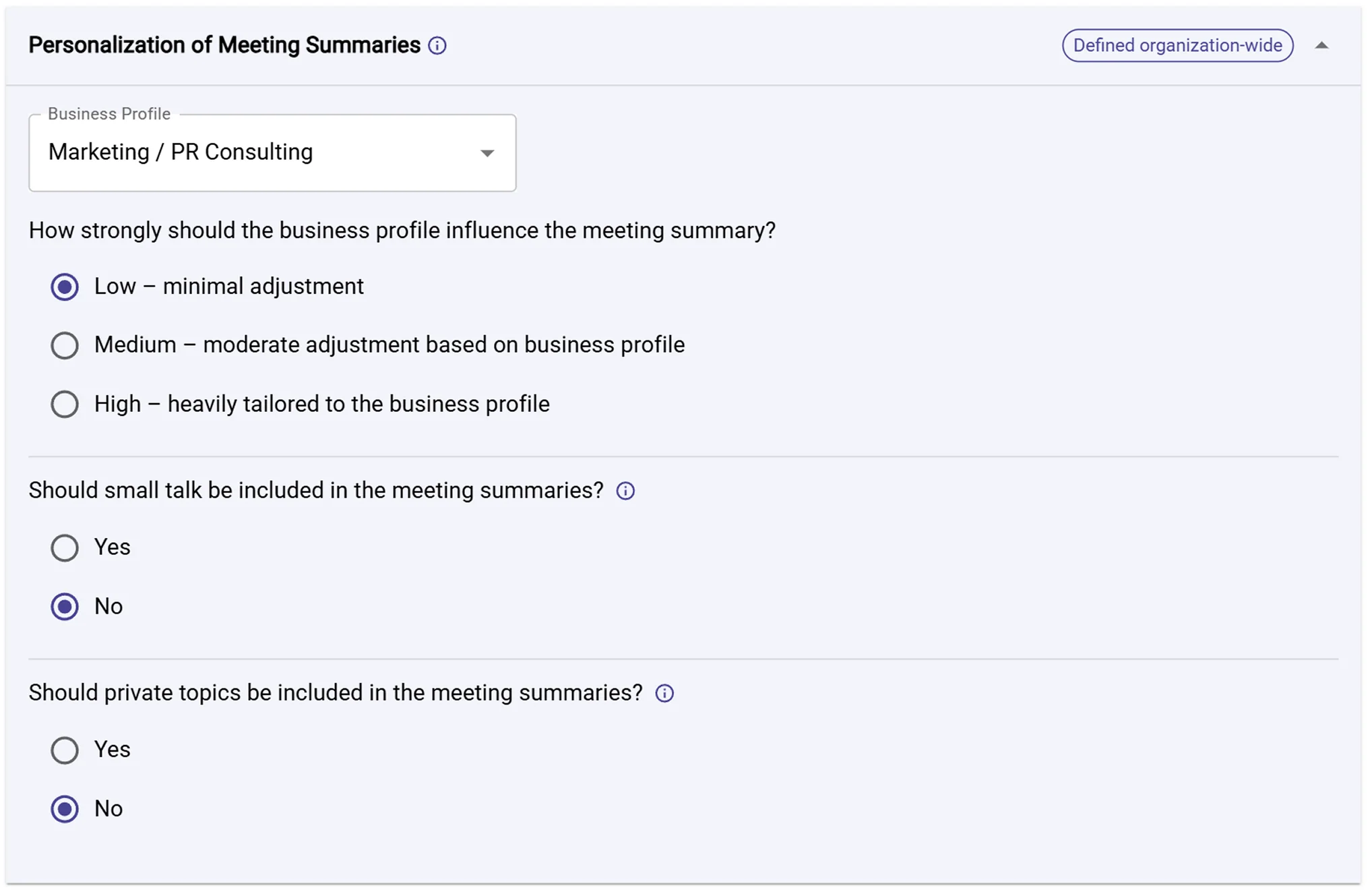
You have the following settings options:
Business Profile Influence: Choose how much your industry or role should shape the summary:
-
Low - minimal adjustments: Summaries stay broad, neutral, and easy to read. Sally avoids industry-specific jargon and sticks to universally understandable language.
-
Medium - moderate industry: Sally starts incorporating common terminology, recurring themes, and communication styles from your field. The summary becomes more aligned with how people in your industry typically frame problems, priorities, and next steps - without going too deep into niche vocabulary.
Example: Marketing → mentions “campaign performance,” “audience insights,” “brand positioning” when relevant.
-
High - strongly tailored: The summary heavily reflects your professional context. Sally uses the tone, jargon, and analytical lens typical for your role or industry. Key information is framed the way experts in your field naturally talk, think, and prioritize.
Example: Sales → emphasizes qualification cues, buying signals, objections, pipeline impact, decision-makers, next steps with urgency and metrics where applicable.
Choose "High" if you want summaries that feel like they were written by someone in your function - not a general-purpose assistant.
If you frequently share summaries with customers or mixed audiences, consider using "Low" so the language stays simple, neutral, and easy for anyone to understand.
Include small talk:
Decide whether light conversation - intros, warm-ups, chit-chat - should show up in the summary.
Turn this off if you want summaries that stay focused on the core content of the meeting.
Turn it on when small talk helps provide context - for example, in relationship-driven roles, onboarding conversations, or long-term client accounts where rapport matters.
Include private topics:
Control whether personal or non-work topics (vacations, family, weekend plans, etc.) should be included.
Keep this set to “No” if you want summaries to stay strictly professional.
Consider turning it on when personal context actually matters - for example, in account management, coaching, or long-term client relationships where personal details help you remember preferences, build rapport, or prepare for future conversations.
2.2. Automatic email summary
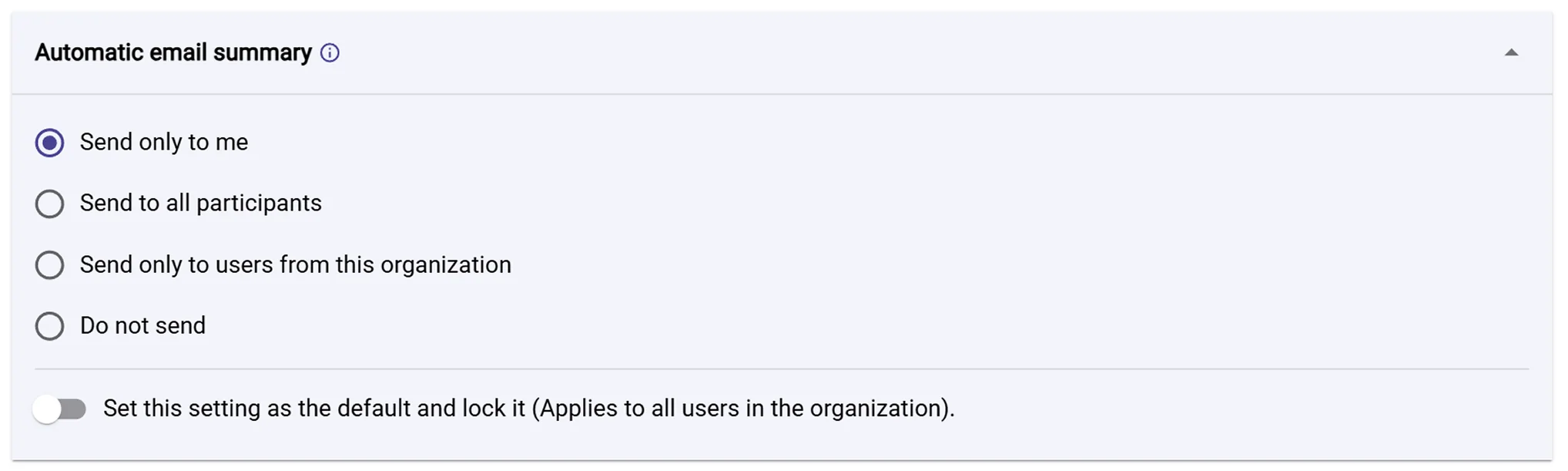
Decide who receives the summary email after a meeting:
-
Send only to me
Useful for private notes (e.g., 1:1s, interviews, early-stage sales calls) or when you want to review before sharing.
Best practice: Use this for sensitive meetings, then forward the email selectively if needed. -
Send to all participants
Maximizes transparency and speed. Everyone leaves with the same facts and action items. Ideal for project stand-ups, cross-functional reviews, customer onboarding.
Best practice: Add a line to your meeting invites like “Sally will share a short summary after the call” to set expectations. -
Send only to users from this organization
Keeps internal context (decisions, next steps) inside your company while excluding guests. Good for partner calls, agency/client meetings, or NDAs.
Best practice: Pair this with a sanitized summary you share manually with externals.infoTo determine who belongs to your organization, you must create a whitelist.
-
Do not send
No emails are sent. The summary remains available inside Sally for anyone with access.
Best practice: Use this where email is restricted (e.g., regulated teams) or when you want to reduce inbox noise.
Before enabling "Send to all participants", make sure attendees are informed that an AI-generated summary will be shared. For confidential topics, prefer Send only to me or Only to users from this organization.
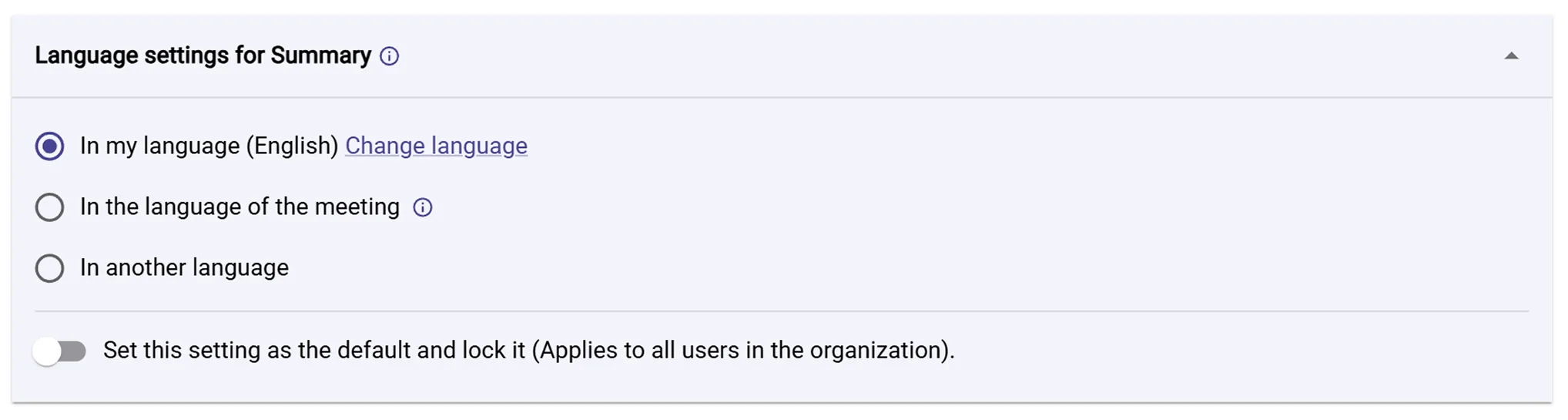
2.3. Language settings for Summary
Choose the language of the email summary:
-
In my language (personal UI language)
The summary is generated in your personal language preference. Great when you regularly meet in other languages but want to read in your own.
Best practice: Recommended default for most users who consume summaries individually. -
In the language of the meeting
The summary follows the meeting's spoken language. Perfect for international calls where participants expect one shared language (e.g., the call was in German → summary in German for everyone).
Best practice: Use for cross-border teams to avoid mixed-language threads. -
In another language
Explicitly select a language (e.g., generate English even if the meeting was in French). Helpful for reporting to stakeholders who need a specific language. When this feature is enabled, a dropdown menu opens for selecting the language.
Best practice: Create a consistent “reporting language” for executives or customers.
“My language” refers to the user's personal language in their account settings. If an admin locks a language choice, that rule applies to all users in the org.
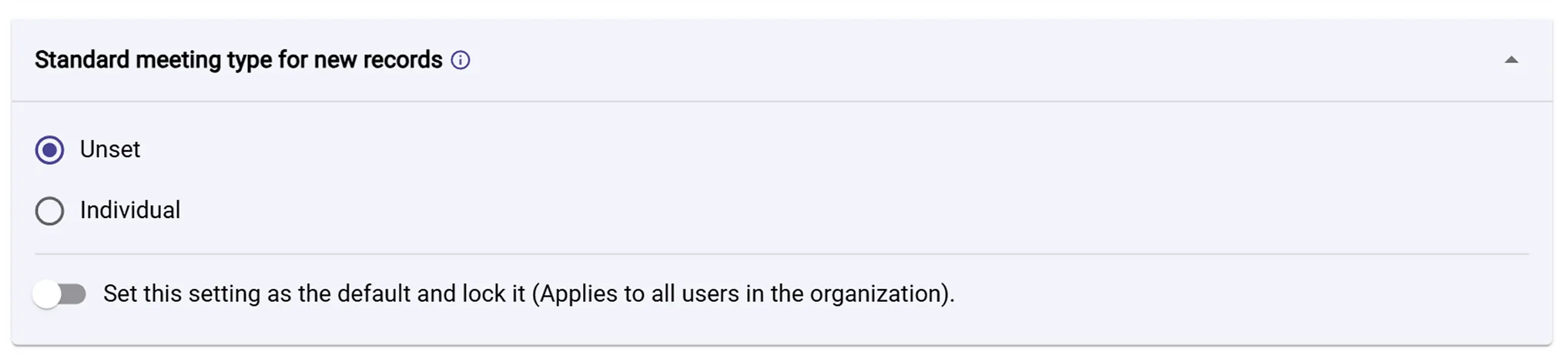
2.4. Standard meeting type for new records
Pick the default meeting type for newly created records:
-
Unset
No default is enforced. Ideal when your meetings vary (sales, support, 1:1s) and you prefer to set the type per meeting. -
Individual
Optimizes for 1:1 conversations (e.g., manager–employee, coaching, interviews).
Best practice: Teams with many 1:1s (People Ops, Managers, Coaches) should set Individual as default to keep records consistent.
For each block above you can toggle Set this setting as the default and lock it. Use this for compliance or to standardize behavior across teams. Avoid locking when different departments need flexibility.