How to create and sync tasks from meeting summaries
Sally spots possible tasks in your meetings and shows them in the summary as task suggestions. You can then decide whether to:
- add the suggested tasks directly to your list,
- sync them with your connected tools,
- or manually create new tasks if something is missing.
This helps you stay on top of your next steps without rewriting or copying information.
Before you sync, make sure the tool you want is connected.
Quick navigation
1. Where to find your tasks
- Open Recordings in the sidebar and click the recording you want. The view opens on the Summary tab.
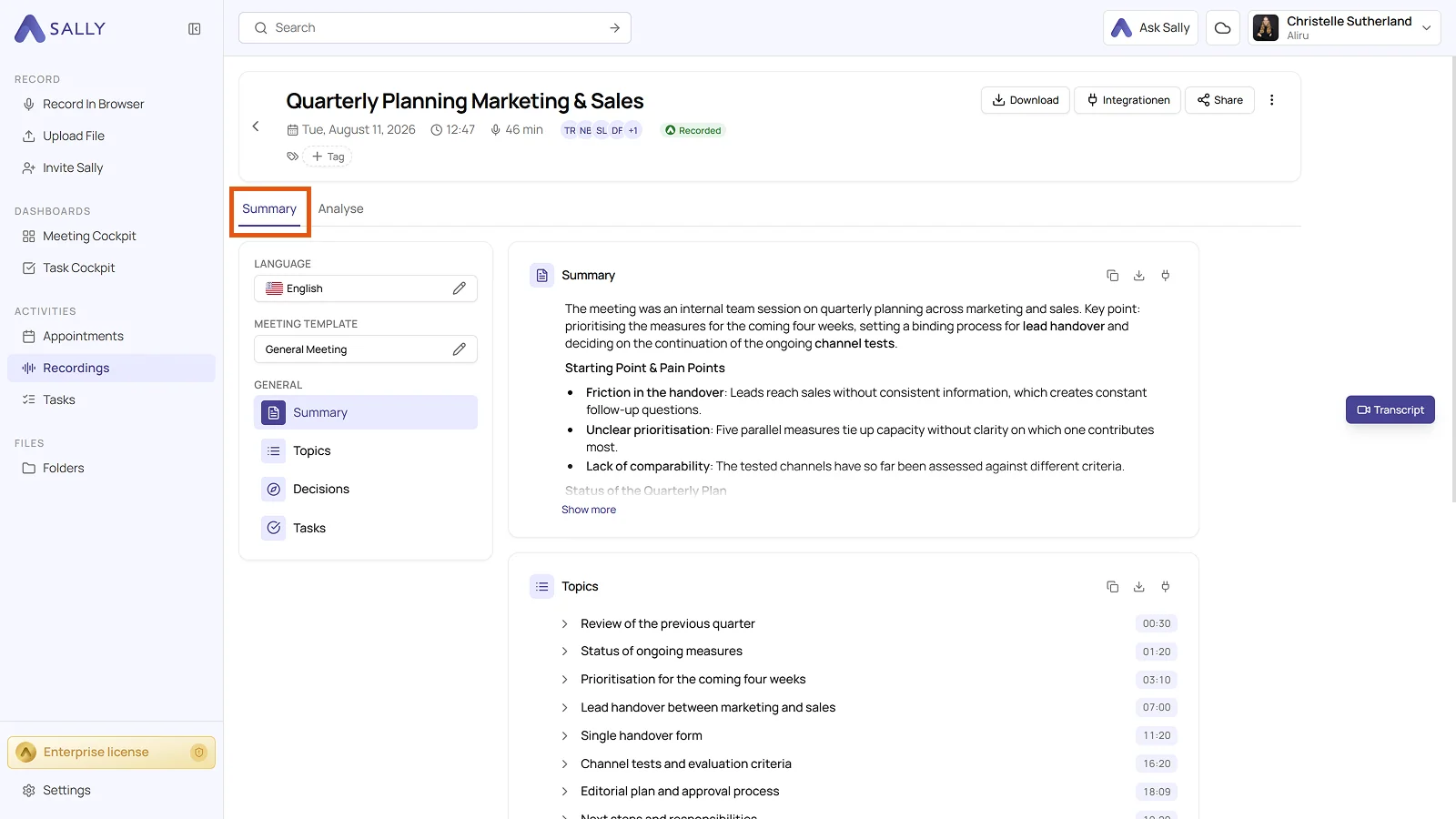
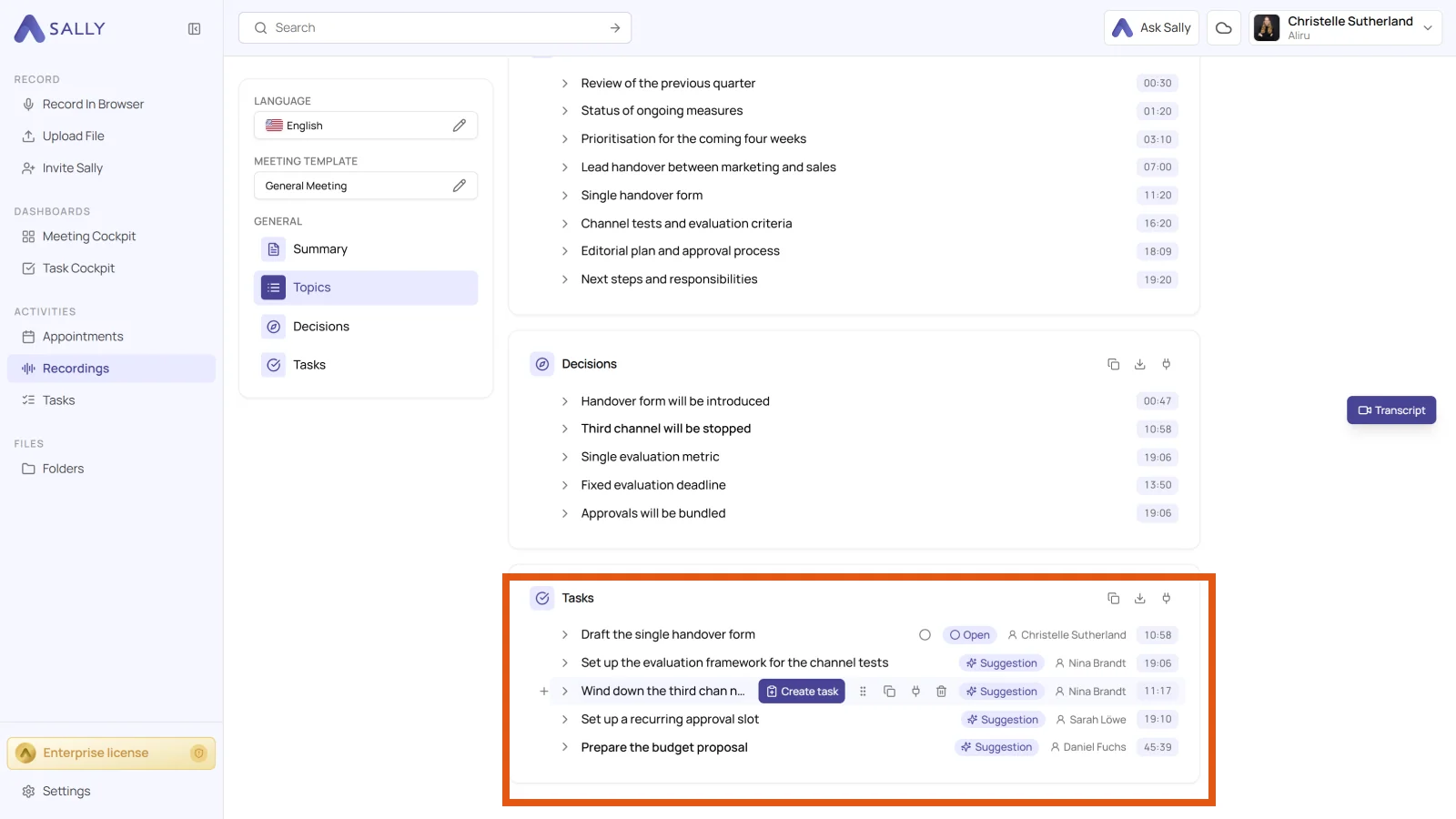
- Scroll down to the Tasks panel.
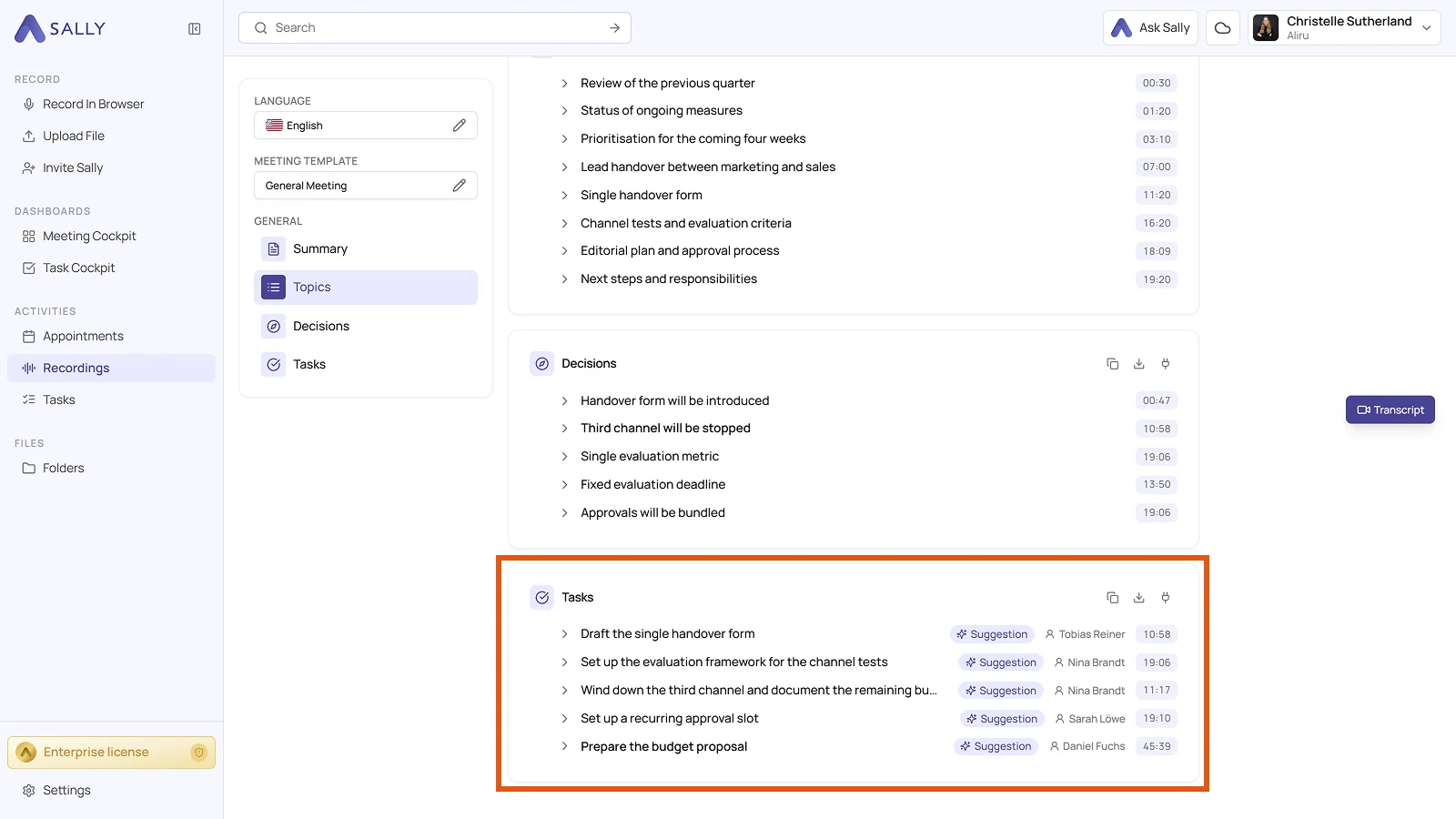
This is where you find every task Sally detected. From here you can edit them, sync them to your tools, or add new ones.
2. Create a new task
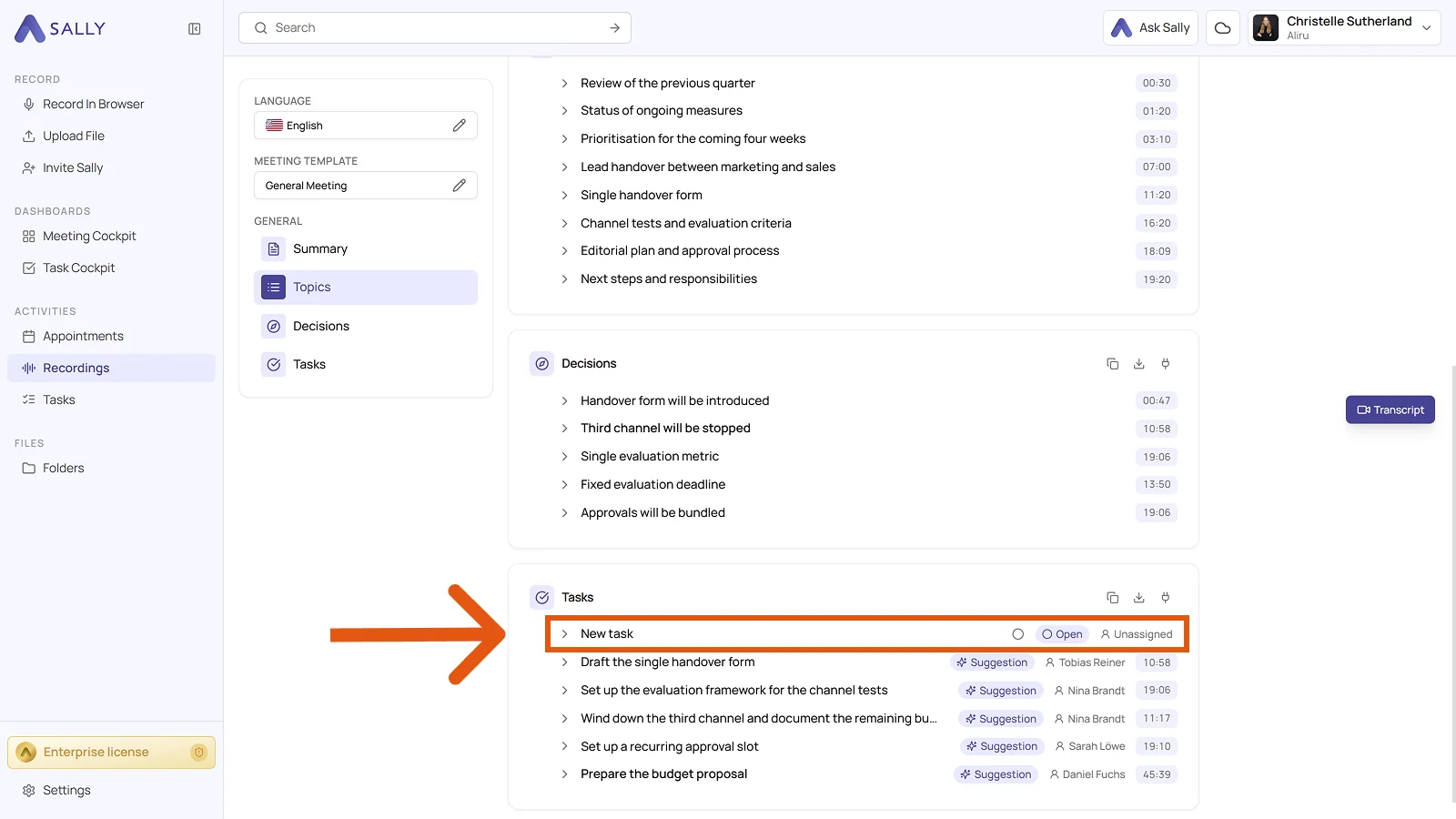
To add a task Sally did not spot:
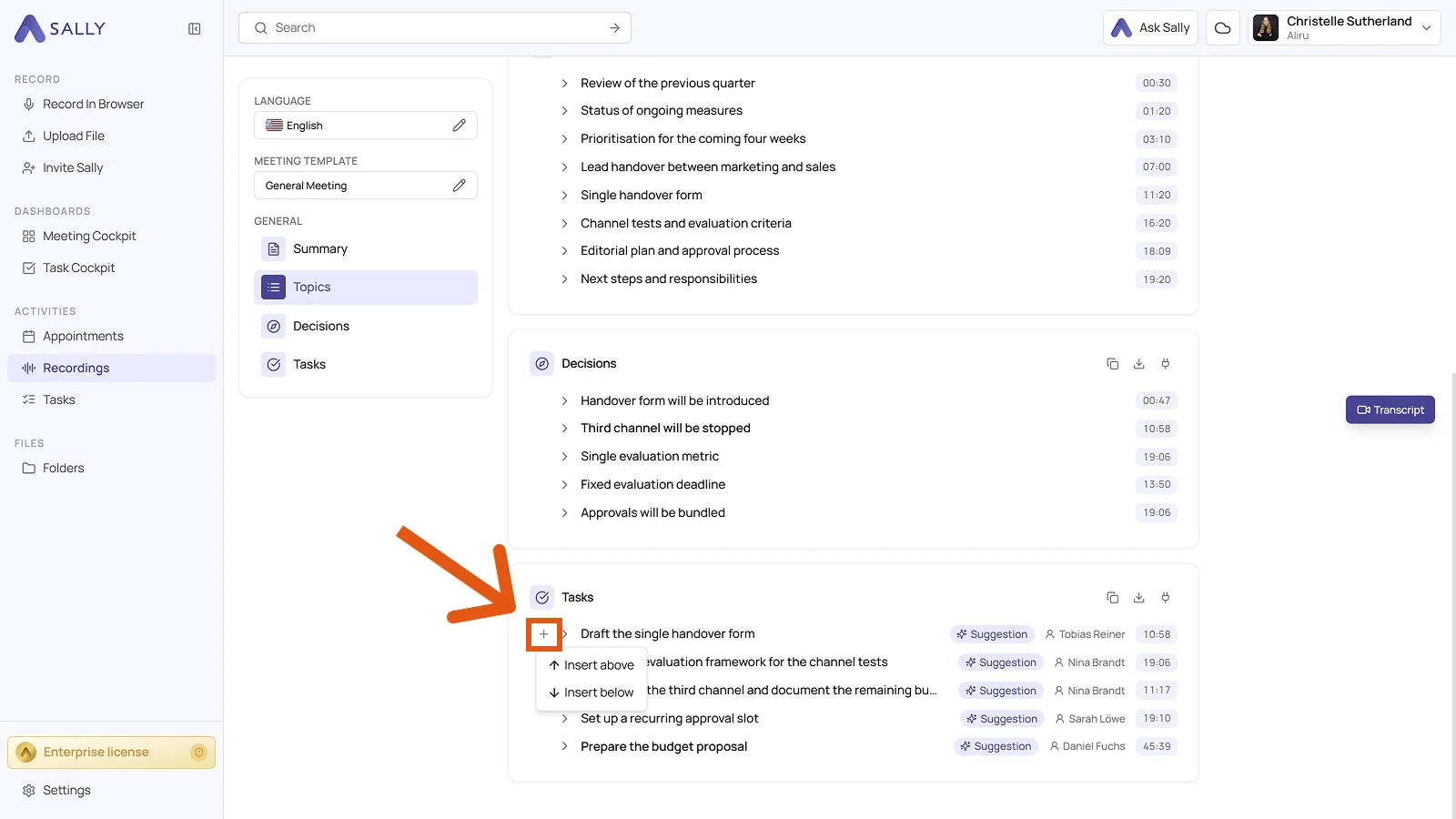
- Hover over any task and click the plus icon on the left. Choose Insert above or Insert below.
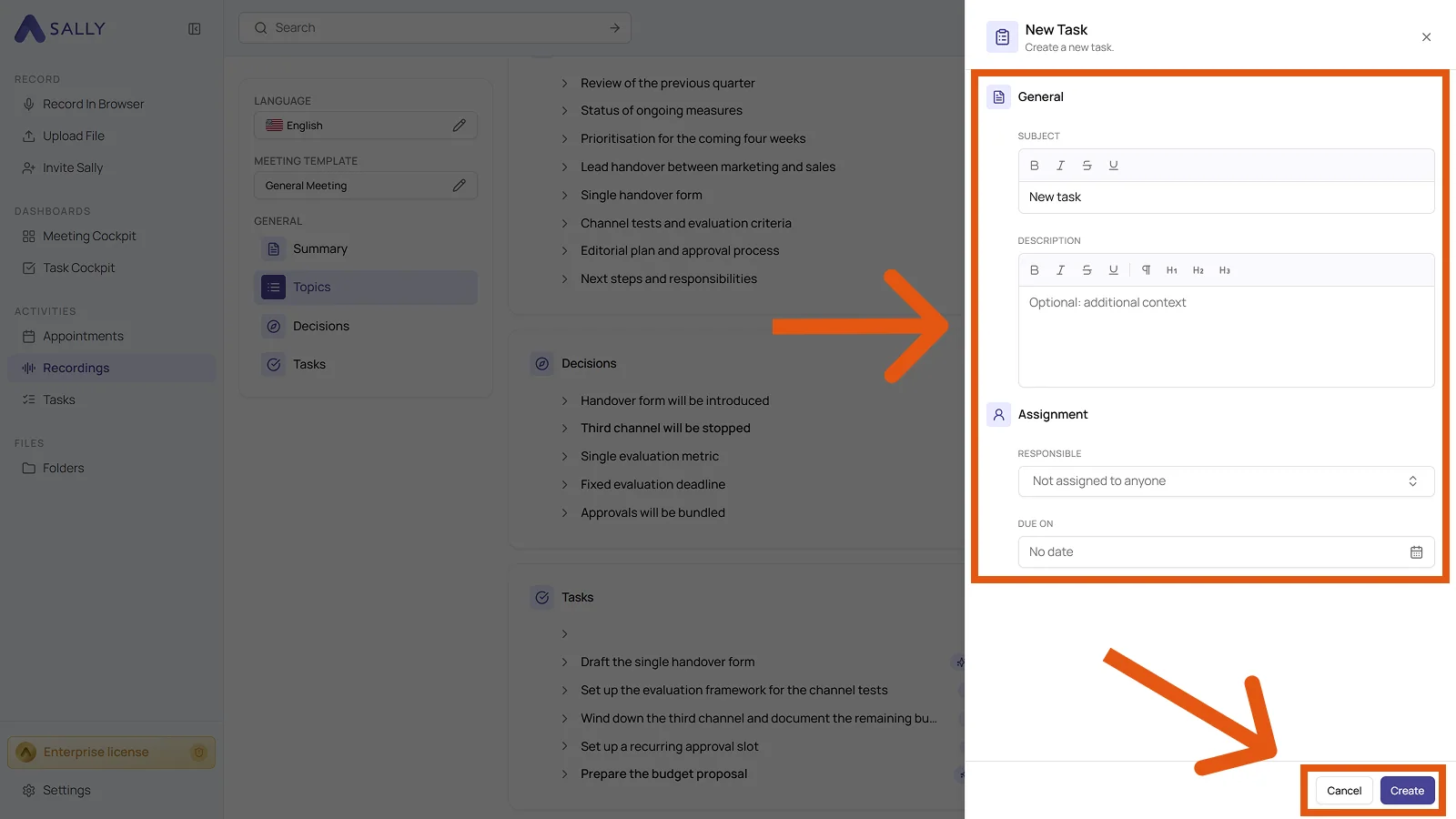
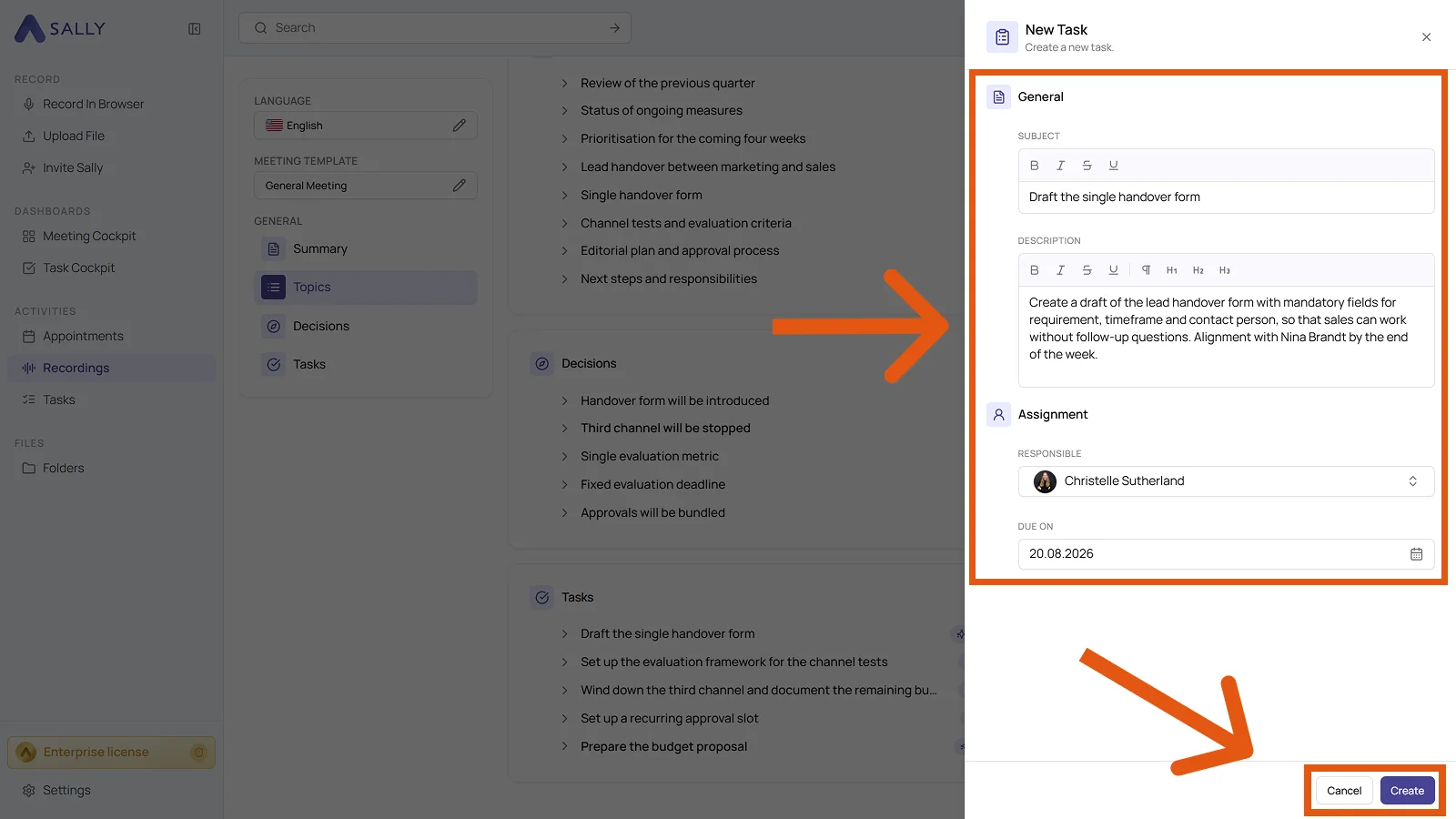
- In the New Task dialog, enter the subject, add a description if needed, pick the person under Responsible, and set a date under Due on.
- Click Create.
- The task then appears in the list with the status Open.
3. Add suggested tasks
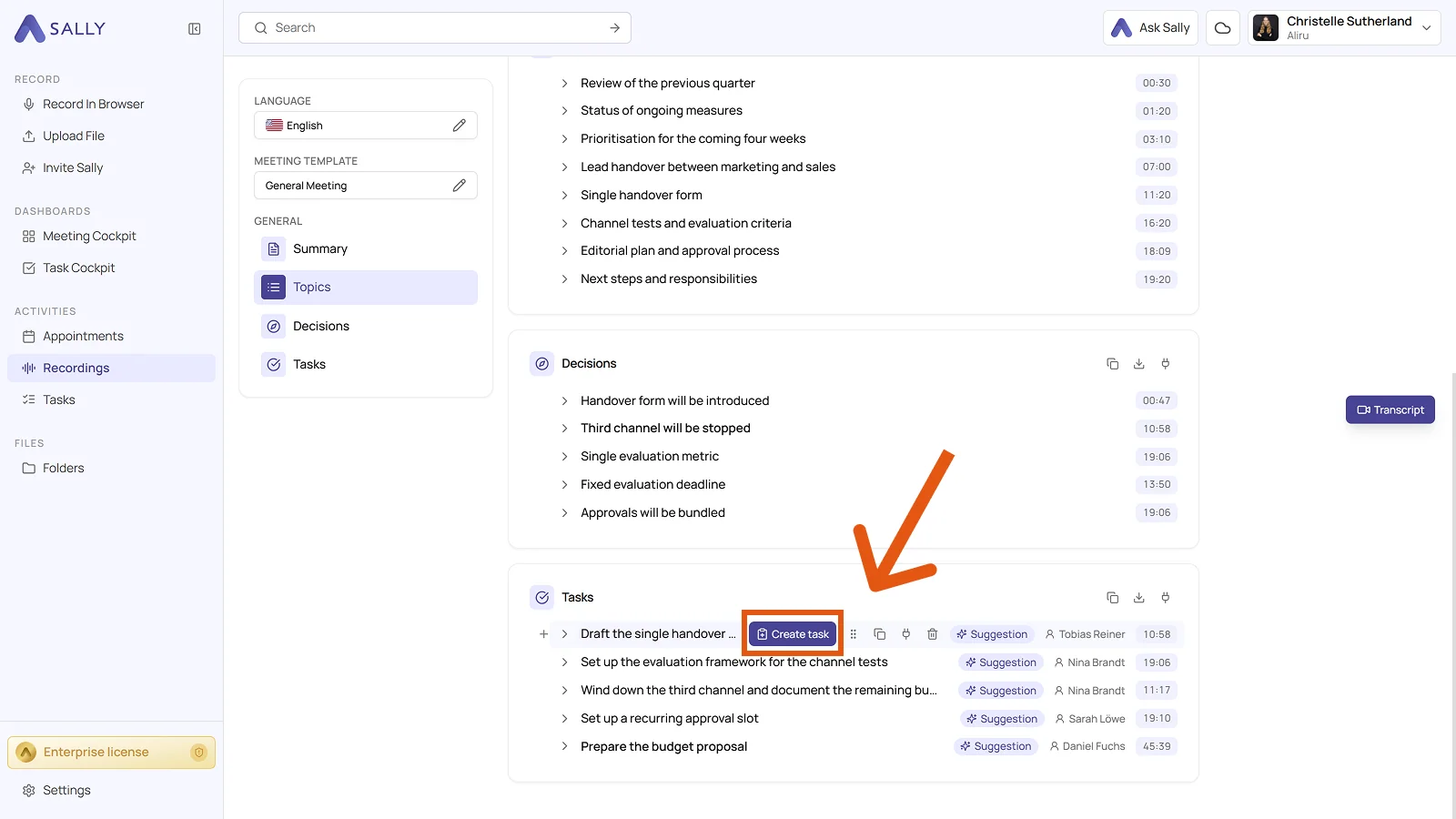
Sally marks proposed entries as Suggestion. Here is how to move one into your task list:
- Hover over the suggestion and click Create task.
- In the New Task dialog, the subject and description are already filled in from the suggestion, and you can still edit both. Pick the person under Responsible, set a date under Due on, and click Create.
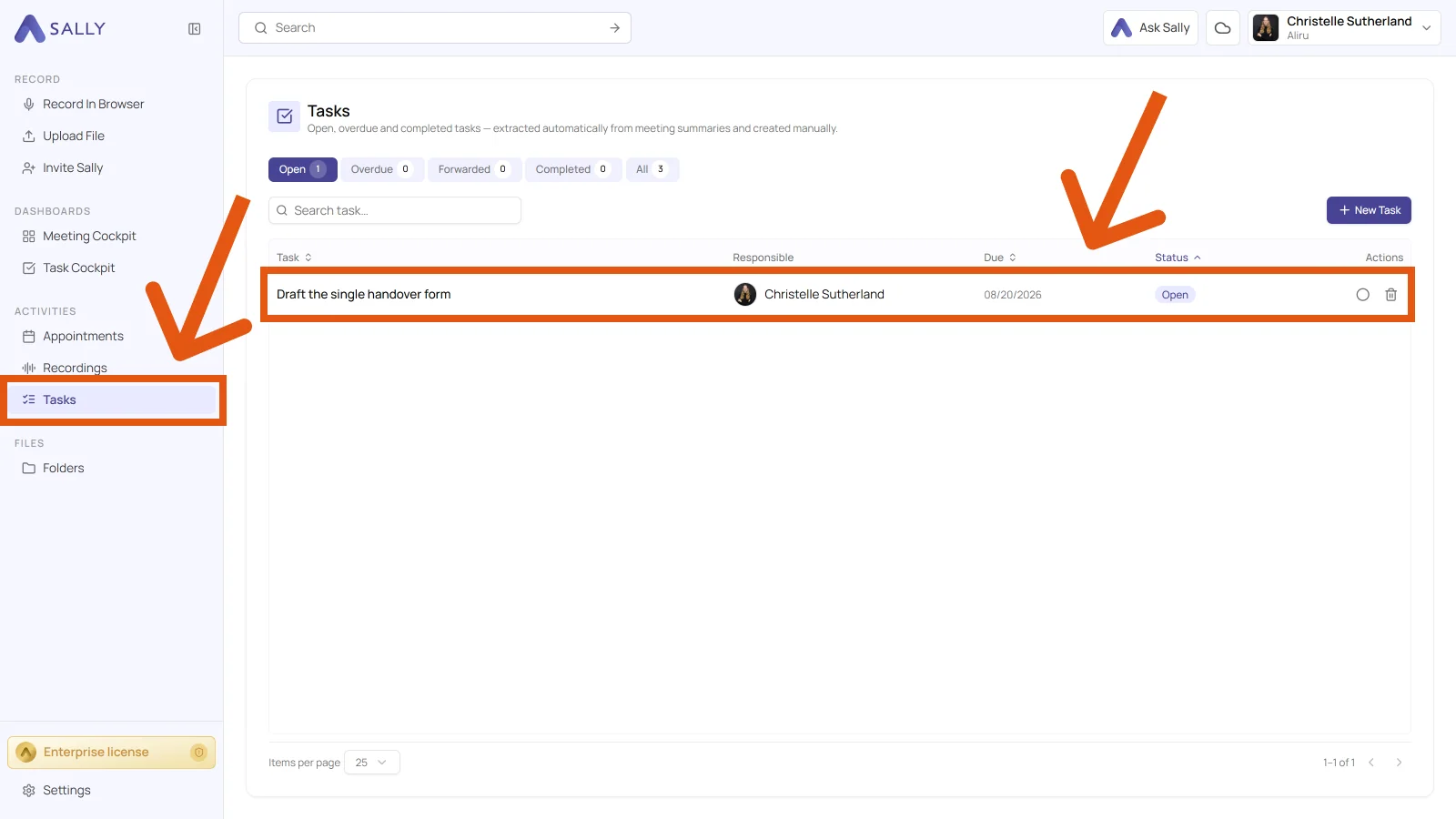
- You then find the task in the Tasks section in the sidebar.
There you get a clear overview of:
- how many tasks are open, forwarded, overdue, and completed,
- who is responsible,
- the due date,
- and the current status.
4. Sync tasks to your tools
You can push any task straight into your connected tools, Salesforce, Microsoft Teams and Pipedrive among them.
Before you start, make sure your tools are connected to Sally.
Here is how to sync a task, using Salesforce as the example:
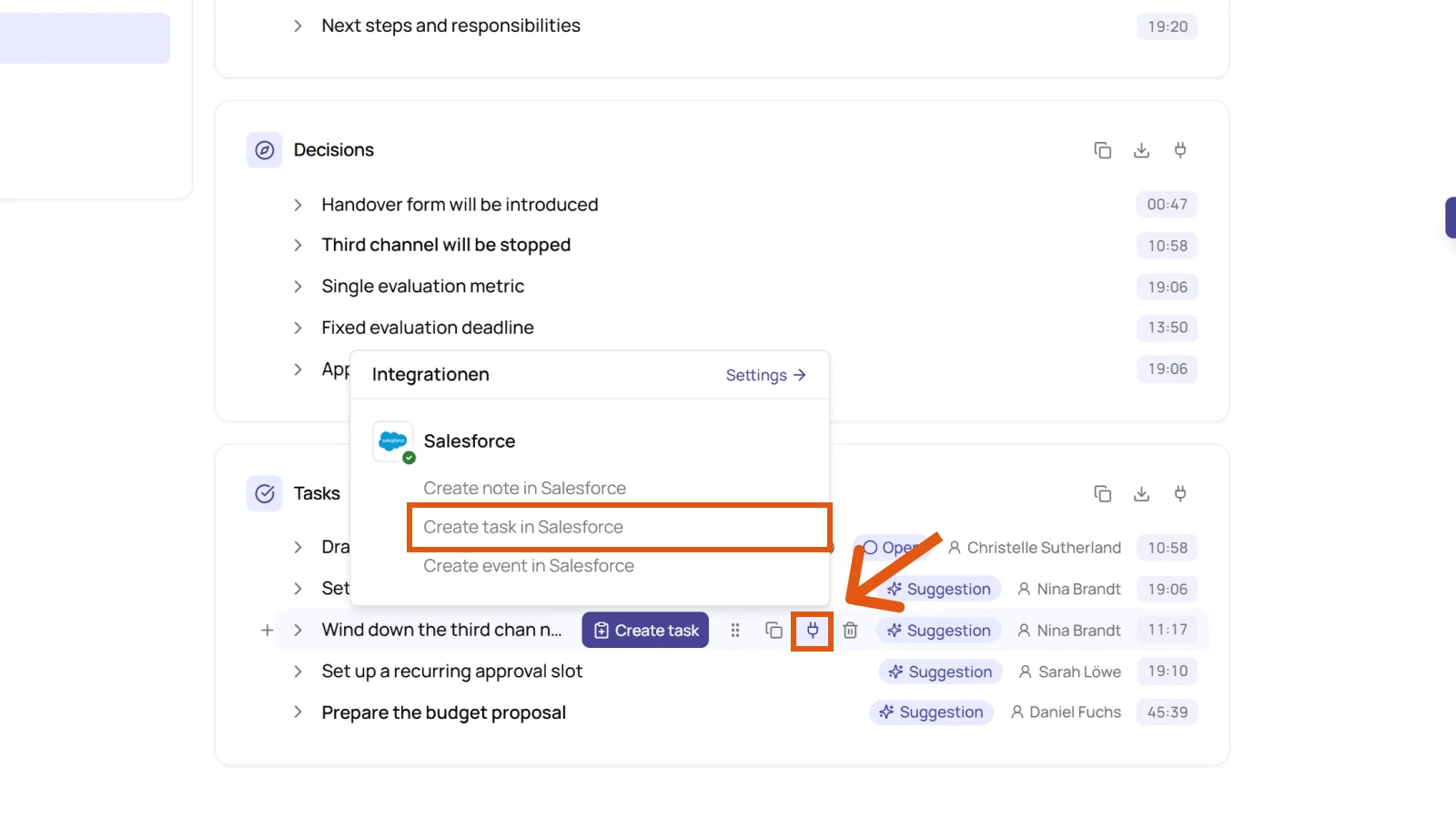
- Hover over the task you want to sync. Several icons appear next to it.
- Click the integrations icon and choose the option you need, here Create task in Salesforce.
- Review the fields in the form and select the linked instance.
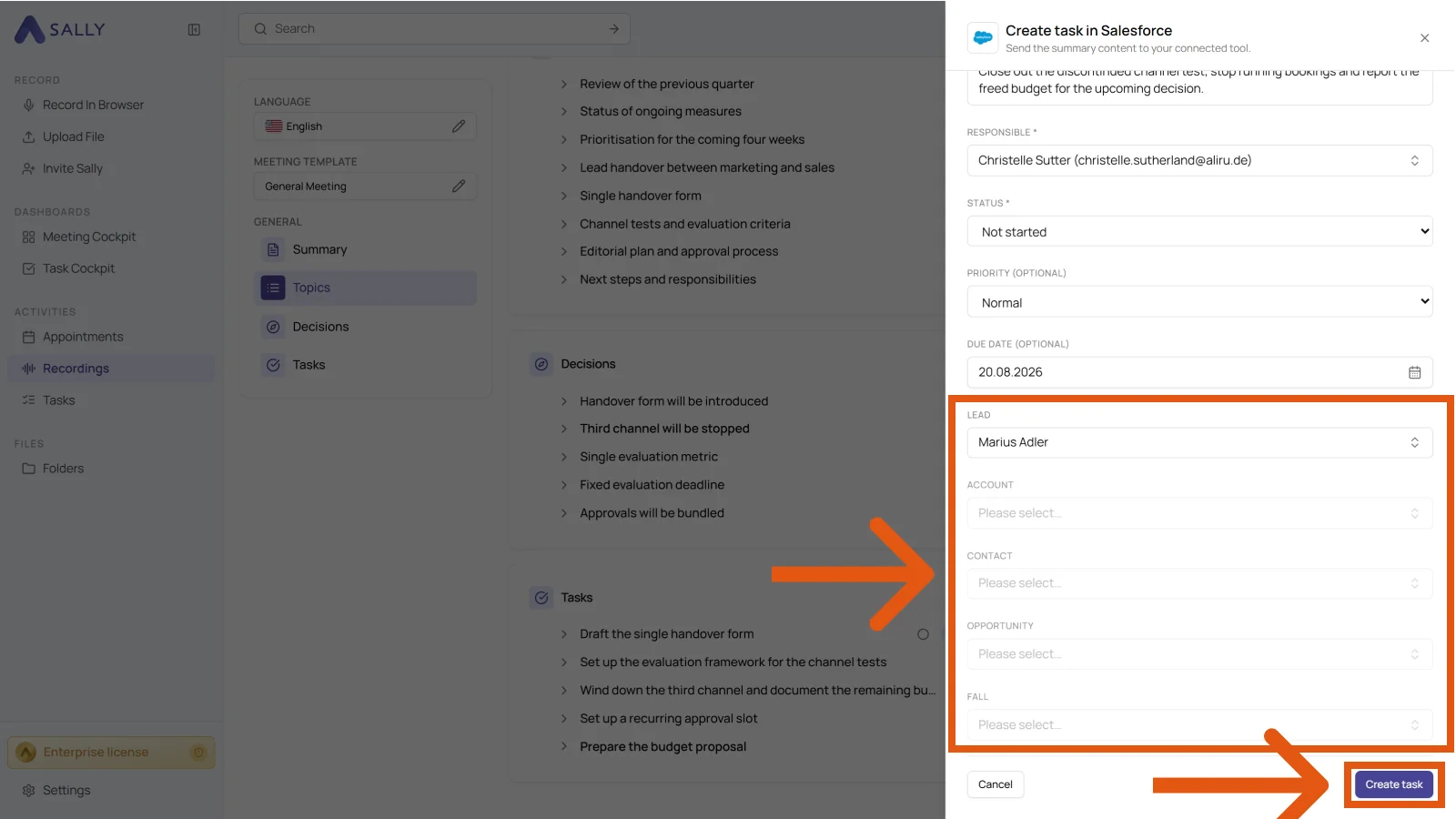
The example above shows Salesforce. There, Sally needs a linked instance (Lead, Account, Contact, Opportunity, or Case) so the task is created in the right place.
The principle applies to other integrations as well, but the available instances depend on the tool. You find all options under Integration & Automation.
- Click Create task.
- You then find the task in the assigned instance, in this example in Salesforce.
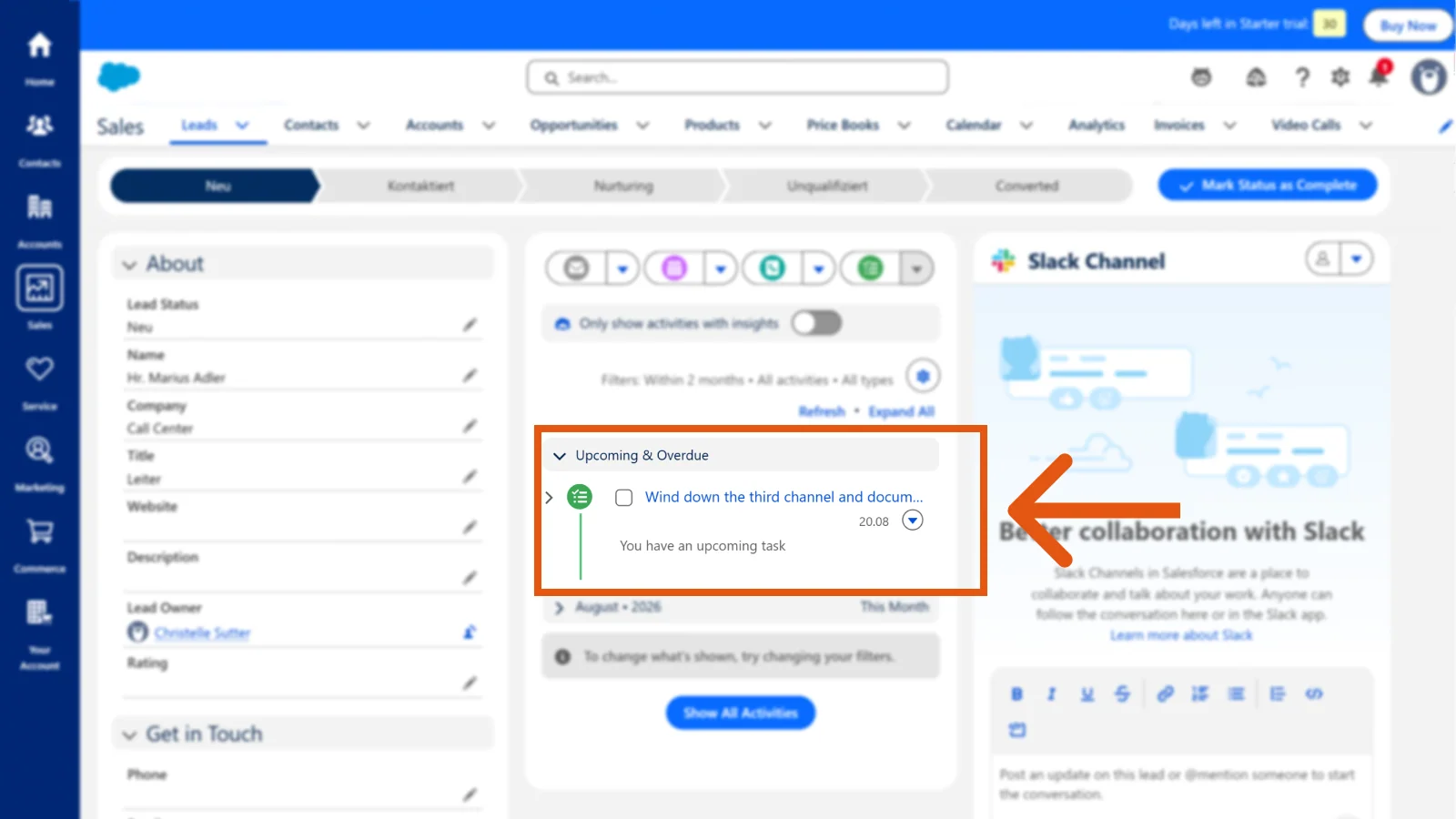
With these steps you can create new tasks, turn suggestions from the summary into tasks, and sync them to your tools, all directly in Sally without leaving the meeting view.