How to ask Sally about your meetings, appointments and tasks
Ask Sally is the chat in Sally AI. You ask in plain language and Sally looks for the answer in your own recordings, appointments and tasks.
Typical situations
- You know something was discussed, but not in which meeting.
- You want to know what is coming up this week or which tasks are still open.
- You have ten minutes before a meeting and need the key points from last time.
You do not have to open a transcript or hunt down an appointment. Sally can also pass the results on for you, for example as a Teams message to a colleague. The chat opens in an area on the right of the page, so you can keep working while you ask.
Quick navigation
- How do I open the chat?
- How do I ask a question?
- What can Sally do for me?
- How do I manage my chats?
- How do I keep the chat open?
1. How do I open the chat?
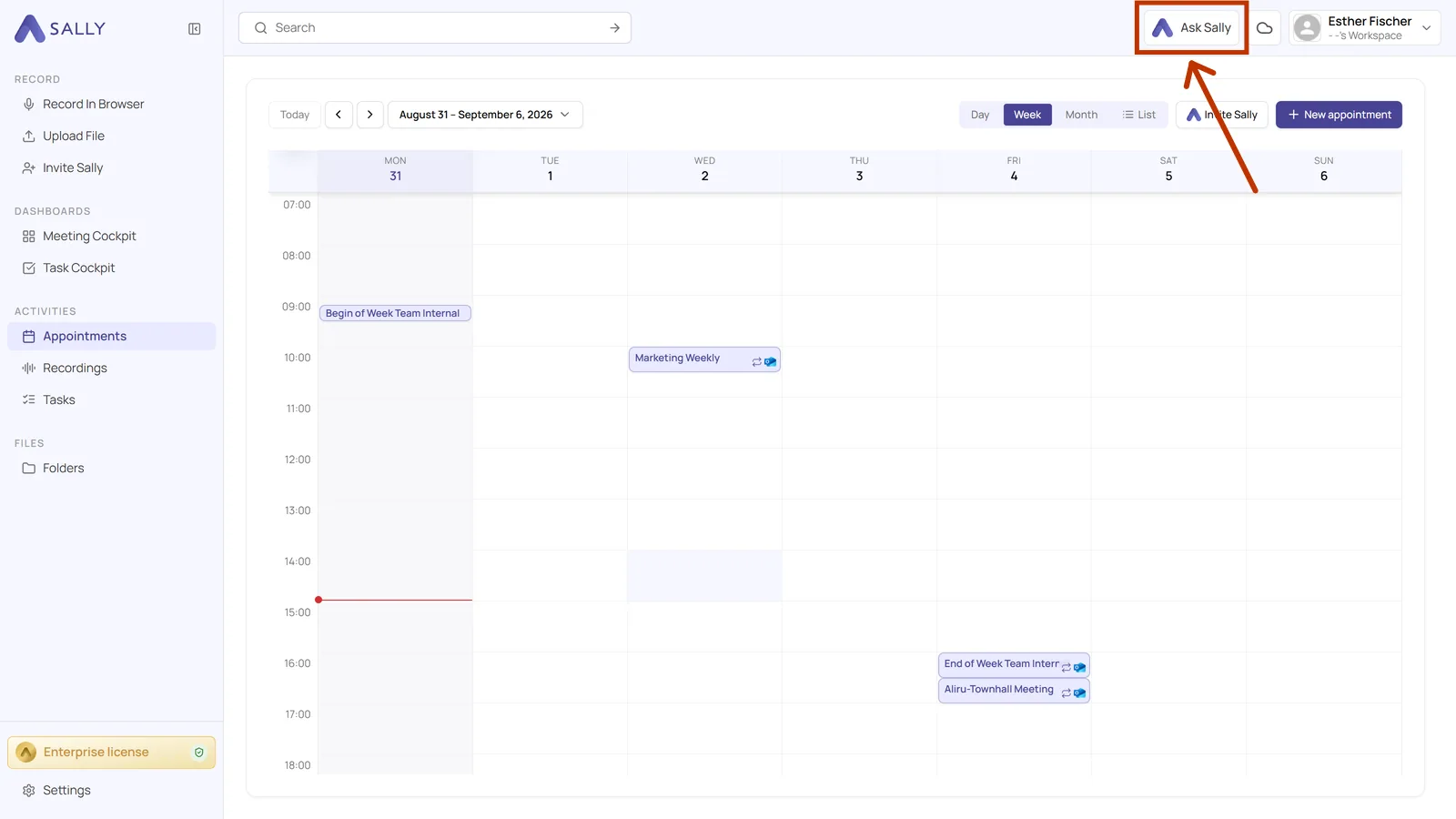
- Click Ask Sally in the top right corner of the header. The button is available on every page.
- The chat area opens on the right. Your question goes into the input field at the bottom. Enter sends it, Shift+Enter starts a new line.
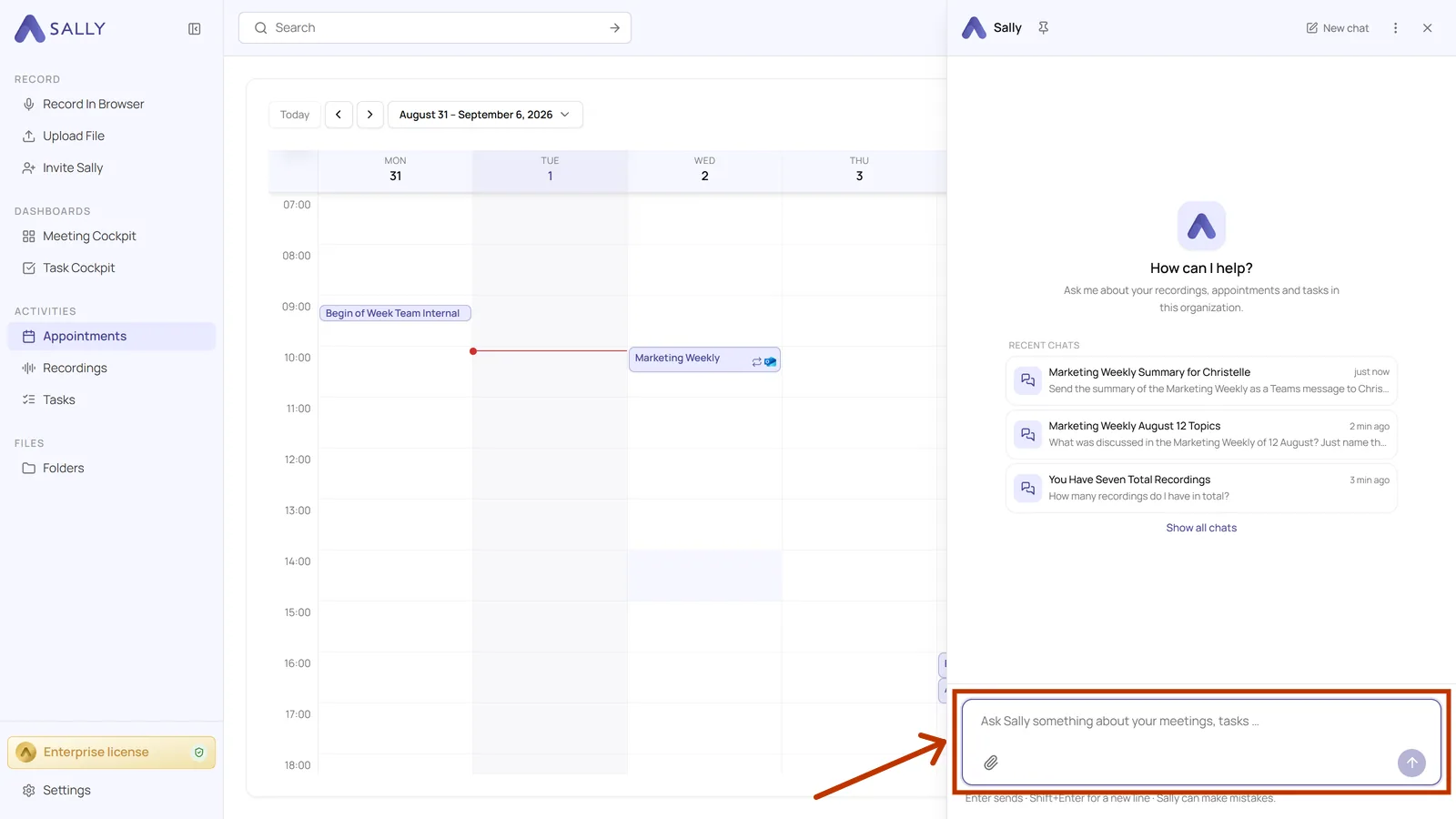
Above the input field, Recent chats lists your three latest conversations. If there are more, Show all chats leads to the full history. You can change the width by dragging the left edge of the chat area.
- "Which appointments do I have this week?"
- "What was discussed in my last recording?"
- "Find a recording about a topic or participant."
- "Summarize this week's meetings."
- "Which tasks are still open for me?"
2. How do I ask a question?
You can ask in plain language, and a few keywords are often enough.
- Type your question and press Enter.
- Sally shows you what it is doing, for example that it is searching your calendar. The answer follows underneath.
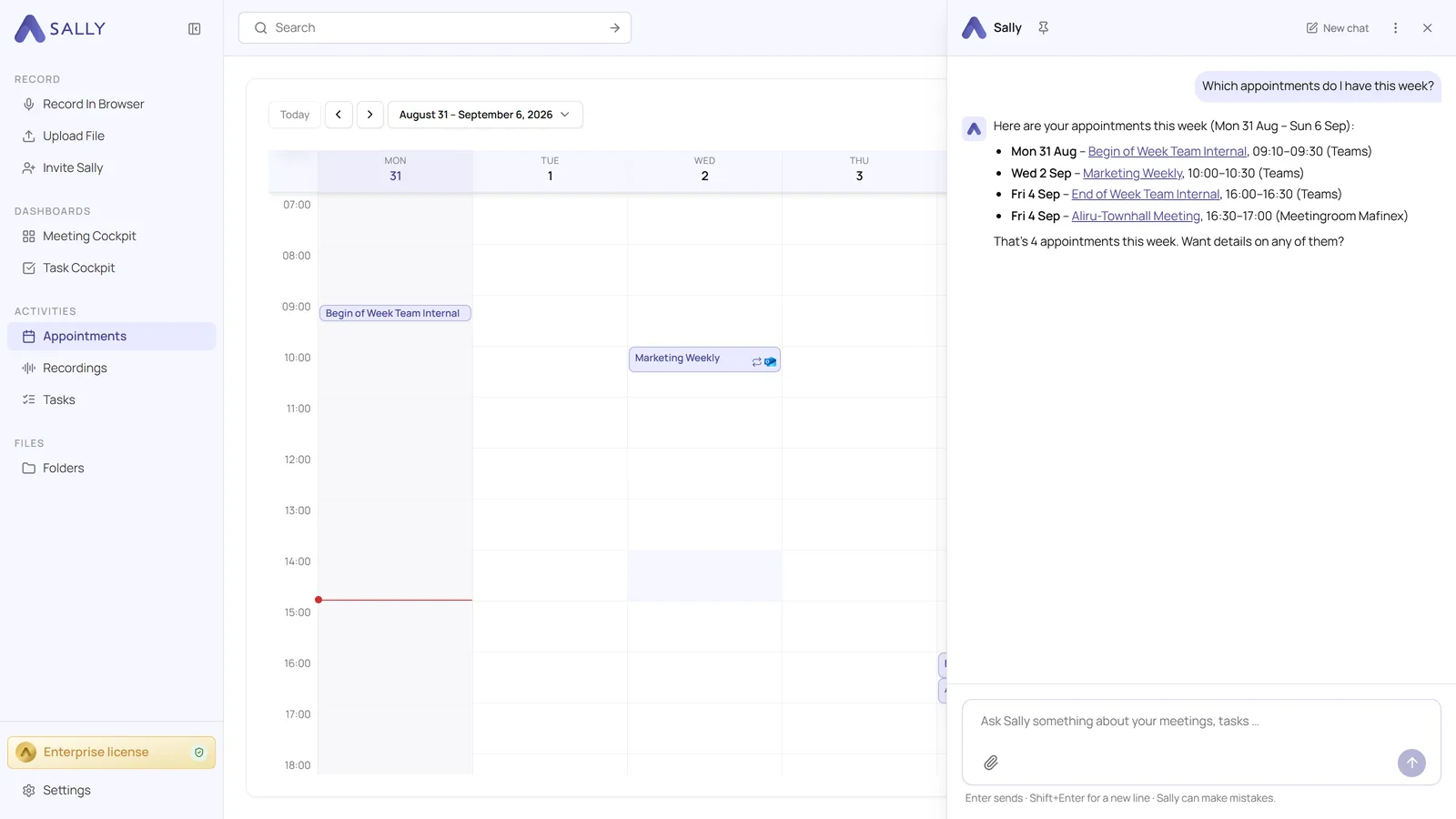
Every appointment and recording in the answer is a link, so one click takes you to the meeting itself. If you want to rephrase your question, after a typo for example, Stop ends the running answer.
Sally uses the recordings, appointments and tasks that are available to you in your organization. If you have only just started, there is little to find: connect your calendar or add Sally to a meeting so that it has something to work with. The line under the input field says Sally can make mistakes. So for anything that matters, take a quick look at the linked meeting.
2.1. Asking about a single appointment or folder
If you open the chat while an appointment is open, Sally relates your questions to that appointment automatically. A small field with the name of the appointment appears in the input field.
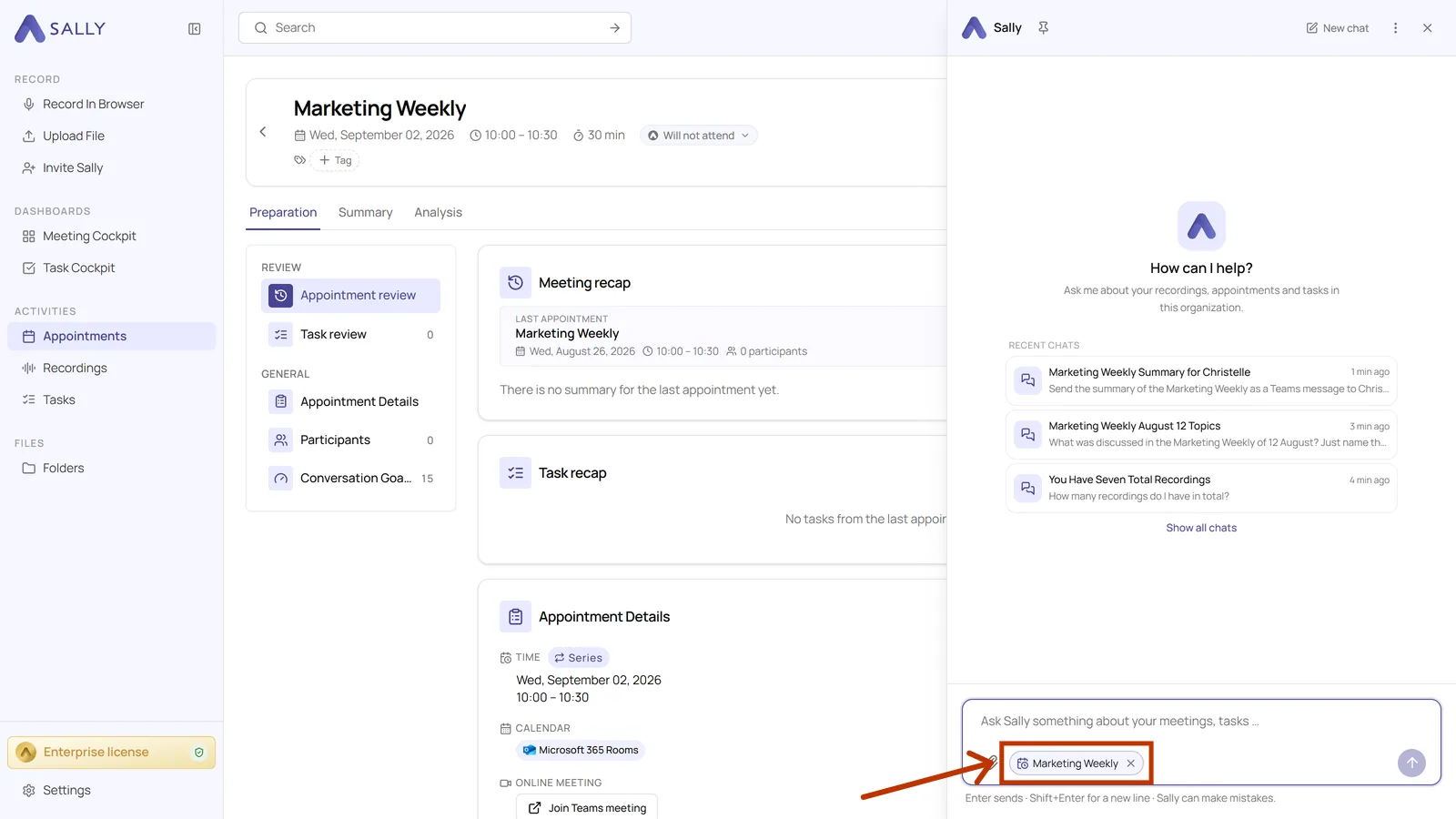
It works the same way in a folder, where that small field shows the folder name. Ask what it contains, for example, and Sally only searches the recordings in that folder.
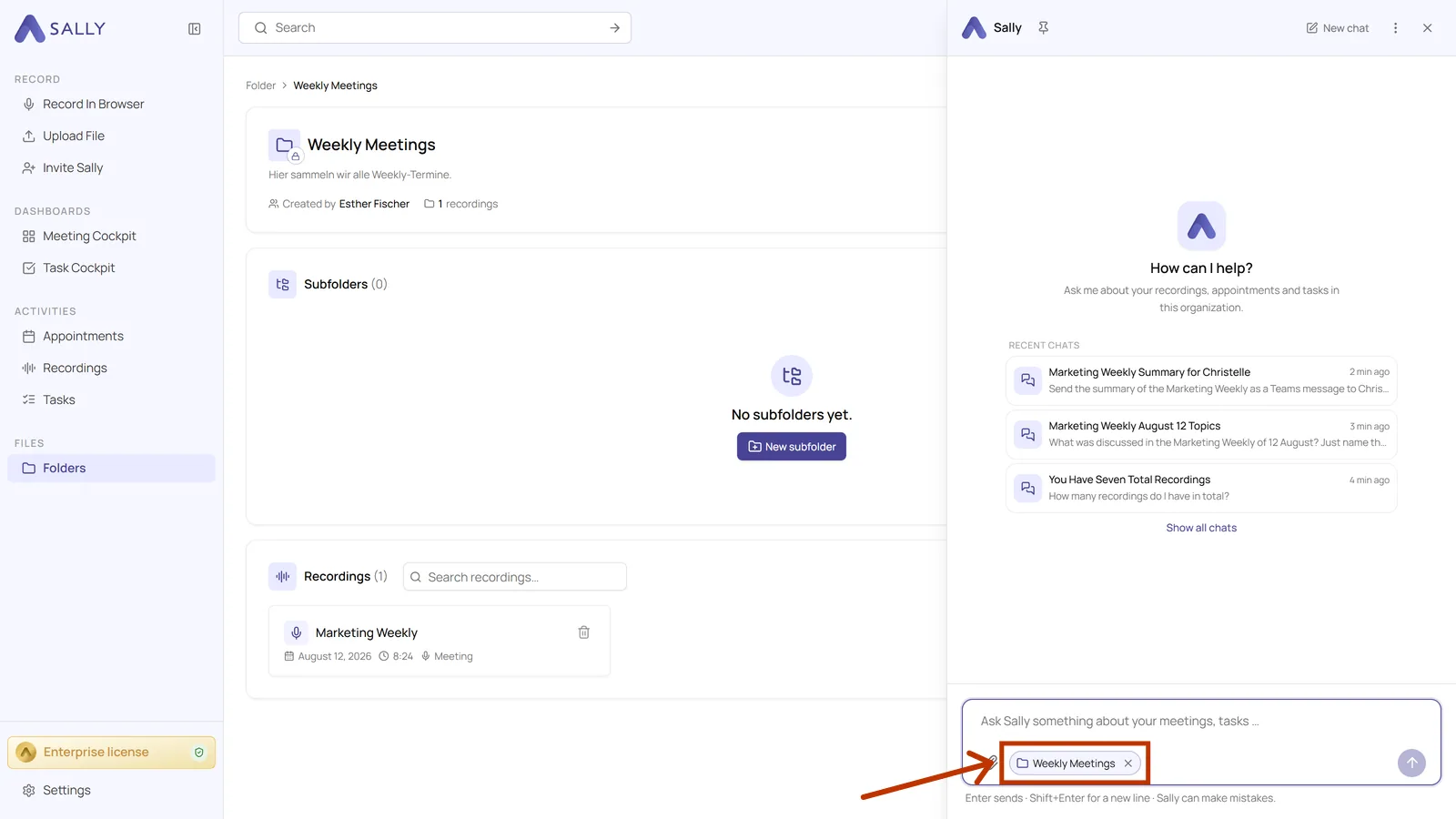
The ✕ on that field lifts the restriction again. After that, Sally searches across everything as usual.
2.2. Attaching a file
You can give Sally a file and ask questions about its content. That is useful for an agenda you want to prepare for, for example.
- Click the paperclip in the input field and pick your file.
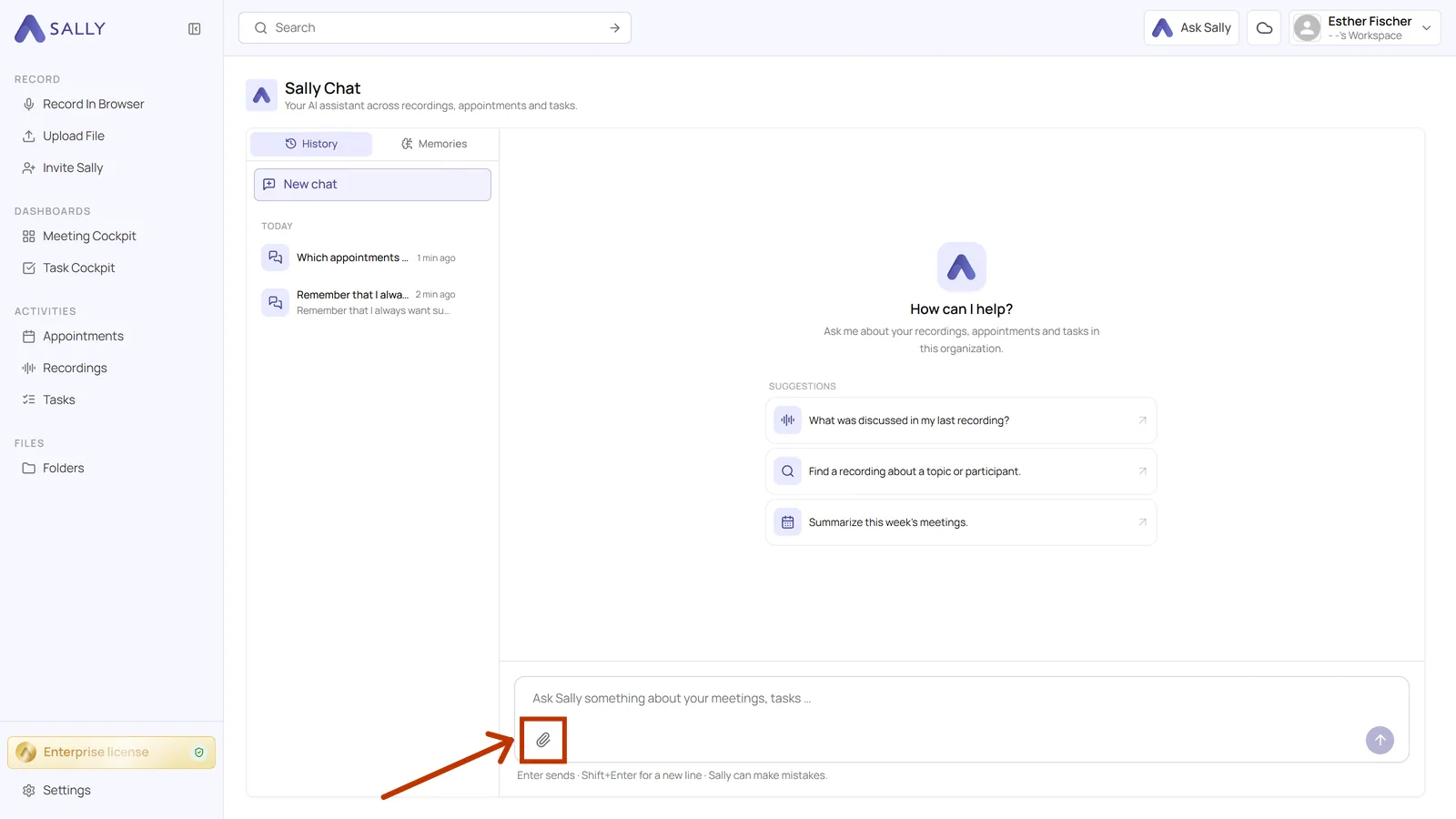
- The file appears above your message. Add your question and send it. Sally reads the file and answers from its content. Where it helps, Sally also checks your Sally data, for example for the appointment that belongs to the agenda.
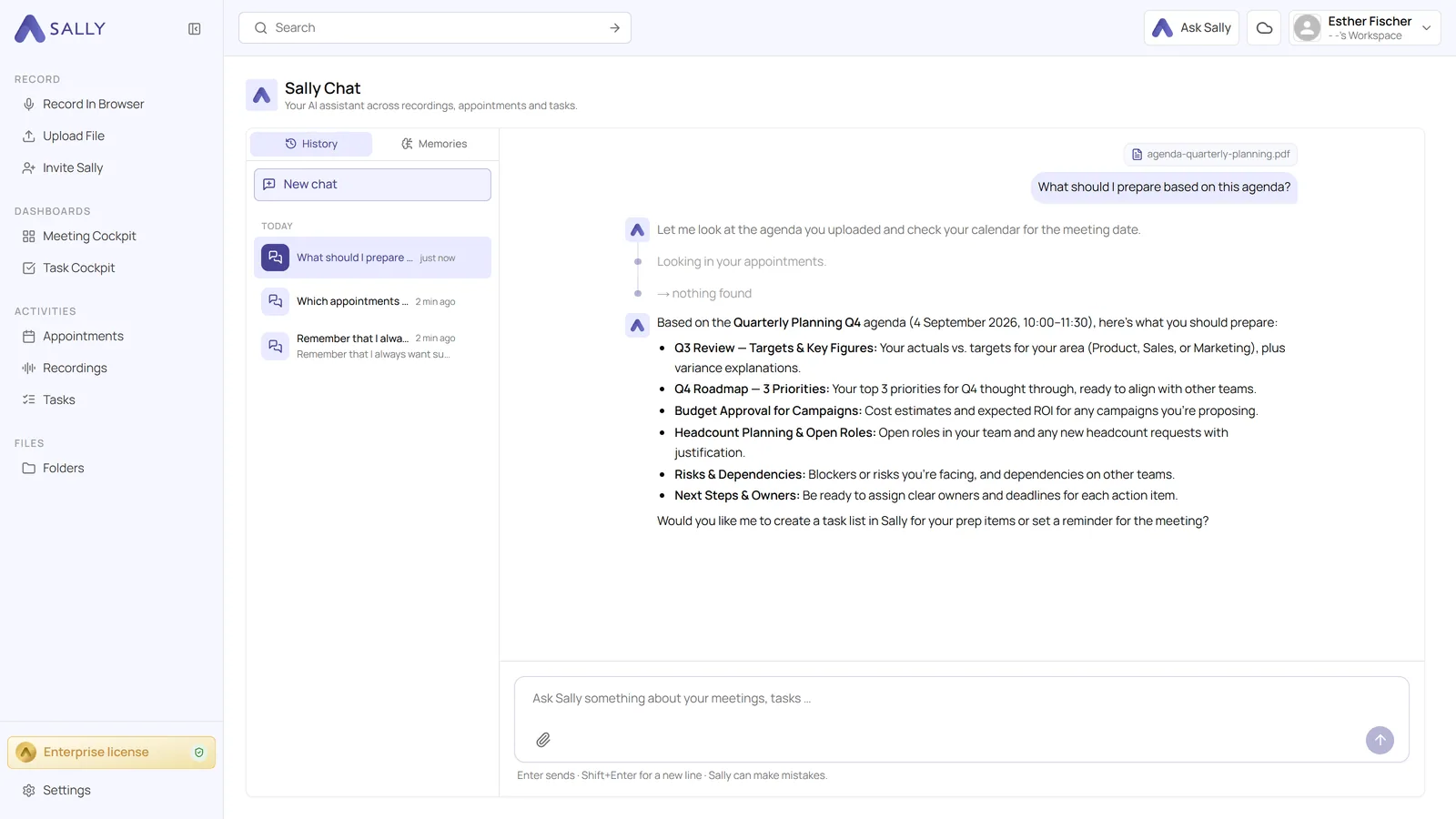
Documents (PDF, DOCX, TXT, MD, CSV, JSON), images (PNG, JPEG, WebP, GIF) as well as audio and video files are supported, for example MP3, WAV, M4A, MP4, MOV, MKV and WebM.
3. What can Sally do for me?
Sally does more than answer questions, it pulls results out of your meetings and puts them straight into your other tools. That makes the chat the bridge between your meeting data and your integrations.
One request in plain language is enough, for example:
- "Take the tasks from the last weekly and send them to Christelle Sutherland on Teams."
- "Create tasks in ClickUp from the to-dos of the kickoff."
- "Send me this morning's summary on Teams."
Sally gathers what it needs on its own, in these examples the tasks from the summary, and then creates them in the target tool or sends them out.
Before anything happens, Sally looks up the right contact, shows a preview with recipient and content, and asks you first. The message only goes out once you say yes.
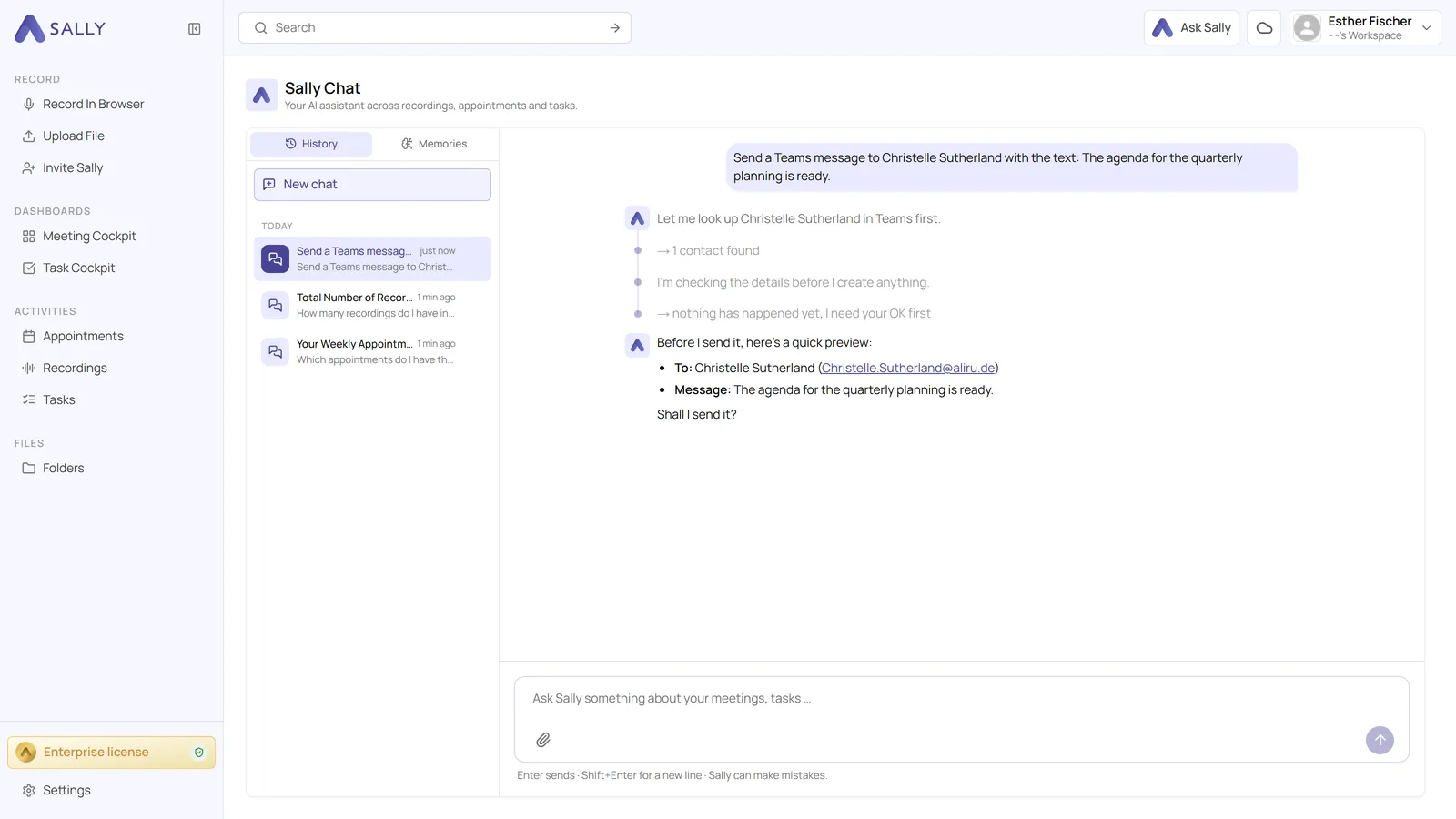
Which tools are available depends on your connections. Just ask in the chat, for example "Which tools can you use for me?", and Sally lists what it can carry out in your account. You set up new connections under Settings → Integrations.
4. How do I manage my chats?
Every conversation is kept, and whatever Sally remembers about you permanently can be reviewed and deleted at any time.
4.1. Opening earlier chats and using fullscreen
- Click the three dots in the top right of the chat area. The More actions menu opens with the entries History and Open in fullscreen.
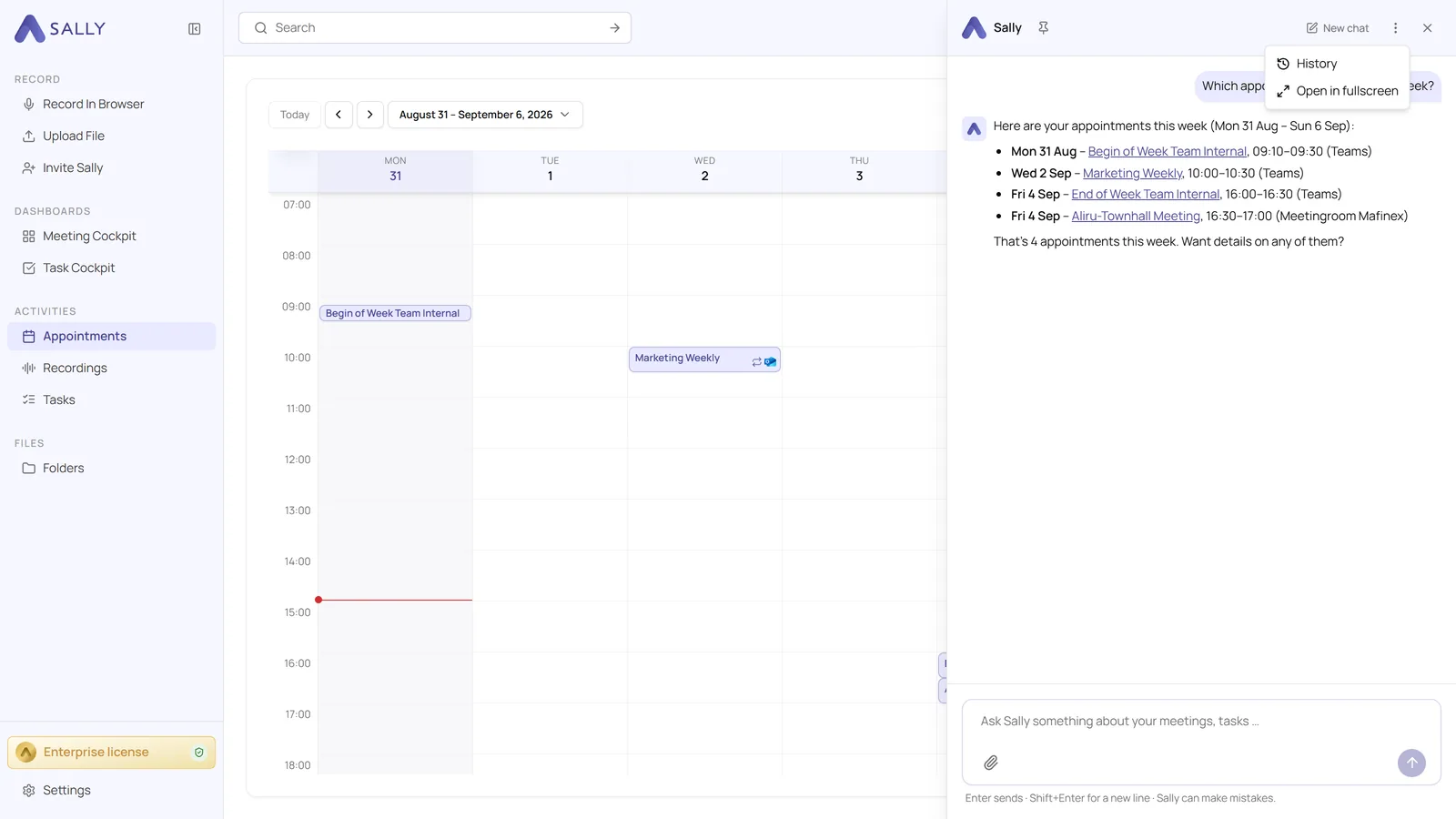
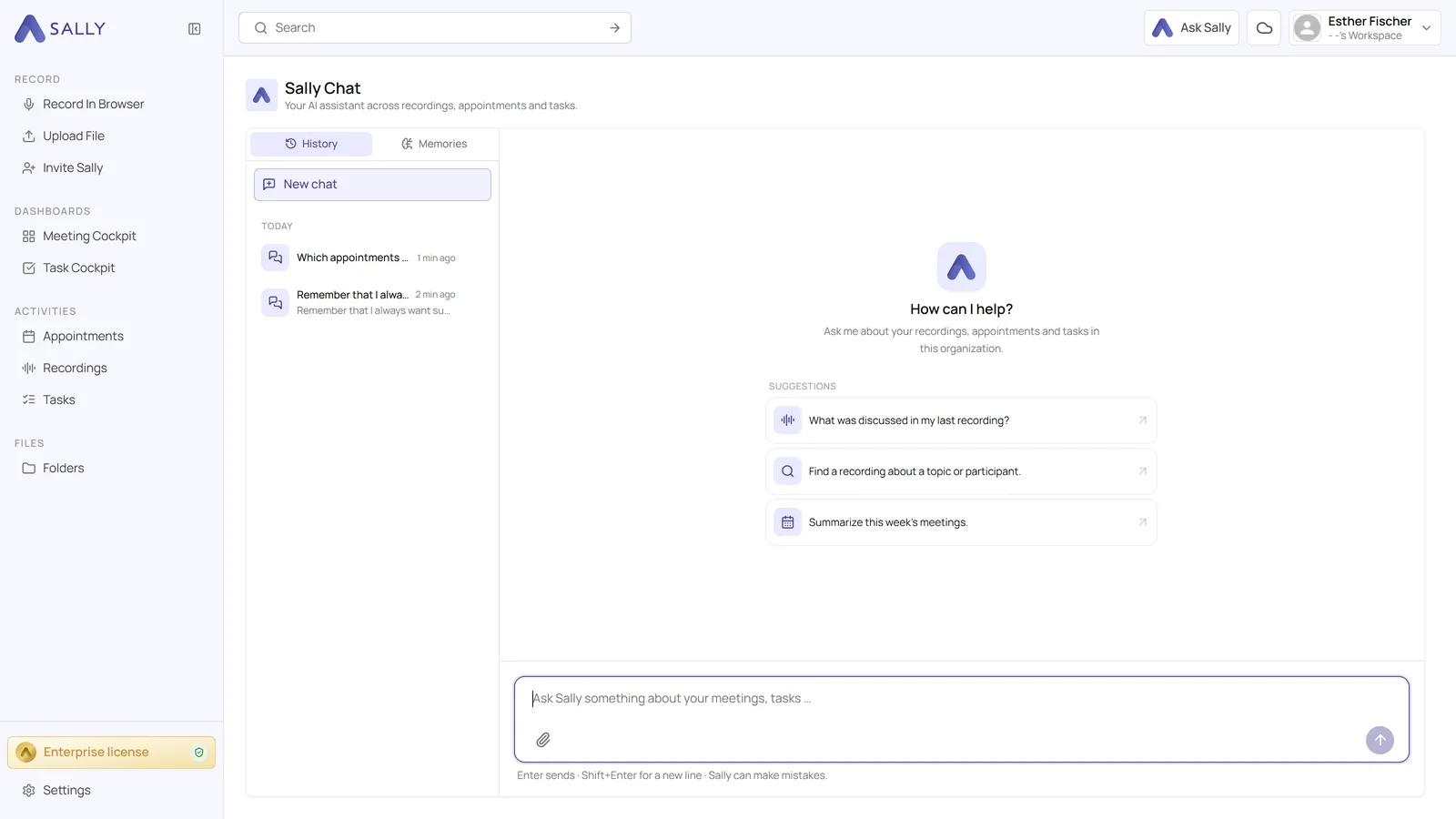
- The fullscreen view gives you more room. Your chats are listed on the left, and New chat starts a fresh conversation. As long as you have not asked anything yet, Sally offers suggested questions you can click straight away.
- Click a chat in the list on the left to continue it. The bin icon on the entry deletes that conversation.
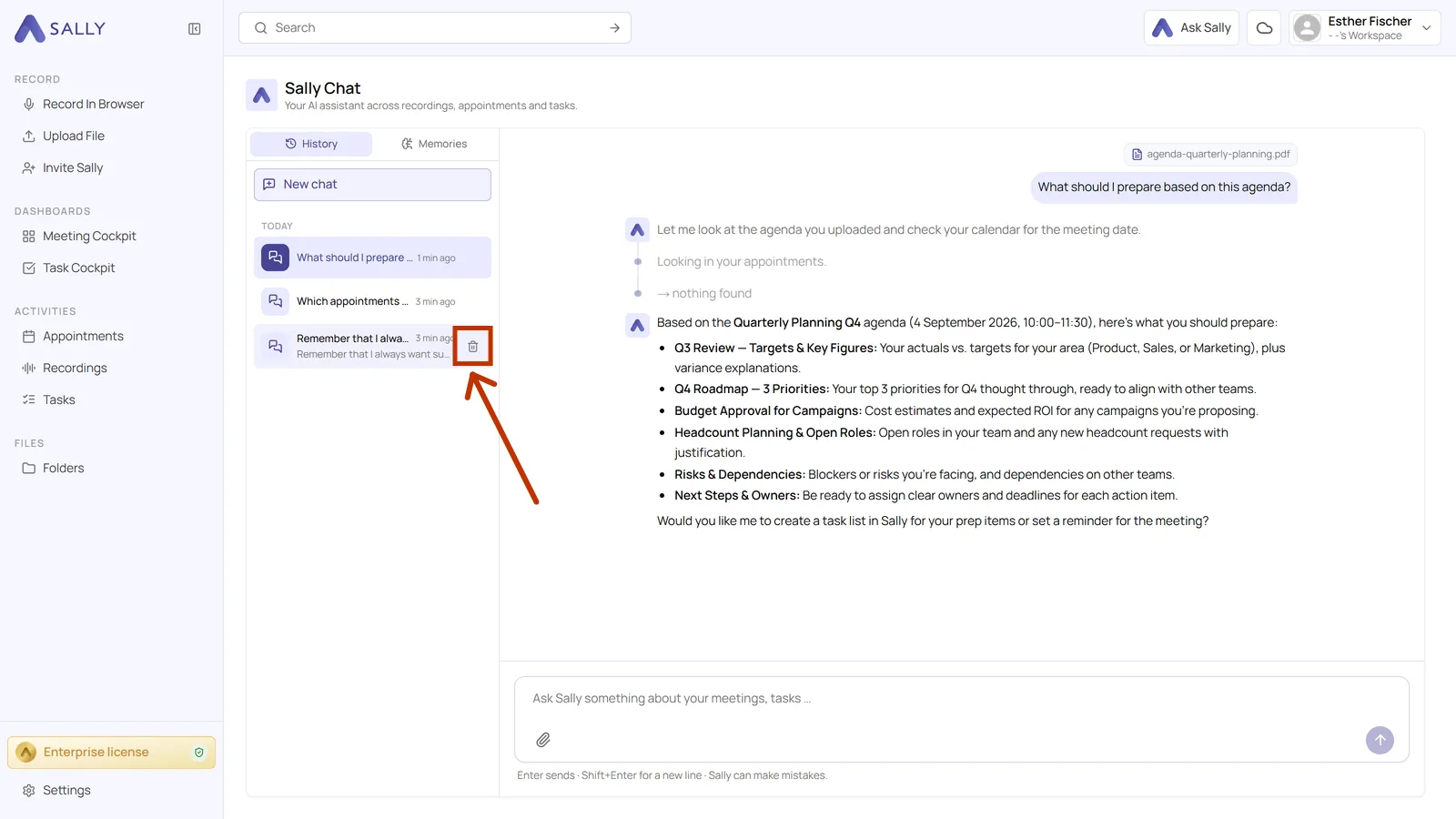
The conversation is deleted without a confirmation and cannot be restored afterwards.
4.2. What Sally remembers about you
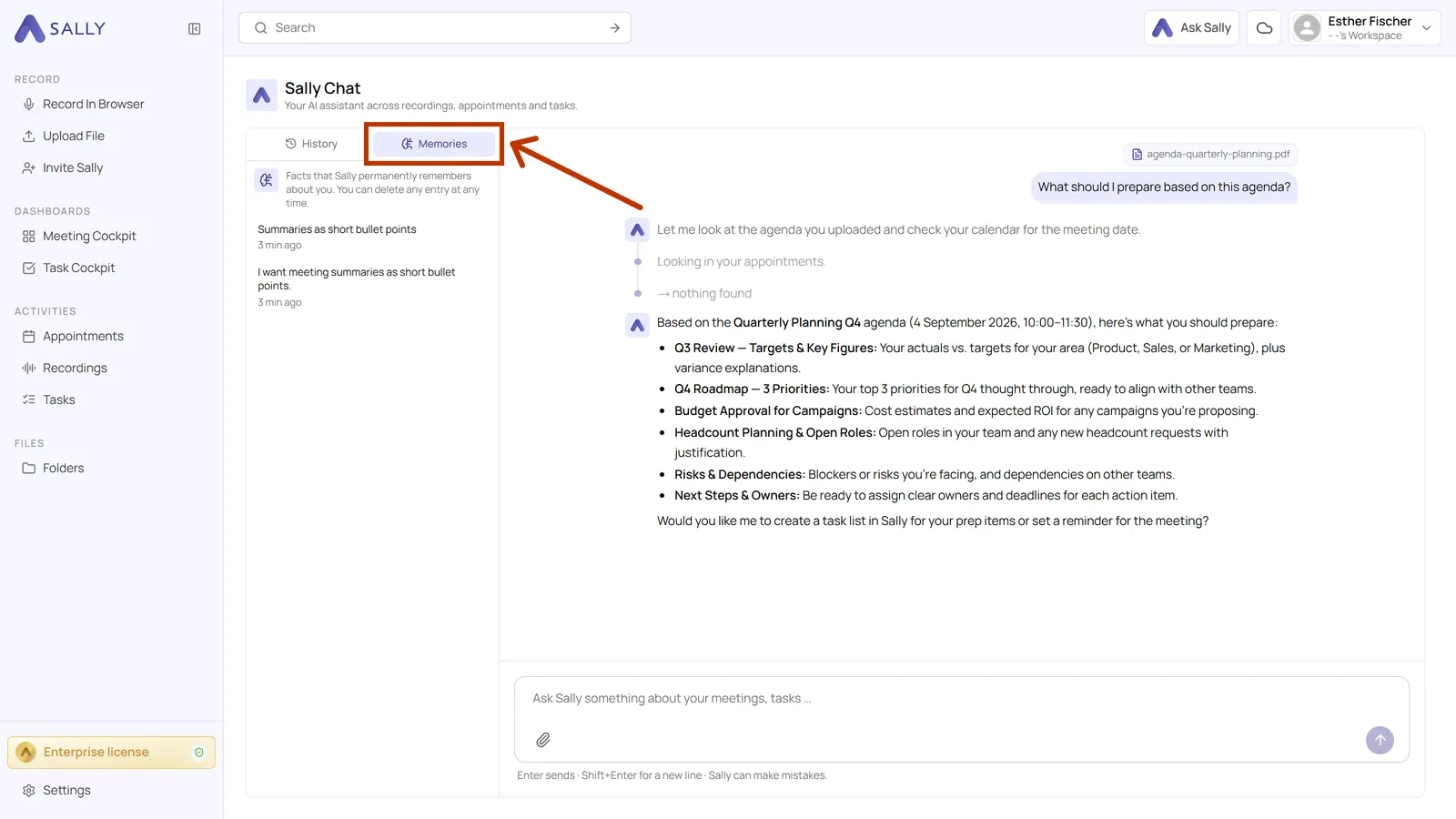
Sally can keep your preferences beyond a single conversation. Just tell Sally what to remember, for example "Remember that I always want summaries as short bullet points." From then on you no longer have to mention it.
The Memories tab shows everything Sally has stored about you. Every entry has its own bin icon, so you can remove a memory at any time.
5. How do I keep the chat open?
- Click the pin icon next to the Sally logo at the top of the chat area.
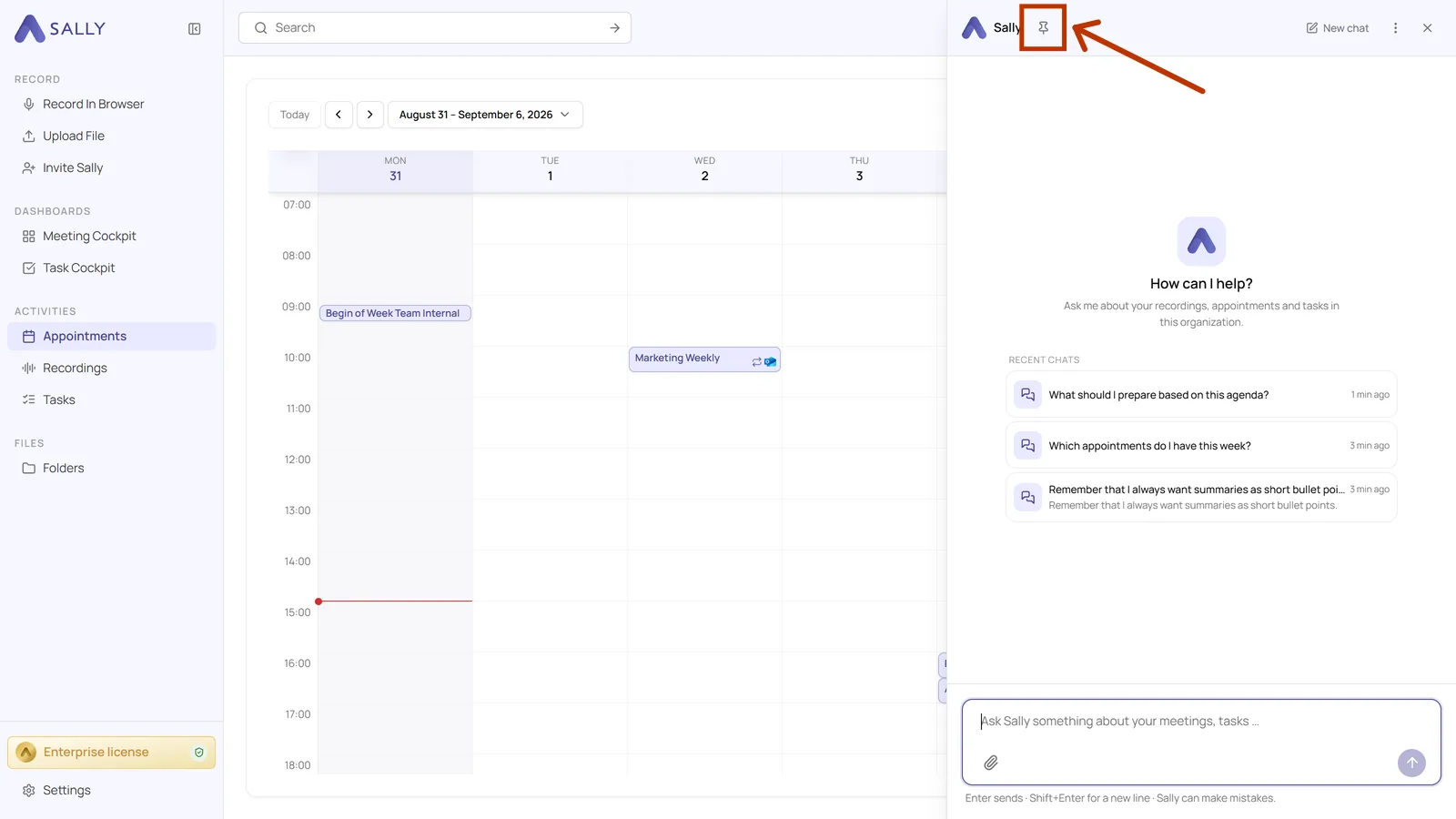
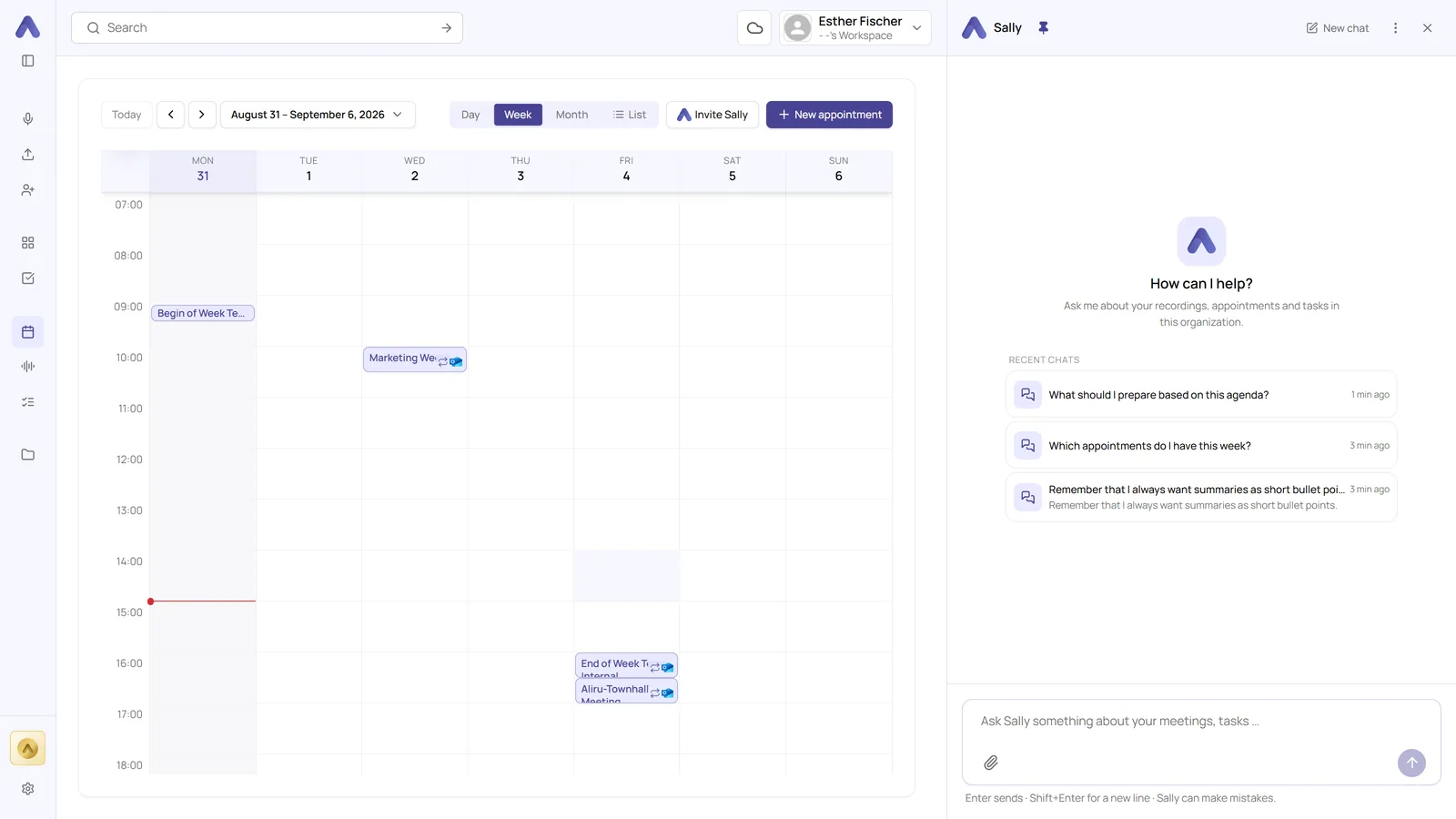
- The chat no longer covers the page but sits next to it. You can move to other pages and the chat stays open. The same icon releases it again, and Close hides the chat area.
The search bar at the top of the page covers that. Query meeting content explains how it works, and meeting search covers every filter option.