November 17, 2026: Pause the recording in a meeting
· 2 min read

You can now pause Sally's recording during a meeting and resume it later. Sally stays in the meeting the whole time, so a confidential topic or a personal conversation in between no longer ends up in the transcript. You don't have to remove her and invite her again.
Everything before and after the pause stays in one recording with one summary. The new recording control also lets you post a message in the meeting chat and remove Sally, keeping or deleting what she recorded so far.
What's new?
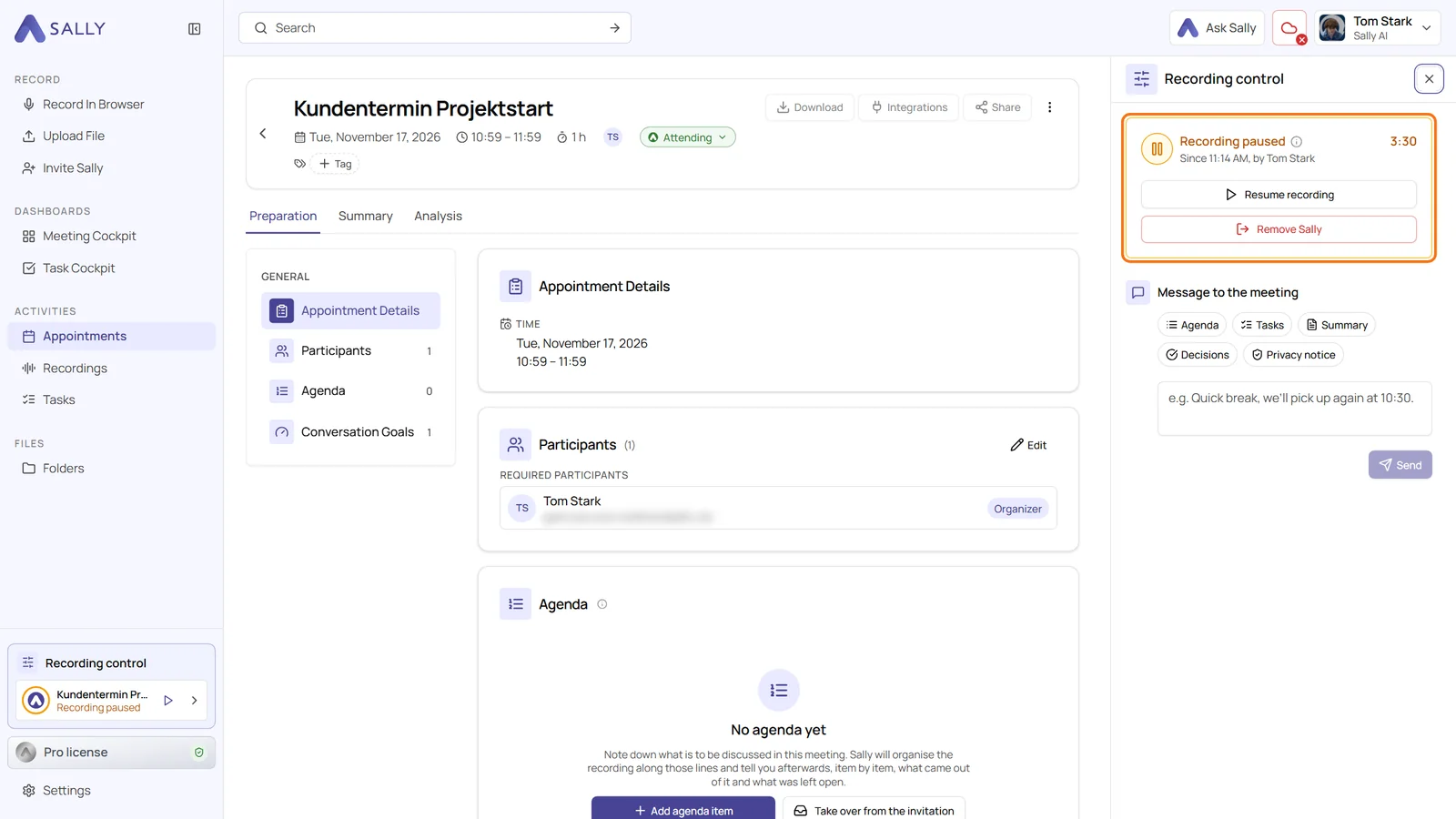
- Recording control in the sidebar: as soon as Sally records one of your meetings, the Recording control box appears at the bottom of the left sidebar. Hover over the entry and click Pause recording
- Panel on the meeting page: if you open the meeting while it is running, the Recording control panel opens on the right. It shows since when and by whom the recording is paused
- Everyone is told: Sally posts "I've stopped listening for now" in the meeting chat when you pause and "I'm listening again" when you resume
- The pause is cut out: recording, transcript and summary contain nothing from the paused part. A band in the transcript marks the spot, for example Recording paused 10:15 to 10:20
- Message to the meeting: write a text that Sally posts in the meeting chat
- Remove Sally: choose Remove Sally, keep the recording or Remove Sally, delete the recording
Good to know
- Who can control it: only people who have the meeting in Sally. In the browser on your phone it opens as a sheet from the bottom, the Sally app doesn't offer it yet
- No automatic resume: Sally doesn't remind you and doesn't resume on her own
Want the details? See Pause the recording and control Sally during a meeting.