Pause the recording and control Sally during a meeting
Sometimes part of a meeting should not be recorded, for example a confidential topic or a personal conversation in between. With the recording control you pause Sally's recording and resume it later, and Sally stays in the meeting the whole time. You don't have to remove her and invite her again.
The recording control also lets you post a message in the meeting chat and remove Sally from the meeting, keeping or deleting what she has recorded so far. This article shows where to find it and what happens with each action.
Quick navigation
- Open the recording control
- Pause and resume the recording
- Send a message to the meeting
- Remove Sally from the meeting
1. Open the recording control
As soon as Sally records one of your meetings, the Recording control box appears at the bottom of the left sidebar in Sally, above your license. Each running meeting gets its own entry.
- Pause straight from the sidebar: hover over the entry and click Pause recording next to the arrow. On touch screens the button is always there.
- Small window: click the entry. A window opens next to it with Pause, Meeting and Remove.
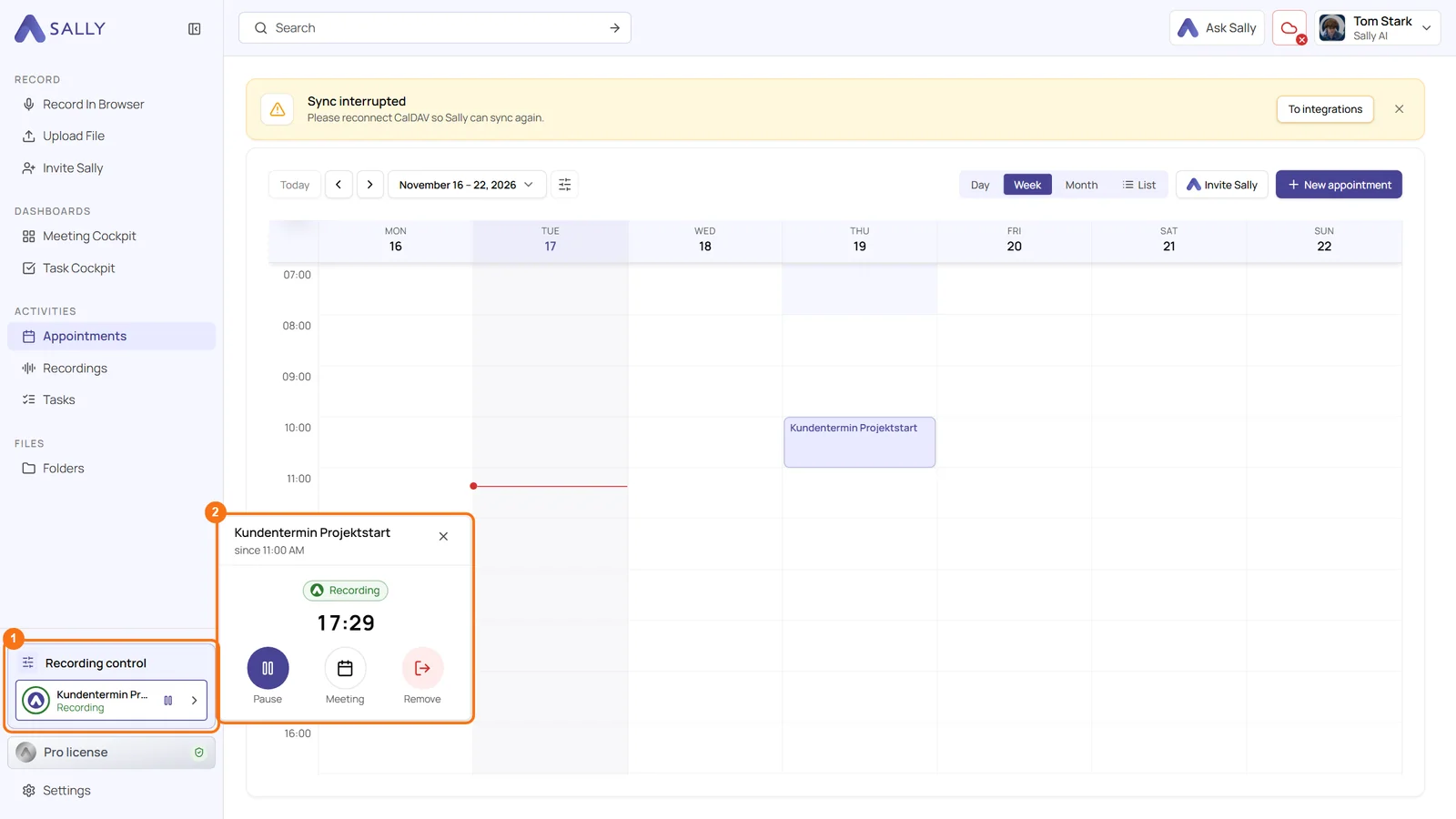
If you open the meeting while it is running, or click Meeting in the small window, the Recording control panel opens on the right by itself. On wide screens it sits next to the meeting, on narrower ones over it. You can pause there as well and send messages to the meeting. If you closed the panel, bring it back through the Sally chip in the meeting header with Open recording control.
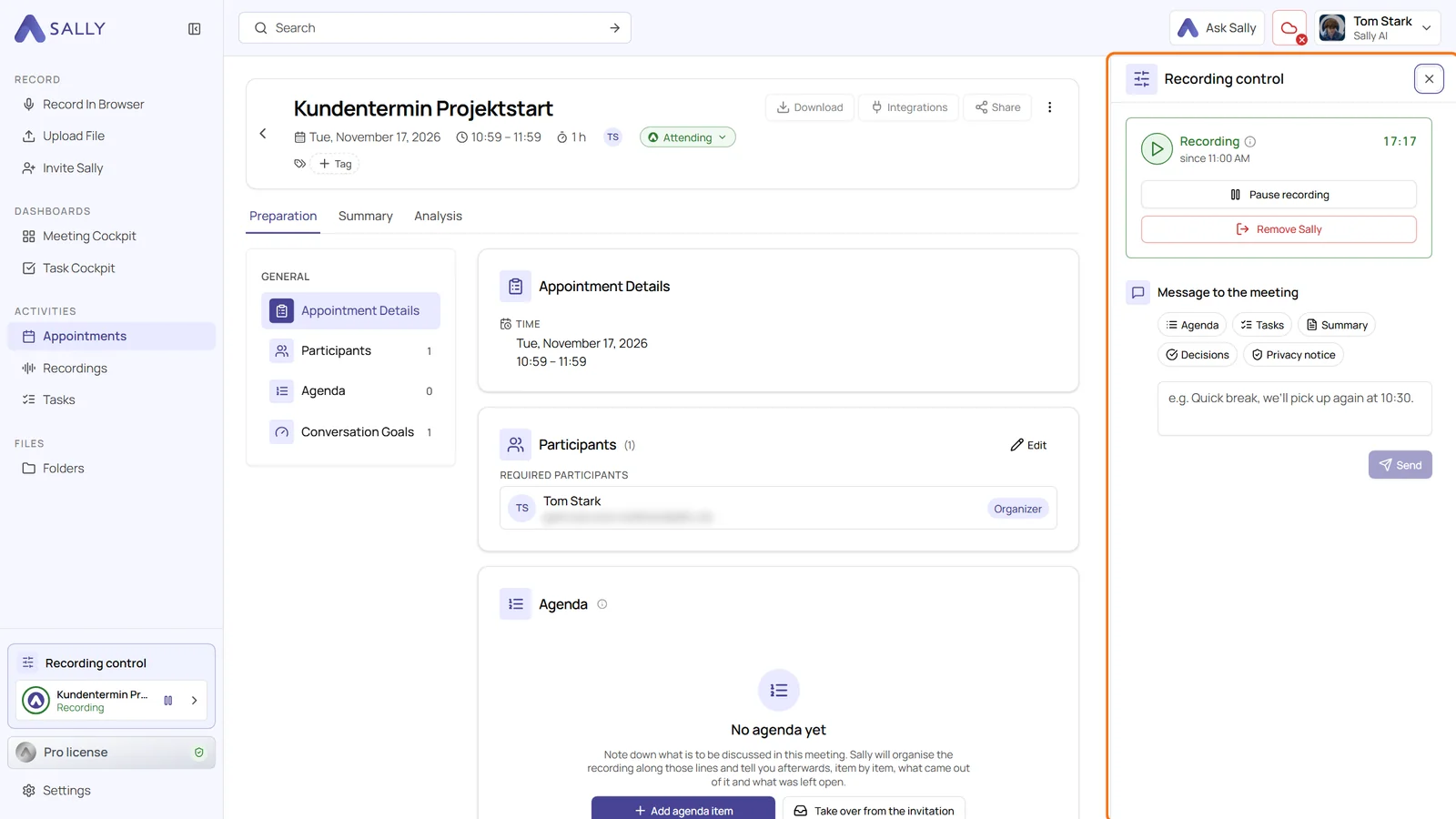
Only people who have the meeting in Sally can use the recording control, so colleagues who merely belong to the same organization can't. In the browser on your phone, tap Recording control next to the Sally chip, and it opens as a sheet from the bottom. The Sally app doesn't offer it yet.
2. Pause and resume the recording
- Click Pause recording. The status changes to Recording paused and shows since when and by whom, for example Since 10:15, by Tom Stark. Everyone who can control the meeting sees the same status.
- Click Resume recording to continue. The status switches back to Recording.
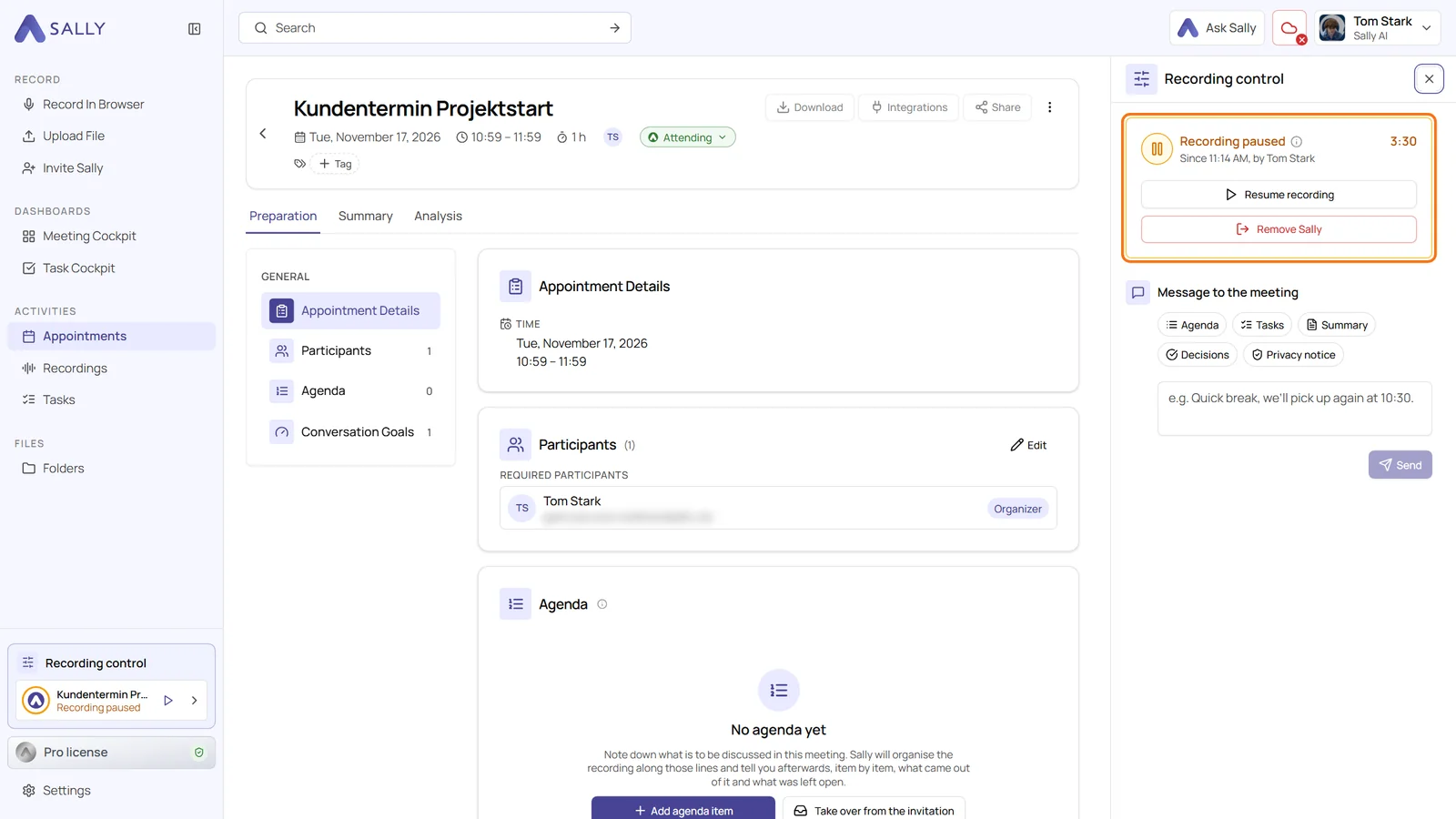
This happens during and after the pause:
- Sally stays in the meeting. She only stops recording.
- Everyone in the meeting is told. Sally posts a message in the meeting chat: "I've stopped listening for now" when you pause and "I'm listening again" when you resume. The message is in the language of the person who paused or resumed.
- The pause is cut out. The recording, the transcript and the summary contain nothing from the paused part. In the transcript, a band marks the spot, for example Recording paused 10:15 to 10:20.
- No automatic resume. Sally doesn't remind you and doesn't resume on her own. If nobody resumes, the band reads from 10:15 until the end of the meeting.
Pausing keeps everything before and after the pause in one recording with one summary. If you remove Sally and bring her back, you get a second recording instead.
3. Send a message to the meeting
Under Message to the meeting in the panel, you write a text that Sally posts in the meeting chat, for example "Quick break, we'll pick up again at 10:30." Click Send to post it.
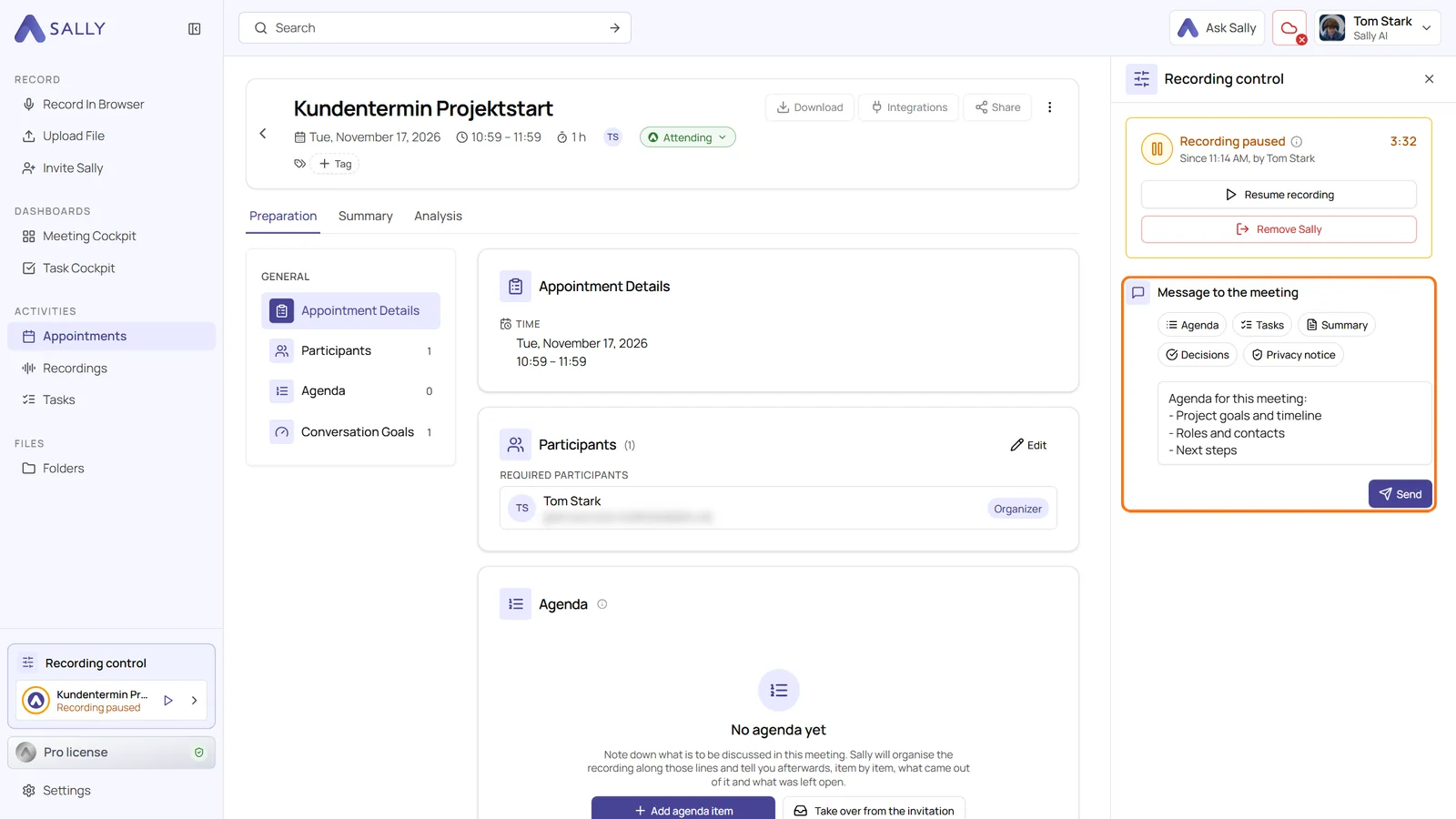
The chips above the field fill it with a template that you can edit before sending:
| Template | What it inserts |
|---|---|
| Agenda | The agenda of this meeting |
| Tasks | The tasks from the last meeting of the series |
| Summary | The summary of the last meeting of the series |
| Decisions | The decisions from the last meeting of the series |
| Privacy notice | Your company's privacy notice, sent to the chat again |
If a template has no content, for example because the meeting has no agenda, its chip is greyed out and tells you why.
4. Remove Sally from the meeting
- Click Remove Sally in the panel or Remove in the small window.
- Choose what should happen to the recording.
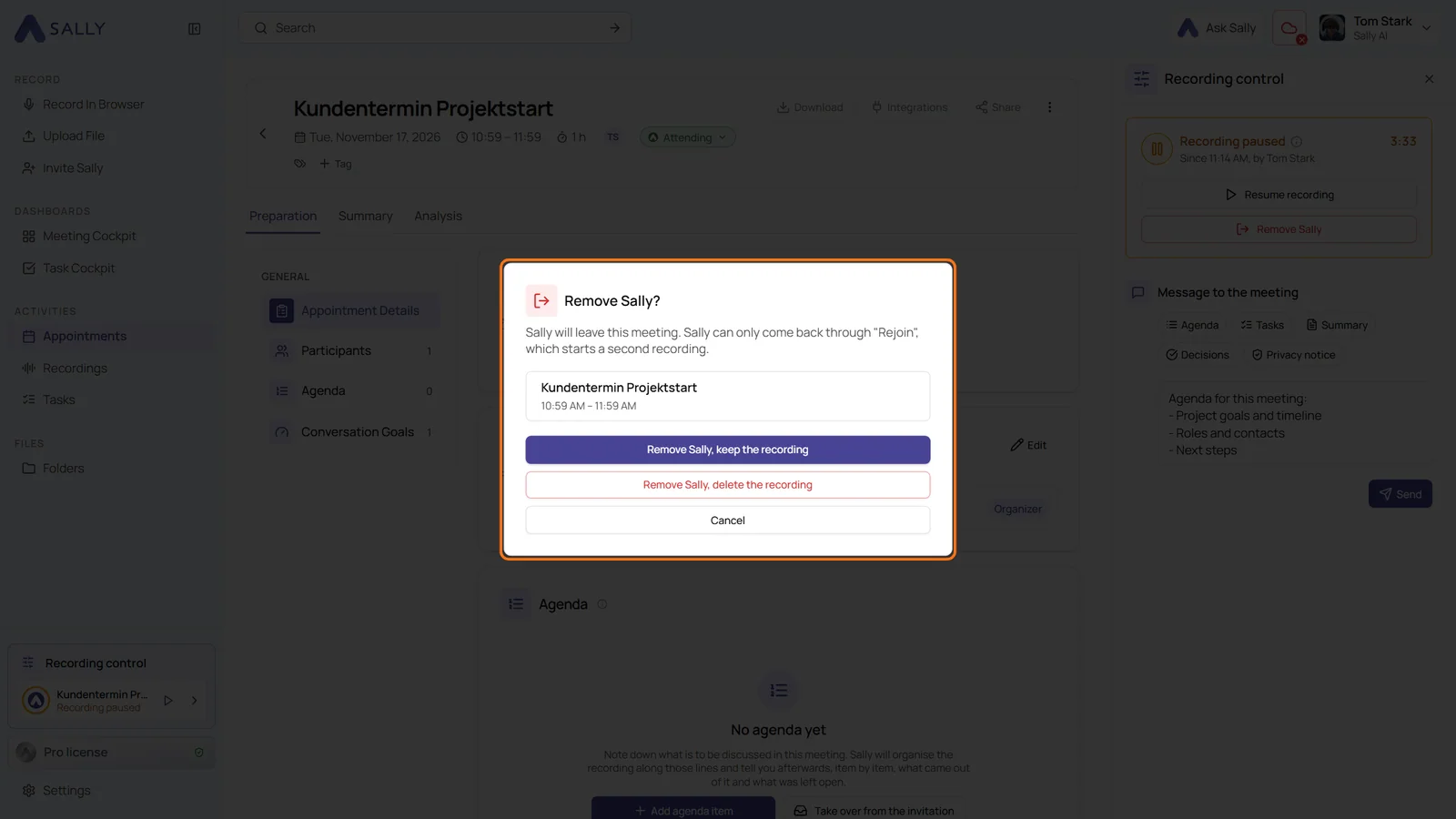
| Option | What happens |
|---|---|
| Remove Sally, keep the recording | Sally leaves the meeting. What she recorded so far is transcribed and summarized as usual. Until then, the meeting shows Sally removed. |
| Remove Sally, delete the recording | Sally leaves the meeting and the recording is deleted, including audio and video. No transcript and no summary are created, and the meeting shows Recording deleted. |
Sally announces it in the meeting chat, for example "Tom Stark removed Sally from the meeting". If you delete the recording, the message adds "The recording will be deleted".
Once removed, Sally only returns through Join again, which starts a second recording. If you only want to skip part of the meeting, pause instead.
You can still remove Sally from a meeting the other ways as well, for example through the participant list in Teams or by typing "opt out" in the chat. All of them are covered in Remove Sally from a meeting.