Configure Sally AI auto-leave on silence timeout

With the Auto-leave on silence setting, you can define how long Sally should wait during inactivity before leaving a meeting automatically.

That keeps her from sitting in meetings that are already over, which happens when other bots are still there and count as participants. You can set the waiting time once for the whole organization, and each user can set their own personal delay when the organization allows it.

Please note

Sally normally leaves a meeting when she is the only participant remaining. If other bots are still present, she checks the audio signal to detect real activity.

If she hears nothing within the waiting time you set, she posts a message in the chat and asks whether the meeting is still running. Say something or send a chat message and she stays.

If there is still no activity for another 3 minutes, Sally automatically leaves the meeting.

1. Open the settings​

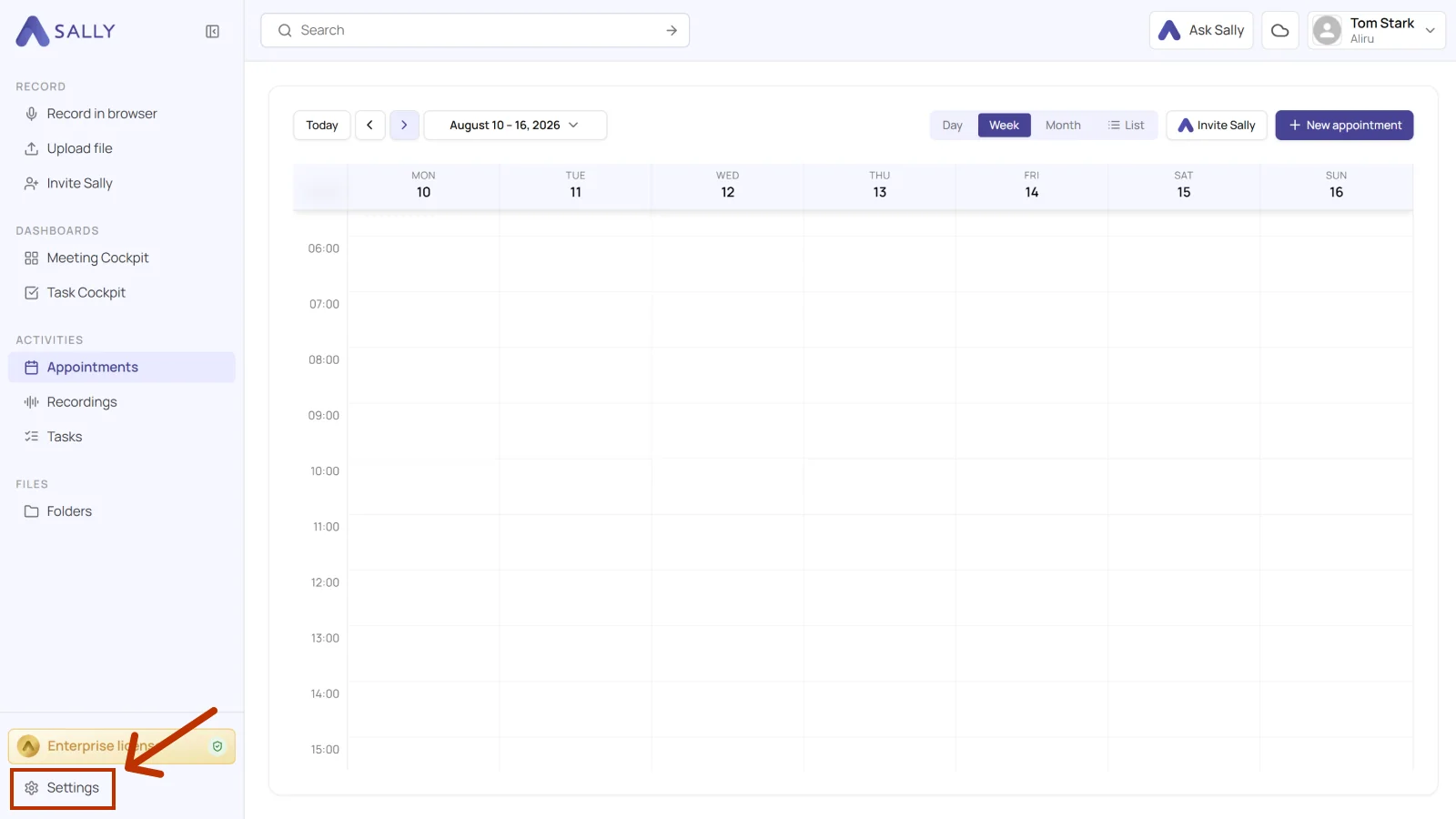
  1. In the calendar, open Settings at the bottom left.
Sally calendar with the Settings entry highlighted at the bottom left
Figure 1: Open Settings

2. Open Meeting Assistant and find the section​

  1. Open Meeting Assistant on the left. You land on Bot settings.
  2. Scroll to "Leaving the meeting automatically during silence" and click the row to expand it. It opens with two tabs, Organization-wide and Personal.
Bot settings with Meeting Assistant and the card Leaving the meeting automatically during silence highlighted
Figure 2: Go to the section and expand it

3. Set the organization-wide delay​

The section opens on the Organization-wide tab. This is the default for everyone, and only owners and admins can change it.

  1. Open the "Delay until auto-leave" dropdown and pick the waiting time: 3 minutes, 5 minutes, 10 minutes, 30 minutes, 1 hour, or 2 hours.
Open Delay until auto-leave dropdown showing the waiting times from 3 minutes to 2 hours
Figure 3: Pick the waiting time

4. Allow personal delays (optional)​

Only owners and admins decide whether personal delays are allowed at all.

  1. Turn on "Allow personal setting" so each user can pick their own delay. Leave it off to keep one waiting time for everyone.
Auto-leave section with the Allow personal setting toggle highlighted
Figure 4: Allow personal delays

5. Set your personal delay​

When "Allow personal setting" is on, everyone can pick their own on the Personal tab.

  1. Open the Personal tab.
  2. Pick your own delay until auto-leave.
Personal tab with the Delay until auto-leave dropdown highlighted
Figure 5: Your delay on the Personal tab

Your personal delay applies only in meetings where you are the only participant from your organization. With several present, the organization-wide delay applies instead.

6. Save​

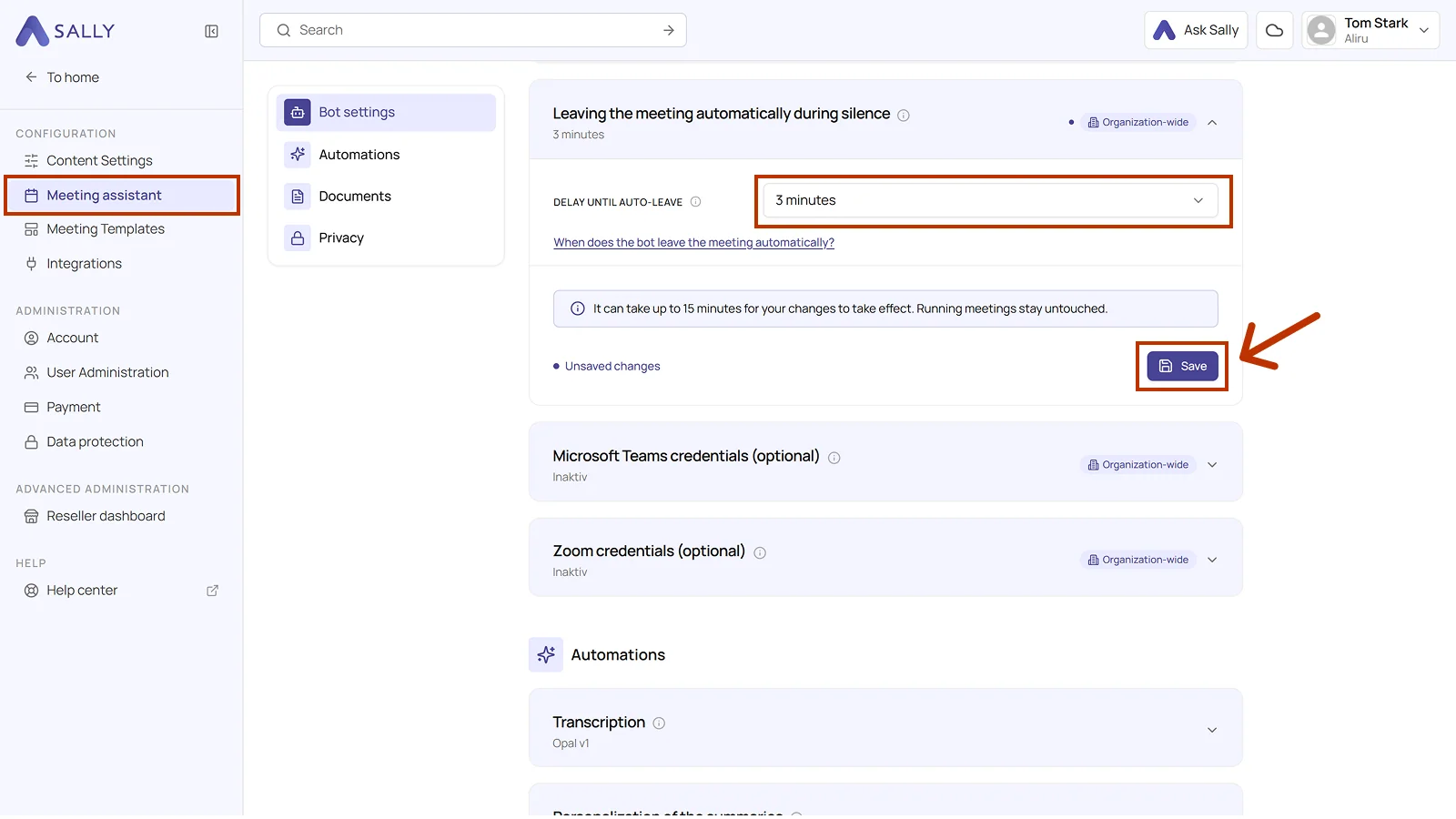
Click Save. Until you do, the section shows Unsaved changes at the bottom.

Auto-leave section with Unsaved changes and the Save button highlighted
Figure 6: Save your changes

Which delay applies​

Sally joins each appointment only once, so one waiting time has to win:

  • If exactly one user from your organization takes part, their personal delay applies.
  • If several users from your organization take part, the organization-wide delay applies instead. External guests do not count.
Info

It can take up to 15 minutes for your change to take effect. Running meetings stay untouched.