September 25, 2026: Accept all meeting tasks at once and sort them by category

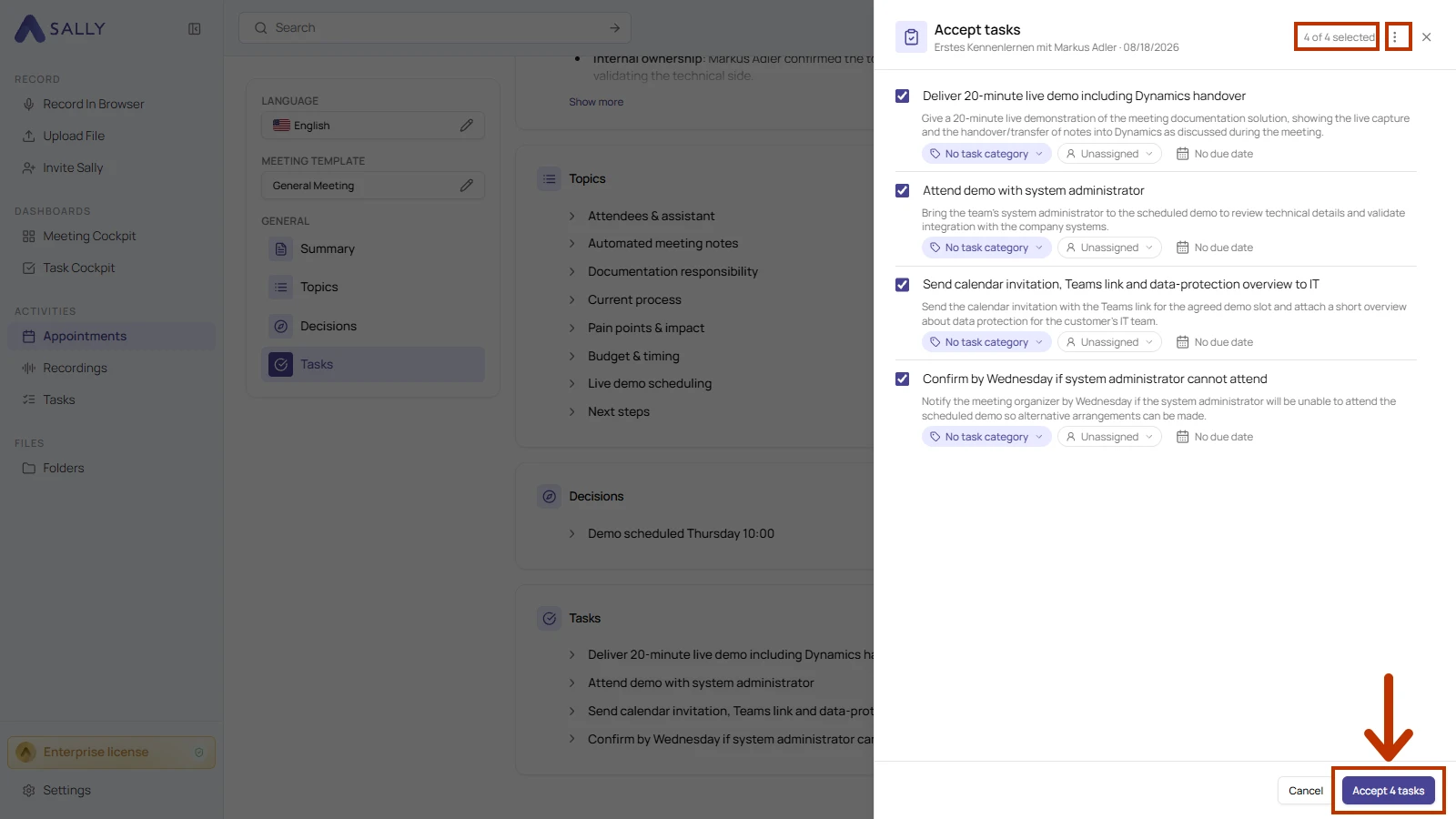
Turn every task suggestion into a real task in one go: the new Accept tasks button in the report collects all suggestions from the summary in one list, already selected. You check each row, adjust what you need and create them all with a single click.
Categories then keep your task list in order. Sally suggests a category for each task, and you group and filter your list by category, status and responsible person, so the right work is always in front of you.
What's new?
- Accept tasks in bulk: under Tasks in the report, the Accept tasks button shows how many suggestions are open, for example Accept tasks (4). It opens a drawer with all suggestions, each one already selected
- Edit before you accept: in every row you can change the subject, category and due date, and under responsible you pick who handles the task from the members of your company account. They don't need a license
- Category suggestions: where possible, Sally suggests a category for each task. You can change it at any time, later on in the Edit task panel as well
- Nothing gets lost: suggestions you don't select stay in the summary, so you can come back to them later
- Group by category: in your task list, set Grouping to Task category. Each group gets a header row with its name and number of tasks, and tasks without a category are collected in a group of their own
- Filter by status and person: the Status filter shows open, overdue or completed tasks, and the Responsible filter shows the tasks of one person. Tasks without a due date never count as overdue
- Categories for the whole team: owners and admins create categories under Settings › Content Settings › Task Categories. In the When does this task category fit? field they describe in one sentence which work belongs there, and Sally uses that description to decide whether a task fits
Why it matters
After a meeting with many to-dos, you no longer have to create each task on its own. You review all suggestions in one place, hand them to the right people and find them again later, sorted by the areas your team works in.
Want the details? See Accept tasks in bulk and organize them by category.