How to set up Zoom credentials for Sally AI
Zoom is getting stricter about automated participants and bots. To make sure Sally can reliably join your Zoom meetings, we therefore recommend authenticating her with a dedicated Zoom account.
Sally then signs in with these credentials and joins the meeting like a regular, logged-in participant. This guide shows which account you need, how to prepare it and where to store the credentials in Sally.
Zoom keeps tightening its measures against bots and automated participants. This affects more than just meetings that explicitly allow only signed-in users: even if your Zoom account permits non-authenticated participants, Sally may be blocked as a guest, get stuck in the waiting room, or not be let into the meeting at all.
That is why storing a dedicated Zoom account for Sally is highly recommended. Signed in, Sally is not held back by Zoom's bot detection and joins like a regular participant.
Cost: Zoom's free Basic plan is fully sufficient for this. You do not need a paid Zoom plan or an additional Zoom room.
Quick navigation
- Which Zoom account you need
- Turn off two-factor and OTP verification
- Set up the Zoom credentials in Sally
- Important notes
- Technical background (for admins)
1. Which Zoom account you need
Sally signs in as a real Zoom user. Start by creating a separate, dedicated Zoom account that is used only for Sally, never your personal account.
Never enter your own personal Zoom credentials. Always create a separate service account just for Sally.
Make sure the account meets the following criteria:
- Dedicated service account: Create a Zoom account that exists solely for Sally, for example
sally@yourcompany.com. Do not reuse private or personal credentials. - The free Basic plan is enough: The account needs no license to join meetings. Zoom's free Basic plan is sufficient, so there is no need to buy a paid plan.
- Login with email and password: The account must be able to sign in the classic way, with an email address and a password. Accounts that only work via SSO or social login (for example "Sign in with Google", "Sign in with Microsoft", or SAML) will not work, because Sally needs exactly this email and password pair to log in.
- Two-factor verification turned off: Two-factor authentication (2FA) and OTP verification must be disabled for this account. See step 2.
- Created within your company's Zoom account: This matters so that meetings with the restriction "only authenticated participants" or domain-restricted meetings will accept Sally.
- Set a fitting display name and profile picture: Sally joins visibly as this account, so its name and profile picture are shown in the meeting instead of the Sally background and Sally bot name. We recommend setting the name to
Sallyand adding a Sally profile picture.
2. Turn off two-factor and OTP verification
Sally cannot answer additional security prompts that are meant for human users. For the dedicated Sally account, both Two-Factor Authentication and OTP Authentication must therefore be set to Off.
You manage this in the Zoom web portal at zoom.us under Profile → Sign In. Both settings should look like this:
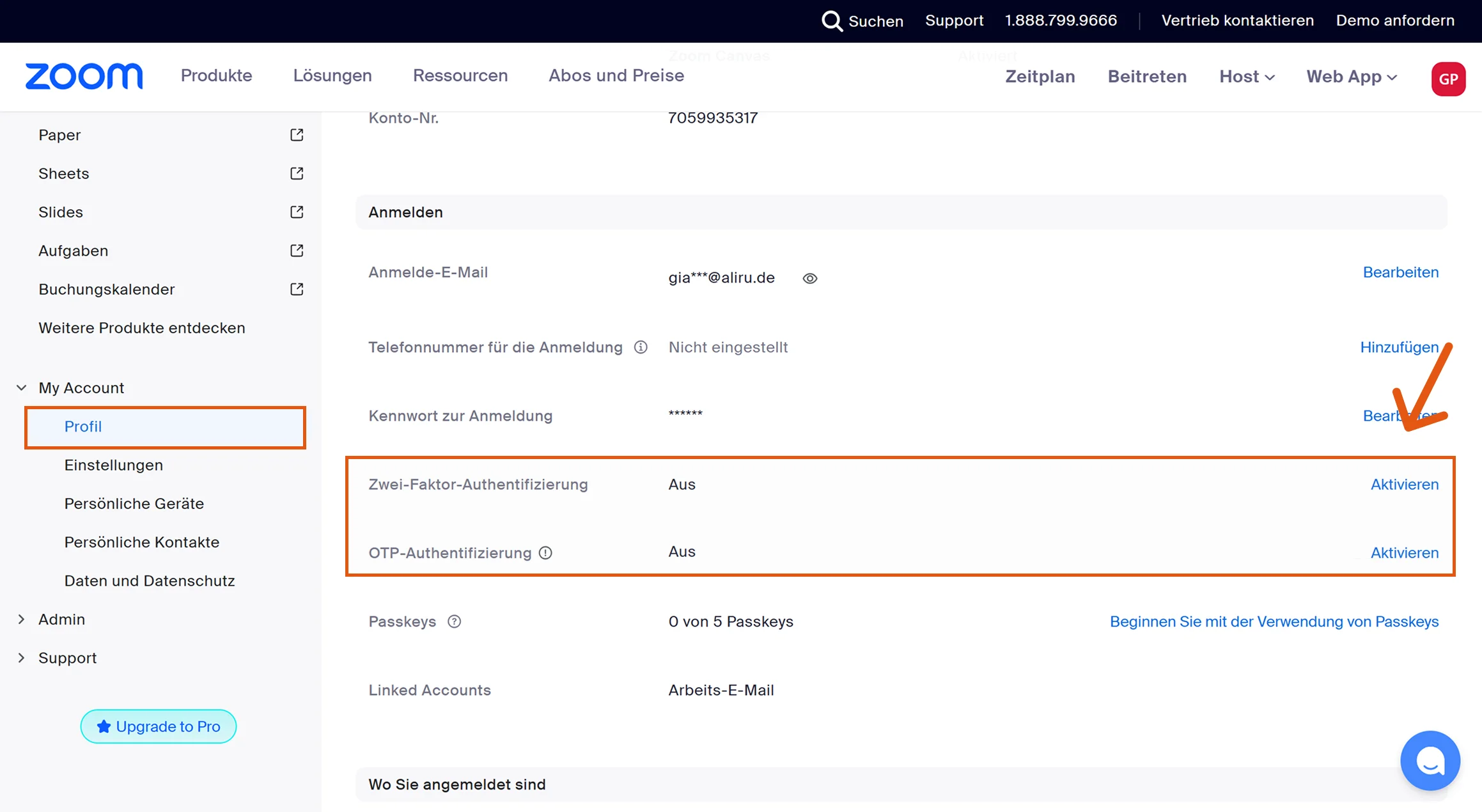
If your Zoom admin enforces two-factor verification account-wide, an individual user cannot turn it off alone. In that case an administrator has to disable it or exclude the Sally account from the requirement. Zoom occasionally renames menu items. If Advanced is named differently in your account, look for the security area under account management.
For details, see Zoom's own documentation:
3. Set up the Zoom credentials in Sally
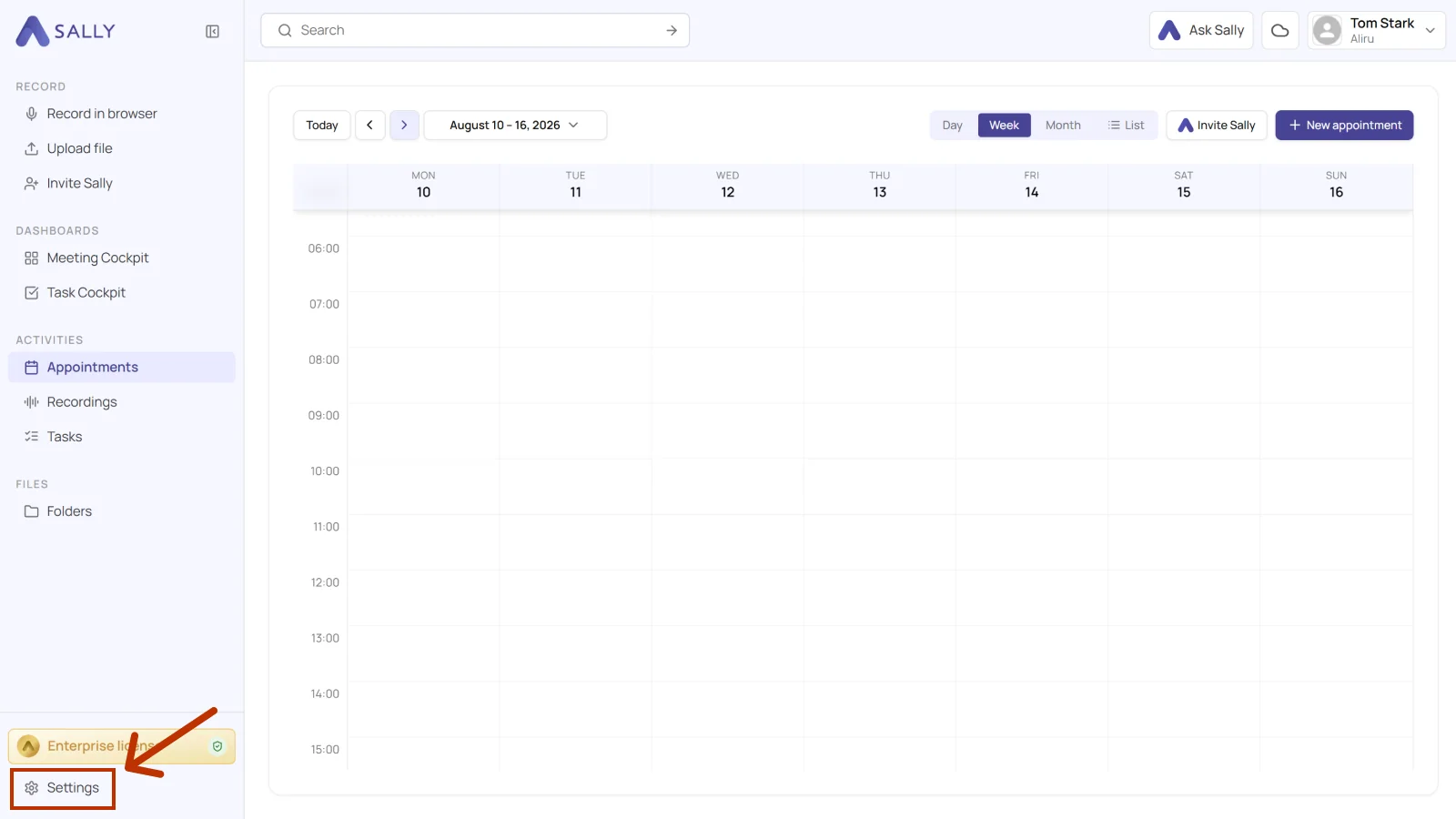
- Go to Settings.
- Open the Meeting Assistant.
- Scroll down to "Zoom credentials (optional)".
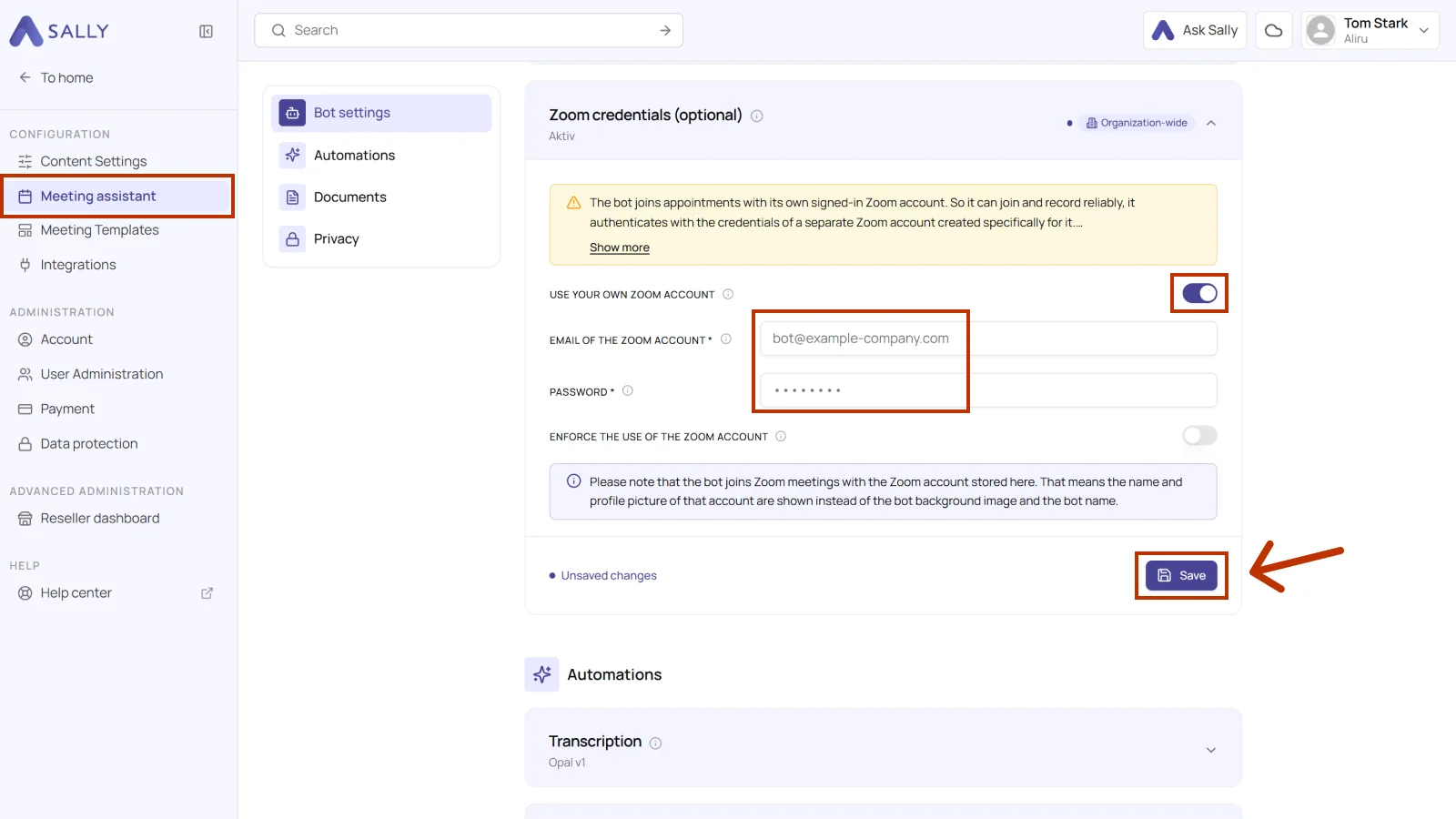
- Enable the toggle "Use your own Zoom account".
- Enter the credentials of the dedicated Zoom account you created in the "Email of the Zoom account" and "Password" fields.
Before entering credentials in Sally, make sure a dedicated Zoom account for Sally has been created.
Do not use your personal Zoom account.
The dedicated account is used exclusively for authentication and needs valid login credentials (email and password).
When enabled, Sally will always join meetings using the Zoom account, even when authentication is not required.
We do not recommend enabling this option, as it may route excessive traffic through a single account and could hit undocumented Zoom limits.
By default, Sally uses the Zoom account only when it is actually needed (for example when the meeting requires authenticated participants).
- Click Save.
Please note that only administrators have access to this feature, and it applies organization-wide.
4. Important notes
- Once configured, Sally joins authenticated meetings using this Zoom account, which means:
- The account's profile picture and display name appear in the meeting.
- The Sally bot name and background image are replaced by the account's appearance.
If you want to control how Sally appears in the meeting, set it in the Zoom web portal at zoom.us. Open Profile, click Edit next to the name and enter a display name such as Sally. To change the profile picture, click the picture next to the name at the top and upload a Sally image.
- After the first successful login, the sign-in session is stored and reused, so prompts such as captcha or verification are not requested on every join.
- Sally does not use a Zoom SDK or Zoom cloud recording. It records the audio itself and joins the call like a normal participant.
- License tier: For simply joining meetings (not hosting), Zoom's free Basic plan is enough, because Sally records the audio on its own. No paid plan, extra license, or additional Zoom room is required for this.
5. Technical background (for admins)
When a Zoom meeting enforces the restriction "only authenticated users can join" or is limited to a specific domain, external guests (including Sally) are rejected. To join such meetings, Sally must sign in with a valid Zoom user identity.
Sally logs in through the Zoom web experience using the credentials you stored under Meeting Assistant → Zoom credentials. She then clicks into the meeting exactly like a human participant would.
5.1. Common admin questions
1. How are the credentials stored?
Credentials are stored in encrypted form and never transmitted in plain text. The sign-in session is cached securely and reused for later joins.
2. Does this give Sally access to other Zoom features?
No. The account is used only to join meetings as a signed-in participant. Sally does not use Zoom cloud recording or other account features.
3. Can we restrict the permissions of the account?
Yes. The Zoom account created for Sally needs no administrative rights. A standard user account is sufficient for authentication and meeting participation.
4. What happens if the password changes or expires?
If the password is changed, the connection will fail until you update the credentials in Sally's Meeting Assistant settings. We recommend not letting the password expire for this dedicated account, or setting a reminder to renew it.
5. Can I use my own Zoom account instead of creating one for Sally?
No. Always use a separate account created only for Sally, and never enter your personal credentials.
6. Why does the account need to belong to our company's Zoom account?
Meetings that are restricted to authenticated participants or to a specific domain only accept users that belong to the expected organization. Creating the Sally account within your company's Zoom account ensures these meetings accept it.
7. Do we need a paid Zoom plan for this?
No. Zoom's free Basic plan is enough, because the account only joins meetings and never hosts them. There are no extra costs for a license or an additional Zoom room.
8. Our Zoom settings already allow non-authenticated participants. Does this still help?
Yes. Zoom now detects and blocks automated participants regardless of whether a meeting is limited to signed-in users. When Sally signs in with a dedicated Zoom account, she joins as a regular, logged-in user and is far less likely to be stopped by these protections. We therefore recommend this step even when guests are allowed in general.