How to record a group meeting with several devices in Sally AI
In a large room or a workshop, a single phone often cannot pick up everyone clearly. With a group recording, several devices record the same on-site meeting together. Because each device sits close to a different person, every voice is captured clearly, so Sally tells the speakers apart more reliably and the transcript comes out far more accurate than with a single phone in the middle of the room. Sally first pairs the devices into one group, then each device captures its own audio track and Sally merges the tracks into a single recording, with a transcript and summary like any other meeting.
Group recording is part of on-site recording and works directly in the Sally app on each phone. One person starts the group as the host, everyone else joins. You can even take part without your own Sally account, you only need the app.
Quick navigation
- How a group recording works
- Start or join a group
- Where you find the recording afterwards
- How to reach our support team
1. How a group recording works
- Several devices, one meeting: Sally first pairs the devices into one group, then every phone or tablet records its own audio track and Sally merges the tracks into a single recording afterwards.
- One host, several participants: the person who starts the group is the host. Everyone else joins with a code, a QR code, or over Bluetooth as a nearby group. Up to ten devices can record together.
- With or without an account: signed-in participants join from the recording screen. Guests without an account join straight from the app's welcome screen.
- The result lands with the host: the finished group recording appears in the host's recordings, with transcript and summary.
2. Start or join a group
How you get in depends on your role and whether you have a Sally account. Pick your case below.
A nearby group works over Bluetooth, so Sally needs permission to use Bluetooth. Scanning a QR code needs the camera. Accept each prompt the first time, otherwise the nearby group does not appear and the QR scanner does not open.
2.1 As the host: start the group
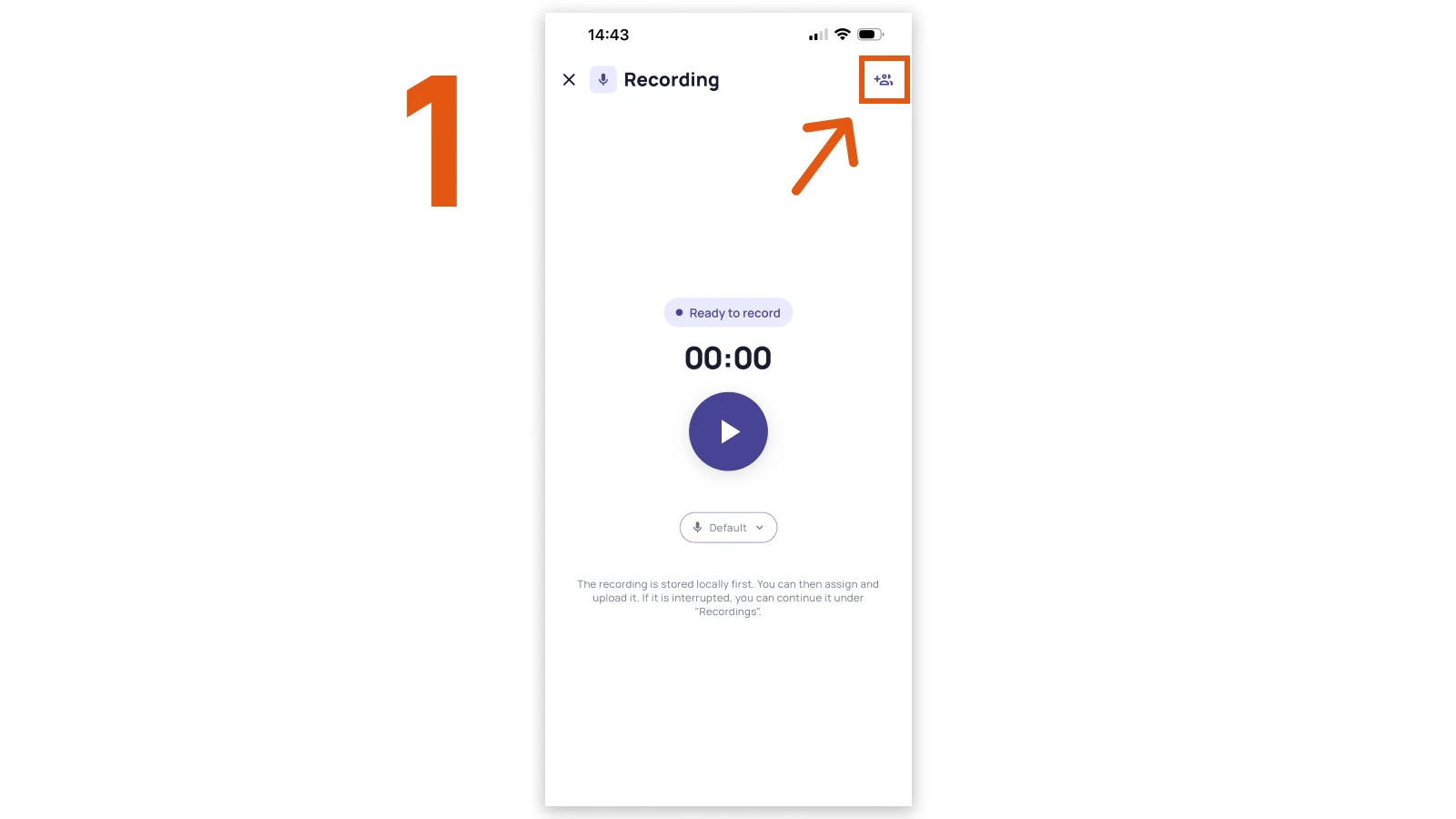
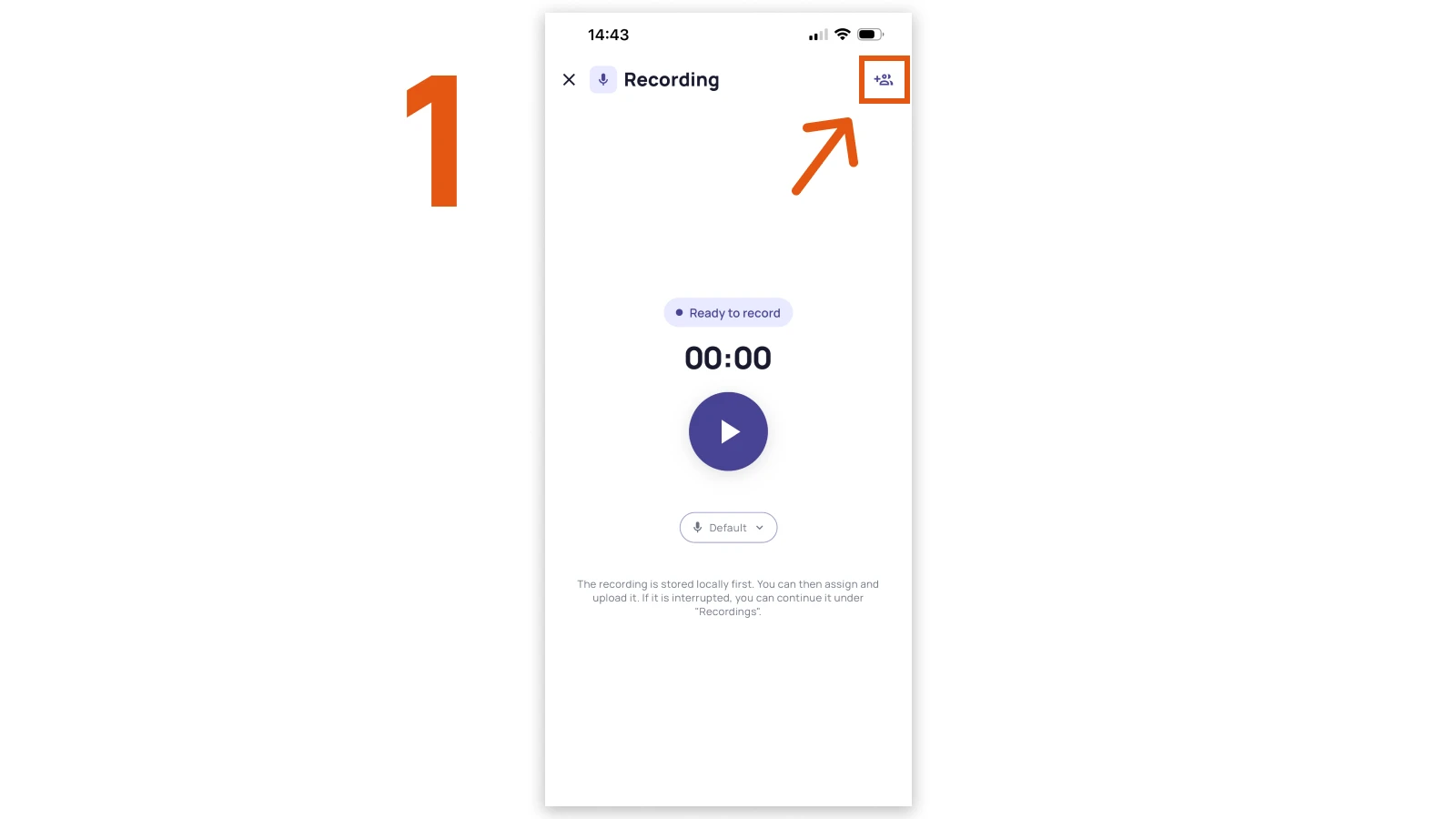
- Open the recording screen in the Sally app and tap the group icon in the top right corner.
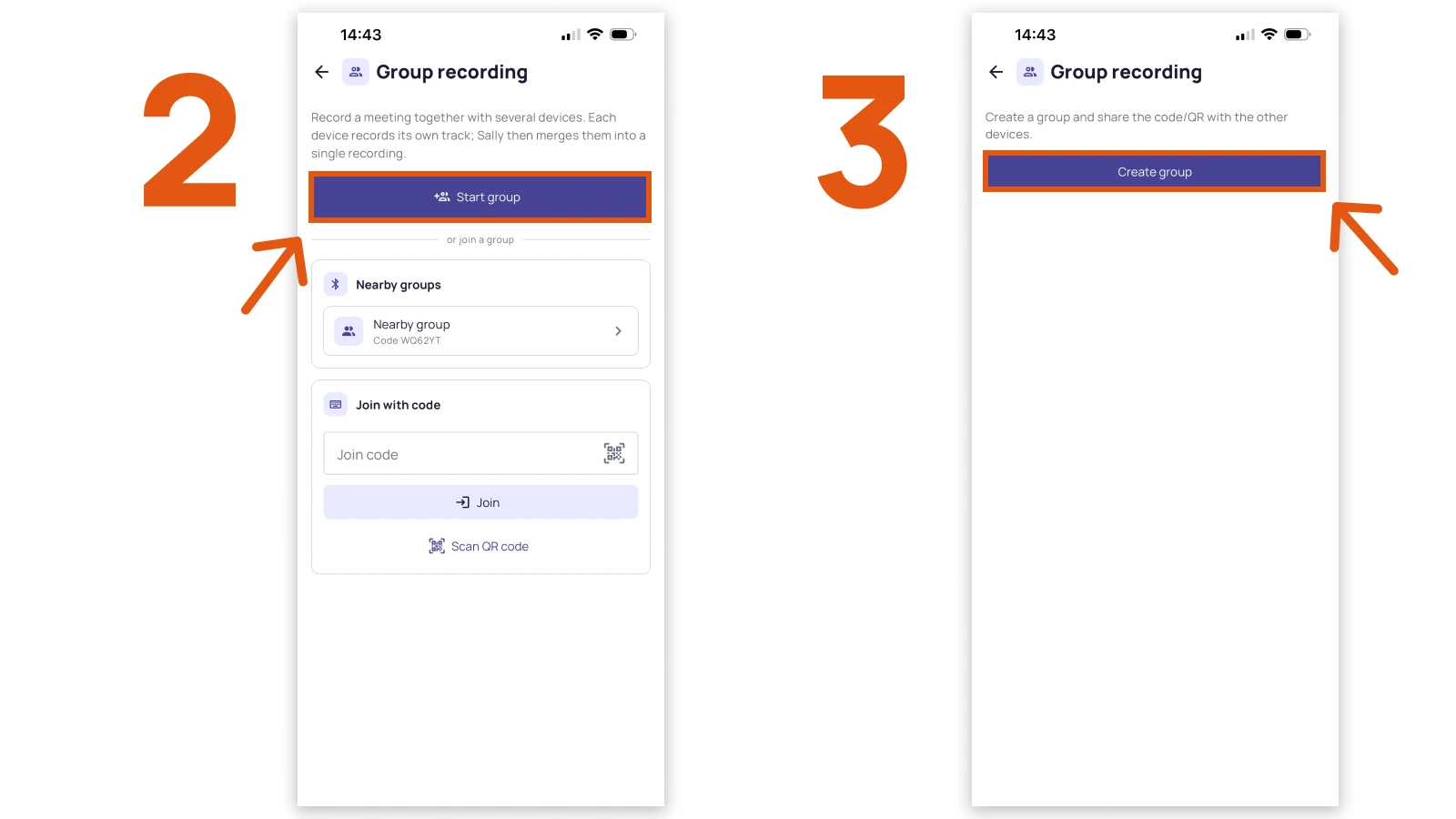
- Tap Start group, then Create group. Sally sets up the group and its join code.
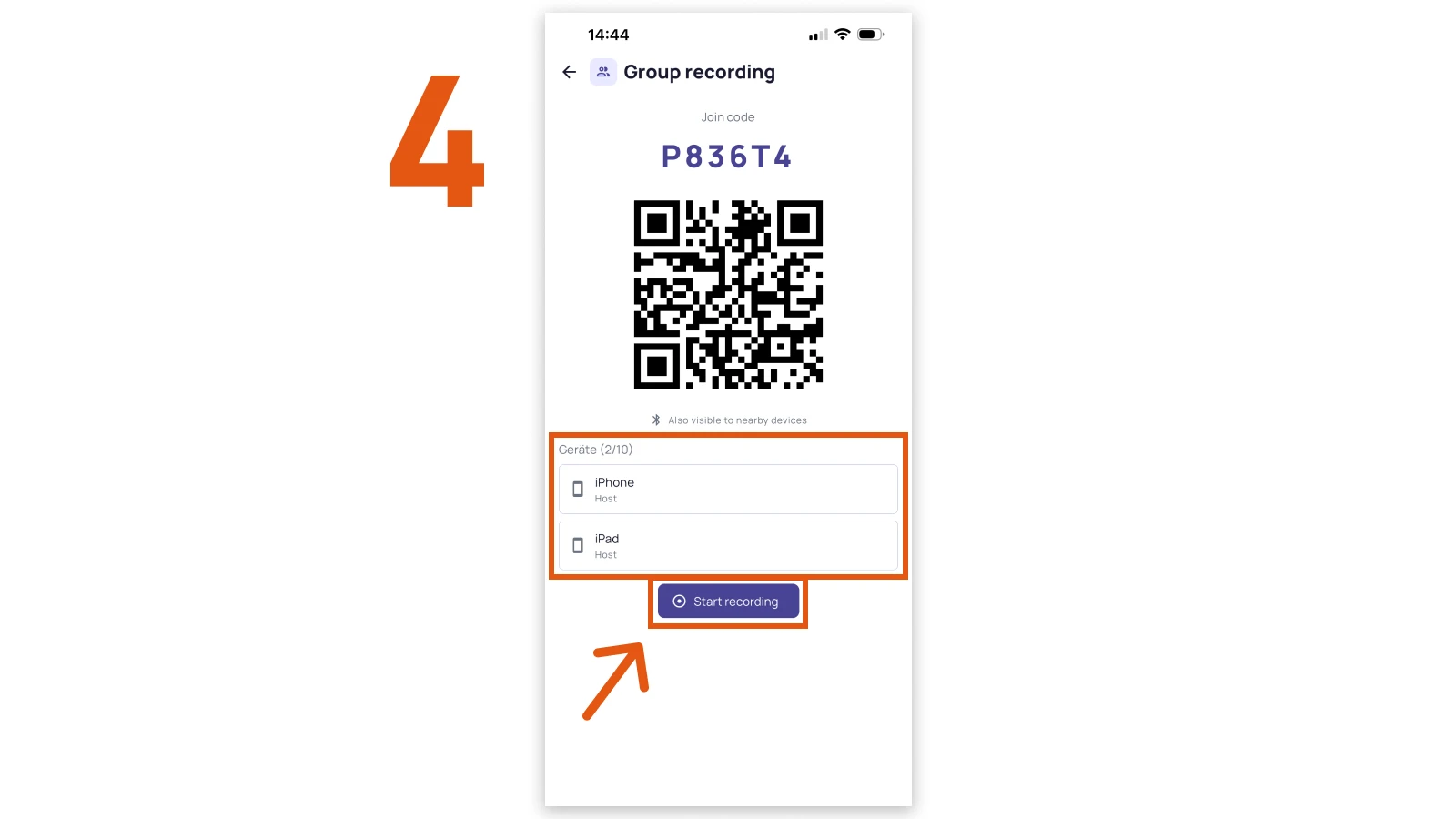
- Sally shows a join code and a QR code, and the group is also visible to nearby devices over Bluetooth. As people join, their devices appear in the list. Once everyone has joined, tap Start recording.
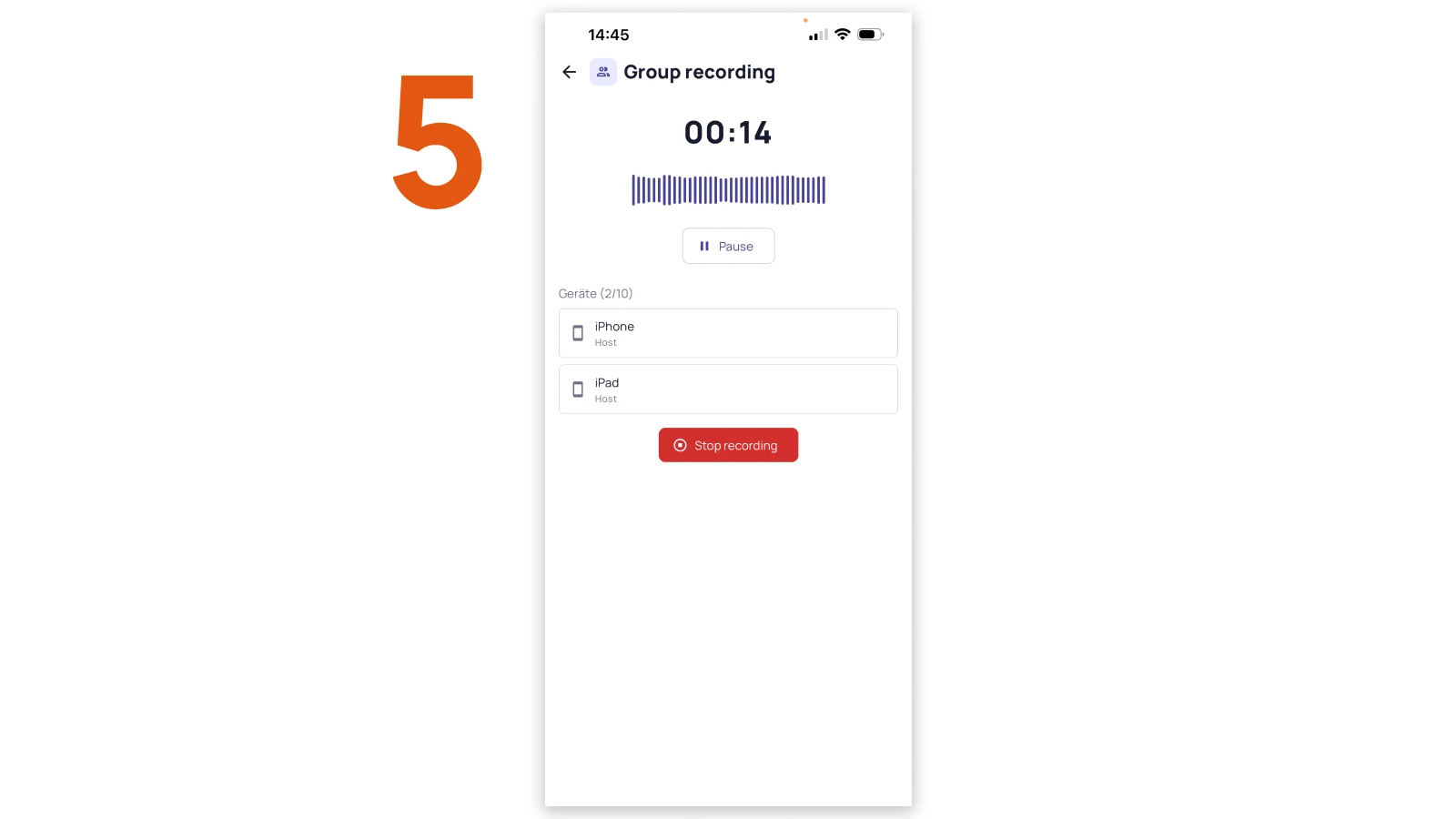
- Everyone now records at the same time. You see the timer and all connected devices. Tap Stop recording when the meeting is over.
- Afterwards, you can optionally link the recording to an appointment (past or upcoming), or choose Finish without appointment.
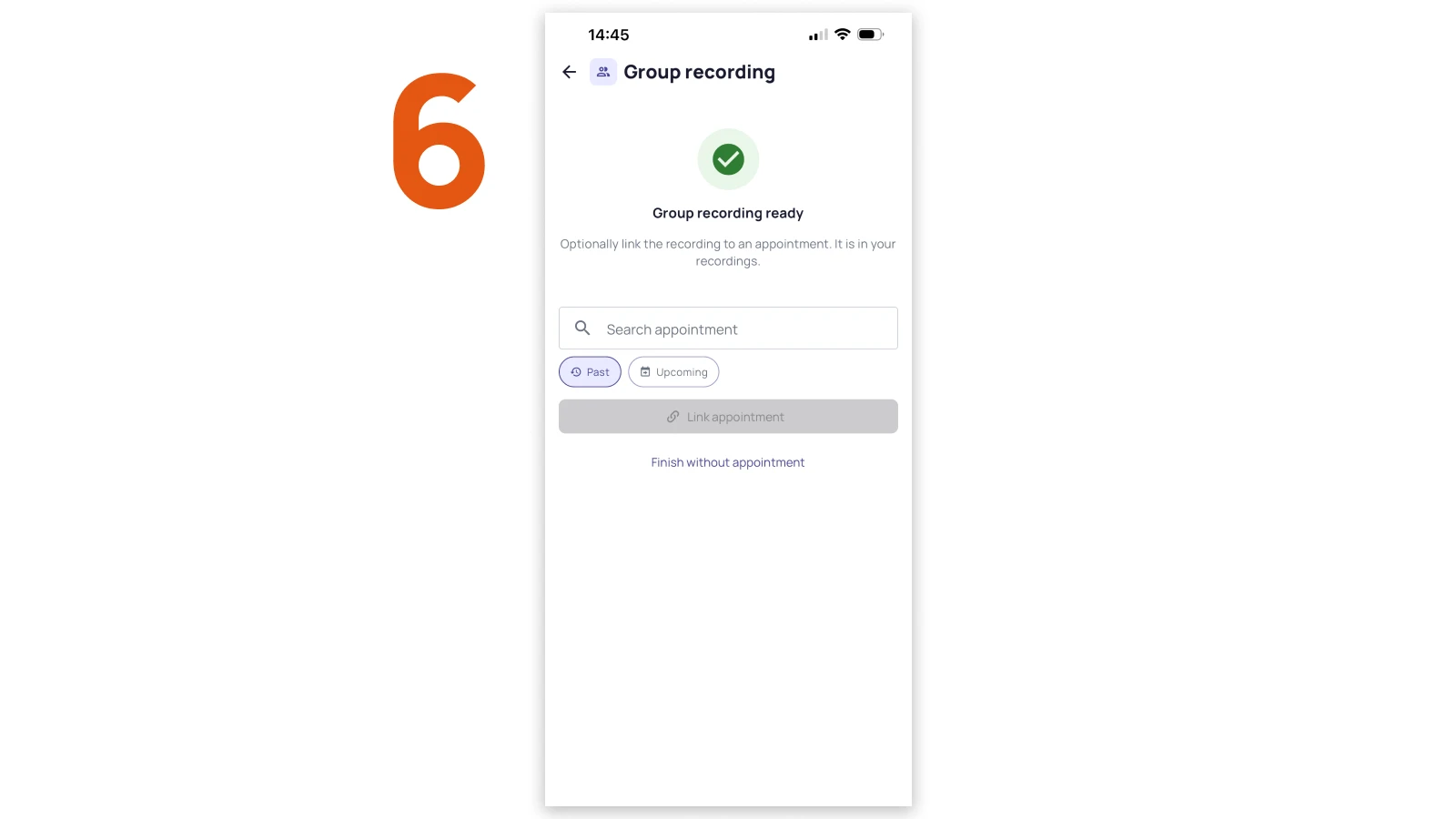
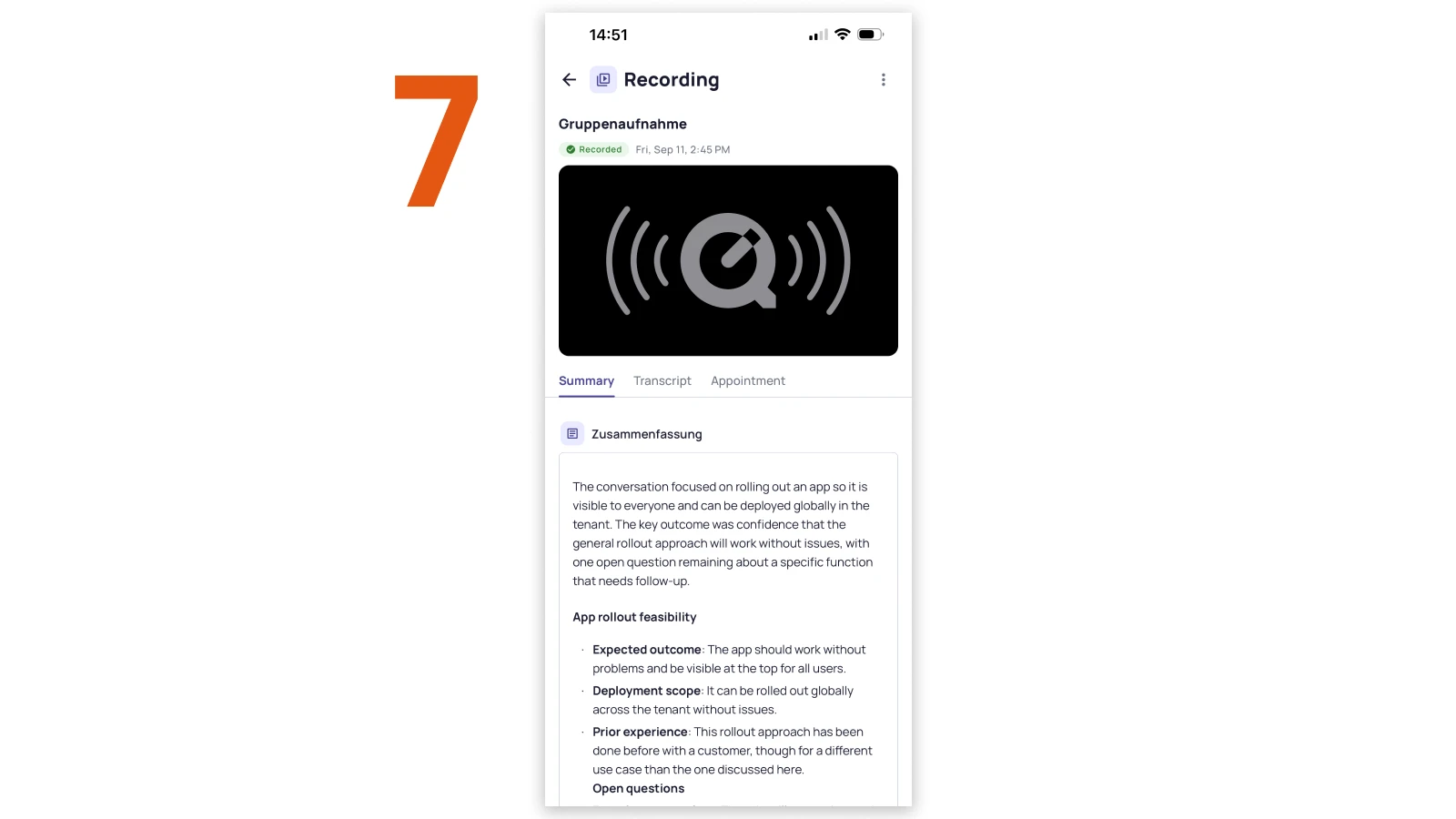
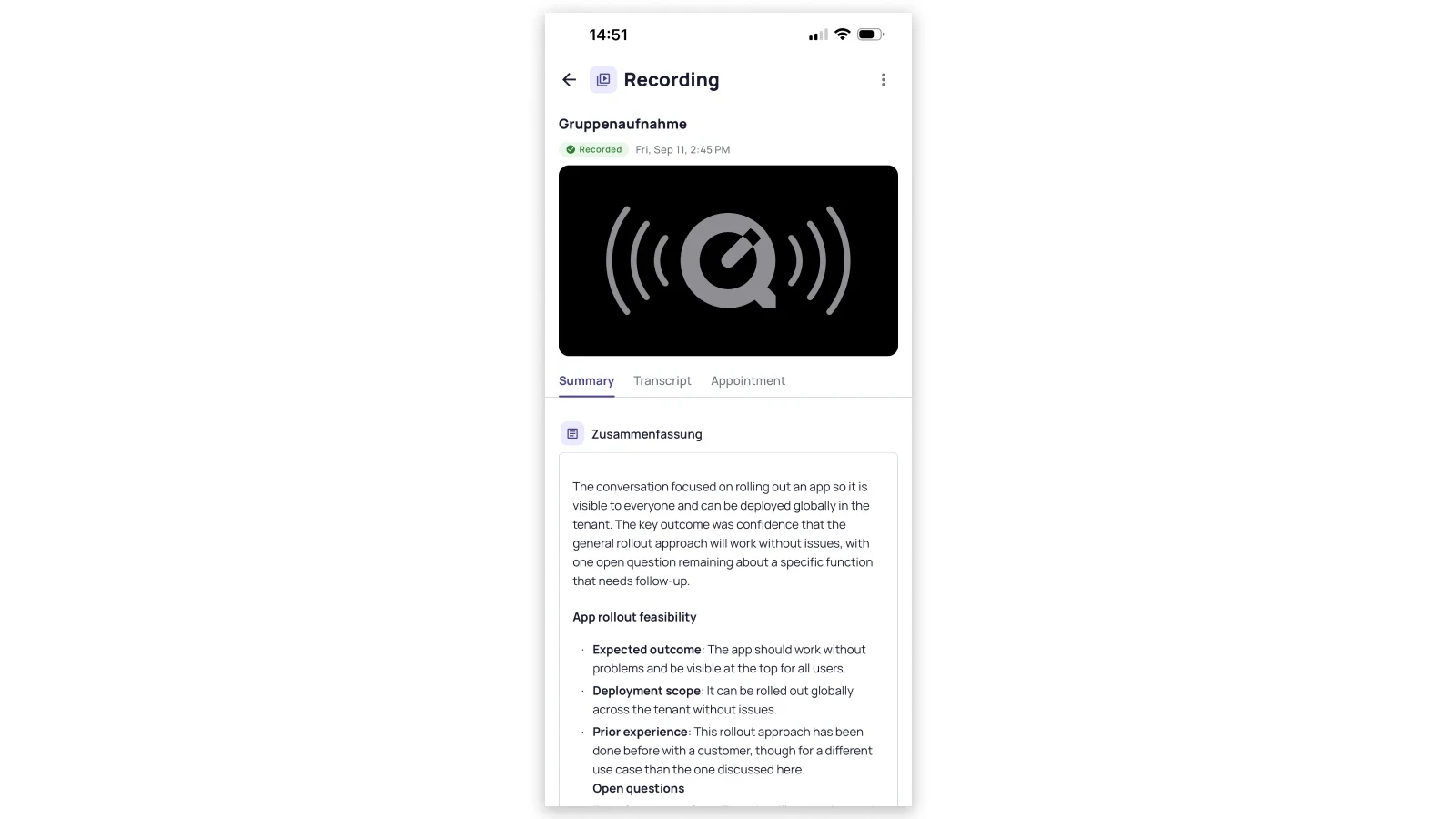
- The finished group recording appears under Recordings in your account. Open it for the summary and the transcript.
2.2 With a Sally account: join a group
- Open the recording screen in the Sally app and tap the group icon in the top right corner.
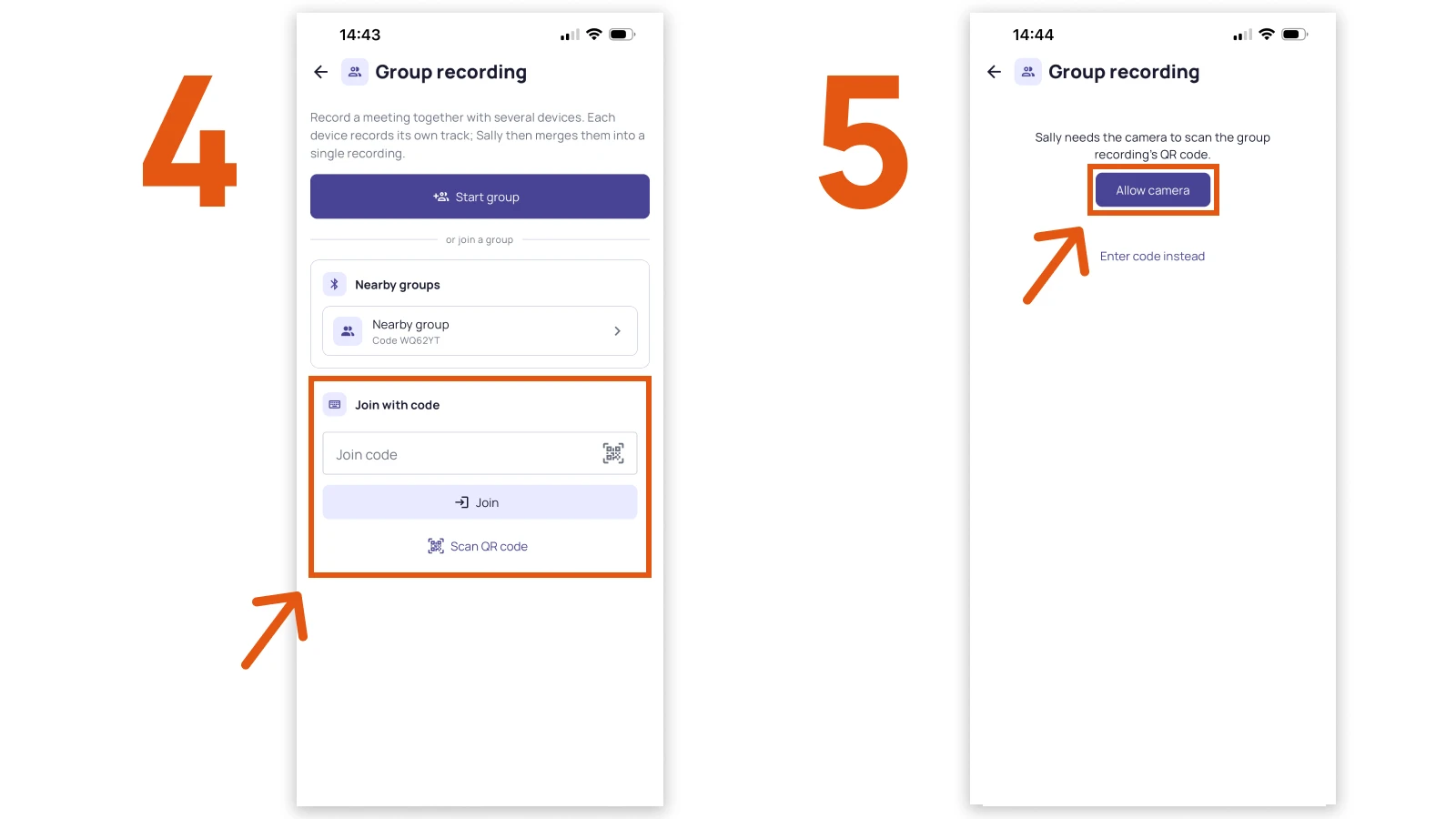
- Join the group the host started. The quickest way is a nearby group: in the same room, the group appears over Bluetooth and you tap it. You then see Joined, waiting for the host to start the recording.
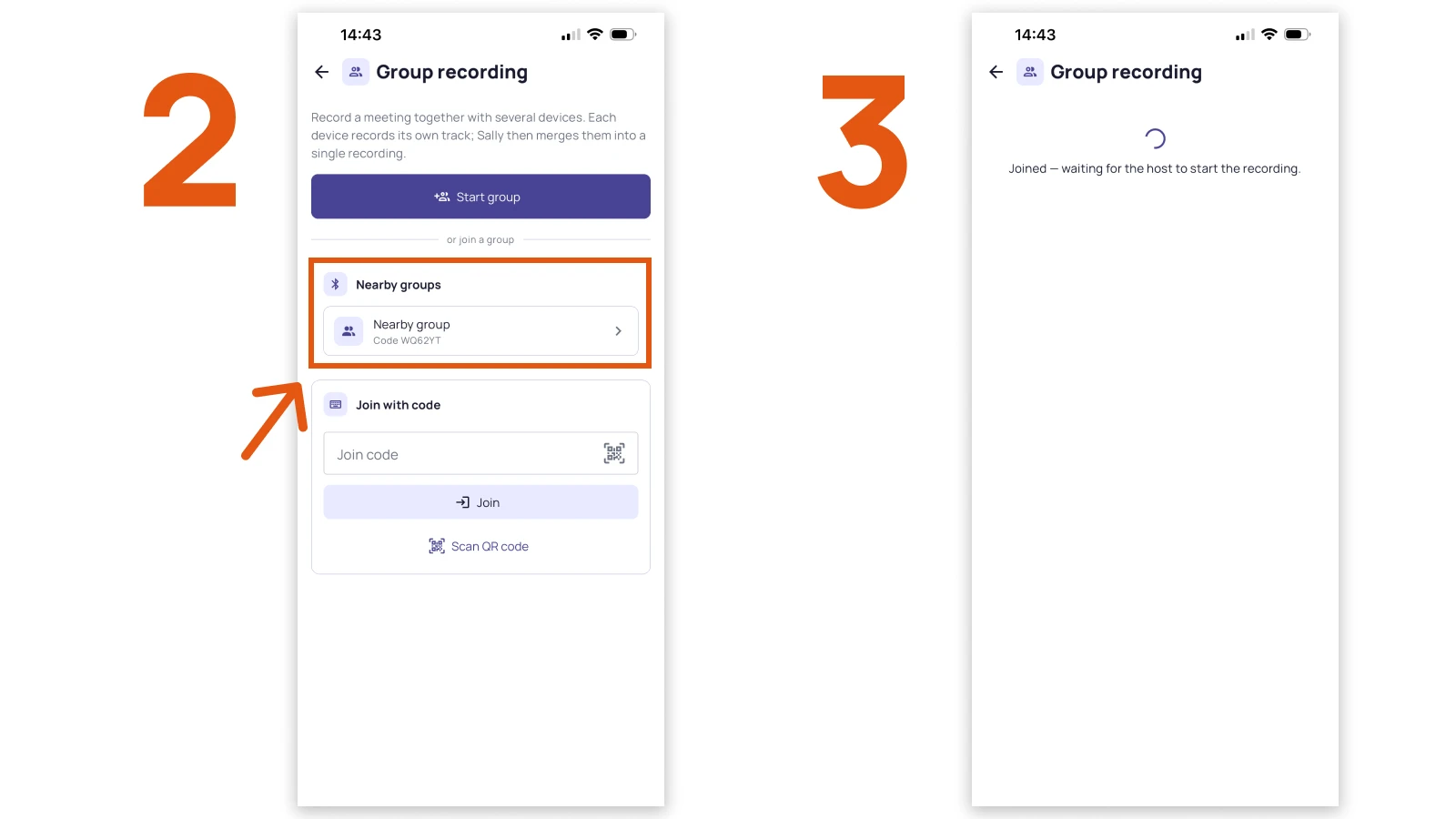
- No nearby group? Join with code by typing the host's join code, or tap Scan QR code and allow the camera to scan the host's QR code.
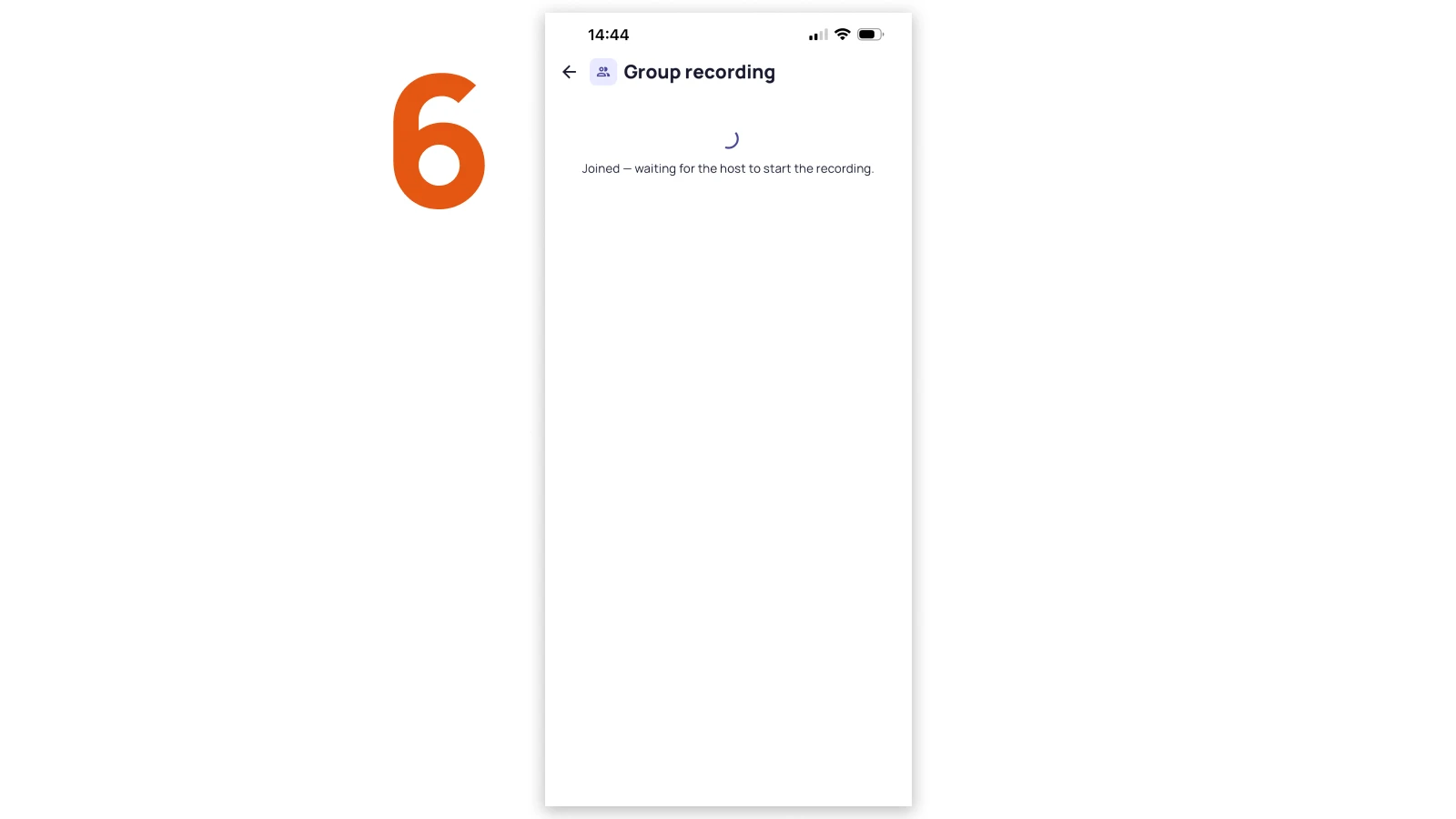
- Either way, you land on the waiting screen until the host starts the recording.
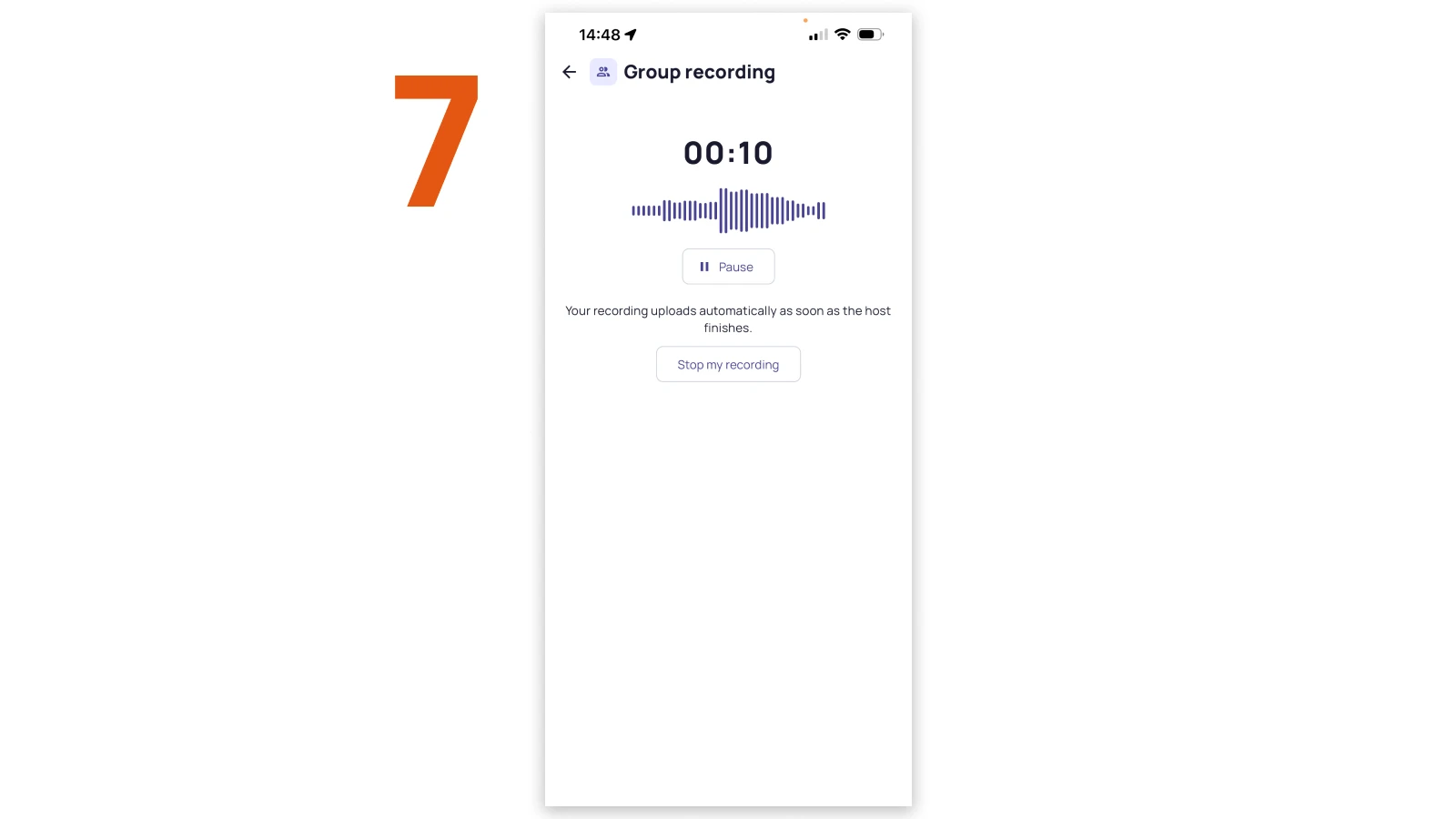
- As soon as the host starts, your device records its own track. Stop my recording only ends your track. When the host ends the meeting, recording stops for everyone still recording and your track uploads automatically.
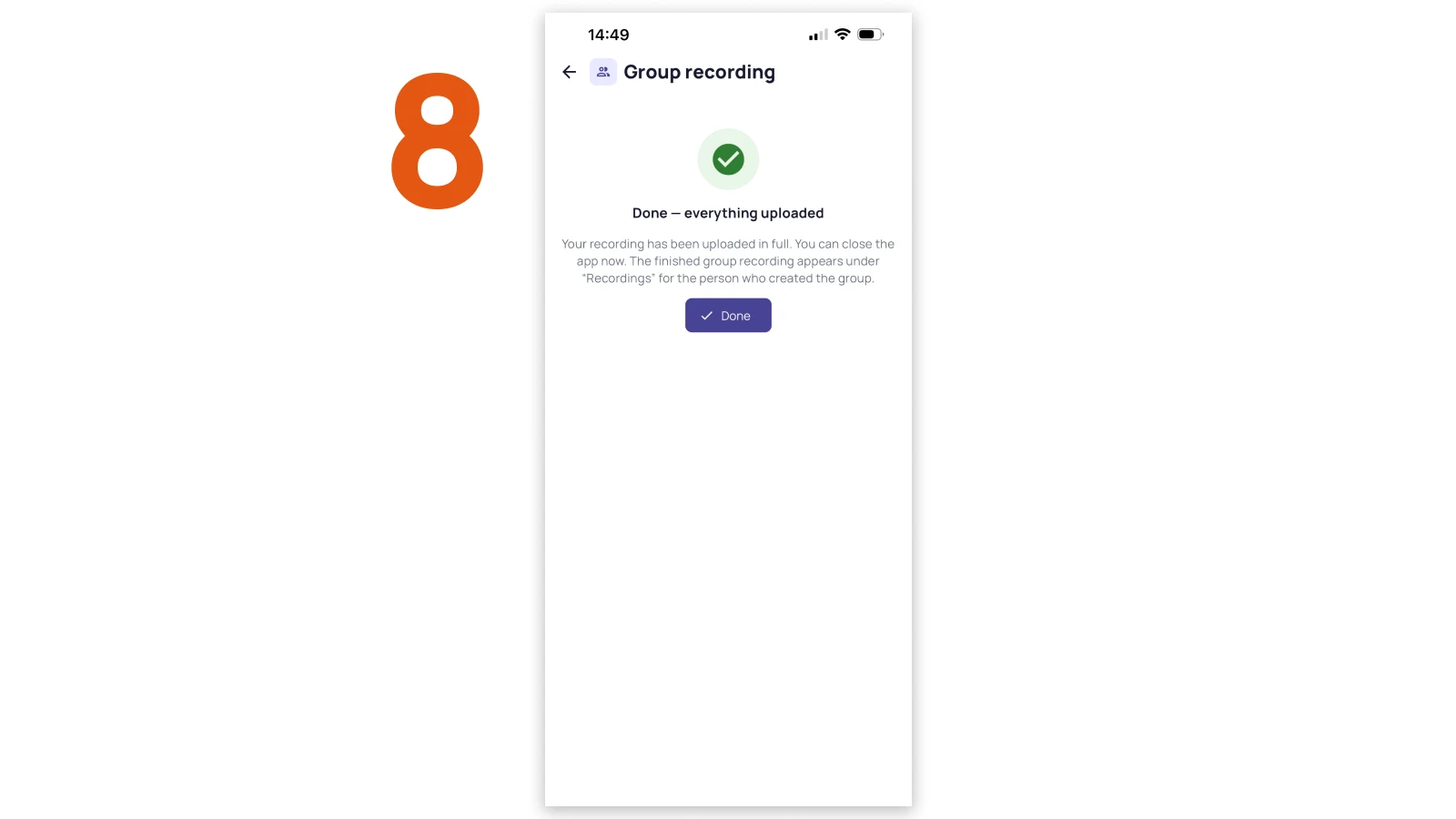
- When your upload is complete, you see Done, everything uploaded and can close the app.
2.3 As a guest without an account: join a group
You do not need your own Sally account to take part, only the Sally app on your phone.
- Open the app. On the welcome screen, tap the group icon in the top right corner.
- On Join as guest, your device provides an extra audio track for someone else's group recording. Join a nearby group, enter the join code, or scan the QR code. After the meeting your track is transferred to the host and merged into the joint recording. Nothing is stored for you in the app.
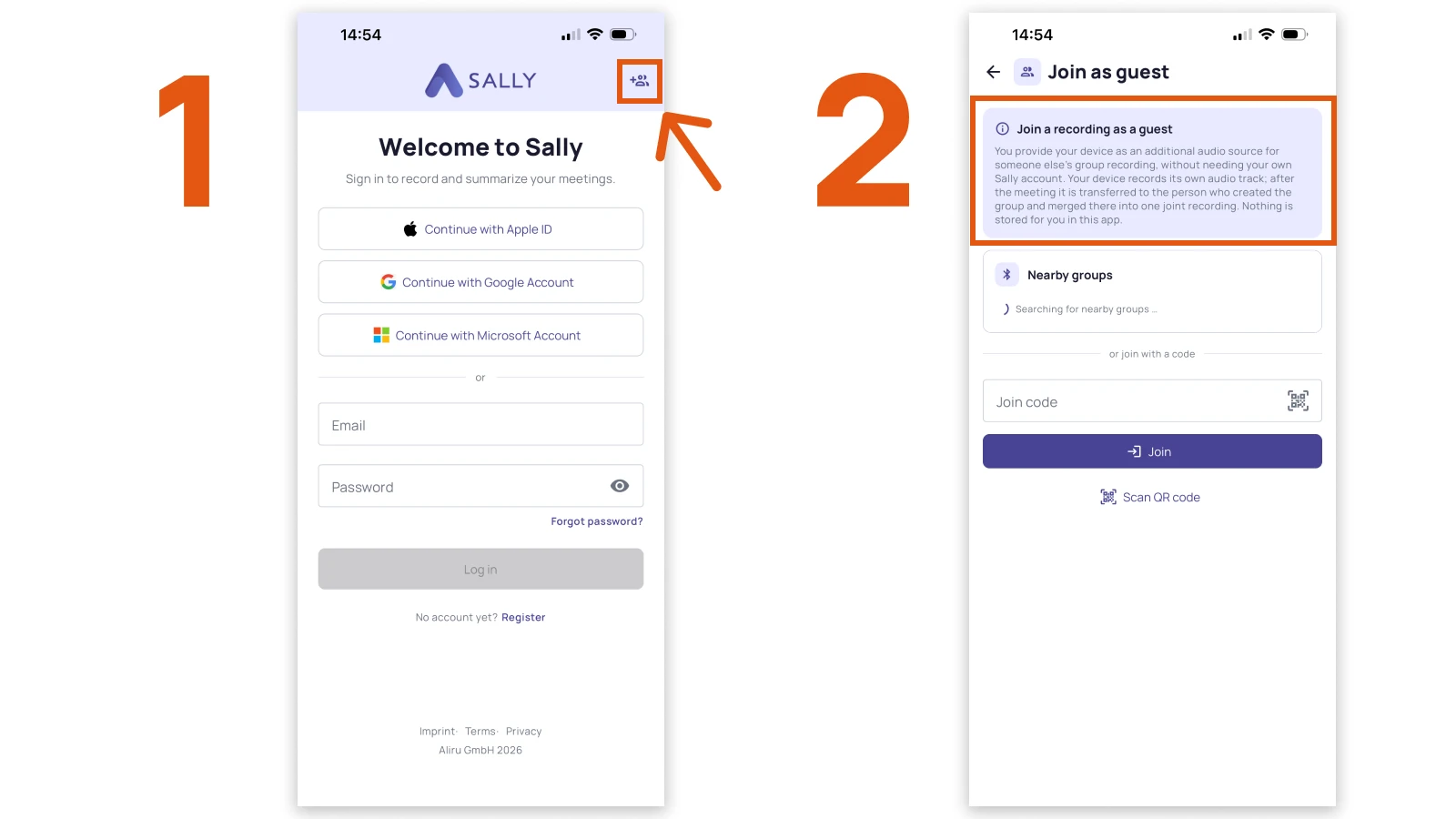
From here it works just like joining with an account: you wait for the host, your track records, and it uploads automatically when the host finishes.
3. Where you find the recording afterwards
The finished group recording always lands with the host, under Recordings, with the transcript and summary.
If the host links the recording to an appointment that you were invited to and accepted, you also find the transcript and summary in your own recordings. Without a matching appointment, only the host gets the recording.
4. How to reach our support team
If a device does not join or a track is missing, our support team is one ticket away. Open Settings → Support tickets in Sally and start your request with New ticket, or write to support@sally.io if you cannot get into the app.