Configure Sally AI auto-leave on silence timeout
With the Auto leave on silence setting, you can define how long Sally should wait during inactivity before leaving a meeting automatically.
That keeps her from sitting in meetings that are already over, which happens when other bots are still there and count as participants.
Sally normally leaves a meeting when she is the only participant remaining. If other bots are still present, she checks the audio signal to detect real activity.
If she hears nothing within the waiting time you set, she posts a message in the chat and asks whether the meeting is still running. Say something or send a chat message and she stays.
If there is still no activity for another 3 minutes, Sally automatically leaves the meeting.
How to configure the silence timeout
You can set the waiting time yourself.
- Open the settings.
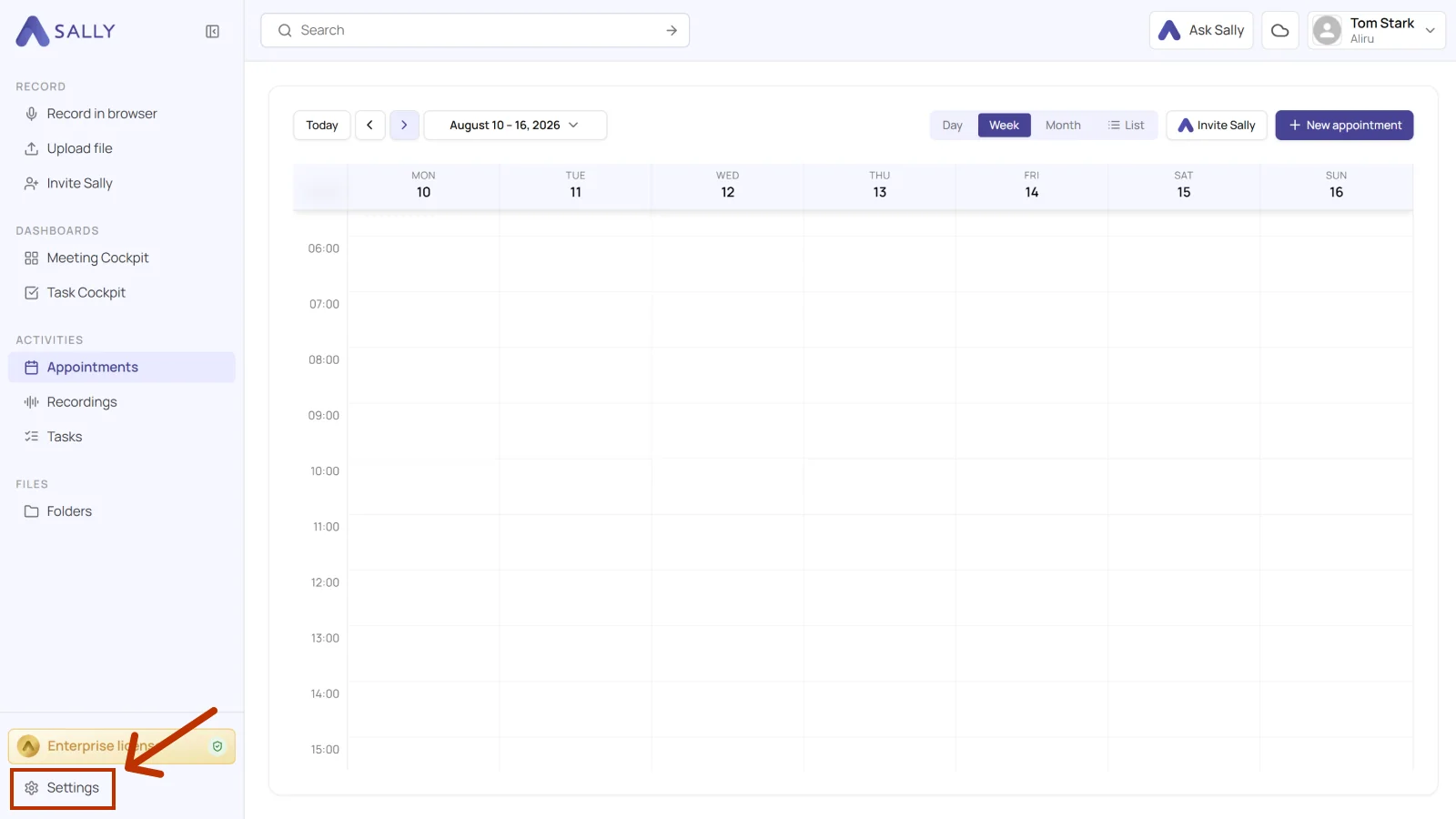
- Select Meeting Assistant and scroll to the section "Leaving the meeting automatically during silence" under Bot settings.
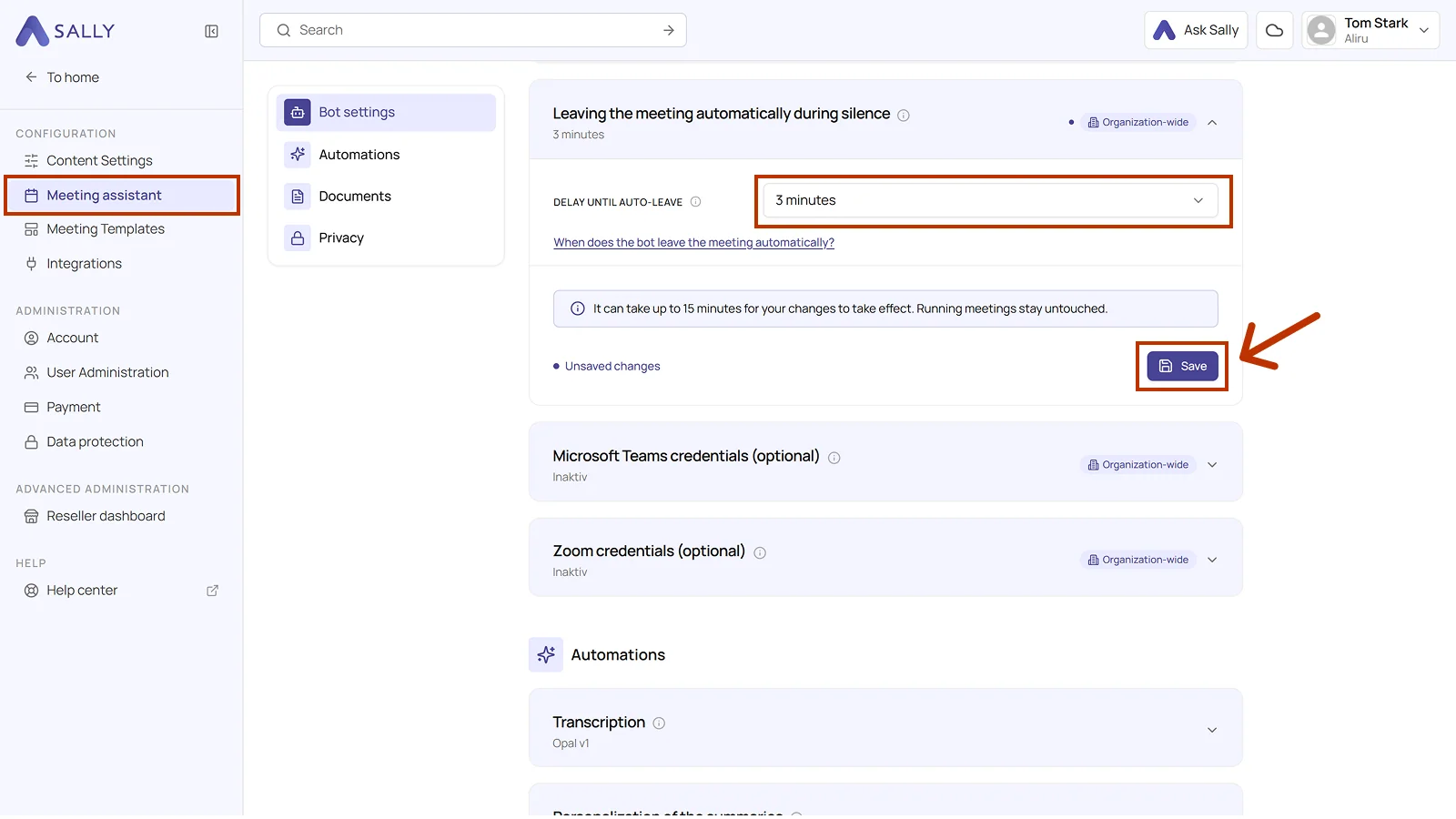
- Under "Delay until auto-leave", pick the waiting time you want. You can choose between 3 minutes, 5 minutes, 10 minutes, 15 minutes, 30 minutes, 1 hour, or 2 hours.
- Click Save.
This setting applies to the whole organization and cannot be changed per user. If you need a different waiting time, ask someone with the role “Admin” or “Owner”.
It can take up to 15 minutes for your change to take effect. Running meetings stay untouched.