What does the invitation status mean in Sally AI?
The invitation status shows how a person reacted to the calendar invitation for a meeting, whether they accepted, declined, or have not responded yet. So you know who to expect before the meeting even starts.
Quick navigation
1. How to view the invitation status
To check the status of participants in a meeting:
- Open the desired meeting.
- Hover over the participant icons at the top.
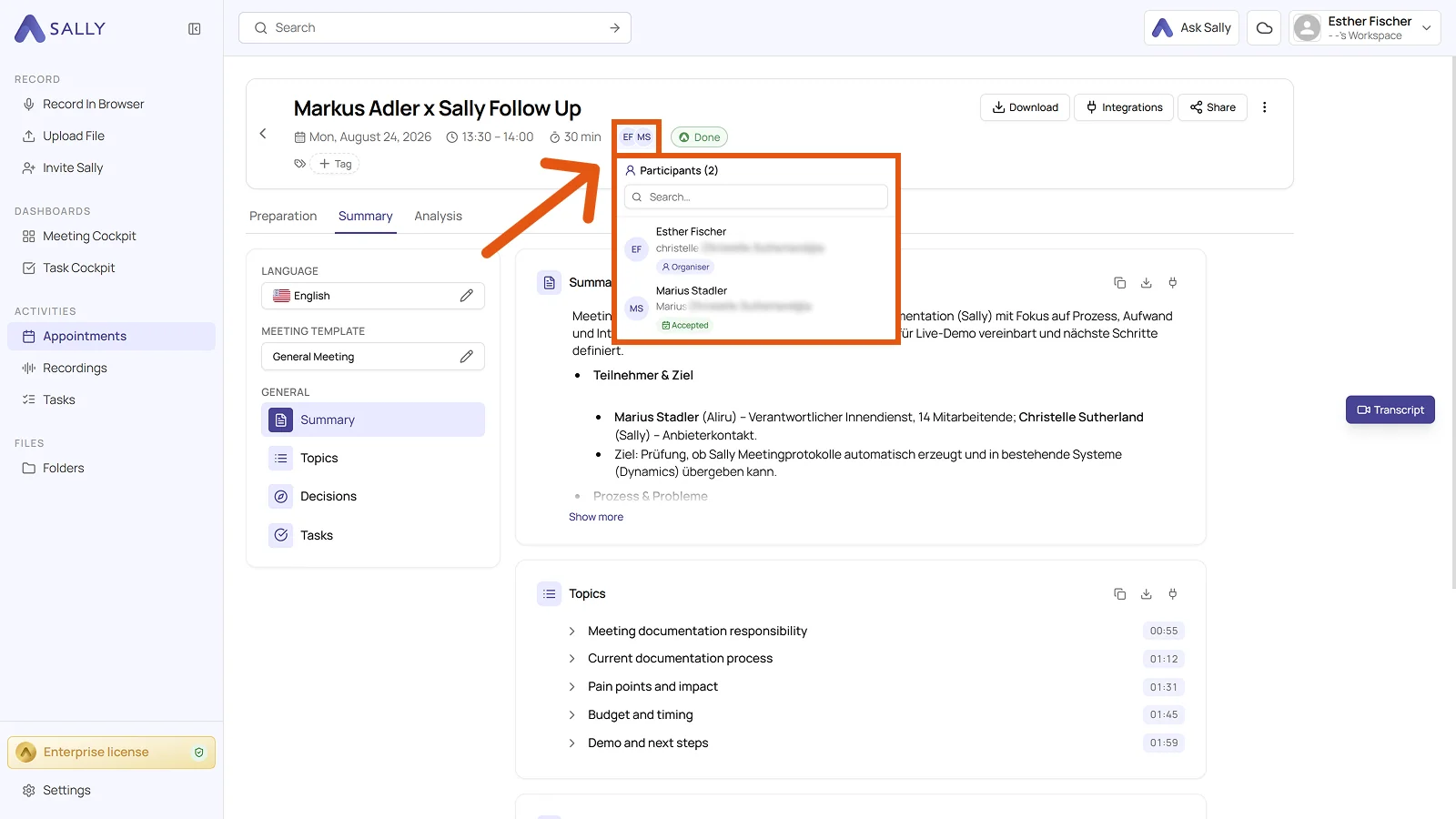
An overview of all participants appears. The status is shown below each name, for example Organizer or Accepted.
2. What do the invitation statuses mean?
The invitation status tells you how someone responded to the calendar invite.
| Status name | Short description | Detailed explanation & examples |
|---|---|---|
| Declined (10) | Invitation was declined | The participant actively declined the meeting. A colleague clicks “Decline” in Outlook because they have a scheduling conflict. |
| Accepted (20) | Invitation was accepted | The participant confirmed the meeting. Someone clicks “Accept” and plans to attend. Note: that is still no guarantee they show up. |
| Tentative accepted (30) | Invitation marked as “Maybe” | The participant is not sure yet and accepted with a maybe (“Tentative”), so whether they join depends on how their day turns out. |
| No response (40) | No reaction to the invite | The participant has not reacted at all, the invite is still sitting unanswered in their calendar. |
| Organizer (50) | Person is the organizer | This person created the meeting. |
| Unknown (100) | Status not available | Sally cannot read the invitation status. Example: In some systems, only the organizer can see responses. Other participants will see “Unknown” instead. |