How do you connect Sally AI with n8n?
To connect Sally with n8n you use a webhook. Sally sends the results of a meeting to an address of your choice, and your n8n workflow picks up from there.
The setup has two parts. In n8n you build a workflow with a webhook trigger and copy its production URL; in Sally you set up the webhook with that address. If you have not worked with webhooks before, read the webhook guide first, it explains in detail what a webhook is and which fields it carries.
Quick navigation
1. How do you create a workflow in n8n?
1.1. Add a webhook trigger in n8n
First, you need to create a new workflow and add a webhook trigger. This webhook will act as the entry point for all data Sally sends.
To do this, follow these steps:
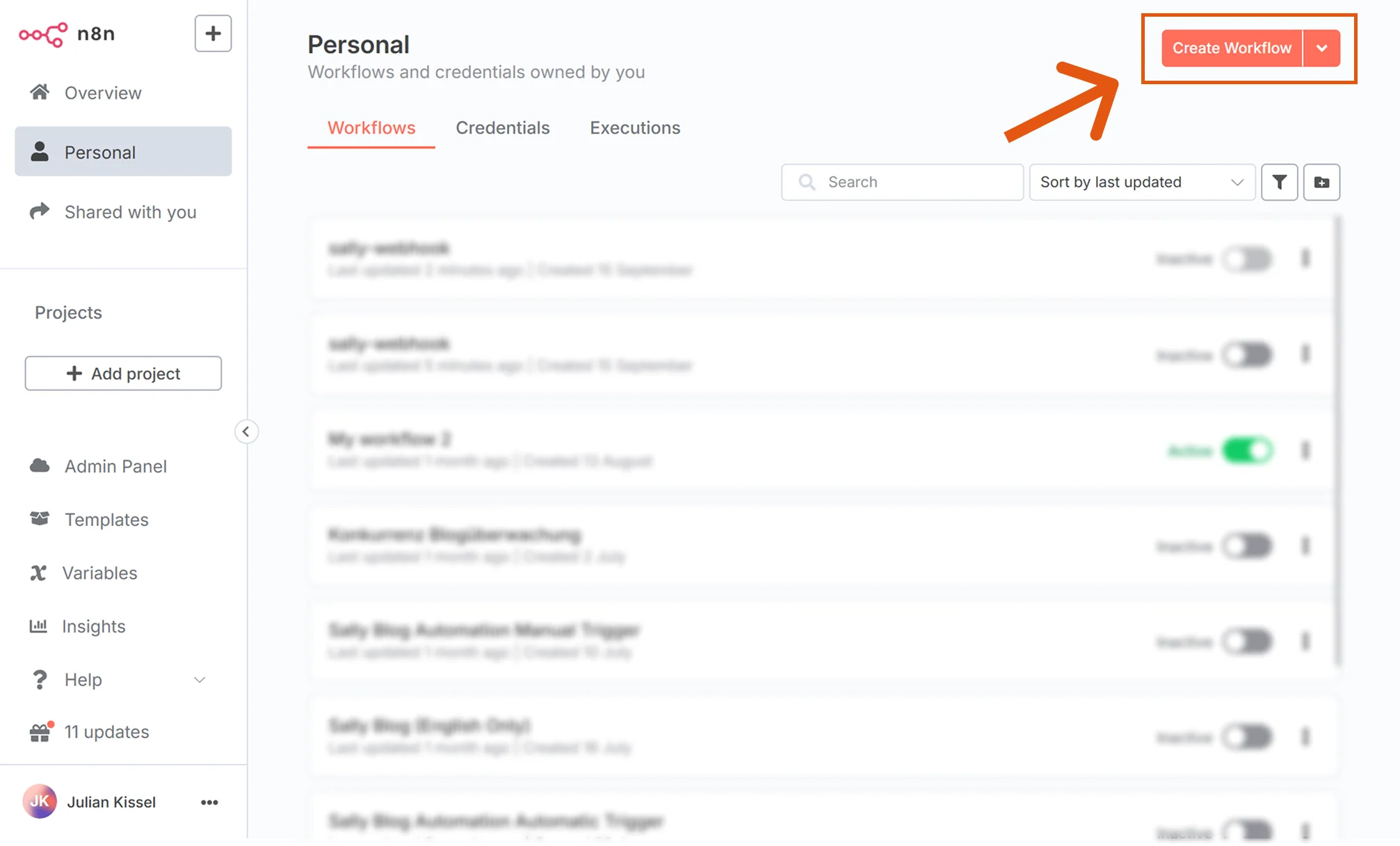
- In n8n, go to the Personal tab and click Create Workflow.
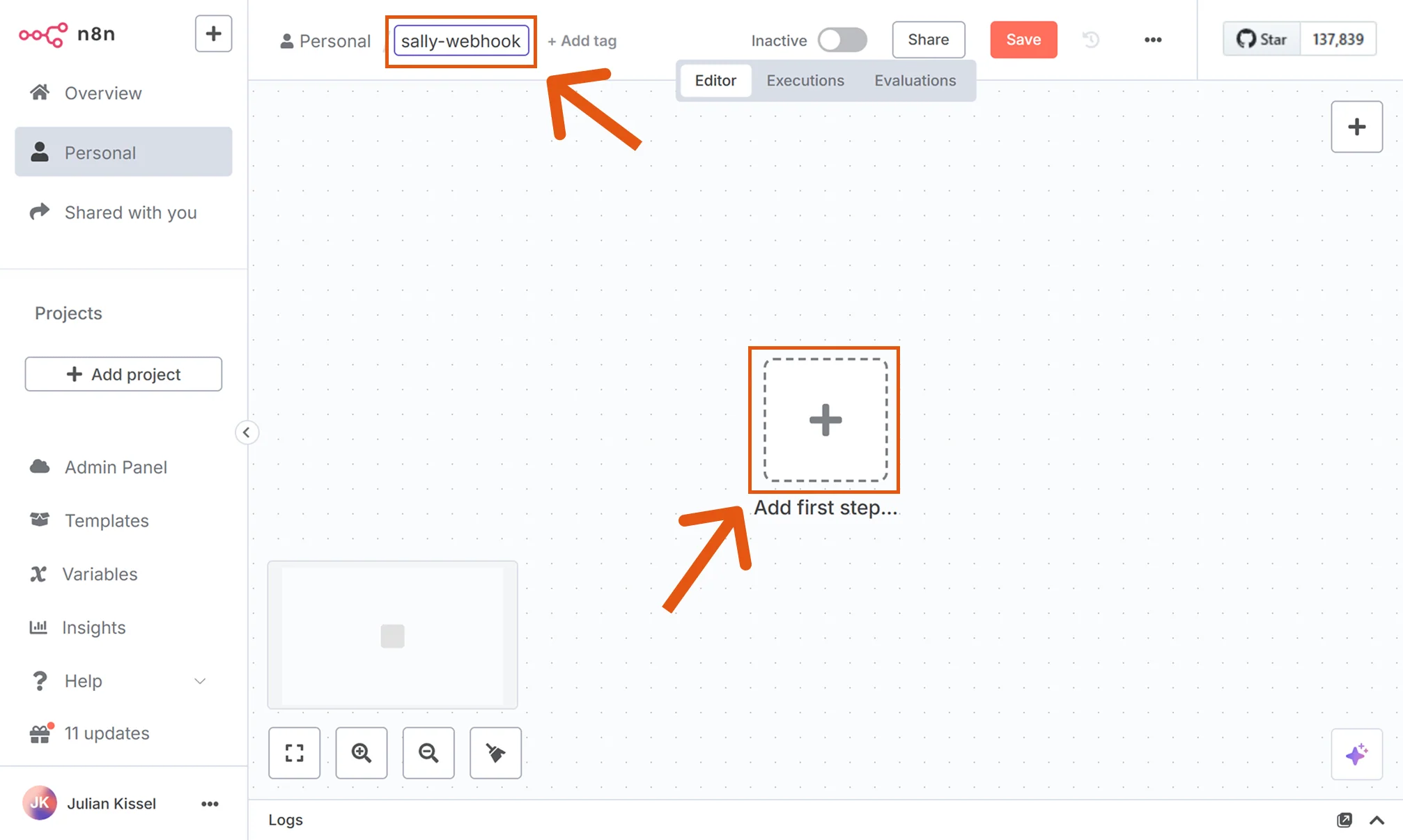
- Give your workflow a clear name (e.g., sally-webhook) and add your first step.
- Press the + button in the middle.
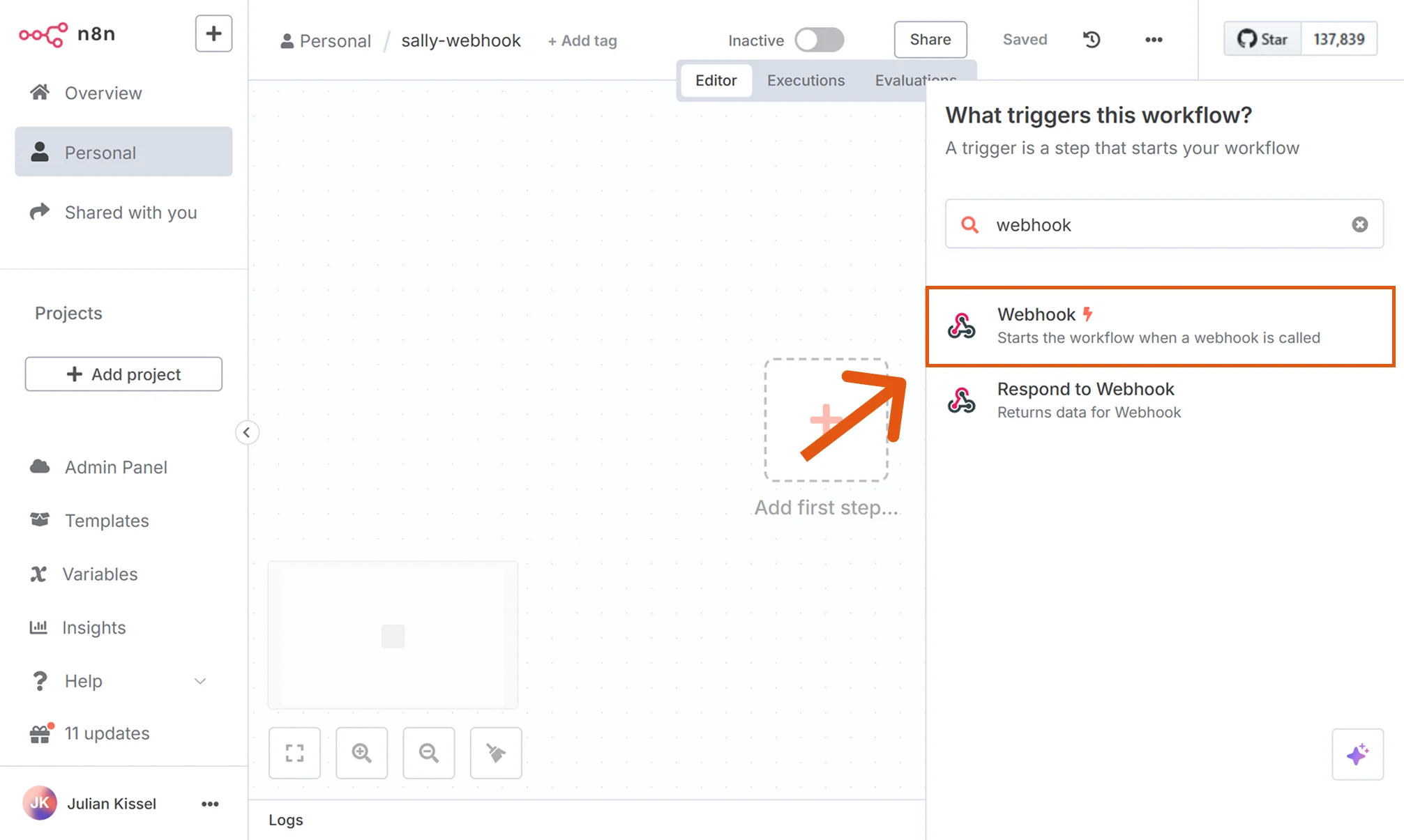
- Search for Webhook and select it.
- Configure the webhook:
- HTTP Method:
POST→ because Sally always sends data (instead of requesting it). - Path: a simple, clear identifier (e.g.,
sally-webhook) → this will become part of the final webhook URL. - Respond:
Immediately→ ensures Sally gets a quick confirmation that the webhook was received.
- HTTP Method:
- Switch to Production URL. This is the permanent URL that Sally will call.
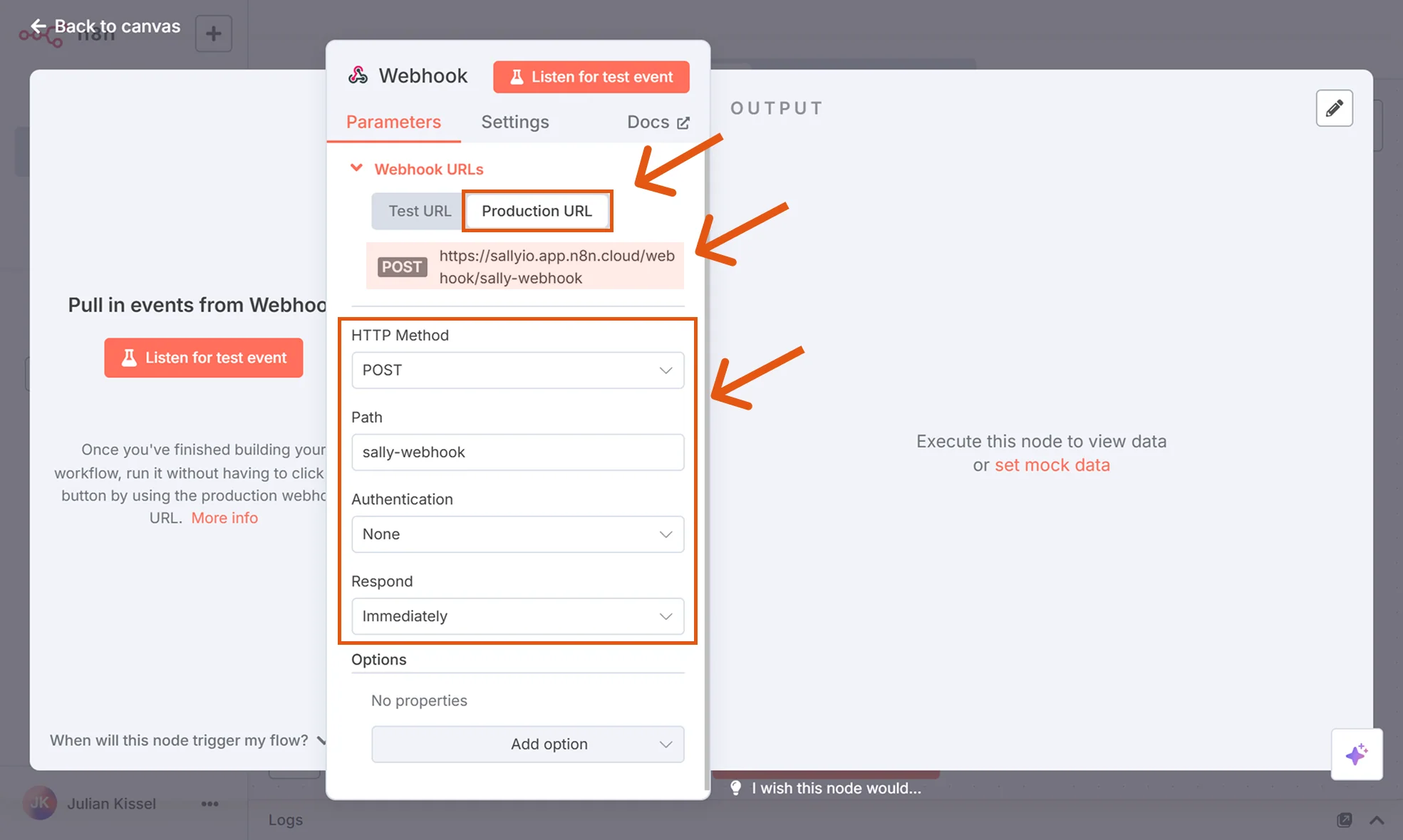
You can already copy the Production URL here by clicking the copy button. You'll need this later when configuring the webhook inside Sally.
- Finally, activate your workflow.
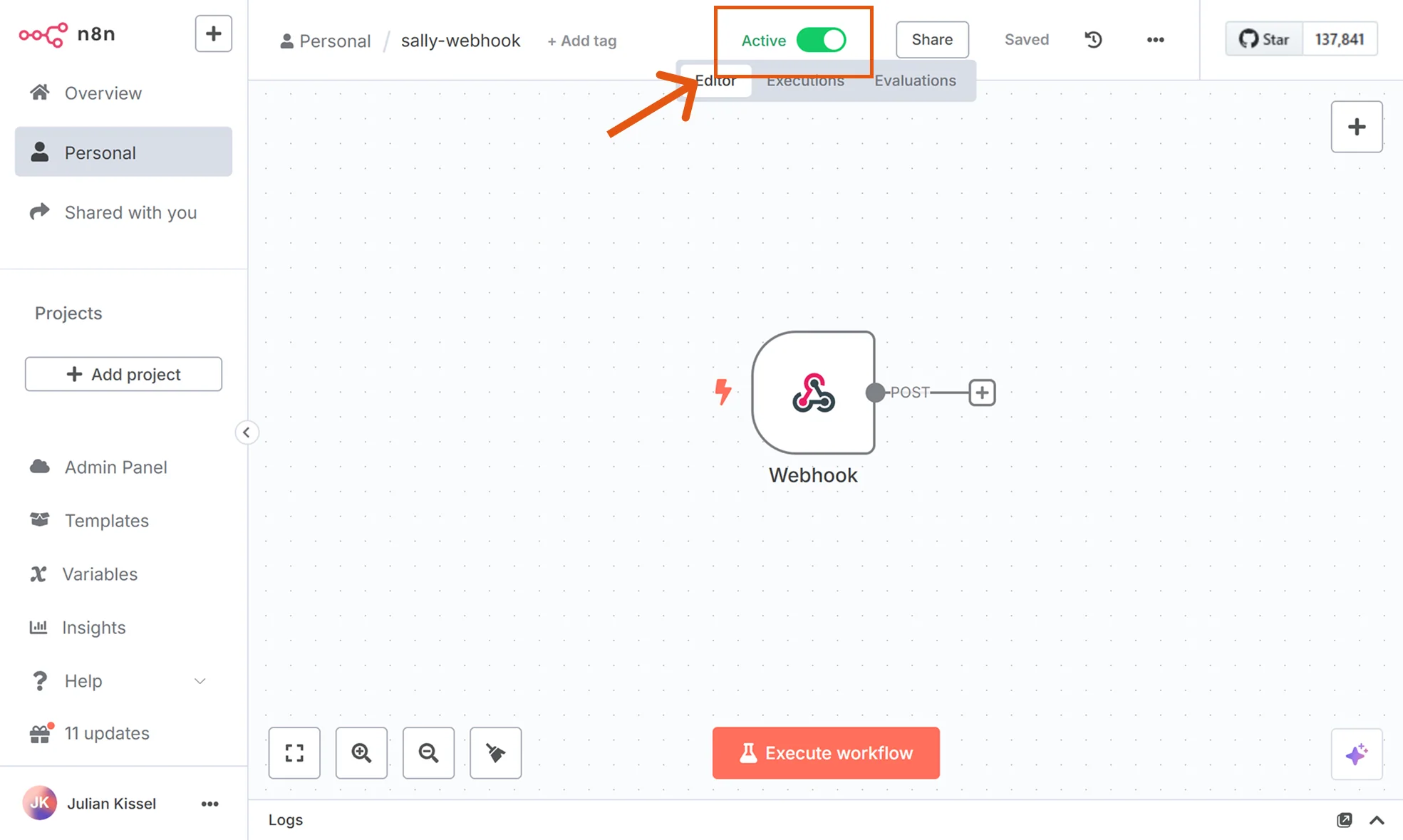
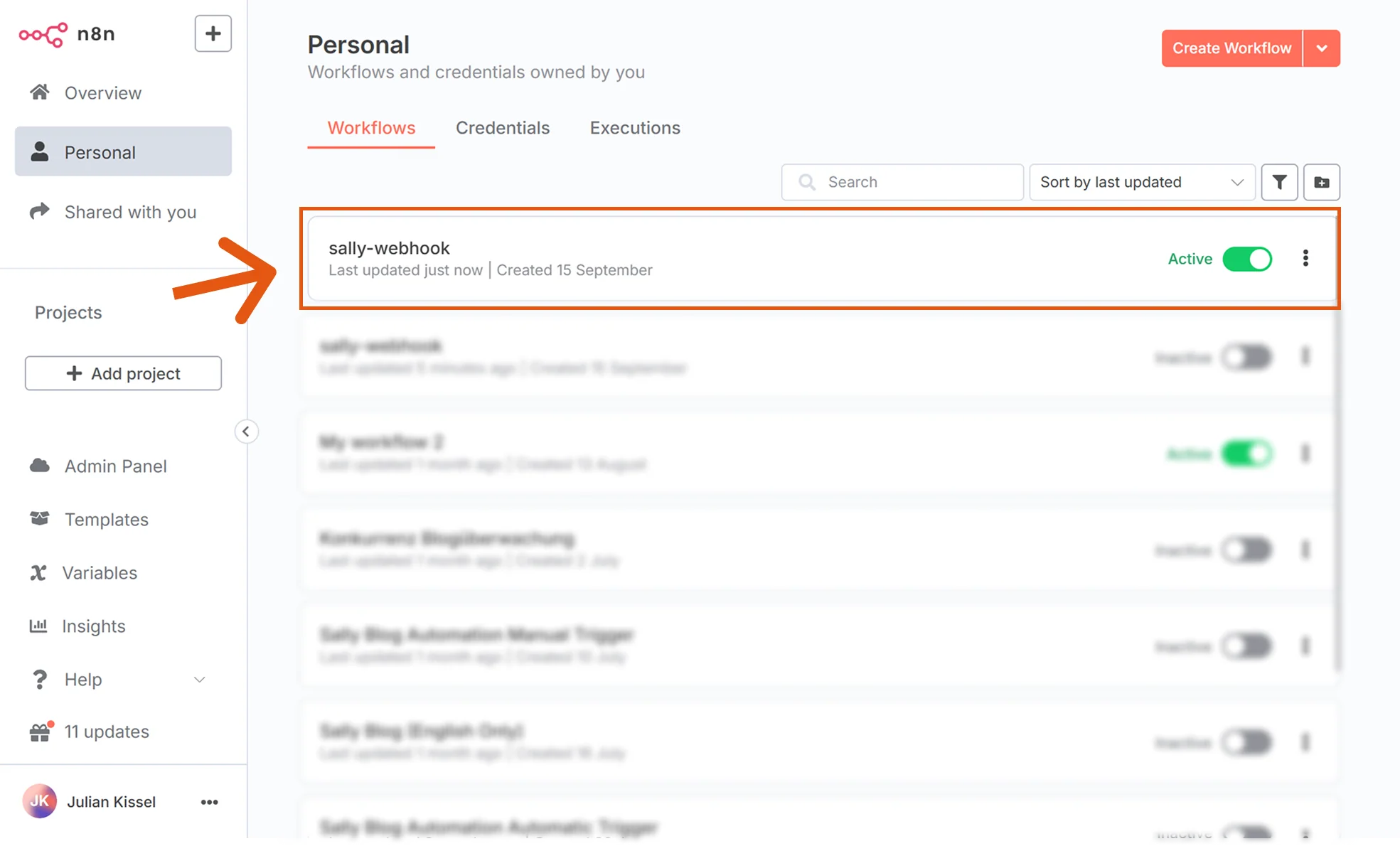
The first activation must be done inside the editor, not from the overview list.
After this initial activation, you can conveniently control the workflow from the overview.
- At this point, your webhook in n8n has been created. The next step is to configure this webhook in Sally so that events (like meeting summaries) can be sent to it.
1.2. Configure the webhook in Sally
Now you put the copied address into Sally.
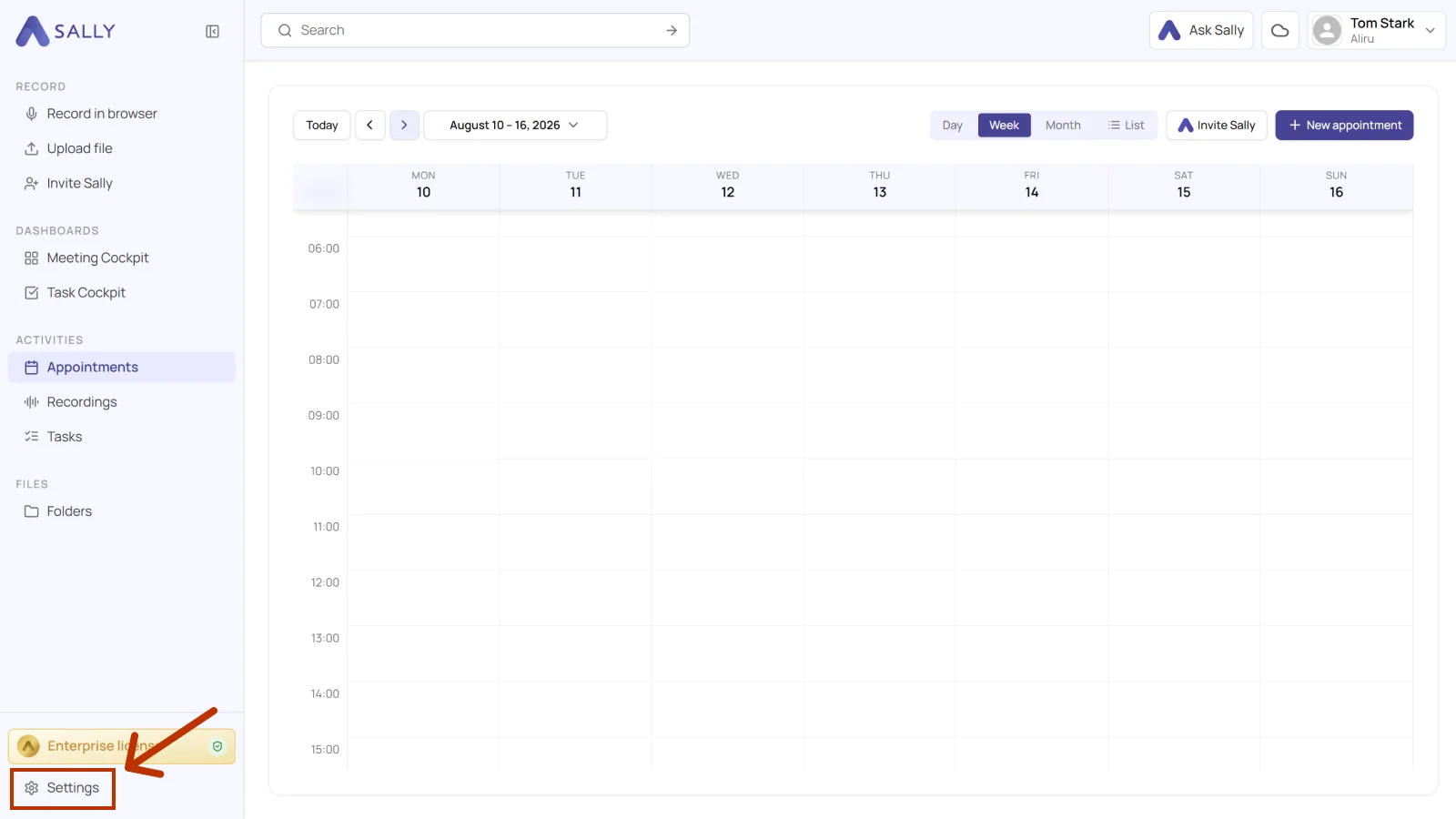
- In Sally, open Settings from the bottom-left corner of the sidebar.
- Under Configuration, select Integrations and open the Webhooks tab. Click Create webhook under Webhooks (Personal).
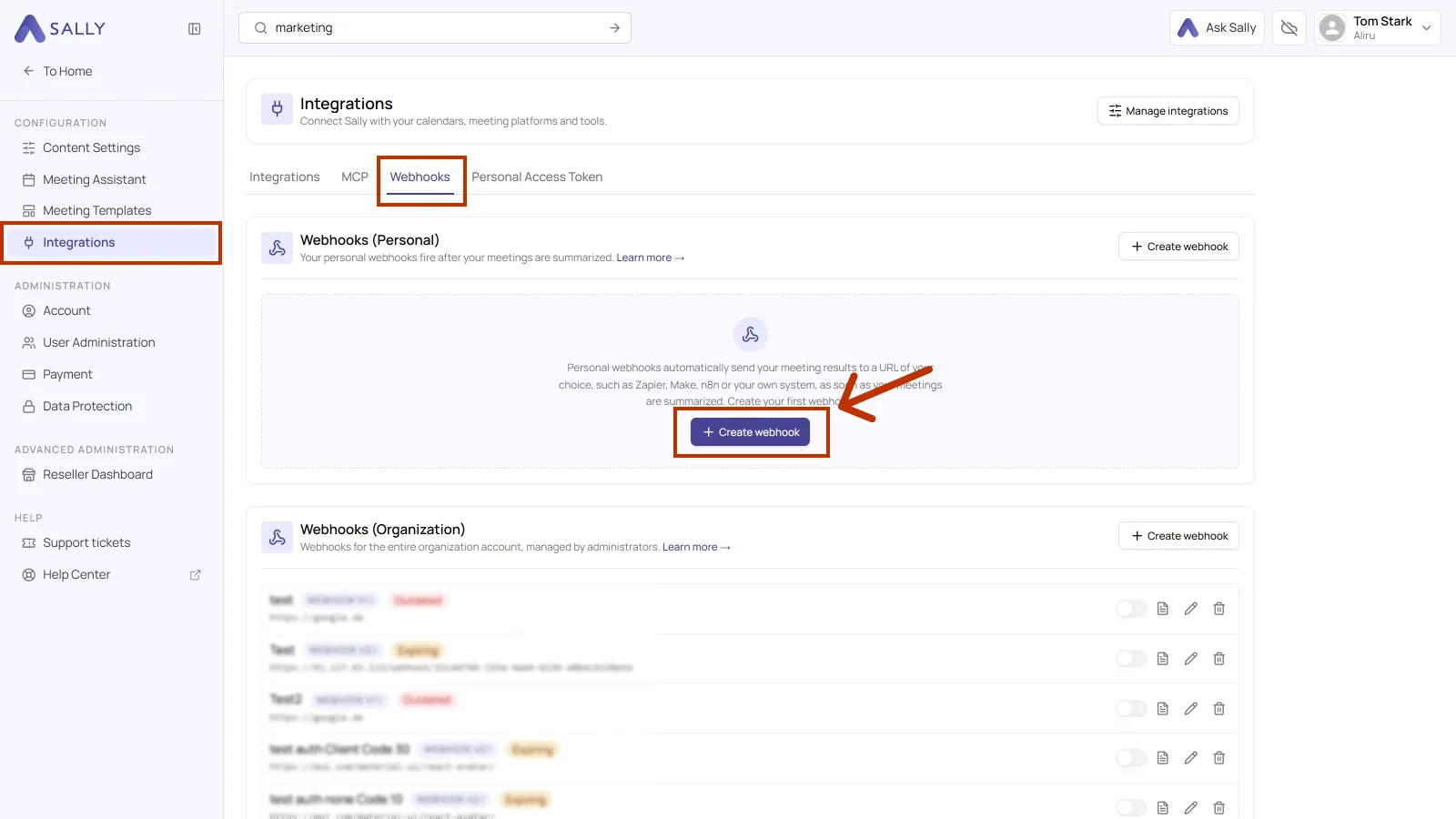
Webhooks (Personal) fire after your own meetings are summarized. Webhooks (Organization) apply to the entire organization account and are managed by administrators. For your own n8n workflow, use the personal section.
- Fill in the upper part of the Create webhook dialog: Name, an optional Description, the Trigger, the Language, the production URL from n8n under Webhook URL, and the Authentication.
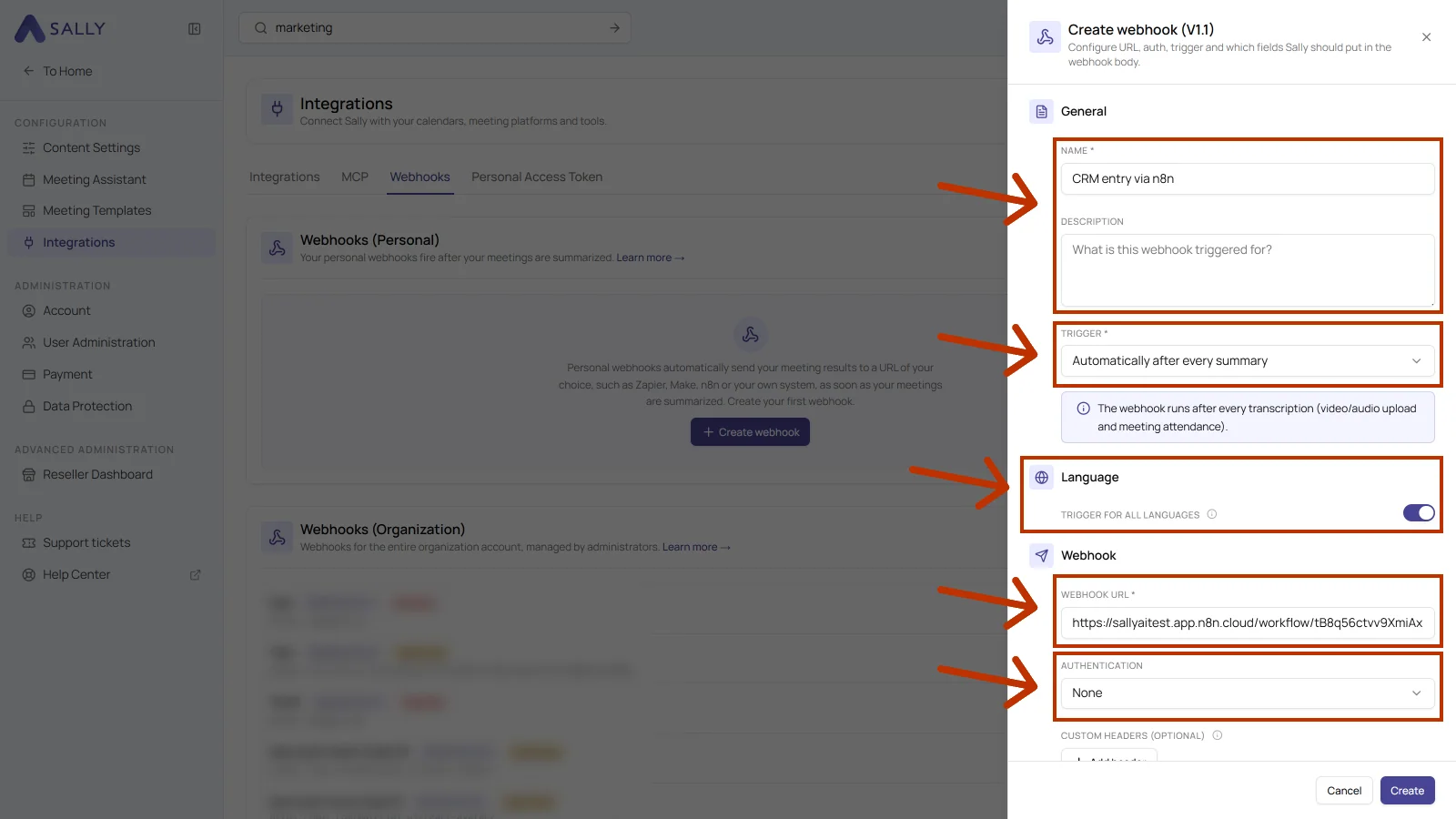
- Scroll down in the dialog. Body contents defines what Sally sends along, Options defines when the webhook fires. Then click Create.
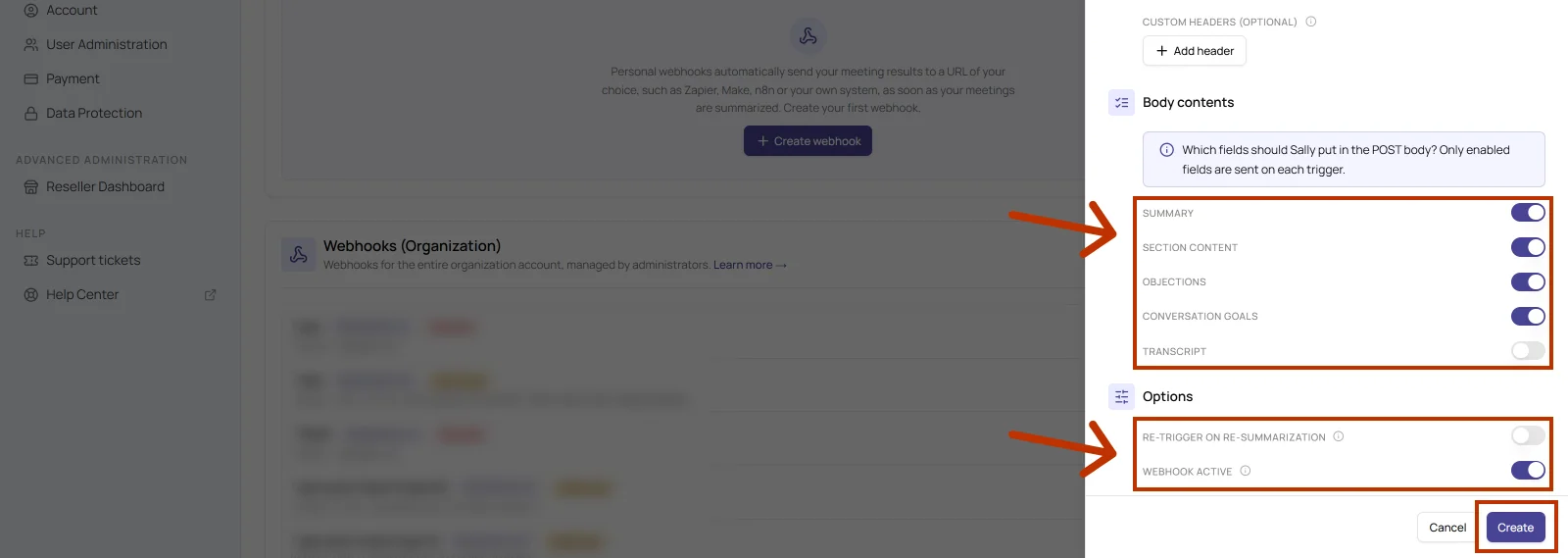
The table below explains every field of the dialog.
| Field | What it does |
|---|---|
| Name | Required. The display name of the webhook. Pick something you will recognize later, for example "CRM entry via n8n". |
| Description | Optional. A note on what the webhook is triggered for. Useful once several webhooks run side by side. |
| Trigger | Required. Defines when Sally sends. Automatically after every summary runs the webhook after every transcription, which means after a video or audio upload and after a meeting Sally attended. |
| Trigger for all languages | When enabled, the webhook fires no matter which language the summary was created in. |
| Webhook URL | Required. The production URL from n8n. The test URL only works while the editor is listening. |
| Authentication | Defines how Sally identifies itself to the target system. For an open n8n webhook, None is enough. If you set authentication on the webhook node, pick the matching method here. The webhook guide lists what is available. |
| Custom headers (optional) | Add header lets you send extra headers, an API key for instance. |
| Body contents | Defines which fields end up in the POST body: Summary, Section content, Objections, Conversation goals and Transcript. Only enabled fields are sent on each trigger, and the less you send, the smaller and faster the request. |
| Preview and Copy example body | Shows the body Sally would send with the toggles you set, and copies it. Handy for testing the workflow in n8n without running a real meeting. |
| Re-trigger on re-summarization | When off, the webhook fires only the first time. When on, Sally sends again whenever a summary is regenerated. |
| Webhook active | Switches the webhook on. Turning it off leaves it in place without deleting it. |
From now on Sally sends the selected content to your n8n workflow whenever the trigger fires.
Every webhook in the list carries its body version. Sally creates new webhooks on the current version, older ones are marked Outdated or Expiring. If an old webhook is still running, recreate it with the same settings. The version determines how the body is built, so a recreated webhook may deliver a different body. Check afterwards that the nodes in your workflow still work with the fields that actually arrive.
2. How do you inspect and debug webhook logs?
Finally, check that Sally is actually sending. Sally logs every trigger, so you can see what went to n8n and how n8n answered.
- Open the Webhooks tab and click the document icon on your webhook.
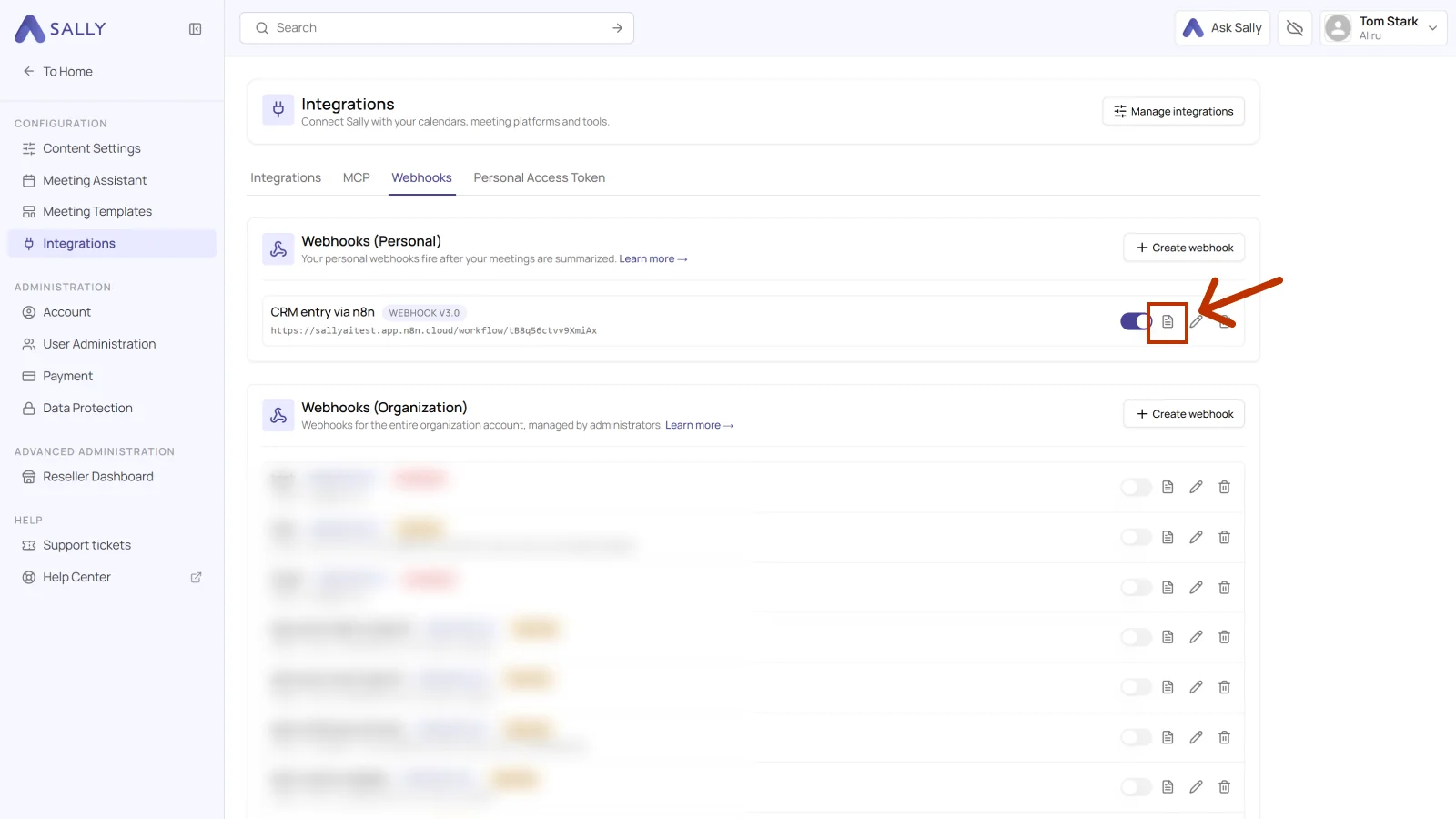
Once the trigger has fired, the entries show up in the log. Every entry shows:
- Execution time: when Sally sent the event.
- Endpoint: the production URL from n8n.
- HTTP status: the answer from n8n, for example
200 OK.
Details opens the request that was sent, body included.
2.1. What do the HTTP status codes mean?
The status comes from n8n, not from Sally. It tells you whether the request arrived and where to look when it did not.
| Status | What it means | What you can do |
|---|---|---|
| 200 OK, 204 No Content | n8n accepted the request. | Nothing, the connection works. |
| 202 Accepted | n8n accepted it and runs the workflow in the background. | If the workflow still does nothing, check the Executions in n8n. |
| 400 Bad Request | n8n cannot read the body. | Check that HTTP Method is set to POST on the webhook node, and look at the example body from Sally. |
| 401 Unauthorized, 403 Forbidden | n8n rejects the request. | The webhook node requires authentication that the Sally webhook does not provide. |
| 404 Not Found | Nothing is registered under that path. | Most common cause: the workflow is not active, or the Sally webhook holds the test URL instead of the production URL. |
| 429 Too Many Requests | Too many requests arrive in a short time. | Send less content or take load off the workflow. |
| 500, 502, 503, 504 | n8n was unreachable, or the workflow failed with an error. | Trigger again later and check under Executions in n8n why the workflow failed. |
If nothing arrives in n8n, check the log in Sally first. No entry means the trigger did not fire, which points back at Sally. An entry with an error status points at the target: the address, the authentication or the workflow in n8n.