How does Sally AI create meeting transcriptions?
A transcript is a written record of everything that was said during a meeting, call, or audio/video recording. Instead of listening to the whole conversation again, you read it, search for what was said and use it as reliable documentation.
Sally creates highly accurate transcriptions on her own, with modern AI speech recognition. Depending on audio quality and conditions, Sally achieves a transcription accuracy of up to 98.8% and supports 103 languages. The transcript is the basis for summaries, tasks, decisions and everything else Sally works out of your meeting.
Quick navigation
- How are transcriptions created?
- Where can you find your transcriptions?
- What are the transcription limits?
1. How are transcriptions created?
1.1. Audio capture and processing
Sally transcribes two kinds of audio: live meetings, whether through your microphone or a supported meeting platform, and audio or video files you upload yourself. An uploaded file does not have to belong to a scheduled meeting.
Whatever the source, Sally first pulls out the audio track and prepares it. She levels the volume, reduces background noise and sharpens the speech for the best possible transcription quality.
1.2. Speech-to-text transcription
Once the audio is prepared, Sally uses advanced speech-to-text models to convert spoken language into written text. The models analyze sound waves, spot speech patterns and turn them into words, punctuation and sentences.
The transcript always comes out in the language spoken during the recording, so it stays true to what was really said.
The transcript always matches the spoken meeting language. Summaries, however, are generated in your personal language settings. You can change your language settings at any time.
1.3. Continuous improvement & data protection
Sally’s speech recognition keeps getting better, which shows in how she handles accents, speaking speed, specialist terms and sentence flow.
Sally never uses customer recordings or transcripts to train its AI models.
All training runs on our own and licensed datasets, which keeps your data private and compliant.
2. Where can you find your transcriptions?
There are two places to find them.
2.1. Within the appointment
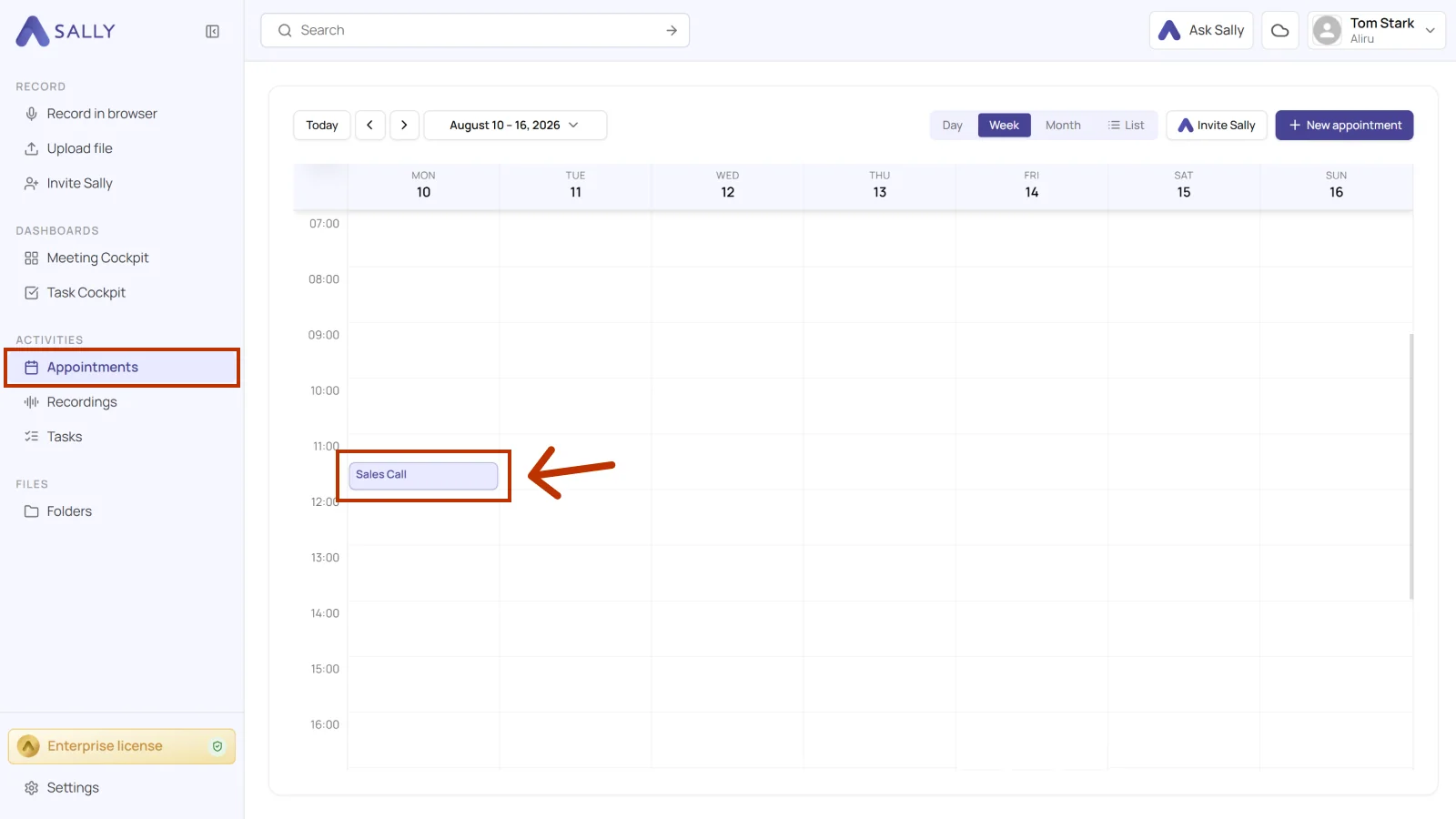
- Open Appointments in the sidebar and click the meeting you want.
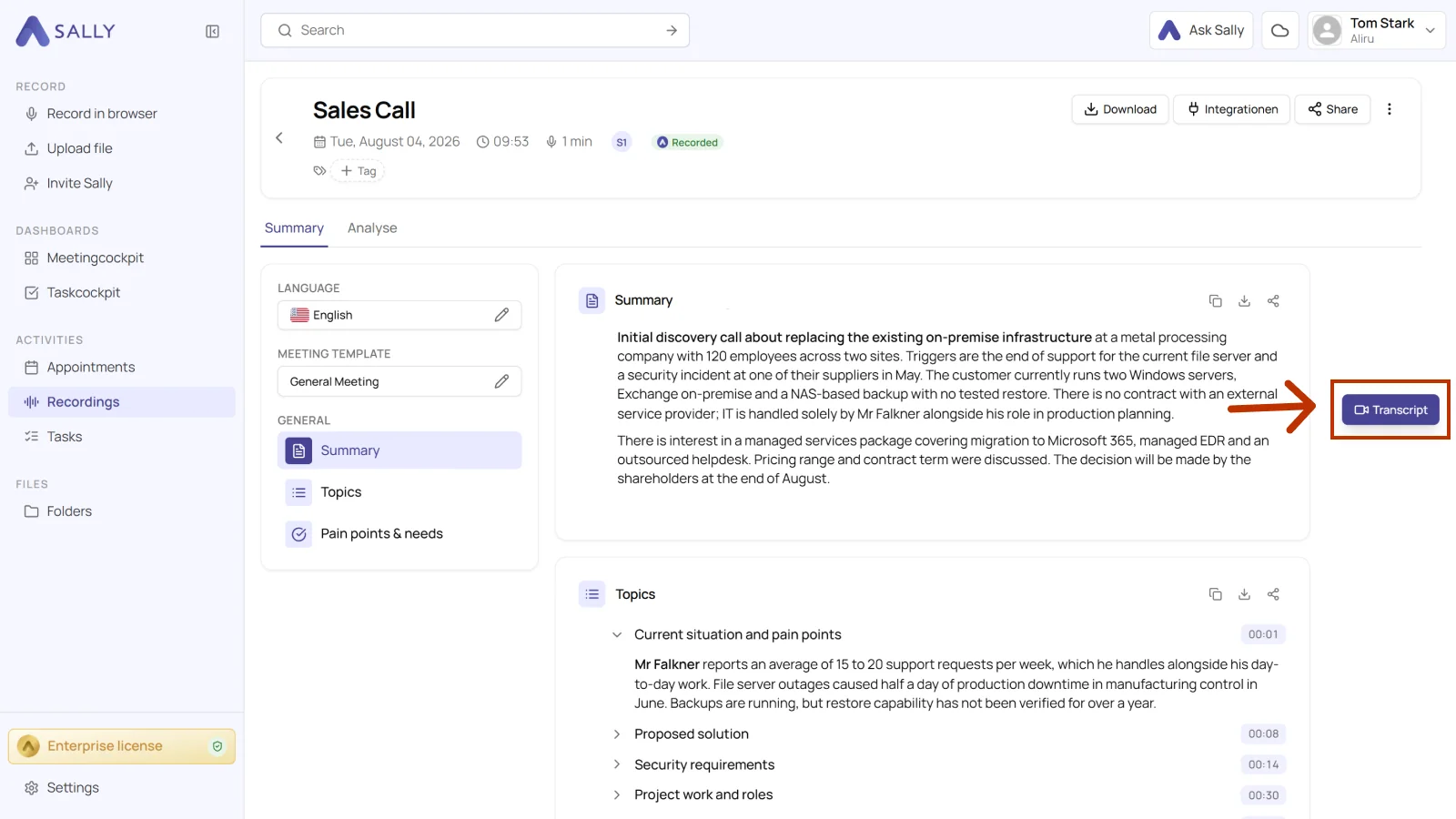
- Click the Transcript button next to the summary.
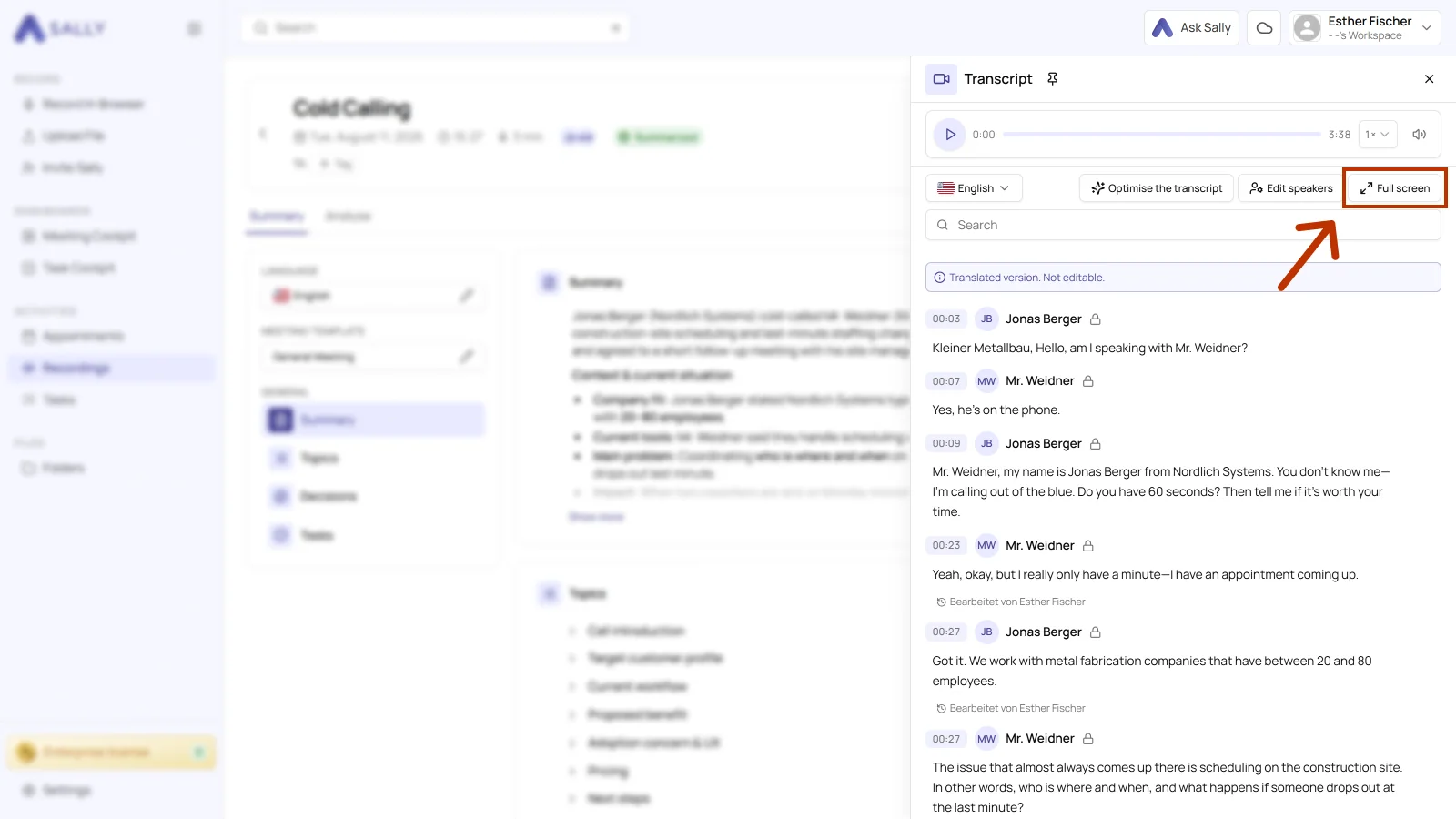
After opening the transcript, a right-hand sidebar appears. In this sidebar, you'll find the full transcript as well as the corresponding audio or video recording (if these are enabled in your settings).
- You can edit the transcript right in the sidebar. For more room, click Full screen in the top right, which enlarges the transcript and makes it easier to work with when you want to adjust several passages.
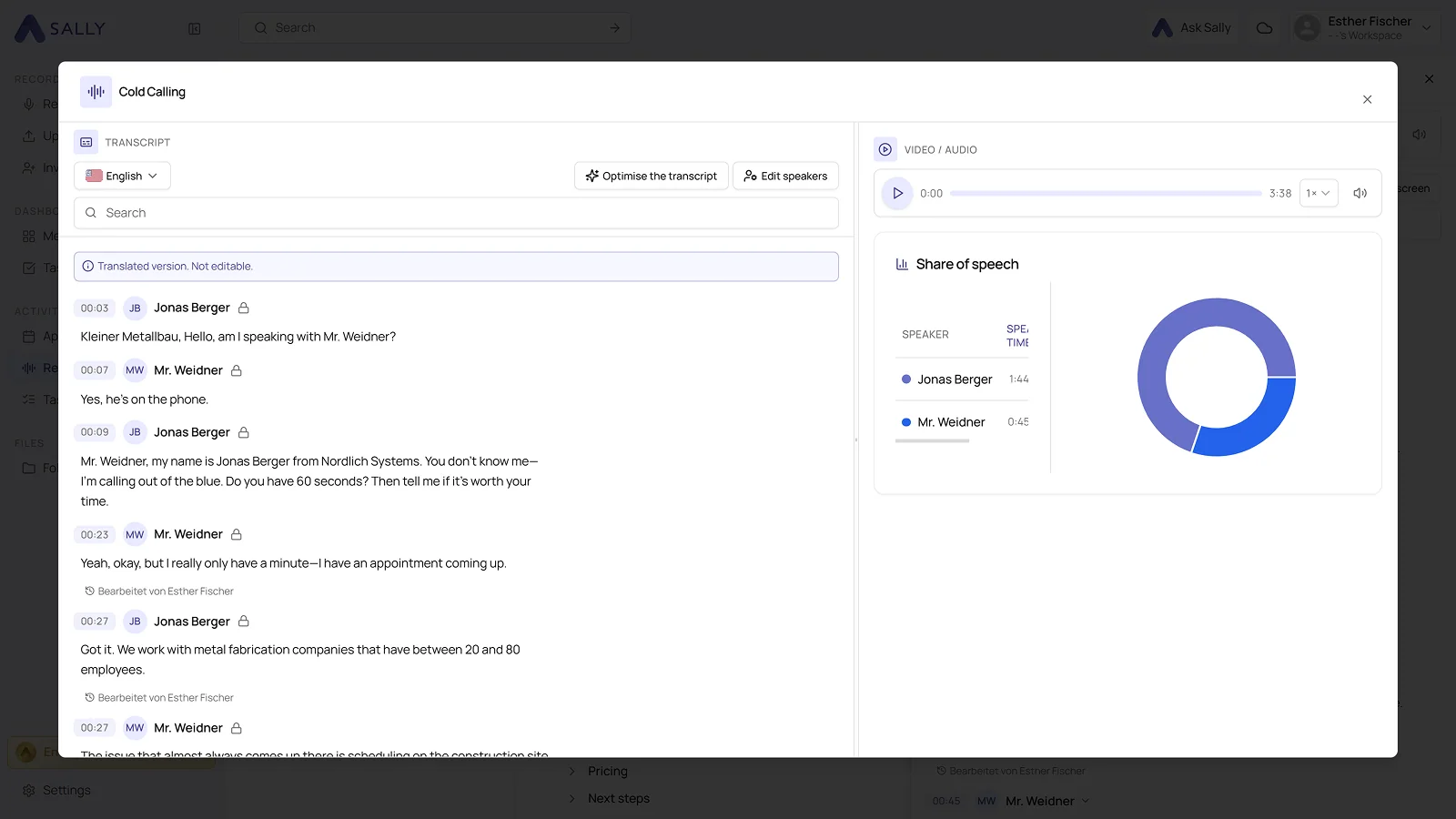
- The transcript and the recording now sit side by side, along with the share of speech per speaker.
2.2. In the recordings section
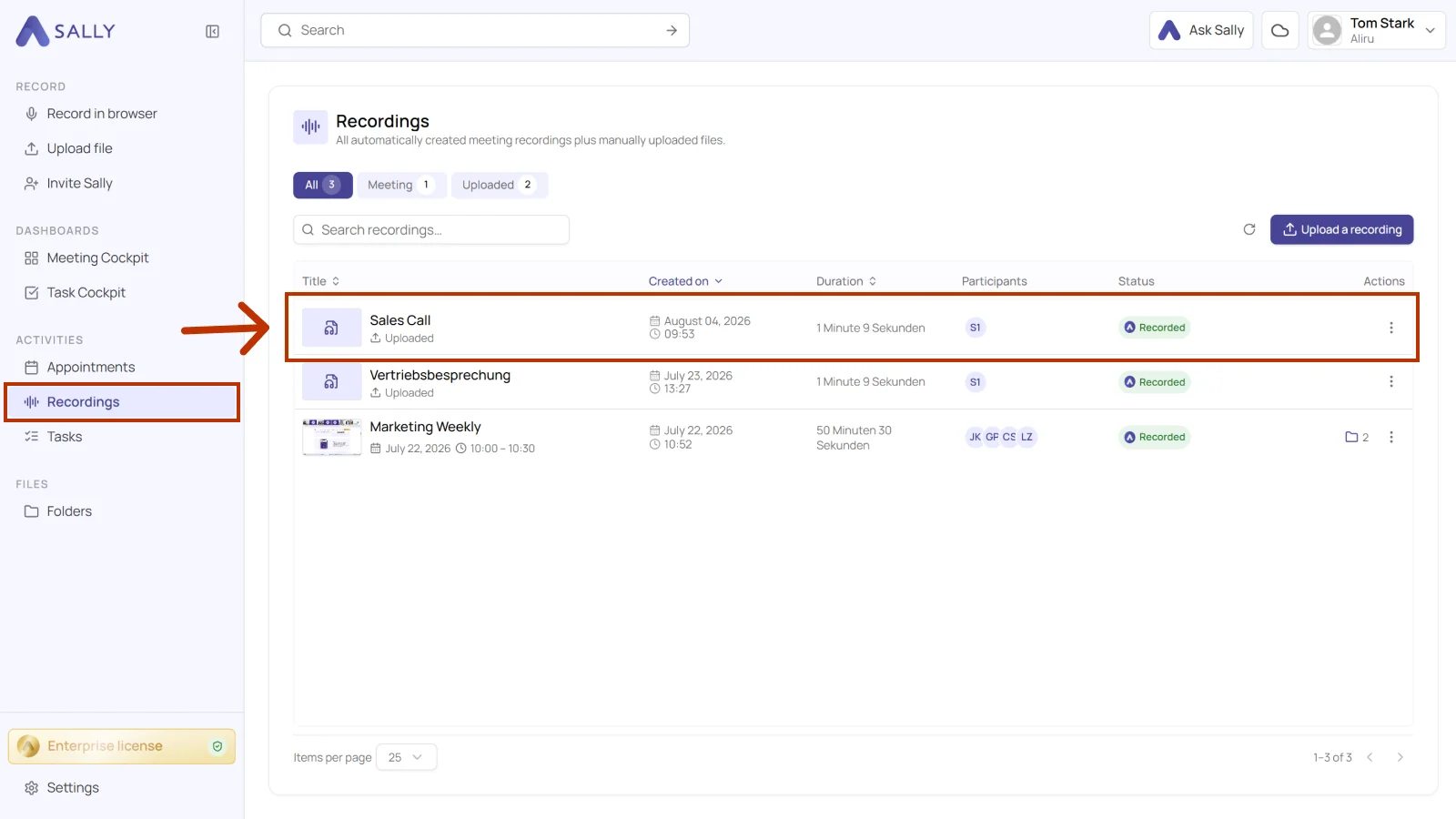
- Open Recordings in the sidebar.
- Click on the recording you want to review.
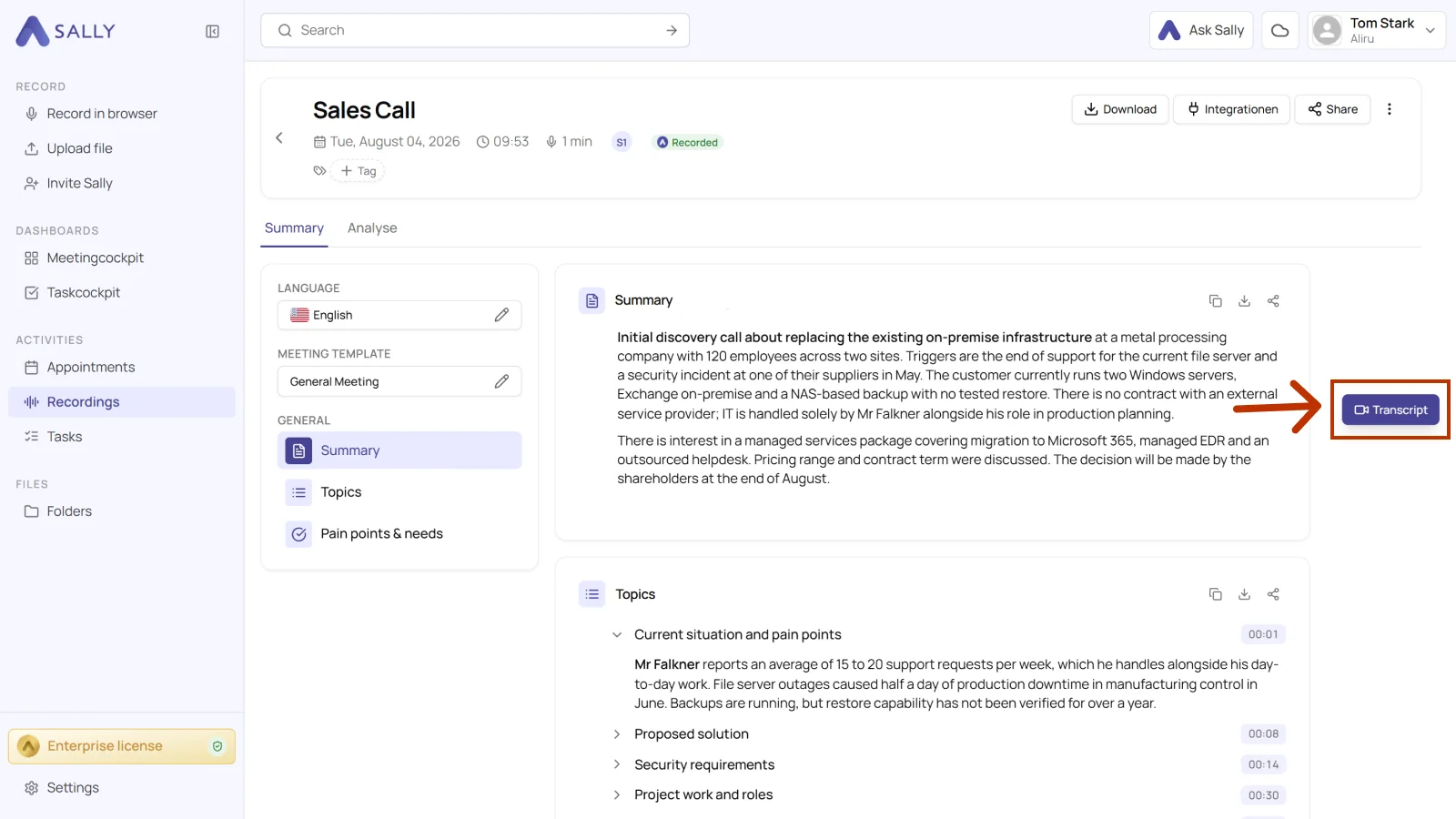
- Click the Transcript button.
After opening the transcript, a right-hand sidebar appears. In this sidebar, you'll find the full transcript as well as the corresponding audio or video recording (if these are enabled in your settings).
- You can edit the transcript right in the sidebar. For more room, click Full screen in the top right, which enlarges the transcript and makes it easier to work with when you want to adjust several passages.
- The transcript and the recording now sit side by side, along with the share of speech per speaker.
3. What are the transcription limits?
A few limits keep the performance reliable and the usage fair.
3.1. Usage limits
| Limit type | Details |
|---|---|
| Maximum recording length | Up to 10 hours per audio or video |
| Maximum upload size (Starter) | Up to 1 GB |
| Maximum upload size (Pro) | Up to 5 GB |
| Maximum upload size (Enterprise) | Up to 5 GB |
3.2. Supported upload formats
Sally supports a wide range of common audio and video formats.
| Type | Supported formats |
|---|---|
| Video | mp4, mkv, avi, mov, webm |
| Audio | mp3, mpga, wav, flac, ogg, amr, m4a, opus, aac |
With a transcript, every spoken word stays available, searchable and documented, whether you need a quick look or detailed follow-up work.