How to set the transcription model in Sally AI
The transcription model is the part of Sally that turns speech into text. Sally ships with several of them, and they differ in how precisely they transcribe, how well they tell voices apart, and whether they keep filler words. Under Transcription you pick the one Sally uses by default for new recordings.
The setting applies to the whole organization, so it is where an owner or admin decides what everyone starts from. Nobody has to think about models for a single meeting: the default carries every new recording, and a single appointment can still use a different model when it needs one.
Only owners and admins can change the default transcription model. The choice applies to the entire organization, not just to your own account.
Quick navigation
- Who this setting is for
- Open the transcription settings
- The available models
- A different model for a single appointment
- Common questions
1. Who this setting is for
Only owners and admins can change the default transcription model, and that makes sense: the setting does not affect one person, it affects every new recording in the organization.
The benefit is that quality stops being a matter of chance. Instead of hoping each user picks a sensible model, you set one default that fits the way your company records, and everyone inherits it. If most of your meetings are German, you can say so once. If your recordings are noisy and full of speakers, you can pick the model built for that.
2. Open the transcription settings
To get there:
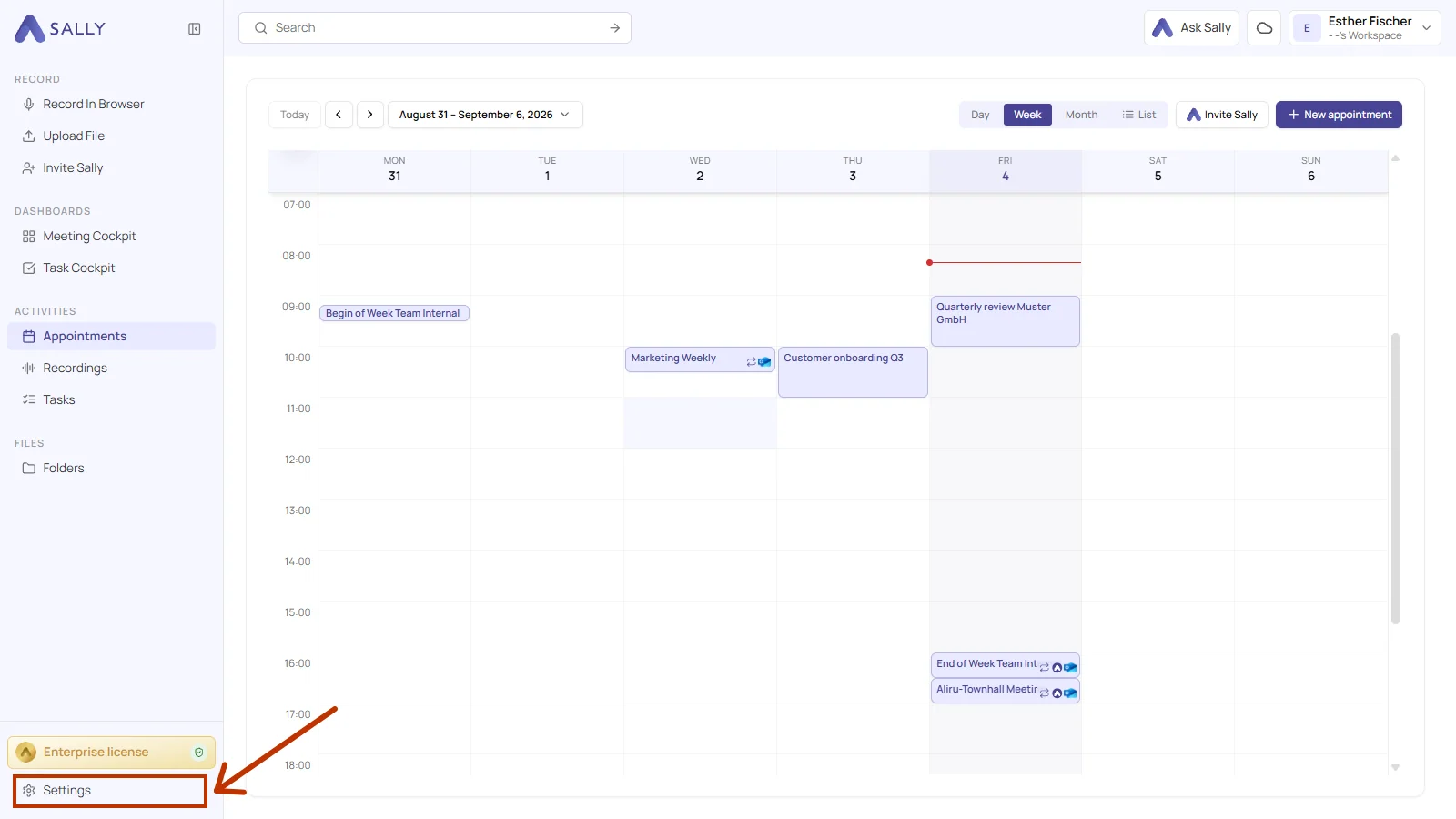
- Open Settings at the bottom left of the sidebar.
- Under Configuration, pick Meeting Assistant, then the Transcription section.
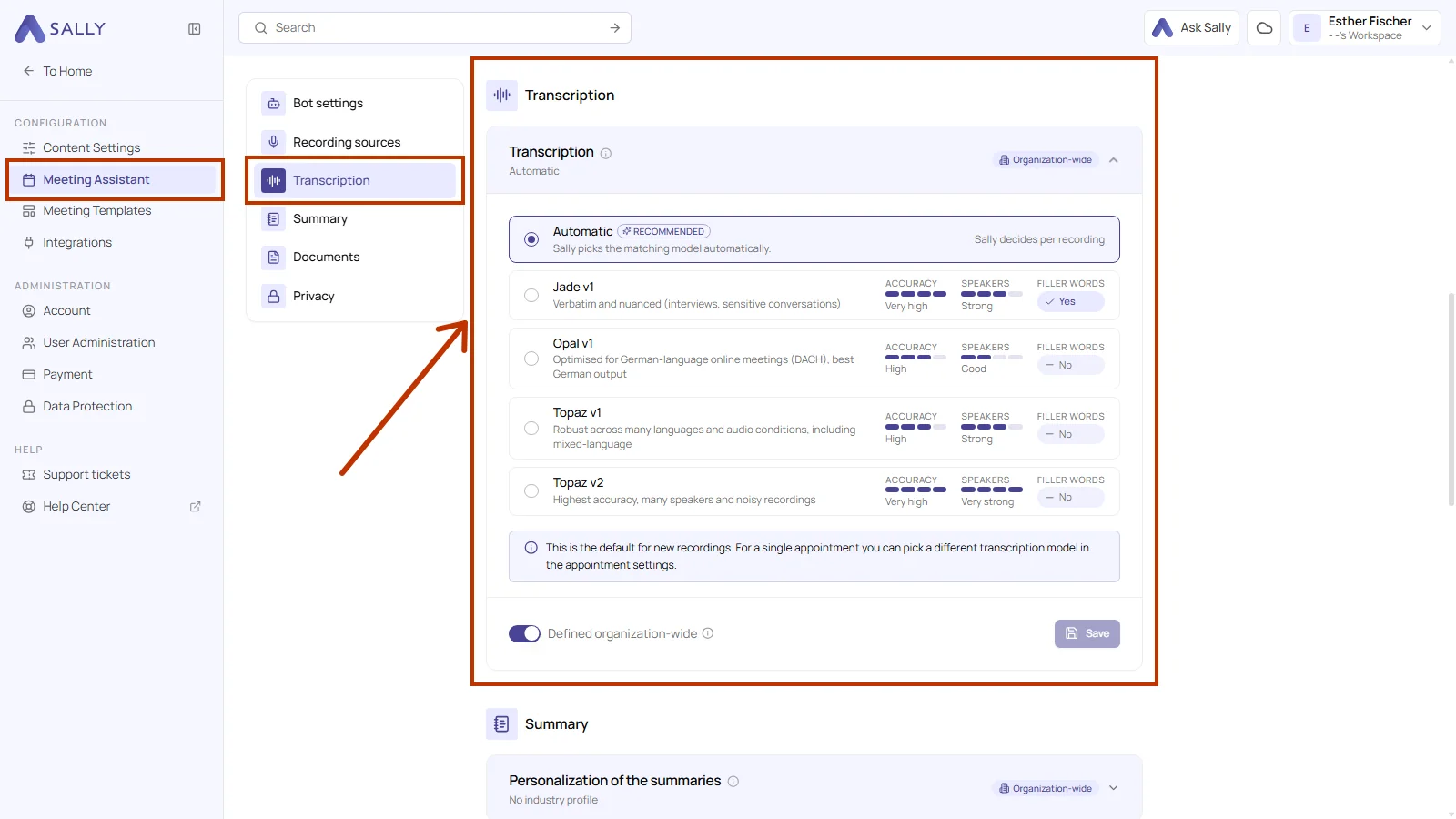
The info icon next to the title sums it up in one sentence: "Choose which transcription model Sally uses by default for new recordings."
Nothing takes effect until you click Save. The line under the heading always shows which model is active right now, and the Defined organization-wide switch marks the setting as binding for everyone.
3. The available models
You get one option per model, and each one carries a short description plus three ratings: Accuracy, Speakers and Filler words. Accuracy is how closely the text follows what was said, Speakers is how reliably Sally tells the voices apart, and Filler words says whether things like "um" and "you know" end up in the transcript.
3.1. Automatic
Automatic is marked Recommended and is the option Sally starts with. Rather than fixing one model for everything, Sally looks at each recording and picks the model that fits it, which is why the ratings column reads Sally decides per recording instead of showing fixed values.
This is the right choice for most organizations. Your meetings are rarely all alike, and a model that suits a quiet one-on-one is not the one that suits a noisy workshop with eight people. Pick a fixed model when you know your recordings share one characteristic and you want that characteristic served every time.
3.2. The five models in detail
| Model | What it is built for | Accuracy | Speakers | Filler words |
|---|---|---|---|---|
| Jade v1 | Verbatim and nuanced, for interviews and sensitive conversations | Very high | Strong | Yes |
| Jade v2 | Like Jade v1, with clearly better speaker separation | Very high | Very strong | Yes |
| Opal v1 | Optimized for German-language online meetings (DACH), with the best German output | High | Good | No |
| Topaz v1 | Robust across many languages and audio conditions, including mixed-language recordings | High | Strong | No |
| Topaz v2 | Highest accuracy, for many speakers and noisy recordings | Very high | Very strong | No |
Jade v1 is the only model that keeps filler words and vocal sounds. That is the point of it: in an interview or a sensitive conversation, a hesitation carries meaning, and a transcript that quietly tidies it away loses something. For a status meeting the same behavior just makes the text longer.
Jade v2 is the next generation of it. It stays just as faithful to the wording, but it separates the voices considerably better. That makes the verbatim record usable for conversations with several people as well.
Opal v1 is the German specialist. If your meetings run in German and you care about how the German reads, this is the model tuned for it.
Topaz v1 is the all-rounder. It holds up across many languages and it copes when a conversation switches language mid-sentence, which the other models handle less gracefully.
Topaz v2 is built for the hard cases: a lot of speakers, a noisy room, audio that is not clean. It carries the highest ratings for accuracy and speaker separation.
Which models you can pick depends on your plan. Starter covers Jade v1, Opal v1 and Topaz v1. Pro adds Jade v2, and Topaz v2 is reserved for Enterprise. Automatic works on every plan and picks from the models your plan includes.
The settings show three of the ratings. The full side-by-side comparison, which also rates how fast each model works, is under AI models.
4. A different model for a single appointment
The organization default is a starting point, not a cage. Sally says so directly under the model list: "This is the default for new recordings. For a single appointment you can pick a different transcription model in the appointment settings."
So a single appointment can run on its own model without anybody touching the organization setting. The appointment settings offer the same comparison, and Automatic there means the appointment falls back to what the series or the organization defines.
For a recording that already exists, the model is not fixed either. You can have Sally write the transcript again with a different model, which is described under optimize transcription.
5. Common questions
- 5.1. Who can change it
- 5.2. How far the setting reaches
- 5.3. Recordings that already exist
- 5.4. Why a model is missing
5.1. Who can change it
Owners and admins, nobody else. For what each role is allowed to do, see user role management.
5.2. How far the setting reaches
Across the whole organization, and only for recordings made from then on. Changing the default does not touch transcripts that already exist. The Defined organization-wide switch is what marks the choice as binding for everyone.
5.3. Recordings that already exist
They keep the model they were transcribed with. If you want a different result for one of them, have Sally transcribe it again, as described under optimize transcription.
5.4. Why a model is missing
Because your plan does not include it. Starter offers Jade v1, Opal v1 and Topaz v1. Pro adds Jade v2, and Topaz v2 comes with Enterprise. The full comparison is under AI models.