How to set up custom vocabulary in Sally AI
With custom vocabulary you store the terms that matter to you, so Sally spells them correctly in every transcript. That is the fix for technical terms, names and unusual spellings.
Quick navigation
1. How does custom vocabulary work?
Sally does not go by spelling alone, she also listens phonetically.
This means:
- Sally recognizes how a word sounds
- and can automatically correct common misinterpretations
If someone says “Jon”, Sally might transcribe it as John.
With your custom vocabulary, you tell Sally:
➡️ “No matter how it sounds, always write Jon”
2. How to set up your vocabulary
It only takes a few clicks to create and manage your own vocabulary:
2.1. Create individual vocabulary entries
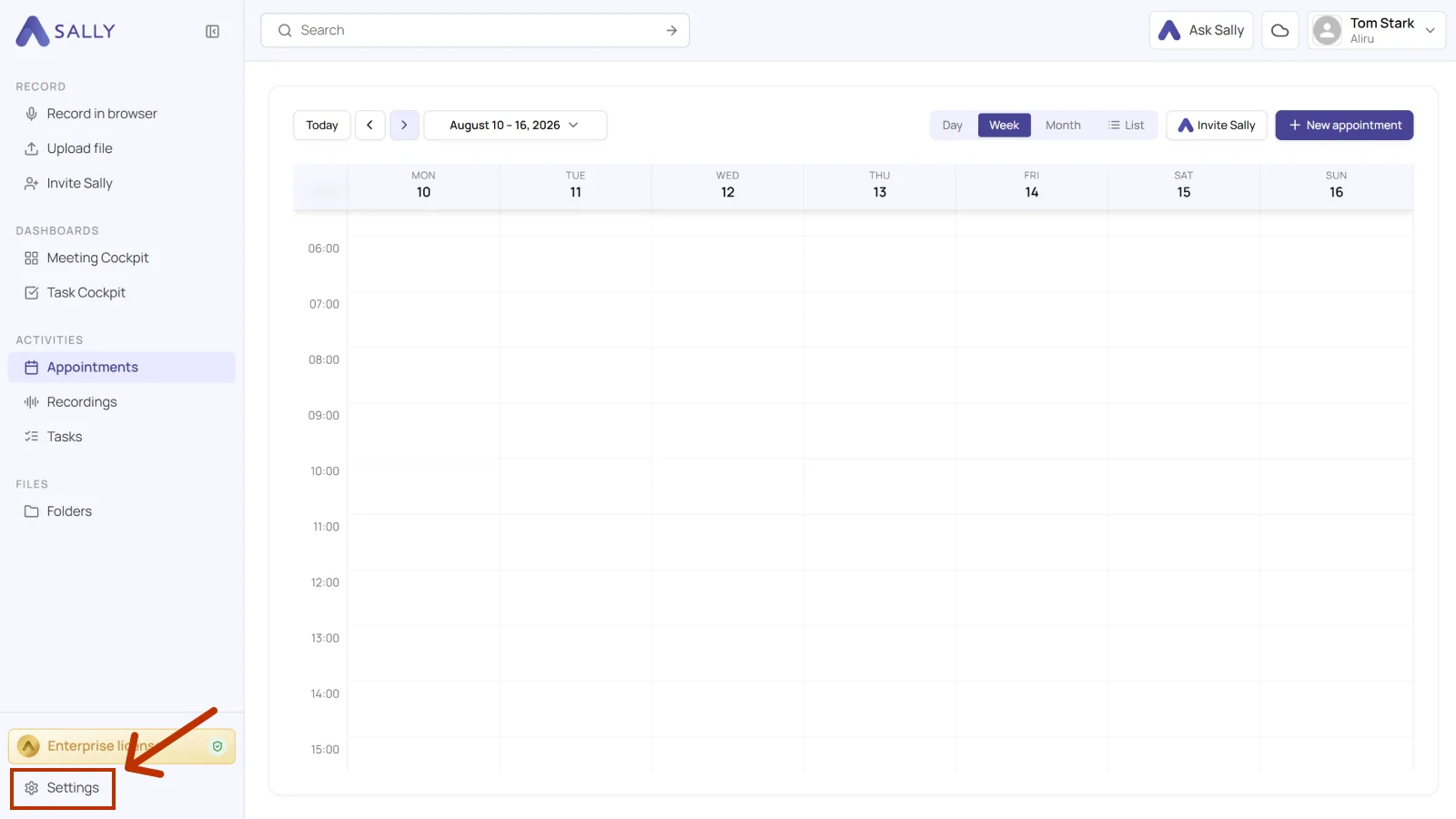
- Go to Settings.
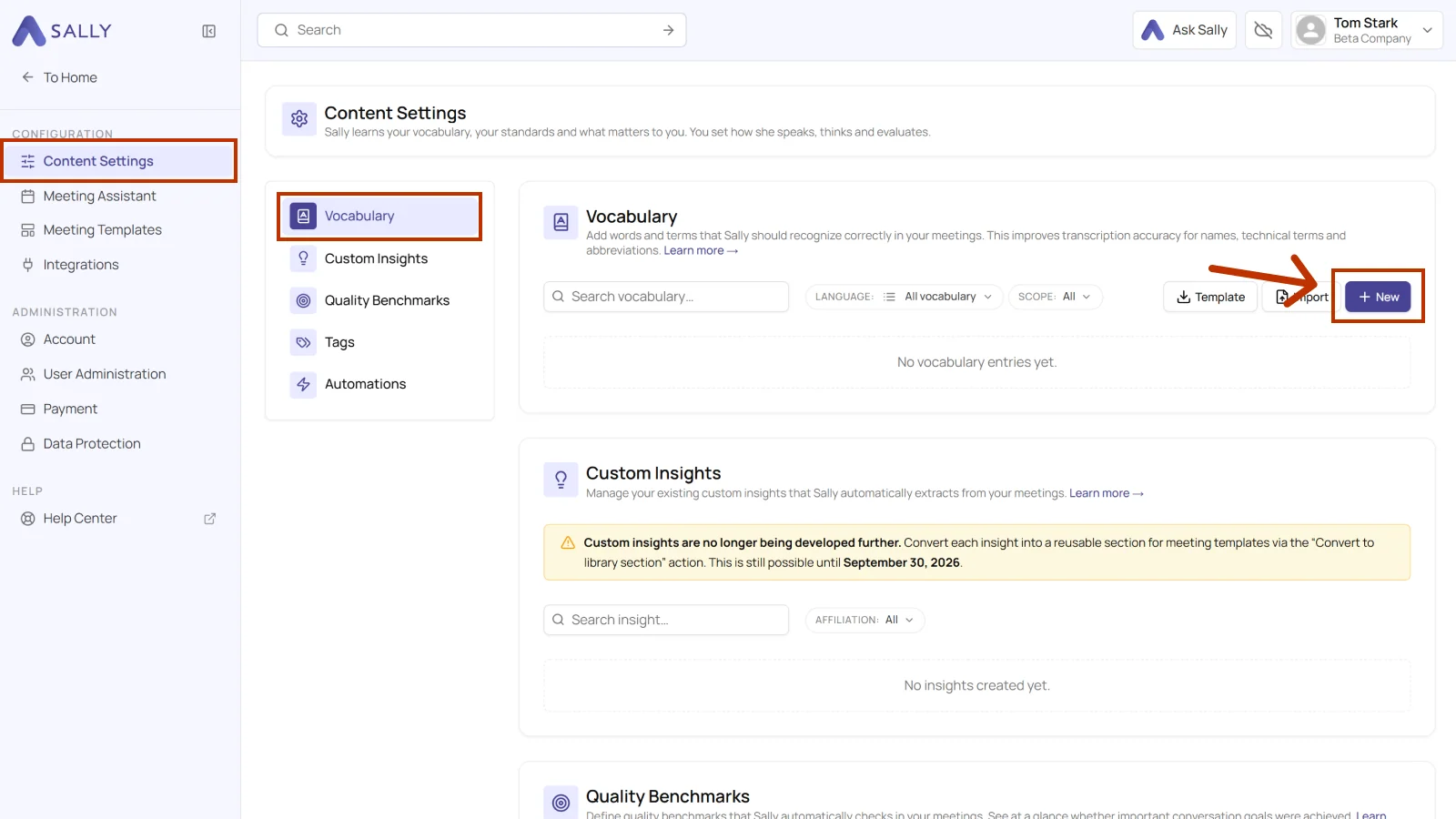
- Click on "Content settings".
- Open the "Vocabulary" tab.
- Click "+ New".
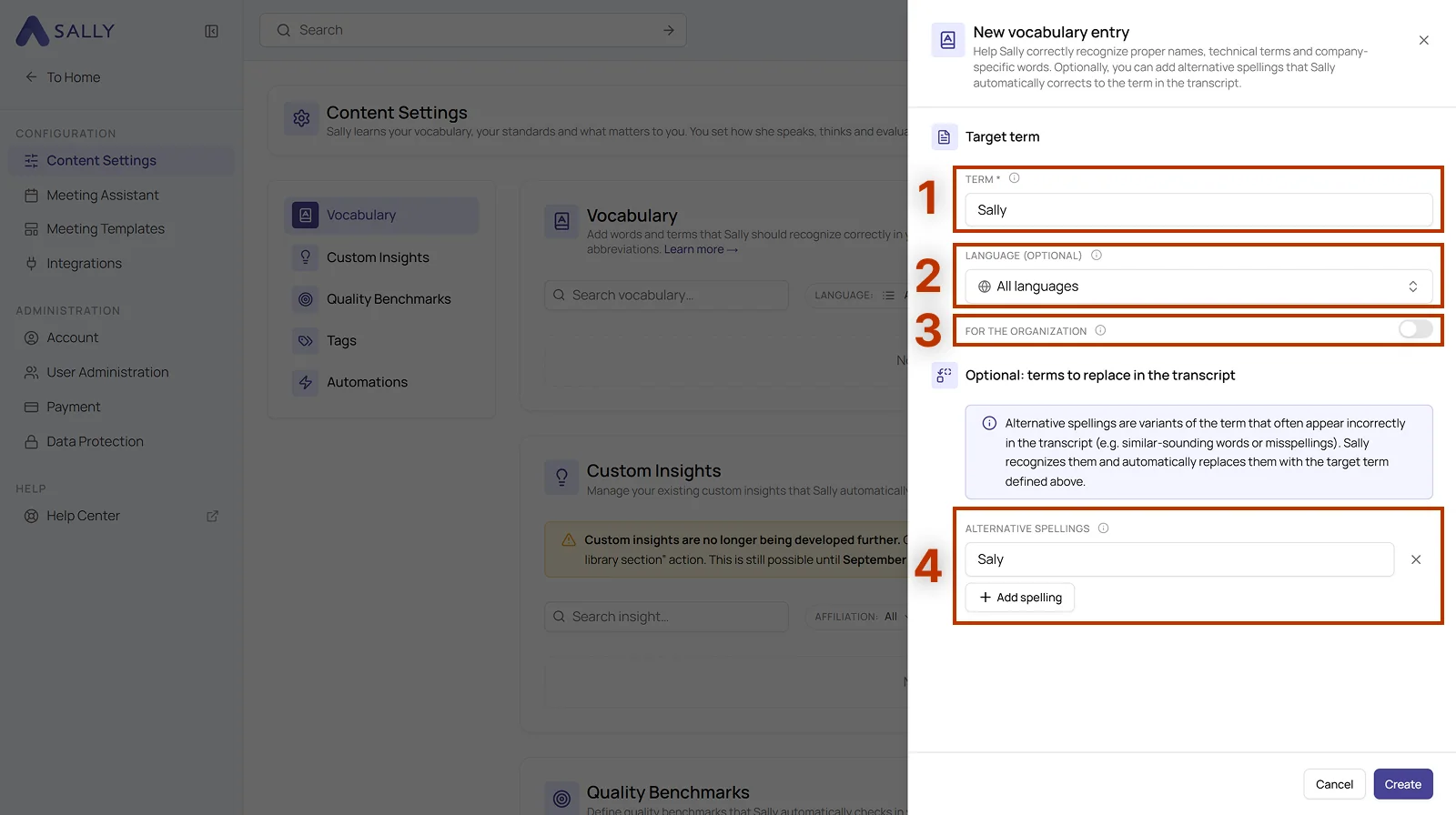
- Fill out the vocabulary form.
-
Target term
- This is the correct spelling that should appear in the transcript
- Example:
Sally
-
Language (optional)
- Define for which language the rule applies
- “All languages” means it applies across all languages
-
For the organization
- Enabled: applies to the entire organization
- Disabled: applies only to you
- ⚠️ Organization-wide entries can only be created by admins/owners
-
Alternative spellings (optional)
-
Add terms that are often recognized incorrectly
Example:Saly -
Use “+ Add spelling” to add as many variations as needed
Example: -
Selly
-
Salli
-
👉 Result:
All these variants will automatically be replaced with "Sally".
- Click Create.
From then on the entry applies to every new transcription.
This means:
As soon as one of your variants turns up in a conversation, Sally writes the correct spelling instead. You never have to fix it by hand.
2.2. Import multiple terms
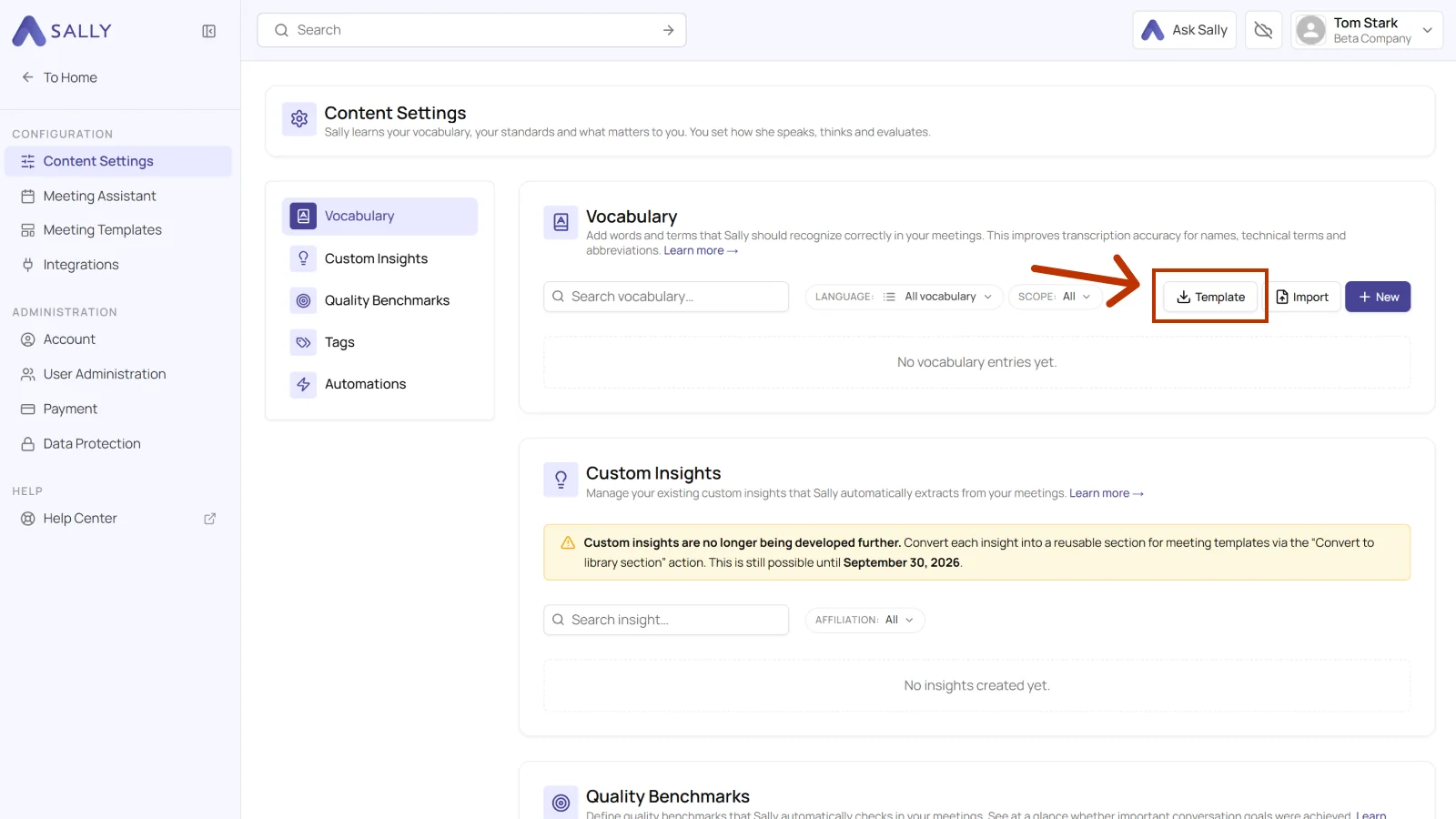
To add many terms in one go, use the Excel template:
- Go to Settings.
- Click on Content settings.
- Open the Vocabulary tab.
- Click Template and download the Excel template.
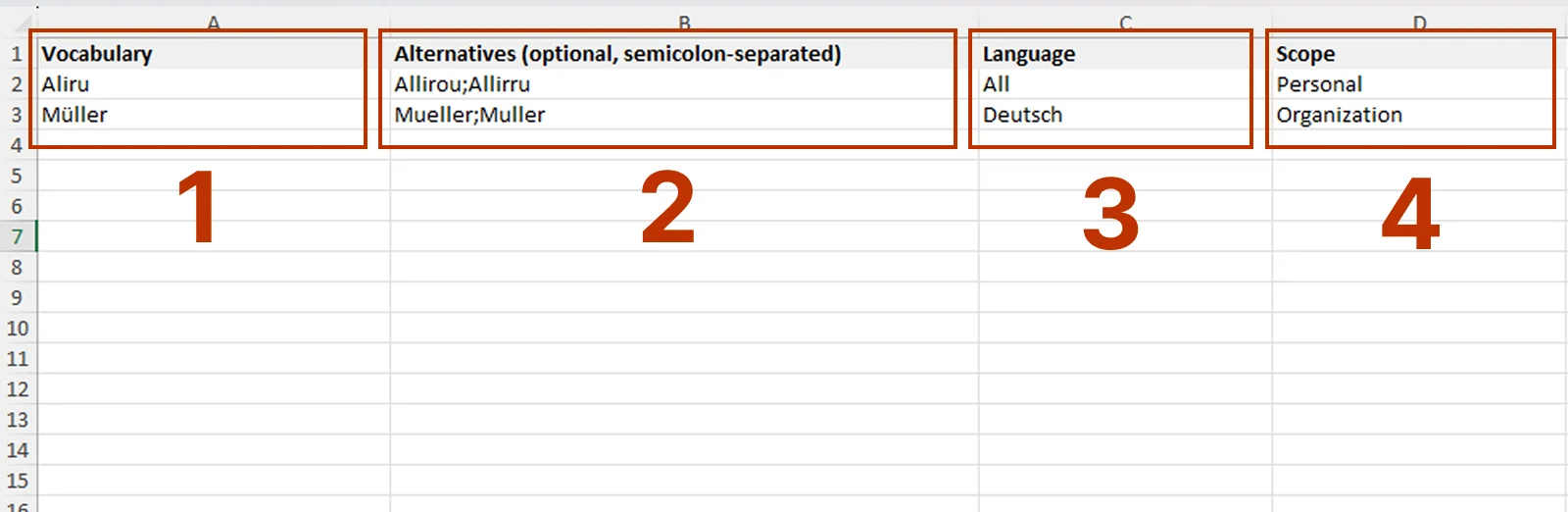
- Fill out the Excel file.
-
Vocabulary (target term)
- Enter the correct spelling that should appear in the transcript
- Example:
Sally - 💡 This corresponds to the target term field in the form
-
Alternatives (optional, semicolon-separated)
- Define terms that are often misrecognized
- Separate multiple entries using semicolon (;)
- Example:
Saly;Salli;Selly - 👉 All these variants will be replaced automatically
-
Language
- Define for which language the rule applies
- Possible values:
GermanEnglishAll
-
Scope
- Defines who the vocabulary applies to
- Possible values:
Personal→ only visible and active for youOrganization→ available for the entire workspace
- ⚠️ Organization entries require admin/owner permissions
👉 Example row:
Sally | Saly;Selli;Salli | German | Organization
- Click Import and upload the completed file.
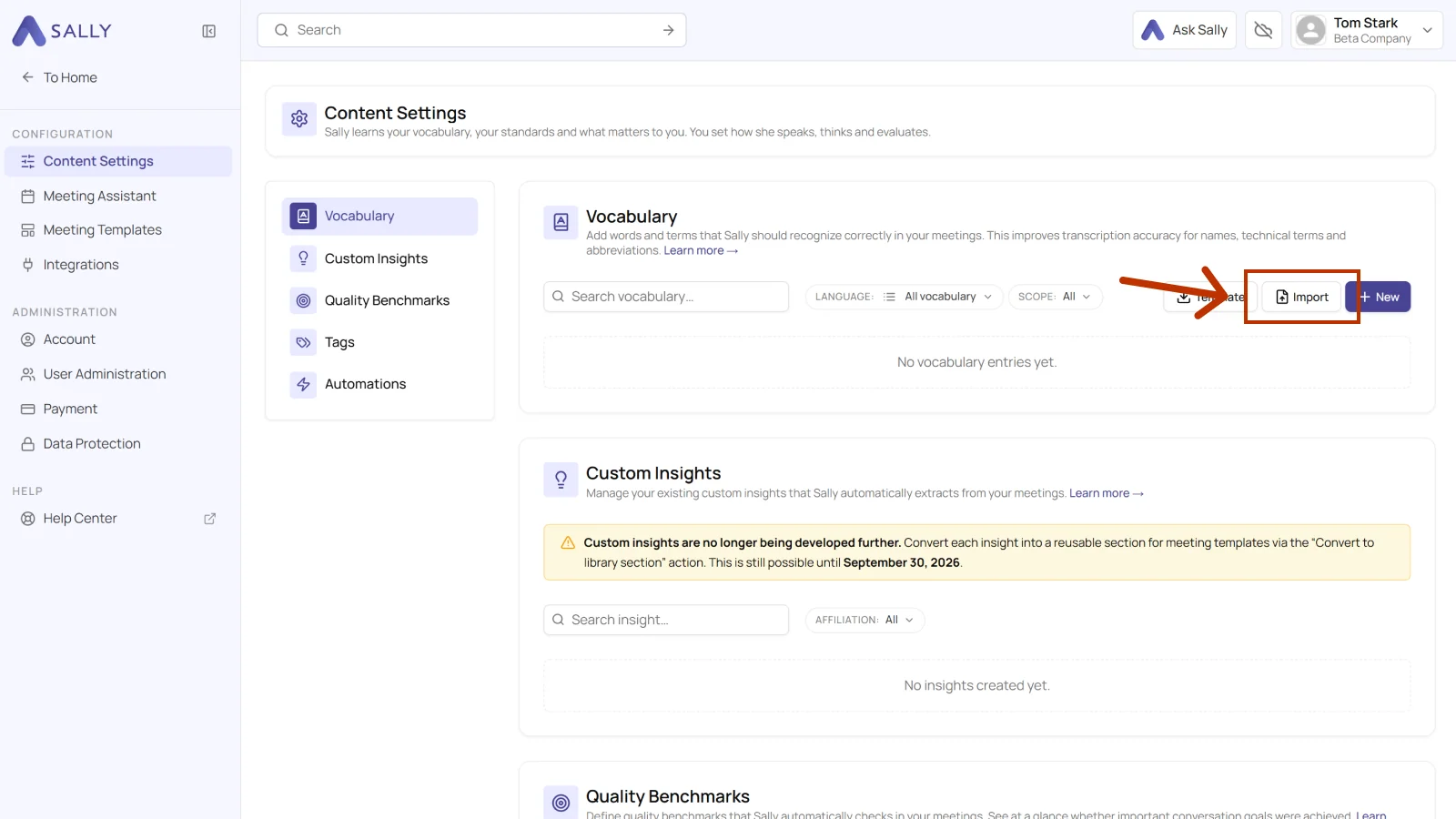
- After the import, all terms appear directly in your vocabulary list.
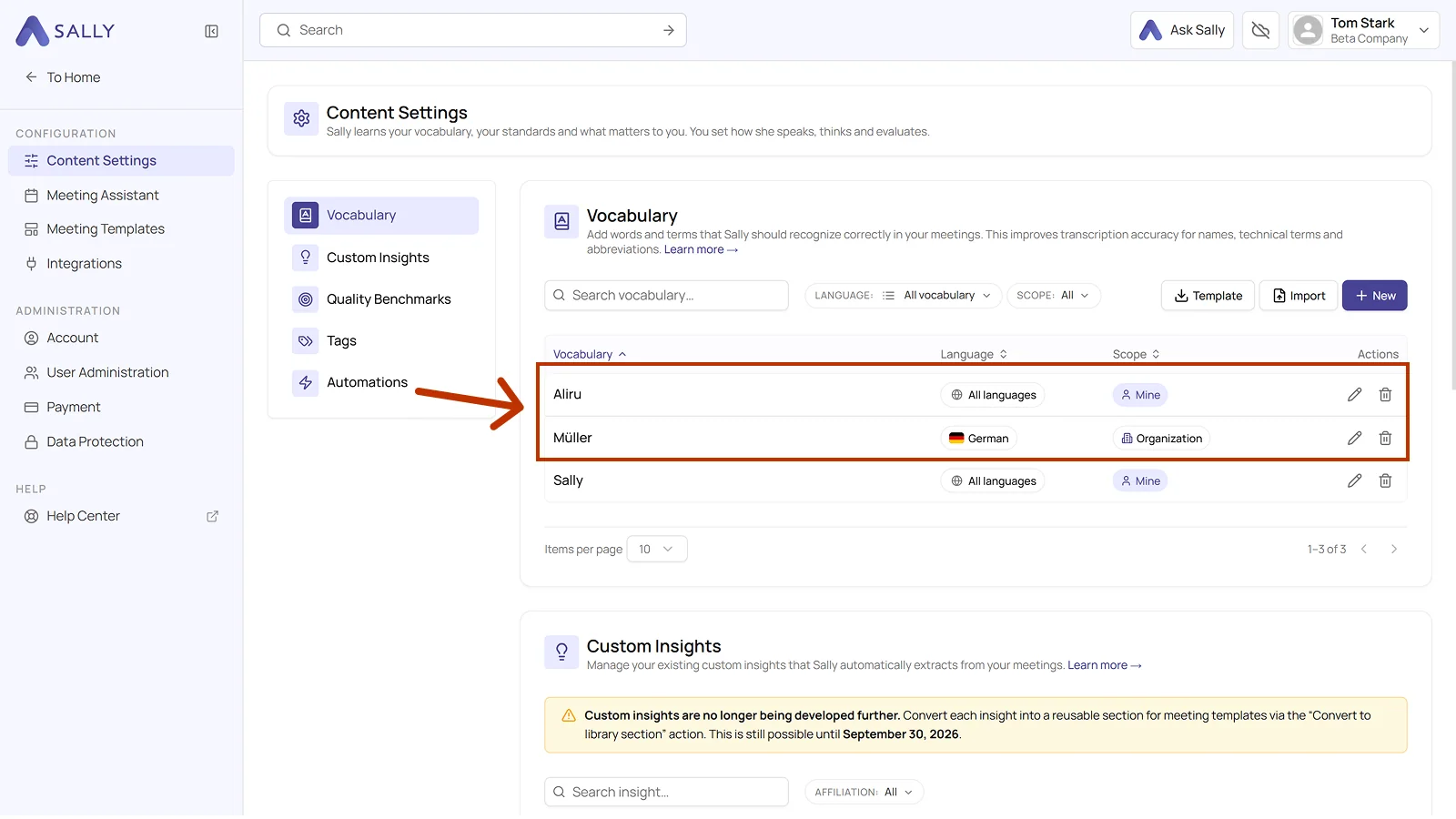
👉 From this point on, all defined vocabulary entries are automatically applied to future transcriptions and replaced according to your configuration.
3. Examples of useful vocabulary
Not every term needs to be defined immediately. This feature is especially useful for words that are frequently misrecognized or critical for your business.
Typical examples:
Names & companies
- Müller → Mueller / Muller / Miller
- Schmidt → Schmid / Schmitt
- Example GmbH → Example AG
Abbreviations & business terms
- CRM → C R M / ZRM
- AI → A I / Ey Eye
- OKR → O K R / OKRs
Technical terms & anglicisms
- Lead → Lied
- Cloud → Klaut
- Pipeline → Peipline / Peipeline
- Framework → Frame Work / Fremwork
👉 Especially important:
Anything that appears frequently in meetings and is business-critical should be maintained here.
4. Tips for best results
💡 1. Think phonetically
Ask yourself: How could this word be misunderstood?
💡 2. Add multiple variations
The more common errors you cover, the better your results.
💡 3. Use it for names & technical terms
Especially valuable for:
- Customer names
- Product names
- Abbreviations
- English terms in non-English contexts
💡 4. Stay consistent
Always use the same spelling as your target term.
💡 5. Start small and expand over time
You don't need to define everything at once, just add terms as you notice errors.