How to customize Sally AI's appearance in meetings
You can change how Sally shows up in your meetings, both her display name and her background image.
Quick navigation
- Change Sally's name in a meeting
- Change Sally's background image in a meeting
- Use a personal appearance

1. How to change Sally's display name in a meeting
You decide which name Sally uses when she joins.
- Go to Settings.
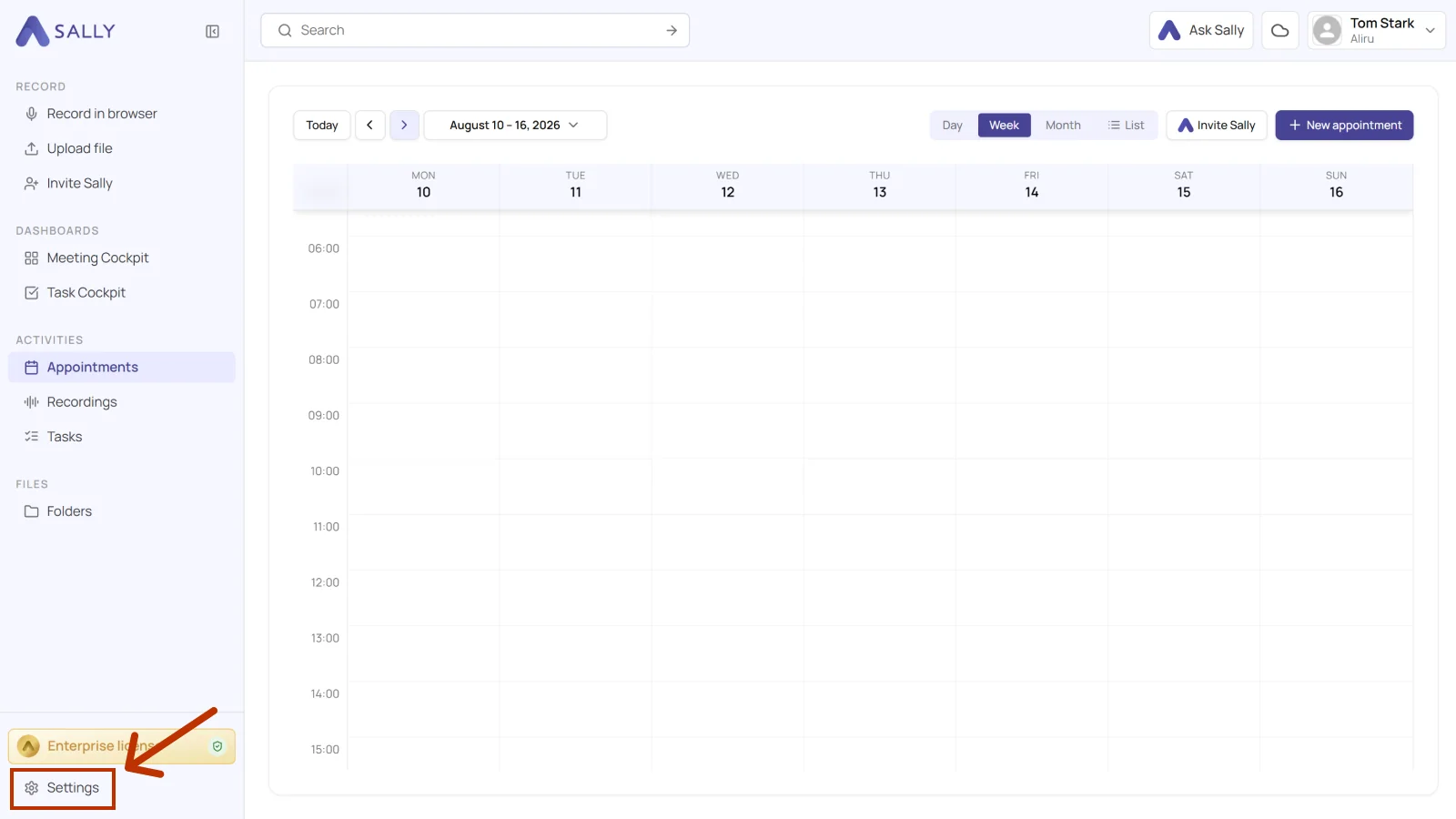
- Select Meeting Assistant.
- Under Appearance, edit the field Bot name.
- Click Save.
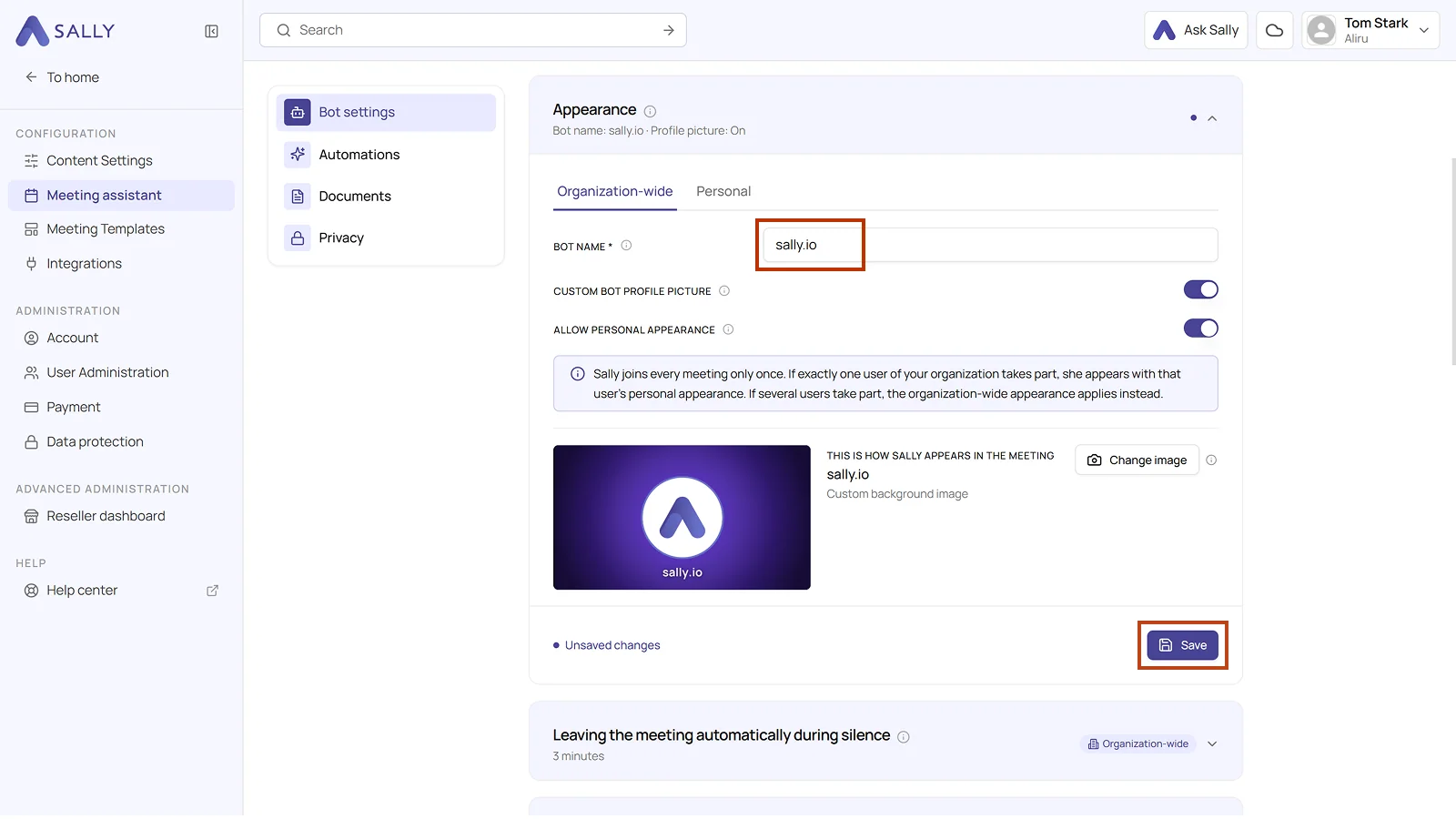
The bot name cannot contain any of these special characters: < > [ ] ( ) " ' & / \ @ # % + = | ^ ~
It can take up to 15 minutes before the new name shows up in meetings. Running meetings keep the old one, so the new name only applies to meetings that start later.
2. How to change Sally's background image in a meeting
You can also upload your own background image that shows behind Sally when she joins a meeting.
- Go to Settings.
- Select Meeting Assistant.
- Under Appearance, turn on Custom bot profile picture.
- Click Change image and pick your background image.
- Click Save.
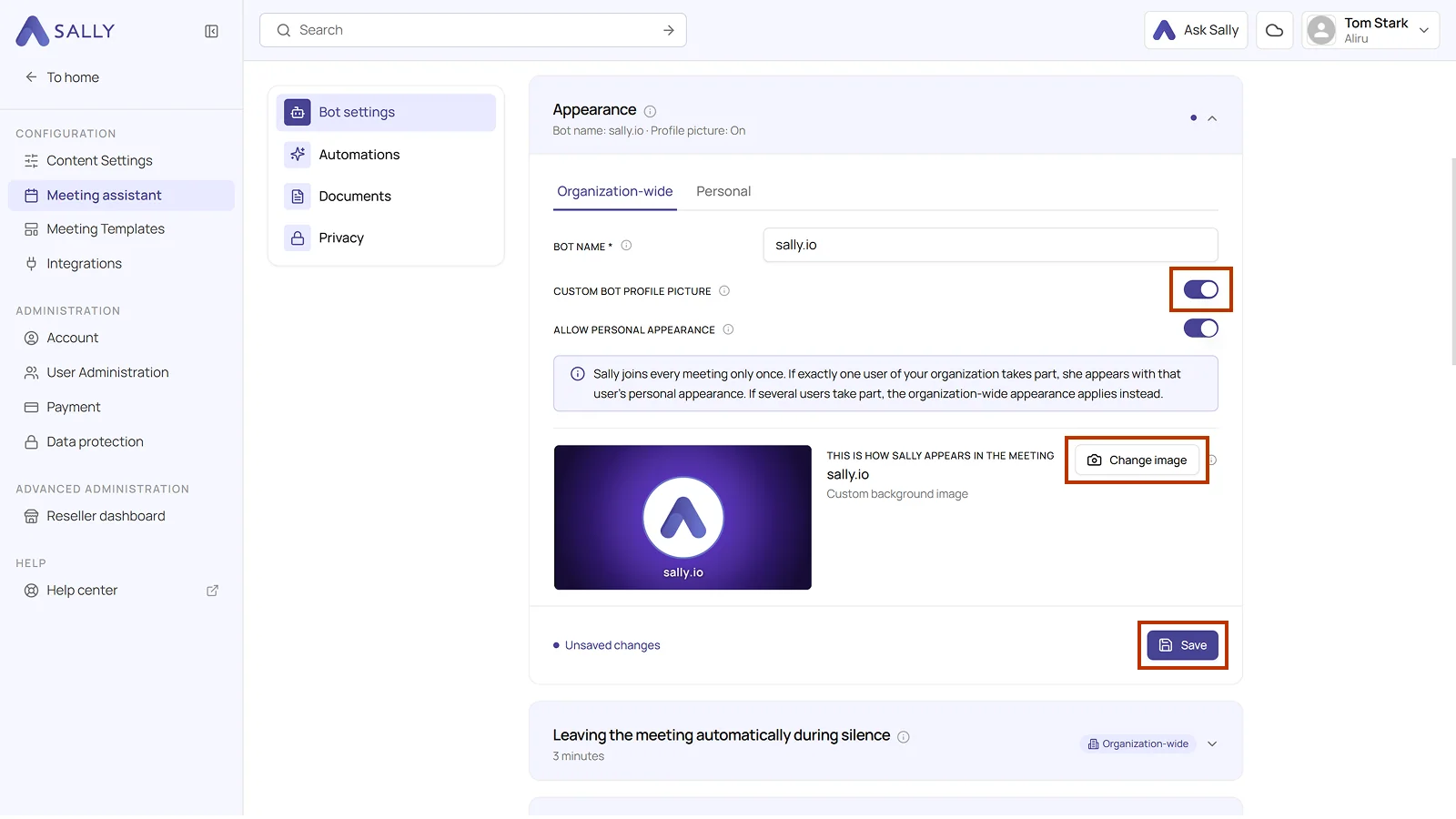
- Recommended resolution: 1920x1080 px
- Supported formats: PNG, JPG, JPEG, GIF
- Aspect ratio: 16:9
It can take up to 15 minutes for the change to appear. Running meetings are not affected.
3. How to use a personal appearance
Besides the organization-wide appearance, every user can set their own. In the Appearance section, two tabs separate the settings: Organization-wide applies to your whole company, while Personal applies to you alone.
How to allow personal appearances:
- Go to Settings and select Meeting Assistant.
- On the Organization-wide tab, turn on Allow personal appearance.
- Click Save.
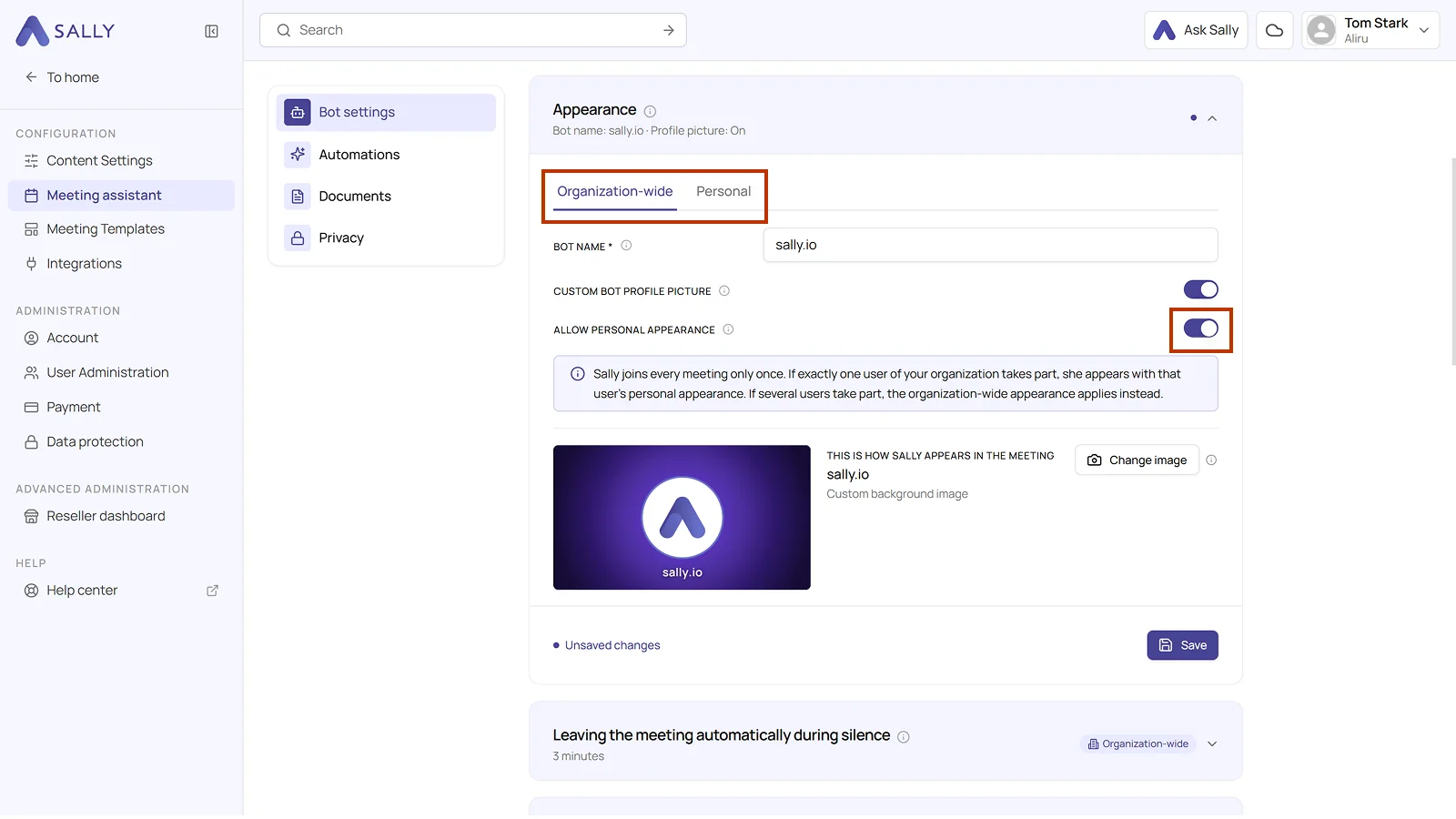
Sally joins each meeting only once. If you are the only person from your organization in there, she uses your personal appearance. As soon as colleagues join too, the organization-wide appearance applies.
How to set your own appearance:
- In the Appearance section, switch to the Personal tab.
- Turn on Use my own bot name and enter your name in the Bot name field.
- Turn on Use my own bot profile picture and upload your background image via Change image.
- Click Save.
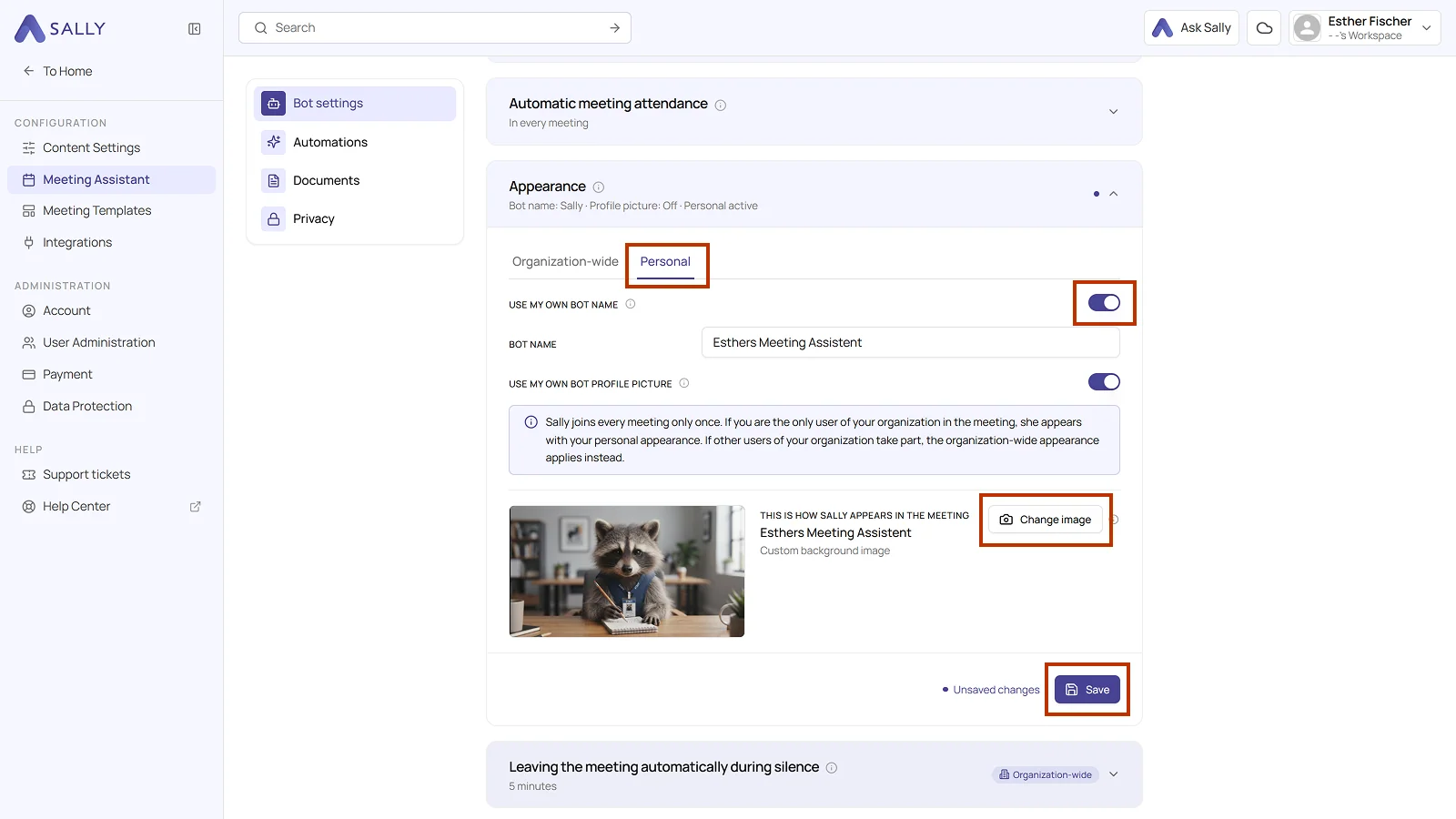
The Personal tab is only available to you if Allow personal appearance is turned on for the organization on the Organization-wide tab.