How to upgrade or change a Sally AI user license
To upgrade a user's license, from Starter to Pro for example, you remove their current license, adjust the number of licenses and then assign the new one.
This route keeps the license slots in your account counted correctly. If a license of the new plan is already free, you can skip step 2.
Step 1: How do I revoke the current license?
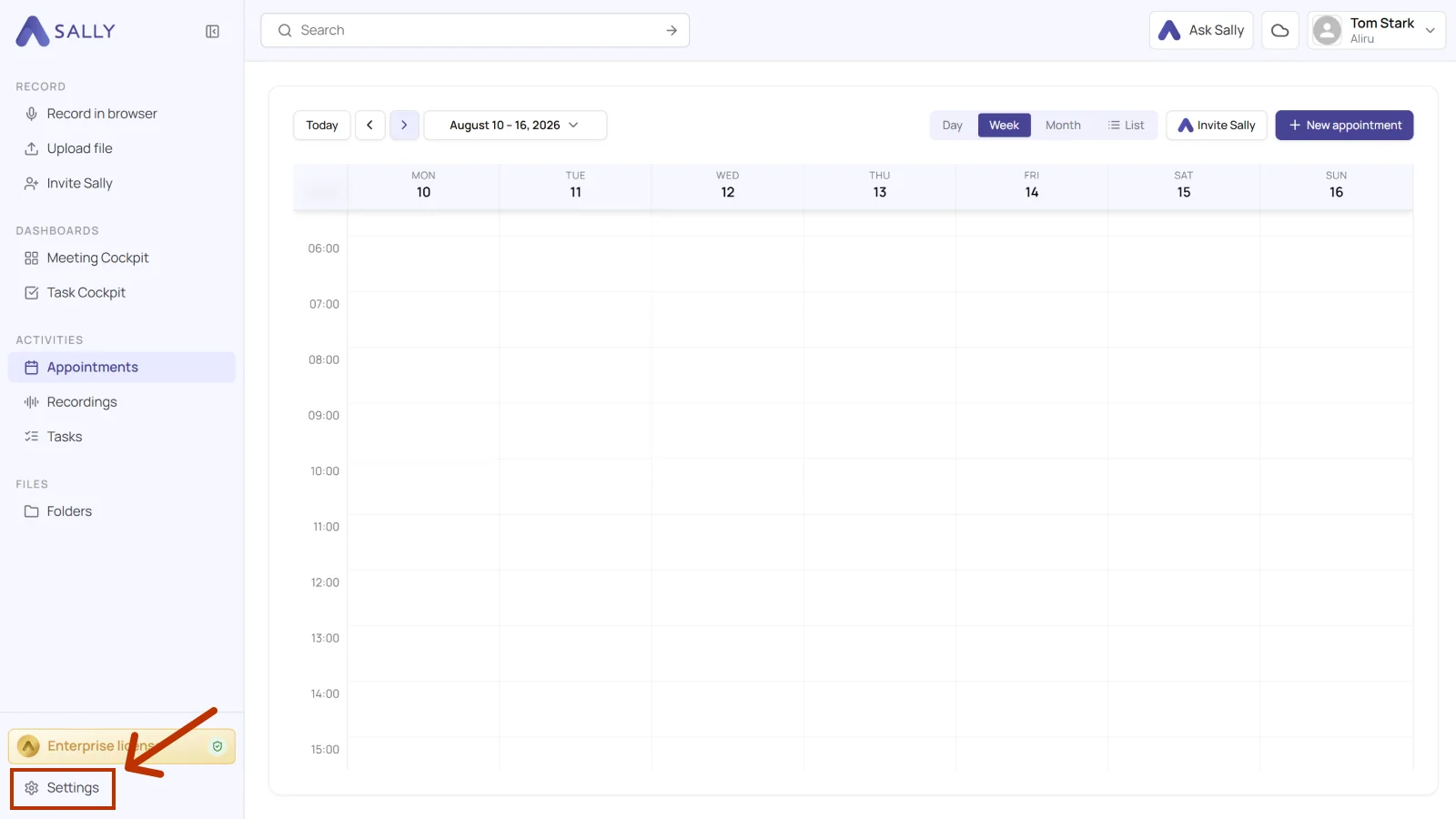
- Open Settings at the bottom of the left sidebar.
- Under Administration, open User Administration.
- Find the user whose license you want to change, open the License dropdown, and click Remove license.
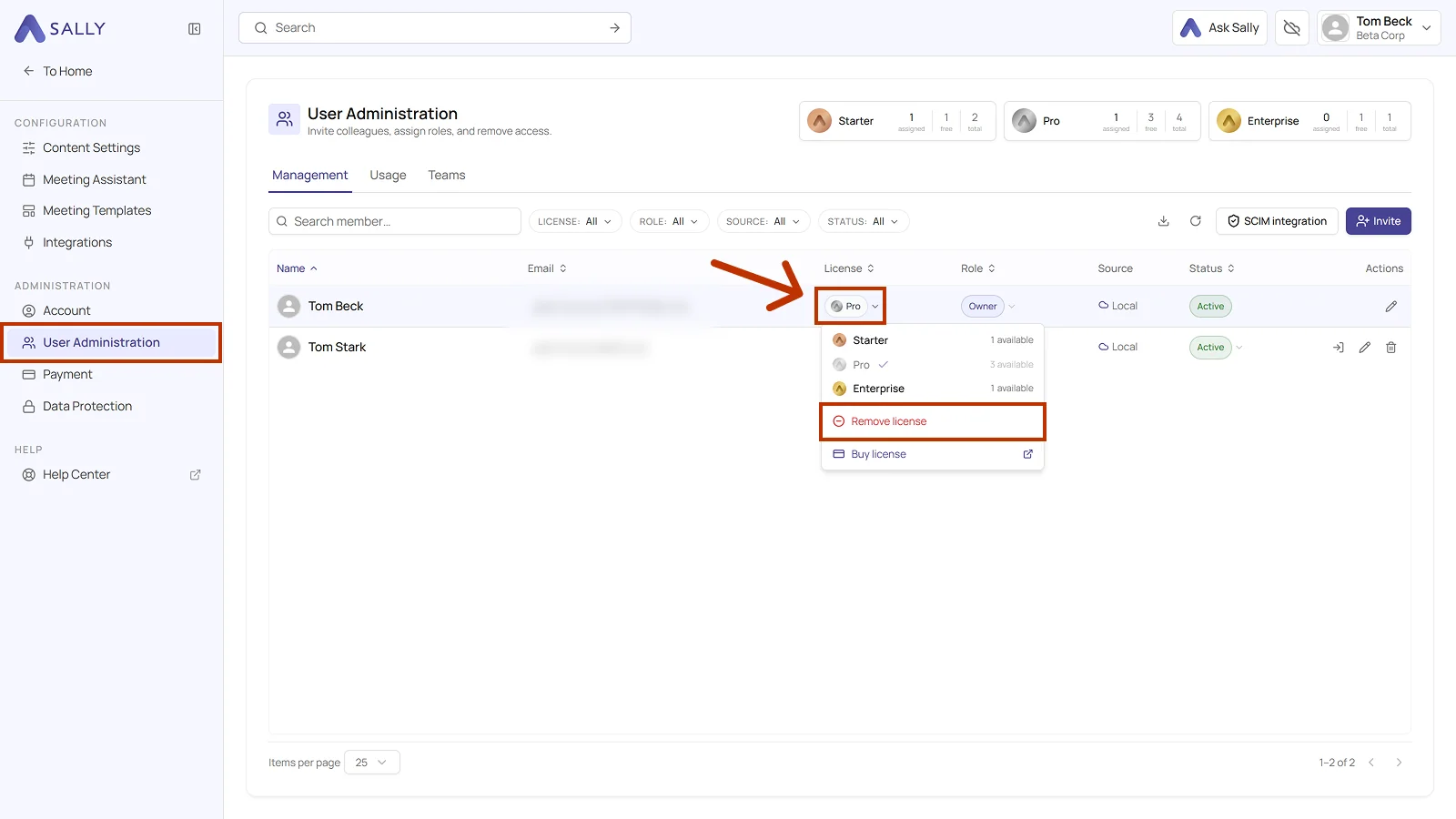
The license is now unassigned and available again.
Step 2: How do I add the new license type?
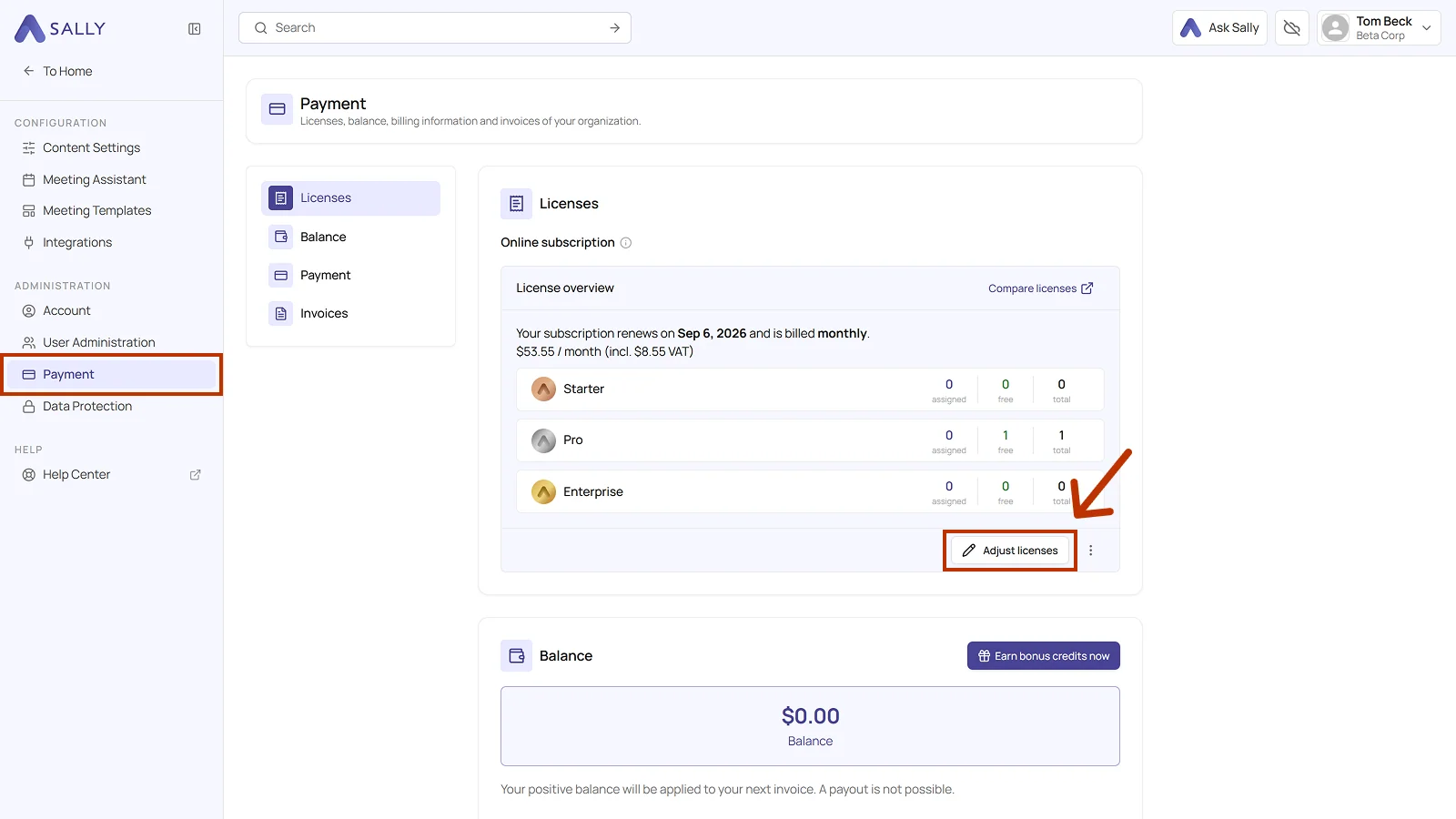
- Under Administration, open Payment.
- In the license overview, click Adjust licenses.
- Use − to reduce the number of licenses in the old plan if you no longer need them.
- Use + to raise the number of licenses in the new plan.
- Tick the box for the Terms of Service and Privacy Policy, then click Confirm payment.
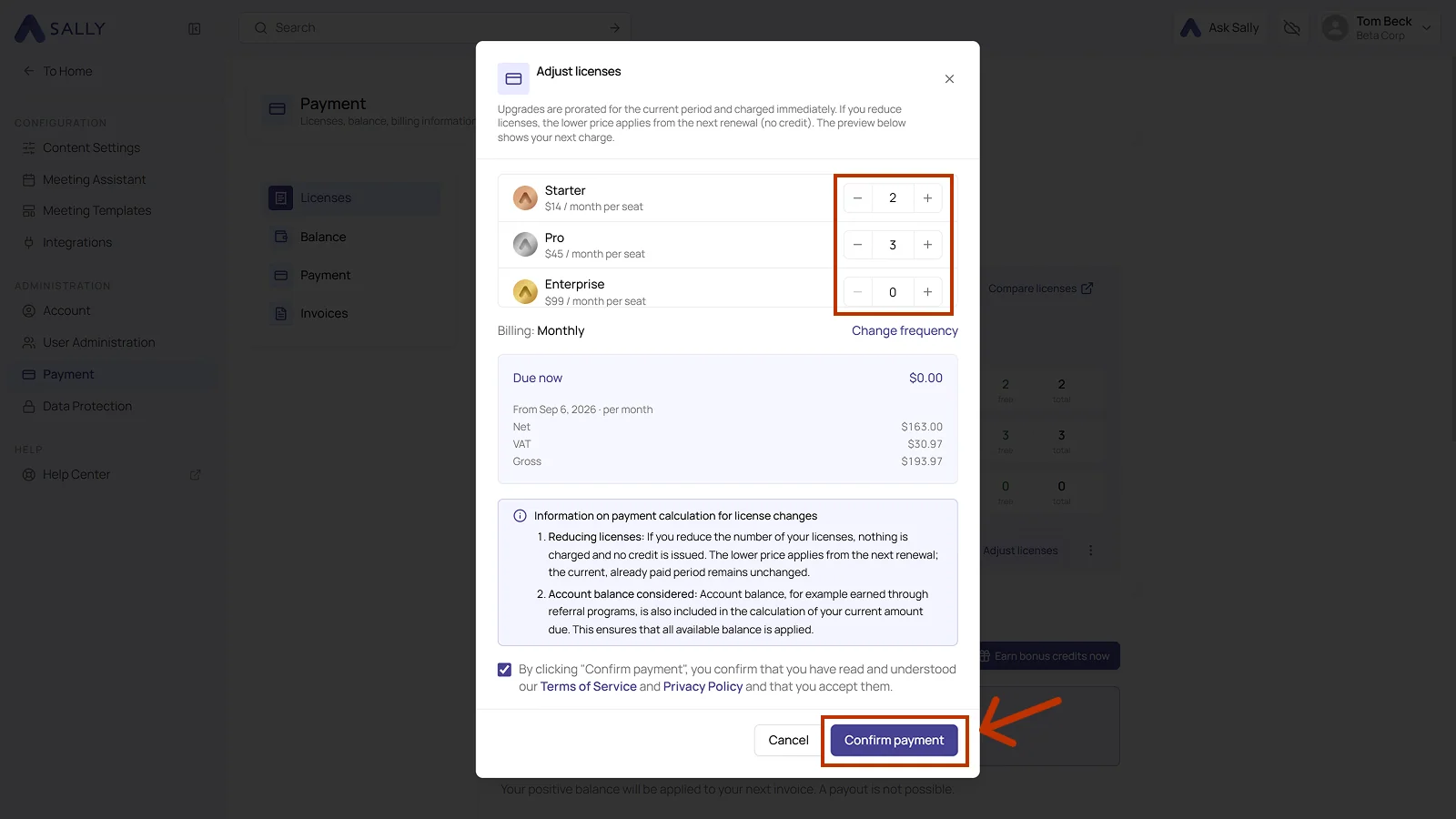
If you removed a Starter license from the user and want to give them Pro instead, reduce Starter by one here and increase Pro by one. Otherwise you keep paying for the old plan. What that does to your invoice is covered in add or reduce licenses.
Step 3: How do I assign the new license?
- Go back to User Administration.
- Open the user's License dropdown again.
- Pick the new license, Pro for instance.
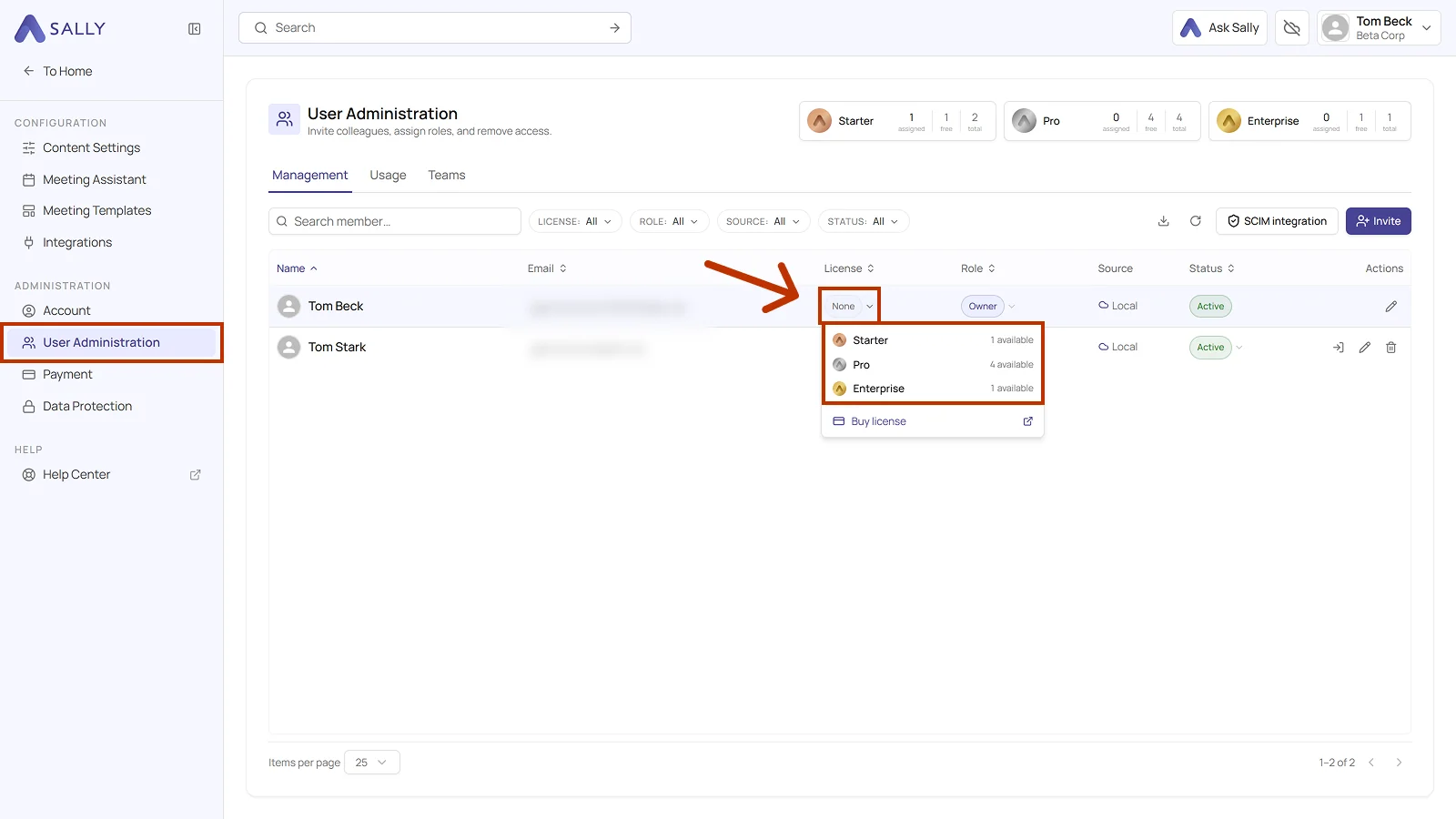
The user now holds the new license and can use every feature of that plan.
If you switch between plans often, when testing for instance, keep at least one free license of each plan around. Then step 2 and the payment fall away.