How to add or update your tax ID in Sally AI
You can add or update your tax ID at any time, so your tax information appears correctly on every invoice from then on.
You enter the ID directly in Sally, in the same form as your billing address. Only owners and admins of your organization can add or change it.
To add or update your tax ID:
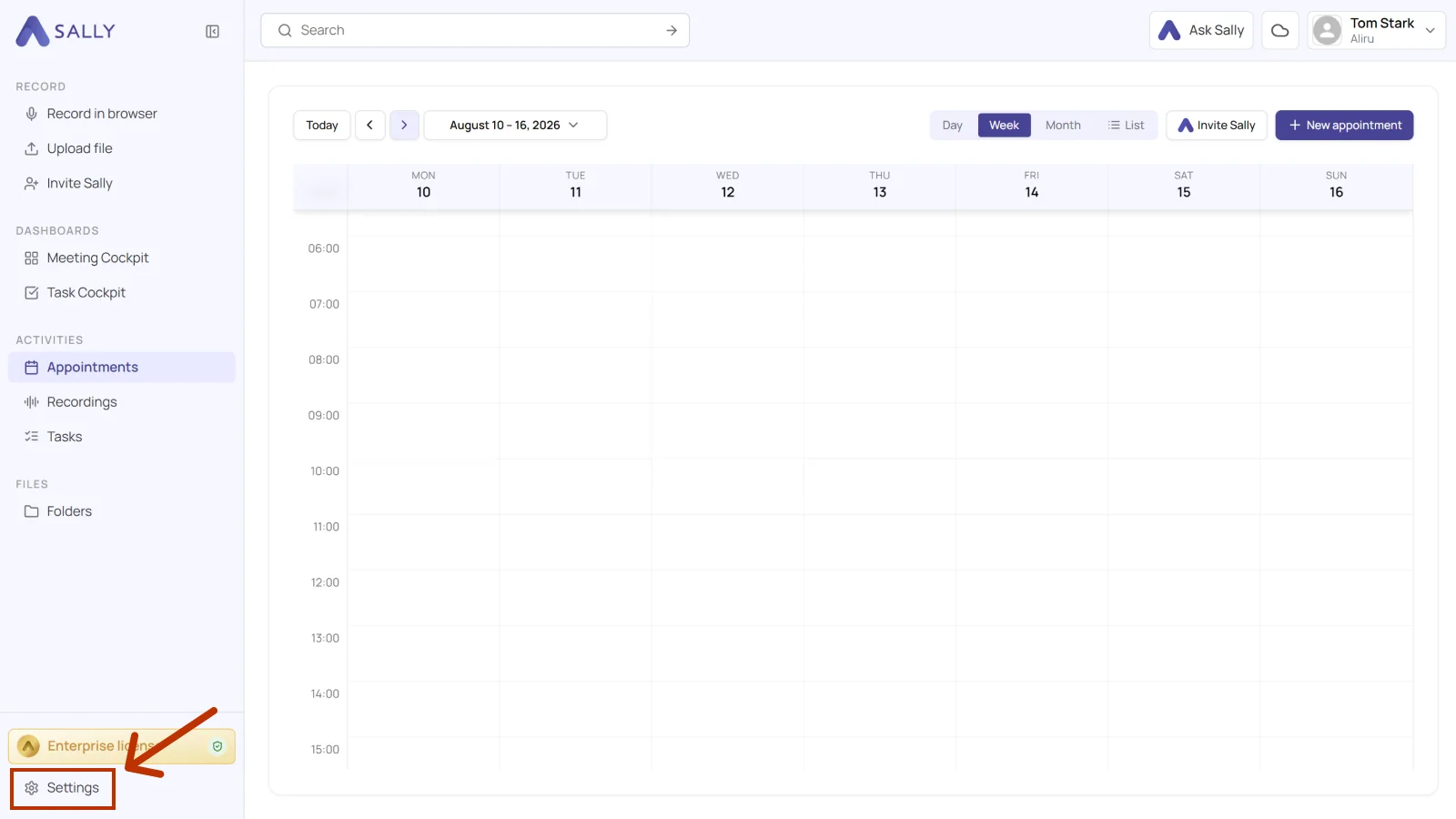
- Open Settings at the bottom of the left sidebar.
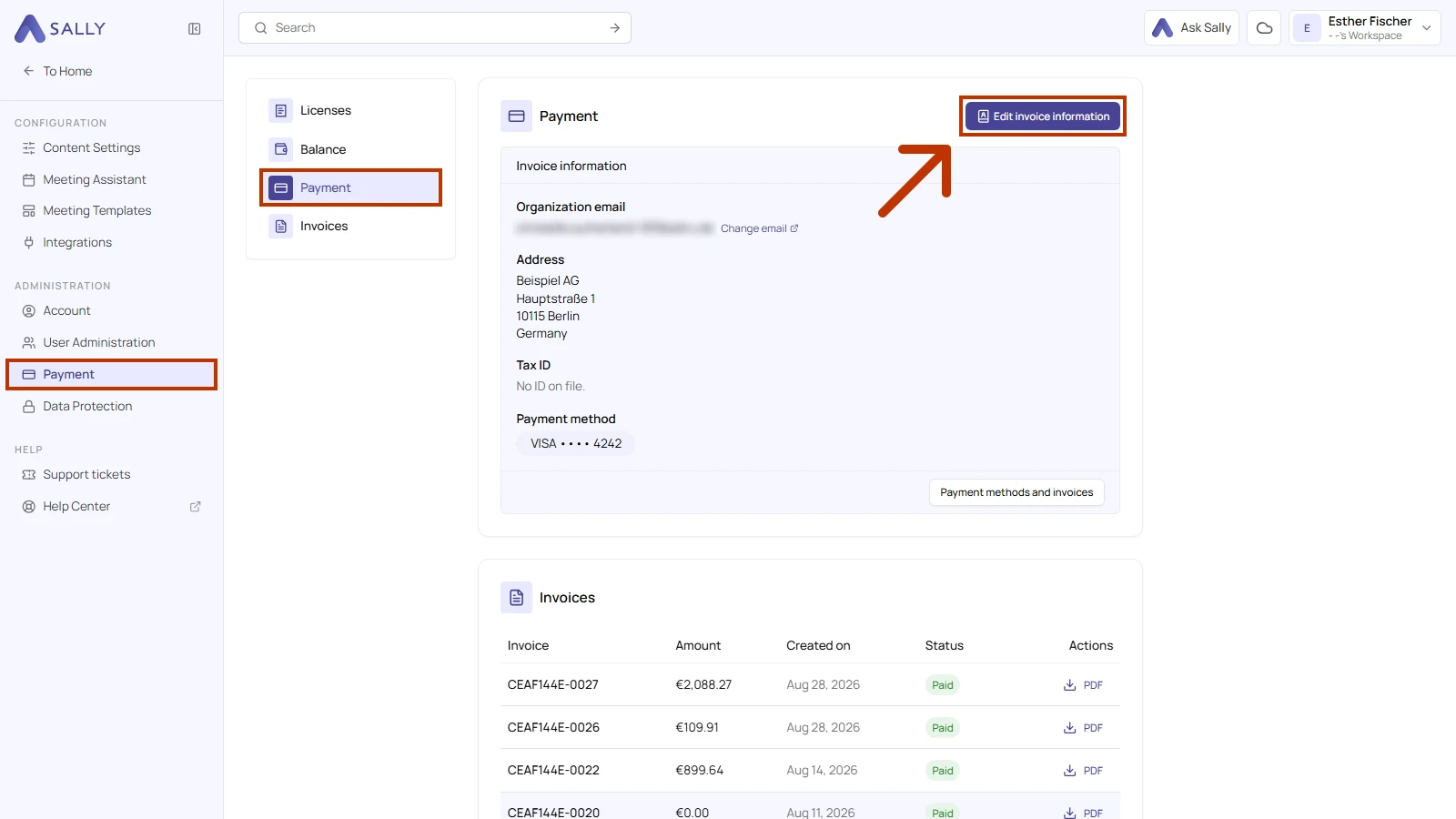
- Under Administration, open Payment and go to the Payment section on the left. Click Edit invoice information at the top right. A form with your billing details opens on the right.
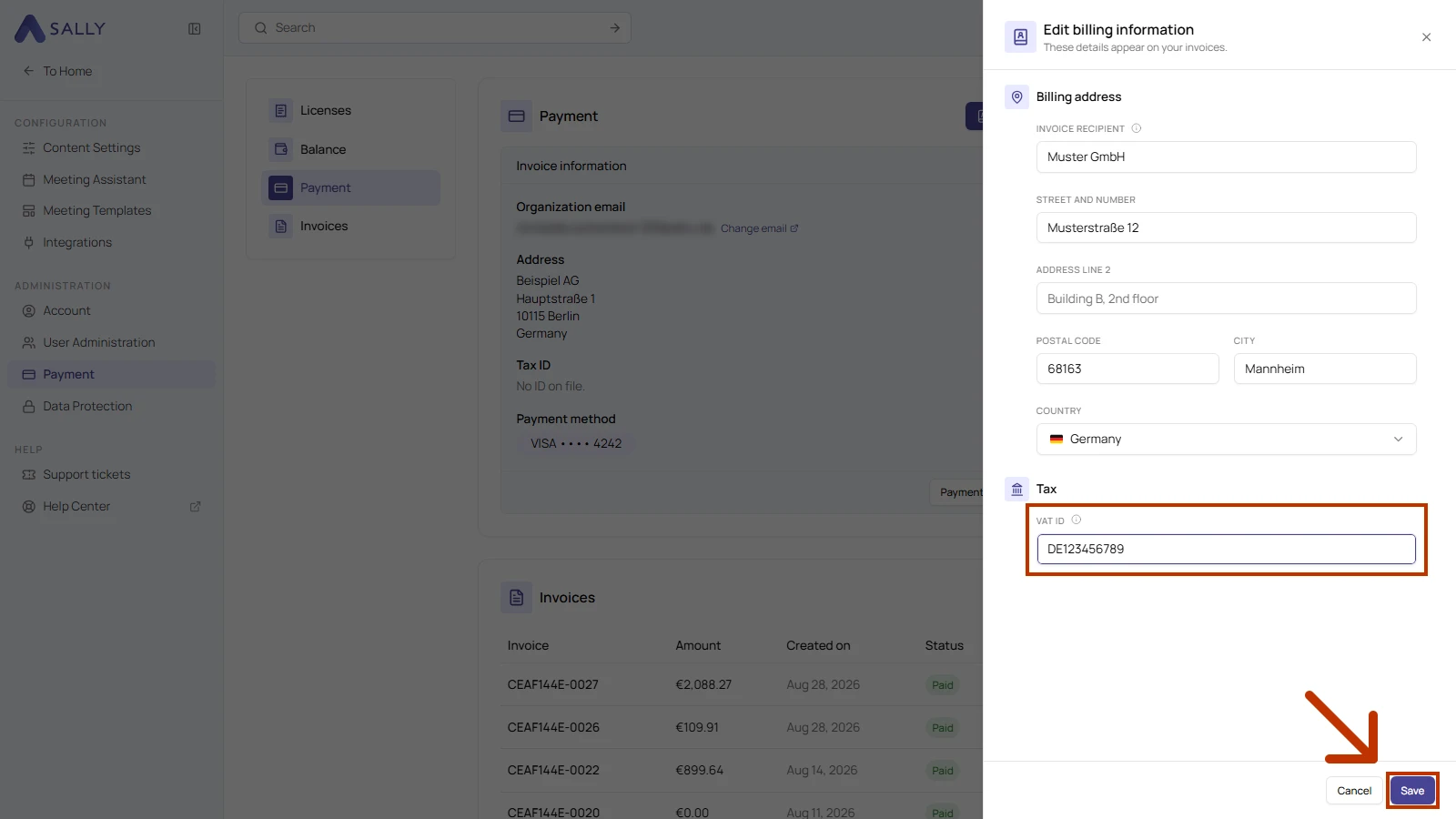
- Under Tax, enter your number in the VAT ID field, starting with the country code, for example DE123456789. Sally recognizes the formats used in EU countries, Switzerland, the United Kingdom, and Norway. Then click Save.
If a number has no country code or comes from a country outside this list, Sally still saves it and shows it under Tax ID, but it does not appear on your invoices.
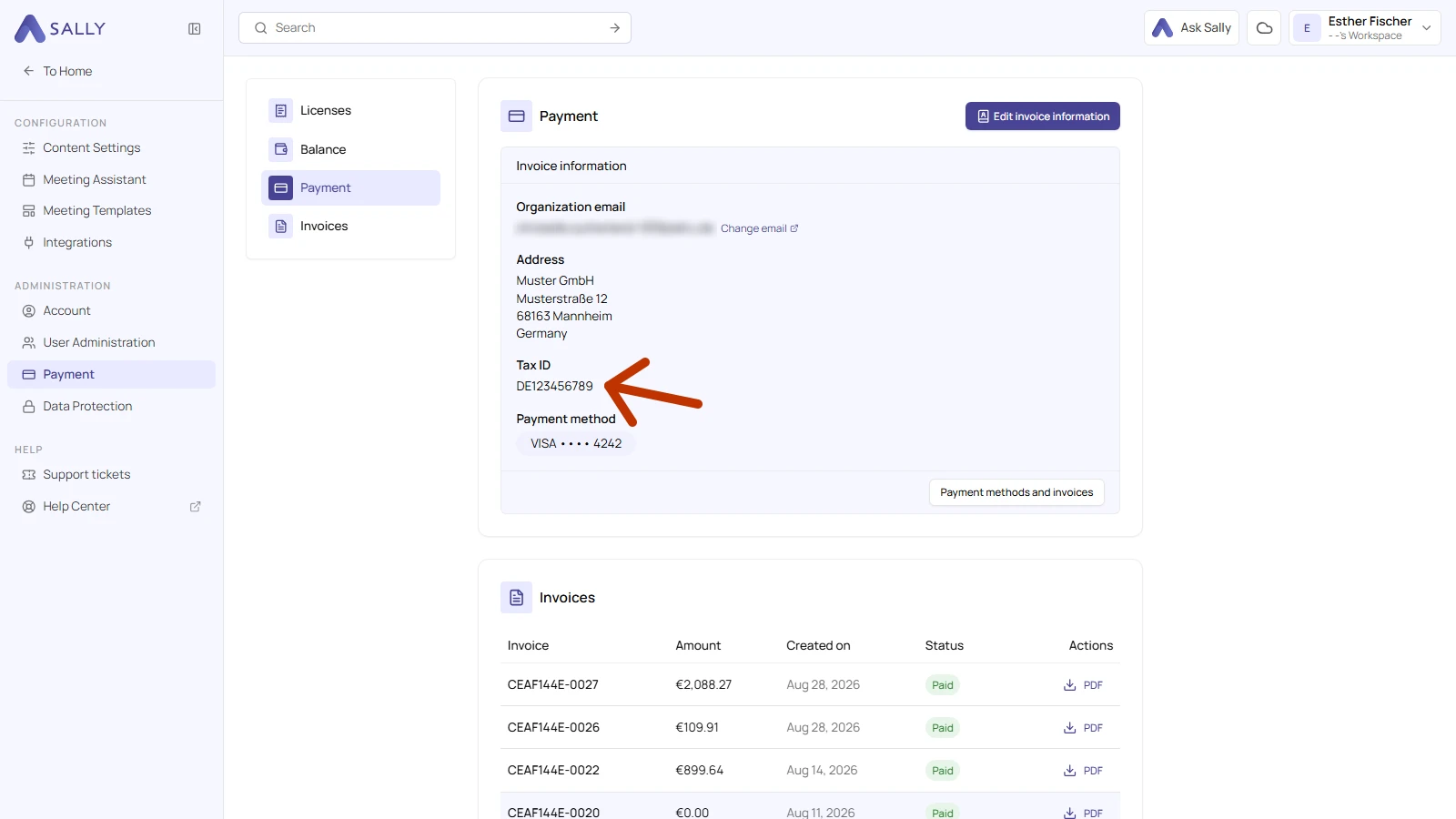
Sally confirms the change with the message "Billing information saved." Your number then appears under Tax ID.
If you no longer need a tax ID, clear the VAT ID field and click Save. Under Tax ID, Sally then shows "No ID on file."
Your tax ID appears on every invoice created after you save. Earlier invoices keep the details they were issued with.