How to Connect Slack with Sally AI
Connect Sally AI with Slack to share meeting insights directly in your team's channels or direct messages. With the Sally–Slack integration you can send action items and notes to Slack with one click, avoid double entry, and keep your communication hub up to date.
Quick Navigation
1. How to connect Slack with Sally AI
Follow these steps to enable the Sally–Slack integration.
-
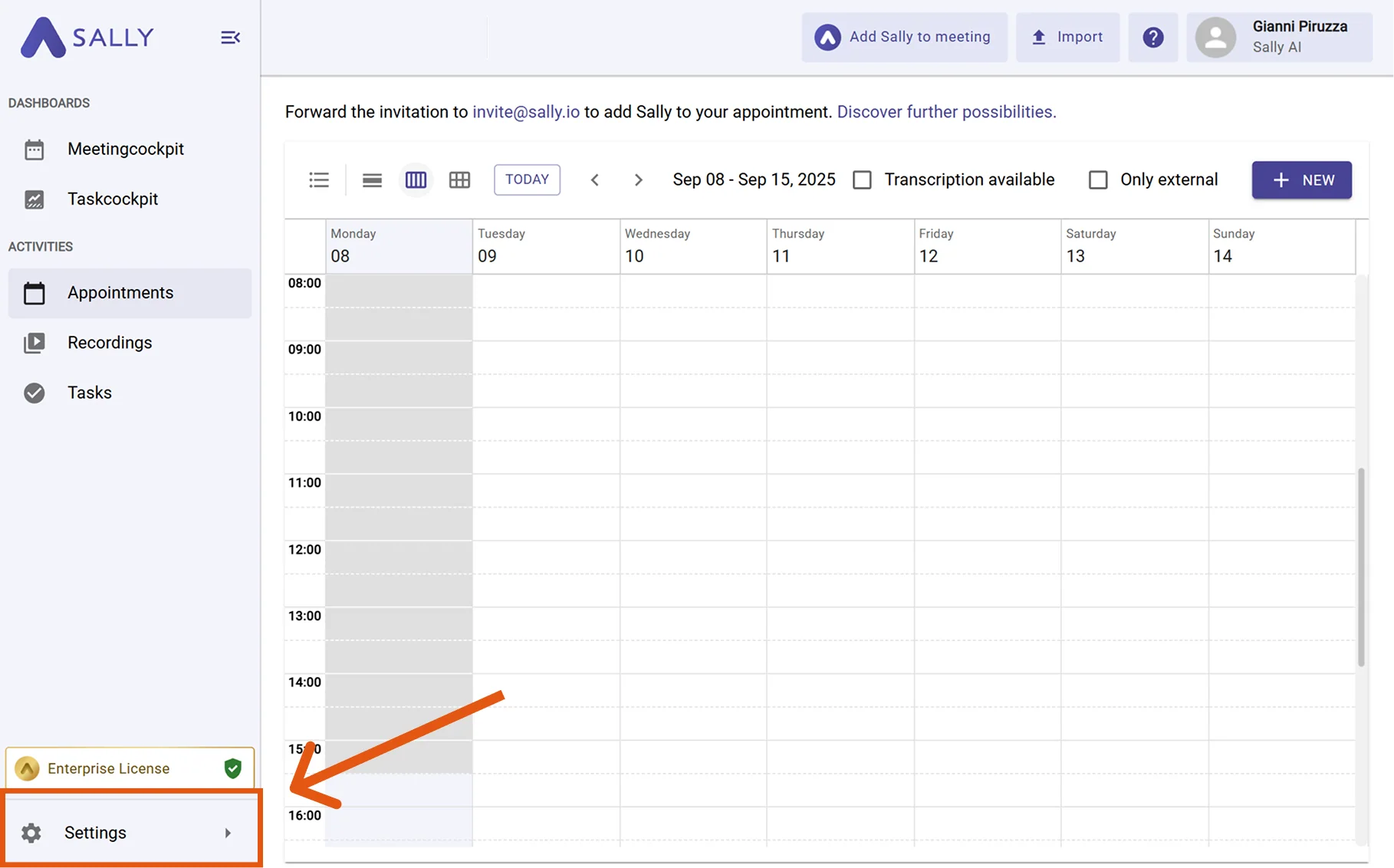
Open Settings in the left sidebar.
Figure 1: Go to Settings -
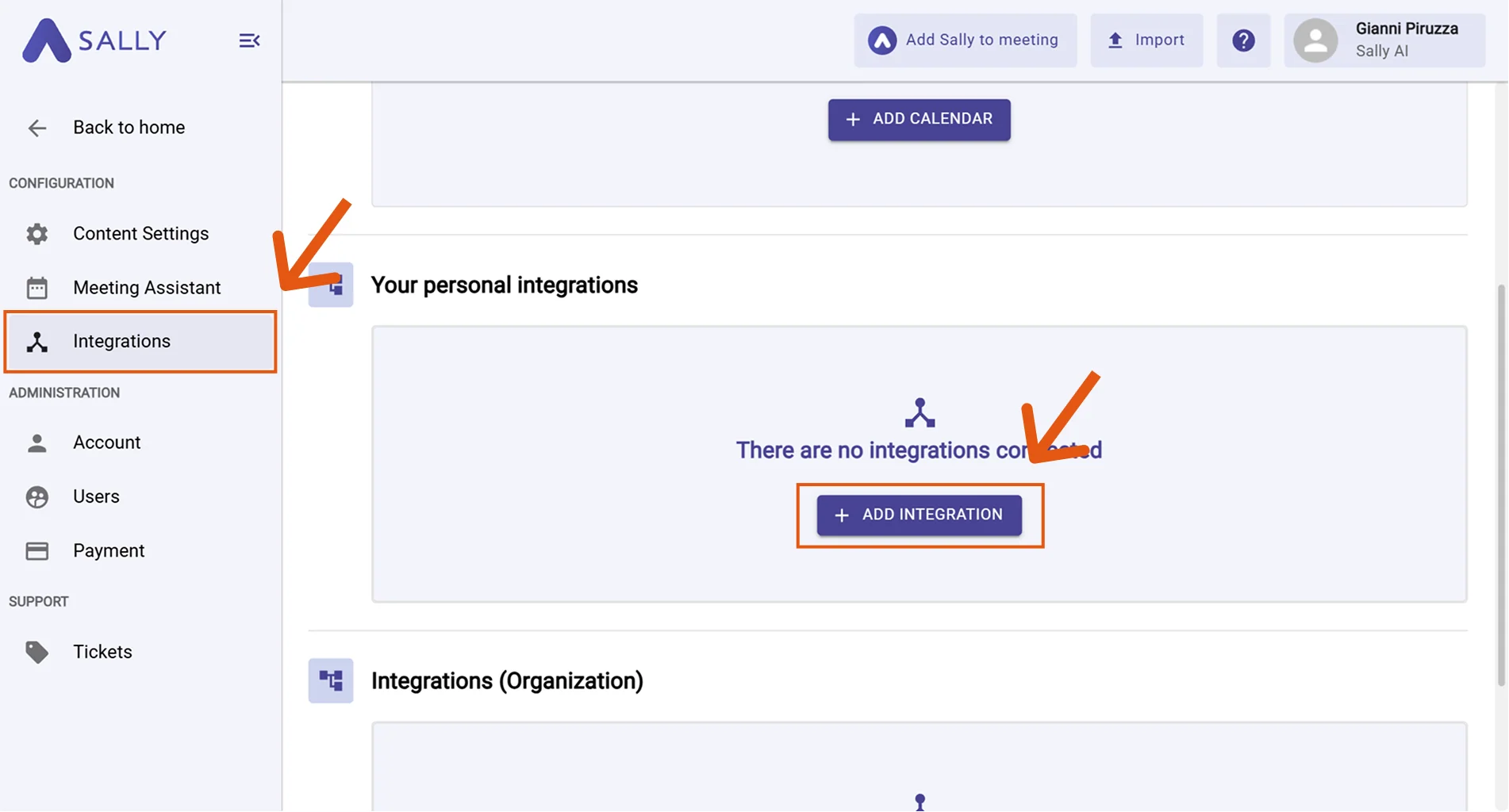
Go to Integrations and click "+ Add integration" under "Your personal integrations."
Figure 2: Add integration -
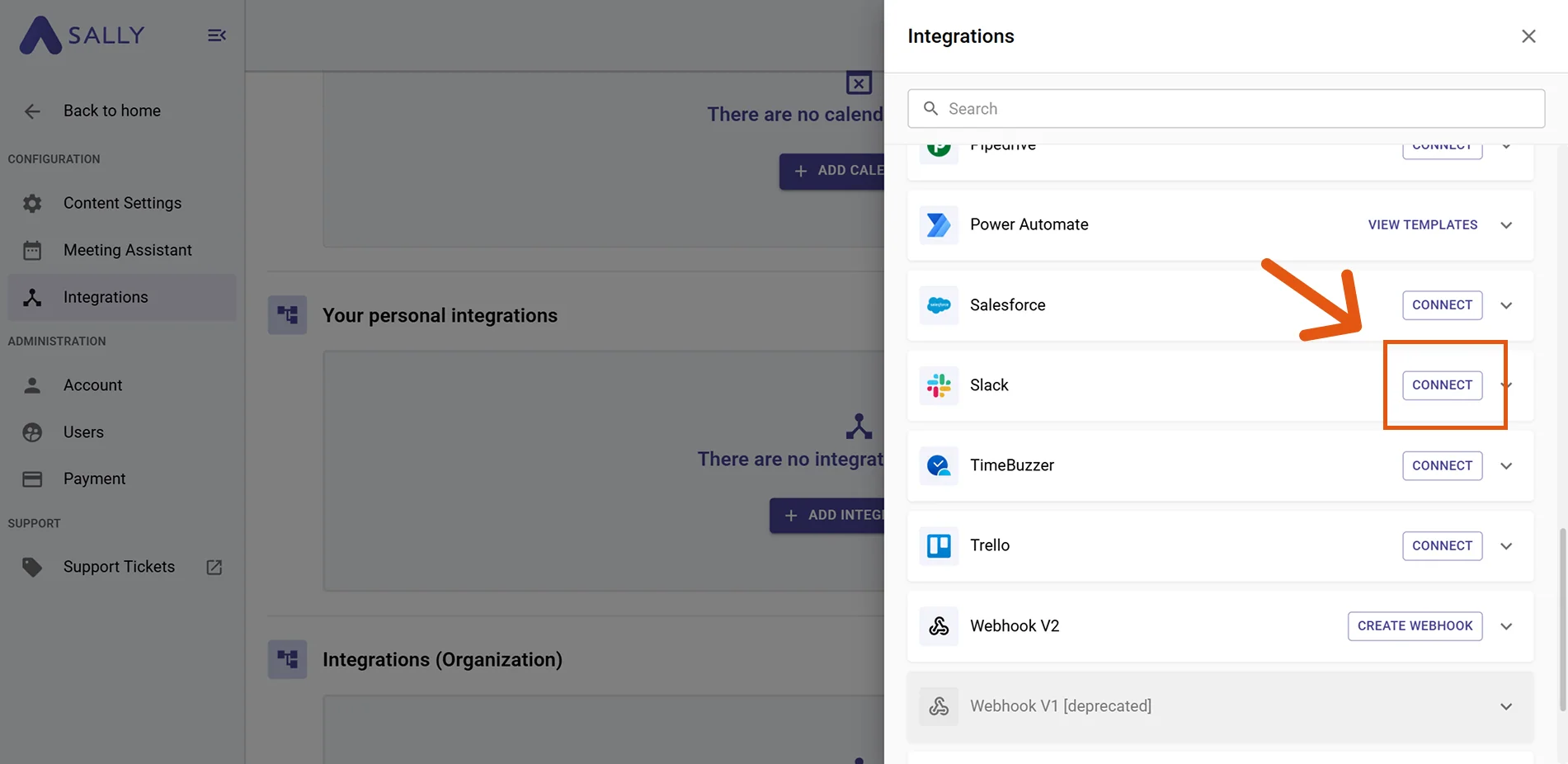
Select Slack and hit Connect. Complete the OAuth flow in Slack.
Figure 3: Select Slack → Connect -
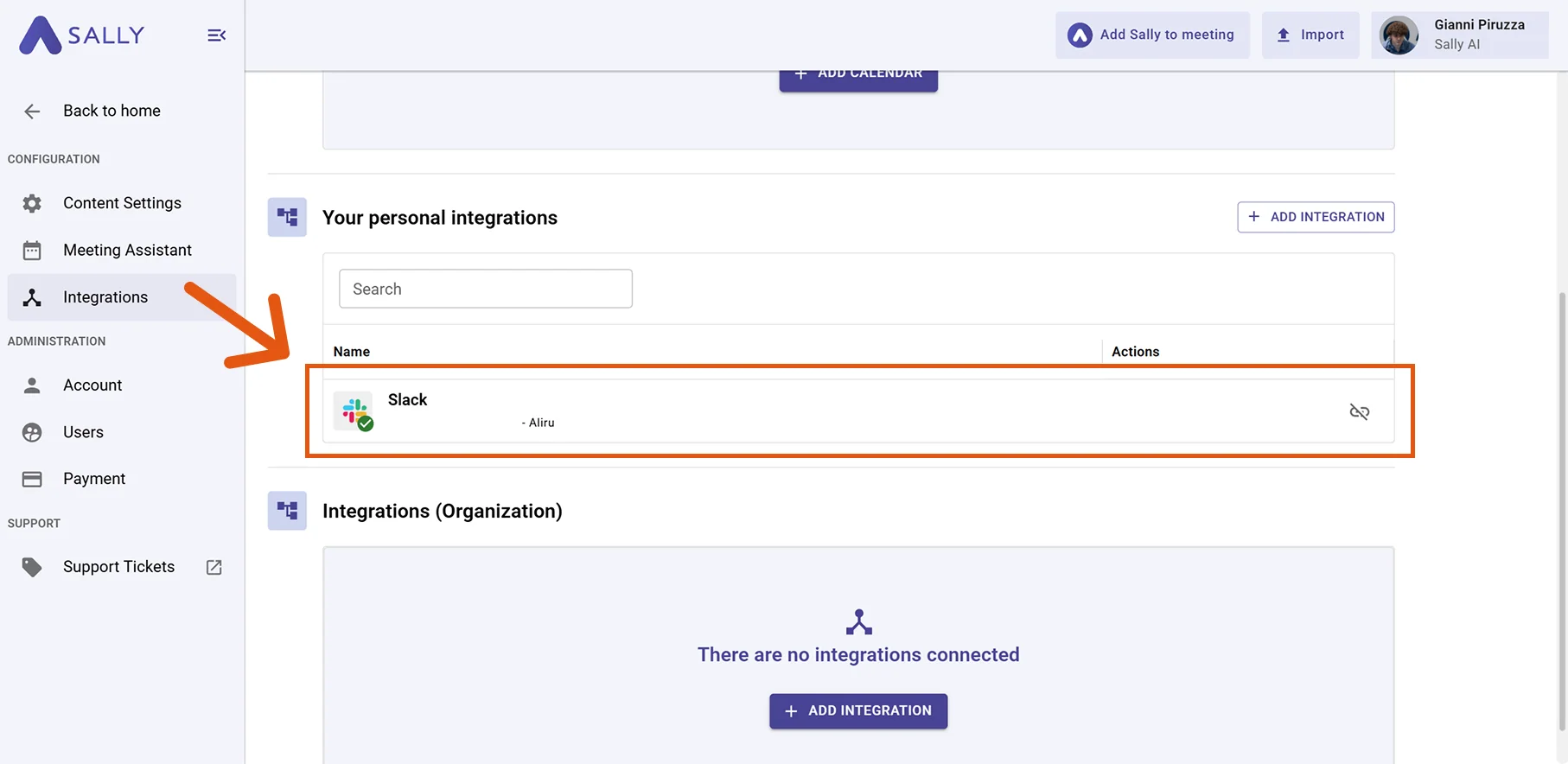
After a successful connection, Slack appears under "Your personal integrations."
Figure 4: Slack is connected
2. How to send insights to Slack
Once Slack is connected, you can send meeting insights from Sally to Slack with a single click - so they land in the right place for your team.
You can:
2.1. Send a direct message in Slack
Turn a Sally insight into a personal Slack direct message.
-
Open the desired meeting in Sally.
-
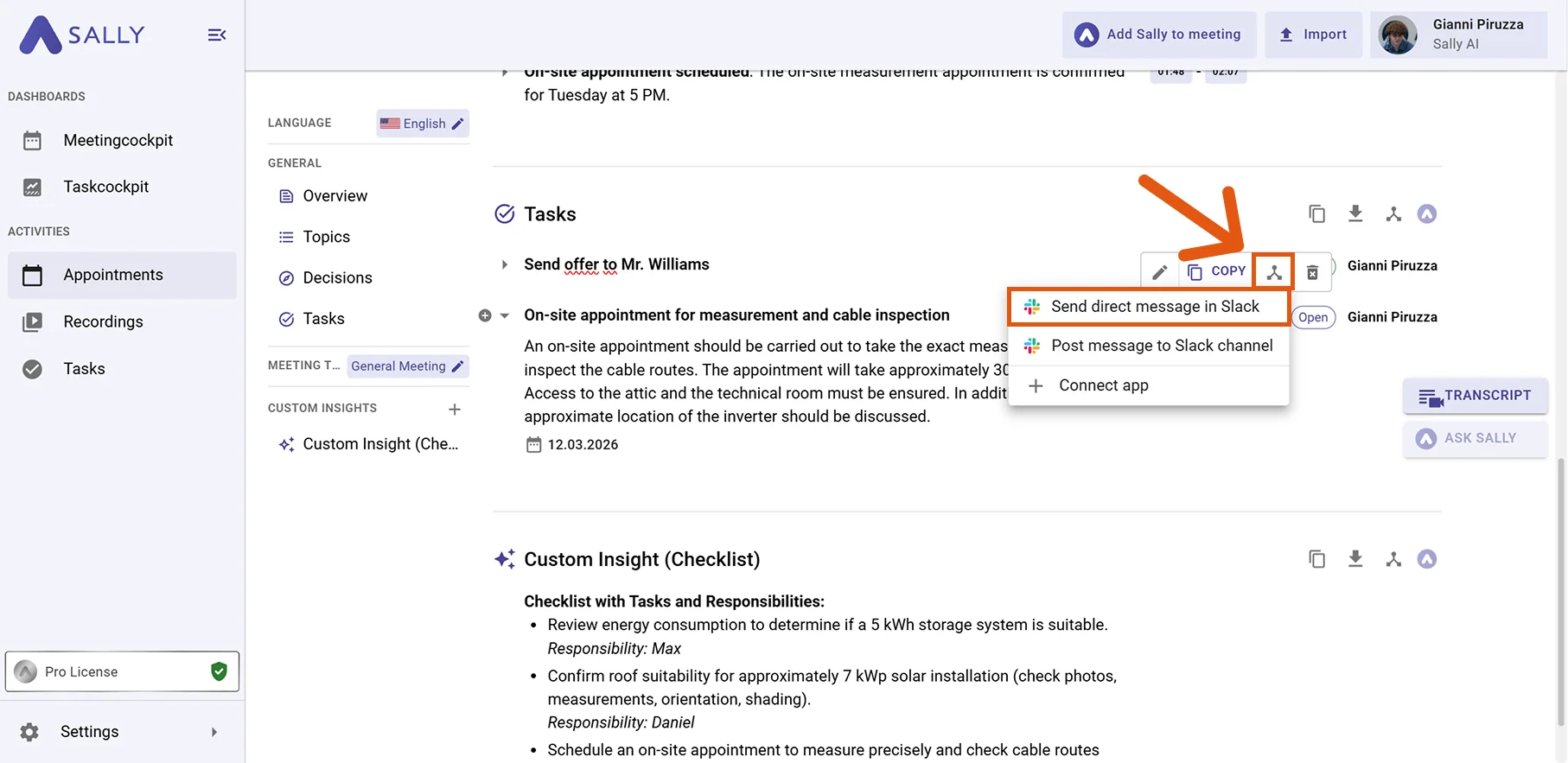
Hover any insight, decision, next step, or task in the summary, click the Slack icon, then choose "Send direct message in Slack."
Figure 5: Choose Send direct message in Slack -
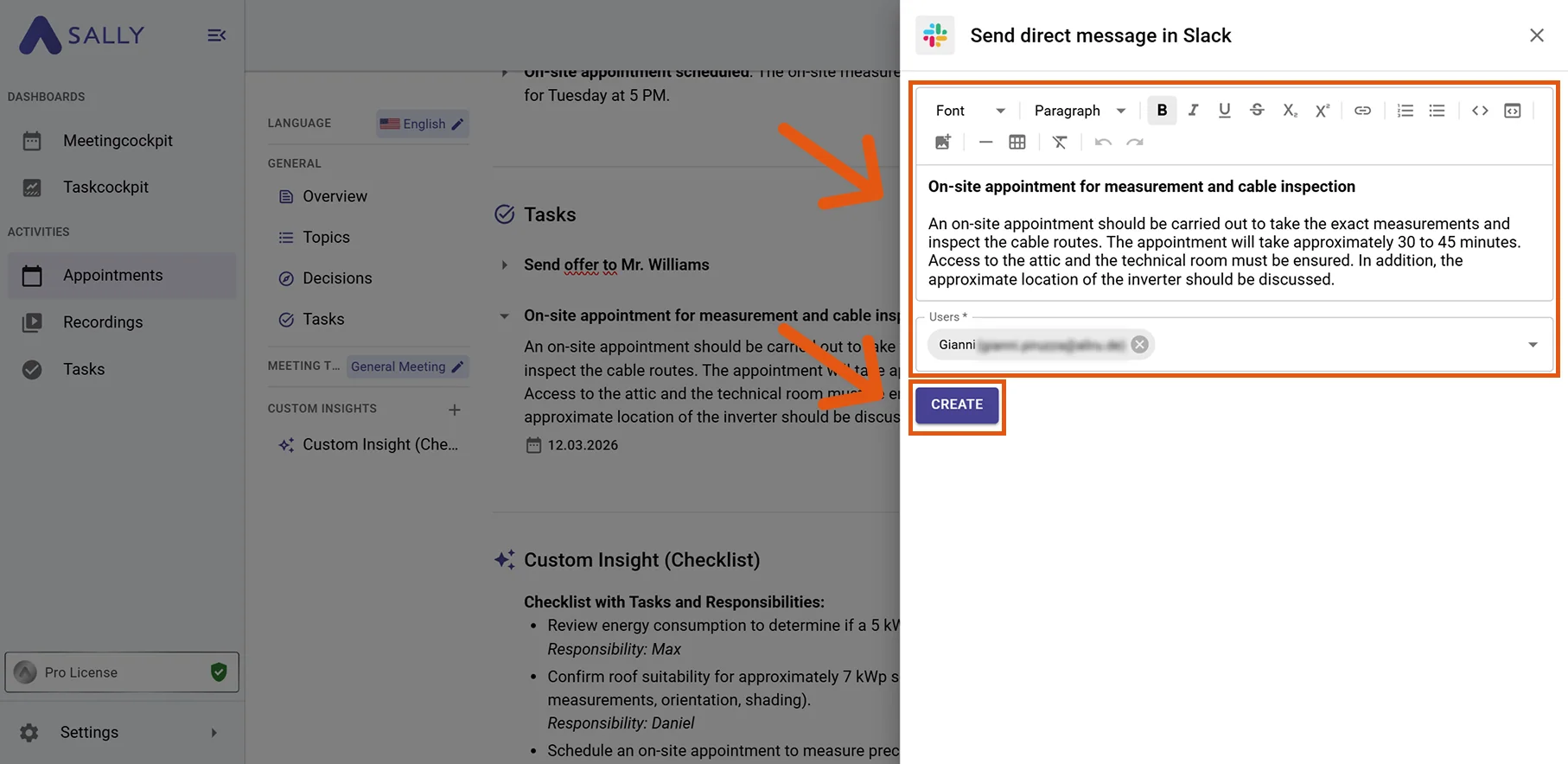
Fill in the message form (required fields are marked with
*):- Message content (prefilled from Sally – editable)
- Users* (recipients)
-
Click Create to send it to Slack.
Figure 6: Fill the Slack message fields and Create -
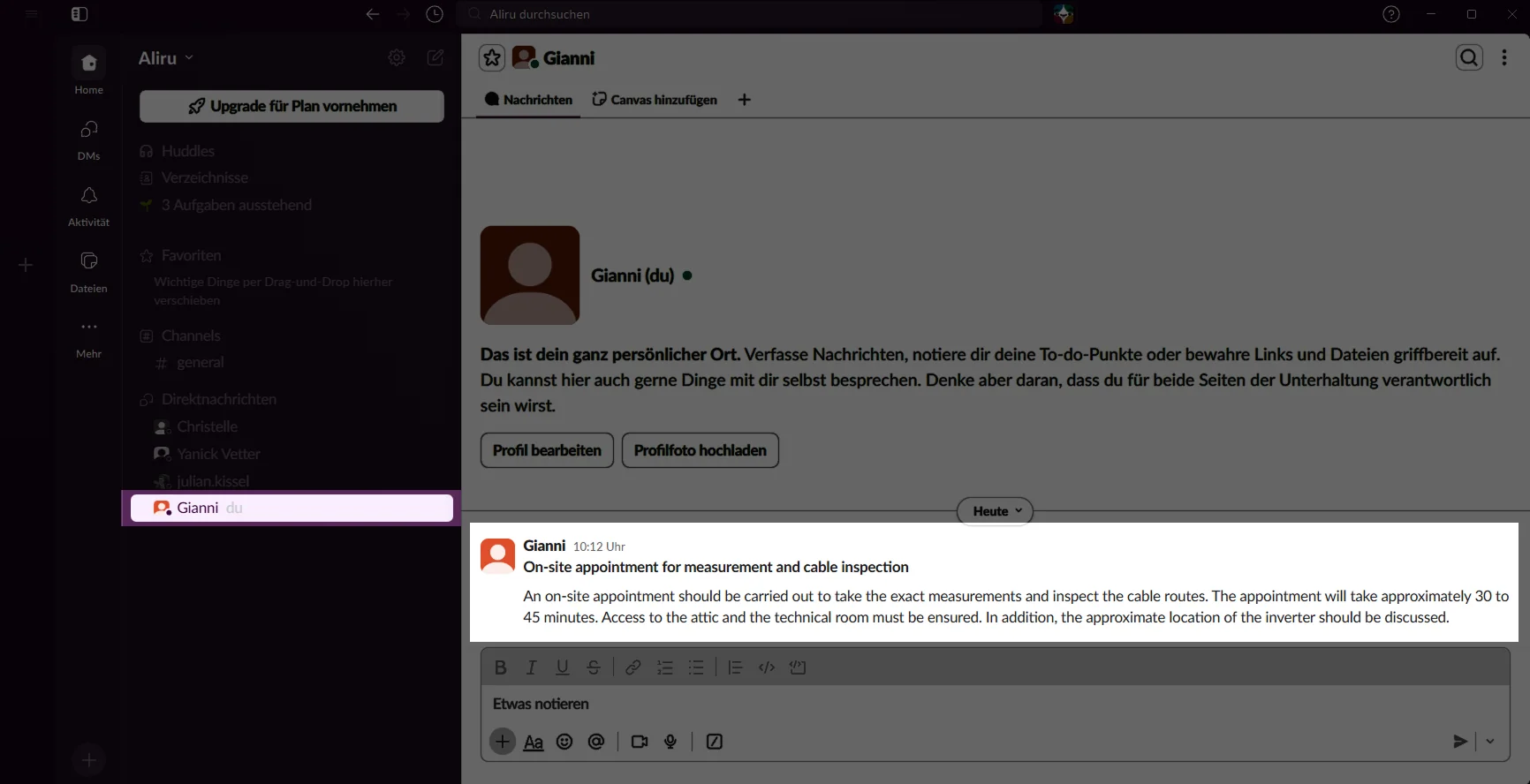
The message appears in the recipient's Slack direct messages.
Figure 7: Message delivered in Slack
Use direct messages for direct, quick follow-ups with colleagues after meetings.
2.2. Post a message to a Slack channel
Post meeting insights as a Slack channel message to share context with the broader team.
-
Open the desired meeting in Sally.
-
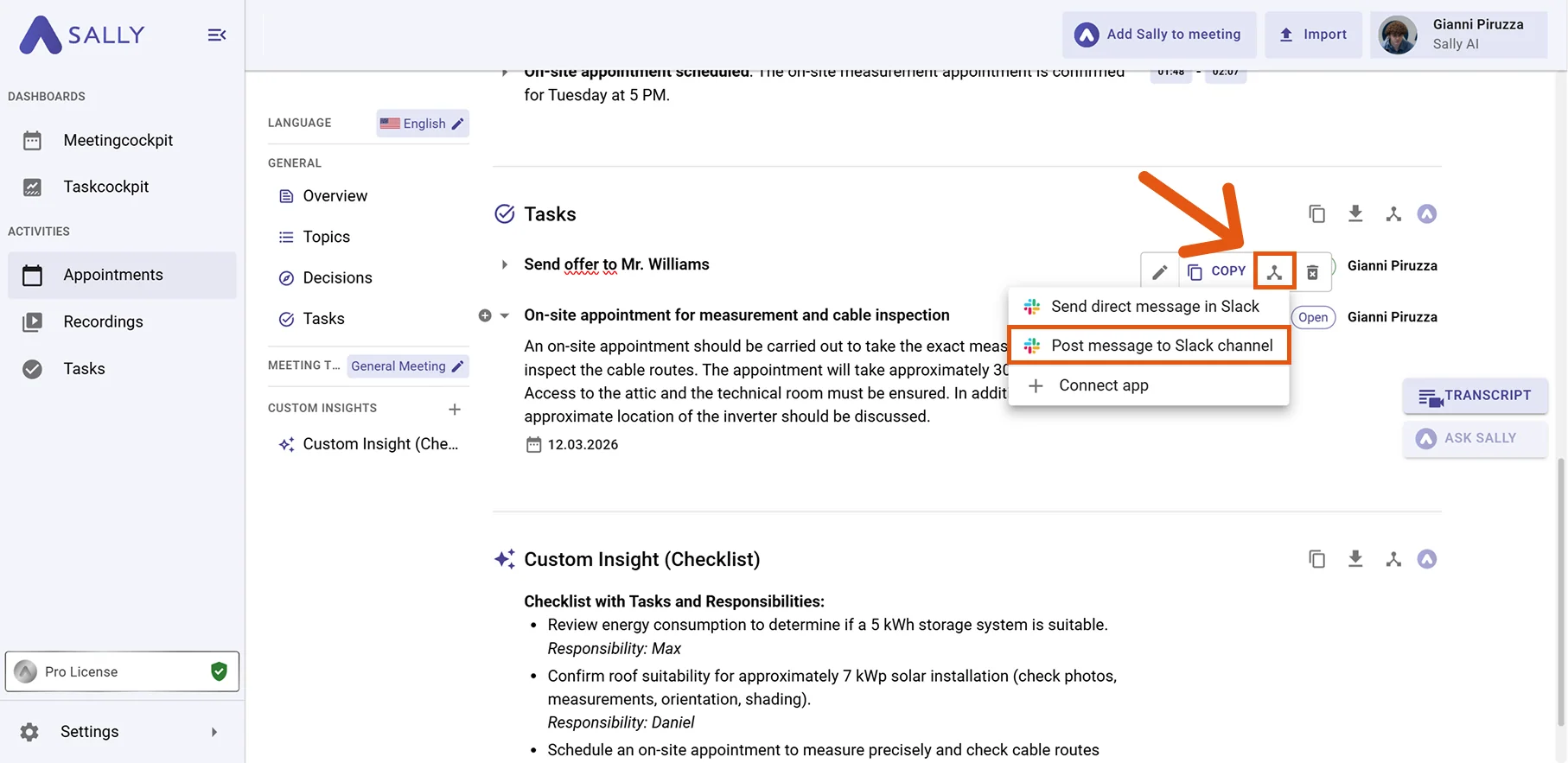
Hover any insight, decision, next step, or task in the summary, click the Slack icon, then choose "Post message to Slack channel."
Figure 8: Choose Post message to Slack channel -
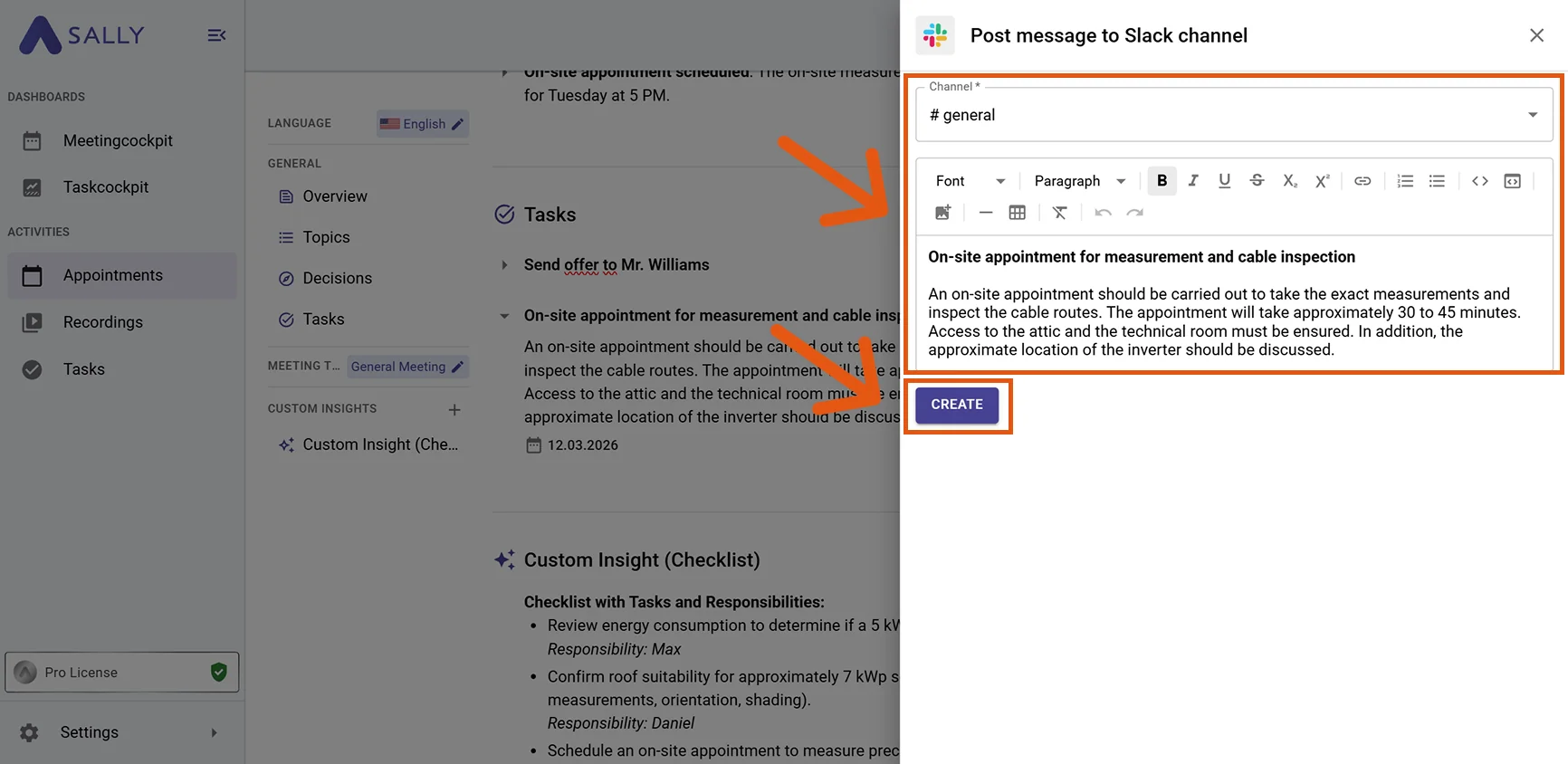
Fill in the post form (required fields are marked with
*):- Message content (prefilled from Sally – editable)
- Channel* (select the right channel for the post)
-
Click Create to publish the message in Slack.
Figure 9: Fill the Slack channel fields and Create -
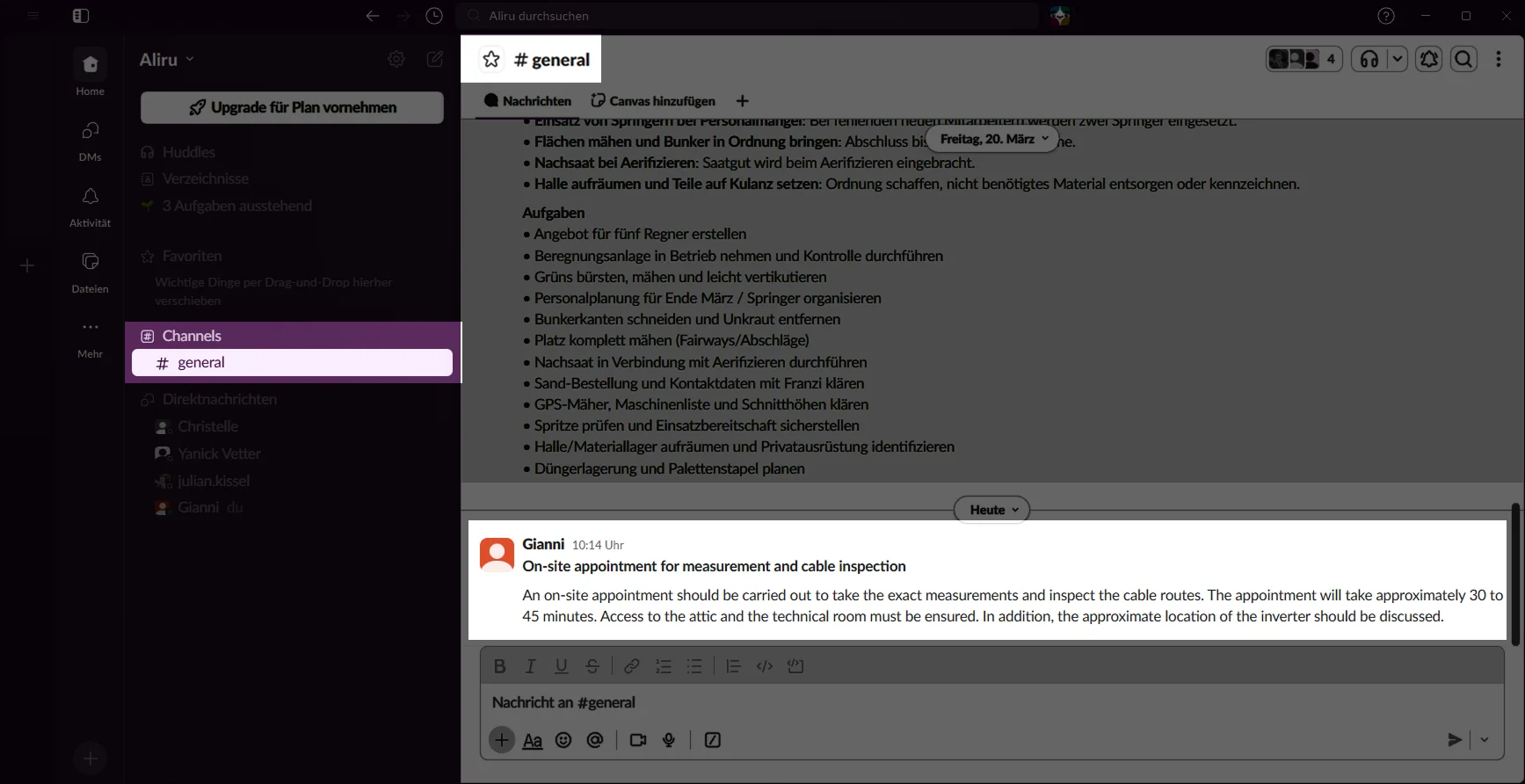
The message appears in the selected Slack channel.
Figure 10: Message posted in Slack channel
Use channel posts to share decisions, next steps, or updates with the entire project team.
3. Required OAuth Scopes
For the integration with Slack, Sally uses OAuth 2.0 for authorization. The following scopes define which areas Sally can access on behalf of the authenticated user.
Technical Overview of Required Scopes
-
Sally accesses this information solely to technically establish and maintain the connection to the user account.
-
Sally does not make any autonomous changes. Actions are performed exclusively upon the explicit initiative of the user.
-
API endpoints are only called within the scope of an active action initiated by the user within the platform.
| Scope | Type | What Slack technically allows with this scope | How Sally uses this scope |
|---|---|---|---|
chat:write | User | Send messages as the authenticated user | Technically defined within Slack's permission model. Sally does not send messages independently outside explicitly user-initiated actions. |
channels:read | User | View basic information about public channels in the workspace | Part of Slack's permission model. Sally reads channel information solely to populate channel selection within the integration. |
groups:read | User | View basic information about private channels in the workspace | Technically provided for integrations. Sally reads basic information solely for display within the integration. |
im:write | User | Start direct messages with people | Technically defined within Slack's API model. Sally does not start direct messages independently without explicit user action. |
users:read | User | View people in the workspace | Part of the permission model. Sally reads user information solely to populate recipient selection within the integration. |
users:read.email | User | View email addresses of people in the workspace | Technically defined within Slack's model. Sally reads email addresses solely for display and identification purposes within the integration. |