How to control the available recording methods in Sally AI
There are several ways to record a meeting in Sally. Sally can join through a pasted link, you can record straight in the browser, you can use the Sally Recorder desktop app, you can upload an audio or video file you already have, or you can record in the Sally app on a phone or tablet. Recording sources is where you decide which of those your organization may use.
It is a control for owners and admins who want clear oversight of how recording happens in their company. Switch on the methods that fit your rules and leave the rest off. Anything you leave off stays visible, but it is greyed out and nobody can start it.
Only owners and admins can change the recording sources. Whatever you pick applies to the entire organization, not just to your own account.
Quick navigation
- Who this setting is for
- Open the recording sources
- The recording methods
- A disabled method in daily use
- Common questions
1. Who this setting is for
Only owners and admins can change the recording sources. Members cannot, and that makes sense: the setting does not affect one person, it affects everyone in the organization.
The benefit is having one place to look. Instead of settling method by method and user by user what is allowed, you have a single list of toggles, with a line under the title telling you how many methods are currently open. If you want recording in your company kept to a few approved routes, this is where you set that up.
2. Open the recording sources
To get there:
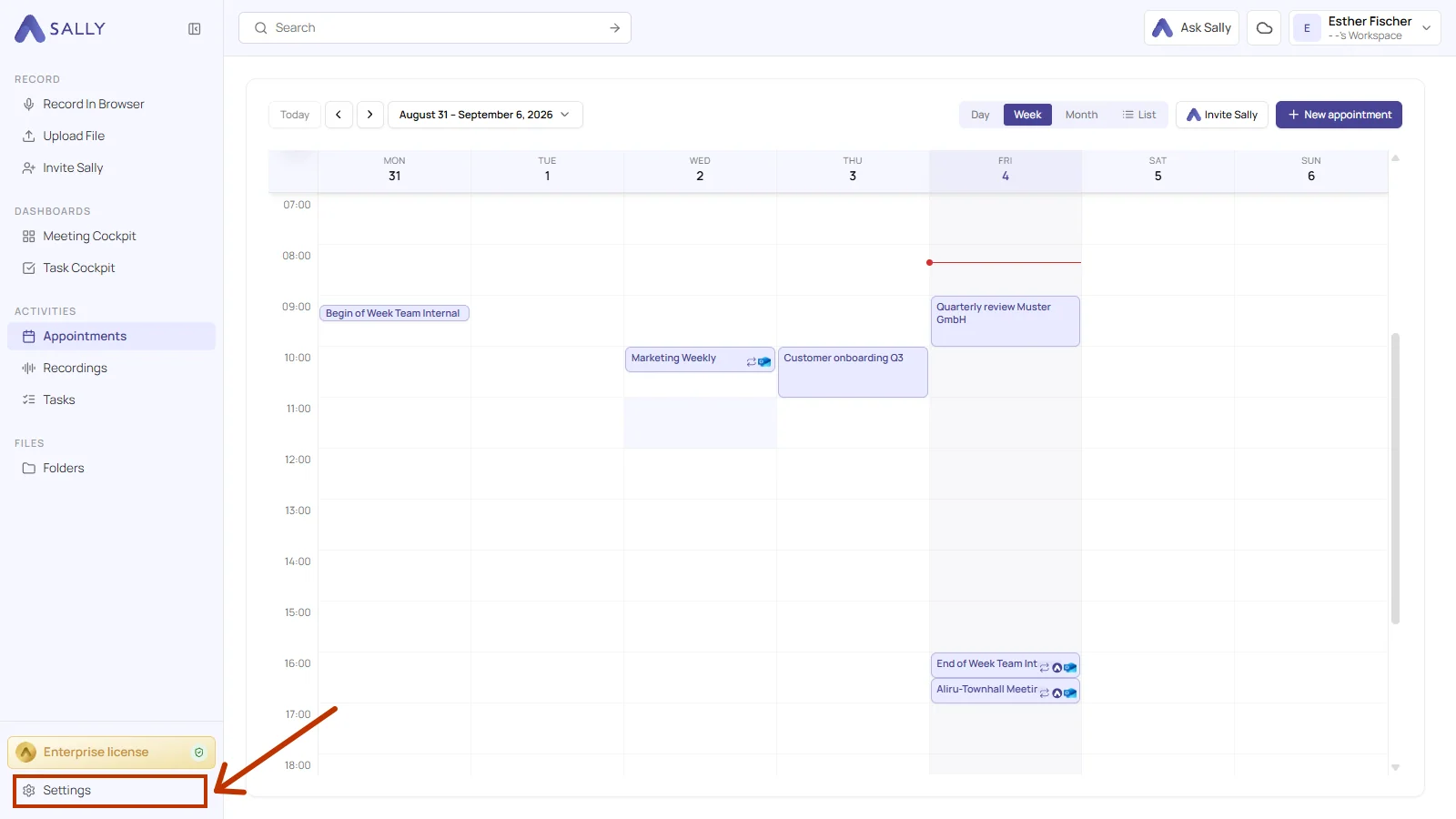
- Open Settings at the bottom left of the sidebar.
- Under Configuration, pick Meeting Assistant, then the Recording sources tab.
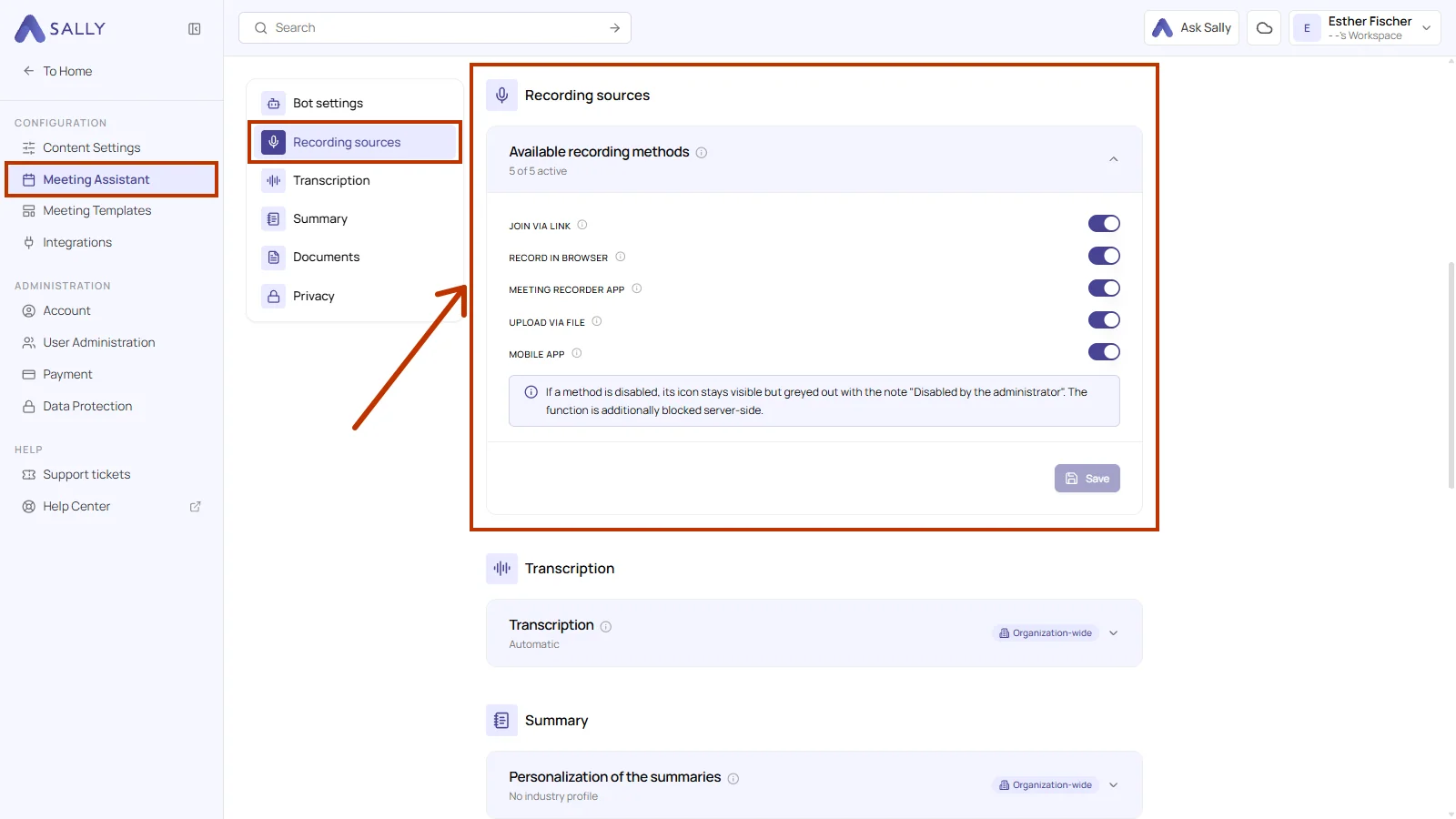
The info icon next to the title sums it up in one sentence: "Define which ways recordings may be created in this organization. Disabled methods stay visible but greyed out."
3. The recording methods
Under Available recording methods you get one toggle per method. The line under the heading tells you how many methods are switched on right now, and each method has an info icon with a one-line explanation.
Nothing takes effect until you click Save in the bottom-right corner. Sally then confirms with Recording sources saved.
3.1. Join via link
Sally joins a meeting from a link you paste. Copy the link of a scheduled or running meeting into Sally, and Sally shows up as a participant and records. There is a full walkthrough under manual attendance.
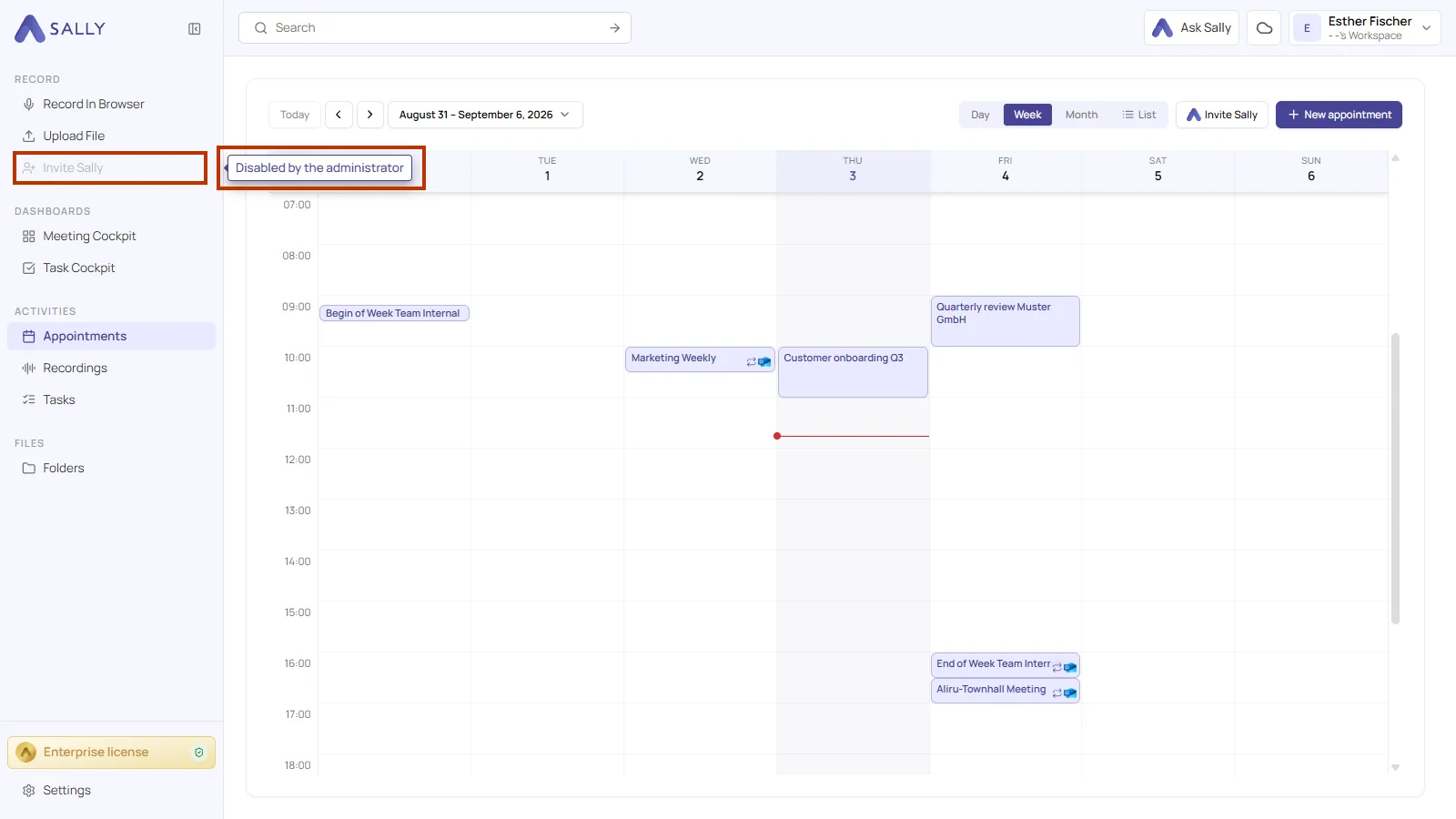
Switch this off and nobody can invite Sally to a meeting by link. Invite Sally stays in the sidebar, greyed out.
3.2. Record in browser
This one records a meeting or a call right in the browser, without Sally joining as a participant. By default Sally mixes two sources into a single recording: your microphone for your own voice, plus the computer audio for everyone else. Sally transcribes the recording as soon as it is uploaded.
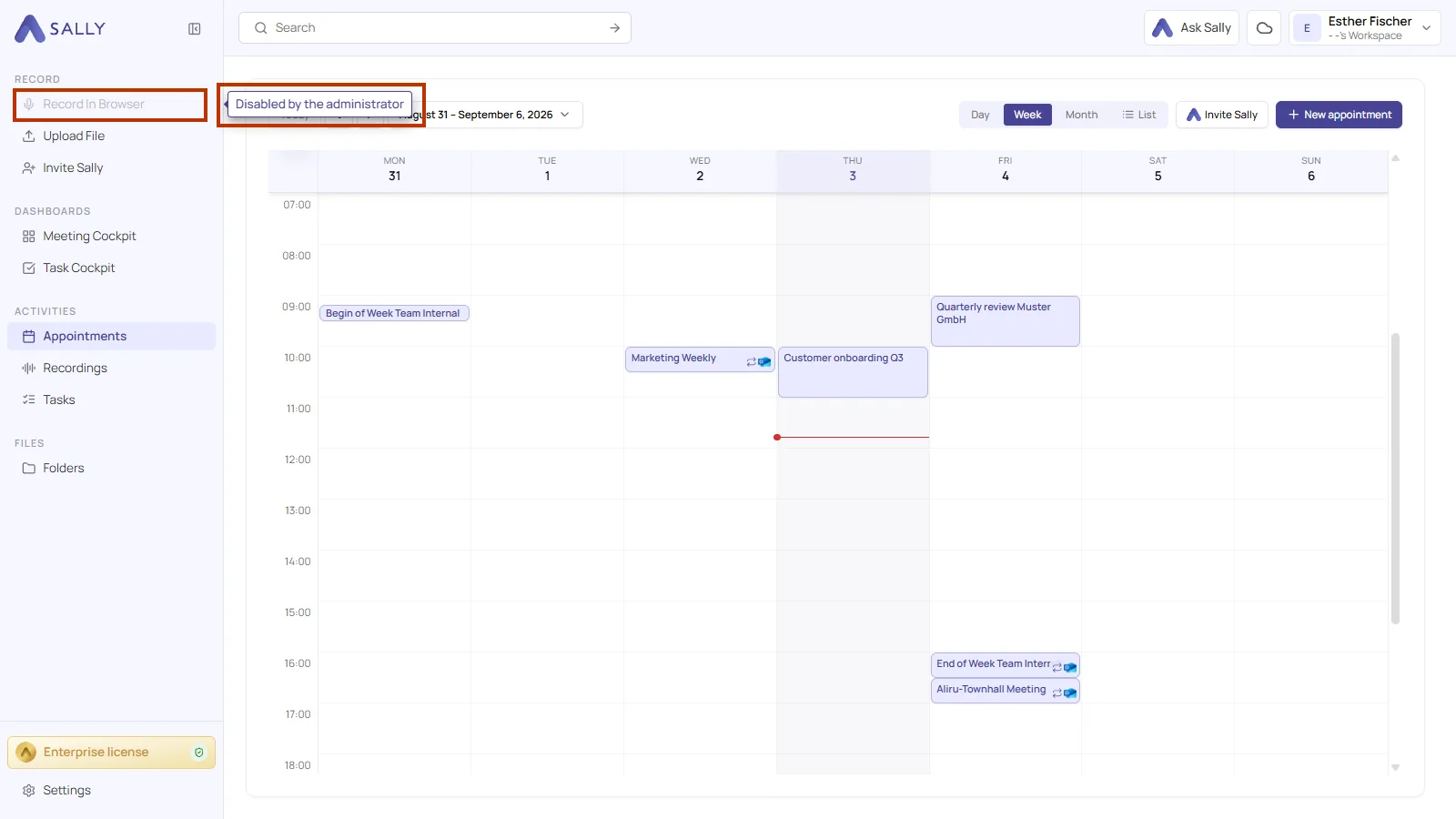
Switch this off and recording in the browser is no longer available. Record In Browser stays in the sidebar, greyed out.
3.3. Sally Recorder app
The Sally Recorder is the Sally app for Windows and macOS. It sits in the background, notices by itself when there is a conversation going on the computer, and asks whether Sally should take notes. It records your microphone along with the computer audio from the other side, and the finished recording goes straight to Sally.
Next to recording in the browser, that saves you a tab to keep open and a browser permission to confirm every time. Note that this is the app for your computer. The Sally app on a phone has a toggle of its own under Mobile app.
Switch this off and the desktop app cannot start a recording for this organization.
3.4. Upload via file
This covers an audio or video file somebody already has. Upload it and Sally transcribes it and writes a summary. You will find the supported formats under transcription of video and audio files.
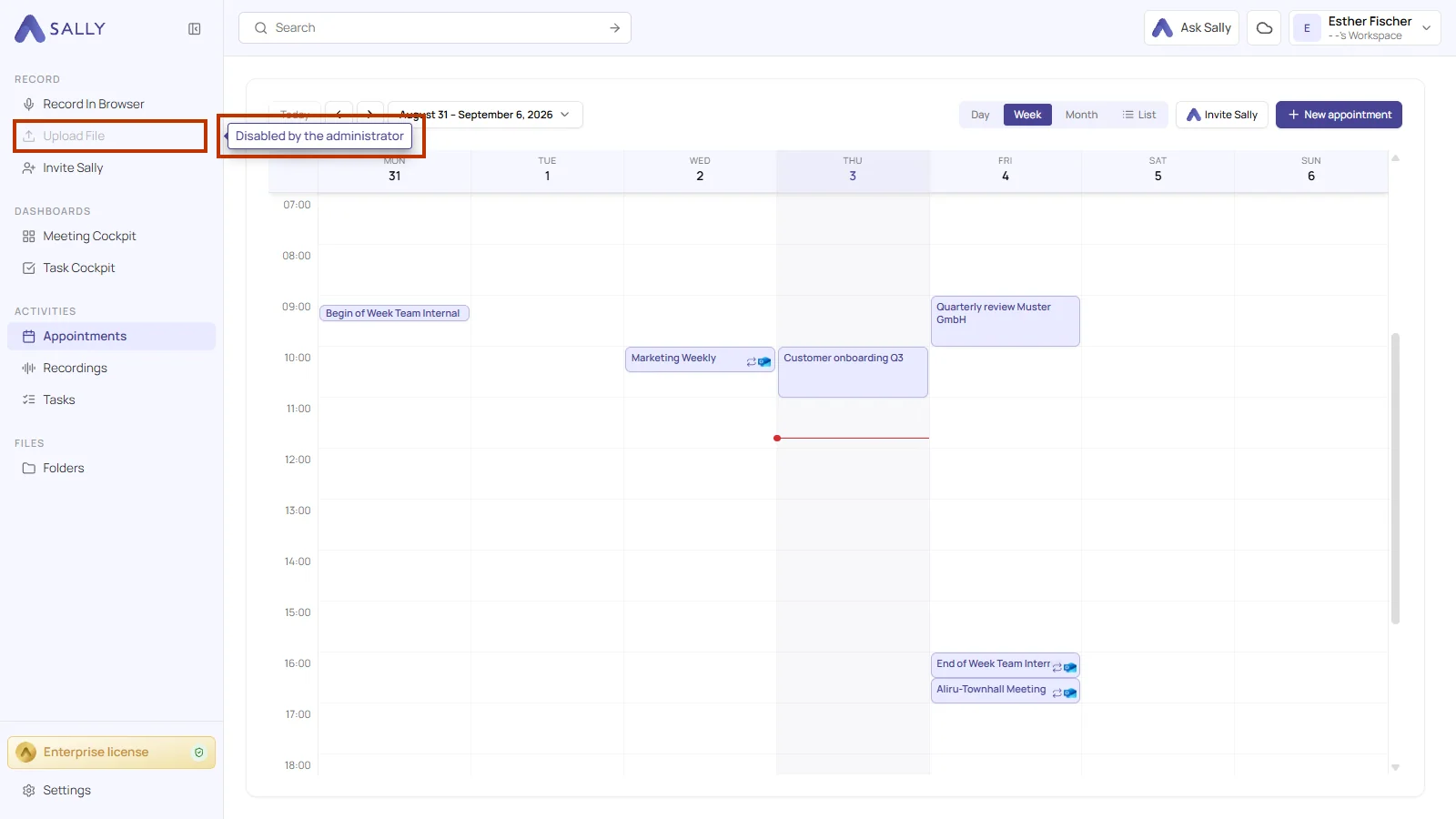
Switch this off and nobody can upload a file for transcription. Upload File stays in the sidebar, greyed out.
3.5. Mobile app
This one is for recording in the Sally app on a phone or tablet, which is how you capture conversations that are not happening online. There is a walkthrough under on-site meetings.
Switch this off and everything in the app keeps working except recording. There is more on what that looks like under the Sally app.
4. A disabled method in daily use
A method you switch off does not vanish. It stays where it was, it just stops working, and the user can see that an administrator turned it off.
4.1. In the web interface
The entry stays in the sidebar under Record, greyed out and no longer clickable. Hover over it and you get the note Disabled by the administrator.
That way your users can tell the feature exists and also why they cannot use it right now, which spares you the questions an entry that simply disappeared would have raised.
Sally also blocks the method on the server, so the block is not limited to the interface.
4.2. In the Sally app
With Mobile app switched off, the app still works as normal. Signing in is unaffected, and recordings, summaries, tasks, chat, and the calendar are all still there. Recording is the only thing you cannot do.
On the recording screen the big record button is greyed out and will not respond to a tap. Underneath it you get the same note, Disabled by the administrator, in every language the app speaks.
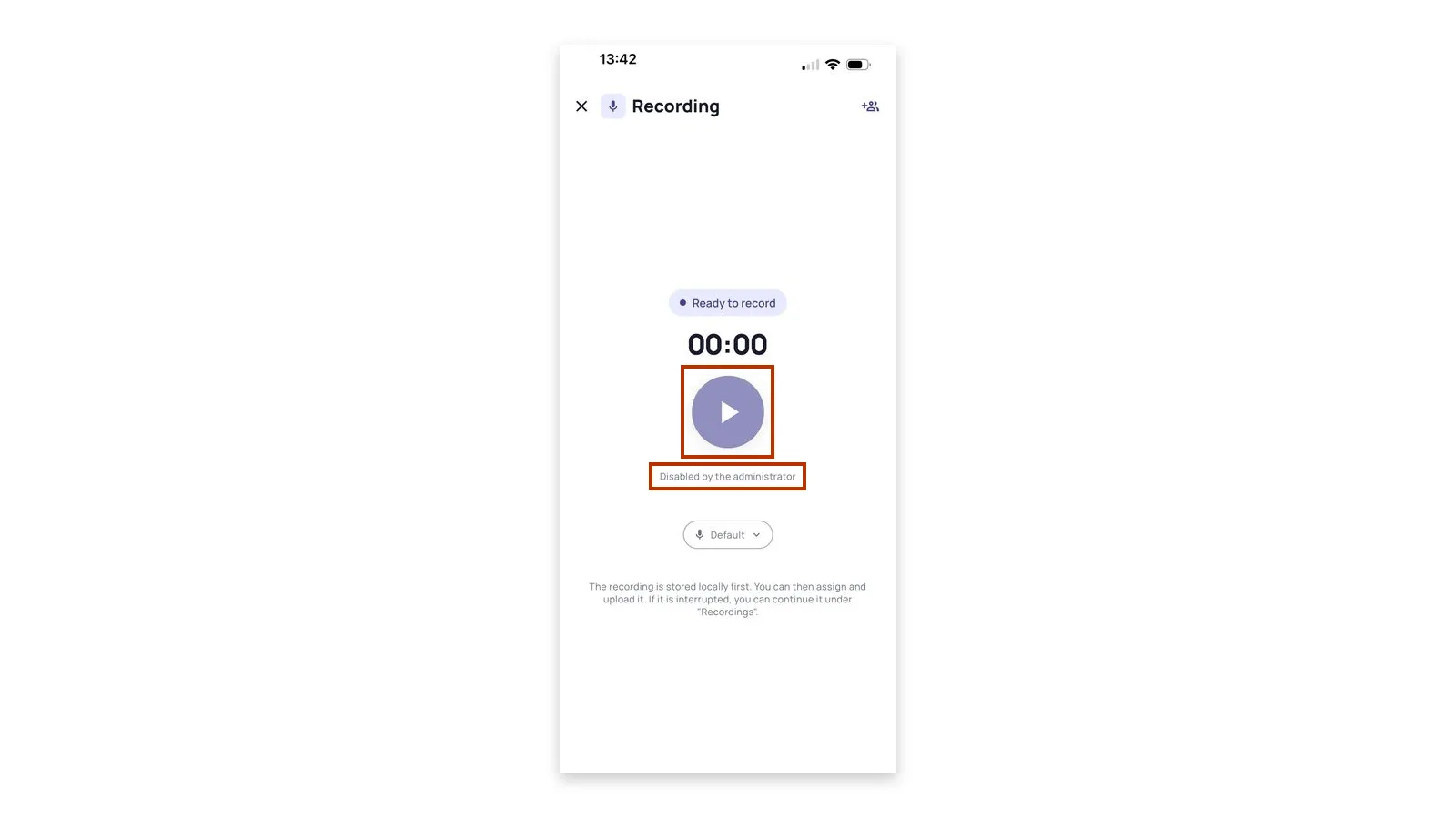
In driving mode the button is greyed out too, and the automatic start is blocked on top of that, since driving mode would otherwise start recording the moment it opens. Rather than let a recording run and fail at upload, Sally shows the same message immediately.
5. Common questions
- 5.1. Who can change it
- 5.2. How far the setting reaches
- 5.3. Greyed-out icons
- 5.4. How this relates to automated attendance
5.1. Who can change it
Owners and admins, nobody else. For what each role is allowed to do, see user role management.
5.2. How far the setting reaches
Across the whole organization. Everyone in it sees the same set of enabled methods, and there is no way to make an exception for one person.
5.3. Greyed-out icons
A greyed-out icon with the note Disabled by the administrator means the method has been switched off under Recording sources. Ask an owner or admin in your organization if you need it.
5.4. How this relates to automated attendance
These methods cover recordings that somebody starts. Whether Sally joins your calendar appointments by itself is a separate setting, described under automated attendance.