Edit your Sally AI profile
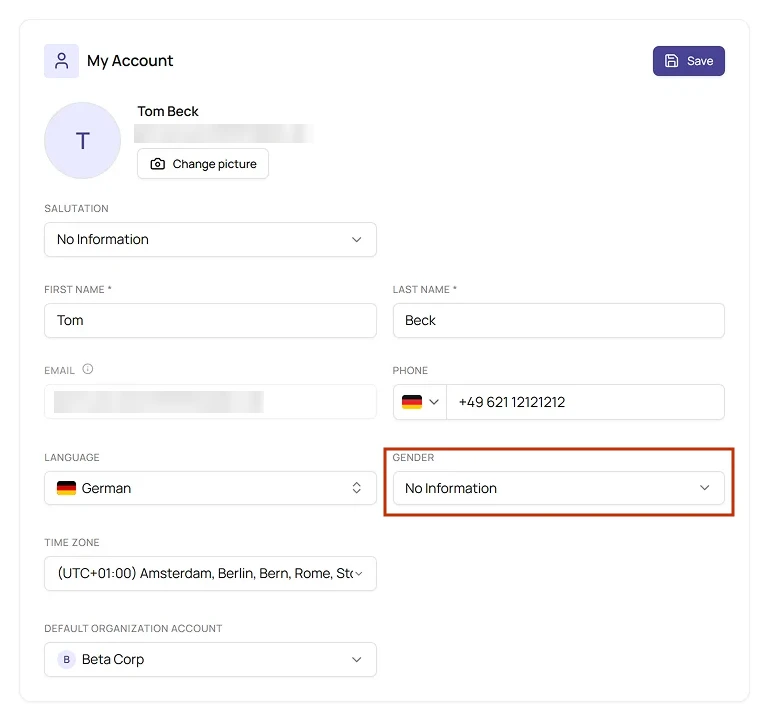
The My Account tab holds the details Sally and your colleagues see you by: your name, your profile picture and your phone number. It is also where you set the time zone Sally shows all times in, plus the optional salutation and gender.
For each field, this article shows how to change it and what changes in Sally as a result. Language and default organization sit in the same tab and have their own articles: change language and set default organization.
Quick navigation
- Change your name
- Change or remove your profile picture
- Add your phone number
- Set your time zone
- Set salutation and gender
How to open My Account:
- Open Settings from the bottom-left corner of the sidebar.
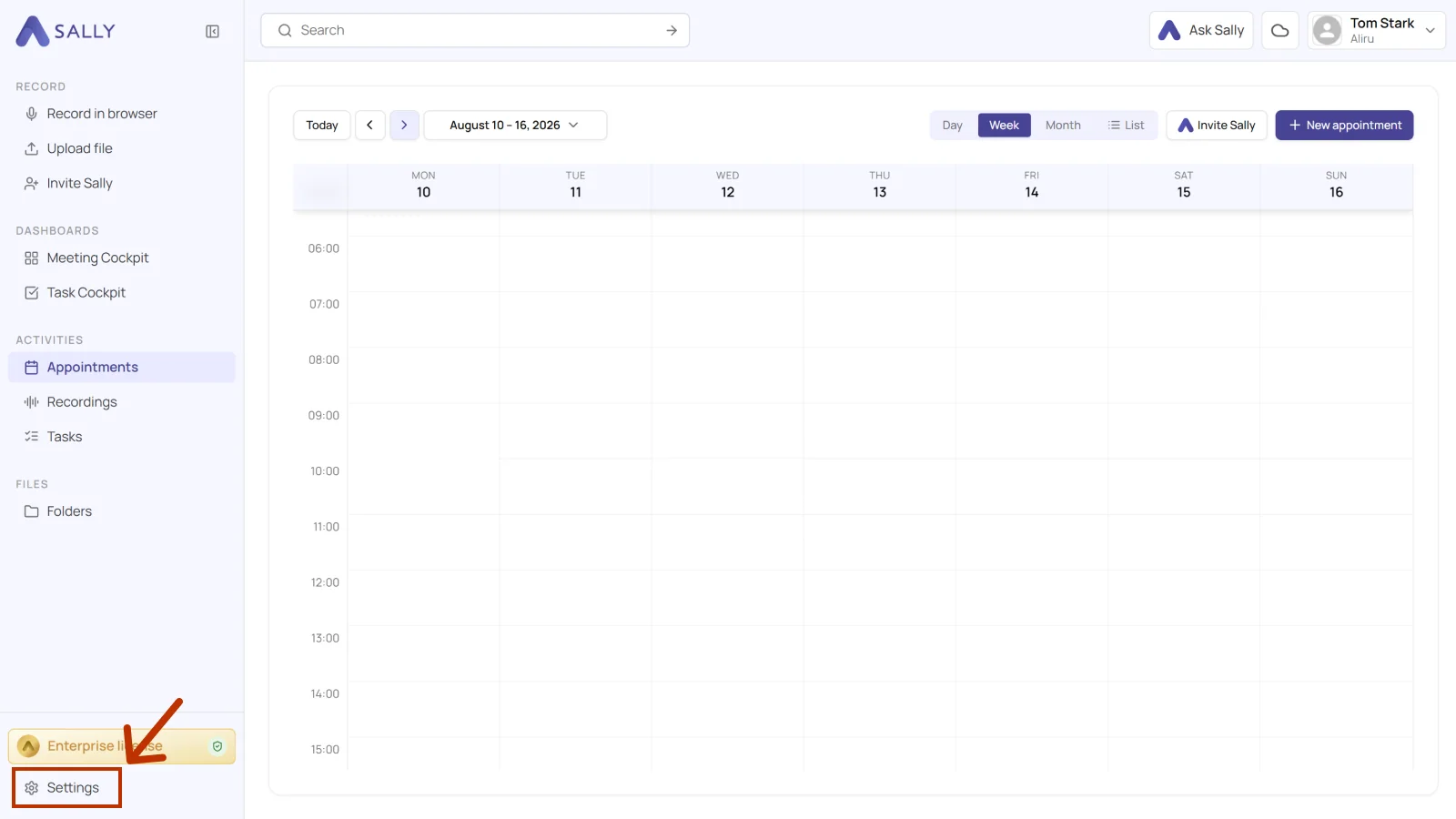
- Under Administration, select Account and open the My Account tab.
You apply changes to the fields with Save in the top right corner of the card. Only the profile picture is saved right away.
1. Change your name
Your first and last name is how Sally and your colleagues see you. It appears in the profile menu in the top right, in user lists and task assignments, in Sally's emails to you, and in the message Sally posts in the meeting chat when she records for you. Sally also uses your name to recognize you when a summary assigns tasks to people.
Enter your new name in First name and Last name and click Save.
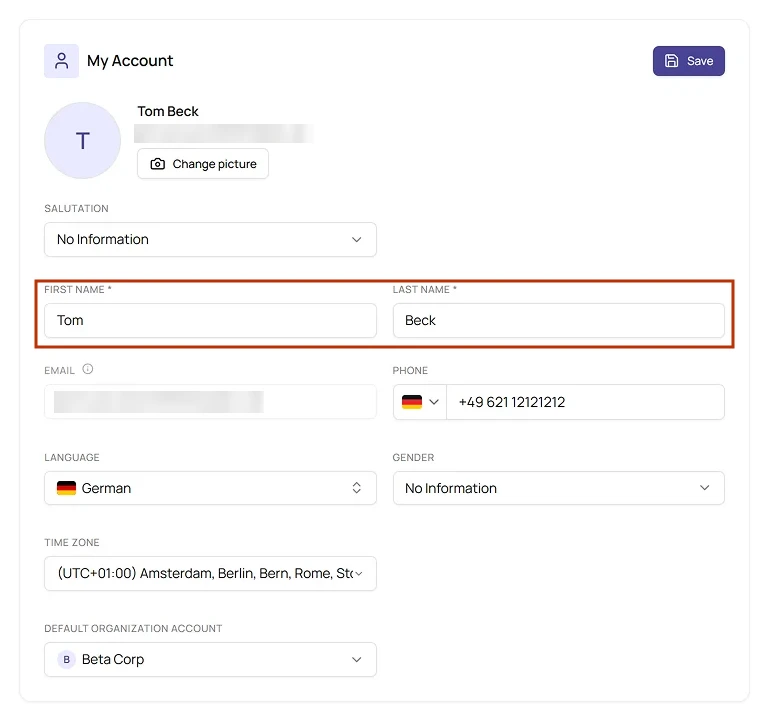
- Both fields are required and can hold up to 150 characters each.
- The new name shows up everywhere right away. Speaker names in transcripts that already exist keep the old name. You can correct them in the transcript.
- If your company manages users through SCIM, your identity provider sets your name. A change in Sally gets overwritten with the next sync, so ask your IT team to change it there.
2. Change or remove your profile picture
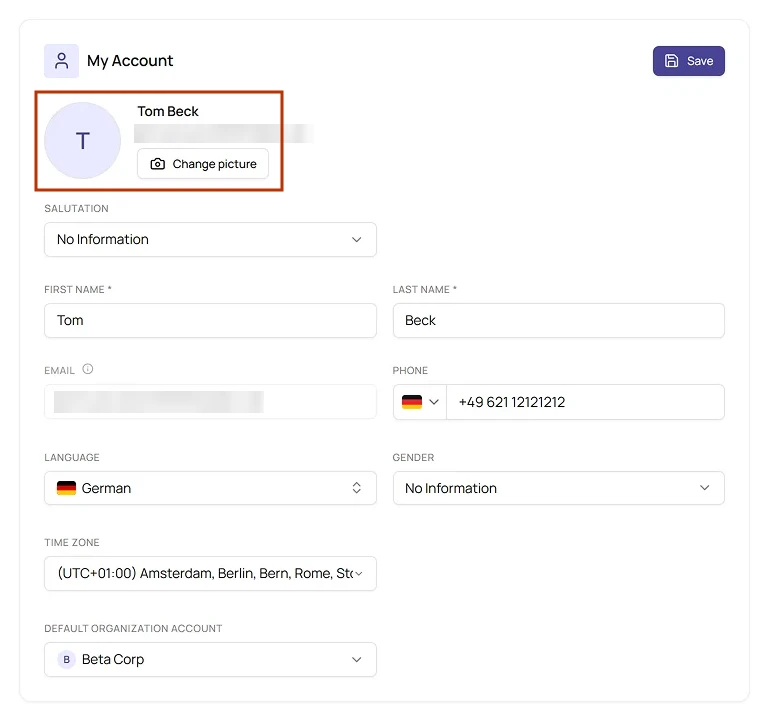
Your profile picture helps your colleagues recognize you at a glance. Sally shows it in the profile menu in the top right, in user lists, next to tasks assigned to you, and among the participants of a meeting. Without a picture of your own, Sally shows the first letter of your first name.
Click Change picture and pick an image file. Sally saves the picture right away, no need to click Save.
- File type PNG, JPEG or WebP
- At most 2 MB
- Sally doesn't crop the image, it only shows it in a circle. Pick a picture with your face in the center.
Remove your profile picture
Click Remove next to Change picture and confirm in the dialog. Sally replaces your picture with the default image again. The button only appears while you have a picture of your own.
A removed picture can't be restored. To use it again, upload the file once more.
If you connect your Microsoft calendar or Microsoft account and have no picture of your own yet, Sally takes over your Microsoft profile photo. A picture you uploaded yourself is never replaced.
The image Sally shows as a participant in your meetings is set separately, under bot appearance.
3. Add your phone number
Your phone number is optional. It completes your account details next to a secure password, and Sally shows in the license box above Settings whether a number is stored. Admins of your organization account see it in user administration, and Sally's support team sees it when you send a support request.
In the Phone field, pick your country with the flag on the left, enter your number and click Save.
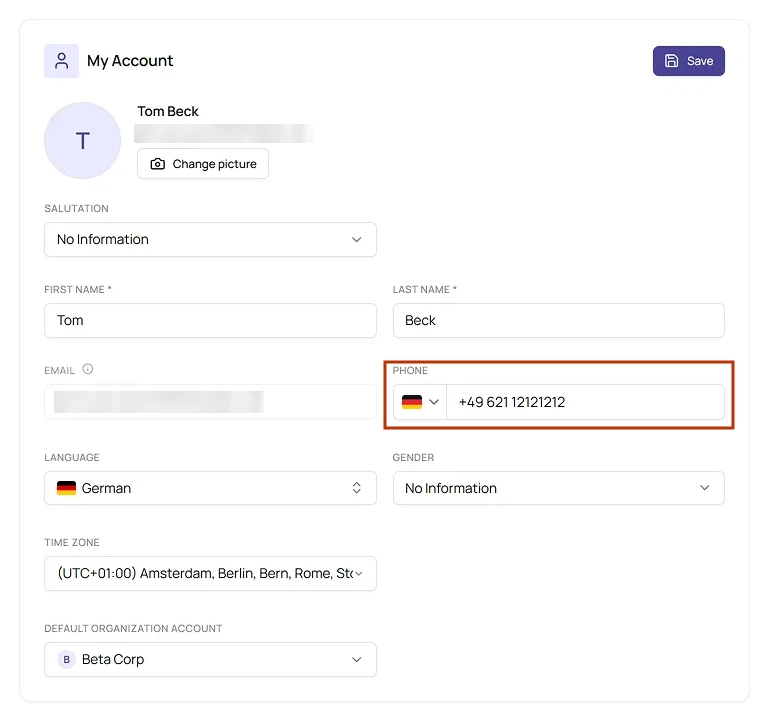
You can enter the number internationally, for example +49 151 1234567, or nationally with the country picked on the left, for example 0151 1234567. Sally stores it in international format. If the number isn't valid, Sally shows Invalid phone format and Save stays greyed out.
To delete the number, empty the field and click Save. A country code on its own counts as empty.
Sally doesn't send text messages to this number. For a second factor at sign-in, use an authenticator app with multi-factor authentication.
4. Set your time zone
Sally shows every time in the web app in the time zone of your account, not in the time zone of your computer. If you work from another country or your meeting times look shifted by a few hours, set the right time zone here. New accounts start with (UTC+01:00) Amsterdam, Berlin, Bern, Rome, Stockholm, Vienna, which also follows daylight saving time.
Pick your time zone in the Time zone field and click Save.
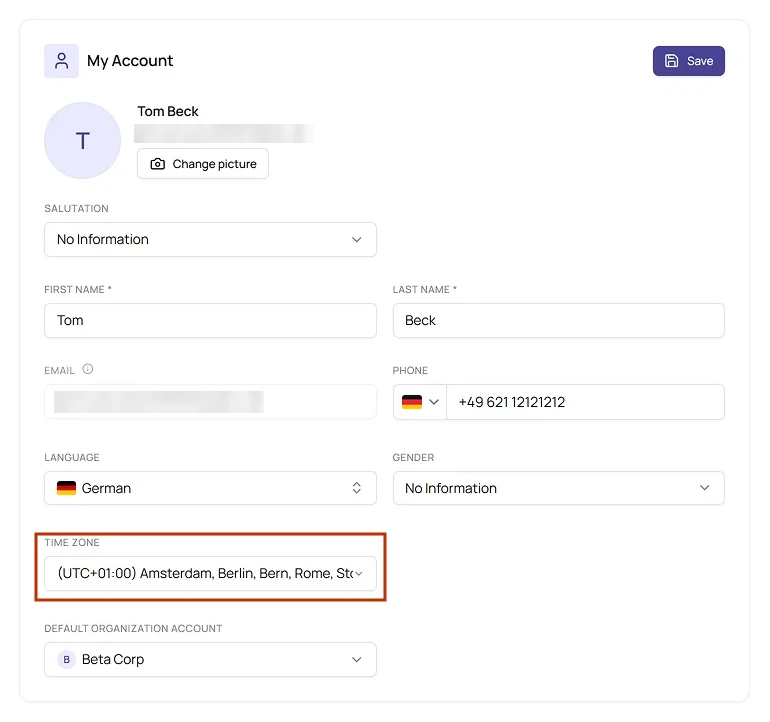
What the time zone affects:
- Calendar and appointments: All views show start and end times in your time zone. When you create or edit an appointment, Sally reads the times you enter in that time zone as well.
- Recordings and dashboards: Dates and times in the recording list, on the recording page, in folders and on the dashboards.
- Downloads: Dates in downloaded summaries and transcripts.
- Email invitations: If you invite Sally by email and the email names a time without a time zone, Sally assumes yours.
- Emails from Sally: Meeting dates and times that Sally lists in her emails.
- The content of your summaries stays the same.
- The Sally mobile app uses the time zone of your phone.
5. Set salutation and gender
Salutation and gender are optional. Both start with No information, and you can leave them that way. Sally currently only stores them with your account. Emails from Sally greet you by your first name, and summaries don't take either field into account.
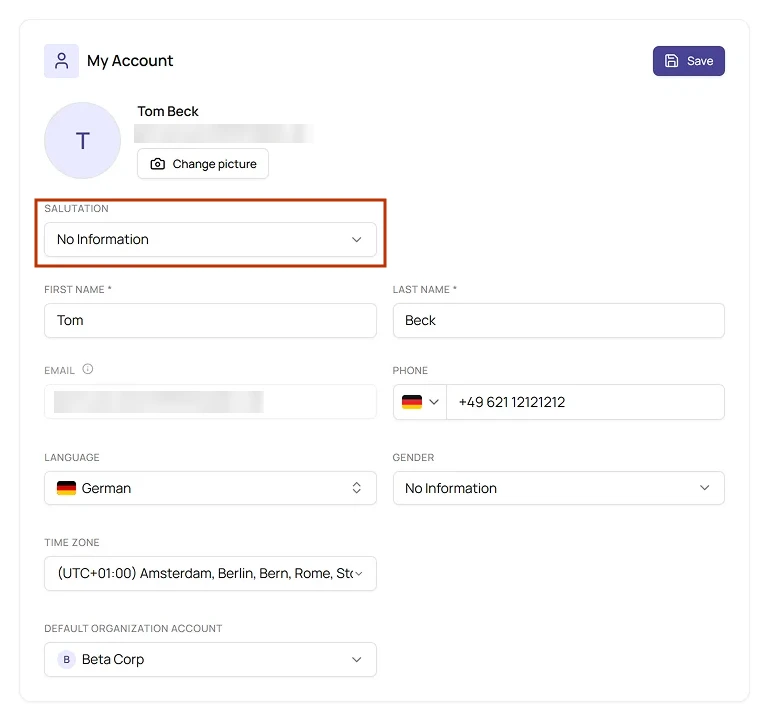
Pick your salutation in the Salutation field above your name and click Save. Besides the usual options, the list also offers a gender-neutral salutation.
Pick your gender in the Gender field next to Language and click Save.