How to switch organization accounts in Sally AI
If you belong to more than one organization account, for example because you work for several companies or keep a personal workspace next to your company's account, you can switch between them at any time. Appointments, recordings, folders, tasks, and settings always belong to one organization account. After switching, you see exactly the content of the account you picked.
You switch with two clicks in the profile menu in the top right corner, without signing out.
Here's how it works:
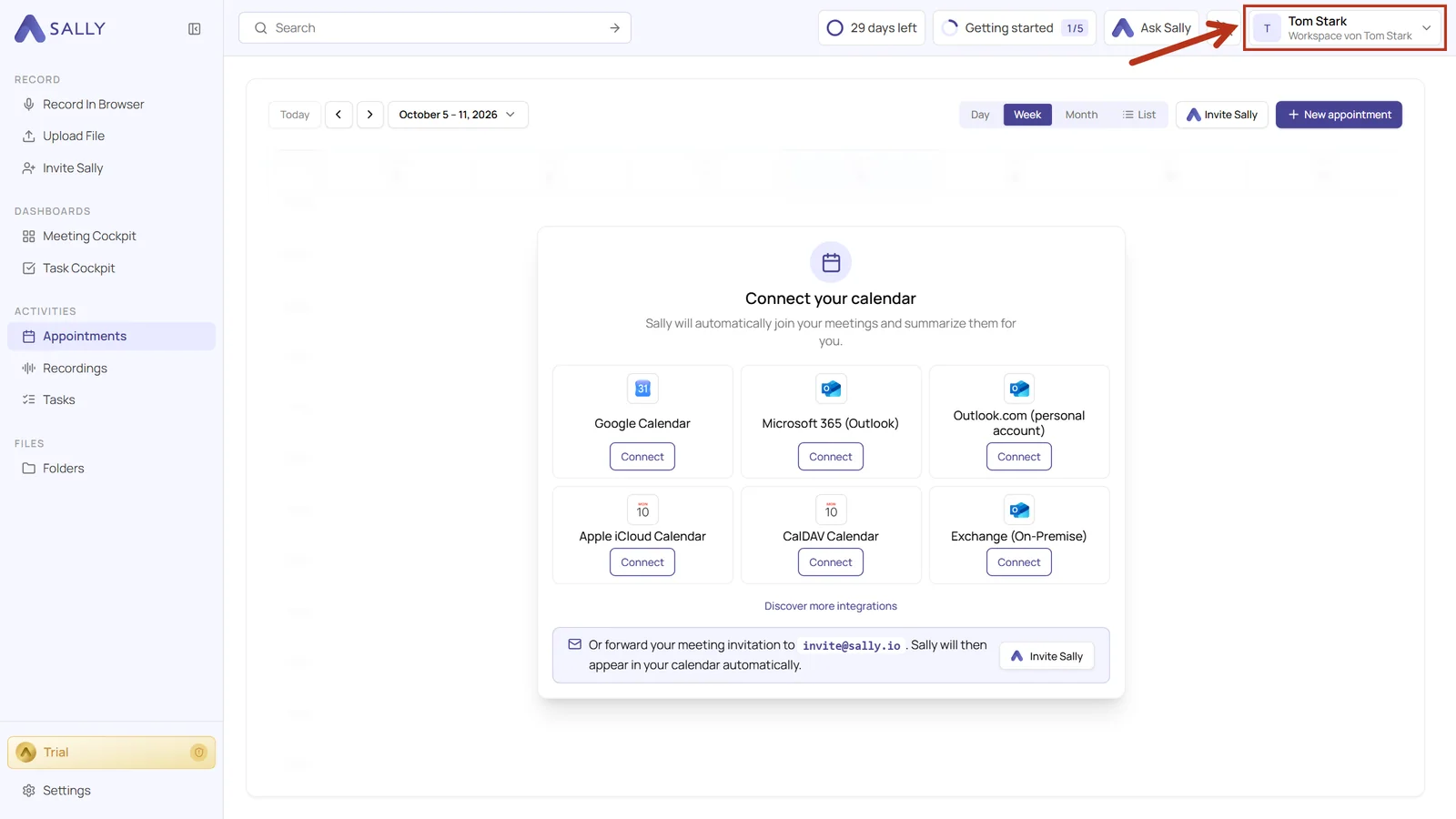
- Click your name in the top right corner. The organization account you are currently working in is shown below your name.
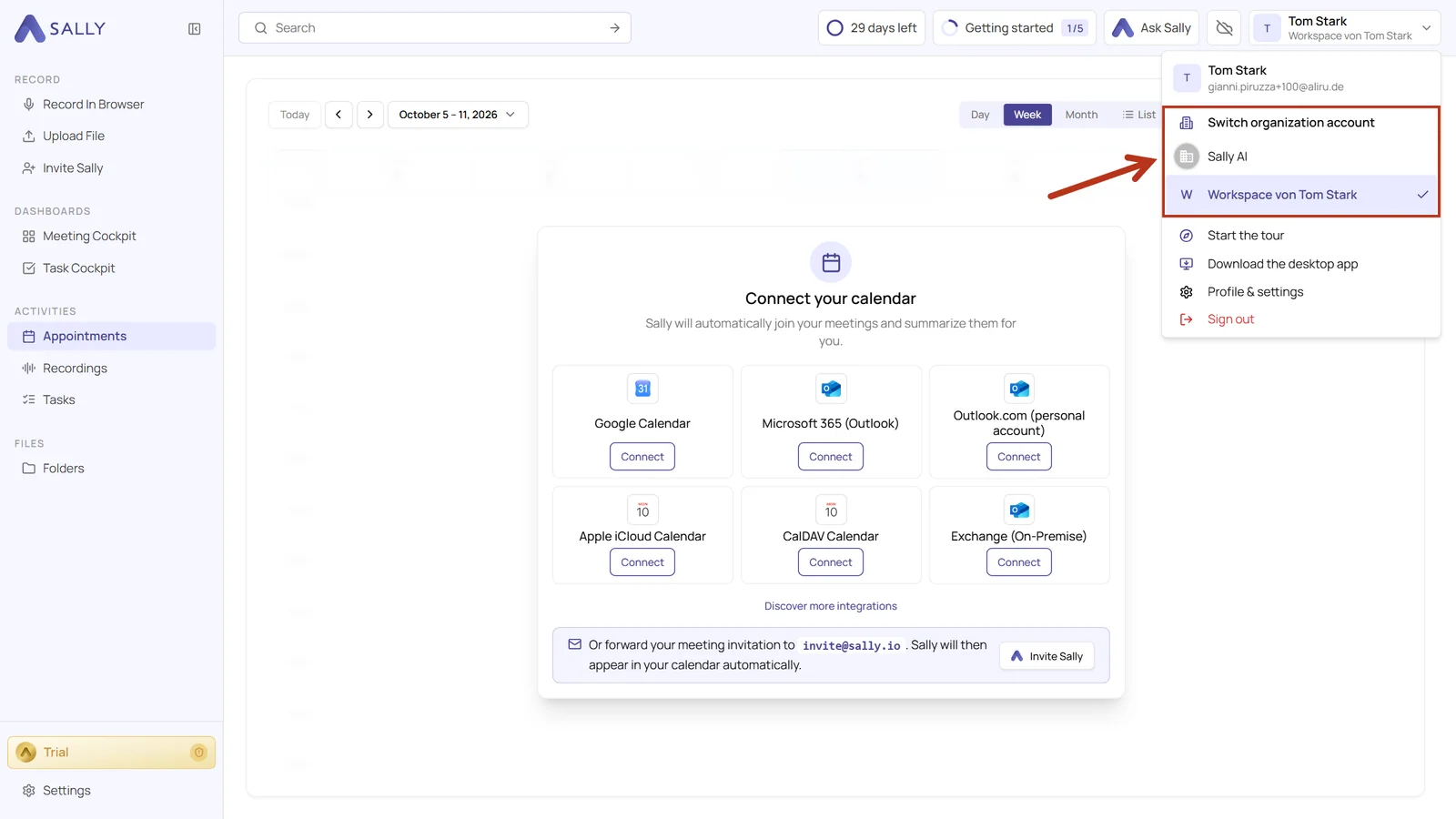
- Under Switch organization account you see every organization account you belong to. The active one is highlighted and marked with a check mark. Click the account you want to switch to.
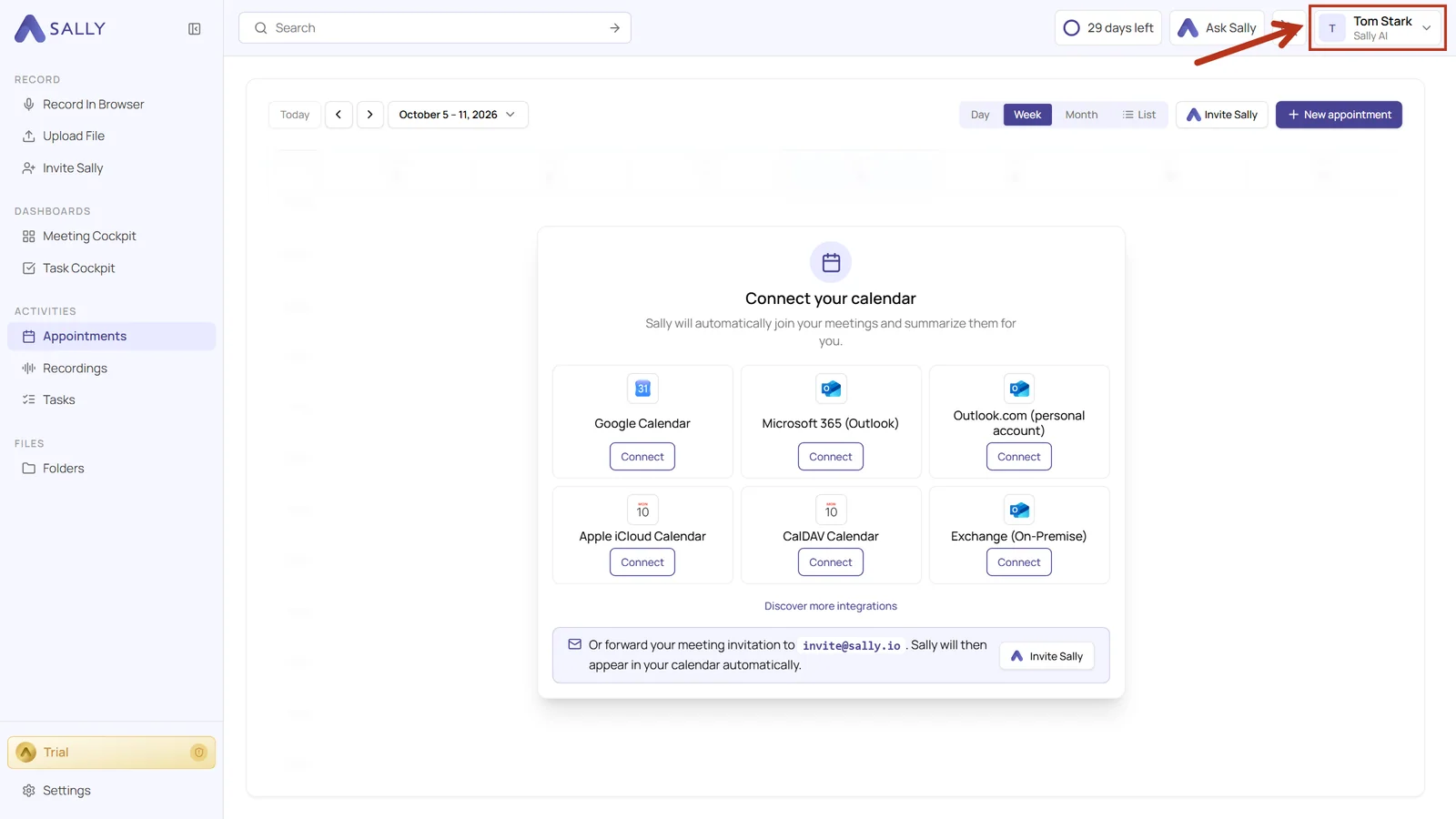
- Sally reloads the view. The new organization account now appears below your name in the top right corner.
The section only appears once you belong to at least two organization accounts. With just one account, the menu shows its name only. To join another organization account, an owner or admin of that account has to invite you. Accept the invitation through the link in the email, and the account shows up in the list.
When you sign in, Sally opens your default organization. Meetings that you add through an email invitation also land there. Learn how to pick it in Set default organization.