Change your password
You can change your Sally account password at any time from the security settings. For your protection, you need to verify your identity by email before setting a new password.
How to change your password:
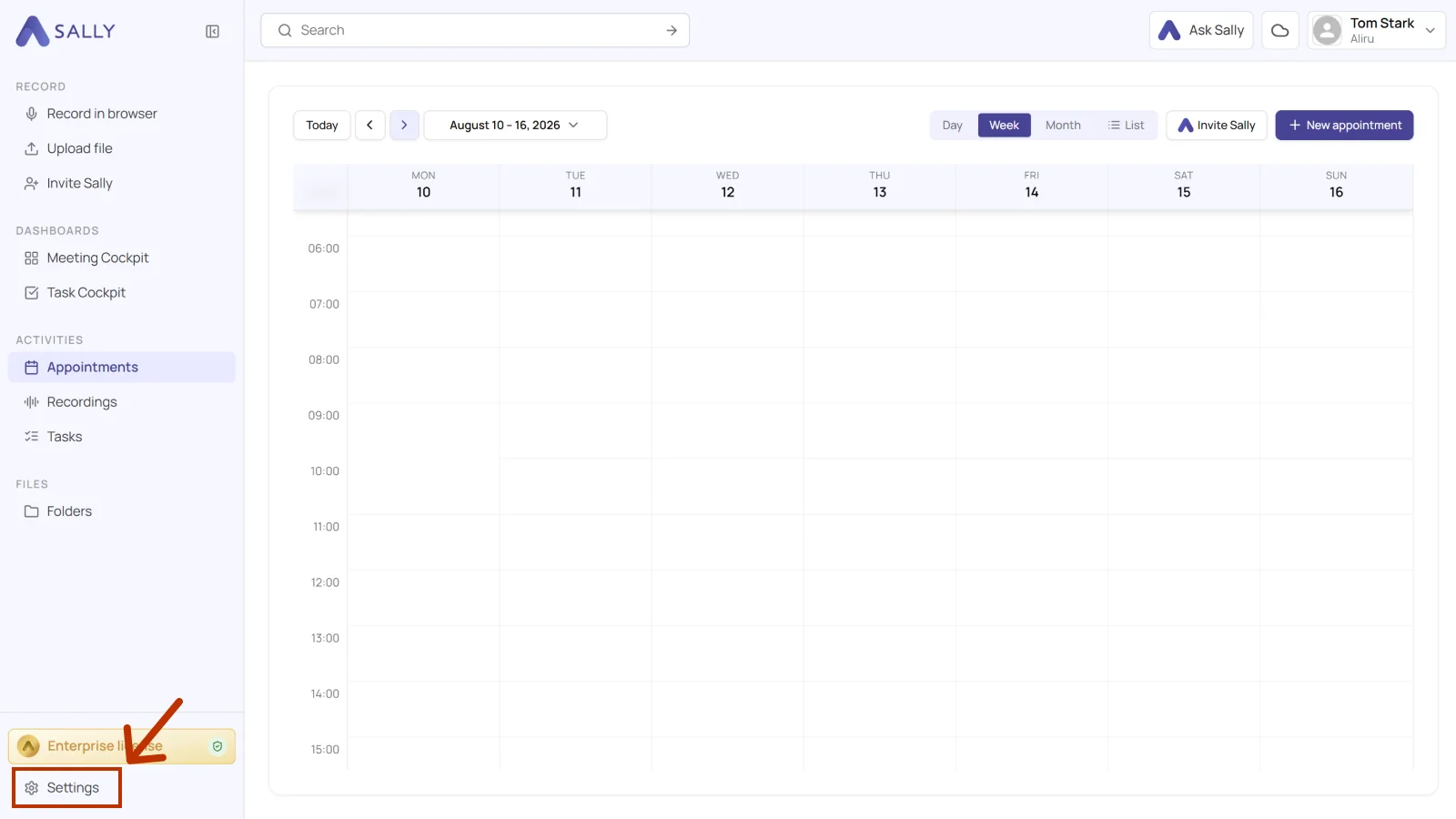
- Open Settings from the bottom-left corner of the sidebar.
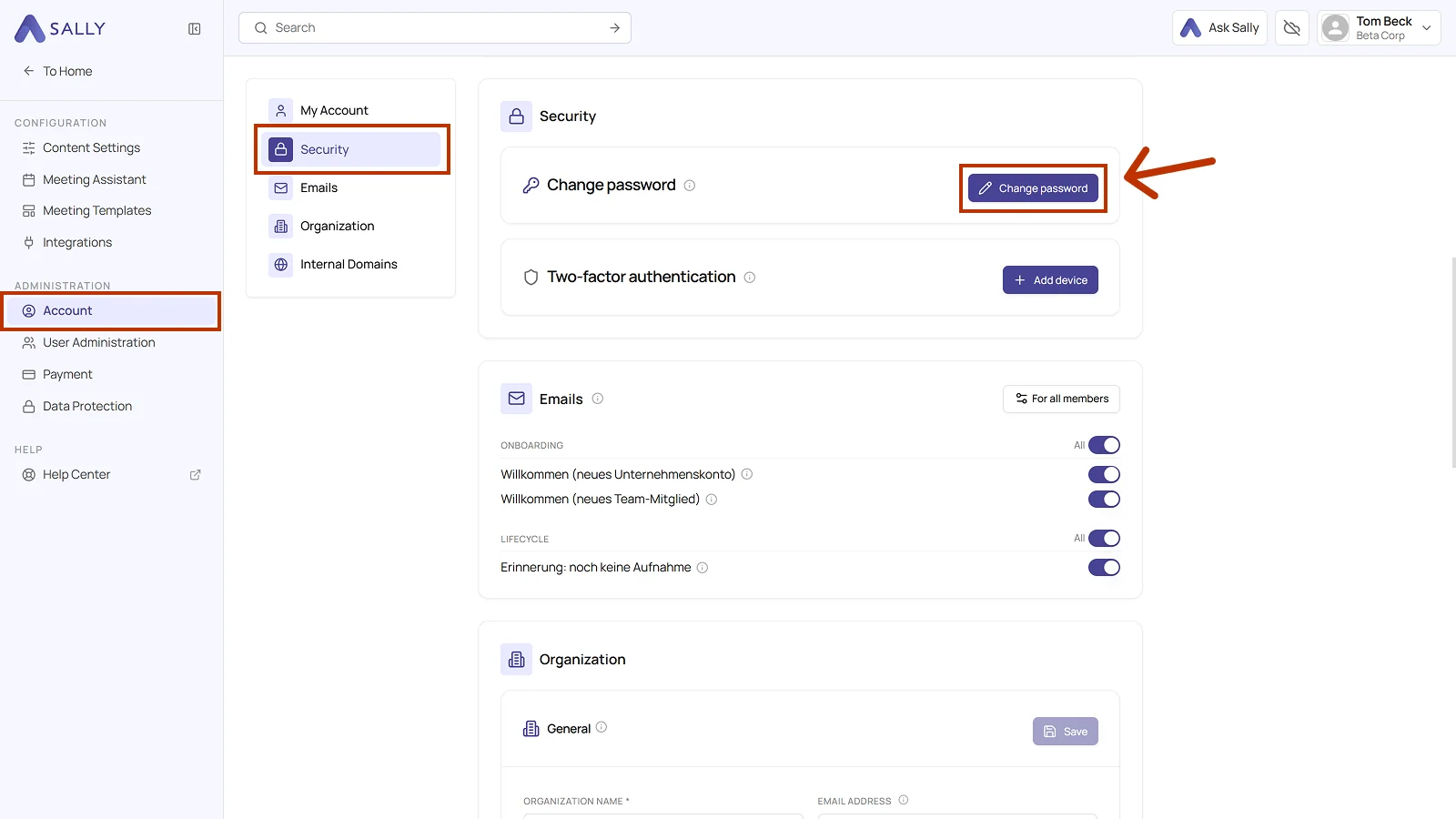
- Under Administration, select Account and open the Security tab.
- In the Change password card, click the Change password button.
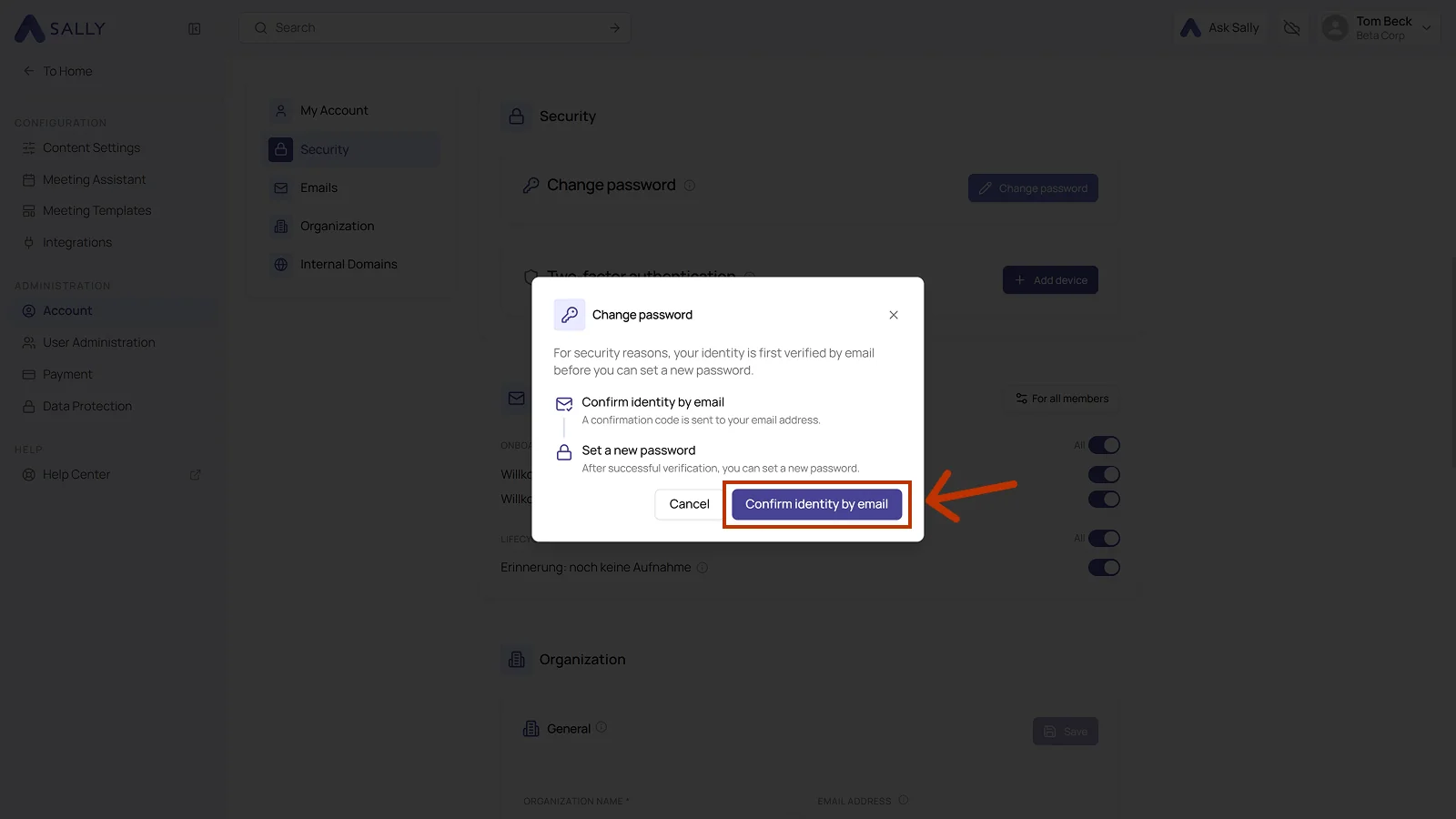
- A dialog appears with two steps. Click Confirm identity by email. Sally sends a 6-digit confirmation code to your email address. Enter that code in the dialog to verify your identity.
- After successful verification, enter your new password, confirm it, and click Change password.
Password requirements
Your new password must meet the following criteria:
- At least 8 characters long
- At least one uppercase letter
- At least one special character
Right next to it
The same Security tab is where you set up multi-factor authentication, through Add device.
No password with sign in only via Microsoft
If your admin has turned on sign in only via Microsoft for your email domain, you have no Sally password. Changing or resetting it is locked then, and you sign in with the Microsoft button on the login page.