Set internal domains
Sally tells internal meetings from external ones by the domains of the participants. A meeting counts as internal when every participant has a domain marked as internal. As soon as one other domain joins, the meeting counts as external.
Several settings build on this, such as Only with external participants for the privacy notice in the meeting and Only for internal meetings for video and audio recordings. Once a domain is verified, you can also have new colleagues join your organization automatically when they first sign in via SSO, or make Microsoft or your own identity provider the only way to sign in for everyone with an address on it.
The domains belong to the organization account and apply to everyone in the company.
Only owners and admins can edit them, members cannot.
Quick navigation
- Add a domain
- Mark a domain as internal
- Verify a domain
- Auto-join for new colleagues
- Sign in only via Microsoft
- Sign-in only via SSO
1. Add a domain
- Open Settings at the bottom of the left sidebar.
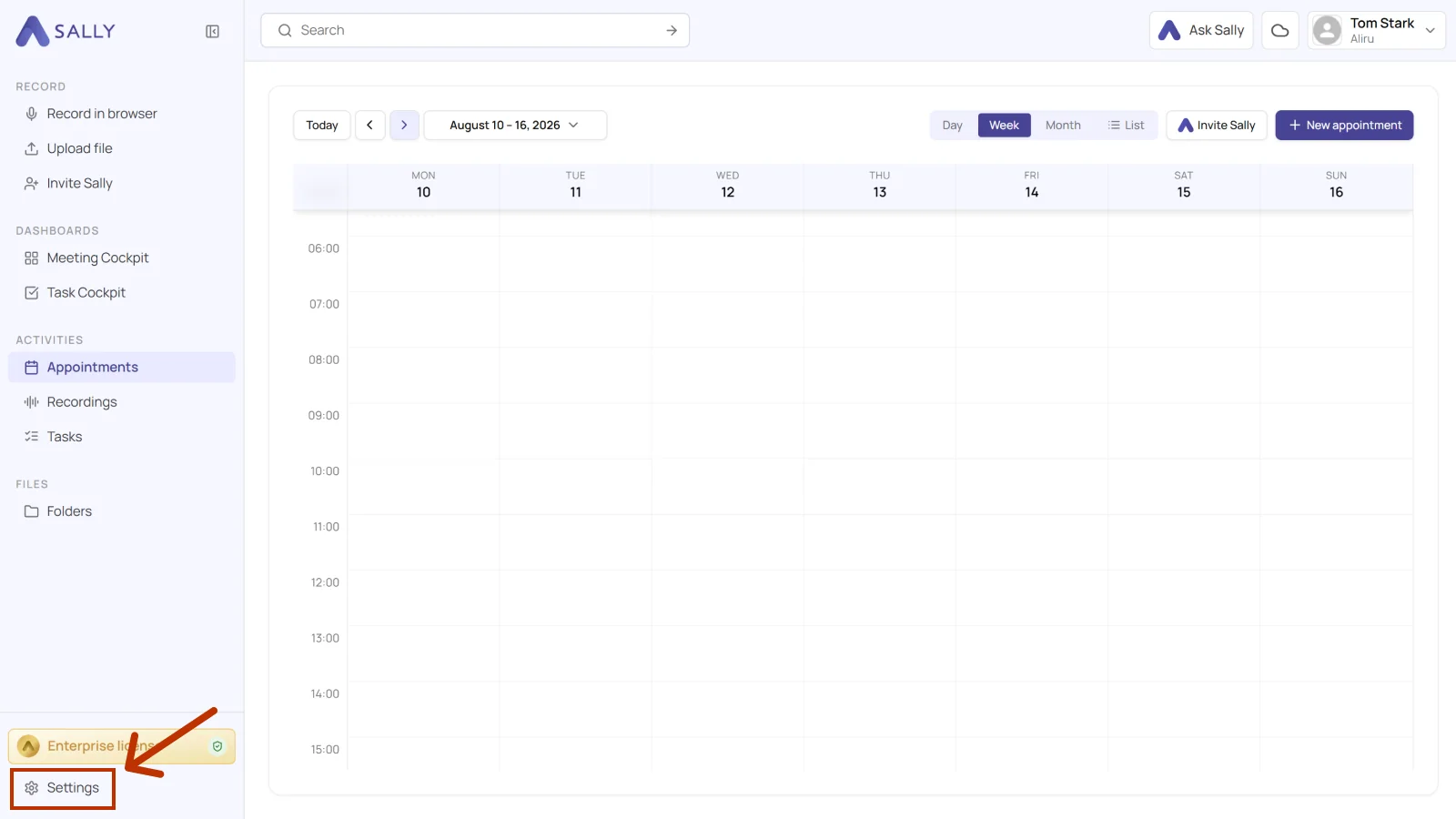
- Under Administration, open Account and pick Internal Domains on the left.
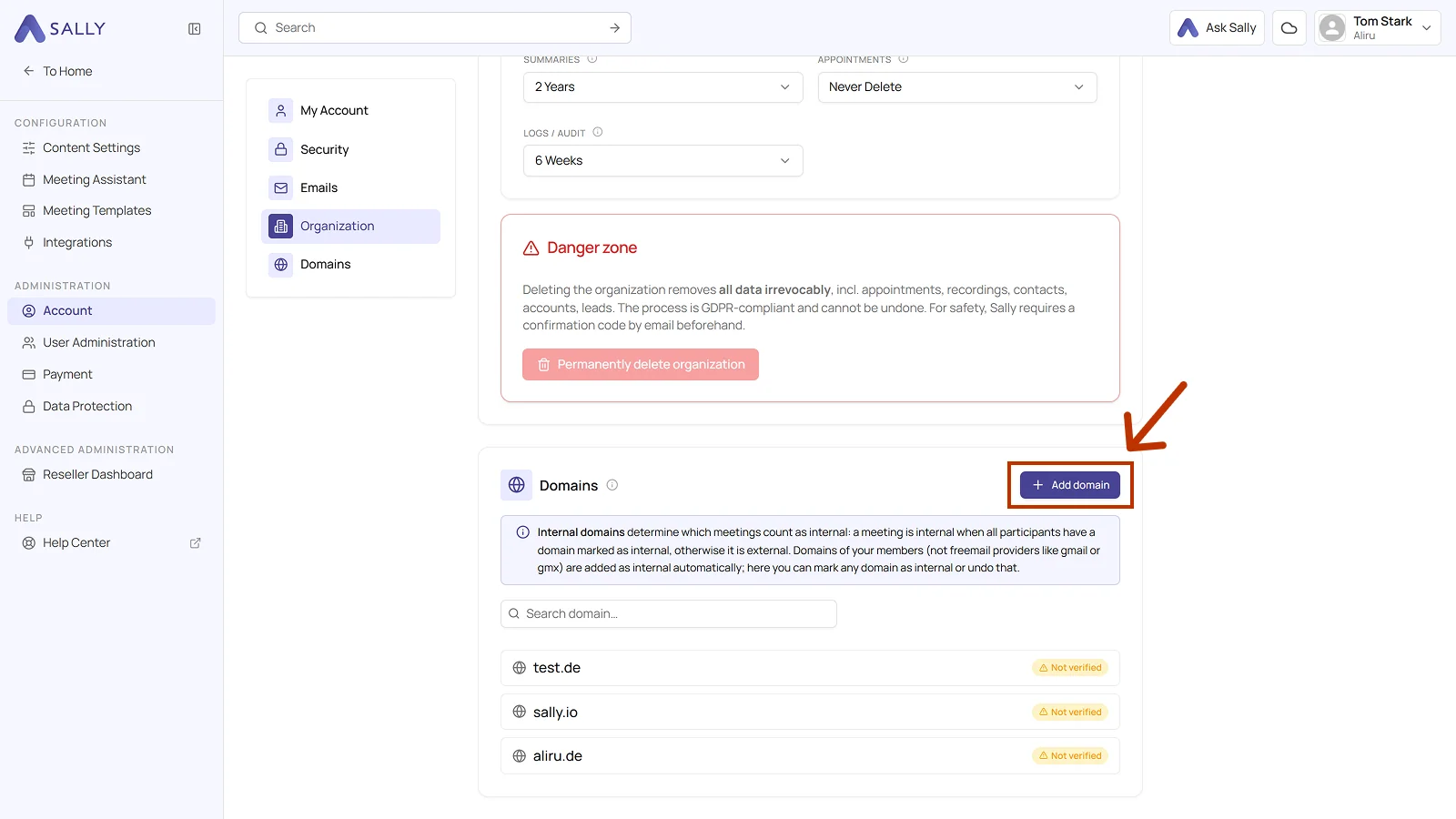
- Next to the Internal Domains heading, click + Add domain.
- In the Add new domain dialog, enter your company's main domain, without
https://and without a path, sosally.iofor example. - Click Next.
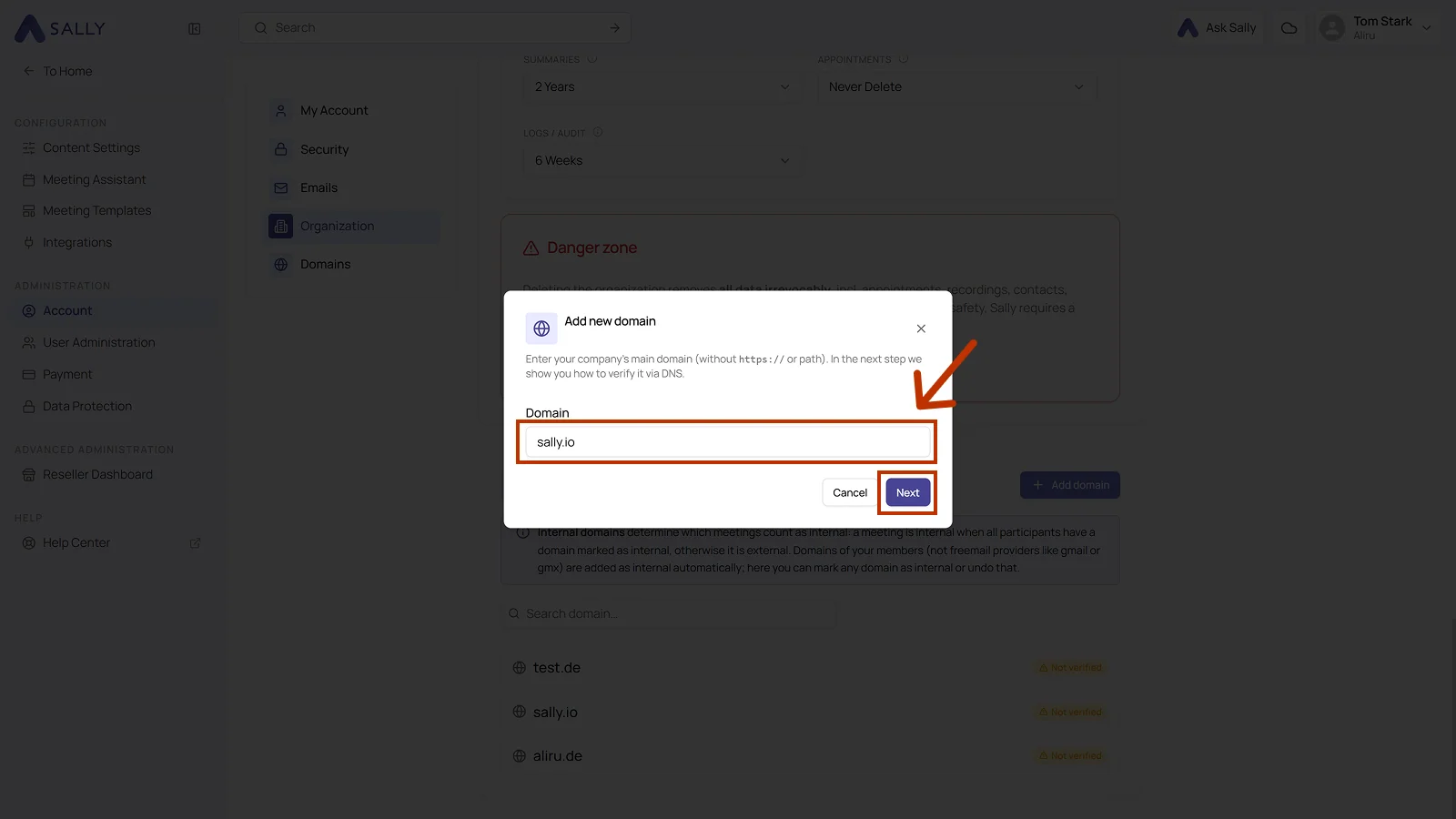
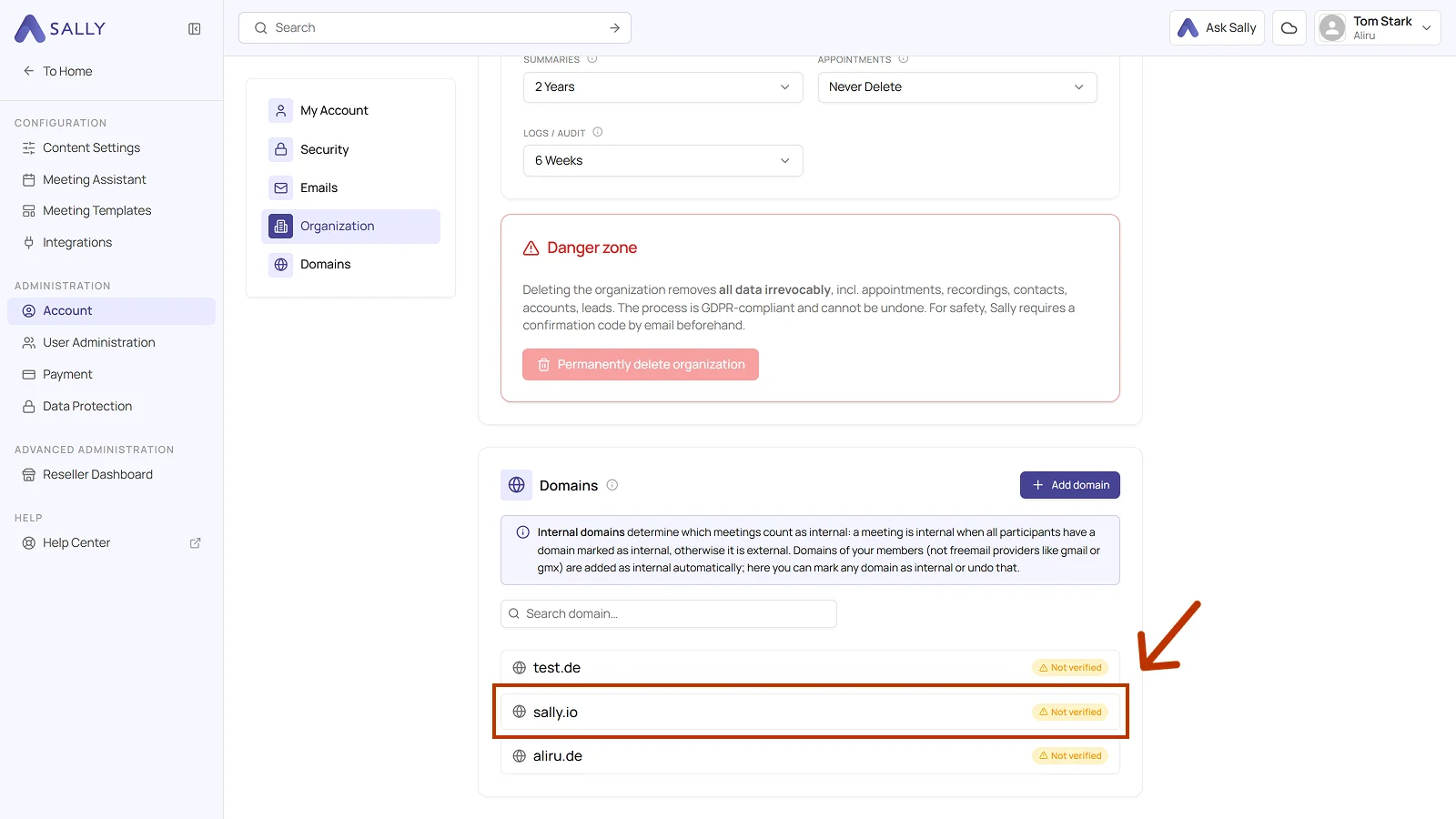
The domain then appears in the list, marked Not verified at first.
Sally adds the domains of your members as internal on its own. Freemail providers such as gmail or gmx are left out. Every domain in the list can be marked as internal, or have that mark removed again.
2. Mark a domain as internal
- Click the domain in the list.
- The domain's detail panel opens on the right. Turn on Internal domain there. The switch decides whether the domain counts toward classifying a meeting as internal or external.
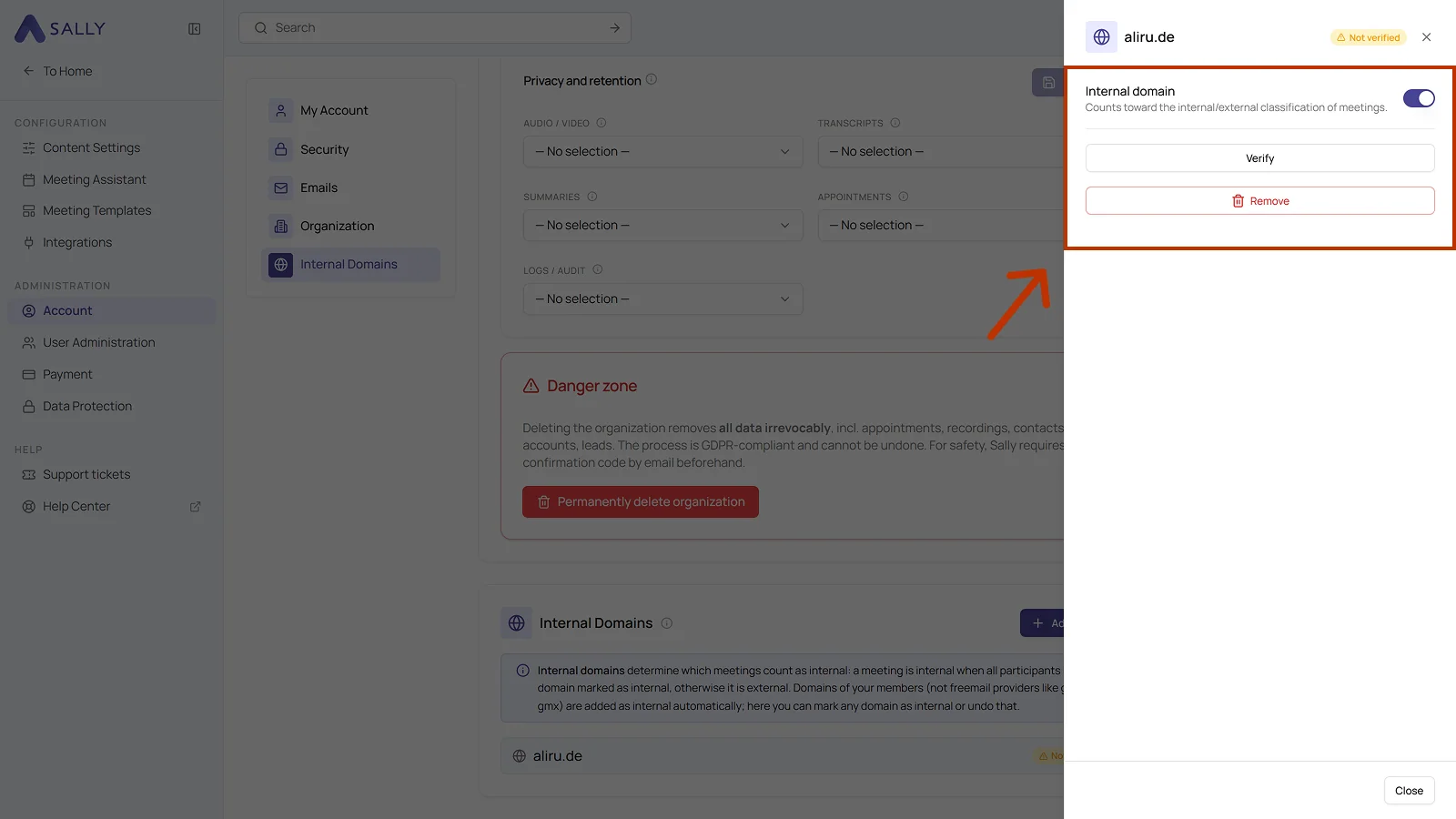
- Remove deletes the domain from the list again, Close leaves the detail panel.
3. Verify a domain
Verifying proves that your organization actually owns a given email domain. You confirm ownership by adding a single TXT record to your DNS provider that Sally generates for you.
That keeps you in control of which accounts belong to your organization. And only a verified domain can be used for auto-join.
- In the domain's detail panel, click Verify. Sally shows a DNS TXT record with Type, Host, and Value.
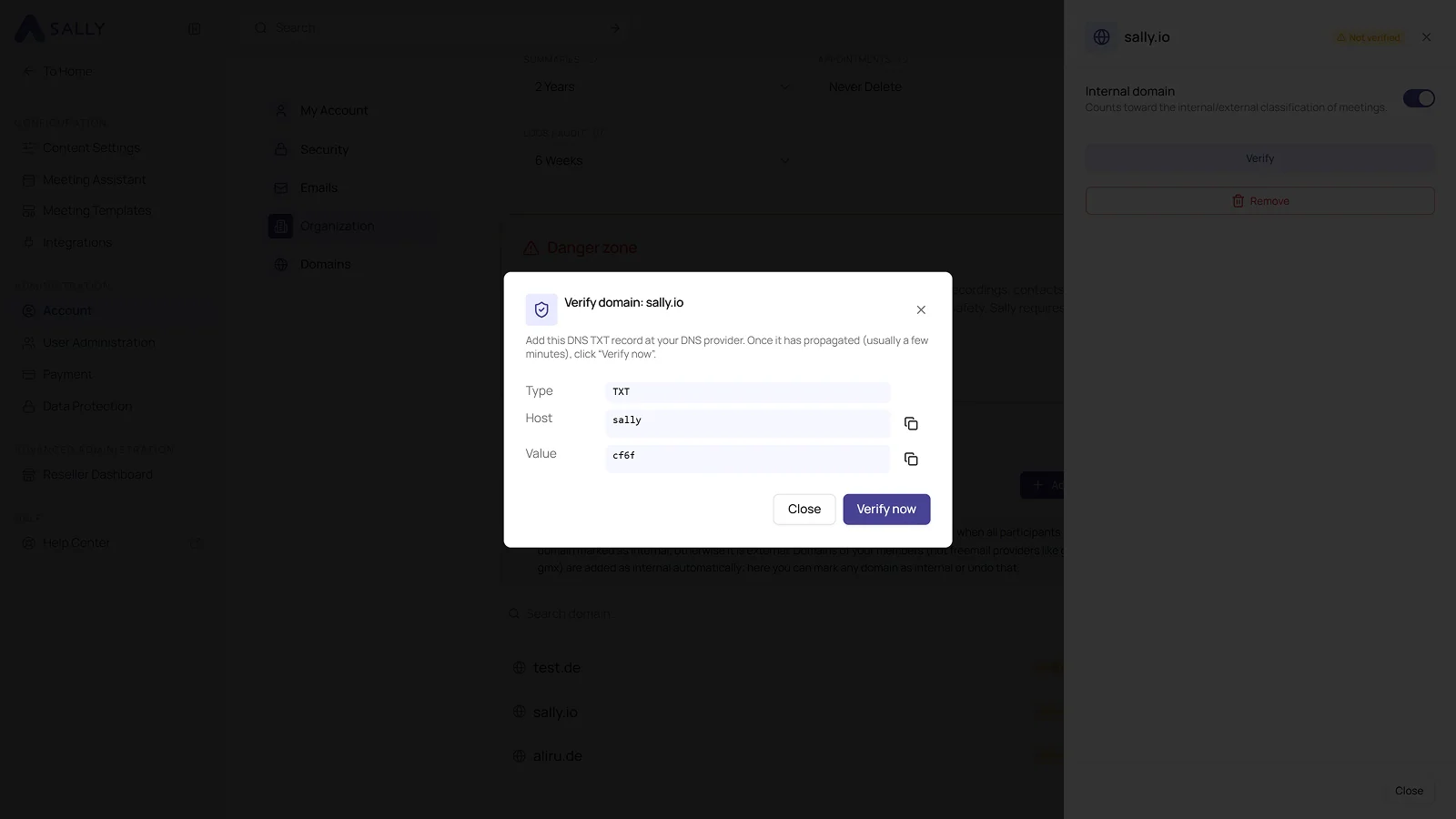
- Add the record at your DNS provider. The icons next to the fields copy the host and the value, so no typo creeps in.

Sign in to your DNS provider, Strato, IONOS, GoDaddy, Cloudflare, or Route 53 for example, and create a new TXT record. The fields often go by other names there: what Sally calls Host is the prefix at Strato, and Value becomes the value. Copy both exactly as Sally shows them.
- Give the new record a few minutes to take effect at your provider, then click Verify now. Close leaves the dialog without checking.
When Sally finds the record, the domain's mark changes from Not verified to Verified.
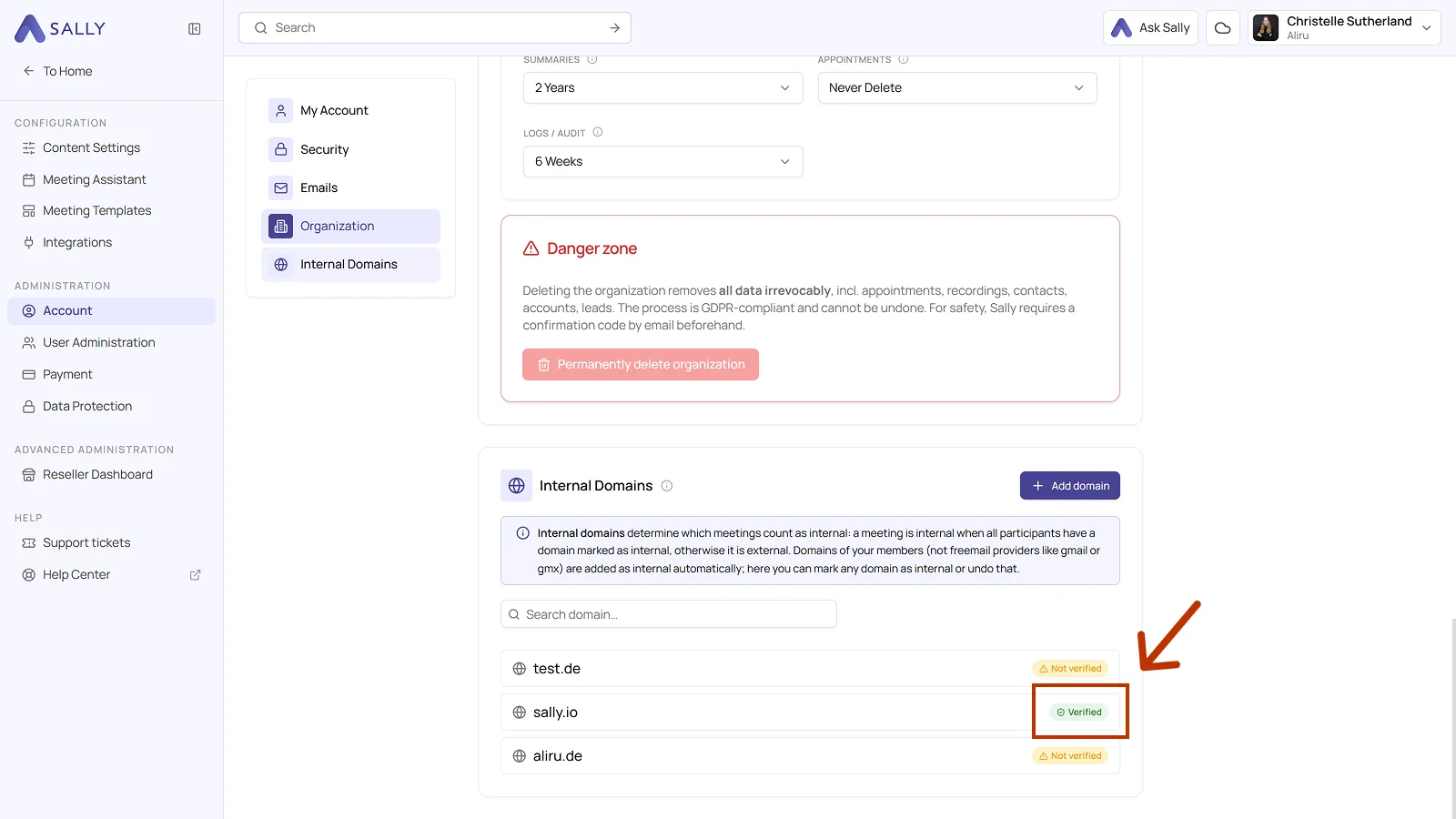
DNS changes sometimes take longer to show up everywhere. If the verification does not work right away, wait a moment and try again.
Sally checks the record every day
Leave the TXT record at your DNS provider after the verification. Sally checks once a day whether it is still there and asks every name server responsible for your domain directly, so an outdated answer from a cache does not count.
- A single wrong or missing answer changes nothing. The domain stays verified, auto-join and the sign-in rules stay in place, and nobody gets an email. Sally quietly checks again after 1, 6, and 24 hours.
- One correct answer ends the recheck. If the record shows up again in between, everything stays as it was.
- Only after four failed checks over at least 24 hours does Sally remove the verification. Auto-join is switched off, Sign in only via Microsoft and Sign-in only via SSO no longer apply to the domain, and all owners and admins receive the email Domain verification for <domain> lost.
- Timeouts and server errors at your DNS provider never count as a failed check.
Put the record back exactly as Sally showed it. As soon as every name server returns the right value, Sally verifies the domain again on its own in the next daily check, without an email. Sign in only via Microsoft and Sign-in only via SSO then apply again, auto-join stays off until you switch it back on. If you don't want to wait, Verify now in the domain's detail panel checks right away.
The same goes for a domain whose record you added but never checked with Verify now: the daily check verifies it as well.
4. Auto-join for new colleagues
Once a domain is verified, you can turn on auto-join for it. Auto-join takes effect when someone with an address on the domain signs in to Sally for the first time via SSO with your own identity provider:
- Someone who doesn't have a Sally user yet is created and added to your organization account as a member.
- An existing Sally user who isn't in your organization account yet is added to it as a member.
- No separate organization account is created, no manual invitation needed.
New members get no license, but the usual trial period of a new membership. Assigning a license remains up to you. Without auto-join, Sally rejects such sign-ins and asks the person to request an invitation from their admin.
- Click the verified domain in the list.
- In the detail panel, switch Auto-Join on.
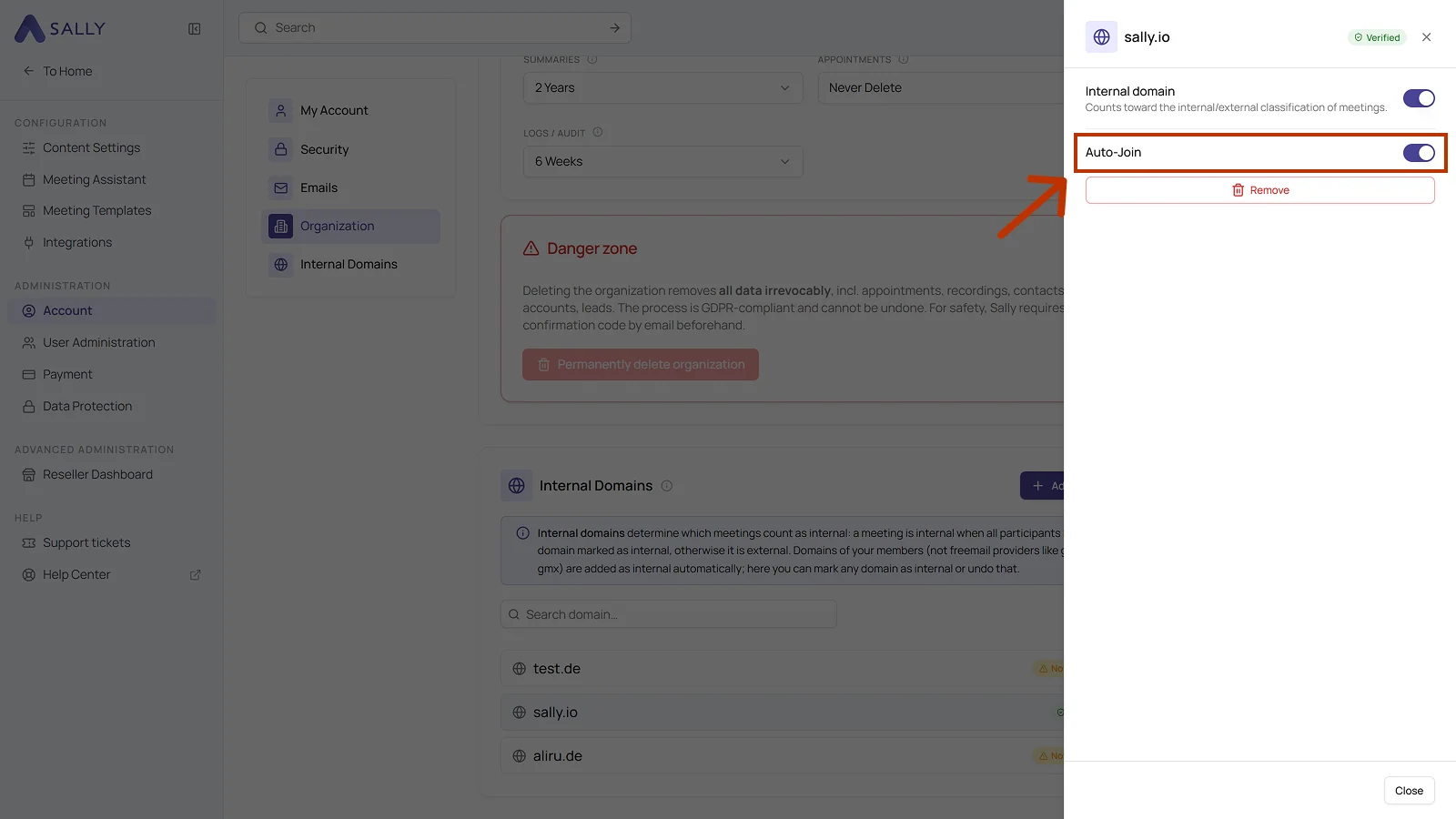
On a verified domain, the Auto-Join switch takes the place of the Verify button. Without verifying the domain it does not appear.
Auto-join currently only applies to sign-ins via SSO. Someone who registers with a password, Microsoft, Google, or Apple is not added to your organization account automatically. You bring those people in through user management.
5. Sign in only via Microsoft
If your company manages its accounts in Microsoft 365 (Entra ID), you can make Microsoft the only way into Sally for everyone with an address on a verified domain. The switch Sign in only via Microsoft sits in the domain's detail panel, right below Auto-Join. Sally then rejects passwords, Google and Apple for these addresses and only accepts Microsoft sign-ins from your company's own Microsoft tenant.
Conditions, setup, and what changes for your users are described under SSO login: sign in only via Microsoft.
6. Sign-in only via SSO
If your company has connected its own identity provider, such as Keycloak or Okta, you can make it the only way into Sally for a domain. The switch Sign-in only via … appears in the domain's detail panel as soon as the domain is assigned to your SSO connection, and carries the display name of your connection. Sally then rejects the Sally password, Microsoft, Google, and Apple for addresses on this domain.
Setup, conditions, and what changes for your users are described under SSO with your own identity provider: sign-in only via SSO.