SSO with your own identity provider
If your company manages its accounts in its own identity provider, such as Keycloak, Okta, OneLogin or Auth0, you can connect it to Sally via OpenID Connect. Your employees then sign in to Sally with their company account instead of a separate Sally password. Multi-factor authentication, password rules and account blocks stay where they already are: in your identity provider.
This guide walks you through the whole setup: preparing the client in your identity provider, connecting it in Sally, making SSO mandatory for a domain if you like, letting new colleagues join automatically, and what the sign-in looks like for your employees.
Quick navigation
- Before you start
- Prepare the client in your identity provider
- Connect the identity provider in Sally
- Sign-in only via SSO
- Auto-join for new colleagues
- How your employees sign in
- Change or remove the connection
- Error messages and what they mean
- FAQ
1. Before you start
You need three things:
- Your identity provider speaks OpenID Connect. Keycloak, Okta, OneLogin, Auth0, Ping and JumpCloud all do. SAML is not supported.
- At least one verified domain. SSO applies to email addresses on domains that your organization has verified. How to add and verify a domain is explained under Internal domains. Leave the TXT record in place afterwards: Sally checks it every day, and if it's gone, the domain loses its verification and SSO stops working for it.
- Your identity provider is reachable from the internet via https. From its own servers, Sally exchanges the sign-in for a token at your identity provider and fetches the keys to verify it. An identity provider that is only reachable inside your company network, or only via
http, can't be connected. - Access to the admin console of your identity provider, so you can create a client there. If someone else manages it, send them step 2.
If your company uses Microsoft Entra ID or Google Workspace, you don't need this setup. Your employees can sign in right away with the Microsoft or Google button, see SSO login. To make Microsoft the only way in, use sign in only via Microsoft.
2. Prepare the client in your identity provider
Sally signs in to your identity provider as a client of its own. You create this client once and need four values from it later: the issuer URL, the client ID, the client secret and an entry for Sally's redirect URI.
You'll find the redirect URI in Sally in the setup panel (see step 3), with a button to copy it. It is the same address for all Sally customers. It's easiest to open the panel in Sally first, copy the address, and then create the client in your identity provider.
2.1. Keycloak
- In the Keycloak admin console, switch to the realm your employees sign in with.
- Open Clients and click Create client.
- Keep OpenID Connect as the client type and enter a Client ID, for example
sally. Click Next. - Turn on Client authentication and keep Standard flow checked. Click Next.
- Paste Sally's redirect URI under Valid redirect URIs and click Save.
- On the client's Credentials tab, copy the Client secret.
The issuer URL is the address of your realm: your Keycloak server followed by /realms/ and the realm name, for example https://sso.company.com/realms/company. On older Keycloak installations (up to version 16), there is an /auth in between: https://sso.company.com/auth/realms/company.
Sally recognizes your employees by their email address. Make sure every user in Keycloak has an email address and that the client scopes email and profile are assigned to the client. In Keycloak they are by default. Sally reads the address from the ID token, or from the userinfo endpoint if it's missing there.
2.2. Okta
- In the Okta Admin Console, open Applications › Applications and click Create App Integration.
- Choose OIDC - OpenID Connect as the sign-in method and Web Application as the application type.
- Paste Sally's redirect URI under Sign-in redirect URIs and save.
- On the General tab, copy the Client ID and the Client secret.
- Under Assignments, assign the people or groups who should be allowed to sign in to Sally.
The issuer URL is your Okta address, for example https://company.okta.com.
2.3. Other providers
With other providers, the steps are named differently but are the same in substance:
- Create a web application or confidential client with the Authorization Code flow.
- Enter Sally's redirect URI as an allowed redirect.
- Allow the scopes
openid,emailandprofile. - Sally authenticates with the client secret via HTTP Basic (
client_secret_basic) and always sends PKCE with theS256method. If your provider asks for a PKCE method, chooseS256. - Note down the issuer URL, client ID and client secret.
Sally reads everything else on its own from your provider's OpenID configuration at {issuer URL}/.well-known/openid-configuration. The issuer URL you enter has to match the issuer value there exactly, apart from a trailing slash.
3. Connect the identity provider in Sally
- Open Settings at the bottom of the left sidebar.
- Under Administration, open User Administration.
- Click Set up SSO above the user list, next to Set up SCIM.
- The Connect SSO sign-in panel opens on the right. Fill in the Connection section:
| Field | What to enter |
|---|---|
| Display name | The name your employees see on the sign-in button, for example ACME SSO. Sally then shows Continue with ACME SSO. |
| Issuer URL | The address of your identity provider, see step 2. It has to match the issuer in your provider's OpenID configuration exactly. |
| Client ID | The client ID from your identity provider. |
| Client secret | The secret from your identity provider. After saving, it can no longer be displayed. |
| Redirect URI | Filled in by Sally. Copy it with the button next to it and enter it in your identity provider as an allowed redirect. |
- Click Check connection. Sally reads the sign-in, token and key addresses from your provider's OpenID configuration and stores your entries. If that fails, the field says so: check the issuer URL, often the realm or the
/authpart is missing. The test sign-in only becomes available after a successful check. - In the Test sign-in section, click Start test sign-in. Your identity provider's sign-in page opens. Sign in there with your own company account. Afterwards you are taken back to user management, and the panel shows the result, for example The test sign-in succeeded, signed in as name@company.com. The test only passes if your identity provider sends an email address.
- In the Domains section, select the verified domains whose addresses should sign in via your identity provider. Domains that are not verified can't be selected. Select at least one. If your organization has no verified domain yet, the section says No verified domain yet and takes you there with Go to domains.
- Click Save.
From now on, everyone with an address on one of the selected domains can sign in to Sally with the SSO button. The password and the other sign-in methods keep working for them until you turn on sign-in only via SSO.
You can only save once the test sign-in has succeeded. That way a wrong client ID or a forgotten redirect URI shows up during setup, not only when your employees can no longer sign in.
4. Sign-in only via SSO
Once SSO is running, you can make it the only way into Sally for a domain. Sally then rejects the Sally password, Microsoft, Google and Apple for addresses on that domain. Multi-factor authentication and policies come entirely from your identity provider, and blocking someone there also locks them out of Sally.
The switch can only be turned on when:
- the domain is verified,
- it is assigned to your SSO connection (see step 3), and
- sign in only via Microsoft is off for this domain. A domain can have only one mandatory sign-in method.
- Open Settings, go to Account and pick Internal Domains on the left.
- Click the domain. Its detail panel opens on the right.
- Turn on Sign-in only via ACME SSO (Sally uses your display name here).
- Before switching it on, Sally asks for confirmation and tells you how many users on this domain have a Sally password that will stop working. Confirm with Switch on.
In the list, the domain now carries the badge Only ACME SSO.
What changes for your users:
- Sign-in: Only the SSO button works. Anyone who tries their password sees a note after clicking Log in and can continue to your identity provider straight from that note with Continue with ACME SSO.
- Sessions: When you turn on the rule, all other sessions of these addresses end. Your own session stays.
- Passwords: Forgot password and changing the password are locked for these addresses. Under Account › Security, they see the card Sign-in via SSO instead, and Sally no longer offers its own two-factor authentication there.
- Invitations: Someone invited with an address on the domain accepts with Accept and sign in with SSO and goes straight to your identity provider.
You can turn the switch off again at any time in the same place. From then on, all sign-in methods work again for addresses on this domain.
The rule only applies while your SSO connection is active and the domain is verified. If you change the issuer URL, client ID or secret, Sally pauses the connection until the next successful test sign-in and save, see step 7. The same happens if the domain loses its verification. During that time, the Sally password, Microsoft, Google and Apple work again for these addresses, so nobody is locked out. Plan changes to the connection accordingly.
5. Auto-join for new colleagues
By default, Sally only lets people in via SSO who are already members of your organization account. Anyone else is rejected with a request to ask their admin for an invitation.
If you don't want to invite every new colleague individually, turn on auto-join for the domain. It sits in the same detail panel under Account › Internal Domains, see Internal domains: auto-join. With auto-join on, Sally handles a first SSO sign-in like this:
- Nobody with this address in Sally yet: Sally creates the user and adds them to your organization account as a member. They get no license, but the usual trial period of a new membership. Assigning a license remains up to you.
- Already a Sally user, but not in your organization account: Sally adds the existing user to your organization account as a member.
- Already a member: They are simply signed in.
Sally never creates a separate organization account this way. If you also connect SCIM, the people from your identity provider are already there before their first sign-in, and SCIM assigns their licenses through groups.
6. How your employees sign in
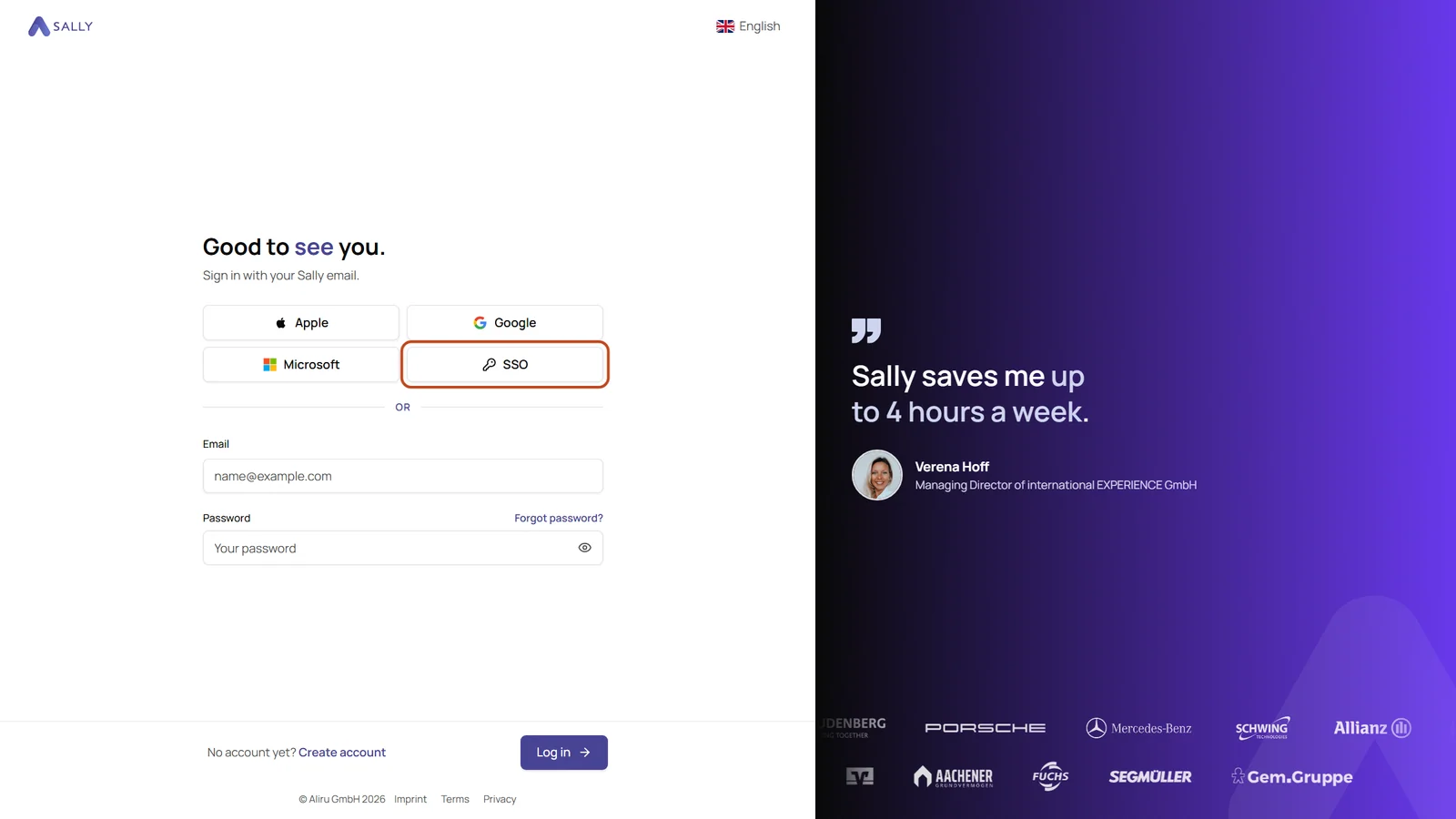
- Your employees open the Sally sign-in page and click SSO, next to Apple, Google and Microsoft.
- Sally asks for the Company email. Enter it and click Continue.
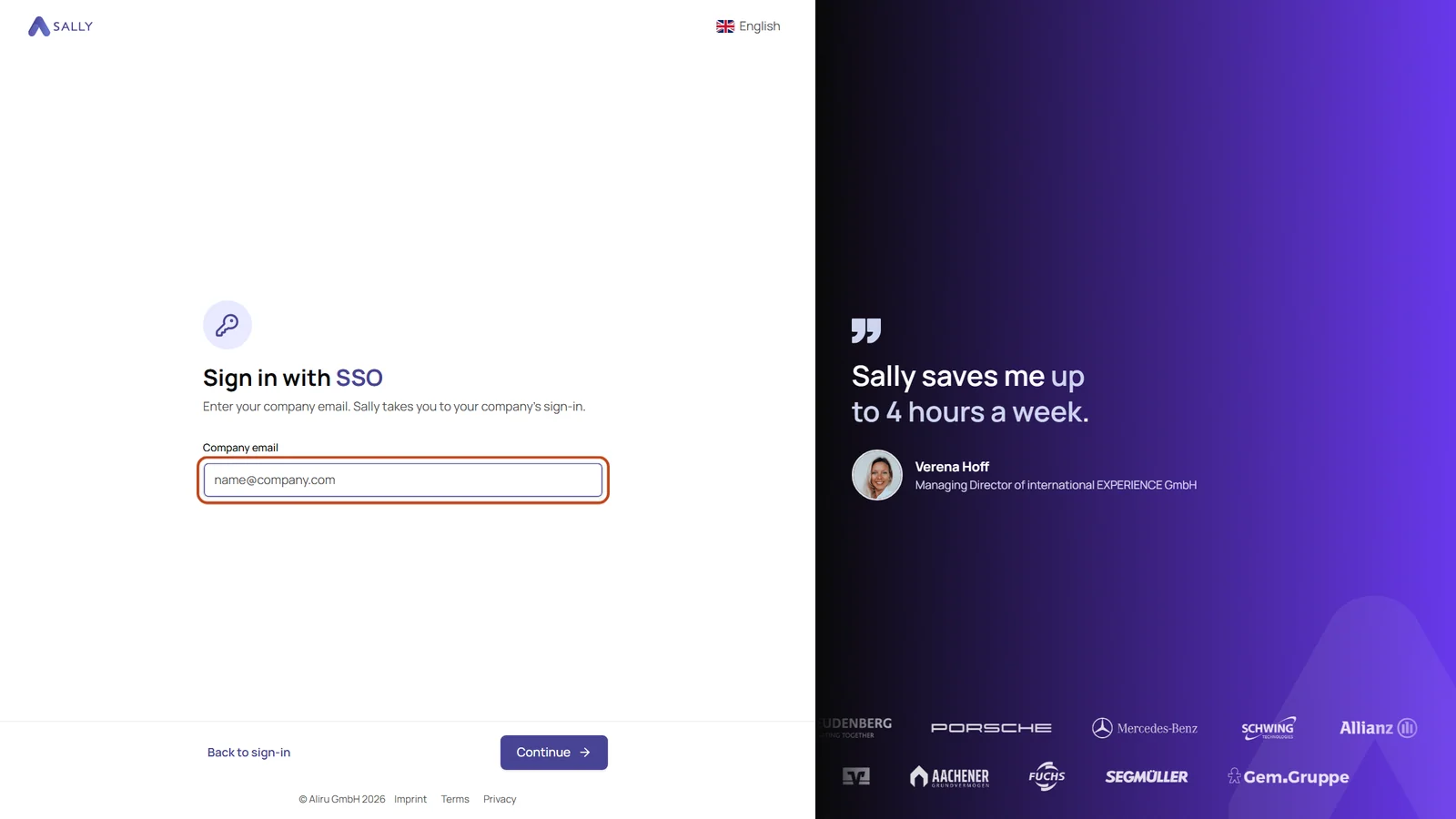
- Sally recognizes the domain and redirects to your identity provider. Sign in there as usual.
- Sally takes you back and you're signed in.
Sally remembers the address on the device. From the second time on, a click on SSO is enough. If an address is already in the Email field on the sign-in page, Sally skips the question as well.
The page https://app.sally.io/sso starts the SSO sign-in directly, without the sign-in page. You can put it in your intranet or add it as a tile to your identity provider's app dashboard.
The SSO button is also available in the Sally app, in the Sally Recorder and in Sally for Microsoft Teams. There, too, Sally asks for the company email and then takes you to your identity provider.
7. Change or remove the connection
Once the connection is saved, the button in user management is called Manage SSO. There you can:
- Change the display name. Click Check connection afterwards, that stores the new name. The test sign-in stays valid.
- Change the domains. Select or deselect them and click Save. A domain you deselect also loses sign-in only via ….
- Change the issuer URL, client ID or secret. Click Check connection, then run the test sign-in again, then click Save. Until then, sign-in via SSO is paused and sign-in only via SSO rests. The secret stays stored if you leave the field empty.
- Remove the connection with Remove connection. After that, nobody signs in via your identity provider anymore, and sign-in only via … ends for all domains. To get it back, enter and test the connection again.
8. Error messages and what they mean
| Message | What to do |
|---|---|
| The OpenID configuration could not be read at this issuer URL. Check the address. | The issuer URL is wrong. With Keycloak, check the realm name and whether your server needs the /auth part. |
| The test sign-in failed (code: …). | Check the client ID, the secret and the redirect URI in your identity provider. |
| There is no SSO sign-in set up for @… addresses. | The domain of the address is not assigned to an SSO connection, or it is not verified. |
| The identity provider did not send an email address. | Allow the email scope for the client in your identity provider, and make sure the user has an email address there. |
| Your address does not belong to a domain that is enabled for this SSO sign-in in Sally. | Your identity provider returned an address on a domain that isn't selected in the SSO connection. Sally only accepts addresses on your own verified domains. |
| You are not yet a member of this organization account in Sally. | Invite the person through user management, or turn on auto-join. |
| Your company's SSO sign-in is currently not set up or paused. | The connection was changed and not tested again, or it was removed. Run the test sign-in again under Manage SSO. |
| Your company's identity provider rejected the sign-in. | Your identity provider refused the sign-in, for example because the person isn't assigned to the Sally client there. Check the assignment and the redirect URI. |
| The identity provider's response could not be verified. | Often the client secret is wrong or has expired. Check it in your identity provider and run the test sign-in again. |
| For this address, sign-in is only possible via your company's identity provider. | Sign-in only via SSO is on for the domain. Use the SSO button instead of the password, Microsoft, Google or Apple. |
| Your access to this organization account is blocked. | The person is blocked in your organization account. Lift the block in user management. |
| The sign-in has expired. Please start it again. | A sign-in has to be completed within ten minutes. Start again with SSO. |
9. FAQ
Which identity providers work?
Every identity provider that supports OpenID Connect with the Authorization Code flow, for example Keycloak, Okta, OneLogin, Auth0, Ping or JumpCloud. SAML is not supported.
Can I connect more than one identity provider?
No. Each organization account has one SSO connection. You can assign several verified domains to it.
Why is there only one SSO button and not a separate button for Okta or Keycloak?
Every Okta and every Keycloak is its own instance under your company's address. Sally only knows which one to use once it has the email address. That's why there is one SSO button for all companies, and after the address Sally shows the name you chose as the display name.
Does an SSO sign-in assign a license?
No. Licenses are assigned by the owner or an admin, or through SCIM groups. A person who joins via auto-join starts without a license, with the trial period of a new membership.
What happens if an employee's email address changes in the identity provider?
Sally recognizes a person by their email address only at the first sign-in. After that, it uses the fixed user ID from your identity provider, so the person stays the same Sally user.
Can I combine SSO with SCIM?
Yes. SCIM creates and removes users and assigns licenses, SSO handles the sign-in. Both work independently of each other.
What happens if I block someone in my identity provider?
They can no longer sign in via SSO. If they still have a Sally password, they can continue to use it until you turn on sign-in only via SSO for the domain. With the rule on, a block in your identity provider also locks the person out of Sally.
Where does multi-factor authentication come from?
From your identity provider. Sally doesn't take part in the sign-in there. With the rule sign-in only via SSO on, Sally no longer offers its own two-factor authentication for these addresses.