How to activate your Sally AI license
You can activate your access at any time, during the trial or after it, and use Sally without limits.
This article shows where to find the plans, what sets them apart, and how you start the subscription. The payment itself runs through Stripe.
How do I activate my Sally AI license?
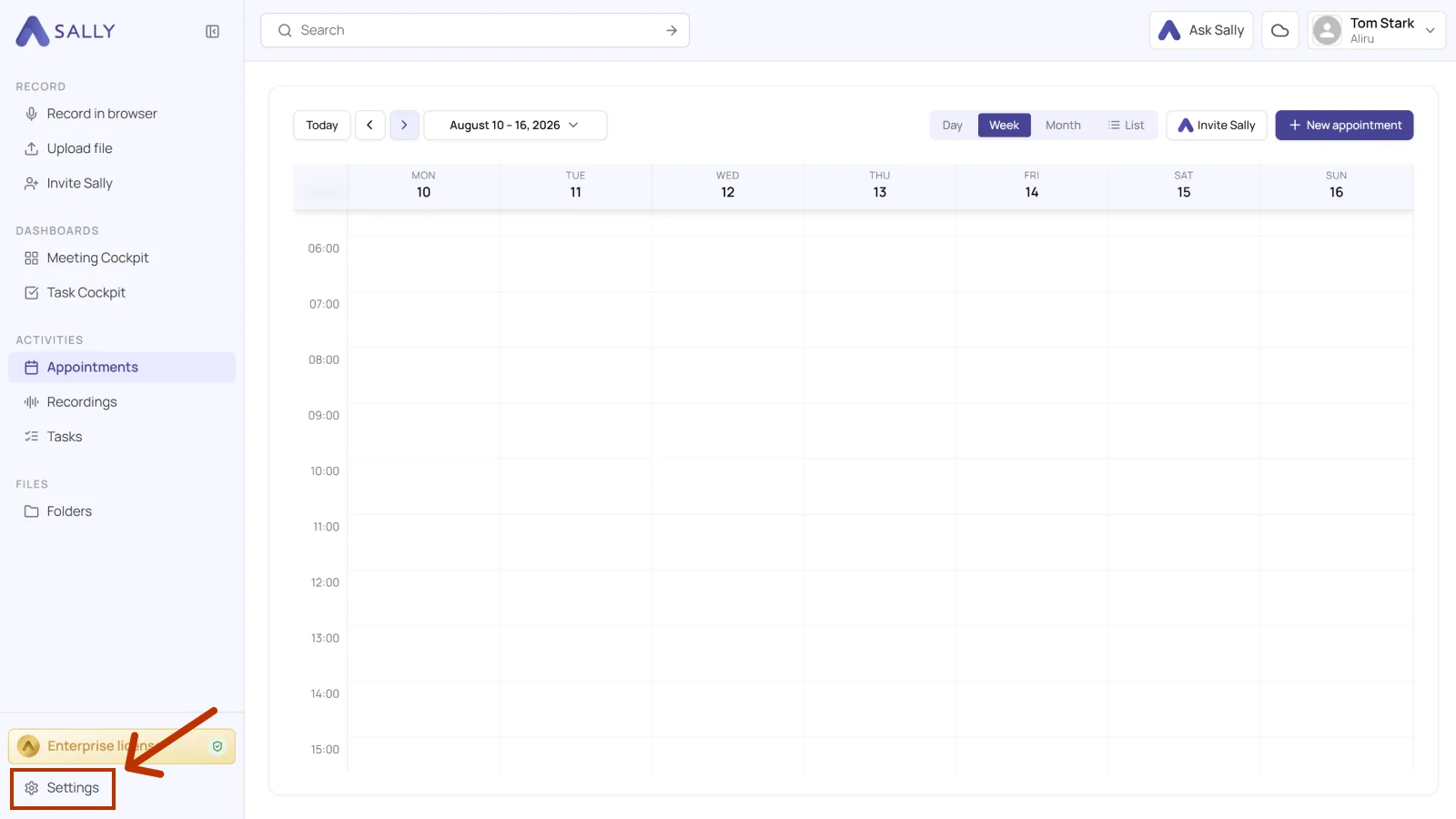
- Open Settings at the bottom of the left sidebar.
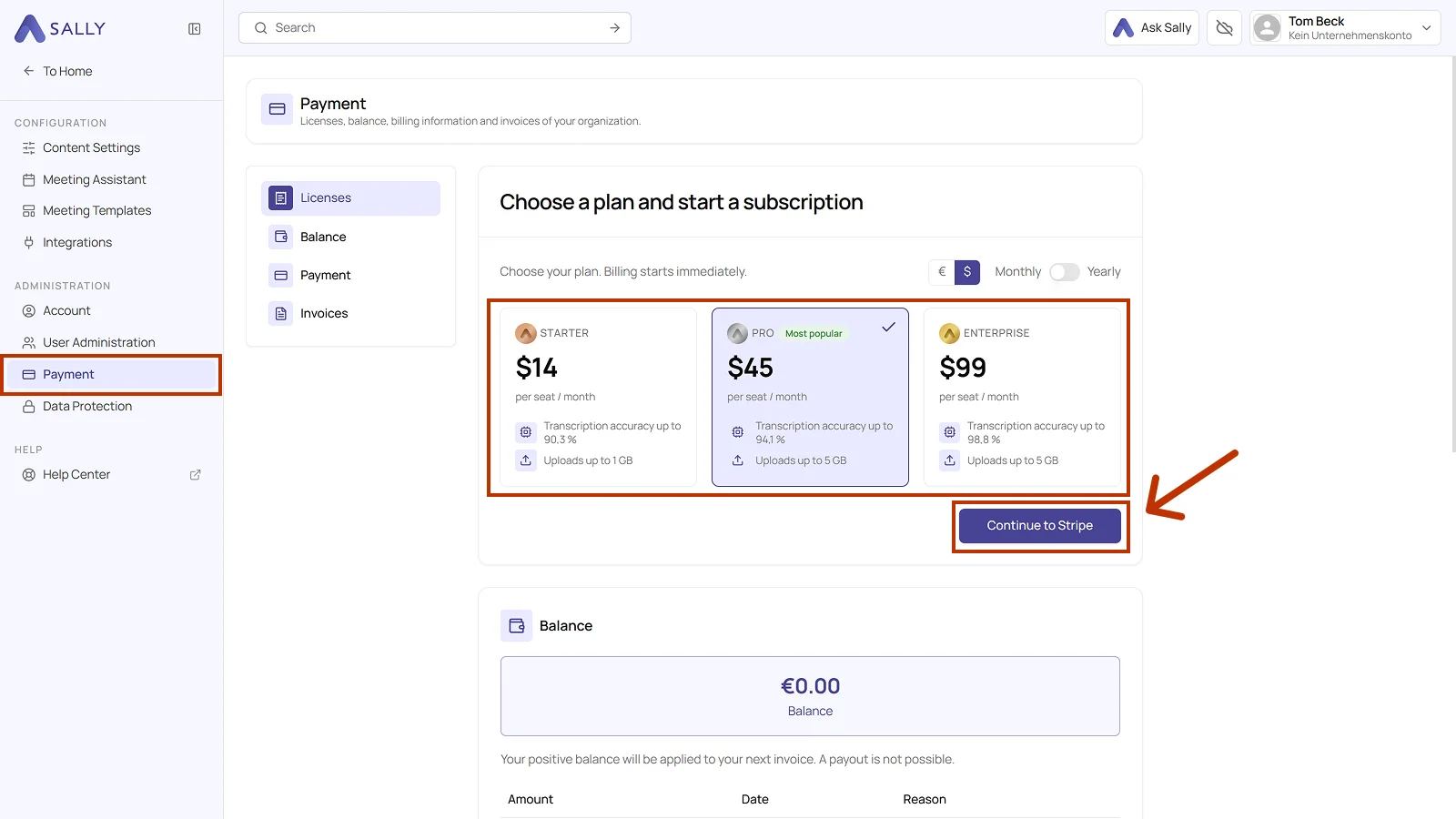
- Under Administration, open Payment. The four areas Licenses, Balance, Payment, and Invoices sit on the left. The plans are under Licenses.
- Pick the currency, euro or dollar, in the top right, and use the toggle next to it to choose monthly or yearly billing.
- Under Choose a plan and start a subscription, pick your plan. Each plan shows the price per seat and month, the transcription accuracy, and the upload limit. The plan you picked carries a check mark.
- Click Continue to Stripe.
- In Stripe you enter your payment details and pick your preferred payment method. Billing starts immediately.
That's it, your access is activated right away.
Your license is now active and you can use Sally without any restrictions.
Important note
If you have activated several licenses, you still need to assign them to your users. Otherwise the licenses are active but not linked to any user.