How to set up Microsoft Teams web credentials for Sally AI
In some organizations, Microsoft Teams meetings are configured to only allow signed-in participants. If this policy is active in your tenant, Sally cannot join as a guest user.
To fix this, give Sally her own Microsoft Teams account. She then signs in with your organization's credentials and joins like any other participant.
Using a Microsoft Teams user account for Sally is not a general requirement to use Sally.
This step is only necessary if your organization's Microsoft Teams configuration requires that only signed-in users are allowed to join meetings.
If your tenant allows guest or anonymous participants, Sally can join meetings without a dedicated Microsoft account.
Quick navigation
- Create a dedicated Teams account for Sally
- Set up the Teams credentials in Sally
- Important notes
- Technical background (for admins)
1. Create a dedicated Teams account for Sally
Before Sally can join Teams meetings that only allow signed-in participants, she needs a dedicated Microsoft 365 user account of her own.
You set all of this up in the Microsoft 365 Admin Center.
Step 1.1: Purchase or verify a Microsoft 365 license
If your organization already has active Microsoft 365 Business or Office 365 subscriptions that include Teams, you can skip this step.
Otherwise:
- Go to the Microsoft 365 Business plans overview.
- Purchase a Microsoft 365 Business Basic (or higher) license. This plan includes Microsoft Teams.
- Follow the checkout process and sign in with your admin credentials.
Microsoft may ask you to configure your organization name, domain, and payment details. - Once the purchase is complete, sign in to the Microsoft 365 Admin Center at admin.microsoft.com.
Alternative: If your company manages licenses via Azure, you can also start from the Azure account setup page and purchase Microsoft 365 licenses there.
Step 1.2: Create a new user for Sally
- In the Admin Center, navigate to Users → Active users → Add a user.
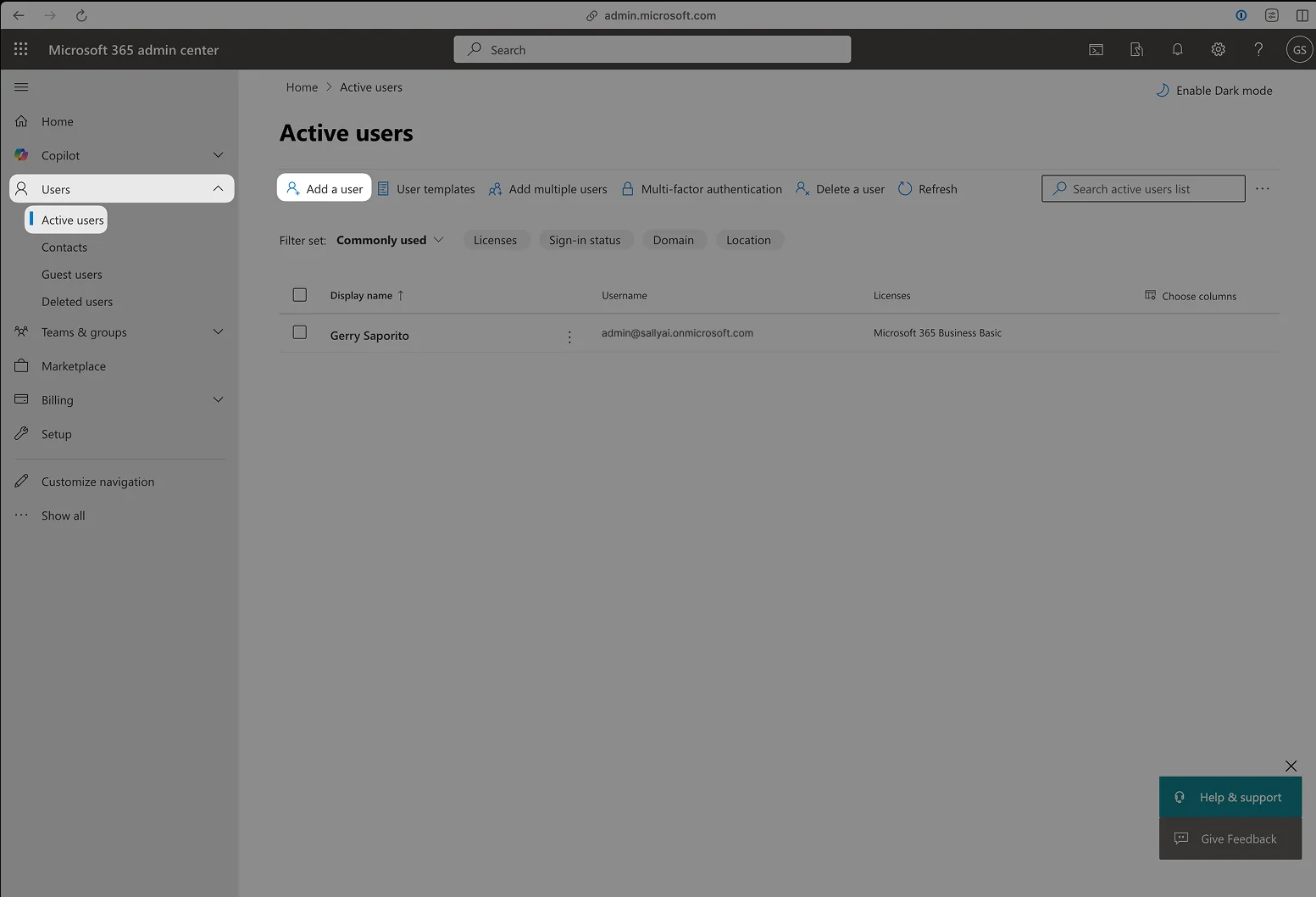
- Enter the account details: you can freely choose the display name, as it will appear in Teams meetings exactly as entered:
- Display name: e.g.
Sally (Meeting Assistant) - Username (email): e.g.
sally.bot@yourcompany.com - Password: set a strong, non-expiring password.
- Display name: e.g.
- Do not assign any admin roles or special permissions. A standard user account is sufficient.
- Click Next.
Use a separate user account for Sally.
Do not use your own Teams account. Microsoft Teams does not allow the same user to join a meeting twice.
Sally would fail to connect if you are already in the call with that account.
Step 1.3: Assign a Teams-enabled license
- In the user creation flow or afterwards, open Licenses and apps.
- Assign a license that includes Microsoft Teams (e.g. Microsoft 365 Business Basic).
- Save changes.
If all licenses are in use:
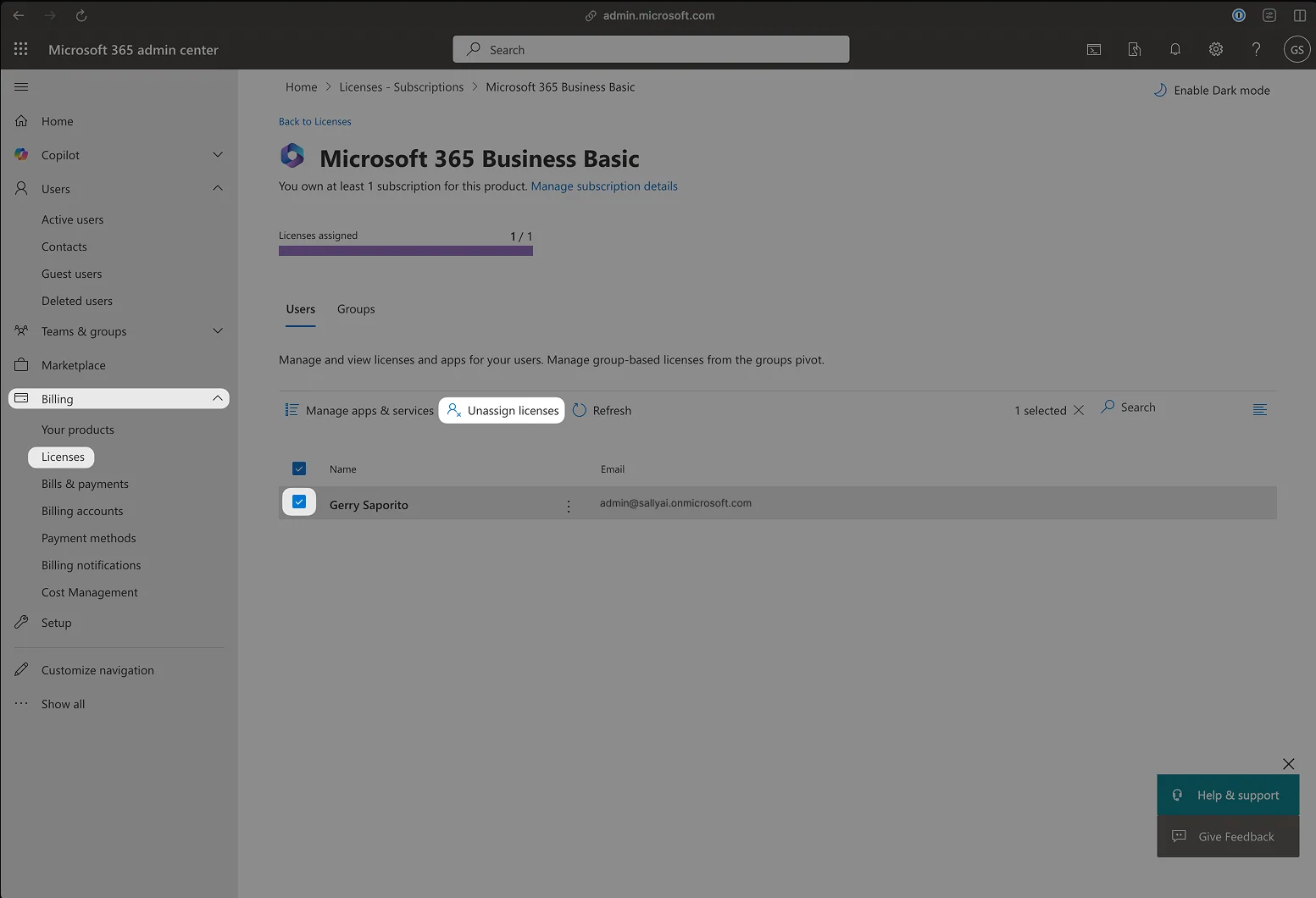
- Go to Billing → Licenses.
- Select an existing user (for example, your admin account).
- Click Unassign license and then Reassign it to the new Sally account.
- If prompted to purchase an additional license, wait a few minutes. Microsoft sometimes needs time to release the freed license before reassigning.
Step 1.4: Adjust Microsoft tenant security settings
These settings let Sally sign in to Microsoft Teams without any prompts. For multi-factor authentication there are two ways to get there. We recommend the targeted one using Conditional Access, which keeps all your other users protected (see 1.4.2).
Microsoft Teams is primarily designed for interactive user sign-ins.
An automated meeting assistant like Sally cannot respond to additional security prompts that are intended for human users (such as MFA challenges, session confirmation dialogs, or password reset requests).
So that Sally joins authenticated meetings reliably and without anyone stepping in, these prompts have to be skipped for Sally's account.
Some of the following settings apply to your entire tenant, not just Sally's account. Check who each step affects and align with your IT team first.
1.4.1 Create an Azure pay-as-you-go account
Some security-related settings are only available when an Azure account is linked to the tenant.
Sign in to the Azure portal using an administrator account:
https://azure.microsoft.com/en-us/pricing/purchase-options/azure-account
1.4.2 Exempt Sally's account from multi-factor authentication
Security Defaults automatically enforce additional security mechanisms such as:
- Multi-Factor Authentication (MFA)
- Risk-based sign-in checks
- Extended authentication prompts
An automated sign-in cannot get past any of these. As long as they apply to Sally's account, sign-in can fail at any time and Sally won't make it into the meeting.
Keep in mind: Security Defaults are a single switch for the entire tenant. There is no way to exclude an individual account. If you simply turn them off, enforced MFA goes away for every employee, not just for Sally. That is why there are two ways to do this, and we recommend the first.
Use the dedicated technical account from step 1.2 for Sally, not a real employee's work account. That way every exception in this step only affects an account that does nothing but join meetings. Give it a long, unique password and no admin rights.
Option A (recommended): Conditional Access instead of Security Defaults
Instead of Security Defaults, your IT team uses Conditional Access policies. They keep enforcing the second factor for all regular users and exclude only Sally's account. Your organization stays protected, only Sally gets through without a second factor.
Requirement: a license that includes Conditional Access (Microsoft Entra ID P1). It is included in Microsoft 365 Business Premium as well as Microsoft 365 E3 and E5.
Set up the policy before you turn off Security Defaults. Otherwise your tenant is left without any protection in between.
Steps:
- Open the Microsoft Entra admin center and go to Protection → Conditional Access → Policies → New policy.
- Under Users, choose All users in Include. In Exclude, select Sally's account and your emergency access accounts.
- Under Target resources, choose All resources.
- Under Grant, choose Grant access and check Require multifactor authentication.
- Save the policy in Report-only mode first. Microsoft does not let you switch it on while Security Defaults are still enabled.
- Now turn off Security Defaults: open Microsoft Entra ID → Overview → Properties, select Manage security defaults and set them to Disabled. As the reason, state that your organization uses Conditional Access.
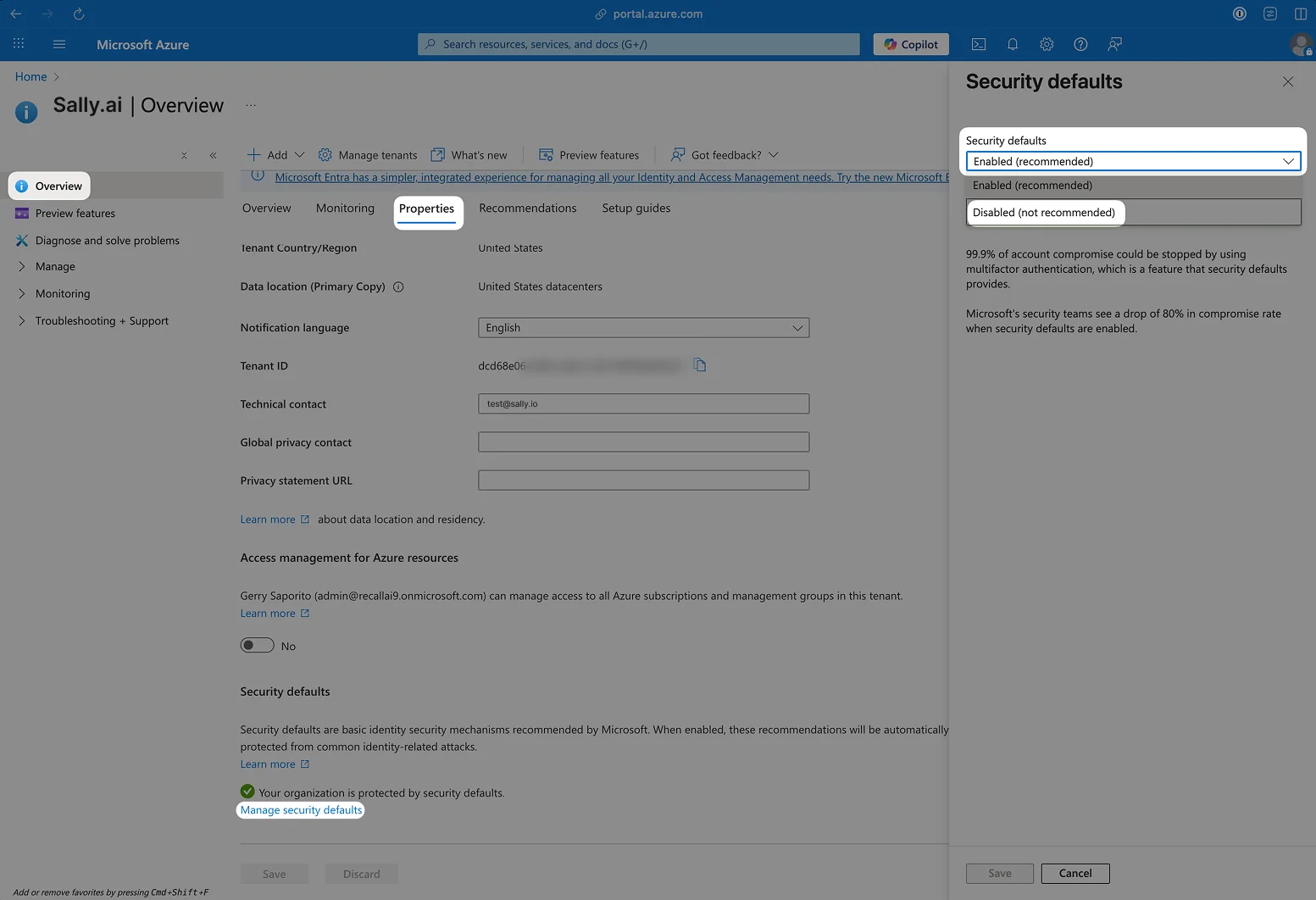
- Right after that, switch the new policy from Report-only to On.
Security Defaults also block outdated sign-in methods (legacy authentication). To keep that protection, create a second policy for it. Microsoft offers suitable templates under Conditional Access → New policy from template.
Option B: Turn off Security Defaults without a replacement
You can also simply turn off Security Defaults (same path as in step 6 of option A). Enforced MFA then goes away for every user in your tenant, not just for Sally. We advise against this.
If you don't have a license with Conditional Access, your IT team can enable MFA per user instead (per-user MFA) and leave out only Sally's account. Your employees stay protected even without option A.
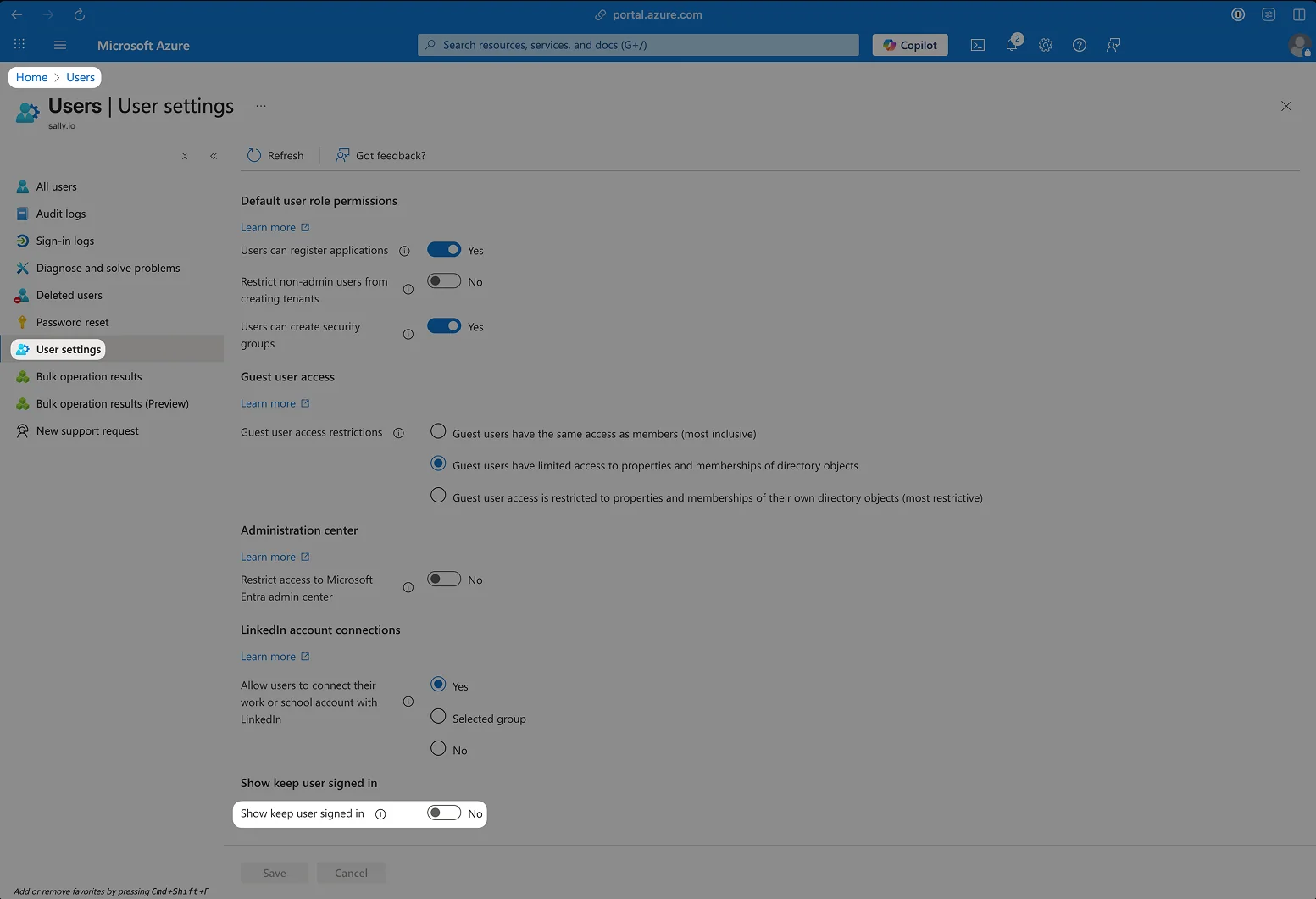
1.4.3 Disable “stay signed in?”
Microsoft often displays a “Stay signed in?” dialog during web-based logins.
Sally cannot click anything, so this dialog has to be switched off.
Steps:
- Open Users in Microsoft Entra ID
- Navigate to User settings
- Disable “Show 'Stay signed in' option”
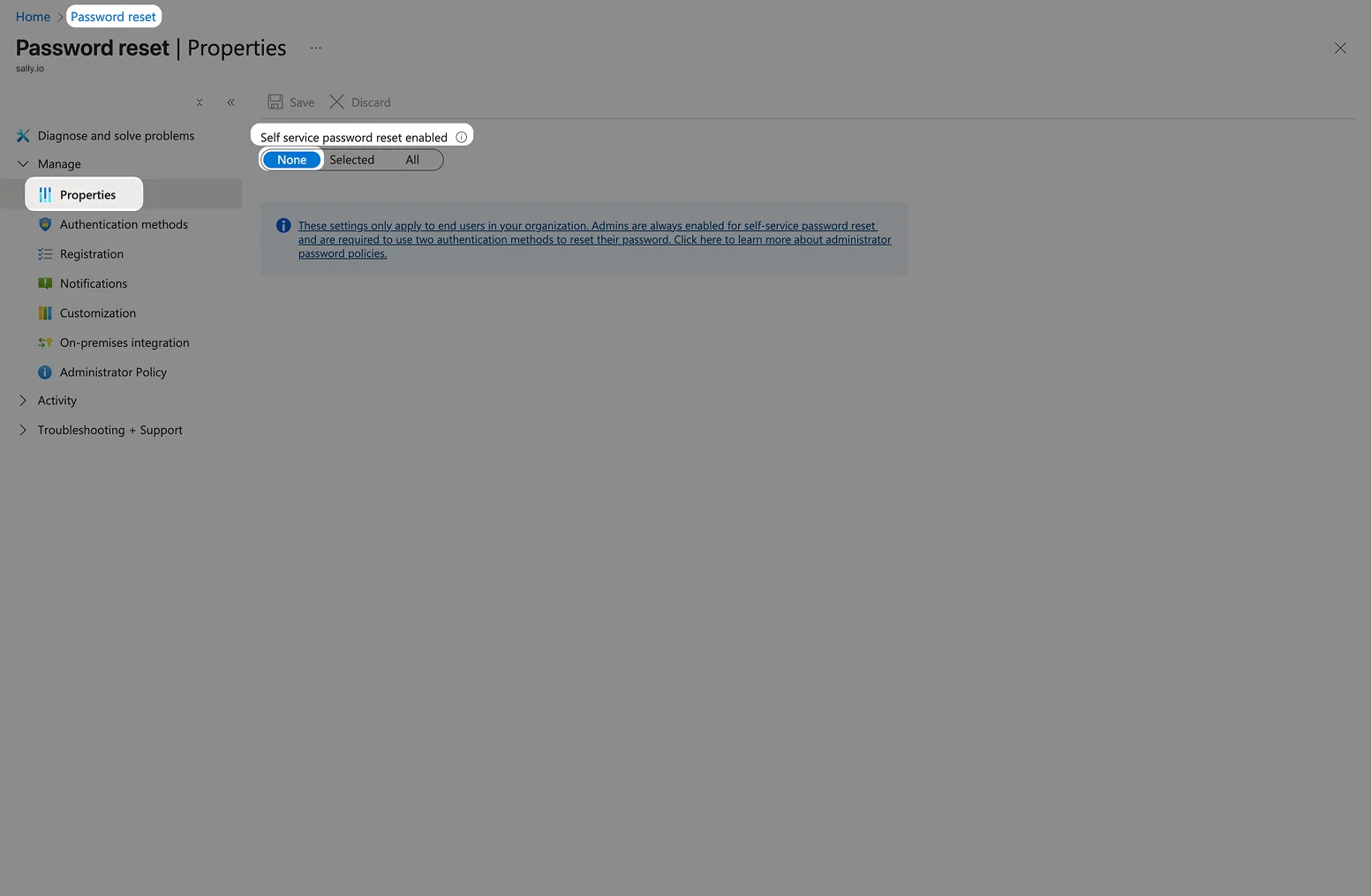
1.4.4 Disable self-service password reset (SSPR)
Self-Service Password Reset can trigger unexpected verification steps (such as security questions or email confirmations).
Neither of those works for an automated sign-in.
Steps:
- Open Password reset
- Navigate to Properties
- Set Self-service password reset enabled to None
Sally signs in via the Microsoft Teams web interface.
The sign-in therefore has to run through in one go, the same way every time.
Prompts that help human users make a bot run into:
- Login timeouts
- Rejected sessions
- Sign-in failures that are hard to reproduce
With the changes above, Sally signs in reliably, securely and without anyone stepping in.
2. Set up the Teams credentials in Sally
- Go to Settings.
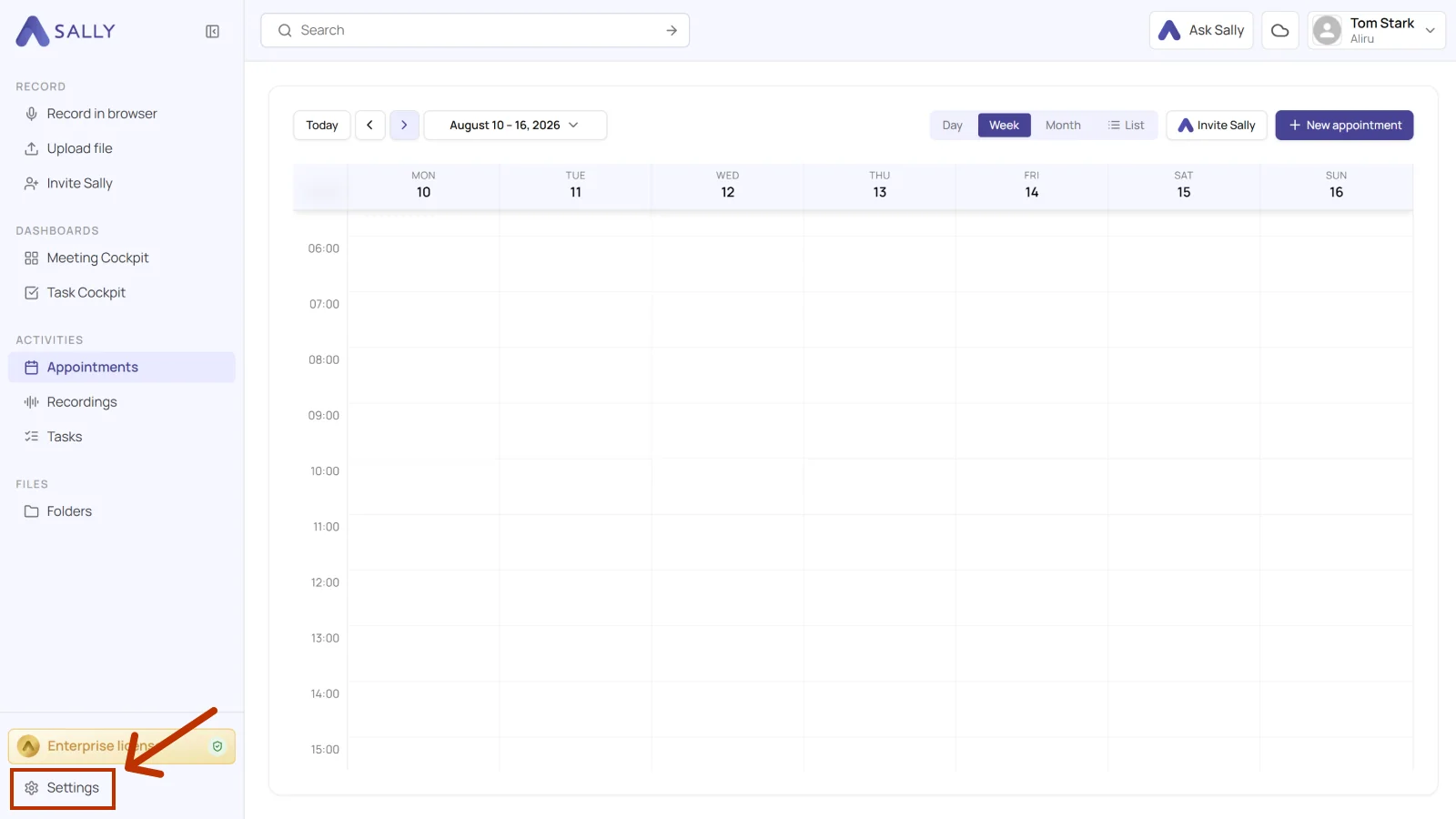
- Open the Meeting Assistant.
- Scroll down to "Microsoft Teams credentials (optional)".
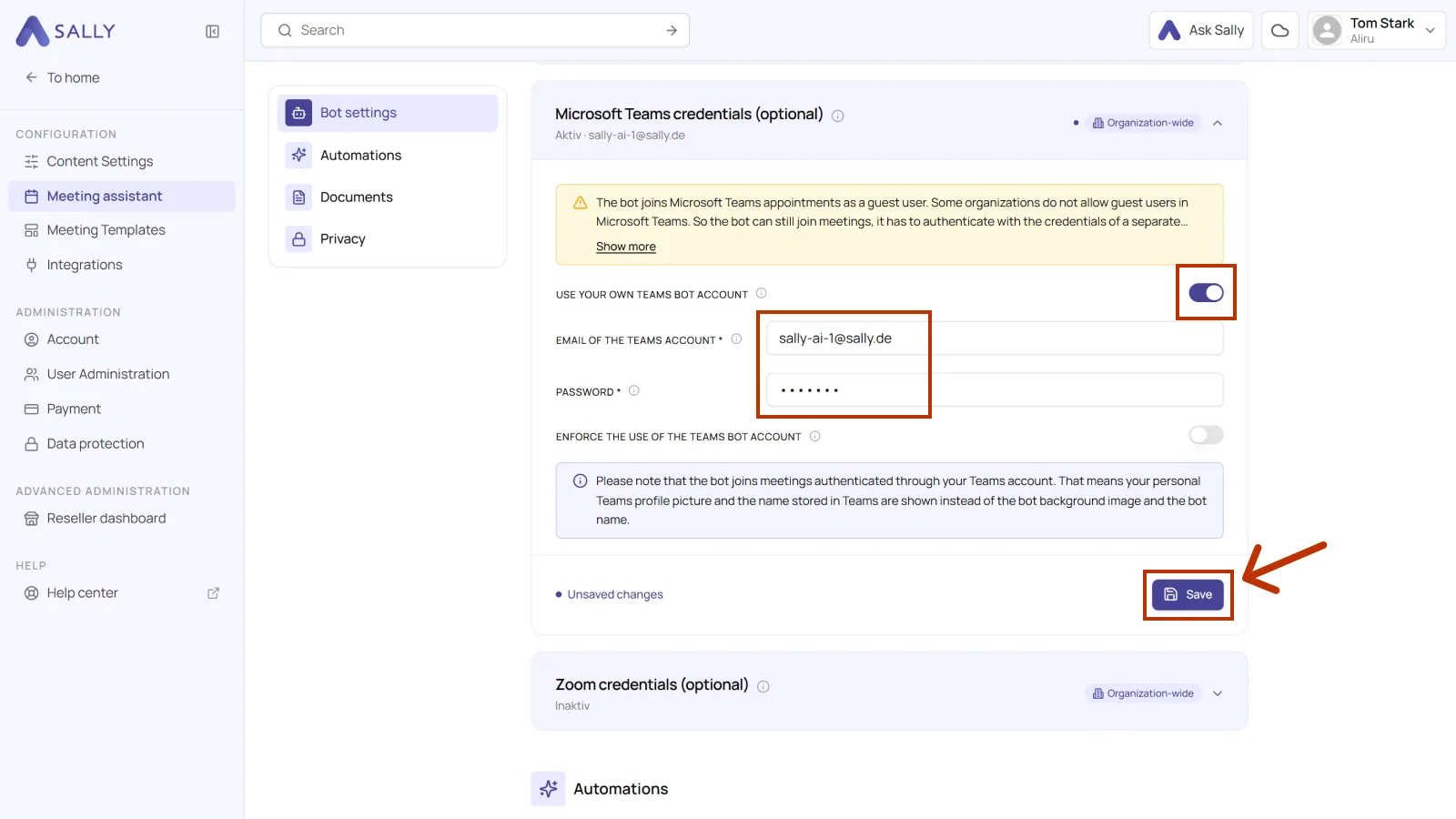
- Enable the toggle “Use your own Teams bot account”.
- Enter the credentials of the Teams account you created in the “Email of the Teams account” and “Password” fields.
Before entering credentials in Sally, make sure that a dedicated Microsoft Teams user account for Sally has been created within your organization.
Do not use your personal Microsoft Teams account. That does not work, because the same user cannot be in a meeting twice.
The dedicated account will be used exclusively for authentication and must have valid login credentials (username and password).
About “Enforce the use of the Teams bot account”
When enabled, Sally will always join meetings using the Teams bot account, even if authentication is not required.
We do not recommend it. All traffic then runs through a single account, which can hit undocumented Microsoft limits.
By default, Sally automatically uses the bot account only when necessary (e.g. when the meeting policy requires authenticated participants).
- Click Save.
Only administrators can reach this setting, and it applies to the whole organization.
3. Important notes
- The provided account must be a valid internal user account.
Guest accounts are not permitted to join meetings under strict tenant policies. - If no suitable account exists, your IT team can create a dedicated user account for Sally within your Microsoft 365 tenant.
- Once configured, Sally joins authenticated meetings using this Teams account, which means:
- The account's profile picture and display name appear in the meeting.
- The Sally bot name and background image are replaced by the authenticated user's appearance.
4. Technical background (for admins)
When a Microsoft Teams tenant enforces the policy “Only authenticated users can join meetings”, all external bots (including Sally) must authenticate with a valid Microsoft Teams user identity. Without it, Teams rejects the connection and the bot never gets in.
Sally connects through the Microsoft Teams web interface, using the credentials you've provided under Meeting Assistant → Microsoft Teams credentials.
During meeting participation, these credentials are used to:
- Establish a secure session via Microsoft's OAuth flow.
- Generate the necessary Teams cookies and tokens for joining the call.
- Ensure compliance with your tenant's meeting and access policies.
From then on the session is stored securely and refreshed before it expires. Normally nobody has to log in again.
4.1. Common admin questions
1. How are the credentials stored?
Credentials are stored in encrypted form and never transmitted in plain text. Authentication tokens are cached and renewed securely when required.
2. Does this grant Sally access to other Microsoft 365 resources?
No. Sally only uses the credentials for joining Teams meetings via the web interface. It does not access Outlook, SharePoint, OneDrive, or any other Microsoft 365 service.
3. Can we restrict the permissions of the account?
Yes. The Teams user created for Sally should have no administrative rights. A standard user account is sufficient for authentication and meeting participation.
4. What happens if the password changes or expires?
If the password is reset, the connection will fail until you update the credentials in Sally's Meeting Assistant settings.
We recommend disabling password expiration for this dedicated bot account or setting a reminder to renew it periodically.
5. Can I use my own Teams account instead of creating one for Sally?
No. A personal or existing Teams account cannot be used for Sally authentication.
Teams does not let the same user join a meeting twice, so Sally stays out if you are already in there with those credentials.
6. Why does the bot sometimes have “(Guest)” or “(External)” after the display name?
This label is added automatically by Microsoft Teams when the account is recognized as external to the tenant where the meeting is hosted.
To avoid this, make sure the Sally bot account is created and licensed within the same Microsoft 365 tenant as the meeting organizer.
7. Why does the bot have “(Unverified)” after the display name?
The “(Unverified)” tag appears when the account's domain is not yet verified within Microsoft 365.
You can remove this by verifying your company domain in the Microsoft 365 Admin Center → Settings → Domains.
8. Does Microsoft Teams Essentials work for this setup?
No. The Teams Essentials plan does not include all APIs and authentication capabilities required for signed-in bot participation.
Use Microsoft 365 Business Basic or higher to ensure full compatibility.
9. Can we detect in advance when a signed-in bot will be required?
Yes, this depends on your organization's Teams meeting policy.
If the meeting policy “Only authenticated users can join meetings” or “People in my organization only” is active, then a signed-in bot (with valid Teams credentials) is required.
10. Can we use our own Teams organization, or do we need a new tenant for every customer?
You can use your existing Teams organization. A separate tenant is not required.
Each Sally instance can be authenticated with a user that belongs to your own Microsoft 365 tenant.
11. Does a signed-in Teams bot work for all meeting types?
Yes. Once authentication is configured, Sally can join any meeting type that supports standard Teams web access, including scheduled meetings, ad-hoc calls, and recurring sessions.