November 20, 2026: ClickUp, transcript search and invites
· 3 min read

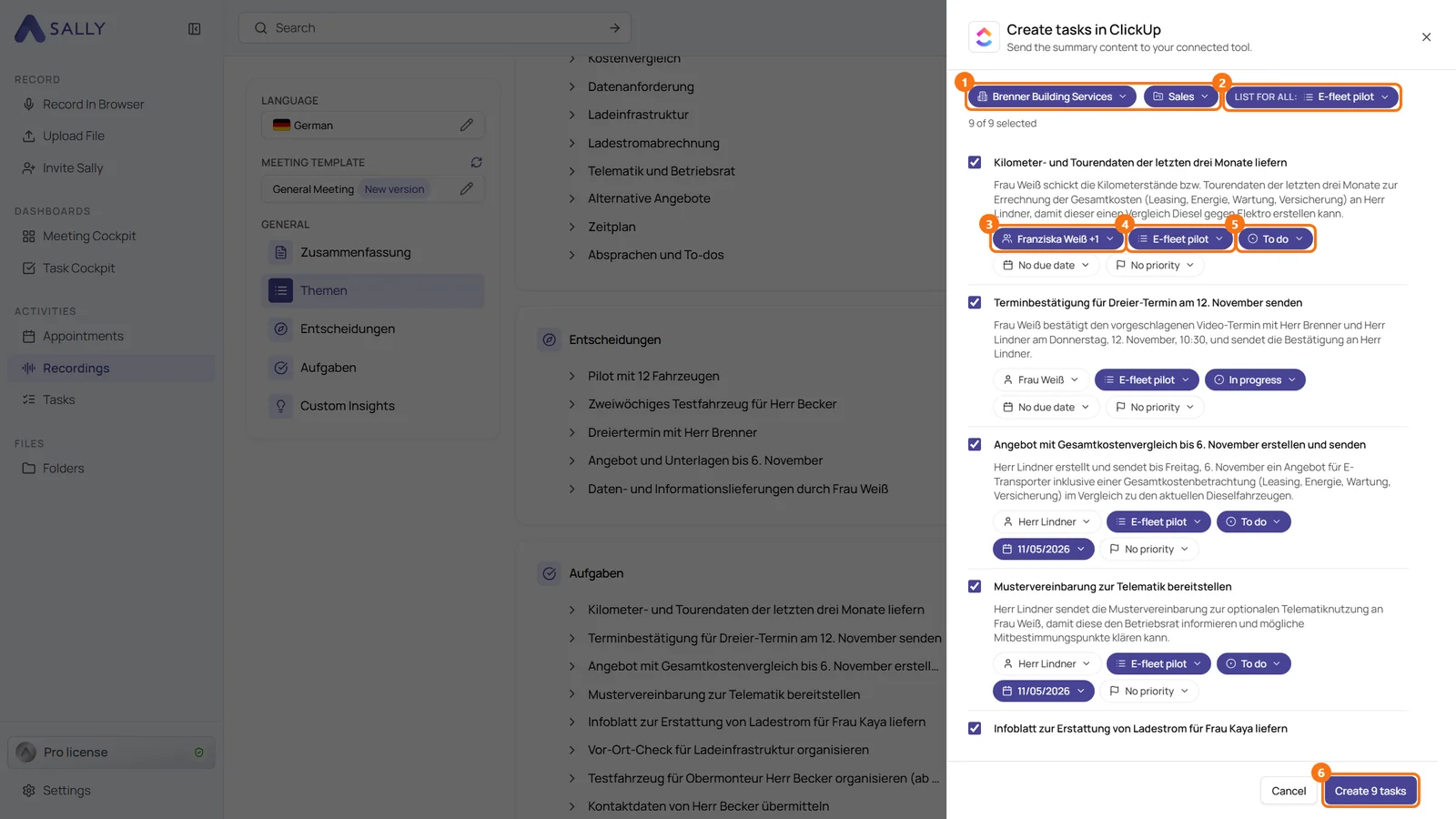
Sally now sends every task of a meeting to ClickUp in one step, with a status and several assignees. You pick one list for all tasks, check the rows and create them together, instead of sending them one by one.
Two smaller improvements save time as well: you correct a misrecognized word right in the transcript search, and Sally no longer creates a second appointment when you invite her to a meeting that is already in your calendar.
ClickUp
- Create tasks in ClickUp: from the Tasks section, Sally creates a separate ClickUp task for every task it recognized. This works the same way in the Sally app
- List for all: workspace and space apply to every row, and List for all sets the list for every task at once. List, status, assignees, due date and priority can still be changed per row
- Several assignees: you pick several people per task from the members of the list, in the dialog for a single task too. Sally fills in the person it recognized as responsible, as long as they are a member of the list
- Status suggestion: Sally suggests a status for every task. Unless the task text clearly says the work is in progress or done, it uses the first status of the list
- Rejected tasks: if ClickUp rejects a task, only that row fails. Fix it and click the button again, Sally then only sends the rejected tasks
Transcript search
- Edit matches directly: type a misrecognized word into Search and correct it right in the filtered text blocks. Timestamps, speakers and inserting, deleting or splitting blocks work there as well
- You keep your place: a corrected block stays where it is, even if the search term no longer appears in it. In full screen, the match counter stays the same after you edit
Inviting Sally
- No duplicate appointments: when you click Create Appointment, Sally checks whether you already have an appointment with the same meeting link at about the same time
- Your choice: in the This appointment already exists dialog, Add Sally lets Sally join the existing appointment, and Create new appointment creates a separate one anyway
All details are in ClickUp, Edit transcripts and Invite Sally manually.