March 31, 2026: Bulk vocabulary upload
March 31, 2026: Bulk vocabulary upload
· 2 min read
Gianni Piruzza
Marketing Manager

Add hundreds of vocabulary entries at once, with a simple Excel upload. ✨

No more adding terms one by one. Download the template, fill in your vocabulary, upload the file, and you're done.
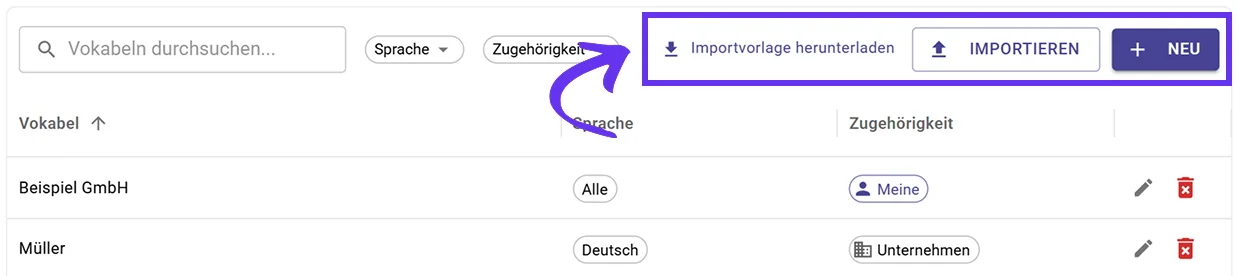
Bulk vocabulary import with Excel template in Sally AI
Download the template, fill it in, and import all your vocabulary at once

What's new?​

Setting up custom vocabulary used to mean creating entries one at a time. Now you can import as many terms as you need in one go:

  1. Download the Excel template. It's available directly in your vocabulary settings.
  2. Fill in your terms. Add the correct spelling, alternatives, language, and scope for each entry.
  3. Upload the file. Sally imports everything instantly.

All imported terms are applied to future transcriptions right away.

Why it matters​

If your team uses a lot of technical terms, product names, or abbreviations, setting them up individually takes time. With bulk import, you can onboard your entire vocabulary in minutes, making sure every transcription is accurate from the start.

👉 Learn more in the Custom Vocabulary guide: Import multiple terms.
Recording

Pause the recording in a meeting

Pause Sally's recording during a meeting and resume it later while Sally stays in. The paused part is left out of recording, transcript and summary.

Organize

Find meetings faster

Highlight appointments with a recording or tag in the calendar, move a recording to another appointment and find recordings from the Sally app as audio files.

Integrations

Capacities, SharePoint and Asana

Save meetings to Capacities, file summaries and transcripts in SharePoint automatically and send all tasks of a meeting to Asana at once. Plus team automations.

Recording

New rules for attendance and emails

Let Sally join meetings depending on the host, stop the summary email for a single meeting and send the privacy notice only when external guests take part.

Security & admin

A separate email for invoices

Send Sally invoices and payment receipts to their own billing email, for example your accounting team, while notifications keep going to your contact address.