How to add or reduce Sally AI licenses
This article shows how to add licenses so more people get access, and how to remove the ones you no longer need.
You can change the number yourself at any time in the payment settings. What that does to your invoice is spelled out in the dialog and further down in this article.
How do I add or remove licenses?
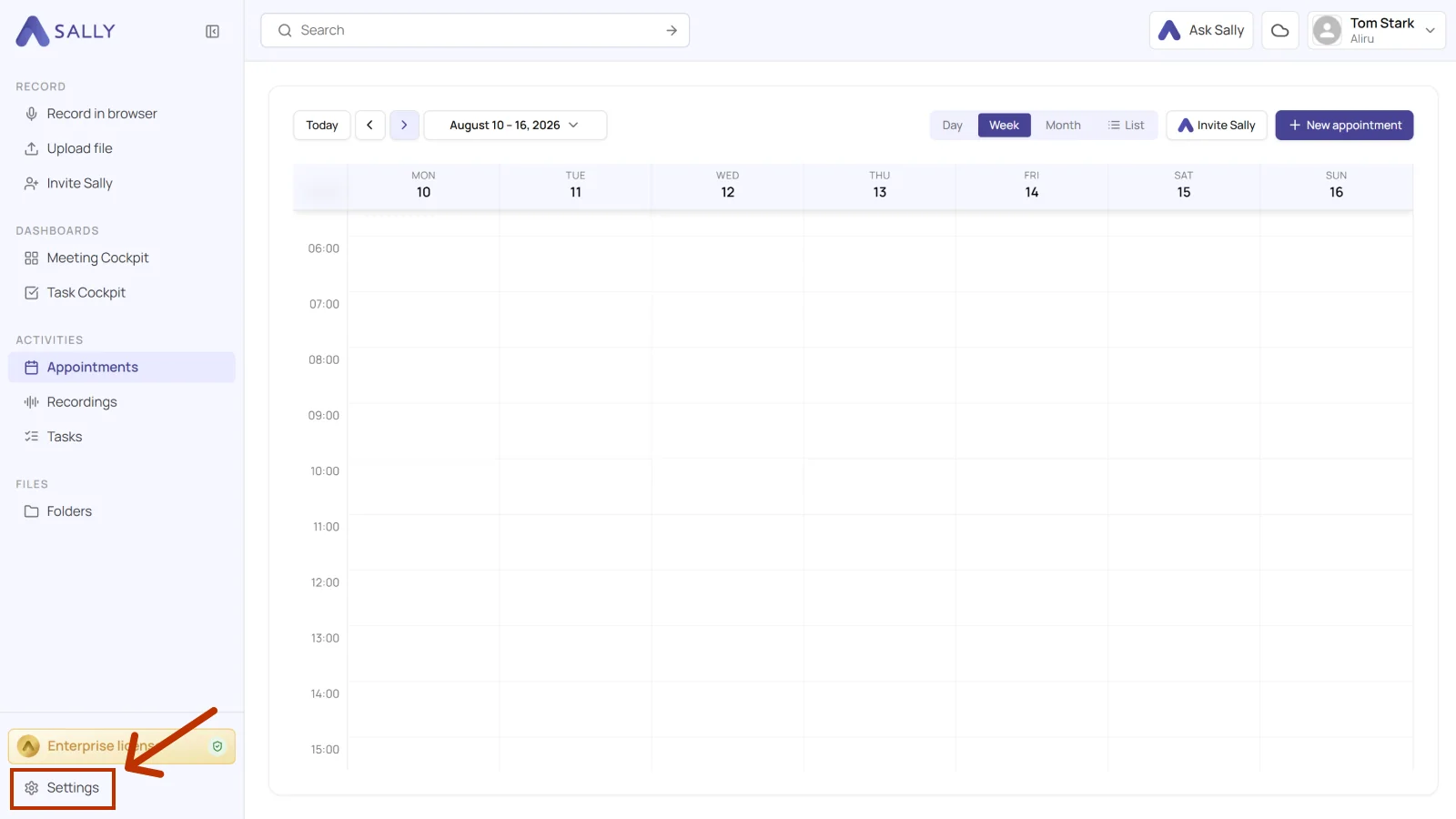
- Open Settings at the bottom of the left sidebar.
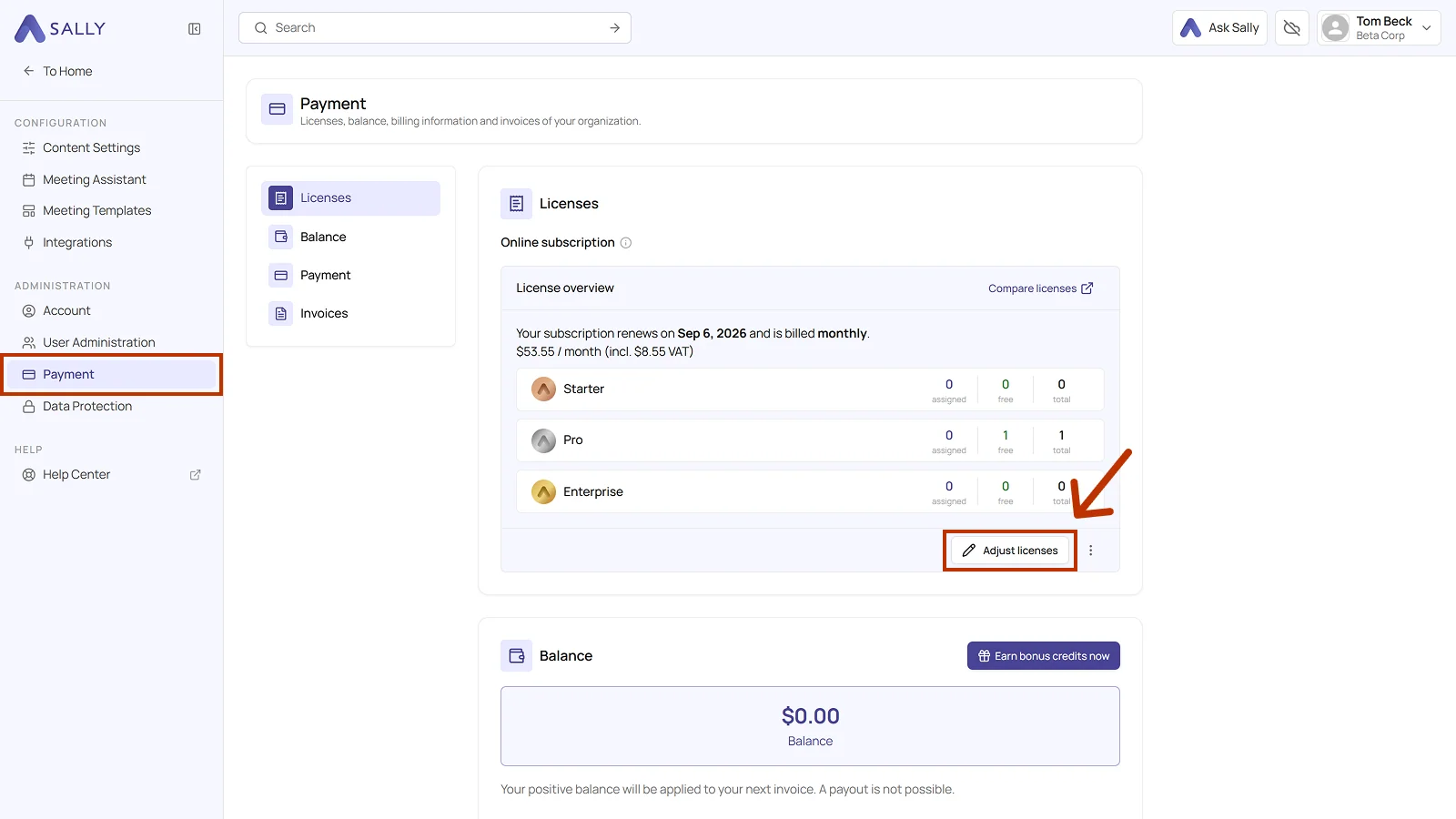
- Under Administration, open Payment. Licenses holds the license overview: when your subscription renews, whether billing is monthly or yearly, the amount including VAT, and per plan how many licenses are assigned, free, and total.
- Click Adjust licenses.
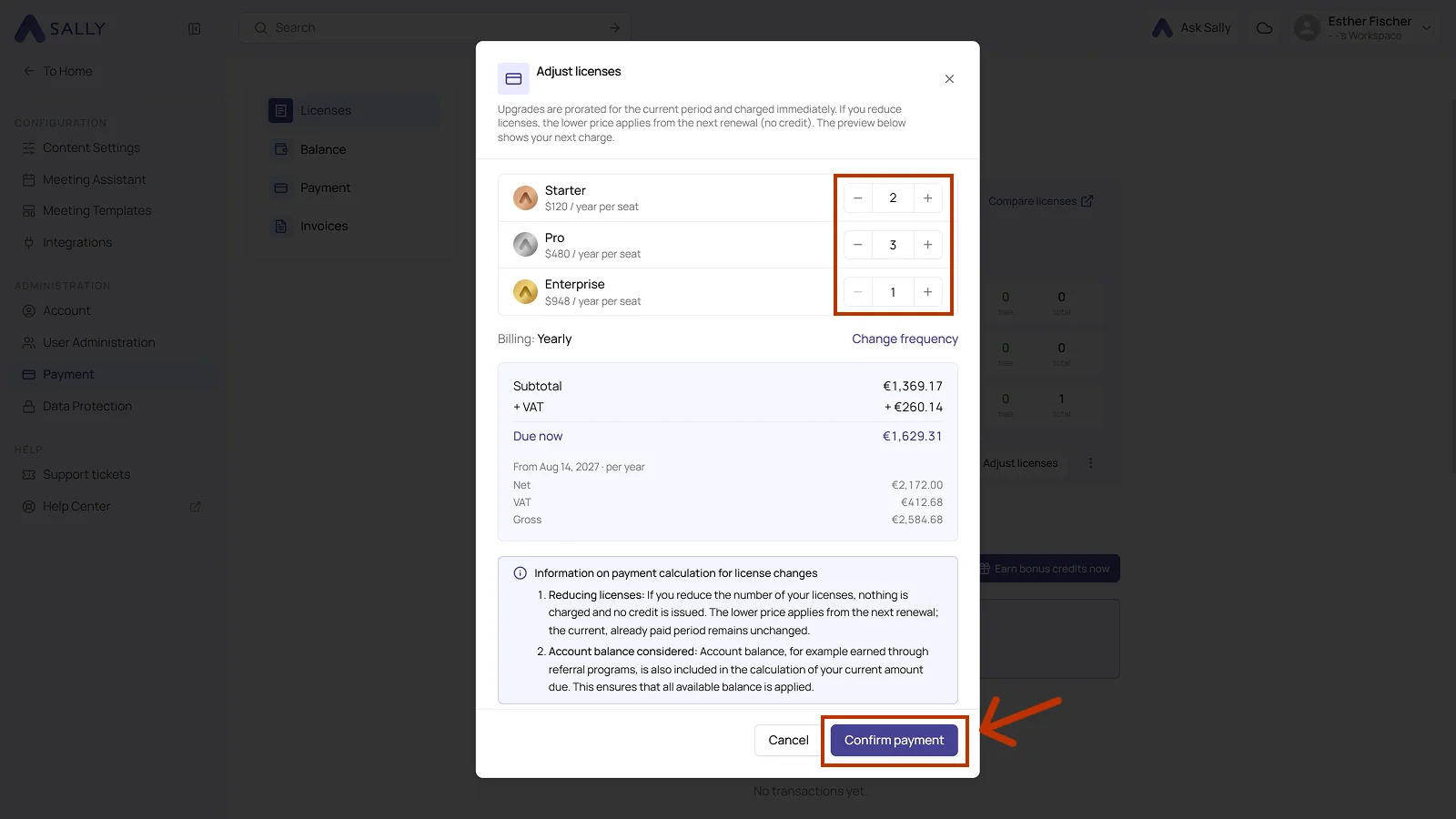
- In the "Adjust licenses" dialog, set the number for each plan with − and +. The price per seat sits next to every plan. Only licenses that are not assigned to a user can be removed.
- Check the preview below. It shows what is due now and what will be charged from the next renewal on. Change frequency switches between monthly and yearly billing.
- Tick the box for the Terms of Service and Privacy Policy. Only then does Confirm payment become clickable.
How is this billed?
Upgrades are prorated for the current period and charged immediately. If you reduce licenses, the lower price applies from the next renewal, and no credit is issued for the current one. Any balance you have, from referrals for example, is applied to the amount due.
Once the change is confirmed, the new licenses still need to be assigned to your users.