Sally MCP Connector: The Complete Setup Guide
With the Sally MCP Connector you can query your Sally data (appointments, recordings, summaries, and transcripts) directly from any AI tool that speaks the Model Context Protocol (MCP), for example Claude Desktop, Claude Web, ChatGPT, Cursor, Windsurf, or an MCP-capable IDE. Once connected, your AI assistant can search meetings, read summaries, and pull transcripts without leaving the conversation.
This guide walks you through creating a Personal Access Token (PAT) in Sally and registering the Sally MCP server with your AI tool. The setup is the same everywhere: point your client at the Sally MCP URL and pass the PAT as a Bearer token.
Quick Navigation
- What is the Sally MCP Connector?
- Prerequisites
- Create a Personal Access Token in Sally
- Register Sally with your MCP client
- Verify the connection
- Available tools
- Troubleshooting
- Security notes
1. What Is the Sally MCP Connector?
The Model Context Protocol (MCP) is an open standard that lets AI clients and agents talk to external data sources through a standardized server interface. A growing number of tools support it, for example Claude Desktop, Claude Web and Claude Code from Anthropic, ChatGPT (via Connectors), editors and IDE assistants like Cursor, Windsurf, Zed and VS Code (Copilot Chat, Continue, Cline), as well as custom agents built on MCP SDKs. Sally exposes an MCP endpoint, so any of these clients can read your meeting data on demand.
| Property | Value |
|---|---|
| MCP Endpoint | https://app.sally.io/api/v1/McpExternal |
| Auth | Bearer Token (Personal Access Token, format sally_pat_…) |
| Access | Read-only on the data your Sally user sees in the selected company account |
| Scope | Per user and company account |
Typical use cases:
-
Search meetings by topic: quickly find every conversation that mentioned a specific product, project, or customer.
"Search my Sally meetings from the last 30 days that mention the kickoff with customer XY and summarize the key points."
-
Bundle open action items across meetings: let your AI assistant pull all to-dos from several conversations instead of clicking through summaries manually.
"Give me a list of all open action items from my meetings this week, grouped by owner."
-
Trace decisions: find out when and why a decision was made.
"Which meeting is where we decided to migrate to Postgres 16, and what were the reasons?"
-
Brief yourself before a follow-up: have your AI assistant summarize the latest state before you head into a follow-up call.
"I have a call with Acme tomorrow. Summarize the last two meetings with them, including open items and objections."
-
Deep-dive into transcripts: pull a full transcript into your AI tool to clarify details the summary may not cover.
"Pull the transcript of Tuesday's discovery call and show me every passage where the customer talks about pricing."
-
Draft follow-ups on demand: generate a ready-to-send email or Slack message from the meeting content.
"Draft a follow-up email for this morning's meeting covering all action items we discussed."
-
Spot team-wide patterns: analyze multiple calls for recurring themes or objections.
"Which objections have come up most often in our sales calls over the last 4 weeks?"
2. Prerequisites
To use the Sally MCP Connector you need:
- An active Sally user with access to at least one company account.
- Sally MCP enabled for your company account (admin setting). If your admin has disabled it, the "Sally MCP" integration will not show a "Create Token" button.
- Any MCP-capable client, for example Claude Desktop, Claude Web, ChatGPT, Cursor, Windsurf, Zed, VS Code (via Copilot Chat, Continue, or Cline), Claude Code or another CLI agent, or a custom agent built on an MCP SDK.
- Only for the
mcp-remotefallback (stdio-only clients): Node.js 18 or newer (runnode -vto check).
A token is valid for one user × one company account. If you have access to several company accounts and want your MCP client to see all of them, create one token per company account and register each as a separate MCP connector.
3. Create a Personal Access Token in Sally
A Personal Access Token (PAT) is the credential your MCP client uses to authenticate against the Sally MCP endpoint. You create it once per client.
Step-by-step
- Log in to Sally at app.sally.io.
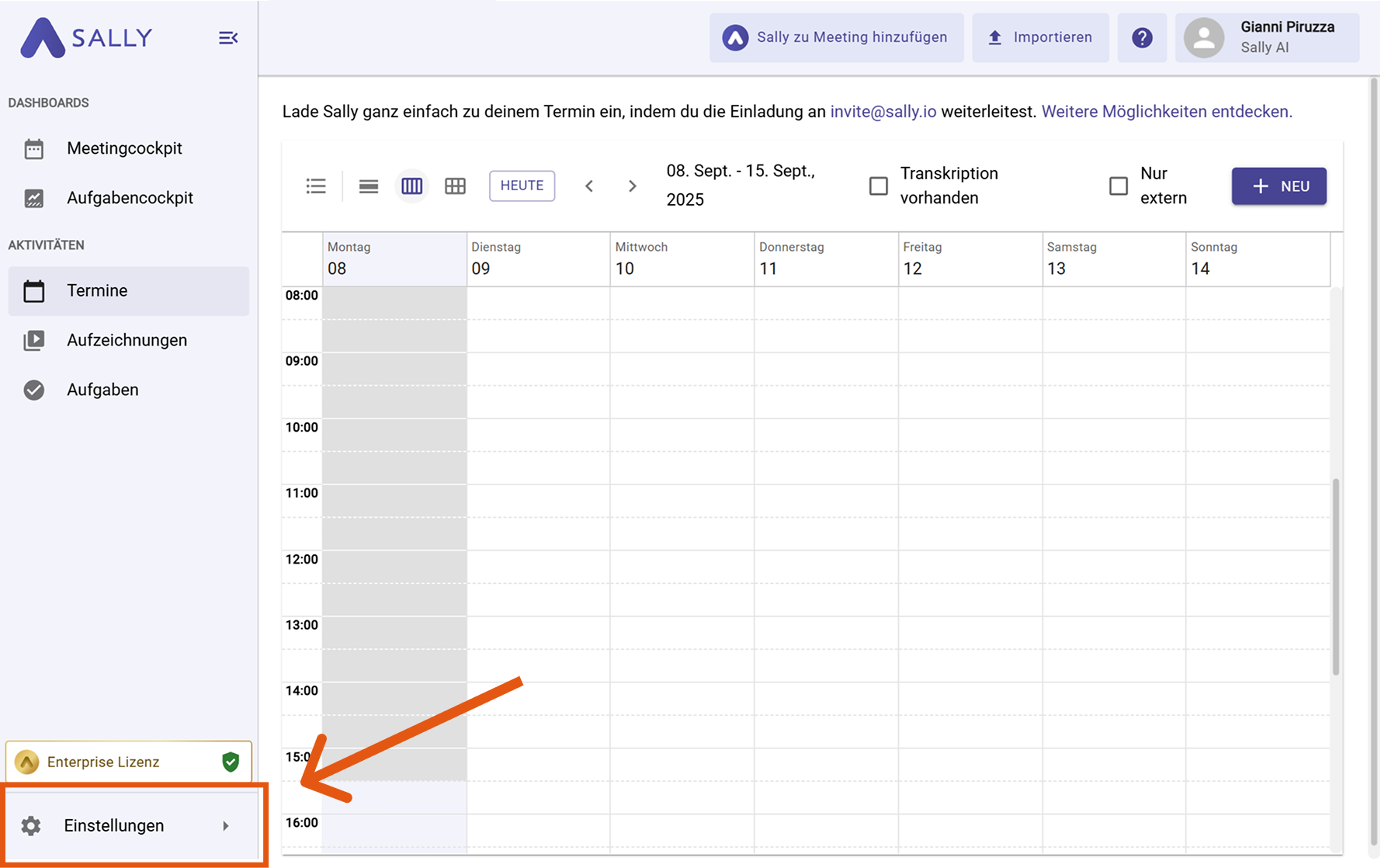
- Open Settings in the bottom-left of the sidebar.
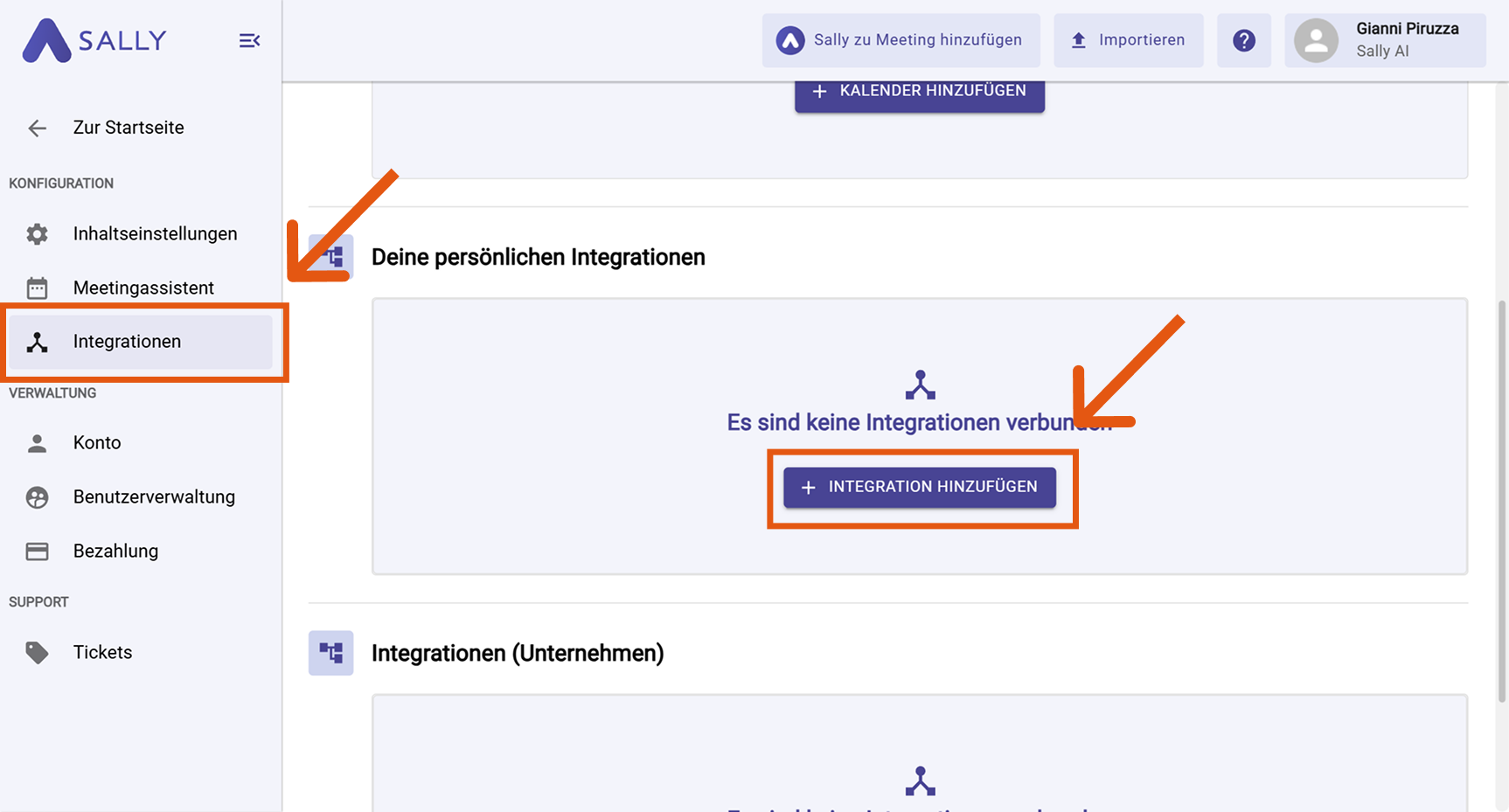
- In Settings, choose "Integrations". Under "Your personal integrations", click "+ Add integration".
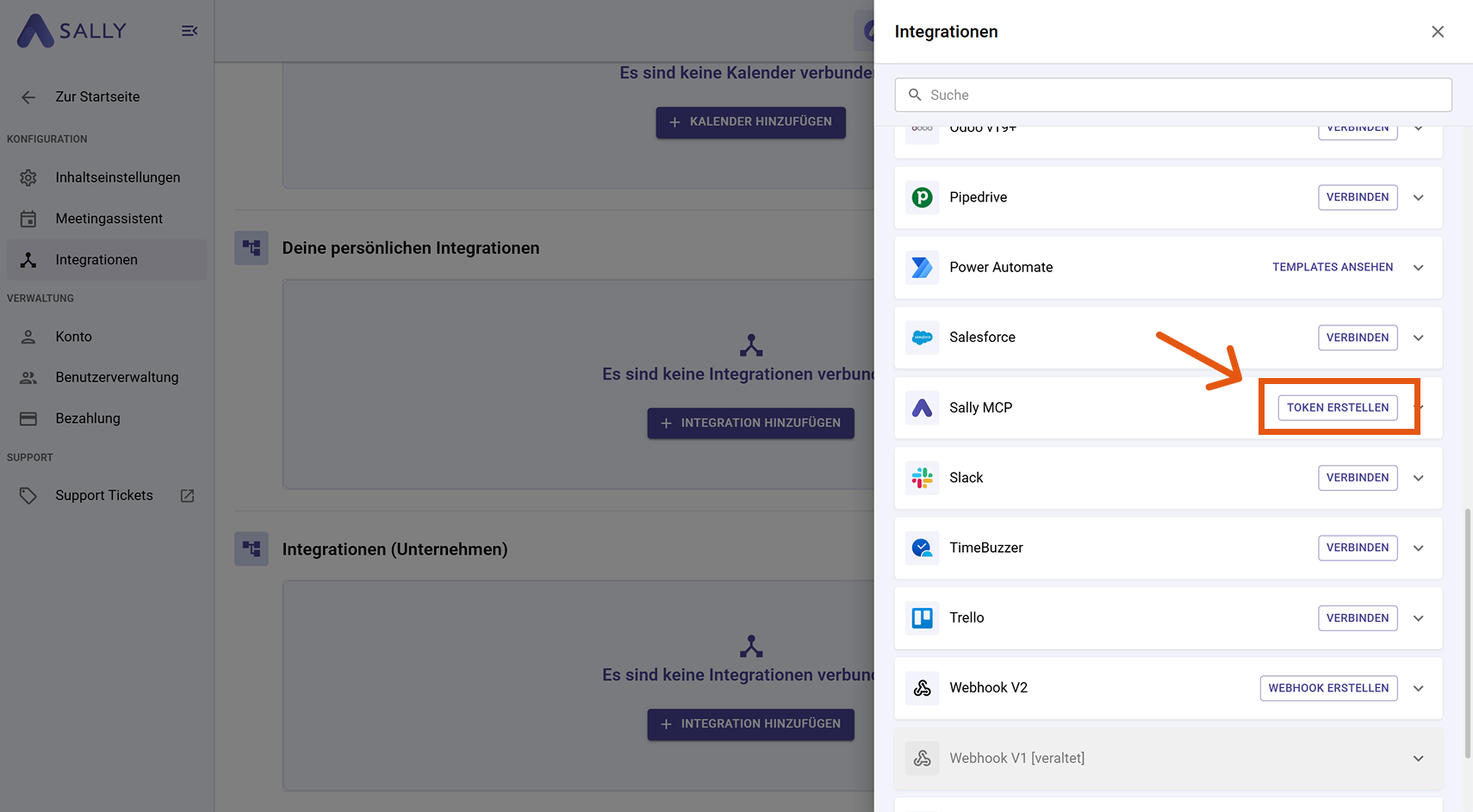
- In the integration drawer, find "Sally MCP" and click "Create Token".
-
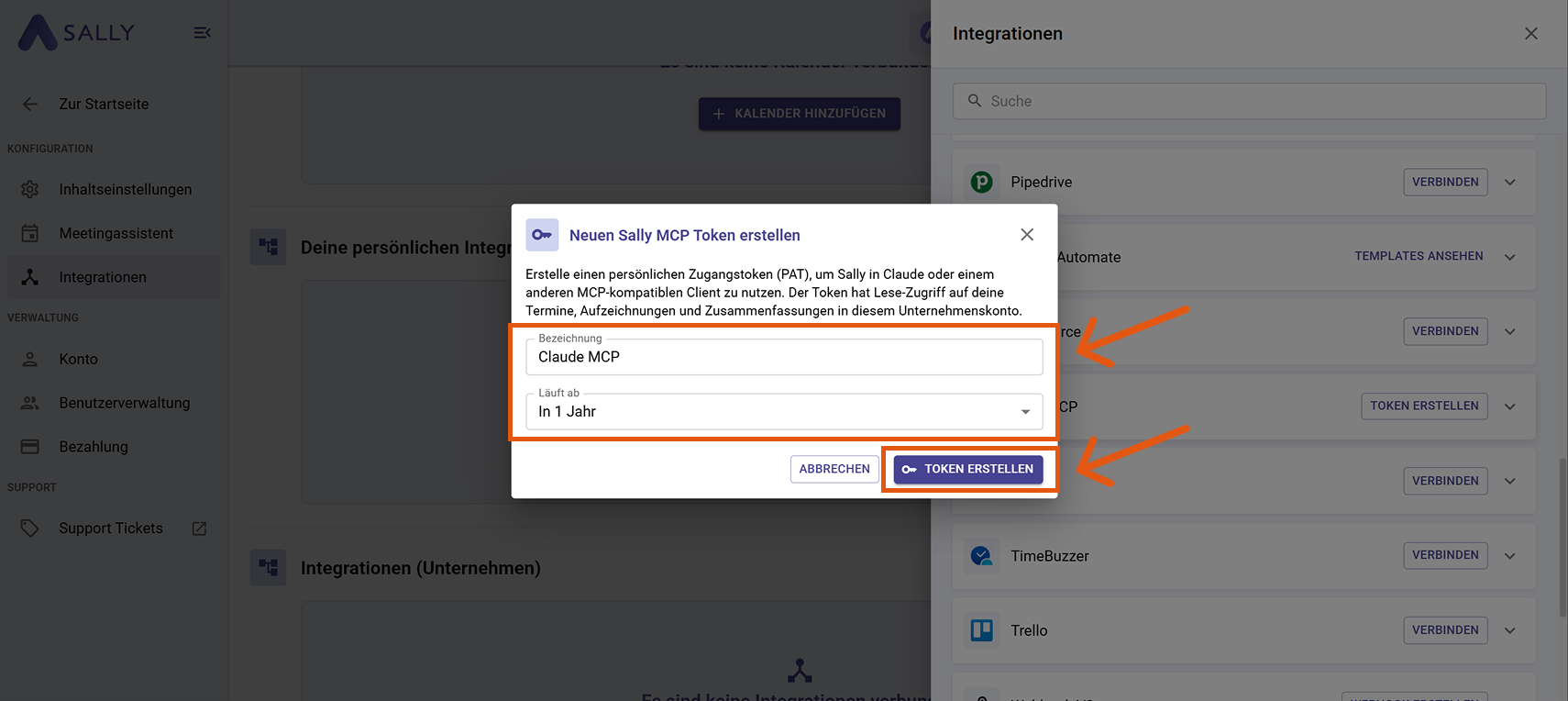
Fill out the "Create new Sally MCP Token" dialog:
- Name: a label that helps you recognize the token later (e.g. "Laptop – personal", or the name of the client you plan to use it with).
- Expires: choose a lifetime: 30 days, 90 days, 1 year, 2 years, or Never.
Then click "Create Token".
- Sally displays the full token exactly once. Copy it immediately and store it in a password manager or secure secret store. Once you close the dialog, the clear-text value is gone: you cannot view it again, only regenerate it.
The token grants read access to every appointment, recording, and summary your Sally user sees in this company account. Do not paste it into Slack, email, or tickets. Store it in a password manager.
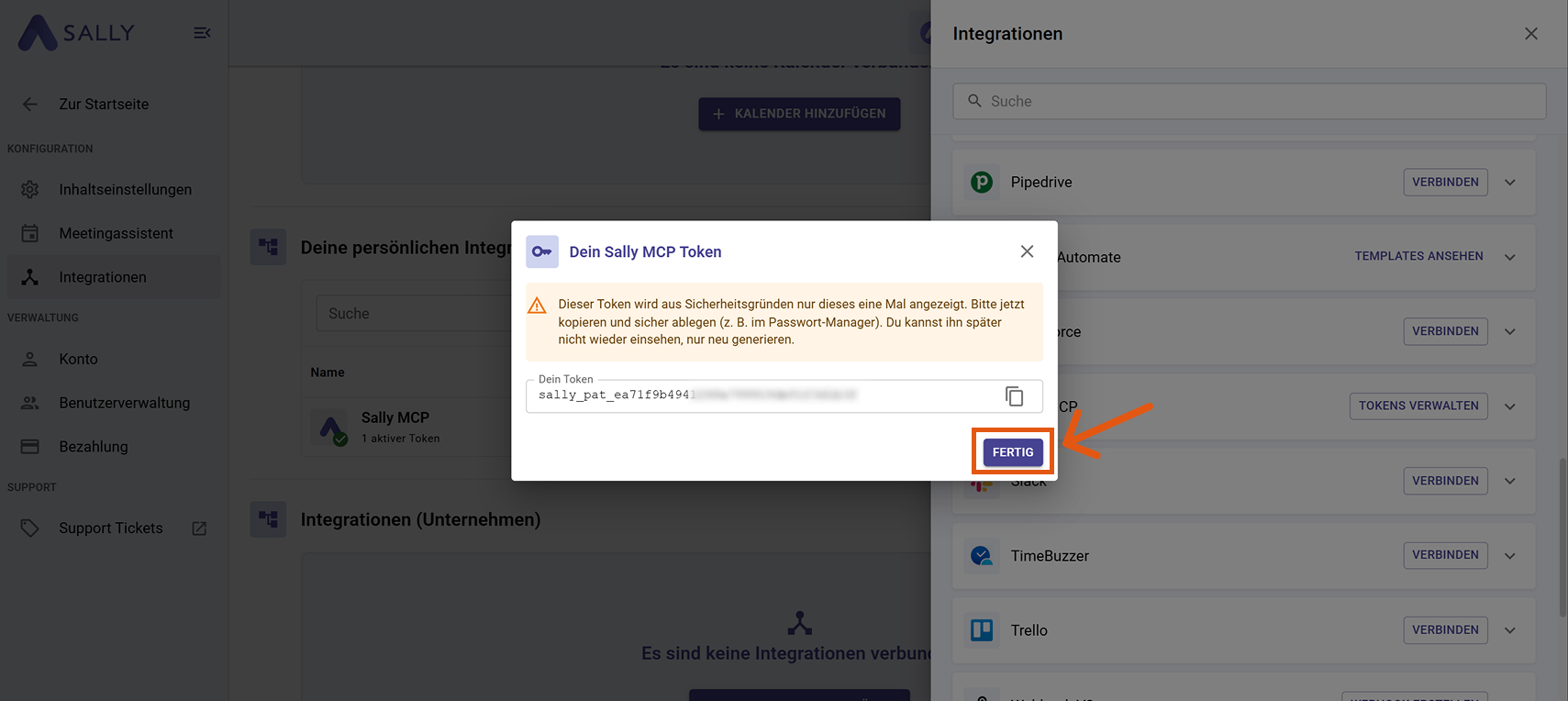
- Click "Done".
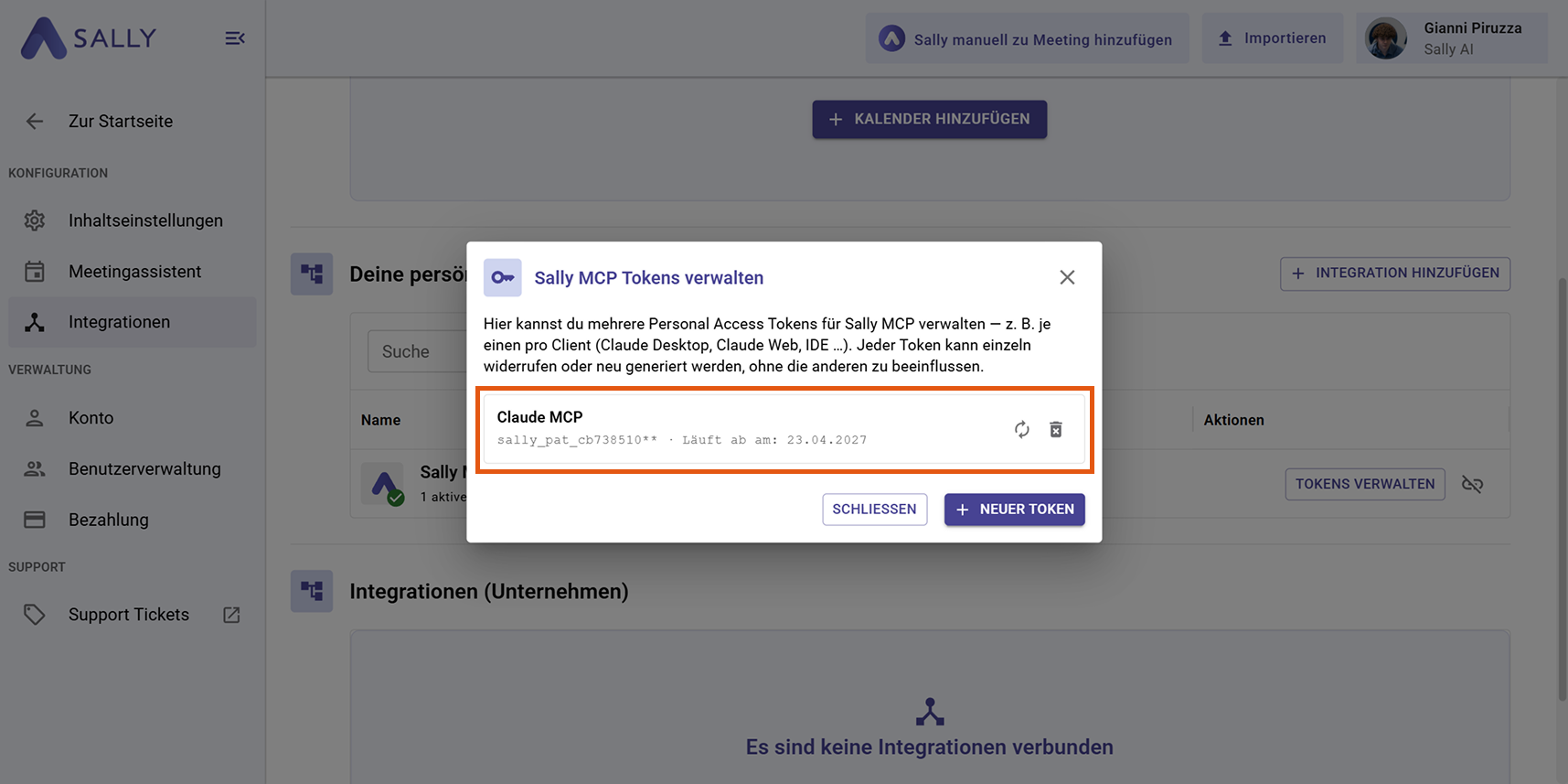
You can return to Settings → Integrations → Sally MCP → "Manage Tokens" at any time to regenerate, revoke, or create additional tokens (e.g. one per device or one per MCP client). Regenerating invalidates the old token immediately, so update it in any client that still uses it.
4. Register Sally with Your MCP Client
The Sally endpoint is a standard HTTP-based MCP server with Bearer-token authentication. Every MCP-capable tool provides a way to register such a server. The labels and menu paths differ between products, the values you enter do not.
4.1. Values to enter
The setup works the same way in every MCP client: tell the client where Sally lives and give it your personal token. Most clients use a small JSON config file for this; a few (typically web products like claude.ai or ChatGPT) offer a custom-connector dialog instead. The values are identical either way.
1. Copy this snippet
{
  "mcpServers": {
    "sally": {
      "type": "http",
      "url": "https://app.sally.io/api/v1/McpExternal",
      "headers": {
        "Authorization": "Bearer sally_pat_PASTE_YOUR_TOKEN_HERE"
      }
    }
  }
}
Replace only the PASTE_YOUR_TOKEN_HERE portion with your real token from Section 3. The sally_pat_ prefix stays exactly as it is — don't delete it and don't insert a space between it and your token. The quotation marks around the whole value stay too.
What's in the snippet, line by line:
| Line | What it means |
|---|---|
"sally" | A label for the connection — pick any name you like, sally is a sensible default. |
"type": "http" | The connection method. Sally uses standard HTTP MCP. |
"url": "https://app.sally.io/api/v1/McpExternal" | The Sally MCP address. Always this exact URL. |
"Authorization": "Bearer sally_pat_…" | Your login: the word Bearer, a space, then your personal token. This is how Sally knows it's you. |
2. Paste it into your client's config file
Open your MCP client's config file in a plain text editor (Notepad, TextEdit, VS Code, or similar — not Word or Pages, those insert hidden formatting that breaks the file) and paste the snippet you just copied. Save the file.
Below you see a Claude Desktop config file (claude_desktop_config.json) opened in VS Code, next to an existing preferences block. Editor, file path, and surrounding blocks look different for every client — the mcpServers part stays the same.
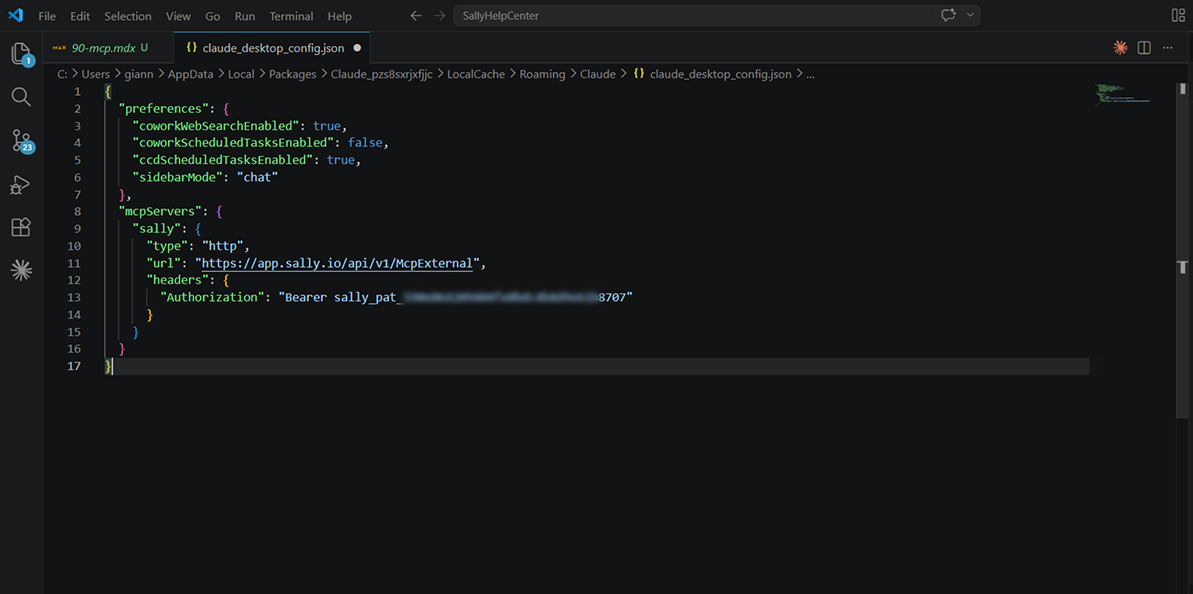
Keep the existing blocks (in the screenshot, that's "preferences"). Add "mcpServers" next to them as a sibling, with a comma between the two. Do not replace the file's contents. The file must always start with a single { and end with a single }, with no trailing commas.
Some clients — for example Claude in the browser, ChatGPT, and similar web products — don't use a JSON file. They offer a "Custom connector" dialog. Paste the URL https://app.sally.io/api/v1/McpExternal and your token into the matching fields there; no file editing needed.
3. Restart your client and test
Close the client completely and open it again so it picks up the new config. Start a new conversation and ask "Which Sally tools are available?". You should see the five tools from Section 6.
4.2. Where the MCP settings live in common tools
Exact menu paths change as products evolve; check each tool's own documentation for the current location. As a starting point:
- Claude Desktop: Settings → Developer → Edit Config (edits
claude_desktop_config.json, JSON form above). - Claude Web (claude.ai): Settings → Connectors → Add custom connector (GUI form above).
- ChatGPT: Settings → Connectors → Add custom connector for MCP / Remote MCP servers (GUI form above).
- Cursor / Windsurf / Zed: the app's settings under MCP / Model Context Protocol (JSON form above).
- VS Code: via MCP-capable extensions like Copilot Chat, Continue, or Cline (their own MCP server lists).
- Claude Code and other CLI agents: register the server via the agent's MCP config command (JSON form above).
- Custom agent on an MCP SDK: connect a Streamable-HTTP MCP client to the URL and attach the
Authorizationheader on each request.
4.3. Fallback: mcp-remote for stdio-only clients
Some older clients cannot speak HTTP MCP directly and only support stdio-based MCP servers. In that case, route the connection through the mcp-remote proxy. Requires Node.js 18 or newer on your machine (node -v shows your version).
{
  "mcpServers": {
    "sally": {
      "command": "npx",
      "args": [
        "-y",
        "mcp-remote",
        "https://app.sally.io/api/v1/McpExternal",
        "--header",
        "Authorization: Bearer sally_pat_PASTE_YOUR_TOKEN_HERE"
      ]
    }
  }
}
Use the same JSON form your client accepts, just swap the "type": "http" block for the "command": "npx" block above. After saving, fully restart the client.
5. Verify the Connection
Start a new conversation in your MCP client (Claude, ChatGPT, Cursor, VS Code, etc.) and try a simple query:
"Search my Sally appointments from the last 30 days for anything about 'kickoff'."
The client should call the search_appointments tool and return results. You can also ask explicitly for the available tools:
"Which Sally tools are available?"
6. Available Tools
The Sally MCP server currently exposes five tools:
| Tool | Purpose |
|---|---|
search_appointments | Filter appointments by subject, attendee, or time range. Full-text search with prefix matching, includes linked recordings. |
search_summaries | Full-text search across meeting summaries: which meetings mentioned topic X? |
get_recordings | Paginated list of recordings you can access in the selected company account, including metadata. |
get_summary | Return the summary for a recording, optionally with details (key facts, decisions, to-dos, custom insights). |
get_transcription | Full transcript of a recording as plain text with timestamps. |
Access rule: a recording is visible to you if at least one of the following applies:
- You are the owner of the recording.
- You are the technical owner of the related appointment.
- The recording lives in a recording folder shared with you or a team you belong to.
7. Troubleshooting
| Issue | Cause | Fix |
|---|---|---|
| "Invalid or expired token" | Token was revoked, expired, or pasted incorrectly. | Verify the token in Sally and regenerate it if needed. |
| "Sally MCP is disabled in this organization" | Your company admin has turned Sally MCP off. | Ask your admin whether this was intentional. |
| Connector shows no status or is red | The client cannot reach the endpoint, or the config is malformed. | Check your client's MCP logs. For Claude Desktop: • Windows: %APPDATA%\Claude\logs\mcp-server-sally.log• macOS: ~/Library/Logs/Claude/mcp-server-sally.logOther clients (ChatGPT, Cursor, VS Code, etc.) have their own connector/MCP log views — check the tool's documentation. |
Tools return 404 | The requested ID does not exist, or you do not have access to it. | Confirm the recording/summary exists in Sally and that the access rule applies. |
mcp-remote fails to start | Node.js is missing or outdated. | Install Node.js 18 or newer and confirm with node -v. |
8. Security Notes
- The token provides read-only access, but that includes every appointment, recording, and summary your Sally user sees in the selected company account. Treat it as sensitive data.
- Do not share tokens via Slack, email, or support tickets. Use a password manager.
- If a token is lost or possibly compromised, regenerate it in Settings → Integrations → Sally MCP → Manage Tokens. The old token becomes invalid instantly.
- Prefer one token per client (Claude Desktop, Claude Web, ChatGPT, Cursor, your IDE, etc.). That way you can revoke a single device or tool without breaking the others.
- Admins can disable Sally MCP for the whole company account at any time; existing tokens stop working immediately.