Sally AI SSO login: Microsoft, Google, Apple, or your identity provider
Sally AI supports Single Sign-On (SSO) with Microsoft, Google, and Apple, and with your company's own identity provider via the SSO button. You sign in with the identity you already have, without managing a separate Sally password. First-time users can create a Sally account with one click through Microsoft, Google, or Apple.
This guide covers every sign-in method in one place: how signing in works, how an administrator approves Sally once for a whole Microsoft 365 tenant, and how to make Microsoft the only way into Sally for your company domain. How the owner of your organization account connects Keycloak, Okta, or another provider is described under SSO with your own identity provider.
Quick navigation
- Supported sign-in methods
- Sign in with Microsoft
- Sign in with Google
- Sign in with Apple
- Sign in with your company identity provider (SSO)
- FAQ
1. Supported sign-in methods
Sally AI supports the following identity providers out of the box:
- Microsoft: Microsoft 365 / Azure AD (work & school accounts) and personal Microsoft accounts (e.g. Outlook.com).
- Google: Google Workspace and personal Google accounts.
- Apple: Personal Apple ID via Sign in with Apple.
- Your company identity provider: Keycloak, Okta, OneLogin and other OpenID Connect providers that your organization has connected, via the SSO button.
On the Sally login page you'll see a dedicated button for each provider. The first time someone signs in with Microsoft, Google, or Apple, Sally creates the user account automatically if one does not exist yet. Via SSO, only members of the organization account get in, or new colleagues if the domain has auto-join turned on.
SSO login does not replace Sally's native email and password login. You can continue to use whichever method fits your policies. The exception is a company domain on which an admin has turned on sign in only via Microsoft or sign-in only via SSO.
2. Sign in with Microsoft
- Go to the Sally AI login page.
- Click Microsoft below the welcome text.
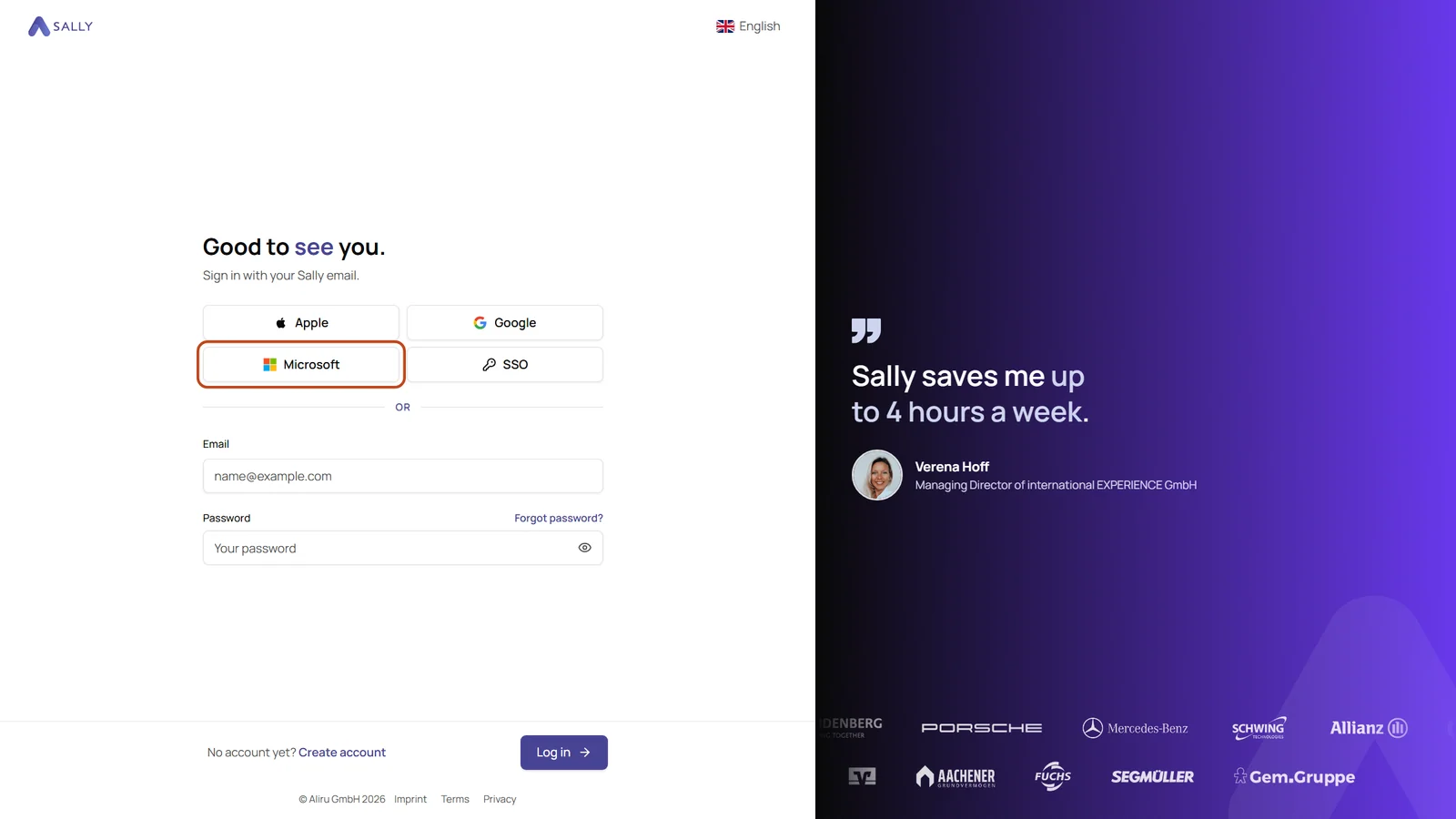
- Authenticate with your Microsoft account in the Microsoft consent window.
- On first sign-in, Microsoft asks you to approve the permissions Sally needs to read basic profile data.
- You're redirected back to Sally and signed in.
Both Microsoft 365 / Azure AD (work, school, or university accounts) and personal Microsoft accounts (Outlook.com, Hotmail, Live) are supported.
2.1. Admin consent for your Microsoft 365 tenant
If your organization uses Microsoft 365 (Azure AD / Entra ID), a Global Administrator can approve the OAuth permissions Sally needs for the entire tenant in one step. After that, team members no longer see a personal consent screen when signing in to Sally with Microsoft for the first time.
When you click Grant admin consent, you sign in to Microsoft with an administrator account and approve the permissions for your organization. Microsoft then adds Sally to Entra ID as an enterprise application and sends you back to Sally, where a results page shows the outcome. If everything worked, you'll see a confirmation along with your Microsoft tenant ID. If Microsoft declines the consent, for example because the account doesn't have administrator rights, the page shows the reason Microsoft gives. You don't need a Sally account for this, and you can close the window once you're done.
2.2. Sign in only via Microsoft
An owner or admin can make Microsoft the only way into Sally for everyone with an address on a verified company domain. Sally then rejects passwords, Google and Apple for these addresses and only accepts Microsoft sign-ins from your company's own Microsoft tenant.
That closes a gap: without the switch, someone could sign in with a Sally password and bypass the multi-factor authentication, Conditional Access policies and account blocks you set up in Microsoft. With the switch on, all of them apply in Sally exactly as they do in Microsoft 365.
Switch it on
The switch sits with the domain under Internal Domains and can only be turned on when three things are true:
- The domain is verified.
- You are an owner or admin, and your own email address is on this domain.
- You are signed in to Sally via Microsoft, with an account from the Microsoft tenant that Microsoft assigns to this domain.
If sign-in only via SSO is on for the domain, the switch stays locked as well. A domain can have only one mandatory sign-in method.
- If you signed in with a password, sign out and sign in again with the Microsoft button on the login page, as described above.
- Open Settings, go to Account and pick Internal Domains on the left.
- Click the verified domain and turn on Sign in only via Microsoft in its detail panel, right below Auto-Join.
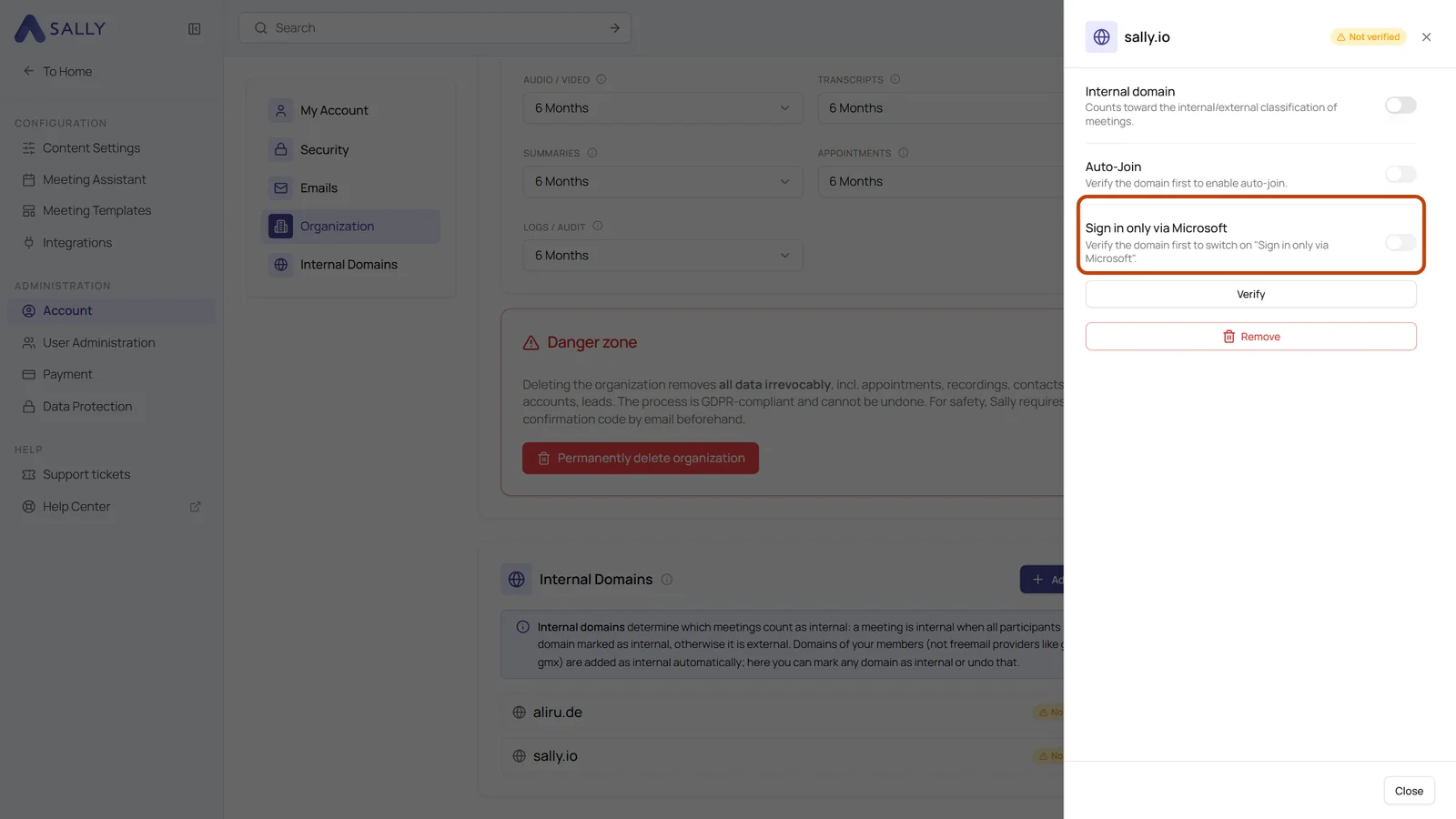
As long as one of the conditions is missing, the switch stays locked and the line below it tells you why, for example that the domain has to be verified first. Once the switch is on, the info icon next to it shows which Microsoft tenant the domain is bound to, and who turned the switch on and when.
What changes for your users
The switch applies to every account whose email address is on this domain. Addresses on other domains in your organization are not affected.
- Sign-in: Only the Microsoft button on the login page works. Password, Google and Apple sign-ins are rejected on every route: in the browser, in the Sally app, in the Sally Recorder and for AI agents connected through MCP.
- Only your tenant: A Microsoft account from another tenant is rejected as well. That includes a personal Microsoft account that happens to use the company address.
- Sessions: When you turn the switch on, the other sessions of these users end. Everyone signs in once more, this time via Microsoft.
- Passwords: Forgot password, changing the password and setting a new one are locked for these addresses. Sally explains on those pages why. The security settings no longer offer two-factor authentication either, because multi-factor authentication now comes from Microsoft.
- Invitations: Someone invited with an address on the domain accepts the invitation and goes straight to Microsoft to sign in. There is no password step.
In the app and in the Recorder, people sign in via Microsoft as well. If someone tries a password there instead, they currently see a general error message rather than a specific explanation.
Bound to your Microsoft tenant
When you turn the switch on, Sally asks Microsoft which tenant the domain belongs to and binds the setting to that tenant. This is what keeps out Microsoft accounts from anywhere else. Every night Sally checks again whether the domain still belongs to the same tenant. If that changes, the admins of your organization receive an email.
You can turn the switch off again at any time in the same place. From then on, passwords, Google and Apple work again for addresses on this domain.
3. Sign in with Google
- Go to the Sally AI login page.
- Click Google.
- Choose your Google account and confirm the requested permissions.
- You're redirected back to Sally and signed in.
Both Google Workspace and personal Google accounts are supported.
4. Sign in with Apple
- Go to the Sally AI login page.
- Click Apple.
- Authenticate with your Apple ID (you may be asked for Face ID, Touch ID, or two-factor confirmation).
- Choose whether to share or hide your email address. Sally works either way.
- You're redirected back to Sally and signed in.
Sign in with Apple only supports personal Apple IDs. Apple does not offer a corporate-managed equivalent.
5. Sign in with your company identity provider (SSO)
If your organization has connected its own identity provider, such as Keycloak or Okta, sign in like this:
- Go to the Sally AI login page.
- Click SSO, next to Apple, Google, and Microsoft.
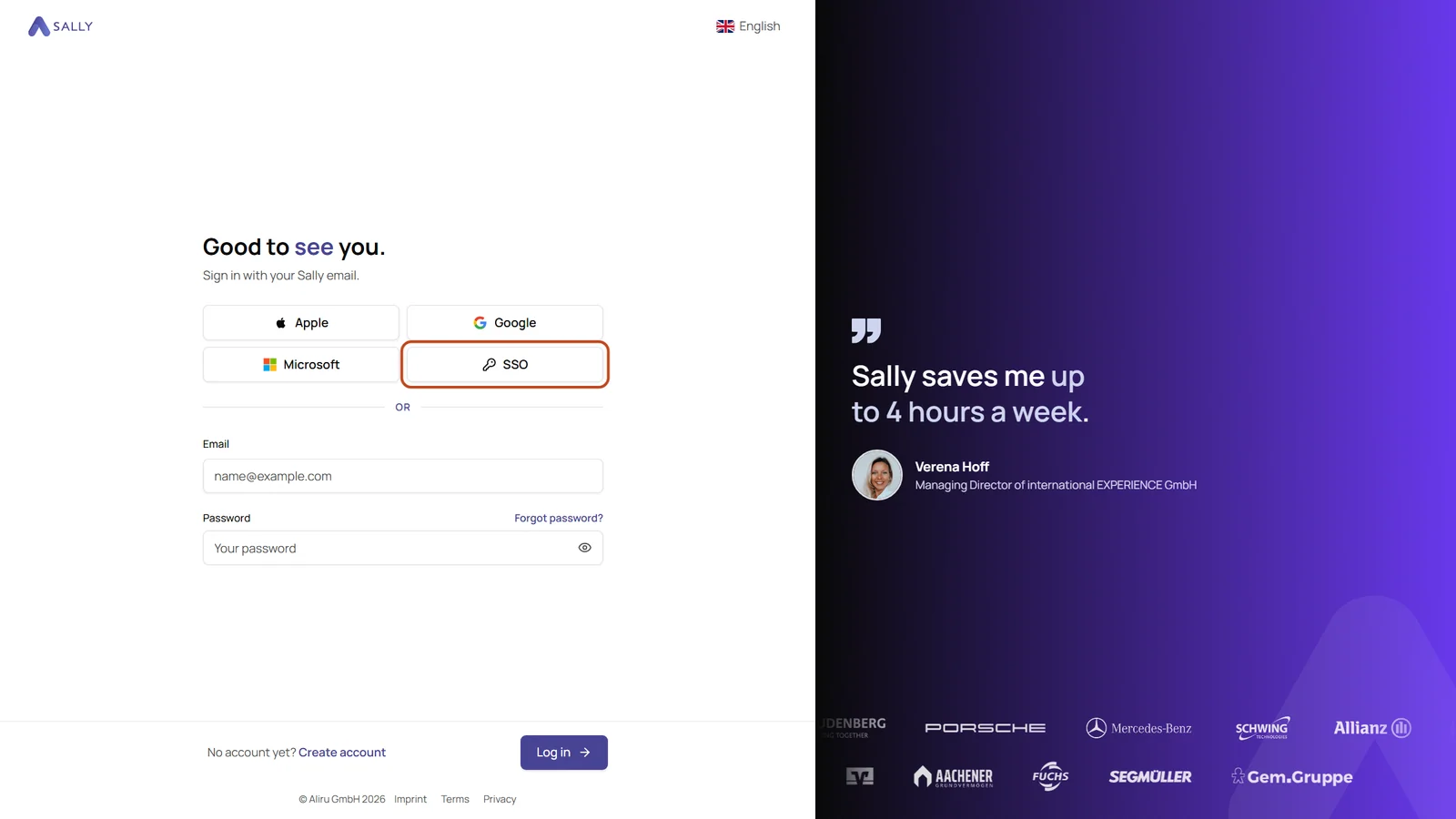
- Enter your Company email and click Continue.
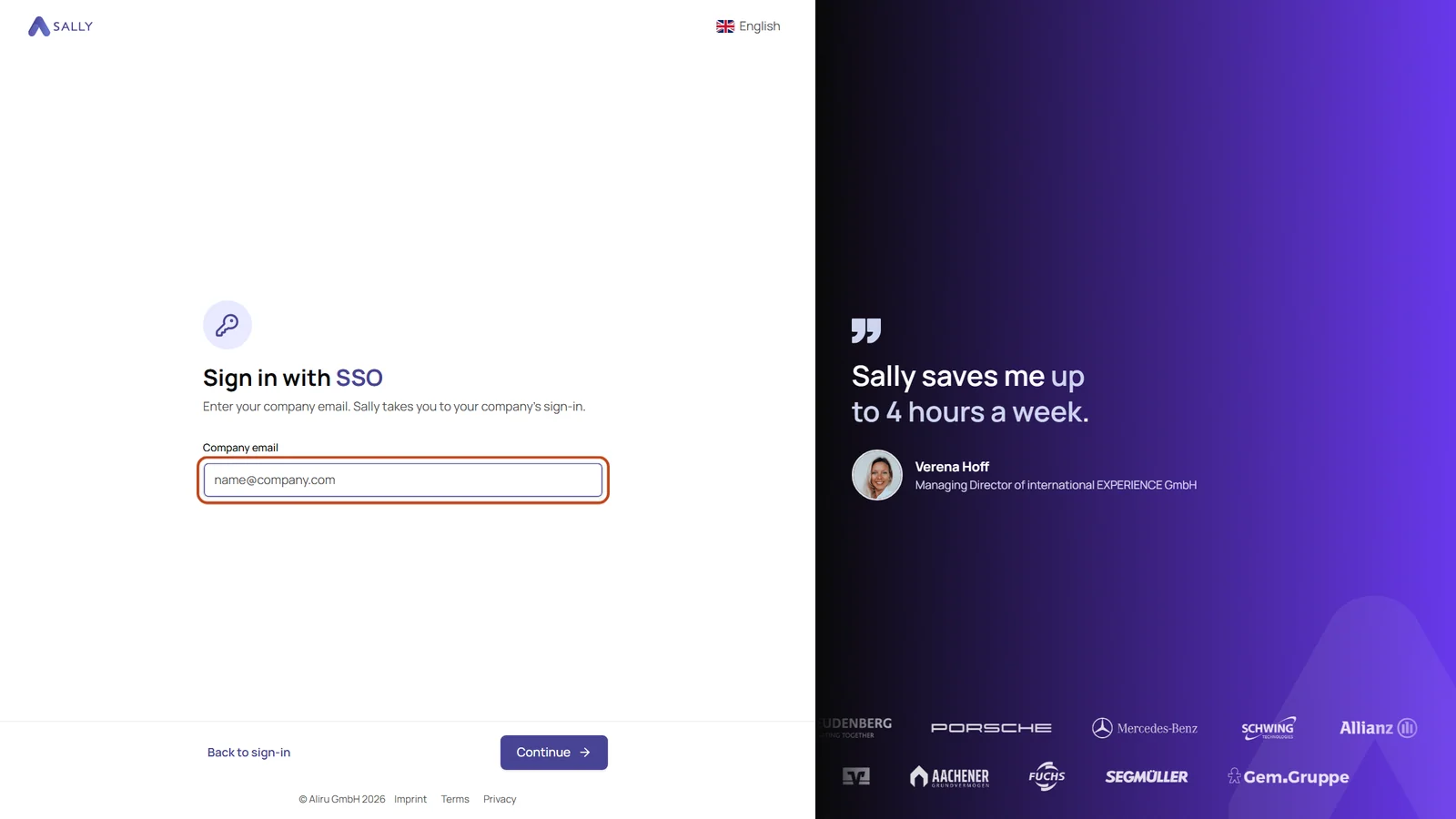
- Sally recognizes your domain and takes you to your company's sign-in page. Sign in there as usual.
- You're redirected back to Sally and signed in.
Sally remembers your address on this device, so next time a click on SSO is enough. If an address is already in the Email field on the login page, Sally skips the question as well.
The SSO button is also available in the Sally app, in the Sally Recorder, and in Sally for Microsoft Teams. There, too, Sally asks for your company email and then takes you to your identity provider.
If Sally replies that there is no SSO sign-in set up for your address, your company hasn't connected an identity provider for your domain. Sign in with your password, Microsoft, Google, or Apple, or ask your administrator. How the owner of your organization account sets up SSO is described under SSO with your own identity provider.
6. FAQ
Can users switch between SSO and email/password?
Yes. As long as the email address on a Sally account matches the address at Microsoft, Google, or Apple, the user can sign in via any linked provider or via email and password. Sally links providers to the existing account automatically. Only if sign in only via Microsoft or sign-in only via SSO is turned on for the user's domain, that method is the one way in.
What happens if access is revoked at the identity provider?
Signing in through that provider stops working. The user can still access Sally via email and password (or a different SSO provider linked to the same address). If you want a block in Microsoft to lock the user out of Sally as well, turn on sign in only via Microsoft for your domain. For your own identity provider, the same works with sign-in only via SSO.
Does SSO sign-in create a license automatically?
No. SSO creates (or signs in to) a user account. License assignment is handled separately by an administrator or via SCIM provisioning.