Emergency access when your identity provider is down
With sign-in only via SSO, your identity provider is the only way into Sally for everyone on that domain. If it fails, nobody with an address on the domain can sign in, not even the owner. Emergency access closes that gap: owners and admins select individual users who can then sign in with their Sally password and a two-factor code while the identity provider is unavailable. Every use is emailed to all owners.
This guide shows how to switch on emergency access, select the right people, make sure they have a password and two-factor authentication ready, and what to do during an outage. It also covers what you need to do when someone on the list leaves the company.
Owners and admins can switch emergency access on and off and select users, just like the switch Sign-in only via …. Members can't.
Quick navigation
- Before you start
- Switch on emergency access
- Select users
- Set up a password and two-factor authentication
- Signing in during an outage
- Emails to the owners
- When someone leaves the company
- FAQ
1. Before you start
- Your organization has an SSO connection to its own identity provider, and sign-in only via SSO is on for the domain. Without that rule, everyone can sign in with their password anyway, and you don't need emergency access.
- Emergency access is set per domain. If several domains use sign-in only via SSO, switch it on for each one.
- It is not available for sign-in only via Microsoft.
2. Switch on emergency access
- Open Settings, go to Account and pick Internal Domains on the left.
- Click the domain. Its detail panel opens on the right.
- Directly below Sign-in only via ACME SSO you find the row Emergency access for selected users. Turn on the switch on the right of this row. It is off by default, and without it there is no emergency access.
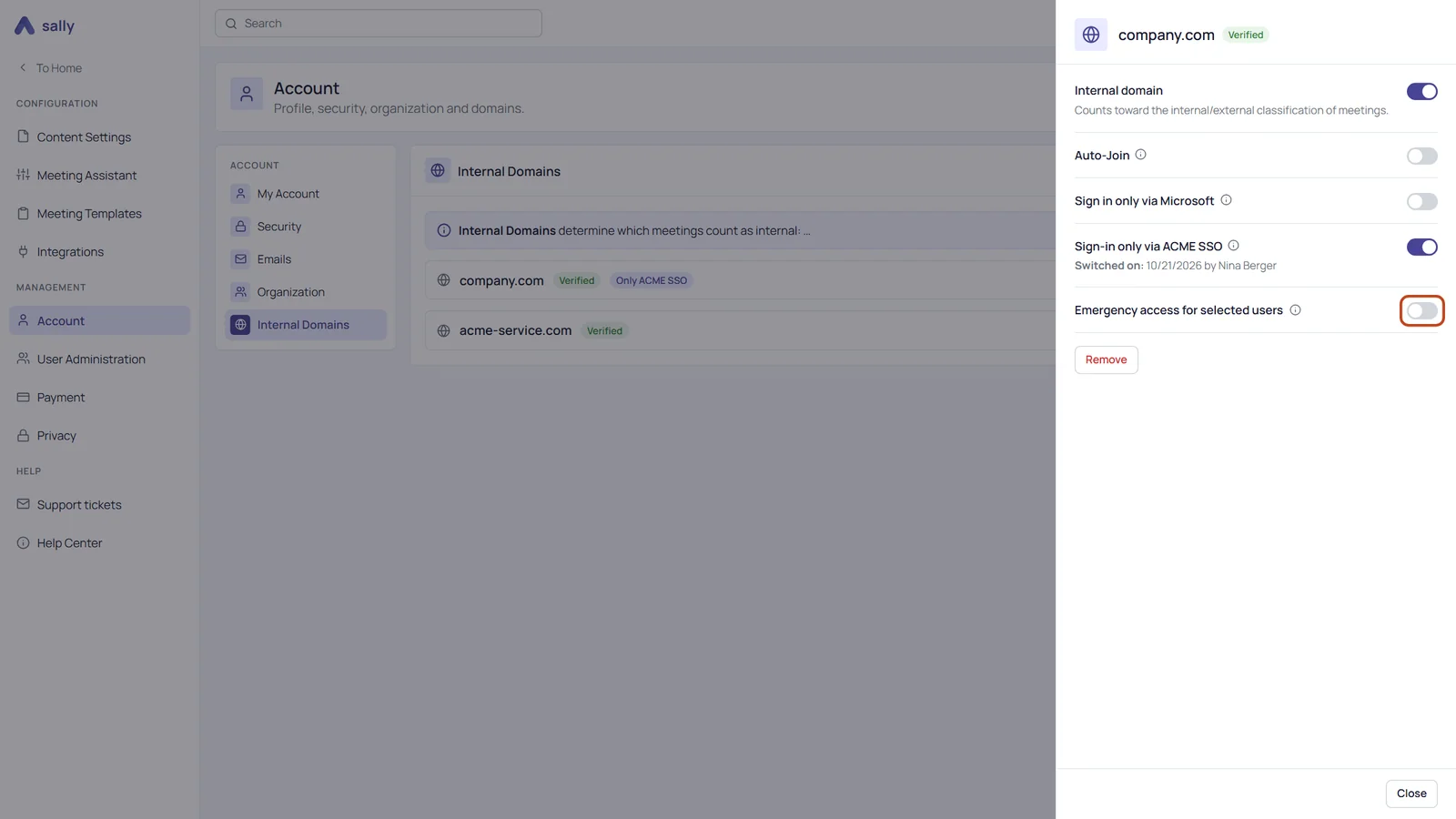
The row Emergency access for selected users only appears for a domain that is verified and connected to your own identity provider. Being an owner or admin alone isn't enough. How to set up the connection is explained under SSO with your own identity provider. After that, the detail panel shows Sign-in only via … and, directly below it, emergency access.
- Sally asks Switch on emergency access? and explains what happens. Confirm with Switch on.
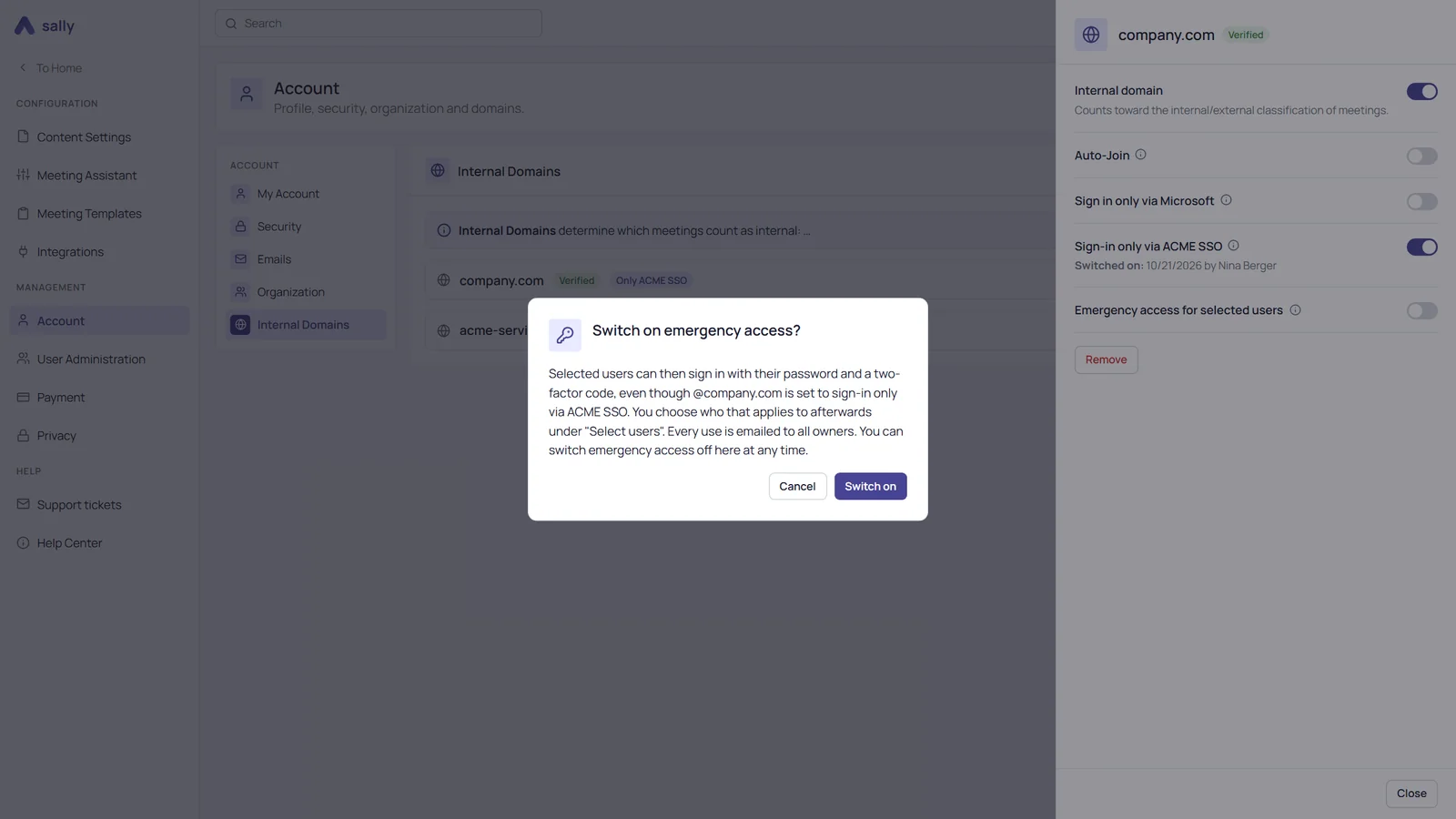
Switching it on alone doesn't let anyone in yet. Until you select users, the row says No one selected yet. Without a selection, nobody can get in during an outage.
You can switch emergency access off at any time in the same place, without a confirmation. All sessions of the selected users then end, except your own.
3. Select users
- In the row Emergency access for selected users, click Select users. The dialog Users with emergency access opens.
- Under Add users, search for the people you want to add. Without typing anything, Sally suggests the owners and admins. Only members of your organization account with an address on this domain can be selected, regardless of their role.
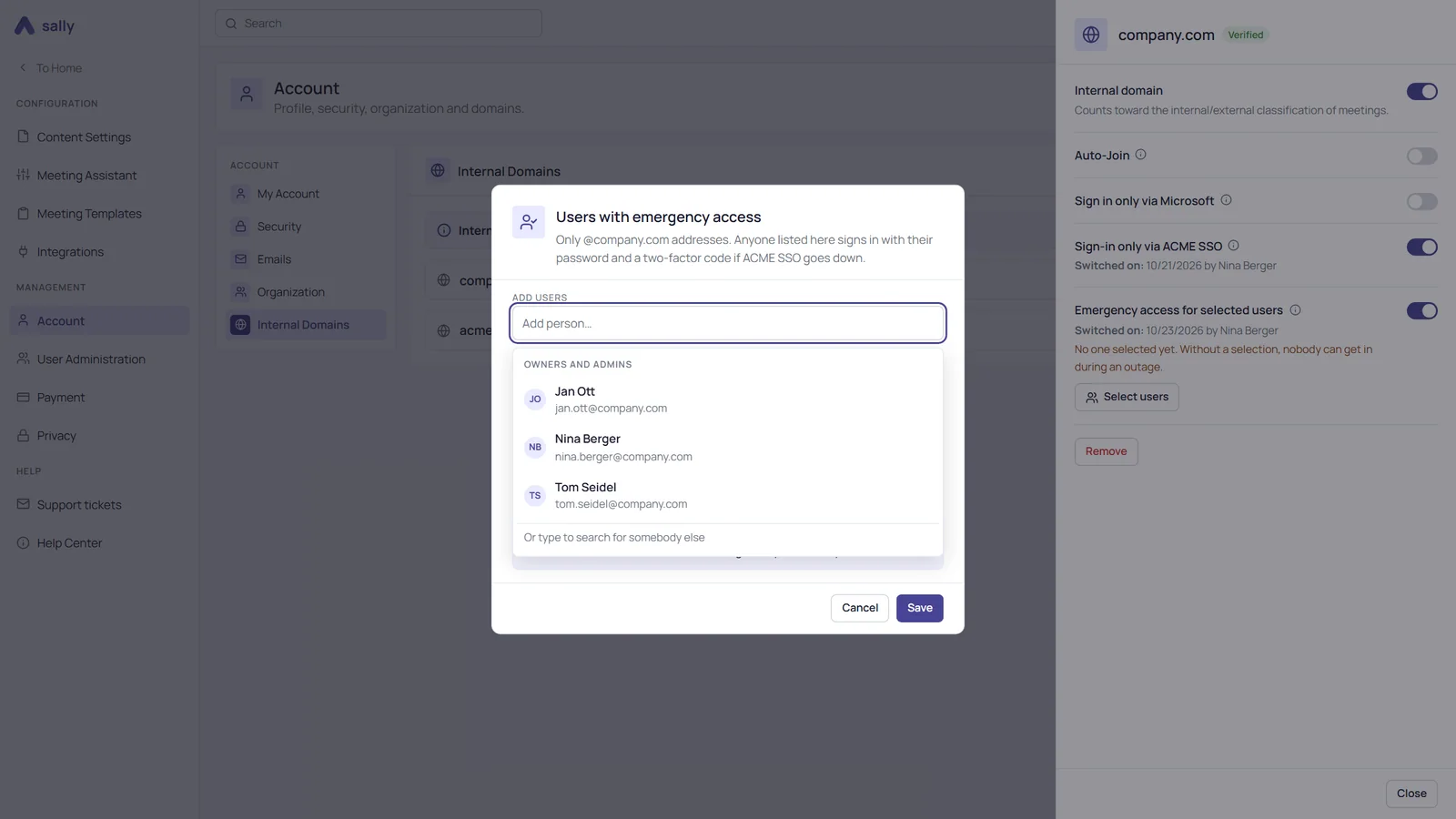
- For every person, the dialog shows the name, the address and whether they are ready: Password and 2FA set up, No password yet, No 2FA yet or No password or 2FA yet. People you have just added show Not saved yet.
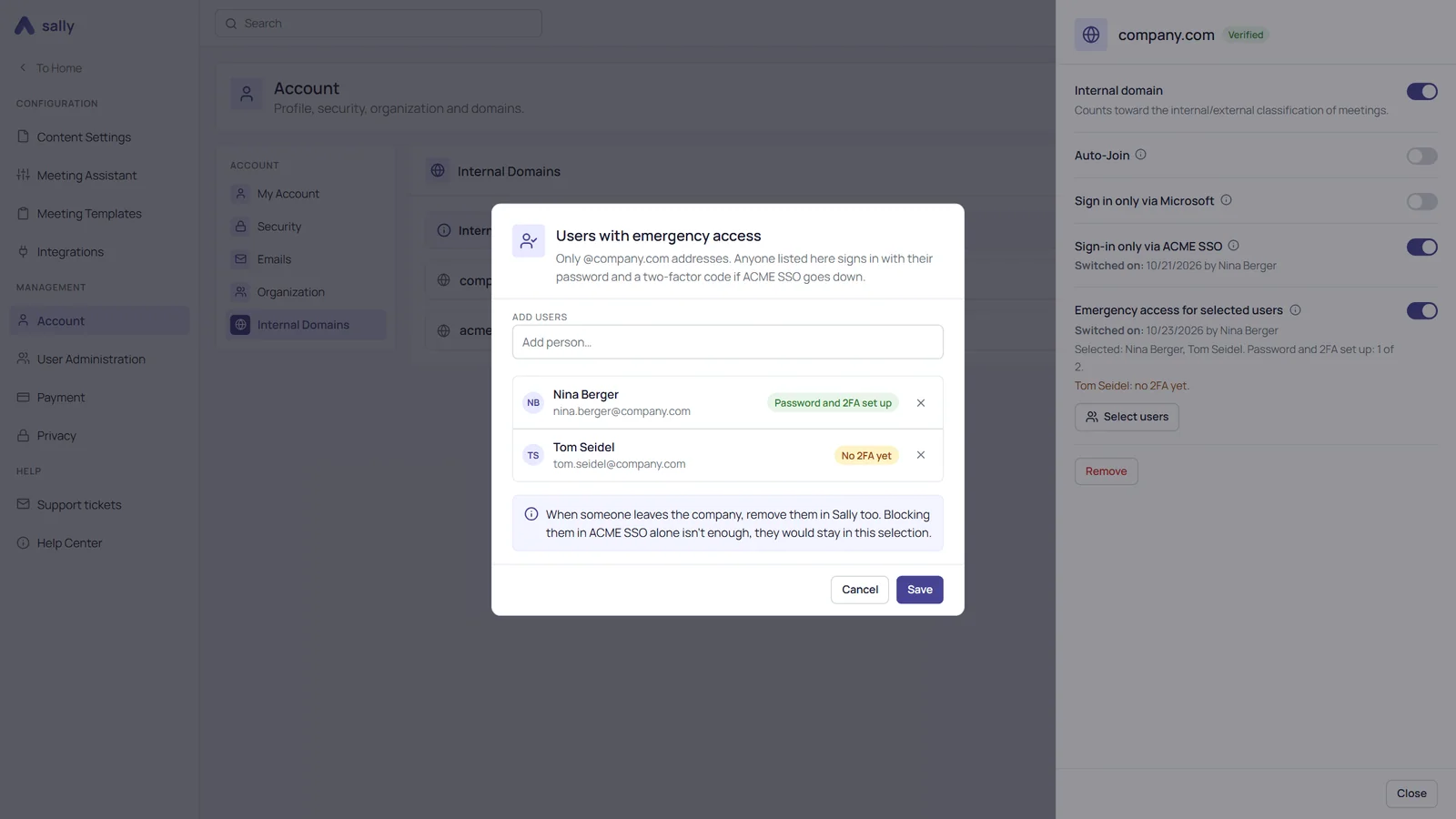
- Click Save.
Back in the detail panel, the row now lists the selection, for example Selected: Nina Berger, Tom Seidel. Password and 2FA set up: 1 of 2. Below it, Sally names everyone who is still missing something.
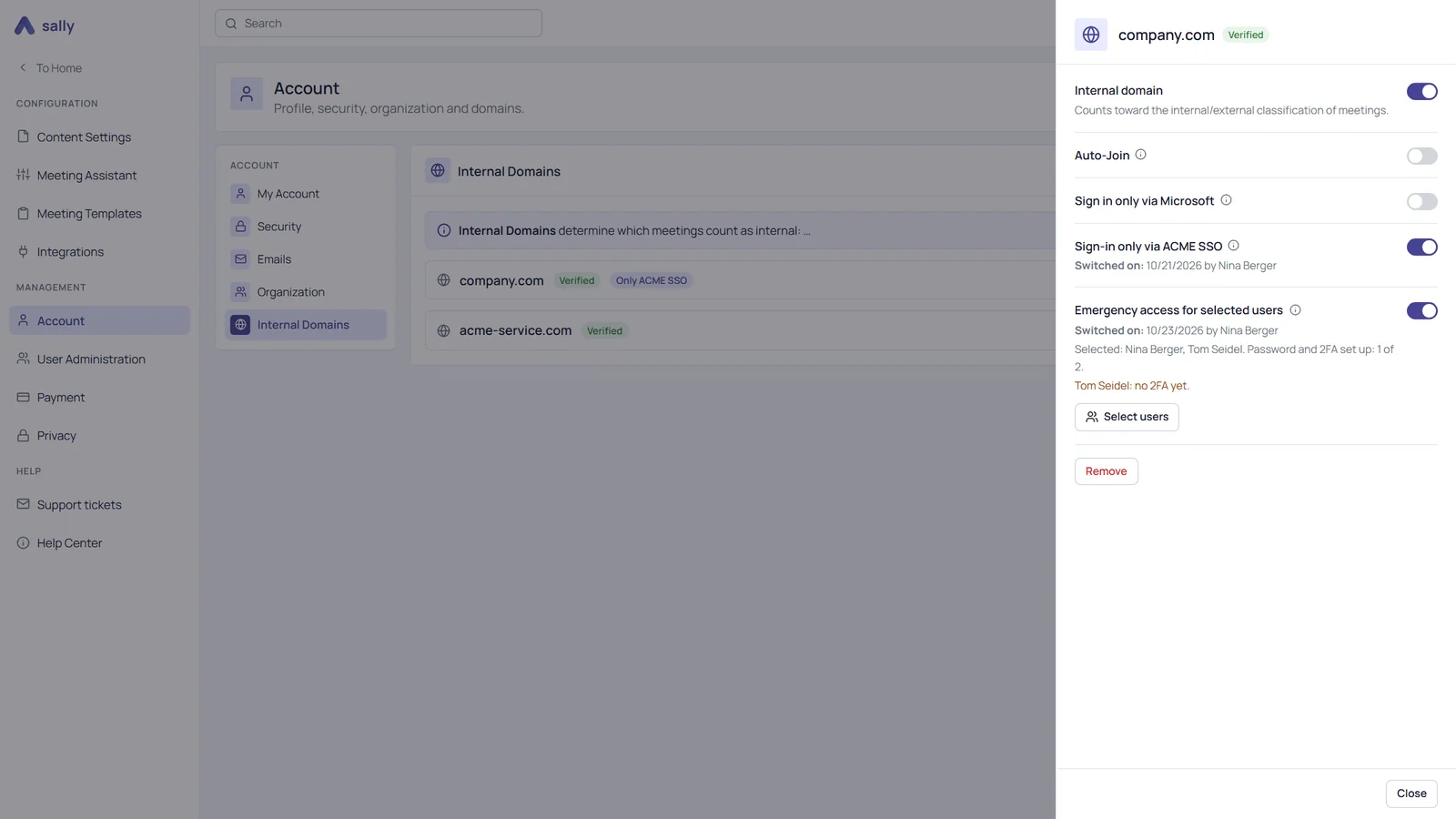
Pick two or three people, and make sure at least one of them is an owner or admin. During an outage, only they can switch off Sign-in only via … for everyone. If nobody in the selection can do that, Sally warns you in the row and in the dialog.
- Newly selected people get an email telling them they have emergency access, with the current state of their password and two-factor authentication and a button that takes them to their security settings. The person who saves doesn't get this email.
- Removing someone from the selection immediately ends all of their sessions in Sally.
4. Set up a password and two-factor authentication
Emergency access only works for people who have both a Sally password and at least one active two-factor device. Set both up while your identity provider is still running, not during the outage.
If you are on the list, you find everything under Settings › Account › Security. The note You're on the list for emergency access to @company.com reminds you why the password and two-factor settings are still shown, even though the domain otherwise only allows SSO.
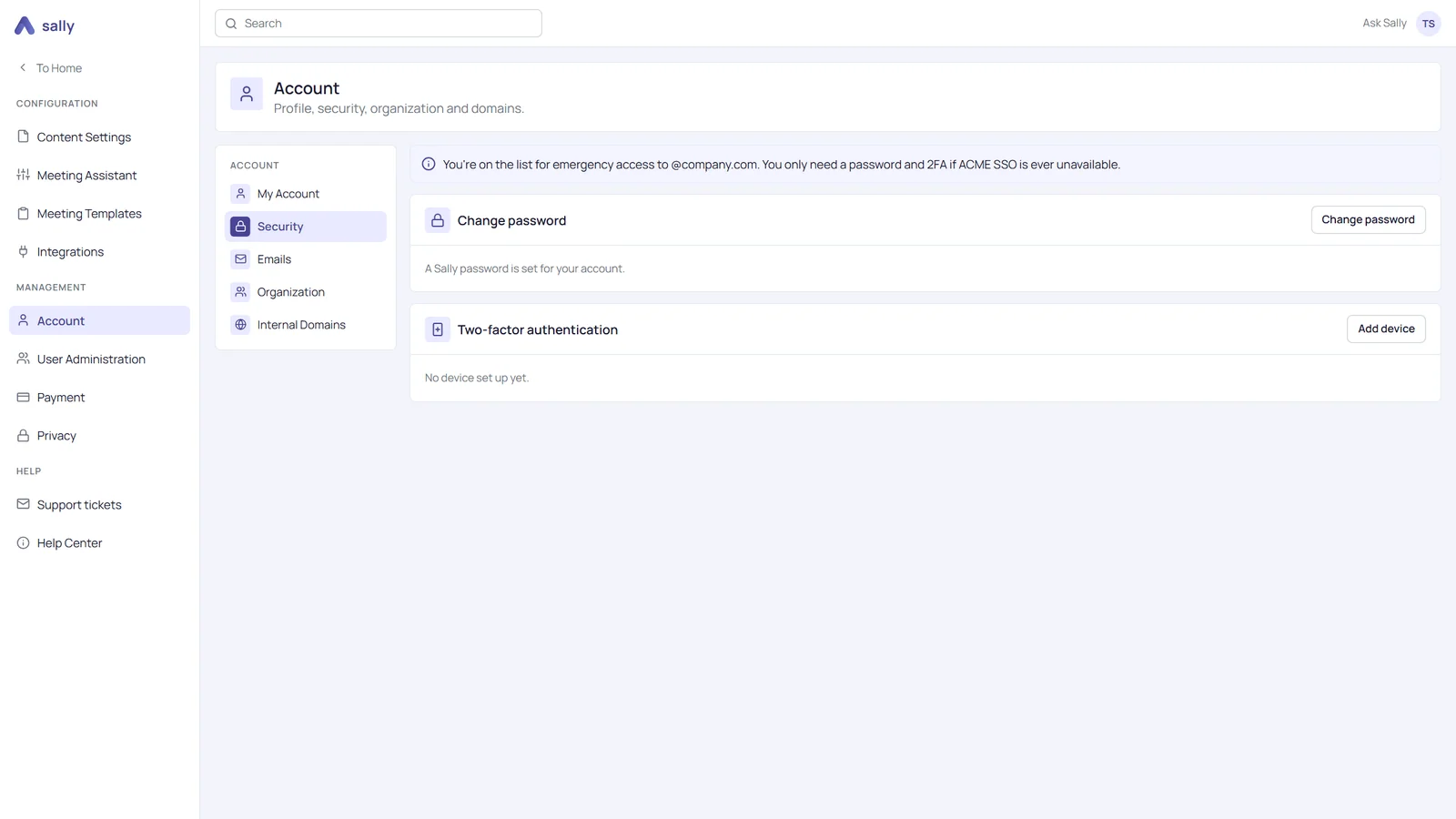
- Password: Use Set a password, or Change password if you already have one. The steps are under Change your password. Forgot password? on the sign-in page also works for you: Sally sends the reset link only to people on the list.
- Two-factor authentication: Add a device under Two-factor authentication, as described under Set up multi-factor authentication.
As soon as both are in place, the dialog in the domain settings shows Password and 2FA set up for you.
There are no recovery codes for emergency access. If you lose the device, write a support ticket to support@sally.io. Set up a second device ahead of time if you can.
5. Signing in during an outage
- Open the Sally sign-in page and enter your company email address and your Sally password. Don't use the SSO button, it leads to the identity provider that isn't working.
- Click Log in and enter the code from your two-factor app.
You are now signed in with a completely normal session, without a shorter runtime or a special marking. The same works in the Sally app and in the Sally Recorder.
If you are not on the list, have no active two-factor device, have a blocked membership or enter the wrong password, Sally shows the usual note that sign-in is only possible via your identity provider. For security reasons, it doesn't say which of these is the cause.
The selected users can sign in this way at any time, not only during an outage. That's why every use is emailed to all owners. Agree internally that the emergency access is only meant for emergencies.
If the outage lasts longer, an owner or admin on the list can switch off Sign-in only via … for the domain. Then everyone with a Sally password can sign in again. Once the identity provider is back, switch the rule on again.
6. Emails to the owners
Sally sends three emails about emergency access. They can't be unsubscribed from, because they concern the security of your account.
| Who gets it | When | |
|---|---|---|
| Emergency access used | All owners | Every time someone signs in through emergency access. It shows the name, address and time, and links to the settings in case the sign-in was unexpected. |
| Emergency access or selection changed | All owners | When someone switches emergency access on or off, or changes the selection. |
| Selected for emergency access | The newly selected person | When they are added to the selection. |
7. When someone leaves the company
When someone on the list leaves the company, remove them in Sally too, from the selection or from your organization account. Blocking them only in your identity provider isn't enough: they would stay in the selection and could still sign in with their Sally password and a two-factor code.
If you connect SCIM, deactivating a person in your identity provider blocks their access in Sally. A blocked membership never gets in through emergency access, so in that case you don't have to do anything else.
8. FAQ
Is a session via emergency access restricted in any way?
No. It's a normal session with the usual runtime. Each sign-in is emailed to all owners.
What if nobody is selected or nobody can sign in?
Then nobody with an address on the domain gets into Sally until your identity provider is running again. If that takes too long, write to support@sally.io.
Can I connect an AI assistant with my password through emergency access?
Not directly. Sign in to the Sally web app through emergency access first. While you are signed in there, connecting the AI assistant uses your existing session.
Does emergency access also apply to sign-in only via Microsoft?
No. Emergency access is only available for domains with sign-in only via your own identity provider.