Set up multi-factor authentication (MFA)
Multi-factor authentication adds a second layer of security to your Sally account. Besides your password, signing in then needs a one-time code from an authenticator app. That keeps your account safe even if your password ends up in the wrong hands.
The setup runs in three steps: confirm your identity by email, scan a QR code with the app, activate 2FA with a code from the app. You need your phone and an authenticator app, Google Authenticator or Microsoft Authenticator for example.
You set up two-factor authentication for yourself, not for other people. Everyone in the company does it in their own account.
Quick navigation
1. Start the setup
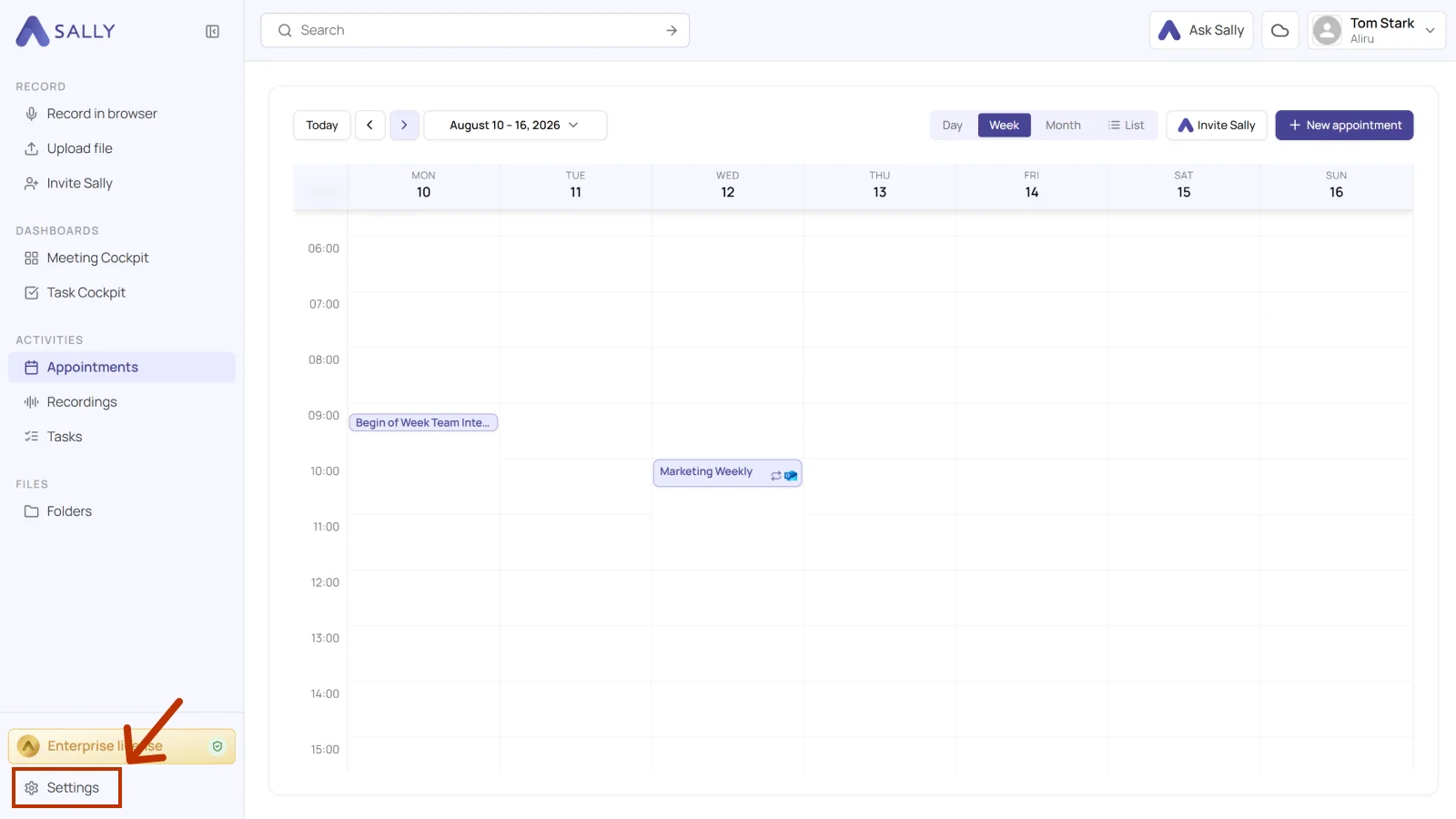
- Open Settings at the bottom of the left sidebar.
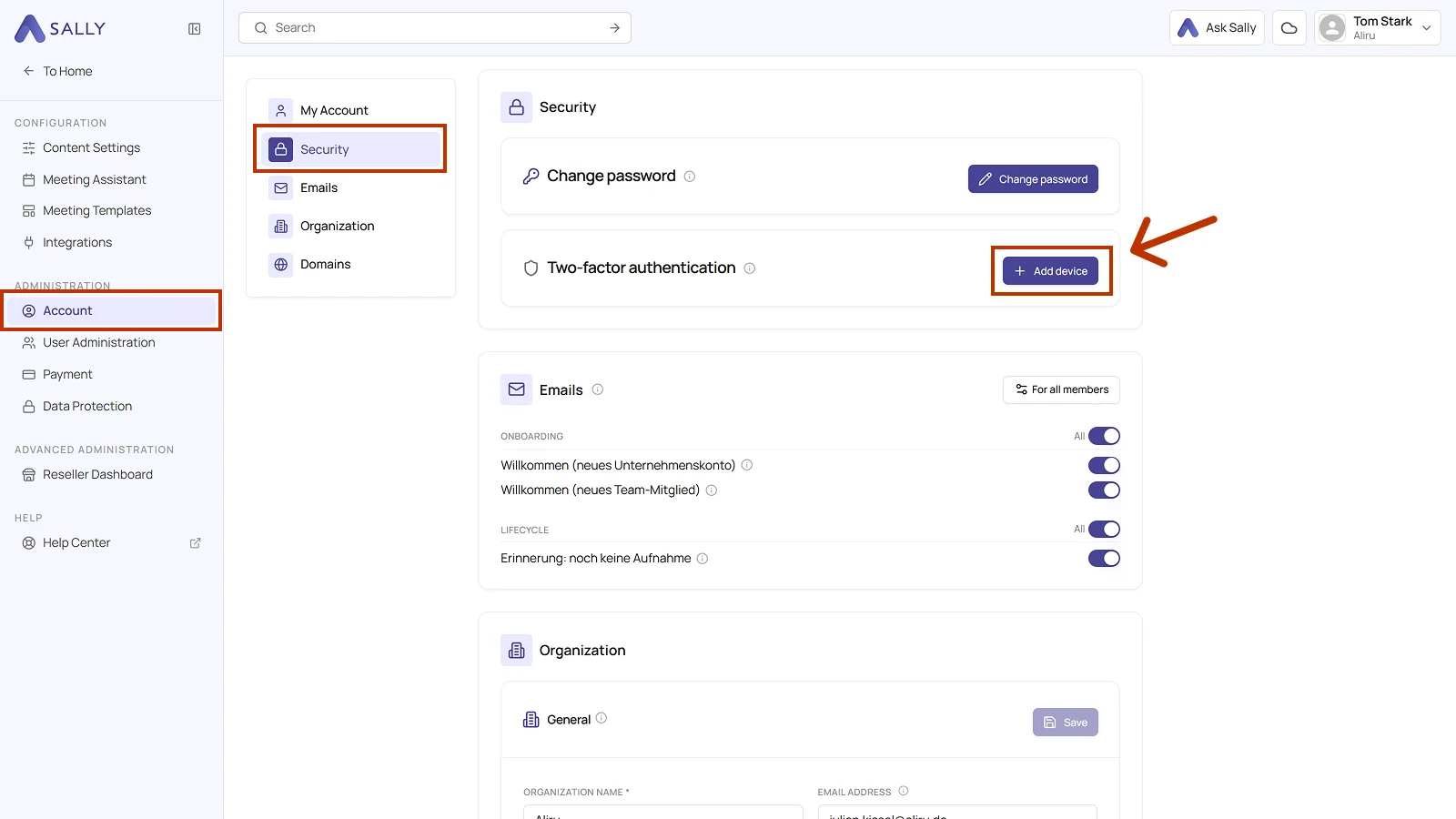
- Under Administration, open Account and pick Security on the left.
- In the Security section, click + Add device next to Two-factor authentication.
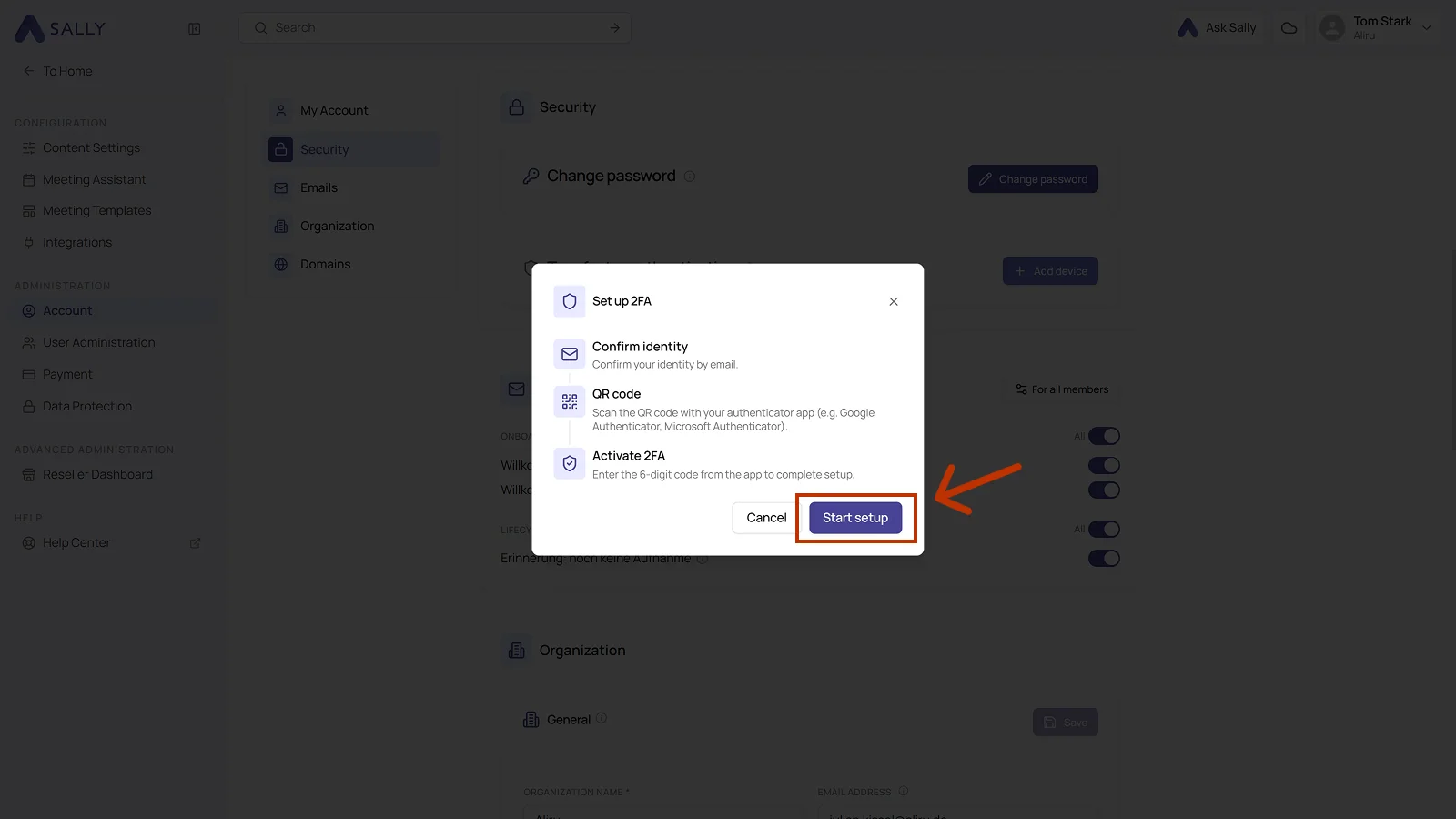
- The Set up 2FA dialog lists the three steps: Confirm identity, QR code, and Activate 2FA. Click Start setup, or Cancel if you would rather do it later.
The same section holds Change password. How that works is described under changing your password.
2. Name the device and confirm your identity
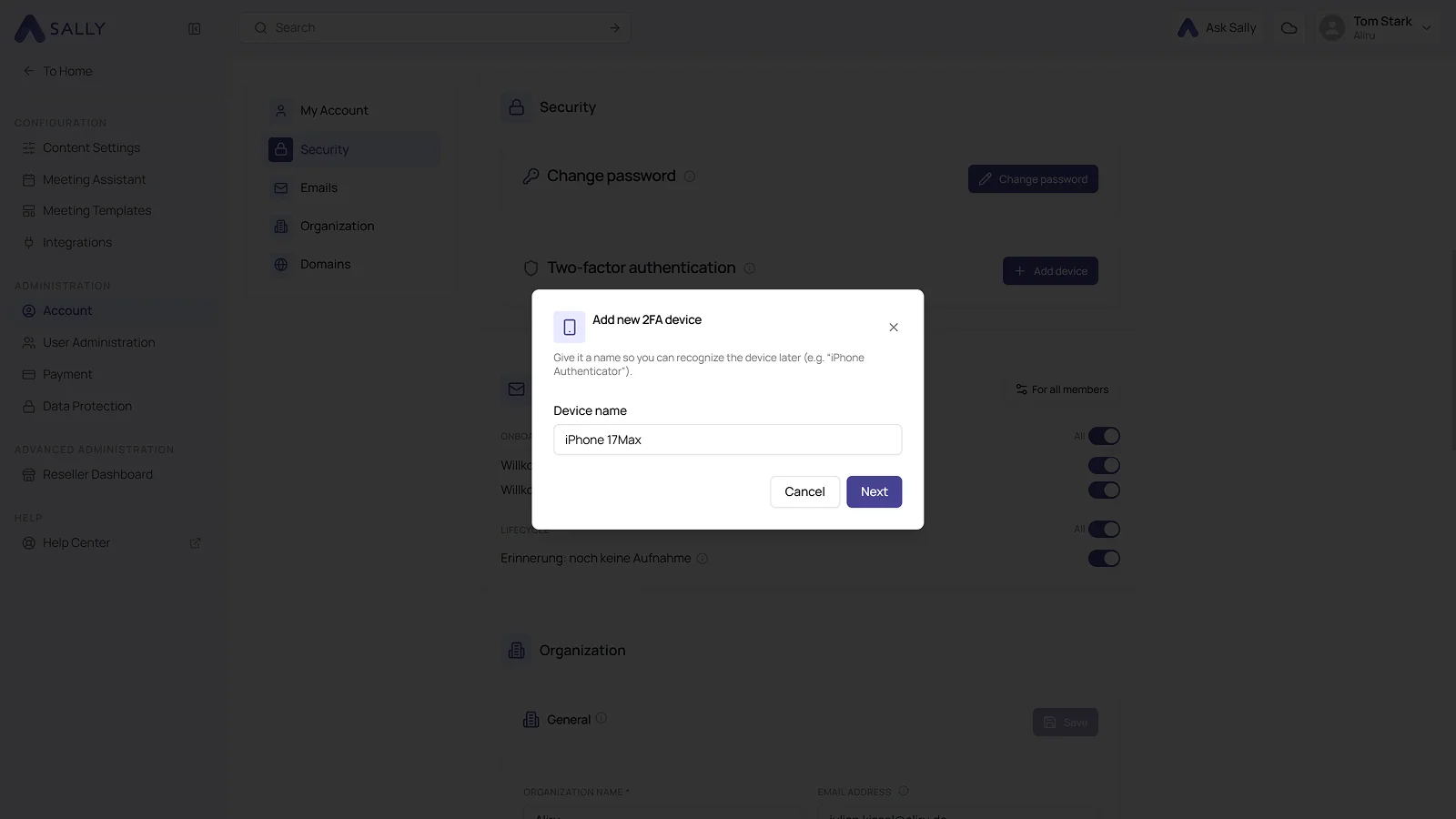
- In the Add new 2FA device dialog, enter a device name you will recognize later, "iPhone Authenticator" for example. Click Next.
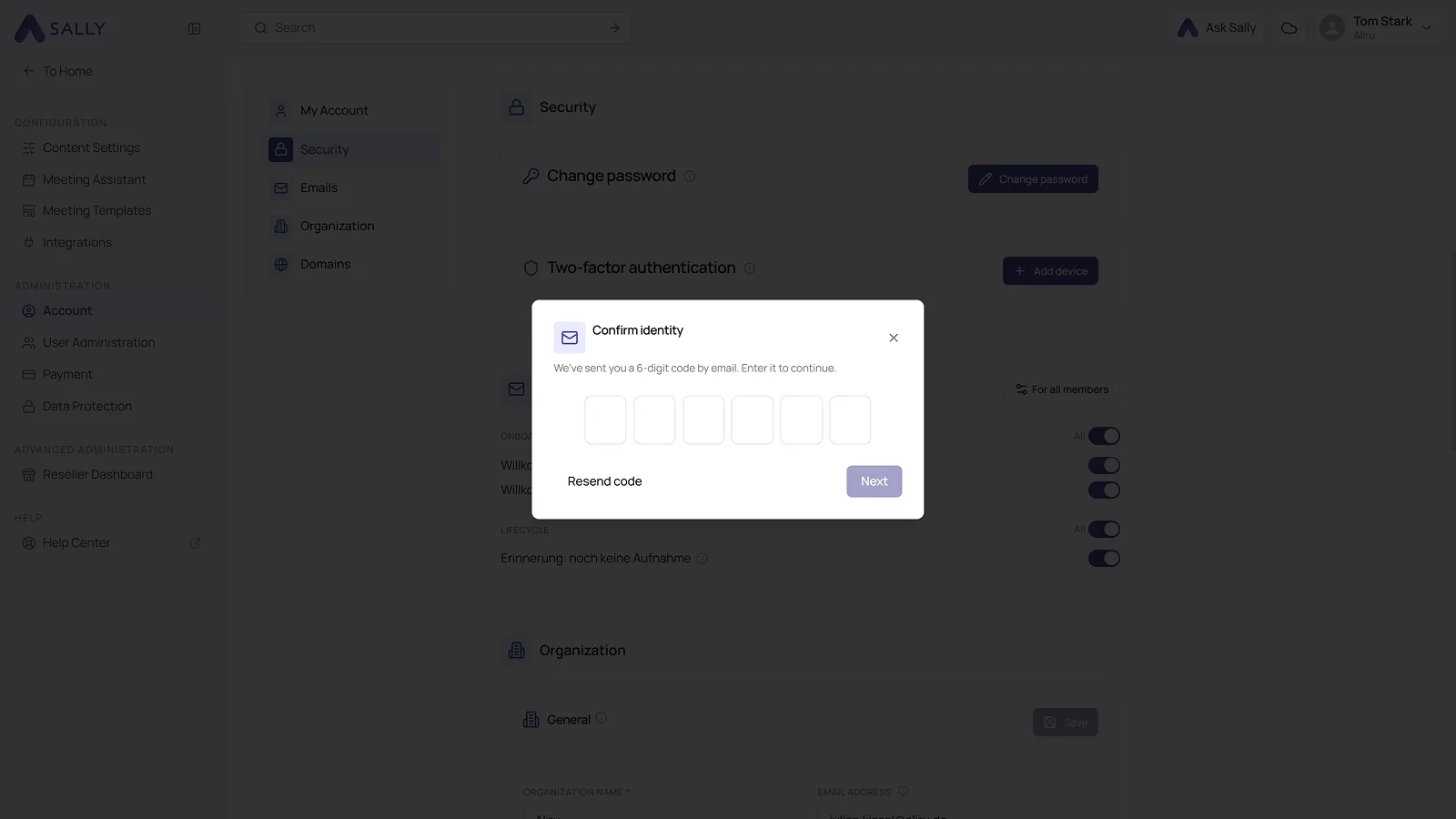
- Sally sends you a 6-digit code by email. Enter it in the Confirm identity dialog and click Next. If no email arrives, Resend code sends another one.
3. Scan the QR code and activate 2FA
- Open your authenticator app and scan the QR code from the Scan QR code dialog. If scanning is not possible, type the key below it into the app by hand.
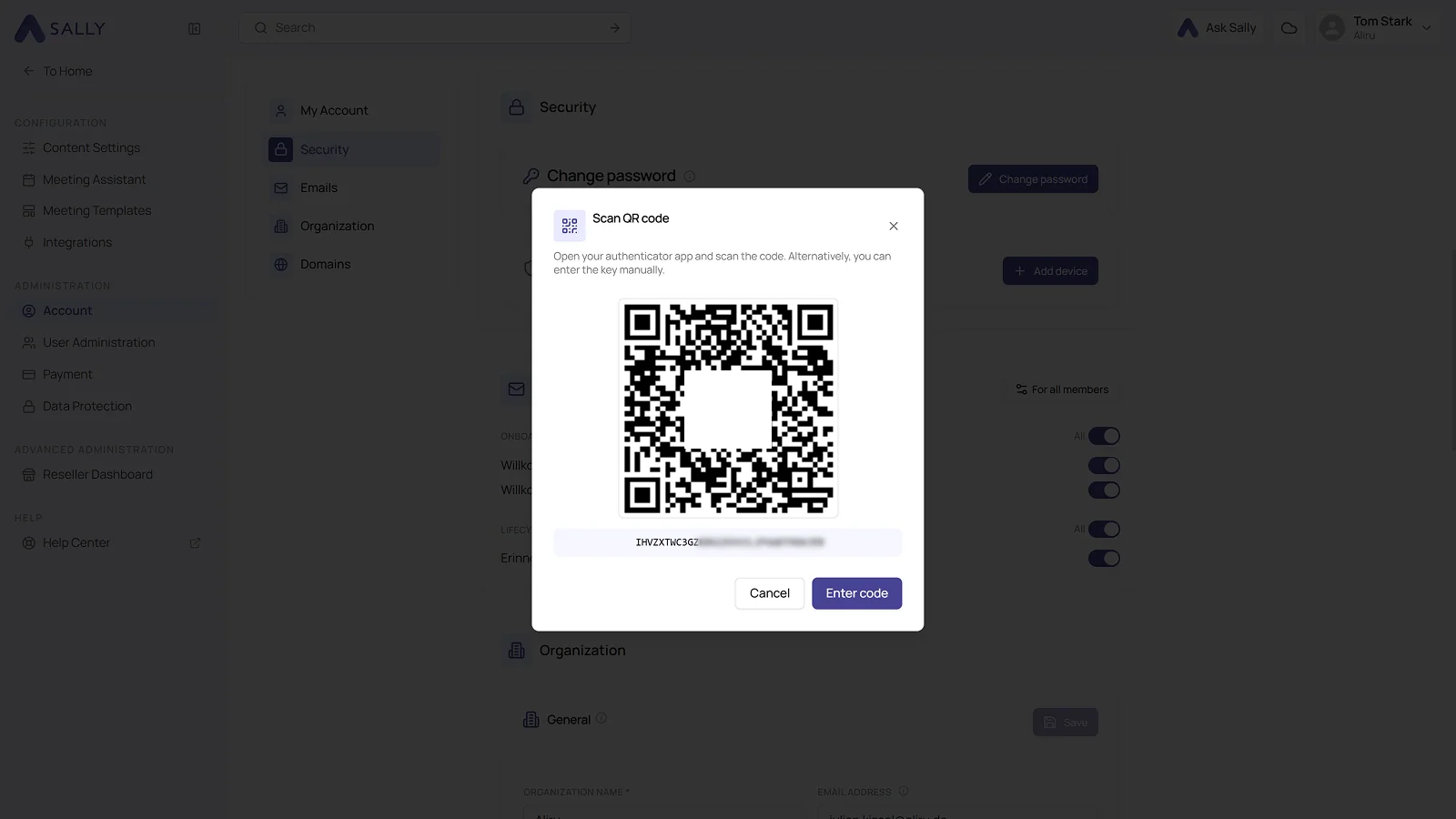
- Click Enter code and type in the 6-digit code from the app. That completes the setup.
From then on, signing in to Sally asks for a code from your authenticator app. The device appears in the Security section under the name you gave it. + Add device lets you register a second device, a tablet as a backup for instance.
Any app that generates time-based one-time codes (TOTP) works. Sally suggests Google Authenticator and Microsoft Authenticator. Authy, 1Password, Bitwarden, and Apple's Passwords app are common as well. If your company mandates a particular app, use that one.
Without the authenticator app you cannot get into your account any more. Back the app up the way its provider recommends, or register a second device.