Control video and audio recordings

Sally can store a video and an audio recording of every meeting. The privacy settings decide when that is allowed. You pick one of five options for the video, from always to never, and the audio recording has its own switch. You can also let individual meetings override this account-wide setting.

This guide shows you where to find the setting, what the five options mean, and which one fits which situation. The same area holds the privacy notice by email and the privacy notice in the meeting.

Who can change this

This setting applies organization-wide, it is defined the same way for everyone in the company.
Only owners and admins can change it, members cannot.

1. Set the video recording​

  1. Open Settings at the bottom of the left sidebar.
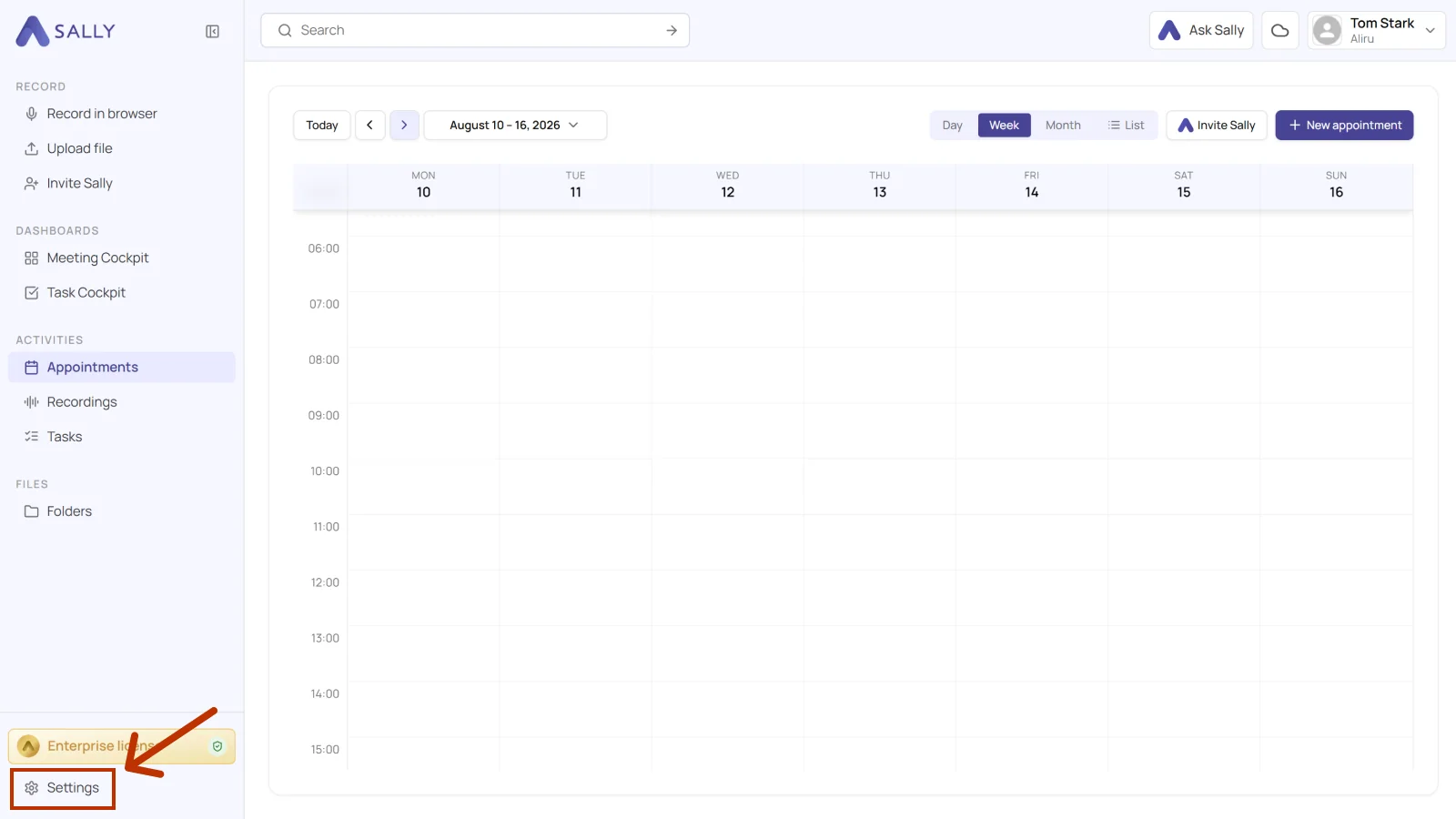
Sally calendar view with the Settings entry highlighted at the bottom left of the sidebar
Figure 1: Open Settings
  1. Under Administration, open Data Protection and pick Duty To Inform on the left.
  2. Open the Video and audio recordings section. The line under the title shows your current choice for video and audio.
  3. Under Video recording, pick one of the five options.
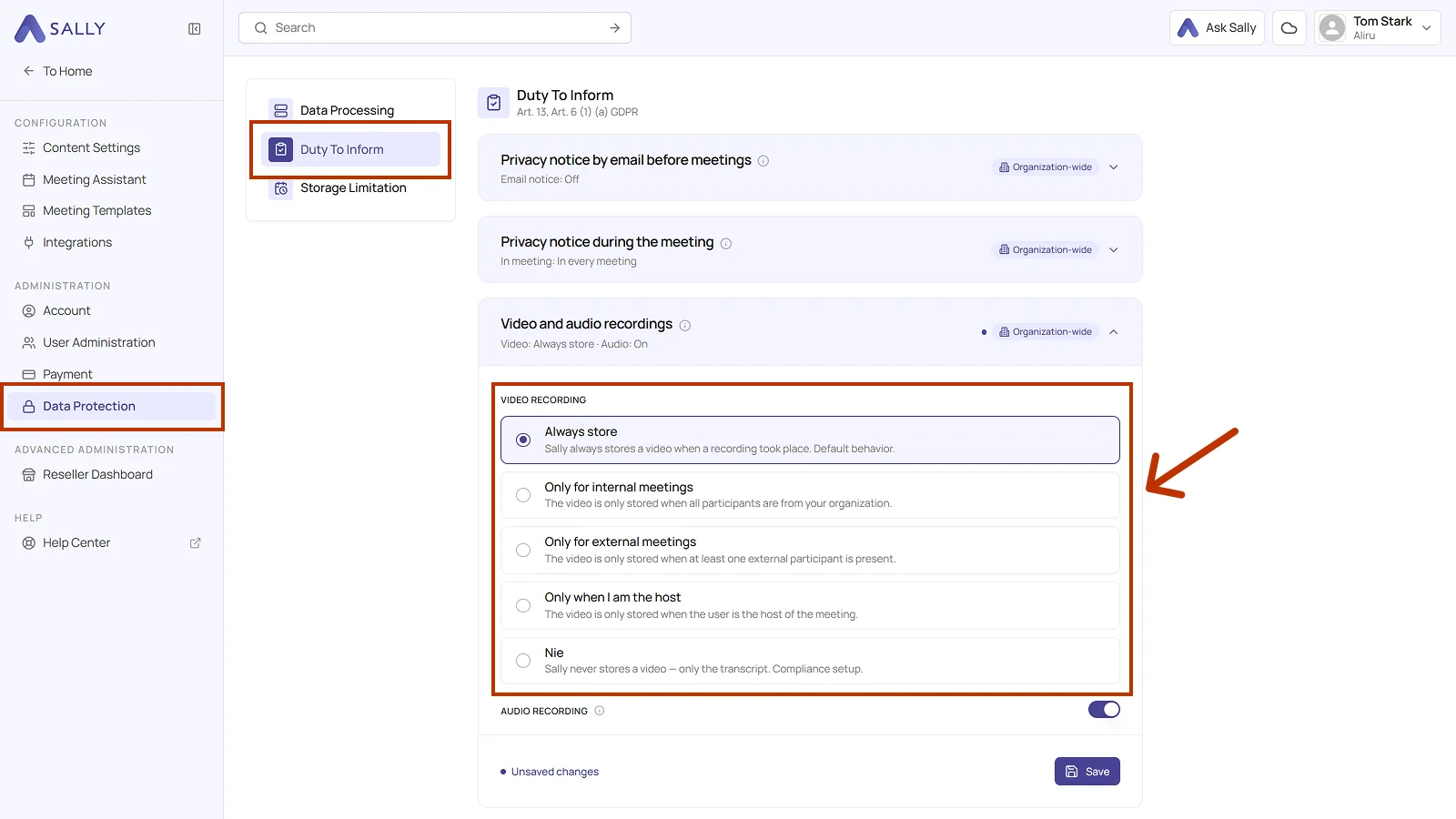
Video and audio recordings section with the five video recording options highlighted
Figure 2: The five options for the video recording
OptionWhat Sally storesWhen to use it
Always storeThe video is always stored when a recording took place. This is the default behavior.You want to document every meeting in full.
Only for internal meetingsThe video is only stored when all participants are from your organization.External conversations should not be recorded.
Only for external meetingsThe video is only stored when at least one external participant is present.Customer and other external conversations are what count.
Only when I am the hostThe video is only stored when the user is the host of the meeting.Everyone should decide about their own recordings.
NeverThe video is never stored, only the transcript. This is the compliance setup.Your policy does not allow video recordings.
  1. Click Save. Until you do, the section shows Unsaved changes at the bottom.

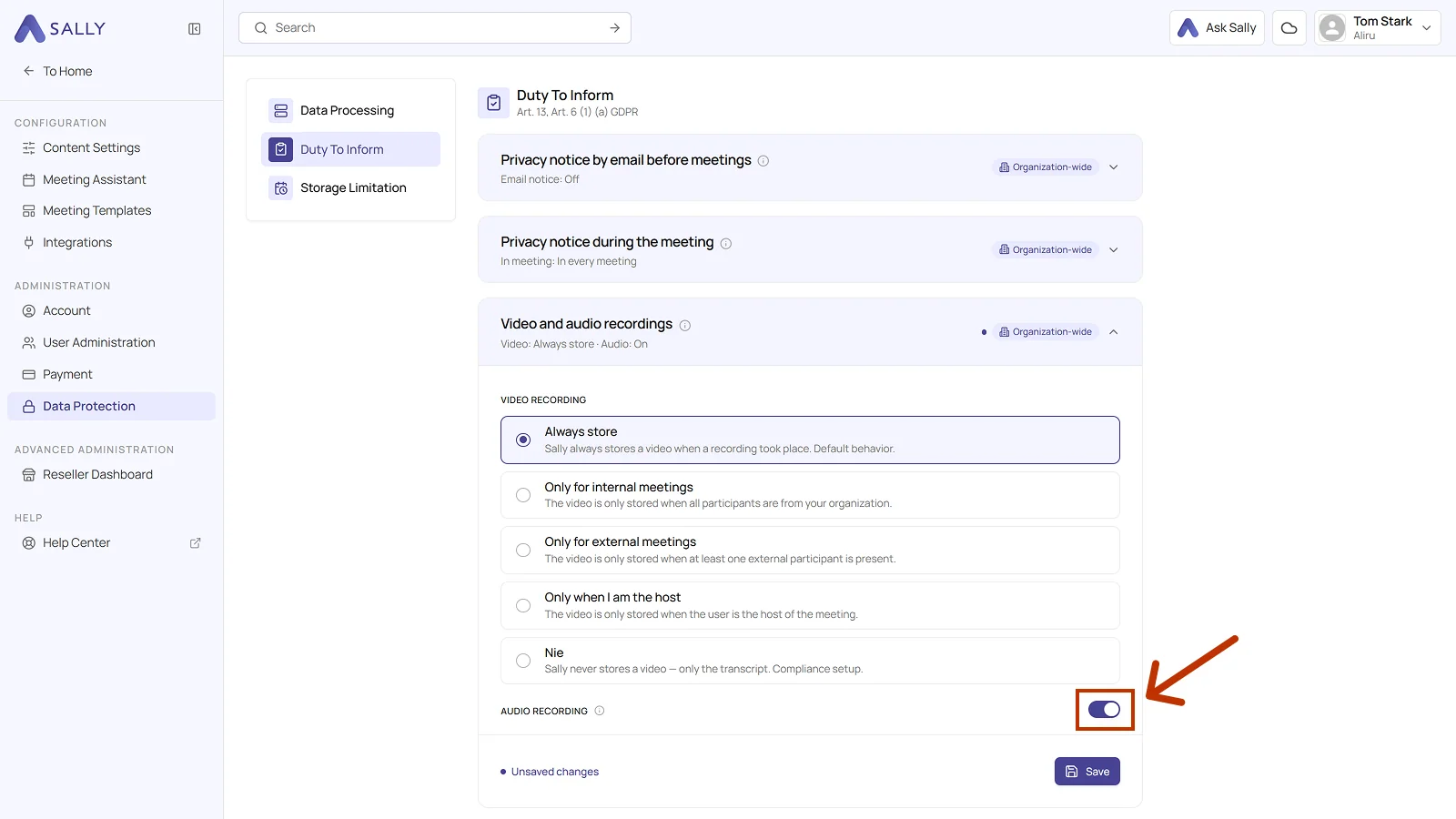
2. Switch the audio recording on or off​

The Audio recording switch sits below the video options. Its state is shown at the top, next to the video setting.

  • On: Sally stores the audio recording of the meeting.
  • Off: Sally stores no audio recording.
Video and audio recordings section with the audio recording switch highlighted
Figure 3: Switch the audio recording on or off

This change also only takes effect once you click Save.


3. Allow a different setting per meeting​

By default the account setting applies to every meeting. To let individual meetings override it, turn on "Allow deviation for a single meeting". The toggle sits in the same Video and audio recordings section, right below the audio switch shown above.

  • On: the Recording field becomes available in each meeting, so a single meeting can differ from the account setting in both directions.
  • Off: the Recording field in the meeting is locked and the account setting above applies everywhere.

Only owners and admins can change this toggle.

Video and audio recordings section with the Allow deviation for a single meeting toggle highlighted
Figure 4: Allow deviation for a single meeting

4. Set the recording for a single meeting​

When deviations are allowed, you set the recording for one meeting in its Sally behavior section.

  1. Open the meeting and choose Edit appointment.
  2. In the Sally behavior section, open the Recording dropdown and pick one option:
Edit appointment panel with the Recording dropdown in the Sally behavior section highlighted
Figure 5: The Recording setting for a single meeting
OptionWhat it does
From the organizationThe meeting follows the account setting. The current result is shown in brackets, for example "From the organization (audio and video)".
Audio only, no videoThis meeting keeps the audio recording but stores no video.
Audio and videoThis meeting stores both the audio and the video.
  1. For a recurring meeting, the tabs Only this appointment and Entire series decide how far your choice reaches.
Edit appointment panel with the Only this appointment and Entire series tabs highlighted
Figure 6: This appointment or the entire series
  1. Click Save.
When several people record

Sally joins each meeting only once. If several users take part with different settings, the most restrictive choice wins, so audio only beats audio and video.

Legal note

Recording meetings may require consent, depending on your jurisdiction and company policy. Make sure every participant is informed and has agreed before you record.