Download restrictions
Sally can keep meeting content from leaving the system. For four types of file you decide separately whether they may be downloaded: transcript, summary, video, and audio.
One thing worth knowing: a block takes nobody's access away. The data stays stored in Sally and remains visible through the platform, only the download is blocked.
This setting applies organization-wide, it is defined the same way for everyone in the company.
Only owners and admins can change it, members cannot.
1. Block downloads
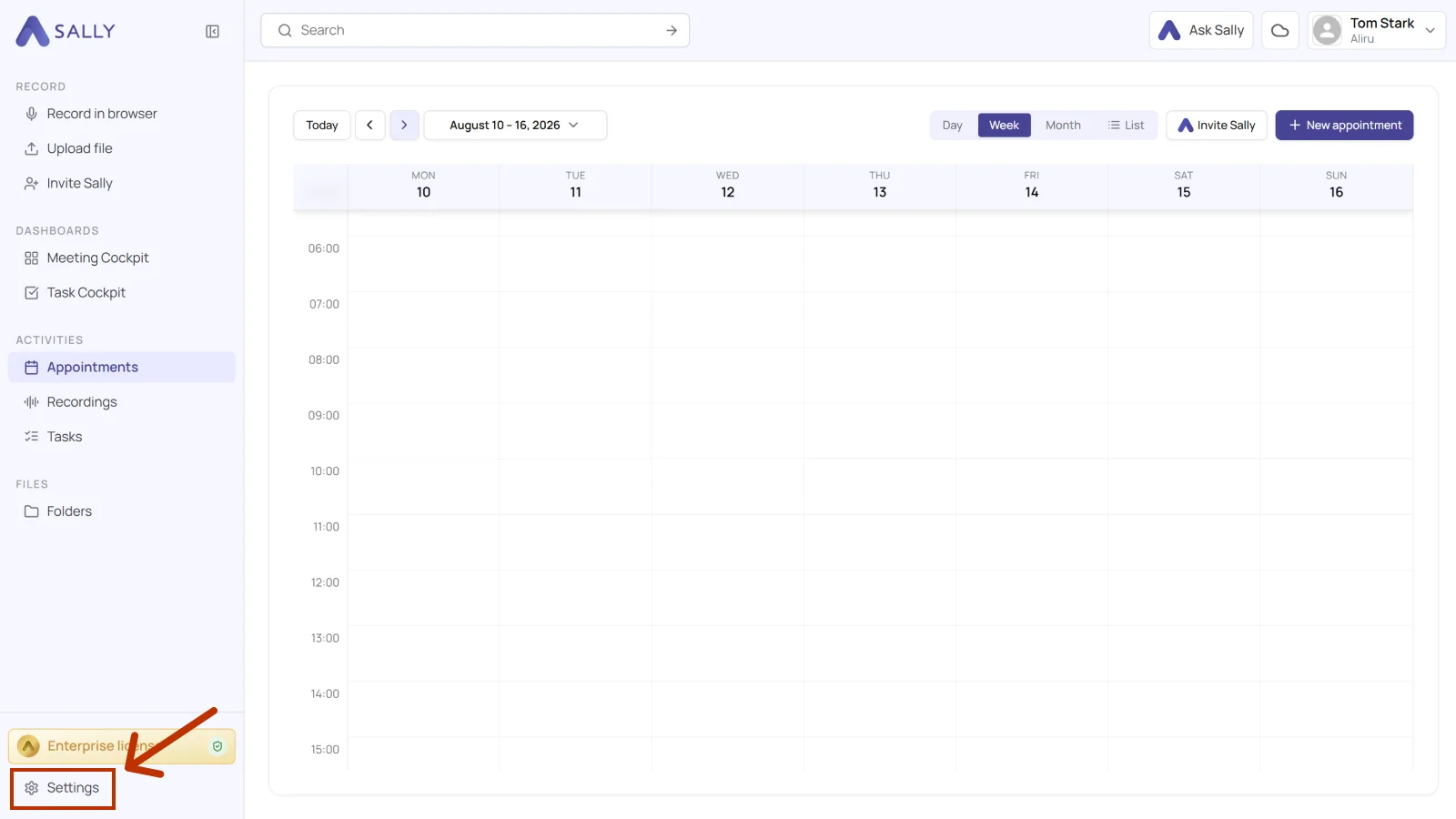
- Open Settings at the bottom of the left sidebar.
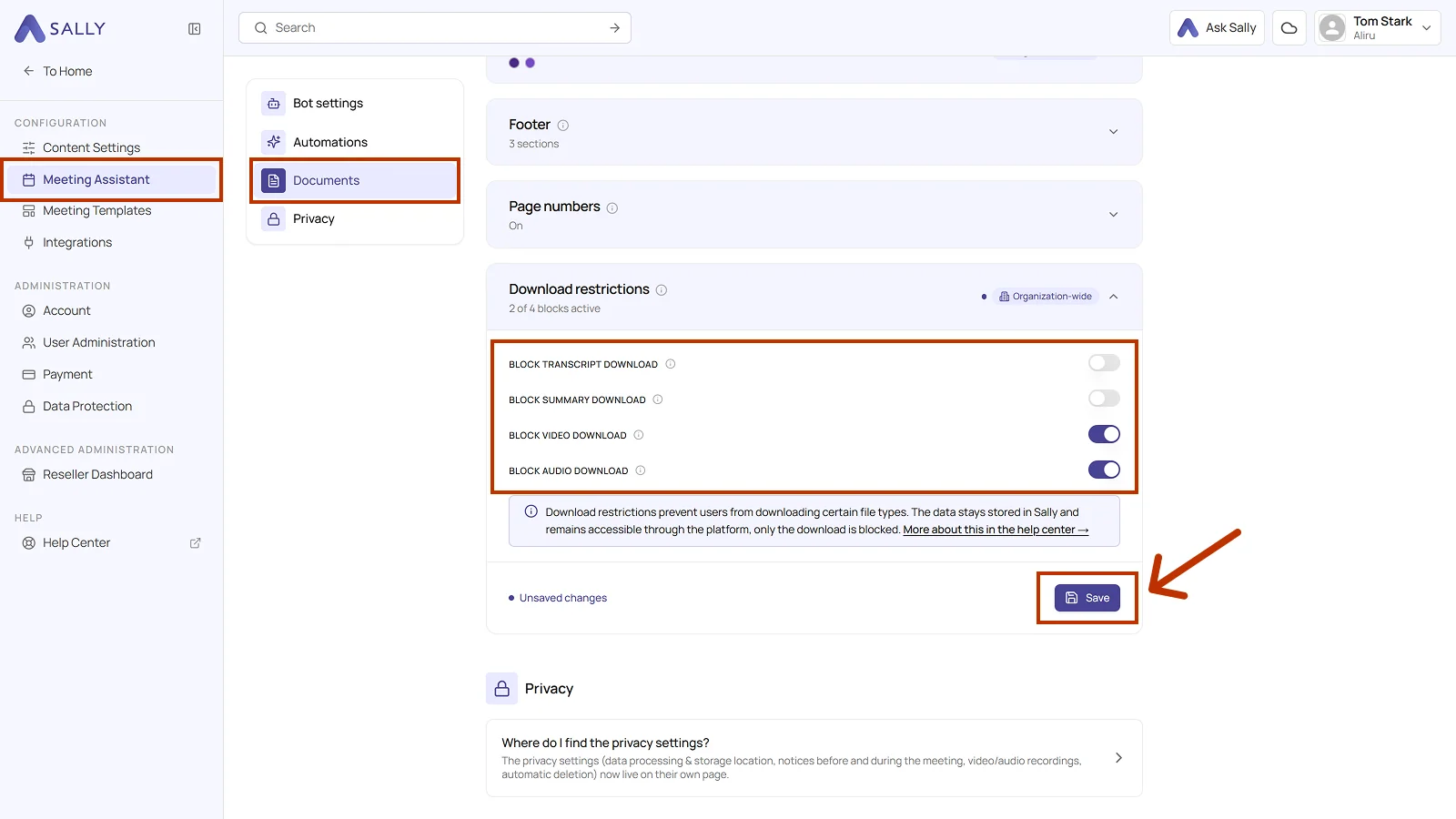
- Under Configuration, open Meeting Assistant and pick Documents on the left.
- Open the Download restrictions section. The line under the title counts how many of the four blocks are active.
- Turn on the blocks you need.
- Click Save. Until you do, the section shows Unsaved changes at the bottom.
2. The four blocks
| Block | What it blocks | When to use it |
|---|---|---|
| Block transcript download | The transcript can no longer be saved as a file. You can still read it in Sally. | Spoken content should not leave the system. |
| Block summary download | The summary stays visible in Sally, exporting it is no longer possible. | Results and decisions should not be passed on. |
| Block video download | The video recording can still be watched, but not saved locally. | Footage should not end up on personal devices. |
| Block audio download | The audio recording can no longer be downloaded. | Recordings should not be circulated further. |
The blocks work independently of each other, so you can block the video and still allow the transcript to be downloaded.
A block deletes nothing and hides nothing. Anyone with access to a meeting still sees its content in Sally. How long the data is kept at all is set by automatic deletion.