Privacy notice via email before meetings
Sally can automatically inform meeting participants by email before a meeting starts if a recording is planned. This setting defines whether an email is sent and how consent is handled.
You find it in the privacy settings under Duty To Inform.
This setting applies organization-wide, it is defined the same way for everyone in the company.
Only owners and admins can change it, members cannot.
Quick navigation
1. Configure the email privacy notice
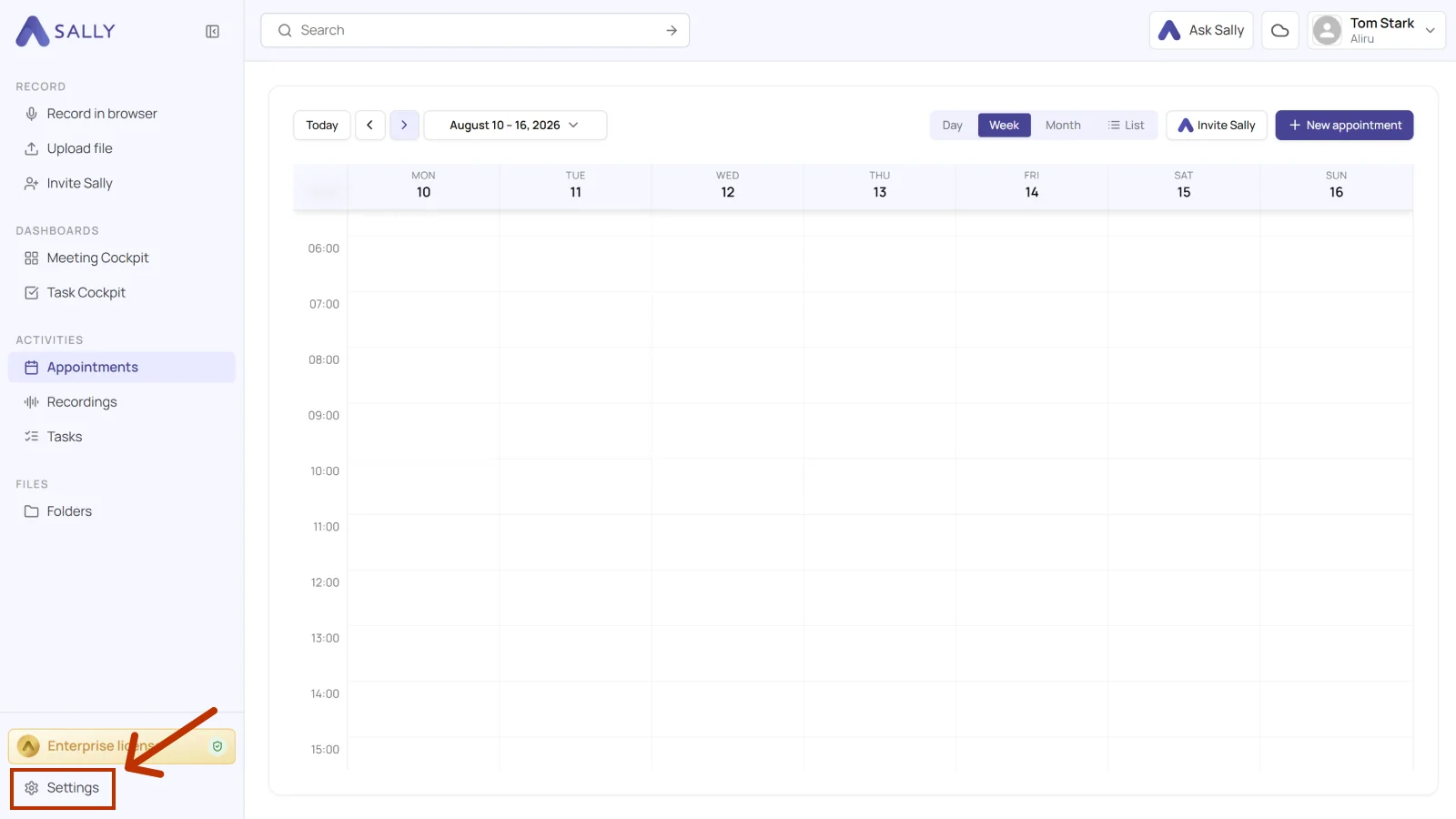
- Open Settings at the bottom of the left sidebar.
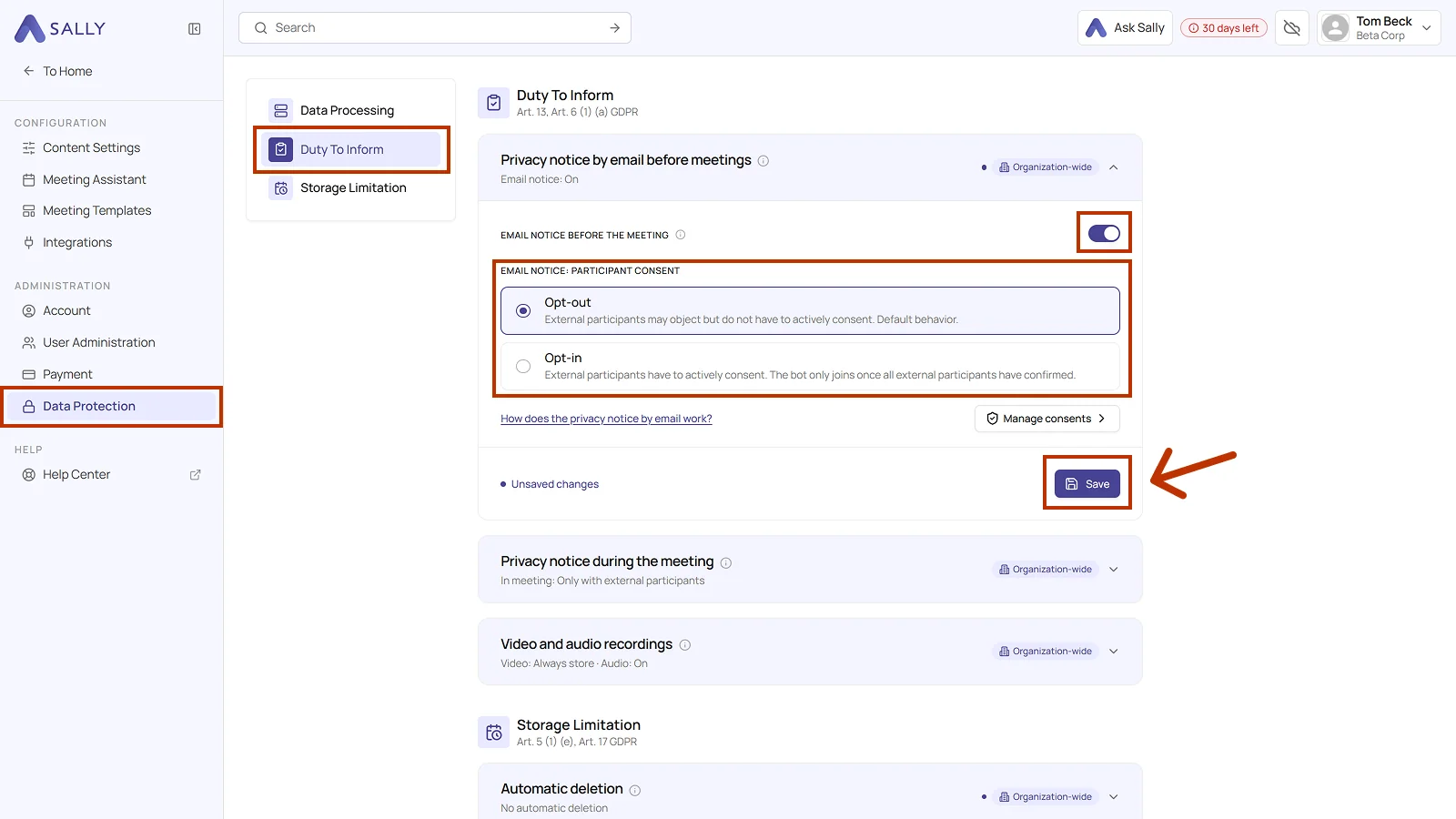
- Under Administration, open Data Protection and pick Duty To Inform on the left.
- Open the Privacy notice by email before meetings section. The line below shows whether the notice is currently active: Email notice: On.
- Turn on Email notice before the meeting if external participants should be told about the planned recording by email.
- Under Email notice: participant consent, choose between Opt-out and Opt-in.
- Click Save. Until you do, an Unsaved changes note sits next to the button.
Internal users do not receive this email. Who counts as internal is set by your internal domains.
The difference between opt-out and opt-in
Sally sends the same kind of email either way. The difference is only what happens when nobody replies.
| Opt-out | Opt-in | |
|---|---|---|
| Nobody replies | Sally joins | Sally does not join |
| Participants have to | do nothing, but they may object | actively consent |
| Useful when | a heads-up beforehand is enough | you need documented consent, in strictly regulated fields for example |
1.1 Opt-out
Sally joins the meeting unless someone objects. This is the default.
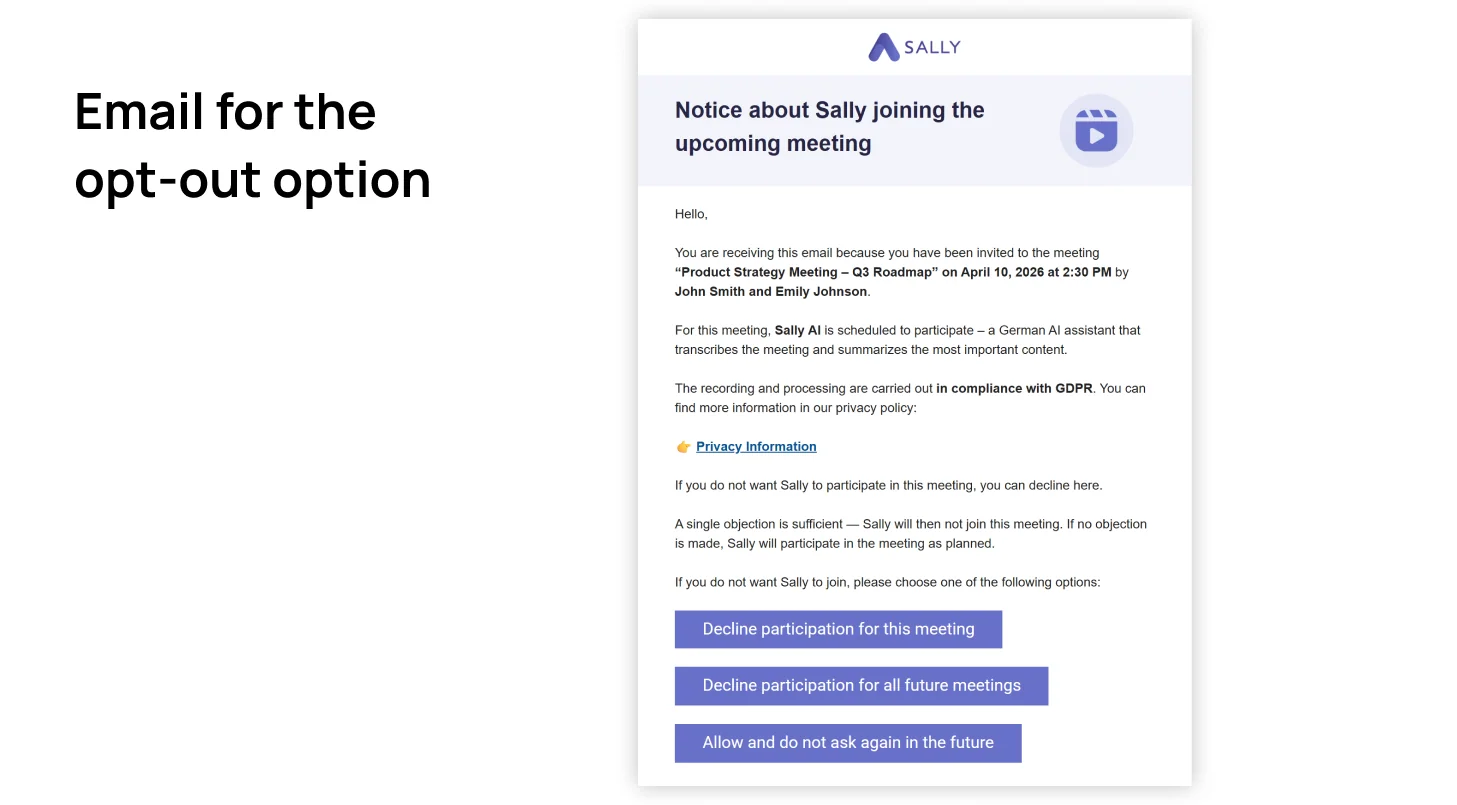
The email names the meeting, the time, and who invited them, briefly explains what Sally does in the meeting, and links to the privacy information. Three buttons sit below that:
- Decline participation for this meeting
- Decline participation for all future meetings
- Allow and do not ask again in the future
A single objection is enough to keep Sally out of that meeting.
1.2 Opt-in
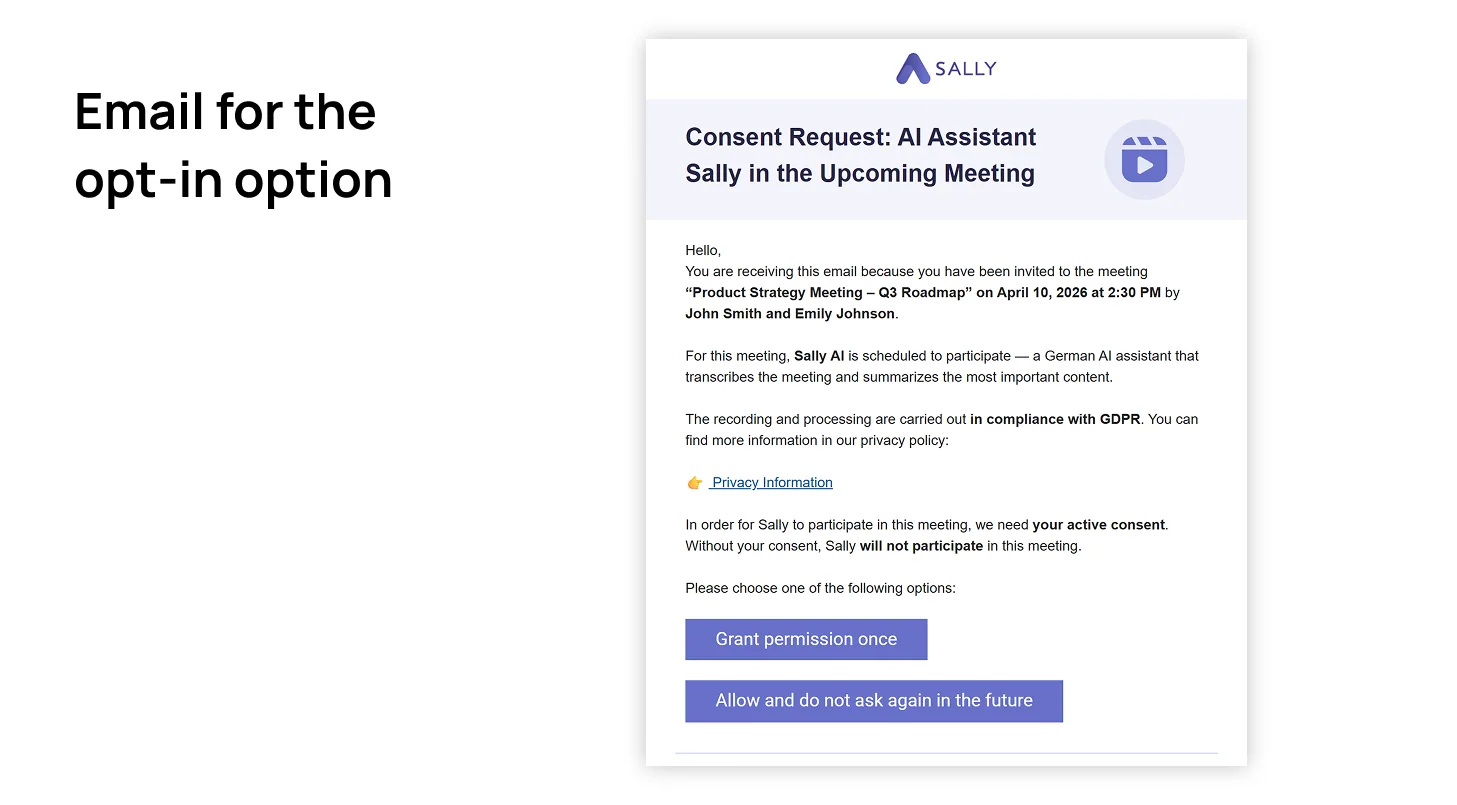
Sally only joins once every external participant has consented beforehand. If someone does not reply, Sally stays out.
The email asks for consent explicitly and offers two buttons:
- Grant permission once
- Allow and do not ask again in the future
By default the email goes out one hour before the meeting. For short-notice meetings it is sent if the meeting was created at least 15 minutes before it starts. With even less lead time, no email is sent.
Participants can object at any point during the meeting by typing "opt out" in the chat. Sally then leaves the meeting automatically.
2. Manage and adjust consents
This area lets you review and selectively edit participant consents. It is particularly helpful when a participant chose the wrong option by mistake, or when you want to document consents properly after the fact.
Editing consents without the agreement of the people involved can breach the GDPR. Only make changes in coordination with the participants, and document them internally if in doubt.
2.1 View consents
- Open Settings and, under Administration, go to Data Protection and the Duty To Inform area.
- In the Privacy notice by email before meetings section, click Manage consents.
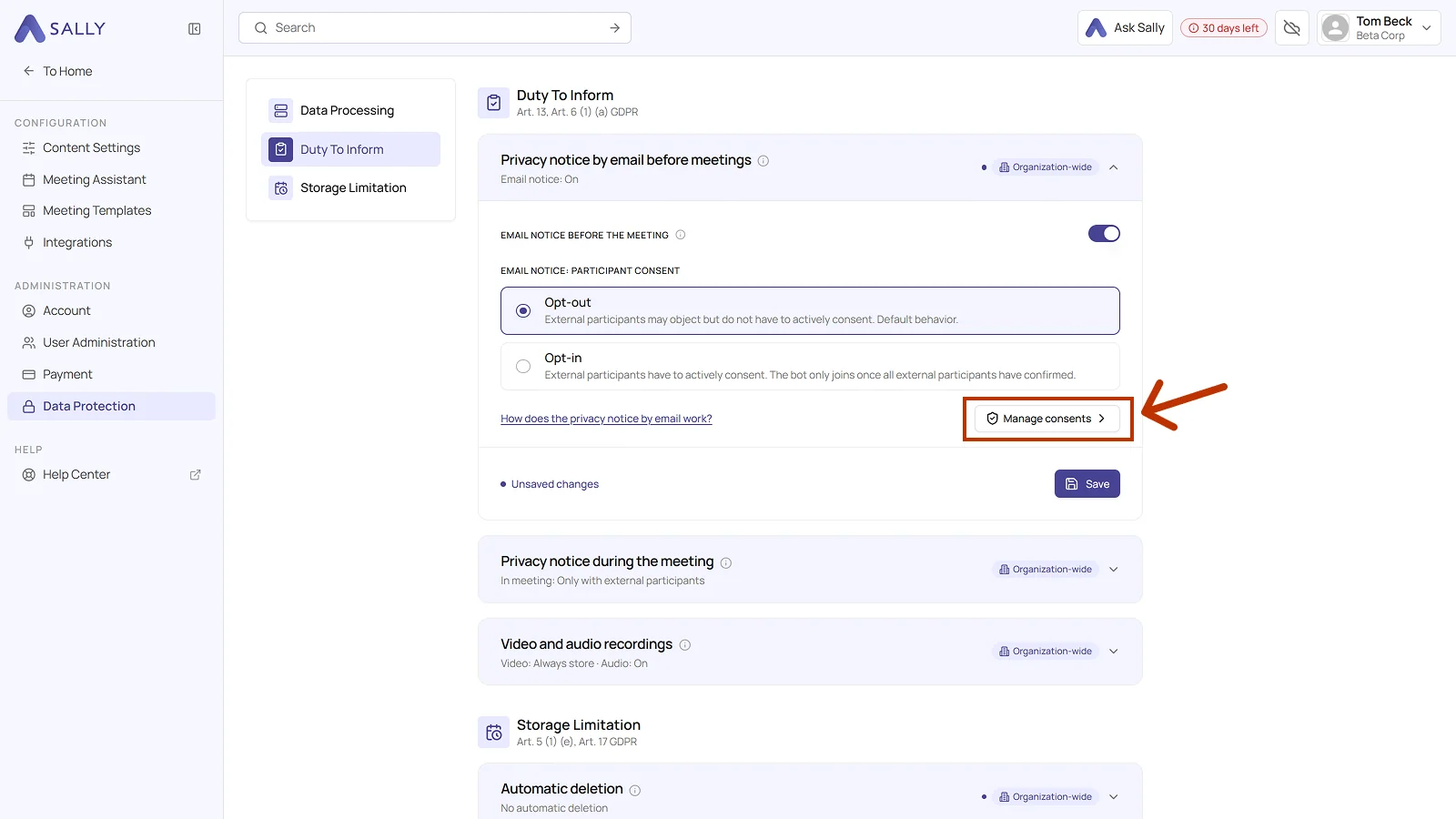
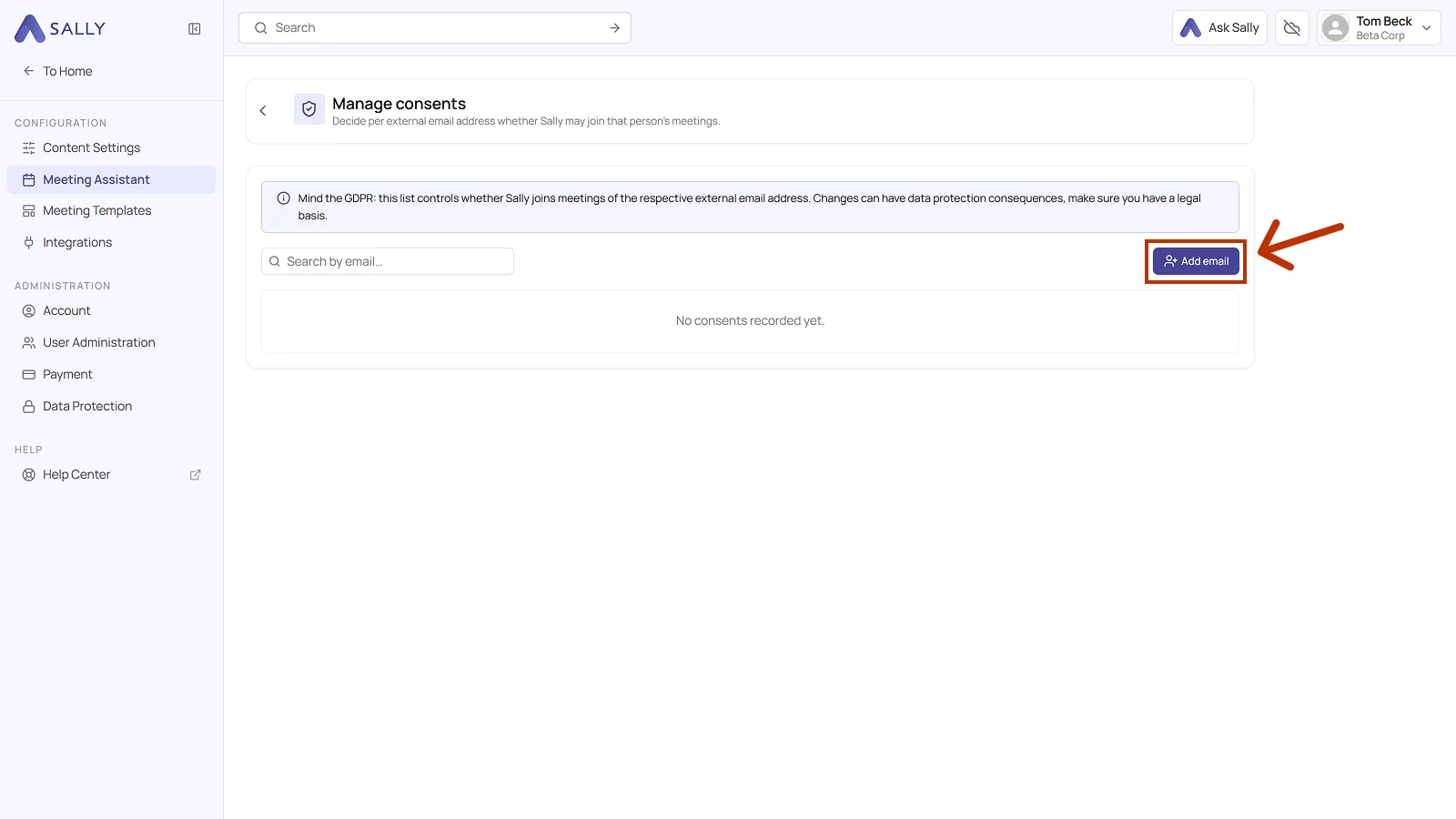
- You land in the Manage consents overview. There you decide per external email address whether Sally may join that person's meetings. As long as nothing is on file, it reads No consents recorded yet.
Once entries exist, the table shows:
- the person's email
- the status, either Join all meetings or Join no meeting
- Granted on with the date of the decision
- Action with the Reset entry
The search field finds an address directly, even in long lists.
2.2 Edit consents
There are two ways to adjust consents:
- Reset a consent → the participant can decide again
- Add an email manually → define the consent up front (for known participants or long-standing partners)
Reset consent
If a participant declined by mistake, you can reset their status:
- Find the participant in the list.
- In the Action column, click Reset.
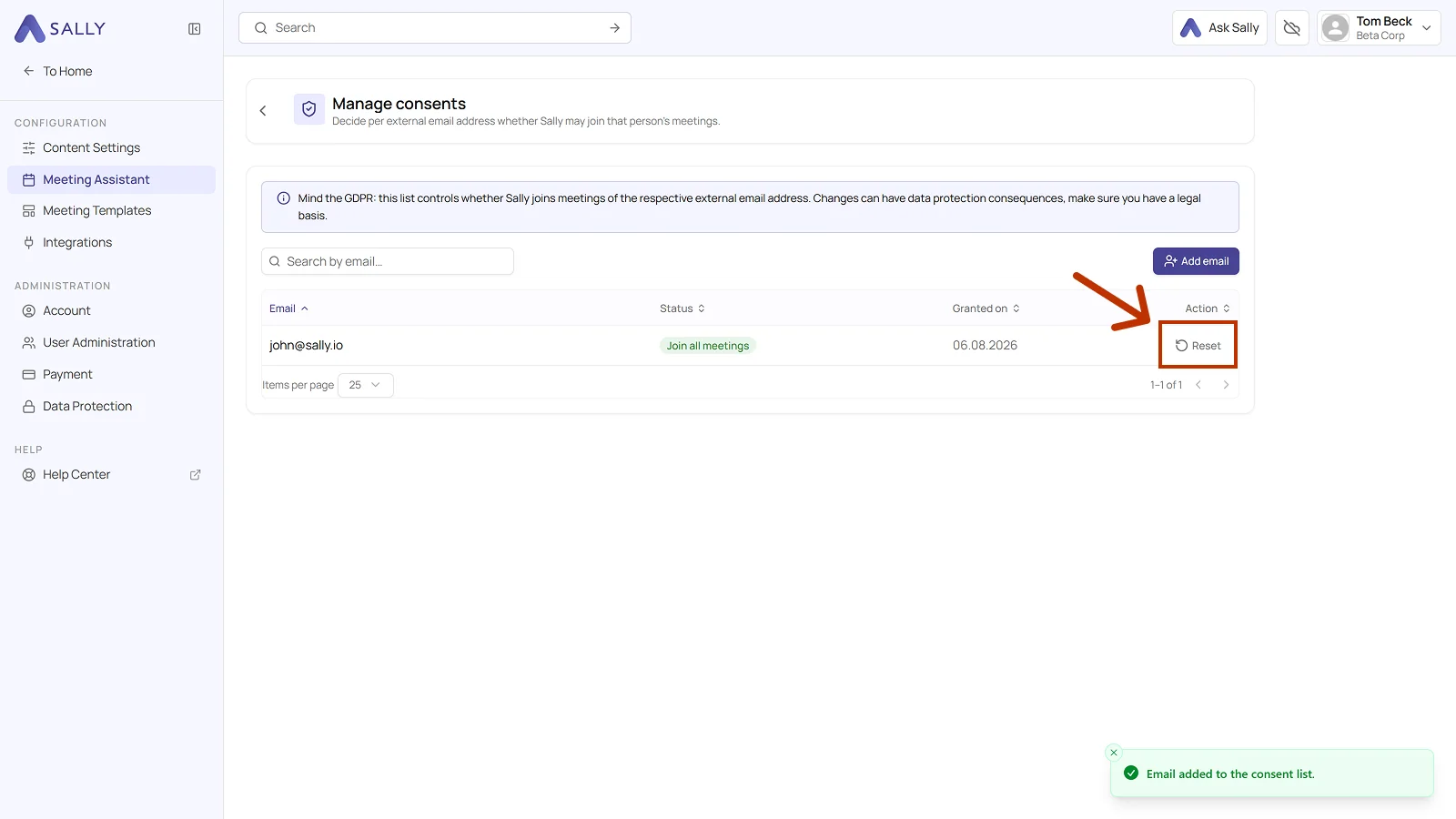
At the next meeting, that participant gets to make their choice again.
Resetting a consent does not send a new email right away.
The person is informed automatically again with the next newly created meeting and can then give their consent once more.
Manually add participant
You can also set consents proactively, for example when:
- you work with the same external partners regularly
- consent was already obtained outside of Sally (contractually, for instance)
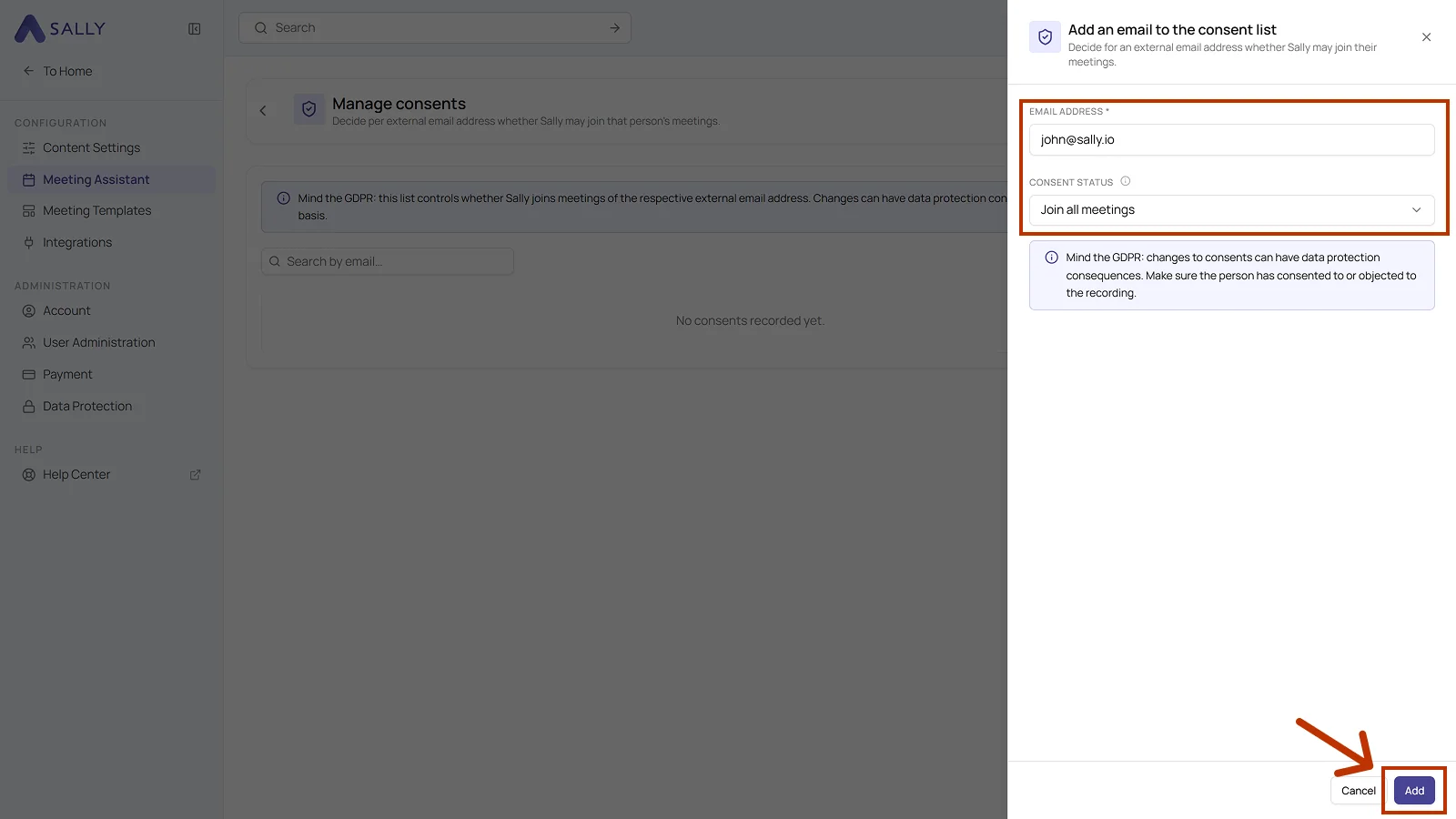
- In the overview, click Add email.
- In the Add an email to the consent list panel, enter the email address and pick the consent status. The two choices are Join all meetings and Join no meeting.
- Click Add to store the entry, or Cancel to discard it.
Use this sparingly and only when the consent is demonstrably on file (in writing or contractually agreed, for example).