Grant access to all recordings
In Sally, everyone normally sees only their own recordings: meetings from their own calendar, their own uploads and recordings from folders shared with them. That applies to the owner of the organization account too. With organization-wide access to all recordings, you give selected members access to every recording of the organization account, for example a team lead, quality management or an AI assistant that should know every meeting through MCP.
The access is meant for reading. Whoever has it can read, play and download every recording, but not share, edit or delete it. Only the owner can grant it.
Quick navigation
- Turn the access on for the organization account
- Grant the access to a member
- What the member sees afterwards
- Take the access away again
1. Turn the access on for the organization account
The feature is off in every organization account at first. Before you can grant it to individual members, the owner turns it on for the whole account: under Settings, Account, section Organization, button Organization-wide settings, switch Organization-wide access to all recordings, then Save. The details are under Organization-wide settings.
If your company had the access turned off permanently at its own request, the switch is locked. Then nobody in the account can turn it on, not even the owner. In that case, contact Sally Support.
2. Grant the access to a member
- Open Settings at the bottom left and choose User Administration under Administration.
- Click the pencil in the person's row. Their profile opens on the right.
- In the Role section, turn on Organization-wide access to all recordings and click Save at the bottom right.
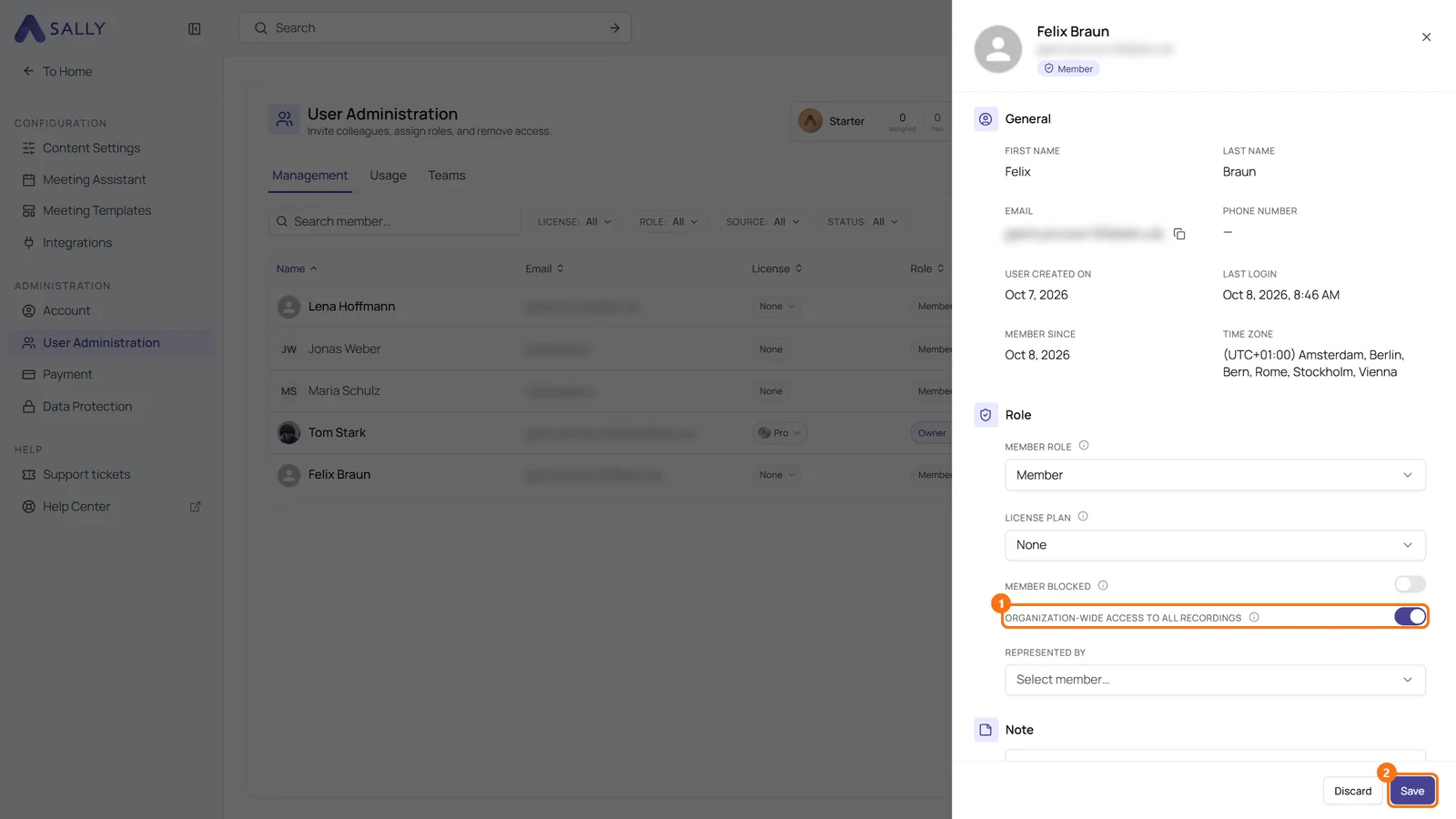
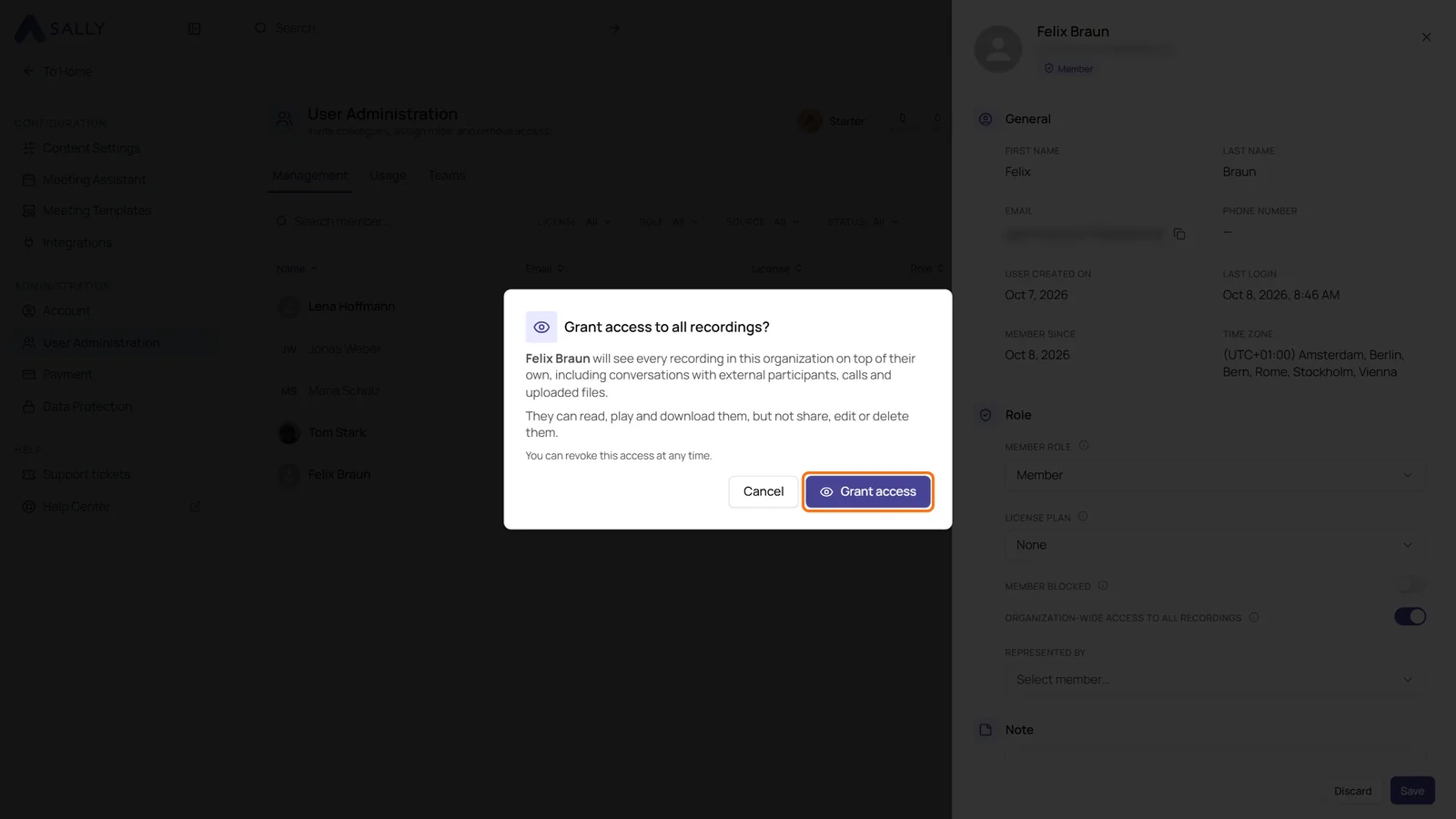
- The dialog Grant access to all recordings? sums up once more what the person will see and what they can do with it. Click Grant access.
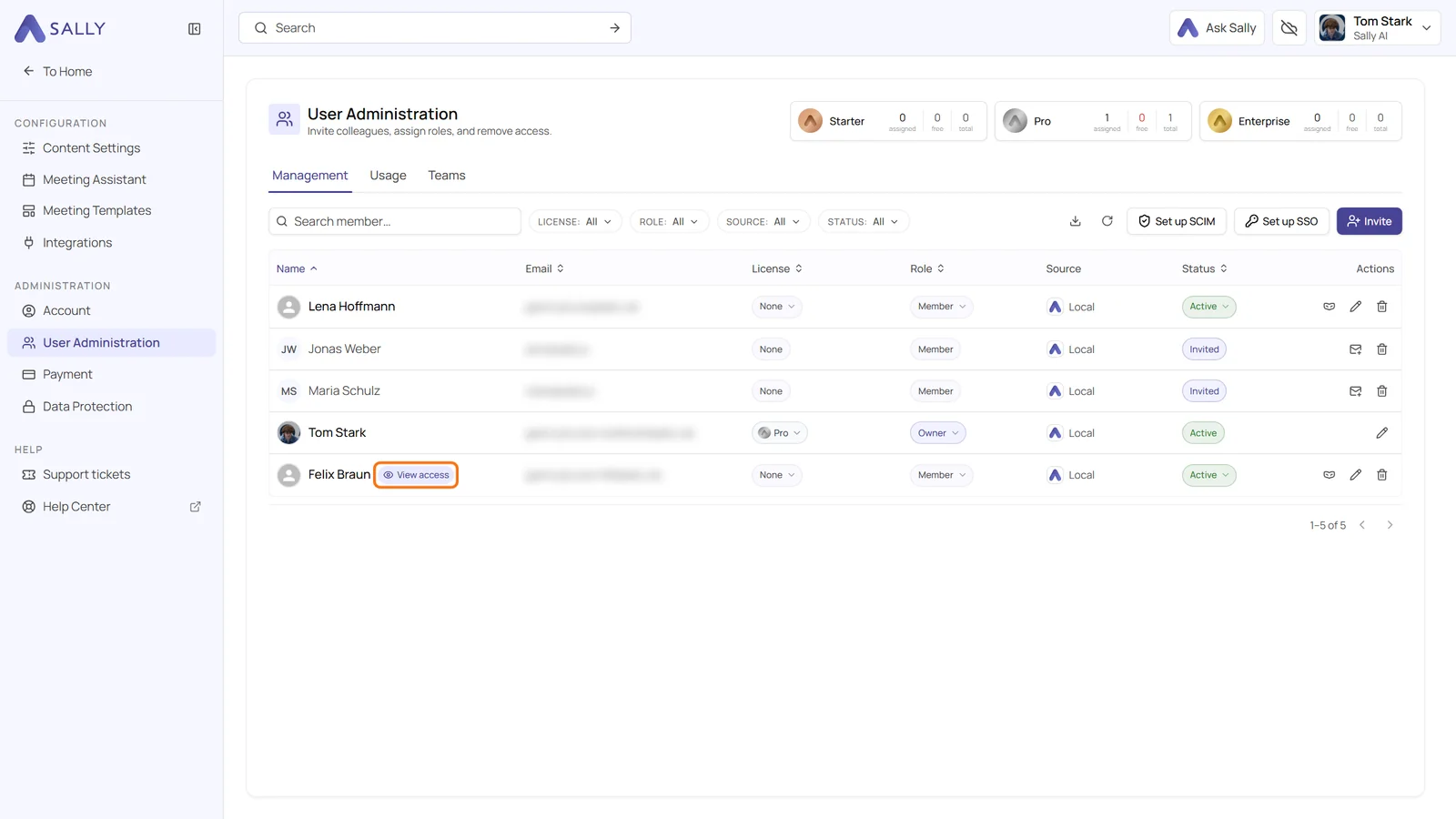
- User Administration then shows the badge View access next to the name, so you can always see who has the access.
- The access works with every license tier.
- The person is not notified. Let them know yourself that they can use the new filter.
- If the switch is greyed out, the feature is still off for the organization account or you are not the owner. A note at the switch tells you why.
3. What the member sees afterwards
Under Recordings, the filter View access appears, with My recordings and All recordings. Only people with the access see this filter.
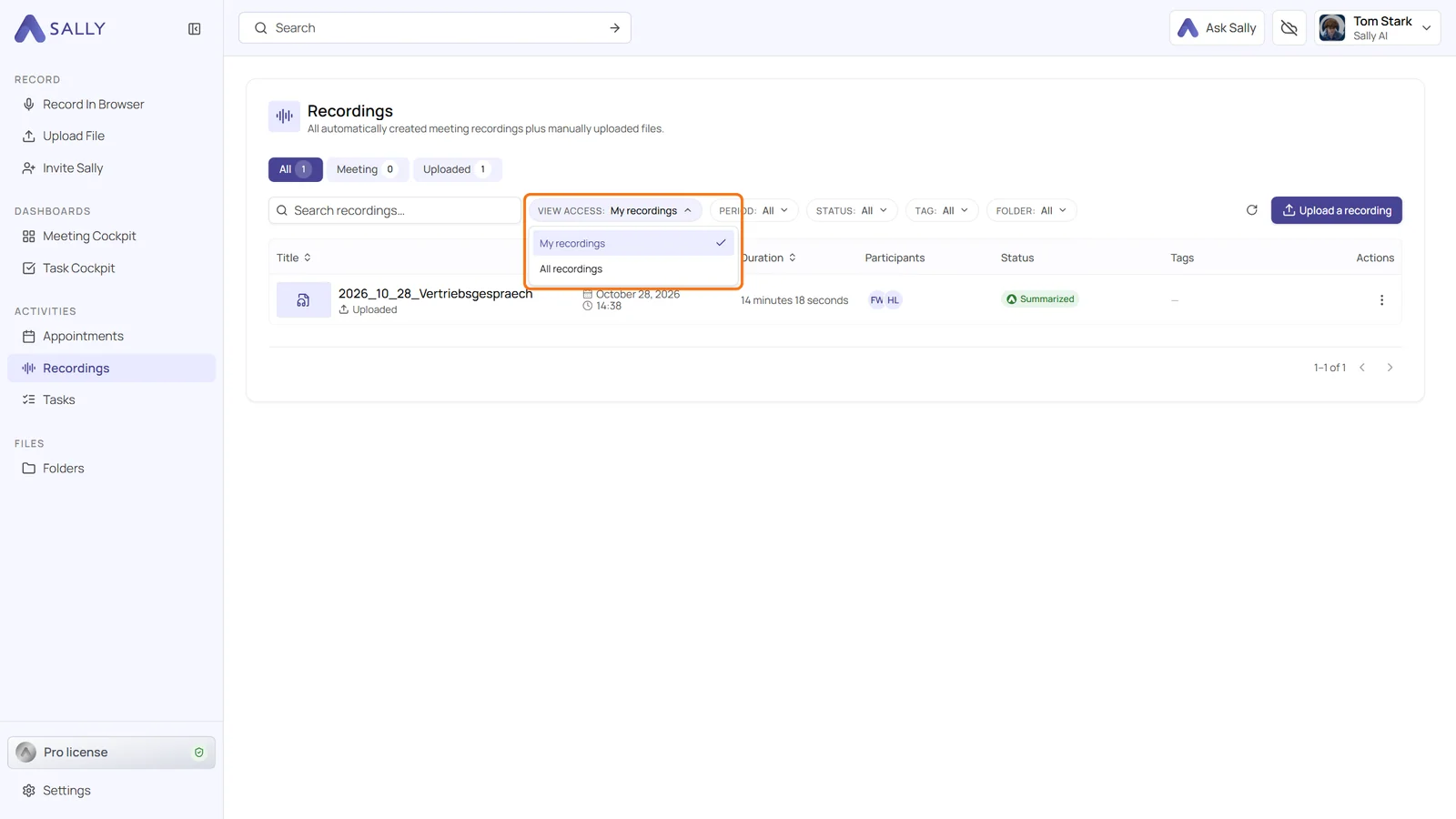
With All recordings, every recording of the organization account shows up, including conversations with external participants, calls, uploaded files and private appointments. When the person opens a recording they don't own, the detail page shows the badge View access and a note: reading, playing and downloading work, but only the owner of the meeting can share, edit, delete or regenerate it.
The same access applies outside the app as well: in the search, for AI assistants through Sally MCP and through the Public API.
4. Take the access away again
- For one person: Open their profile in User Administration, turn off Organization-wide access to all recordings and click Save. The View access badge disappears.
- For everyone at once: The owner turns the feature off in the organization-wide settings. A confirmation lists who loses the access. If you turn the feature back on later, nobody gets their access back automatically, you grant it again.