How to plan an agenda and see what came of each item
An agenda tells Sally what a meeting is meant to cover. You write it in the Preparation tab of the appointment, by hand or taken over from the invitation or from the last meeting of the series. After the meeting, Sally goes through the recording item by item and tells you whether each point was discussed, what came out of it and where in the recording it was talked about.
That way you see at a glance what got done and what is still open, without listening to the whole recording again. Your summary stays exactly as it is, because the agenda is evaluated in a run of its own.
Quick navigation
- Add agenda items
- Take items from the invitation or the last meeting
- What Sally makes of each item
- Change the agenda later
- A company-wide instruction for the evaluation
- Common questions
1. Add agenda items
- Open the appointment and switch to the Preparation tab. The Agenda section sits above the Conversation Goals, and the number next to it in the navigation on the left tells you how many items it has.
- Click Add agenda item, enter a Title and optionally a Note, then click Add. Add and create another keeps the panel open for the next item.
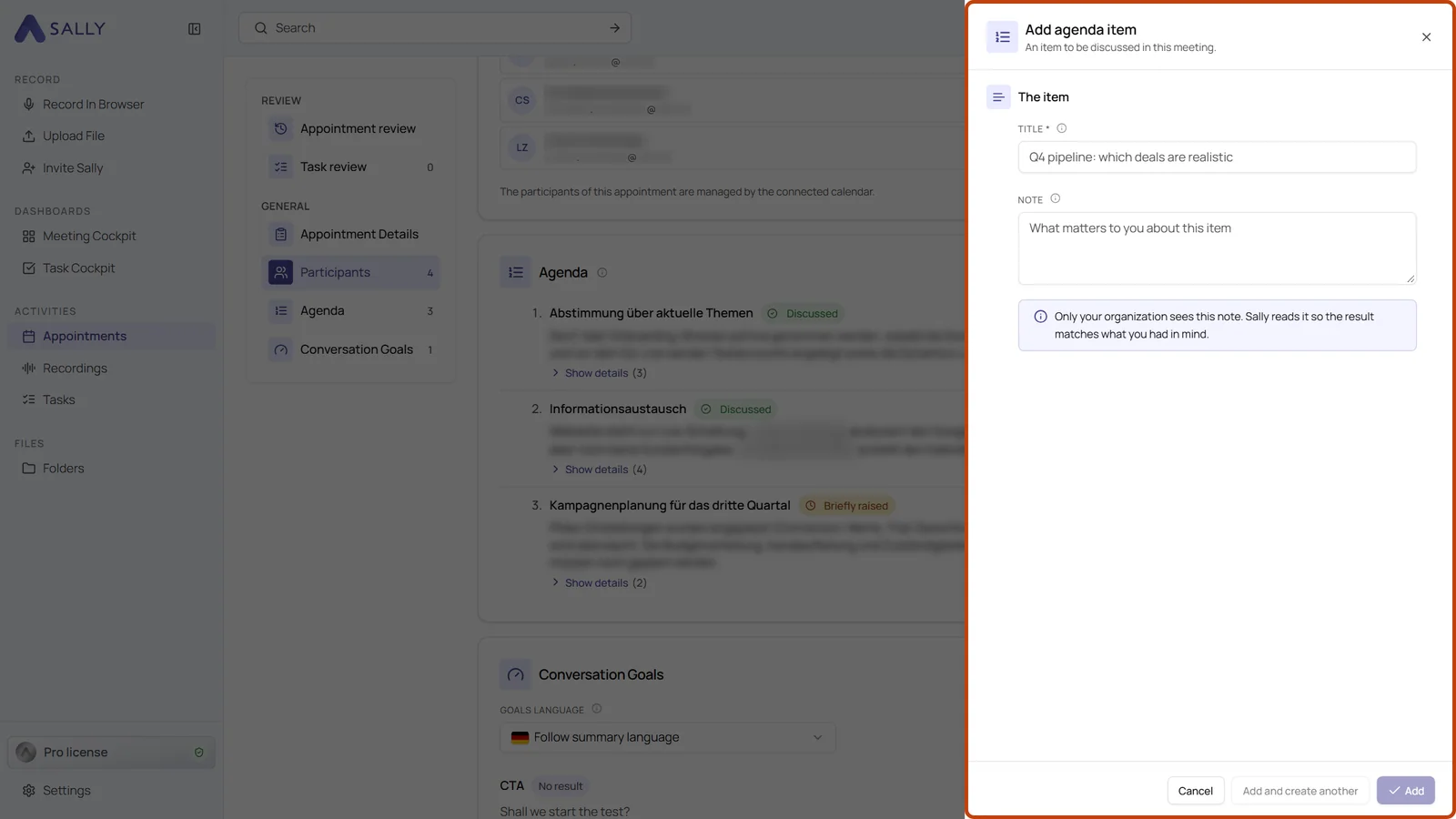
The note is for what you have in mind with an item, for example Budget, channels and who owns which campaign. Only your organization sees it, and Sally reads it so that the result matches what you wanted to know.
The three-dot menu on an item moves it up or down, edits it or removes it.
The agenda belongs to the online meeting, not to a single person. Everyone in your organization who has the same meeting in their calendar sees the same agenda in Sally.
2. Take items from the invitation or the last meeting
You do not have to type every item yourself. The three-dot menu next to Add agenda item offers two shortcuts:
- Take over from the invitation: Sally reads the invitation text and suggests the items it finds there.
- Take over from last time: Sally shows the agenda of the previous appointment of the series. Items that stayed open are preselected, completed ones are not.
In both cases nothing is taken over right away. You see the suggestions with their notes, can change them, untick what you do not need and then confirm, for example with Take over 2 items.
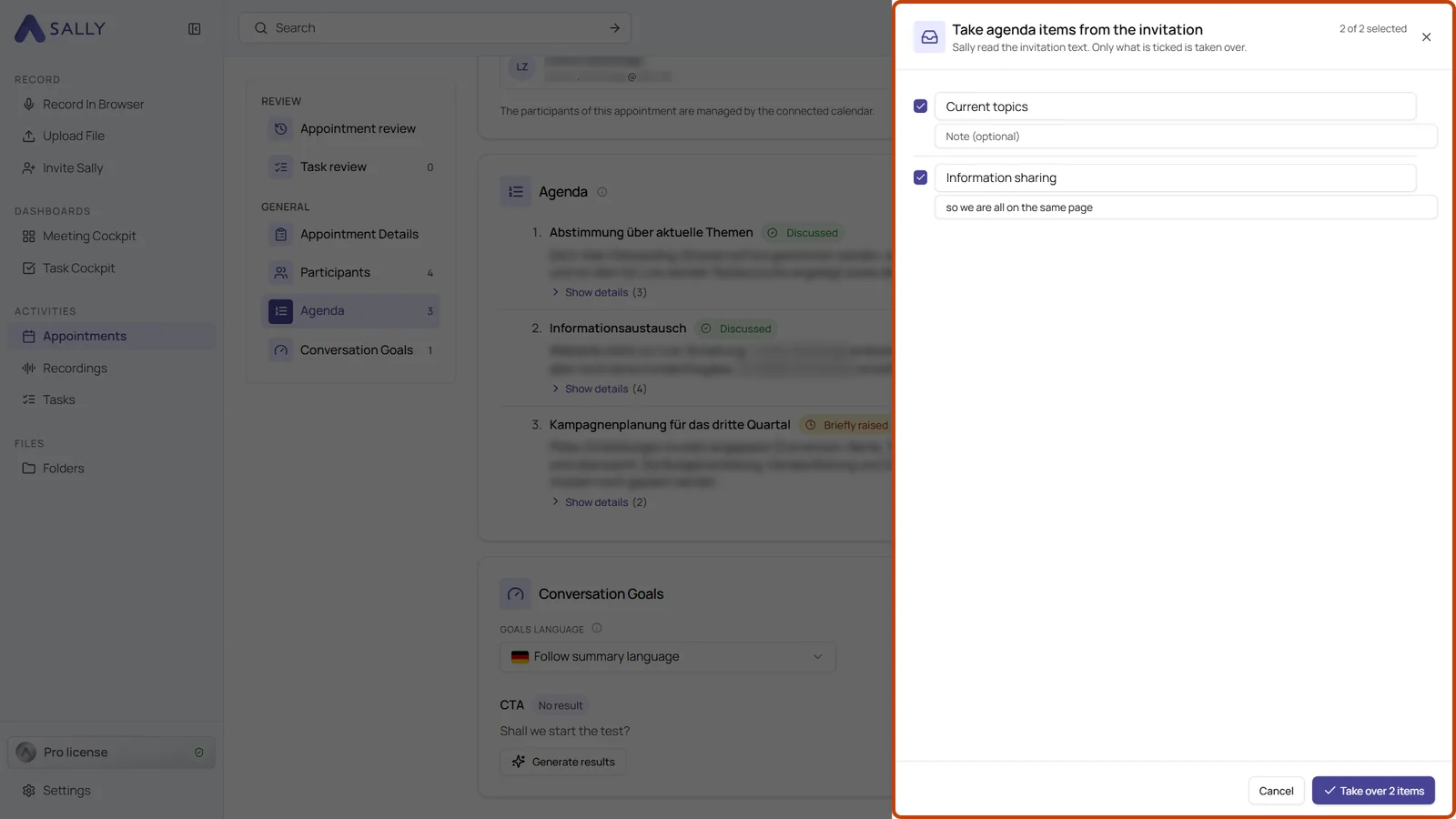
If the invitation contains nothing that looks like an agenda item, or the series has no previous appointment with an agenda, the panel tells you so.
3. What Sally makes of each item
After the transcription, Sally evaluates the agenda and writes the result directly under each item in the Preparation tab:
- A status shows whether the item was discussed, only briefly raised or not discussed.
- Two or three sentences say what the item produced in the meeting.
- Show details lists the individual outcomes, decisions and next steps, each with the point in the recording where it was said.
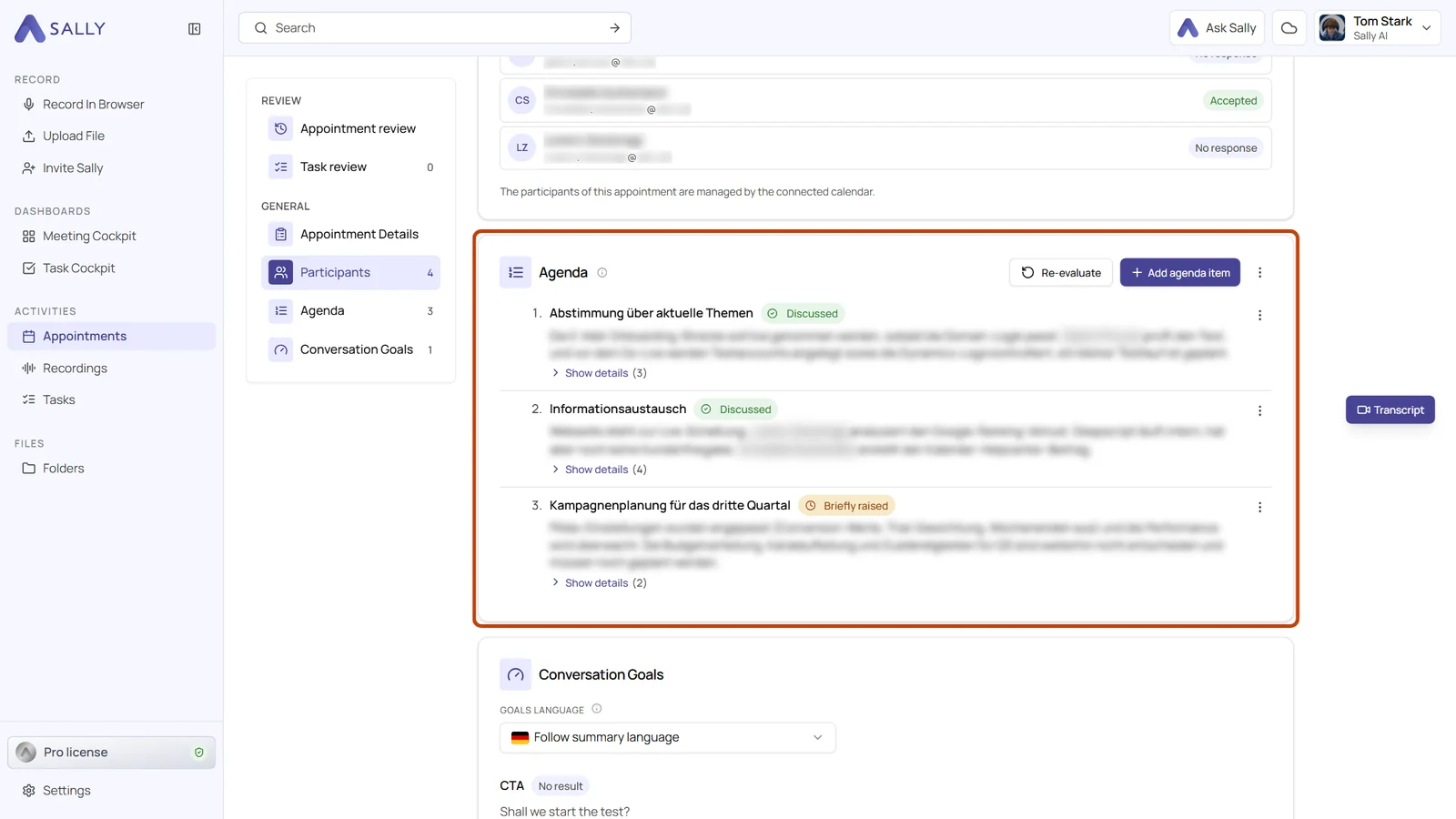
The agenda evaluation runs separately from the summary. Your summary does not change because of it, and applying a different meeting template later leaves the agenda results alone.
4. Change the agenda later
You can still add, edit or remove items after the meeting. Sally then knows that the existing results no longer fit the agenda and offers Re-evaluate next to Add agenda item. Click it and Sally evaluates the current agenda again.
If you have Sally optimize the transcript, you decide separately whether a new summary is generated and whether the agenda is evaluated again.
If an evaluation fails, a note above the items says so, and Re-evaluate starts another attempt. Should it fail repeatedly, contact support.
5. A company-wide instruction for the evaluation
Owners and admins can tell Sally how to write the agenda results for the whole organization, for example how long they should be or whether an open item should get a suggested next step.
- Open Settings at the bottom left, choose Meeting Assistant under Configuration and go to Agenda.
- Expand How Sally evaluates the agenda, write your instruction under Instruction for the evaluation and click Save. It can be up to 2,000 characters long.
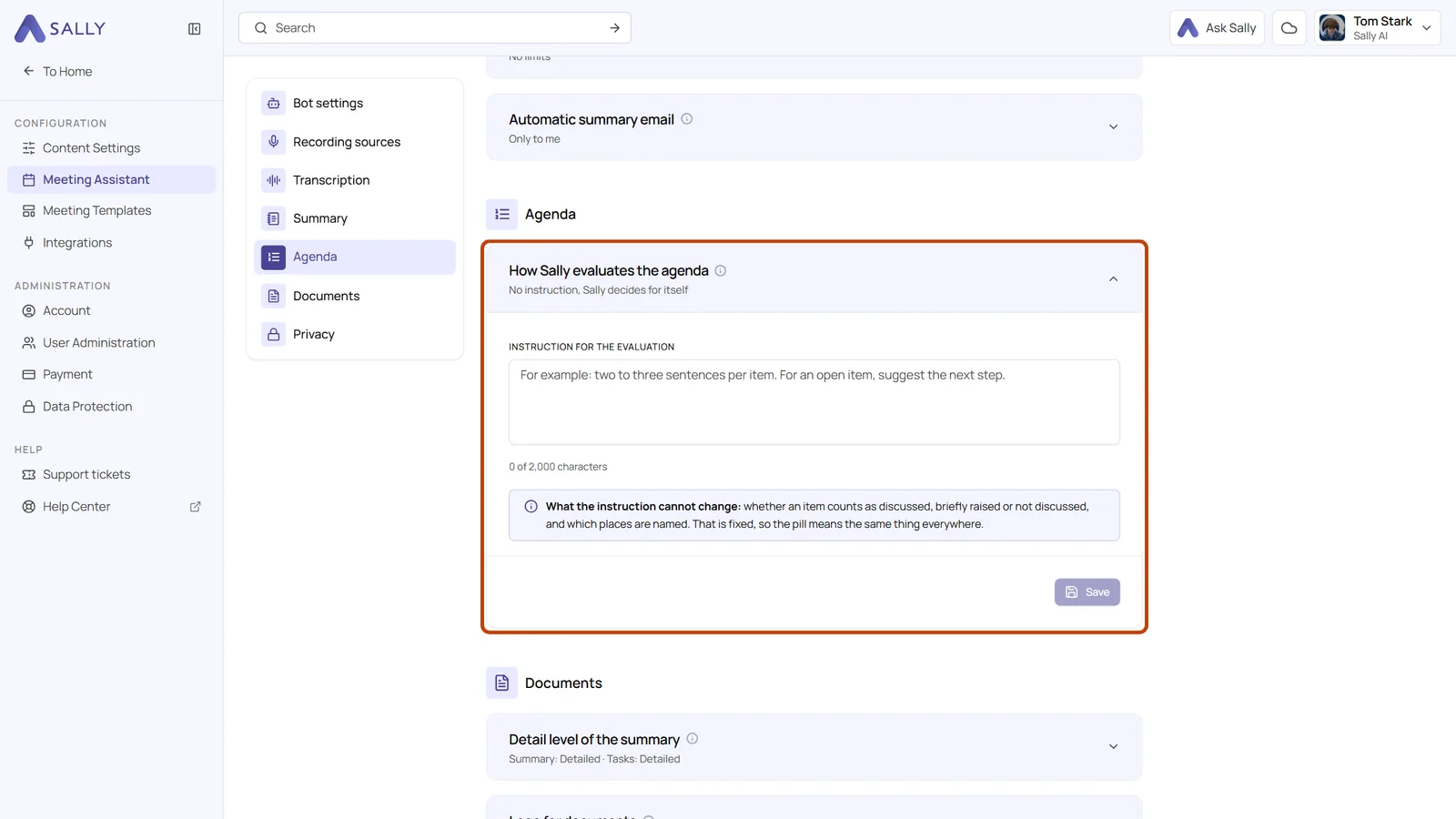
The instruction shapes how the results are written. It cannot change whether an item counts as discussed, briefly raised or not discussed, or which places in the recording are named, so the status means the same in every meeting. Members without an admin role see the card, but cannot change it.
6. Common questions
Do I need an agenda for Sally to summarize the meeting?
No. The summary works as before, with or without an agenda. The agenda adds a second view: what became of the points you planned.
Can I add an agenda to a meeting that is already over?
Yes. Add the items in the Preparation tab of the appointment and click Re-evaluate. Sally then evaluates the existing recording against your agenda.
What is the difference between the agenda and conversation goals?
The agenda lists the topics a meeting should cover and shows what came of each one. Conversation goals check whether a conversation met certain quality criteria, for example whether a next step was agreed.