How to have Sally AI join a meeting again
If Sally leaves a meeting too early, the rest of the conversation is missing from your transcript and summary. Join again brings Sally back while the appointment is still running. That helps in situations like these:
- Someone removed Sally from the meeting by mistake
- Everyone stepped out for a short break and Sally left automatically
- You don't need the existing recording, for example because it only captured the wait before the actual conversation
A meeting only ever has one recording. So if Sally has already recorded or is still in the meeting, she first asks what should happen to the existing recording. You can keep it and have the rest of the meeting recorded in a copy of the appointment, with its own transcript and summary. Or the new recording replaces the existing one. That way, nothing gets deleted unless you choose to.
Quick navigation
1. Have Sally join again
The appointment list shows Sally's status for each appointment, and that status is also how you send her back into the meeting.
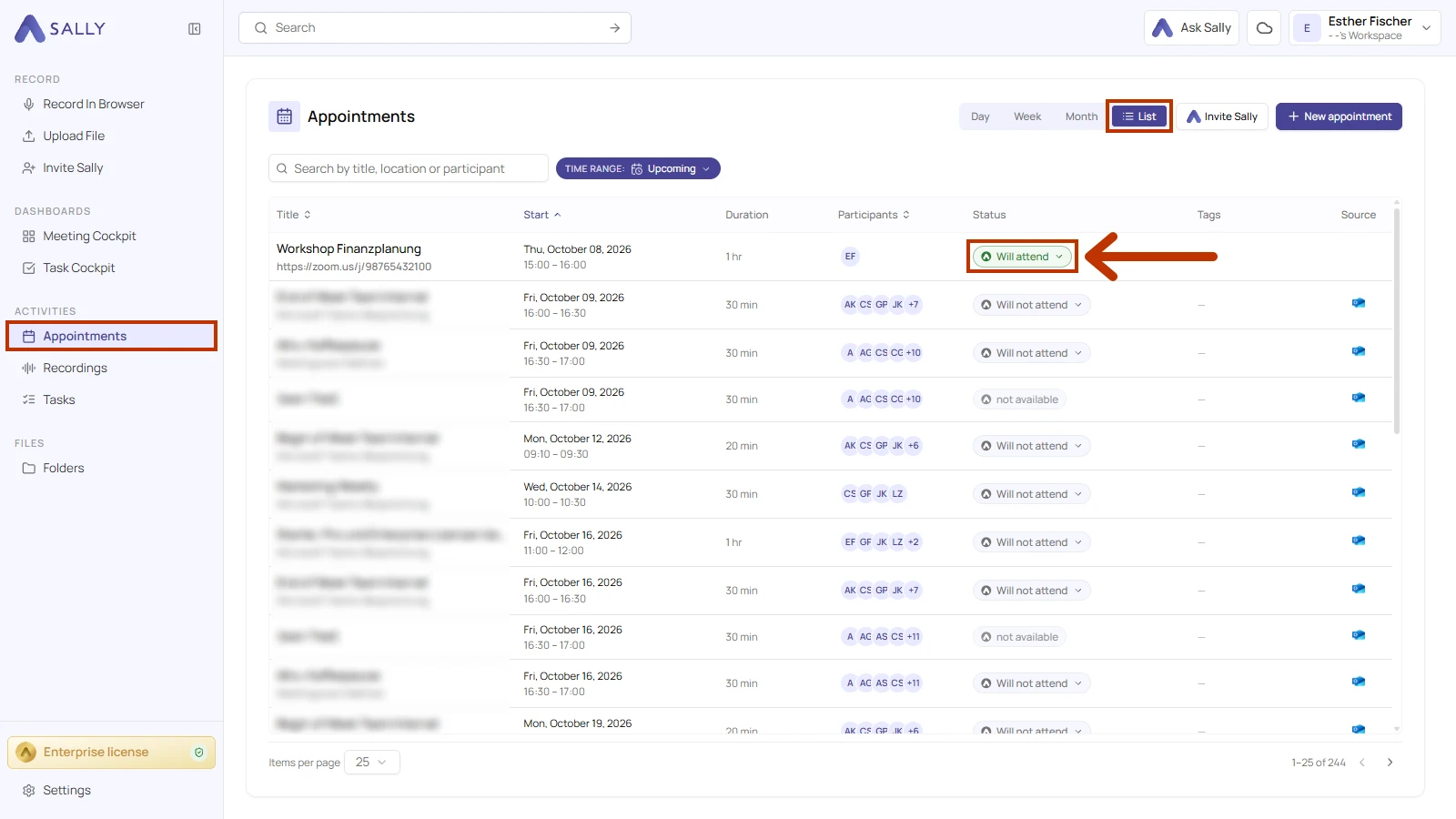
- In the sidebar, click Appointments, then click List in the top right.
- In the Status column of the running appointment, click Sally's status, for example Will attend.
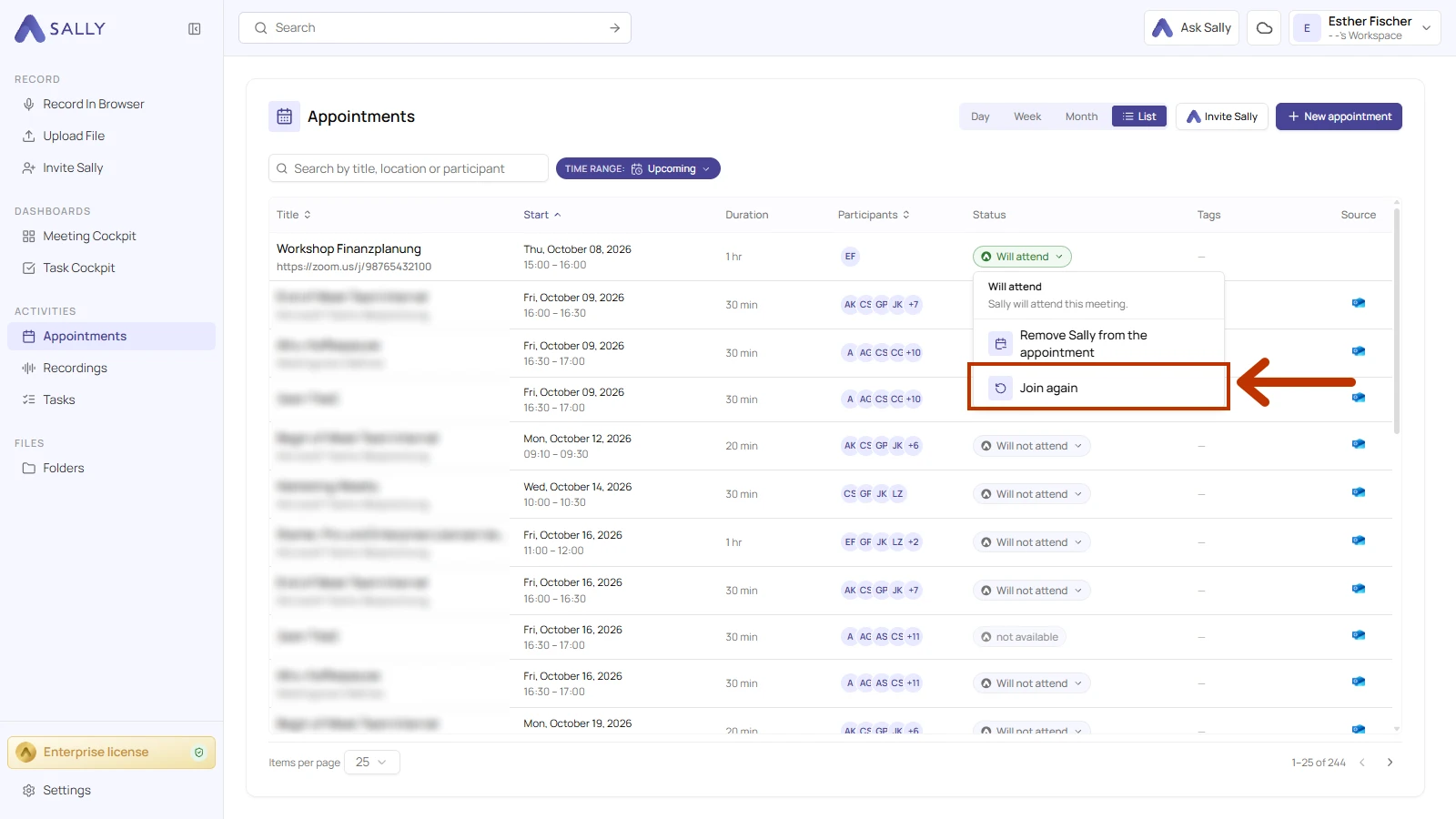
- In the menu, click Join again.
- If the appointment already has a recording or Sally is currently in the meeting, the Have Sally join again dialog opens. Choose Record as a copy or Replace recording and click Confirm.
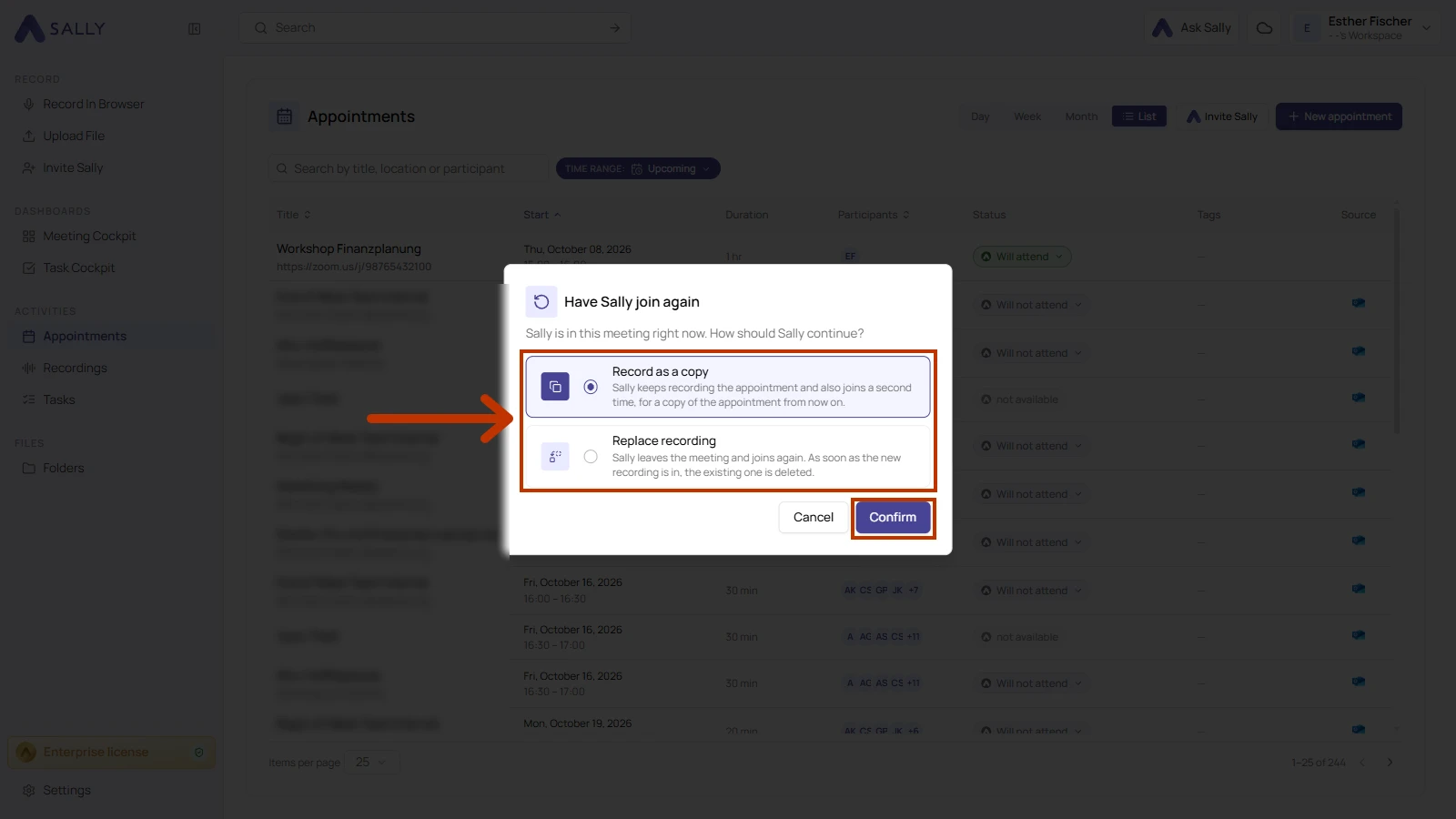
A message confirms your choice, and Sally joins the meeting within a few moments. If you chose Record as a copy, the copy shows up as a separate appointment in your appointment list.
If the appointment has no recording yet and Sally isn't in the meeting, she skips the question and joins right away.
Sally joins no earlier than 30 minutes before an appointment starts and no later than 30 minutes after it ends. Outside that window, she can't join again. If Sally isn't scheduled for the appointment, add her first using Add Sally to the appointment.
2. Record as a copy or replace the recording
Record as a copy is selected by default because nothing gets lost that way. Here's what each option does.
Record as a copy
- A separate appointment just for you: Sally creates a copy of the appointment that only you can see. Its title marks it as a copy of the original
- Time frame: The copy starts when you confirm and ends when the original appointment ends. It always lasts at least 15 minutes
- Existing recording: It stays with the original appointment
- If Sally is still in the meeting: She keeps recording the original appointment, and a second Sally joins for the copy. You'll see Sally twice in the meeting
- Consent: If someone agreed to or objected to the recording of the original meeting, that decision also applies to the copy. Sally doesn't send a second privacy notice by email
Replace recording
- Joining again: Sally joins the meeting again. If she's still in it, she leaves first
- Existing recording: As soon as the new recording is in, the existing one is deleted
- If joining fails: The existing recording is kept
Pick Record as a copy. That way, both recordings are kept.
You get the same choice when you upload a file to an appointment that already has a recording.